


The Visual Paradigm Unified Platform is a centralized workspace that connects Visual Paradigm Desktop with browser-based applications for visual modeling, documentation, business analysis, enterprise architecture, Agile planning, project management, database design, software engineering, and AI-assisted work. It is best understood as an integration and access layer rather than a replacement for Visual Paradigm Desktop or VP Online.
1. What the Unified Platform does
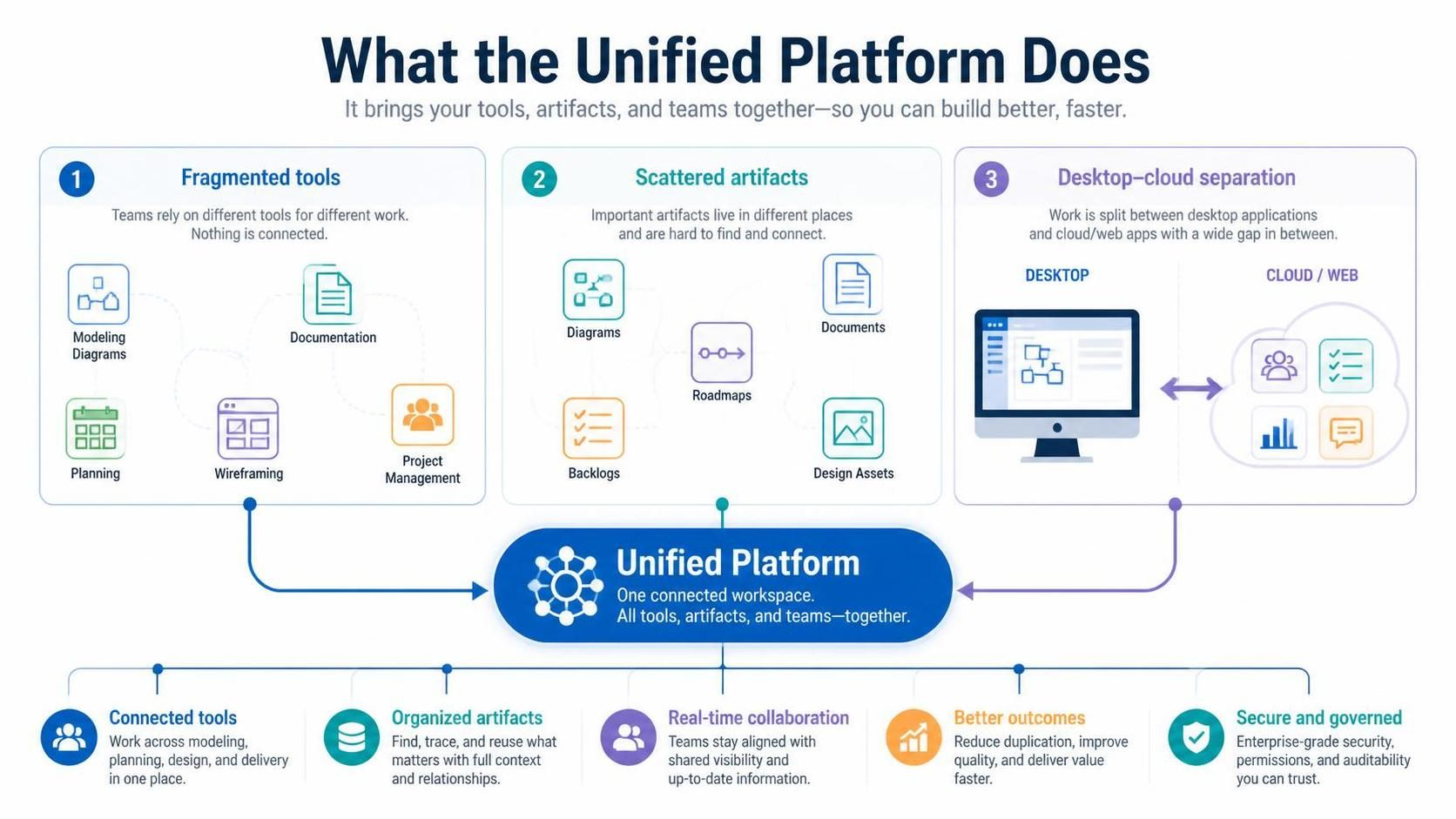
The platform addresses three common problems:
-
Fragmented tools: Teams often use separate applications for modeling, documentation, planning, wireframing, and project management.
-
Scattered artifacts: Diagrams, documents, roadmaps, backlogs, and design assets can be difficult to locate.
-
Desktop–cloud separation: Desktop applications are powerful for detailed modeling and offline work, while web applications are convenient for access and collaboration.
The Unified Platform brings these capabilities together through:
-
A centralized workspace
-
A drive-like view of projects and artifacts
-
Access to Visual Paradigm Desktop projects
-
A browser-based application launcher
-
A unified Create menu
-
Online documentation and collaboration tools
-
Connections between diagrams, documents, and project-planning artifacts
-
AI-powered diagramming and analysis tools
The platform is intended to give teams one place to discover tools, create assets, organize work, and move between technical modeling and business-oriented communication.
2. How the platform fits into the Visual Paradigm ecosystem
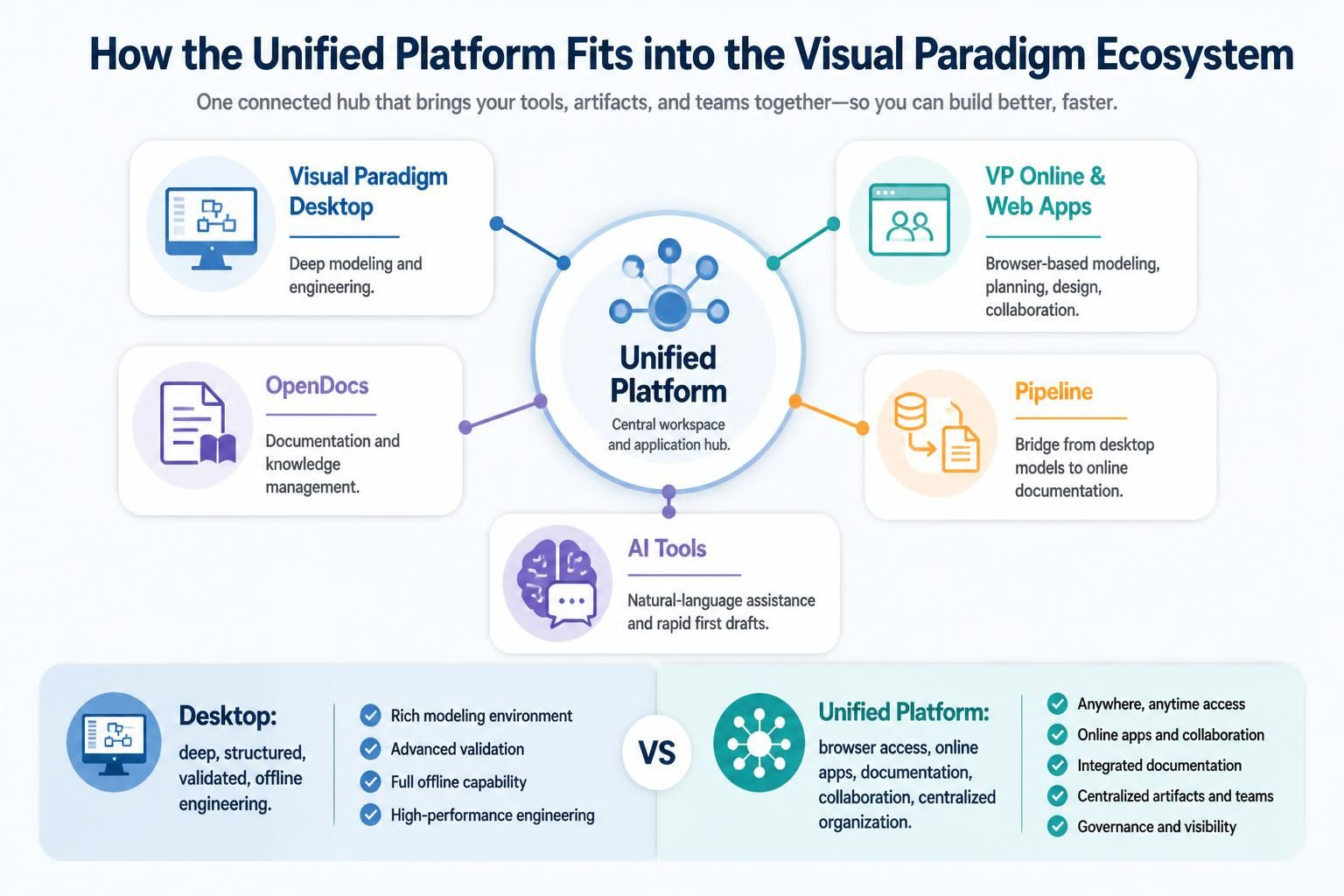
The Unified Platform works alongside other Visual Paradigm products.
| Component | Primary purpose | Best suited for |
|---|---|---|
| Visual Paradigm Desktop | Deep modeling and engineering environment | UML, BPMN, SysML, ArchiMate, database modeling, code engineering, requirements, and offline work |
| Unified Platform | Central workspace and application hub | Finding tools, organizing artifacts, connecting desktop and online work |
| VP Online and specialized web apps | Browser-based modeling, planning, design, and collaboration | Team access, lightweight creation, stakeholder review, and cloud-oriented workflows |
| OpenDocs | Web-based documentation and knowledge management | Specifications, manuals, architecture descriptions, process documentation, and project handbooks |
| Pipeline | Bridge between desktop models and online documentation | Sending diagrams or model content from Desktop into documentation workflows |
| AI tools | Natural-language assistance and rapid first drafts | Generating diagrams, analyzing models, creating structured content, and accelerating exploration |
Visual Paradigm Desktop remains the more appropriate environment for large, structured models, advanced relationships, formal engineering workflows, model validation, code engineering, and offline work. The Unified Platform adds browser access, online applications, documentation, collaboration, and centralized organization.
3. Core concepts
Unified workspace
The workspace is the main entry point for projects and applications. Instead of treating every tool as an independent product, the platform presents them as parts of one connected environment.
Use the workspace to:
-
Locate existing projects
-
Open desktop-related assets
-
Launch specialized applications
-
Create new diagrams and documents
-
Navigate between technical and business artifacts
-
Organize work by project, team, or subject area
Unified Drive
The Unified Drive provides a centralized, drive-like view of artifacts. Depending on the product, edition, and configuration, these may include:
-
Desktop projects
-
Online diagrams
-
Documents
-
Roadmaps
-
User-story maps
-
Wireframes
-
Architecture models
-
Project-management artifacts
-
Business-analysis canvases
-
AI-generated content
Its main benefit is discoverability: users can find related work without remembering which individual application originally created it.
Application launcher
The platform provides access to a large catalog of specialized applications. These cover areas such as:
-
UML and SysML
-
BPMN and process analysis
-
ArchiMate and enterprise architecture
-
Requirements and use-case analysis
-
Database and API design
-
Agile management
-
Project management
-
UX and wireframing
-
Business strategy
-
Documentation
-
AI-assisted modeling
The official platform describes access to more than 100 specialized applications, although availability can depend on account status, edition, license, subscription, and maintenance plan.
Unified Create menu
The Create menu is intended to reduce the need to search through product menus. From one location, users can start a new:
-
Diagram
-
Document
-
Planning artifact
-
Business-analysis canvas
-
UX design
-
Project-management chart
-
AI-assisted model or visual artifact
A useful practice is to begin with the outcome you need—such as “document a process” or “plan a release”—rather than with the name of a specific Visual Paradigm product.
4. Getting started
Step 1: Prepare your account and installation
Before beginning, make sure you have:
-
A Visual Paradigm account
-
Access to the Unified Platform
-
Visual Paradigm Desktop installed if you need desktop modeling
-
A suitable license or subscription for advanced applications
-
Access to the relevant project or workspace
The Unified Platform itself is available to users, but many advanced online applications require a Professional Edition license or higher with active maintenance or subscription coverage. Check your organization’s entitlement if an application appears unavailable.
Step 2: Open the platform
You can generally access the platform in either of two ways:
-
From a web browser: Sign in to the Visual Paradigm web environment and open the Unified Platform workspace.
-
From Visual Paradigm Desktop: Use the Unified Platform or Team-related entry in the desktop application.
The Desktop integration is particularly useful when you want to model locally and then access online documentation, planning, or collaboration features without leaving the broader Visual Paradigm environment.
Step 3: Identify your working area
After opening the workspace, familiarize yourself with:
-
The project or artifact browser
-
The Unified Drive
-
The application launcher
-
The Create menu
-
Search and filtering
-
Recent files or projects
-
Team and collaboration features
-
Documentation and pipeline areas
-
Account, licensing, and workspace settings
Step 4: Create a test artifact
Start with a small test project rather than importing an entire enterprise repository immediately. For example:
-
Create a simple use-case diagram.
-
Add a short project document.
-
Create a basic task plan or roadmap.
-
Locate each artifact in the Unified Drive.
-
Open the artifacts from both the browser and Desktop, where applicable.
-
Confirm that the intended users can access them.
This validates your account, permissions, licensing, and working conventions before you migrate production work.
5. Choosing the right tool
A useful selection rule is:
-
Use Visual Paradigm Desktop when the model itself is the primary engineering asset.
-
Use online applications when accessibility, quick collaboration, or stakeholder participation is more important.
-
Use OpenDocs when the final deliverable is an explanation, specification, handbook, or knowledge base.
-
Use Pipeline when diagrams from Desktop need to become part of online documentation.
-
Use Agile and project-management applications when the work involves backlog items, schedules, responsibilities, roadmaps, or delivery coordination.
-
Use AI tools when you need a first draft, exploration aid, transformation, or analysis—not as a substitute for human review.
6. Main functional areas
Visual modeling
The platform provides access to modeling tools for describing software, systems, processes, and structures.
Common modeling areas include:
-
UML class diagrams
-
Use-case diagrams
-
Sequence diagrams
-
Activity diagrams
-
State-machine diagrams
-
Component and deployment diagrams
-
BPMN process diagrams
-
SysML models
-
Flowcharts
-
Mind maps
-
Entity-relationship diagrams
Typical uses include requirements analysis, software architecture, process communication, system design, and technical documentation.
Business analysis
Business-analysis applications help teams move from a business problem to structured requirements and decisions.
Potential uses include:
-
Stakeholder analysis
-
Use-case definition
-
Textual analysis
-
Decision tables
-
Business rules
-
Customer journey mapping
-
Process analysis
-
Root-cause analysis
-
SWOT and related strategy frameworks
-
Requirements documentation
-
Problem descriptions
-
Scenario analysis
A practical workflow is to begin with an informal problem statement, identify stakeholders and goals, formalize requirements, and then link those requirements to models or delivery work.
Enterprise architecture
Enterprise-architecture tools support analysis of business, application, data, and technology domains.
Common capabilities include:
-
ArchiMate modeling
-
TOGAF-oriented planning
-
Capability mapping
-
Application and technology mapping
-
Current-state and target-state architecture
-
Gap analysis
-
Migration planning
-
Implementation roadmaps
-
Viewpoint-based communication
An effective architecture workflow is:
-
Capture the current state.
-
Define strategic drivers and constraints.
-
Model the target state.
-
Identify gaps.
-
Define transition architectures.
-
Build a migration roadmap.
-
Document decisions and ownership.
Agile planning
Agile-oriented tools can support:
-
User-story creation
-
Story mapping
-
Backlog refinement
-
Affinity estimation
-
Sprint planning
-
Scrum boards
-
Retrospectives
-
Demonstration planning
-
Prioritization
-
Development planning
Use the platform to connect product thinking with technical models. For example, a user story can be supported by use cases, process diagrams, wireframes, acceptance criteria, and implementation tasks.
Project management
Project-management applications may include:
-
Gantt charts
-
Roadmaps
-
Work-breakdown structures
-
PERT charts
-
RACI matrices
-
Organization charts
-
Implementation plans
-
Stakeholder-management tools
-
Risk and cause-and-effect diagrams
-
Project lifecycle guidance
These tools are most useful when they are connected to actual deliverables. A roadmap should point to outcomes, models, documents, releases, or implementation activities—not exist as an isolated schedule.
UX and prototyping
UX capabilities can support:
-
Wireframes
-
Screen flows
-
Storyboards
-
Web and mobile layouts
-
Prototypes
-
Customer journey maps
-
User-flow visualization
A strong workflow is to connect UX artifacts to requirements and use cases. This helps stakeholders understand why a screen exists and which business or system behavior it supports.
Database and code engineering
The ecosystem also supports technical implementation activities such as:
-
Database modeling
-
ER diagrams
-
Database generation
-
Database patch scripts
-
Reverse engineering
-
ORM modeling
-
Code generation
-
Code-to-model reverse engineering
-
REST API design
-
OpenAPI or Swagger-related output
-
Integration with development environments
Use these features with explicit version-control and review conventions. Generated code, schemas, and API specifications should be reviewed like any other implementation artifact.
7. Desktop-to-platform workflow
A common hybrid workflow is:
-
Create a detailed UML, BPMN, SysML, ArchiMate, or database model in Visual Paradigm Desktop.
-
Save the project in the appropriate local or connected repository.
-
Open the Unified Platform from Desktop or through a browser.
-
Locate the relevant project or related artifact.
-
Use online tools to create documentation, roadmaps, plans, presentations, or stakeholder-facing material.
-
Share the resulting material with people who do not use Desktop.
This combines Desktop’s modeling depth and offline capability with the accessibility of browser-based tools.
Recommended division of labor
Use Desktop for:
-
The authoritative model
-
Complex relationships
-
Model validation
-
Large repositories
-
Code and database engineering
-
Detailed architecture work
-
Offline editing
Use the Unified Platform and online tools for:
-
Sharing
-
Documentation
-
Planning
-
Lightweight diagramming
-
Stakeholder review
-
Browser access
-
Cross-functional collaboration
8. Documentation with OpenDocs and Pipeline
One of the most valuable workflows is turning models into living documentation.
Basic process
-
Build or update diagrams in Visual Paradigm Desktop.
-
Send or expose the relevant model content through the Pipeline workflow.
-
Open an OpenDocs document.
-
Insert diagrams and related model content.
-
Add explanations, assumptions, requirements, decisions, and links.
-
Publish or share the document with stakeholders.
-
Update the document as the model changes.
This is more useful than exporting static images because the document can preserve context around the diagrams and connect them to written explanations. Typical deliverables include:
-
Software requirements specifications
-
Architecture descriptions
-
Technical specifications
-
Process manuals
-
Project handbooks
-
Training material
-
Stakeholder reports
-
Knowledge bases
The platform specifically positions OpenDocs and Pipeline as a bridge between Desktop diagrams and web-based documentation.
Documentation structure
A practical architecture or system document might contain:
-
Purpose and scope
-
Stakeholders
-
Business context
-
Functional requirements
-
Nonfunctional requirements
-
System context diagram
-
Use-case model
-
Process or interaction diagrams
-
Logical architecture
-
Deployment or technology view
-
Data model
-
Decisions and assumptions
-
Risks and open questions
-
Traceability information
-
Change history
9. AI-assisted workflows
The Unified Platform includes AI-oriented tools that can help generate diagrams or structured content from natural-language descriptions. For example, a user may describe a system interaction and use an AI diagramming tool to produce a first draft that can then be refined in Visual Paradigm Desktop.
Recommended AI workflow
-
Write a precise natural-language prompt.
-
Generate a first draft.
-
Inspect every entity, relationship, actor, and sequence.
-
Correct omissions and ambiguous interpretations.
-
Apply project naming and modeling conventions.
-
Validate the result against requirements.
-
Move the refined model into the appropriate project repository.
-
Document important assumptions and human decisions.
Good prompt pattern
Include:
-
The system or business domain
-
The modeling notation
-
The main actors or components
-
The required interactions
-
Important constraints
-
The level of detail
-
Naming conventions
-
Any expected output format
For example:
Create a UML sequence diagram for an online order cancellation. Include Customer, Web Application, Order Service, Payment Service, Inventory Service, and Notification Service. Show validation, authorization, payment reversal, inventory release, and confirmation. Include failure paths for an already-shipped order and a failed payment reversal.
AI-generated diagrams should be treated as drafts. They can accelerate modeling but may invent relationships, omit constraints, or misunderstand domain terminology.
10. Organizing projects effectively
A unified workspace is only useful if artifacts are consistently organized.
Suggested project structure
Use a structure such as:
-
01-Strategy -
02-Requirements -
03-Business-Processes -
04-Architecture -
05-UX-and-Prototypes -
06-Data-and-APIs -
07-Implementation -
08-Testing -
09-Project-Management -
10-Documentation -
99-Archive
Naming conventions
Use names that communicate purpose and scope:
-
Customer-Order-Context -
Checkout-Sequence-v2 -
Payments-API-OpenAPI -
Target-Architecture-2030 -
Release-Plan-Q3 -
Order-Cancellation-Requirements
Avoid names such as New Diagram, Test, or Final Final Version.
Versioning conventions
Include version information where it adds value:
-
v1.0 -
v1.1 -
Draft -
Approved -
Baseline -
Current-State -
Target-State
Do not rely solely on filenames for version control. Also use the platform’s revision, collaboration, or repository features where available.
Artifact metadata
For important artifacts, record:
-
Owner
-
Status
-
Review date
-
Business domain
-
Related requirement
-
Related release
-
Approval state
-
Confidentiality level
-
Source system
-
Last verified date
11. Collaboration and governance
Before onboarding a team, establish a lightweight governance model.
Define ownership
Assign owners for:
-
Architecture models
-
Business-process models
-
Requirements
-
Product backlogs
-
Project plans
-
Technical documentation
-
API and database models
Define review states
A simple lifecycle might be:
-
Draft
-
In review
-
Approved
-
Baseline
-
Superseded
-
Archived
Define review responsibilities
Specify:
-
Who can edit
-
Who can comment
-
Who approves
-
How changes are requested
-
How conflicts are resolved
-
How obsolete artifacts are archived
Establish a source-of-truth policy
For each artifact type, define the authoritative location. For example:
-
Detailed UML model: Desktop project
-
Stakeholder explanation: OpenDocs
-
Sprint backlog: Agile planning application
-
API contract: API model or repository
-
Release schedule: Project-management workspace
This prevents multiple documents from becoming contradictory sources of truth.
12. Example end-to-end workflow
Consider a team developing a customer-ordering system.
Discovery
-
Capture the business problem.
-
Identify stakeholders.
-
Define goals and constraints.
-
Create a customer journey or problem-analysis canvas.
Requirements
-
Write use cases and user stories.
-
Refine acceptance criteria.
-
Identify business rules.
-
Create decision tables for complex policies.
Design
-
Build a system context diagram.
-
Create class, activity, and sequence diagrams.
-
Model the database and API boundaries.
-
Create wireframes for important user interactions.
Planning
-
Map stories into releases.
-
Create a backlog.
-
Estimate and prioritize work.
-
Build a development plan and roadmap.
-
Assign responsibilities with a RACI matrix.
Documentation
-
Send key Desktop diagrams through the Pipeline.
-
Build an OpenDocs specification.
-
Add explanations, decisions, and links.
-
Publish a stakeholder-readable version.
Implementation and maintenance
-
Generate or refine technical artifacts.
-
Link implementation work to requirements.
-
Review model changes during development.
-
Update documentation when architecture changes.
-
Archive superseded versions.
13. Common problems and practical solutions
An application is unavailable
Possible causes include:
-
License restrictions
-
Expired maintenance or subscription
-
Workspace permissions
-
Regional or account configuration
-
The application being available# Visual Paradigm Unified Platform: Comprehensive Guide
The Visual Paradigm Unified Platform is a centralized workspace that connects Visual Paradigm Desktop with browser-based applications for visual modeling, documentation, business analysis, enterprise architecture, Agile planning, project management, database design, software engineering, and AI-assisted work. It is best understood as an integration and access layer rather than a replacement for Visual Paradigm Desktop or VP Online.
1. What the Unified Platform does
The platform addresses three common problems:
-
Fragmented tools: Teams often use separate applications for modeling, documentation, planning, wireframing, and project management.
-
Scattered artifacts: Diagrams, documents, roadmaps, backlogs, and design assets can be difficult to locate.
-
Desktop–cloud separation: Desktop applications are powerful for detailed modeling and offline work, while web applications are convenient for access and collaboration.
The Unified Platform brings these capabilities together through:
-
A centralized workspace
-
A drive-like view of projects and artifacts
-
Access to Visual Paradigm Desktop projects
-
A browser-based application launcher
-
A unified Create menu
-
Online documentation and collaboration tools
-
Connections between diagrams, documents, and project-planning artifacts
-
AI-powered diagramming and analysis tools
The platform is intended to give teams one place to discover tools, create assets, organize work, and move between technical modeling and business-oriented communication.
2. How it fits into the Visual Paradigm ecosystem
The Unified Platform works alongside other Visual Paradigm products.
| Component | Primary purpose | Best suited for |
|---|---|---|
| Visual Paradigm Desktop | Deep modeling and engineering environment | UML, BPMN, SysML, ArchiMate, database modeling, code engineering, requirements, and offline work |
| Unified Platform | Central workspace and application hub | Finding tools, organizing artifacts, connecting desktop and online work |
| VP Online and specialized web apps | Browser-based modeling, planning, design, and collaboration | Team access, lightweight creation, stakeholder review, and cloud-oriented workflows |
| OpenDocs | Web-based documentation and knowledge management | Specifications, manuals, architecture descriptions, process documentation, and project handbooks |
| Pipeline | Bridge between desktop models and online documentation | Sending diagrams or model content from Desktop into documentation workflows |
| AI tools | Natural-language assistance and rapid first drafts | Generating diagrams, analyzing models, creating structured content, and accelerating exploration |
Visual Paradigm Desktop remains the more appropriate environment for large, structured models, advanced relationships, formal engineering workflows, model validation, code engineering, and offline work. The Unified Platform adds browser access, online applications, documentation, collaboration, and centralized organization.
3. Core concepts
Unified workspace
The workspace is the main entry point for projects and applications. Instead of treating every tool as an independent product, the platform presents them as parts of one connected environment.
Use the workspace to:
-
Locate existing projects
-
Open desktop-related assets
-
Launch specialized applications
-
Create new diagrams and documents
-
Navigate between technical and business artifacts
-
Organize work by project, team, or subject area
Unified Drive
The Unified Drive provides a centralized, drive-like view of artifacts. Depending on the product, edition, and configuration, these may include:
-
Desktop projects
-
Online diagrams
-
Documents
-
Roadmaps
-
User-story maps
-
Wireframes
-
Architecture models
-
Project-management artifacts
-
Business-analysis canvases
-
AI-generated content
Its main benefit is discoverability: users can find related work without remembering which individual application originally created it.
Application launcher
The platform provides access to a large catalog of specialized applications. These cover areas such as:
-
UML and SysML
-
BPMN and process analysis
-
ArchiMate and enterprise architecture
-
Requirements and use-case analysis
-
Database and API design
-
Agile management
-
Project management
-
UX and wireframing
-
Business strategy
-
Documentation
-
AI-assisted modeling
The official platform describes access to more than 100 specialized applications, although availability can depend on account status, edition, license, subscription, and maintenance plan.
Unified Create menu
The Create menu is intended to reduce the need to search through product menus. From one location, users can start a new:
-
Diagram
-
Document
-
Planning artifact
-
Business-analysis canvas
-
UX design
-
Project-management chart
-
AI-assisted model or visual artifact
A useful practice is to begin with the outcome you need—such as “document a process” or “plan a release”—rather than with the name of a specific Visual Paradigm product.
4. Getting started
Step 1: Prepare your account and installation
Before beginning, make sure you have:
-
A Visual Paradigm account
-
Access to the Unified Platform
-
Visual Paradigm Desktop installed if you need desktop modeling
-
A suitable license or subscription for advanced applications
-
Access to the relevant project or workspace
The Unified Platform itself is available to users, but many advanced online applications require a Professional Edition license or higher with active maintenance or subscription coverage. Check your organization’s entitlement if an application appears unavailable.
Step 2: Open the platform
You can generally access the platform in either of two ways:
-
From a web browser: Sign in to the Visual Paradigm web environment and open the Unified Platform workspace.
-
From Visual Paradigm Desktop: Use the Unified Platform or Team-related entry in the desktop application.
The Desktop integration is particularly useful when you want to model locally and then access online documentation, planning, or collaboration features without leaving the broader Visual Paradigm environment.
Step 3: Identify your working area
After opening the workspace, familiarize yourself with:
-
The project or artifact browser
-
The Unified Drive
-
The application launcher
-
The Create menu
-
Search and filtering
-
Recent files or projects
-
Team and collaboration features
-
Documentation and pipeline areas
-
Account, licensing, and workspace settings
Step 4: Create a test artifact
Start with a small test project rather than importing an entire enterprise repository immediately:
-
Create a simple use-case diagram.
-
Add a short project document.
-
Create a basic task plan or roadmap.
-
Locate each artifact in the Unified Drive.
-
Open the artifacts from both the browser and Desktop, where applicable.
-
Confirm that the intended users can access them.
This validates your account, permissions, licensing, and working conventions before you migrate production work.
5. Choosing the right tool
A useful selection rule is:
-
Use Visual Paradigm Desktop when the model itself is the primary engineering asset.
-
Use online applications when accessibility, quick collaboration, or stakeholder participation is more important.
-
Use OpenDocs when the final deliverable is an explanation, specification, handbook, or knowledge base.
-
Use Pipeline when diagrams from Desktop need to become part of online documentation.
-
Use Agile and project-management applications when the work involves backlog items, schedules, responsibilities, roadmaps, or delivery coordination.
-
Use AI tools when you need a first draft, exploration aid, transformation, or analysis—not as a substitute for human review.
6. Main functional areas
Visual modeling
The platform provides access to modeling tools for describing software, systems, processes, and structures.
Common modeling areas include:
-
UML class diagrams
-
Use-case diagrams
-
Sequence diagrams
-
Activity diagrams
-
State-machine diagrams
-
Component and deployment diagrams
-
BPMN process diagrams
-
SysML models
-
Flowcharts
-
Mind maps
-
Entity-relationship diagrams
Typical uses include requirements analysis, software architecture, process communication, system design, and technical documentation.
Business analysis
Business-analysis applications help teams move from a business problem to structured requirements and decisions.
Potential uses include:
-
Stakeholder analysis
-
Use-case definition
-
Textual analysis
-
Decision tables
-
Business rules
-
Customer journey mapping
-
Process analysis
-
Root-cause analysis
-
SWOT and related strategy frameworks
-
Requirements documentation
-
Problem descriptions
-
Scenario analysis
A practical workflow is to begin with an informal problem statement, identify stakeholders and goals, formalize requirements, and then link those requirements to models or delivery work.
Enterprise architecture
Enterprise-architecture tools support analysis of business, application, data, and technology domains.
Common capabilities include:
-
ArchiMate modeling
-
TOGAF-oriented planning
-
Capability mapping
-
Application and technology mapping
-
Current-state and target-state architecture
-
Gap analysis
-
Migration planning
-
Implementation roadmaps
-
Viewpoint-based communication
An effective architecture workflow is:
-
Capture the current state.
-
Define strategic drivers and constraints.
-
Model the target state.
-
Identify gaps.
-
Define transition architectures.
-
Build a migration roadmap.
-
Document decisions and ownership.
Agile planning
Agile-oriented tools can support:
-
User-story creation
-
Story mapping
-
Backlog refinement
-
Affinity estimation
-
Sprint planning
-
Scrum boards
-
Retrospectives
-
Demonstration planning
-
Prioritization
-
Development planning
Use the platform to connect product thinking with technical models. For example, a user story can be supported by use cases, process diagrams, wireframes, acceptance criteria, and implementation tasks.
Project management
Project-management applications may include:
-
Gantt charts
-
Roadmaps
-
Work-breakdown structures
-
PERT charts
-
RACI matrices
-
Organization charts
-
Implementation plans
-
Stakeholder-management tools
-
Risk and cause-and-effect diagrams
-
Project lifecycle guidance
These tools are most useful when they are connected to actual deliverables. A roadmap should point to outcomes, models, documents, releases, or implementation activities—not exist as an isolated schedule.
UX and prototyping
UX capabilities can support:
-
Wireframes
-
Screen flows
-
Storyboards
-
Web and mobile layouts
-
Prototypes
-
Customer journey maps
-
User-flow visualization
A strong workflow is to connect UX artifacts to requirements and use cases. This helps stakeholders understand why a screen exists and which business or system behavior it supports.
Database and code engineering
The ecosystem also supports technical implementation activities such as:
-
Database modeling
-
ER diagrams
-
Database generation
-
Database patch scripts
-
Reverse engineering
-
ORM modeling
-
Code generation
-
Code-to-model reverse engineering
-
REST API design
-
OpenAPI or Swagger-related output
-
Integration with development environments
Use these features with explicit version-control and review conventions. Generated code, schemas, and API specifications should be reviewed like any other implementation artifact.
7. Desktop-to-platform workflow
A common hybrid workflow is:
-
Create a detailed UML, BPMN, SysML, ArchiMate, or database model in Visual Paradigm Desktop.
-
Save the project in the appropriate local or connected repository.
-
Open the Unified Platform from Desktop or through a browser.
-
Locate the relevant project or related artifact.
-
Use online tools to create documentation, roadmaps, plans, presentations, or stakeholder-facing material.
-
Share the resulting material with people who do not use Desktop.
This combines Desktop’s modeling depth and offline capability with the accessibility of browser-based tools.
Recommended division of labor
Use Desktop for:
-
The authoritative model
-
Complex relationships
-
Model validation
-
Large repositories
-
Code and database engineering
-
Detailed architecture work
-
Offline editing
Use the Unified Platform and online tools for:
-
Sharing
-
Documentation
-
Planning
-
Lightweight diagramming
-
Stakeholder review
-
Browser access
-
Cross-functional collaboration
8. Documentation with OpenDocs and Pipeline
One of the most valuable workflows is turning models into living documentation.
Basic process
-
Build or update diagrams in Visual Paradigm Desktop.
-
Send or expose the relevant model content through the Pipeline workflow.
-
Open an OpenDocs document.
-
Insert diagrams and related model content.
-
Add explanations, assumptions, requirements, decisions, and links.
-
Publish or share the document with stakeholders.
-
Update the document as the model changes.
This is more useful than exporting static images because the document can preserve context around the diagrams and connect them to written explanations. Typical deliverables include:
-
Software requirements specifications
-
Architecture descriptions
-
Technical specifications
-
Process manuals
-
Project handbooks
-
Training material
-
Stakeholder reports
-
Knowledge bases
The platform specifically positions OpenDocs and Pipeline as a bridge between Desktop diagrams and web-based documentation.
Documentation structure
A practical architecture or system document might contain:
-
Purpose and scope
-
Stakeholders
-
Business context
-
Functional requirements
-
Nonfunctional requirements
-
System context diagram
-
Use-case model
-
Process or interaction diagrams
-
Logical architecture
-
Deployment or technology view
-
Data model
-
Decisions and assumptions
-
Risks and open questions
-
Traceability information
-
Change history
9. AI-assisted workflows
The Unified Platform includes AI-oriented tools that can help generate diagrams or structured content from natural-language descriptions. For example, a user may describe a system interaction and use an AI diagramming tool to produce a first draft that can then be refined in Visual Paradigm Desktop.
Recommended AI workflow
-
Write a precise natural-language prompt.
-
Generate a first draft.
-
Inspect every entity, relationship, actor, and sequence.
-
Correct omissions and ambiguous interpretations.
-
Apply project naming and modeling conventions.
-
Validate the result against requirements.
-
Move the refined model into the appropriate project repository.
-
Document important assumptions and human decisions.
Good prompt pattern
Include:
-
The system or business domain
-
The modeling notation
-
The main actors or components
-
The required interactions
-
Important constraints
-
The level of detail
-
Naming conventions
-
Any expected output format
For example:
Create a UML sequence diagram for an online order cancellation. Include Customer, Web Application, Order Service, Payment Service, Inventory Service, and Notification Service. Show validation, authorization, payment reversal, inventory release, and confirmation. Include failure paths for an already-shipped order and a failed payment reversal.
AI-generated diagrams should be treated as drafts. They can accelerate modeling but may invent relationships, omit constraints, or misunderstand domain terminology.
10. Organizing projects effectively
A unified workspace is only useful if artifacts are consistently organized.
Suggested project structure
Use a structure such as:
-
01-Strategy -
02-Requirements -
03-Business-Processes -
04-Architecture -
05-UX-and-Prototypes -
06-Data-and-APIs -
07-Implementation -
08-Testing -
09-Project-Management -
10-Documentation -
99-Archive
Naming conventions
Use names that communicate purpose and scope:
-
Customer-Order-Context -
Checkout-Sequence-v2 -
Payments-API-OpenAPI -
Target-Architecture-2030 -
Release-Plan-Q3 -
Order-Cancellation-Requirements
Avoid names such as New Diagram, Test, or Final Final Version.
Versioning conventions
Include version information where it adds value:
-
v1.0 -
v1.1 -
Draft -
Approved -
Baseline -
Current-State -
Target-State
Do not rely solely on filenames for version control. Also use the platform’s revision, collaboration, or repository features where available.
Artifact metadata
For important artifacts, record:
-
Owner
-
Status
-
Review date
-
Business domain
-
Related requirement
-
Related release
-
Approval state
-
Confidentiality level
-
Source system
-
Last verified date
11. Collaboration and governance
Before onboarding a team, establish a lightweight governance model.
Define ownership
Assign owners for:
-
Architecture models
-
Business-process models
-
Requirements
-
Product backlogs
-
Project plans
-
Technical documentation
-
API and database models
Define review states
A simple lifecycle might be:
-
Draft
-
In review
-
Approved
-
Baseline
-
Superseded
-
Archived
Define review responsibilities
Specify:
-
Who can edit
-
Who can comment
-
Who approves
-
How changes are requested
-
How conflicts are resolved
-
How obsolete artifacts are archived
Establish a source-of-truth policy
For each artifact type, define the authoritative location. For example:
-
Detailed UML model: Desktop project
-
Stakeholder explanation: OpenDocs
-
Sprint backlog: Agile planning application
-
API contract: API model or repository
-
Release schedule: Project-management workspace
This prevents multiple documents from becoming contradictory sources of truth.
12. Example end-to-end workflow
Consider a team developing a customer-ordering system.
Discovery
-
Capture the business problem.
-
Identify stakeholders.
-
Define goals and constraints.
-
Create a customer journey or problem-analysis canvas.
Requirements
-
Write use cases and user stories.
-
Refine acceptance criteria.
-
Identify business rules.
-
Create decision tables for complex policies.
Design
-
Build a system context diagram.
-
Create class, activity, and sequence diagrams.
-
Model the database and API boundaries.
-
Create wireframes for important user interactions.
Planning
-
Map stories into releases.
-
Create a backlog.
-
Estimate and prioritize work.
-
Build a development plan and roadmap.
-
Assign responsibilities with a RACI matrix.
Documentation
-
Send key Desktop diagrams through the Pipeline.
-
Build an OpenDocs specification.
-
Add explanations, decisions, and links.
-
Publish a stakeholder-readable version.
Implementation and maintenance
-
Generate or refine technical artifacts.
-
Link implementation work to requirements.
-
Review model changes during development.
-
Update documentation when architecture changes.
-
Archive superseded versions.
13. Troubleshooting
An application is unavailable
Possible causes include:
-
License restrictions
-
Expired maintenance or subscription
-
Workspace permissions
-
Account configuration
-
The application being available only through a different edition
-
The feature requiring a separate online entitlement
Check that you are signed in with the correct account and that the relevant license or subscription is active. The availability of applications can vary by edition and entitlement.
A project is missing
Check:
-
Whether you are using the correct account.
-
Whether you are in the correct workspace or team.
-
Whether the project belongs to another user or organization.
-
Whether filters or search settings are hiding the artifact.
-
Whether the project is stored locally in Desktop rather than online.
-
Whether you have permission to access it.
Desktop and online content appear inconsistent
Use a clear source-of-truth policy. Determine whether Desktop, the online workspace, a documentation artifact, or an external repository is authoritative. Then:
-
Identify the most recent approved version.
-
Avoid editing the same artifact in multiple places simultaneously.
-
Synchronize or transfer changes through the supported workflow.
-
Record significant changes in the document or project history.
-
Revalidate linked diagrams and documents after updates.
A diagram exports incorrectly
Check:
-
Page size
-
Diagram boundaries
-
Font availability
-
Hidden elements
-
Export format
-
Image resolution
-
Whether the diagram is being exported as an image or model-aware artifact
For formal documentation, prefer a model-linked or native integration workflow when available rather than repeatedly exporting static images.
Team members cannot edit
Check:
-
Workspace membership
-
Artifact permissions
-
License coverage
-
Whether the artifact is locked or baselined
-
Whether the user has view-only access
-
Whether the project is owned by another team
14. Performance and maintainability practices
For large projects:
-
Divide models by domain or subsystem.
-
Avoid placing every diagram in one enormous project.
-
Use viewpoints to show only relevant portions of a model.
-
Archive obsolete diagrams.
-
Keep documentation separate from exploratory drafts.
-
Minimize unnecessary duplicate artifacts.
-
Establish a naming standard before the project grows.
-
Review links and references periodically.
-
Keep generated outputs synchronized with their source models.
-
Use smaller diagrams for stakeholder communication and detailed diagrams for engineering work.
For documentation:
-
Prefer reusable templates.
-
Use consistent terminology.
-
Link requirements to diagrams and implementation work.
-
Record assumptions explicitly.
-
Include ownership and review dates.
-
Treat architecture documentation as a maintained product, not a one-time report.
15. Recommended adoption plan
Phase 1: Pilot
Choose one modest project and use:
-
One Desktop model
-
One OpenDocs document
-
One planning artifact
-
One shared naming convention
-
One review process
Measure whether users can find, understand, and update the artifacts.
Phase 2: Standardize
Create:
-
Project templates
-
Naming conventions
-
Folder structures
-
Documentation templates
-
Model-review checklists
-
Permission rules
-
Source-of-truth guidelines
Phase 3: Integrate
Connect:
-
Requirements to models
-
Models to documentation
-
User stories to releases
-
APIs to implementation
-
Architecture views to roadmaps
-
Risks to project plans
Phase 4: Govern
Introduce:
-
Architecture review
-
Baselines
-
Change control
-
Ownership
-
Periodic repository cleanup
-
Training for new team members
-
Metrics for artifact usage and freshness
16. Practical checklist
Initial setup
-
Confirm account access.
-
Confirm license and subscription coverage.
-
Install Visual Paradigm Desktop if required.
-
Create or join the appropriate workspace.
-
Test the Unified Drive.
-
Create a sample diagram and document.
Project setup
-
Define the project structure.
-
Establish naming conventions.
-
Identify artifact owners.
-
Choose the source of truth for each artifact type.
-
Create documentation and modeling templates.
-
Define review states.
Modeling
-
Choose the appropriate notation.
-
Start with context and scope.
-
Separate conceptual, logical, and physical views.
-
Validate model relationships.
-
Link models to requirements and documents.
Collaboration
-
Invite the correct users.
-
Assign appropriate permissions.
-
Define review and approval responsibilities.
-
Test access with representative team members.
-
Establish a change-management process.
Maintenance
-
Review outdated artifacts.
-
Archive superseded versions.
-
Update documentation after major model changes.
-
Recheck links and references.
-
Review licenses and workspace access periodically.
17. Best-practice summary
The most effective way to use the Unified Platform is to treat it as a connected modeling, documentation, planning, and collaboration environment:
-
Use Desktop for detailed and authoritative engineering models.
-
Use the Unified Platform to organize and access work.
-
Use online applications for browser-based collaboration and specialized tasks.
-
Use OpenDocs to explain and publish model-based knowledge.
-
Use Pipeline to connect Desktop models with documentation.
-
Use AI to accelerate first drafts, but validate every generated artifact.
-
Establish naming, ownership, permissions, review states, and source-of-truth rules early.
-
Keep diagrams, documents, requirements, and plans connected throughout the project lifecycle.
When implemented this way, the Unified Platform becomes more than a collection of modeling tools: it functions as a shared workspace for moving from strategy and requirements through architecture, implementation, documentation, and delivery.
Reference
- Mastering the Visual Paradigm Unified Platform: The Ultimate Guide: Comprehensive guide covering the Unified Drive, AI tools, and desktop-web synergy for a seamless ecosystem .
- Breaking Down Silos: A Comprehensive Guide: Explores how the platform connects fragmented tools and workflows into a cohesive, single source of truth .
- Unified Platform: The Command Center for Visual Work: Practical scenarios for documentation via Pipeline, AI diagram generation, and reverse engineering code to UML .
- From Silos to Symphony: A Hands-On Review: Hands-on review discussing the four pillars of the ecosystem and the shift from static exports to dynamic artifacts .
- From UML to Agile: Transforming Enterprise Modeling: Analyzes the platform’s role in bridging traditional UML modeling with agile collaboration and AI acceleration .
This post is also available in Deutsch, Español, فارسی, Français, Bahasa Indonesia, 日本語, Polski, Portuguese, Ру́сский, Việt Nam, 简体中文 and 繁體中文.