
Introduction
Project management is as much about visualization as it is about execution. While Gantt charts have long been the standard for tracking schedules, PERT (Program Evaluation and Review Technique) charts offer a superior method for mapping complex dependencies, identifying critical paths, and managing uncertainty in project timelines. Originally developed by the U.S. Navy for large-scale engineering projects, PERT charts remain an essential tool for software architects, business analysts, and project managers who need to visualize the logical flow of tasks rather than just their duration.
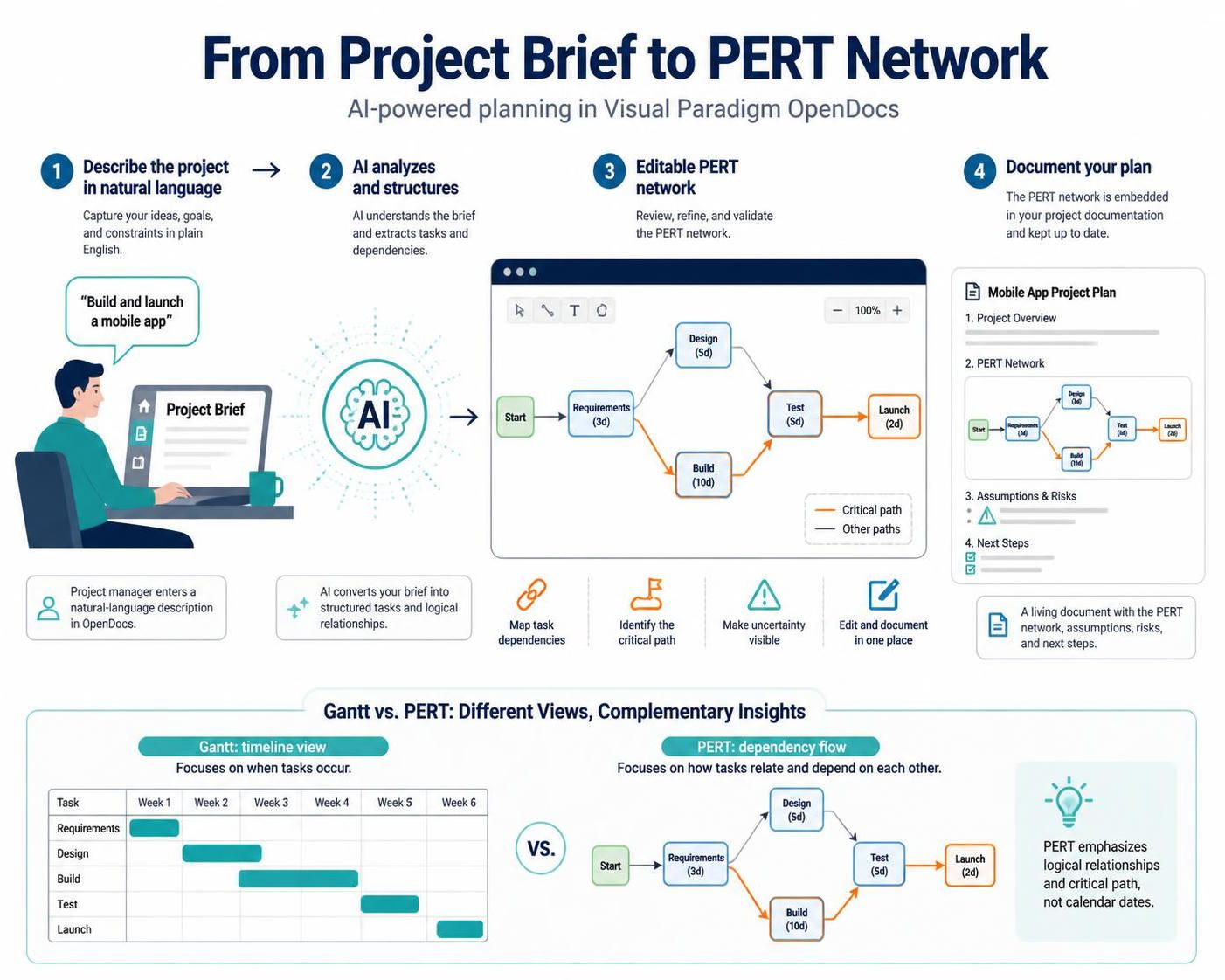
However, creating PERT charts manually has traditionally been a time-consuming process, requiring meticulous node placement and dependency mapping. With the latest update to Visual Paradigm OpenDocs, this friction has been eliminated. By integrating AI-powered generation directly into its knowledge management platform, Visual Paradigm now allows users to transform natural language project descriptions into professional, editable PERT network diagrams in seconds. This guide explores how to leverage this new capability to streamline your project planning and documentation workflows.
Key Concepts: Understanding PERT Charts
Before diving into the tooling, it is crucial to understand what makes a PERT chart distinct and why it is valuable for complex projects.
What is a PERT Chart?
A PERT chart is a network diagram that represents the sequence of tasks required to complete a project. Unlike linear lists, it visualizes the dependencies between tasks, showing which activities must be completed before others can begin.
Core Components
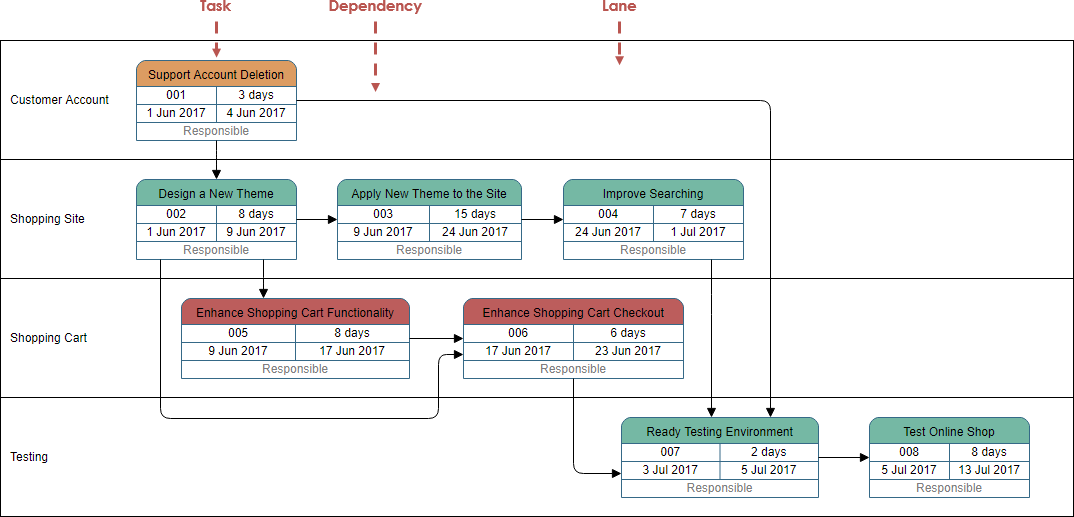
The chart shows a project organized into lanes—Customer Account, Shopping Site, Shopping Cart, and Testing. Each task is a box with an ID, name, duration, dates, and a responsible person or role. The arrows show dependencies, meaning which tasks must be completed before others can proceed.
The flow appears to be:
-
Customer Account: “Support Account Deletion” happens first.
-
Shopping Site: “Design a New Theme,” “Apply New Theme to the Site,” and “Improve Searching” are shown as site-related work. The arrows indicate that some of these tasks depend on earlier work, though the image resolution makes every connector difficult to distinguish.
-
Shopping Cart: “Enhance Shopping Cart Functionality” leads to “Enhance Shopping Cart Checkout.”
-
Testing: “Ready Testing Environment” precedes “Test Online Shop.”
Overall, the diagram is intended to show how work progresses across teams or project areas and where tasks depend on one another. The longest chain of dependent tasks would be the critical path, but it can’t be identified confidently from this image alone because the connectors and task details are too small to read clearly.
-
Nodes (Events/Milestones): These represent specific points in time, such as the start or completion of a phase. In Visual Paradigm, these are typically depicted as circles or rectangles.
-
Arrows (Tasks/Activities): These connect the nodes and represent the actual work being performed. Each arrow is labeled with the task name and often includes time estimates.
-
Time Estimates: PERT is unique because it uses three time estimates for each task to handle uncertainty:
-
Optimistic Time (O): The minimum possible time required.
-
Most Likely Time (M): The best estimate under normal conditions.
-
Pessimistic Time (P): The maximum possible time required.
-
-
Critical Path: The longest sequence of dependent tasks that determines the minimum project duration. Identifying this path is crucial for risk management, as any delay on the critical path delays the entire project.
Why Use PERT?
-
Dependency Clarity: It clearly shows which tasks are parallel and which are sequential.
-
Risk Assessment: By using three-point estimation, it helps teams plan for uncertainties.
-
Resource Optimization: Helps identify bottlenecks and opportunities for parallel work.
Tooling: Visual Paradigm OpenDocs
OpenDocs is Visual Paradigm’s AI-powered knowledge management tool designed to integrate documentation, diagrams, and collaboration into a single workspace. The recent addition of AI-Powered PERT Chart Support marks a significant evolution in how teams can document project plans.
Key Features of the New PERT Integration
-
AI Generation from Text: Describe your project in plain English, and the AI constructs the initial network diagram.
-
Rich Diagram Editor: Fully customizable nodes, arrows, labels, and layouts.
-
Seamless Embedding: PERT charts live directly within your documentation pages, ensuring that your project plan is always contextually linked to requirements and notes.
-
Collaboration Ready: Share live diagrams with stakeholders for real-time feedback.
Step-by-Step Guide: Creating a PERT Chart with AI
Follow these steps to generate your first AI-powered PERT chart in OpenDocs.
Step 1: Access the Insert Menu
Open your document in the OpenDocs editor. Locate the Insert button in the top toolbar and click it to open the insertion options.

Step 2: Select PERT Chart
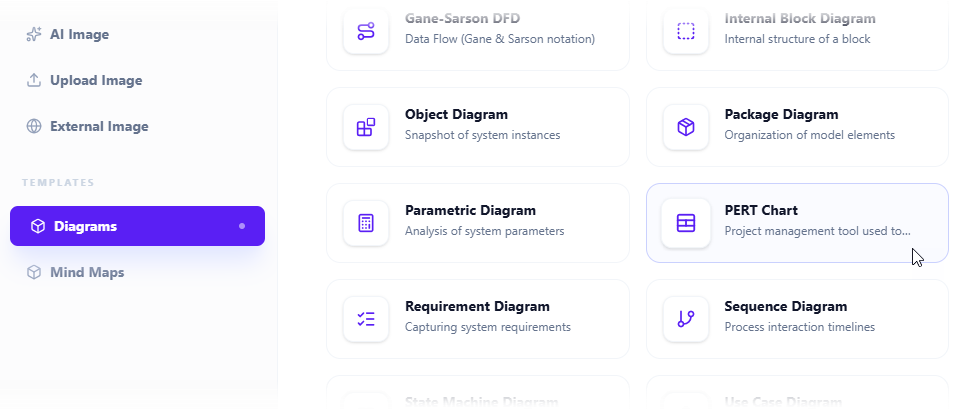
In the Insert dialog box, navigate to the Diagrams tab on the left-hand side. From the list of available diagram types on the right, select PERT Chart.
Step 3: Open the Diagram Editor
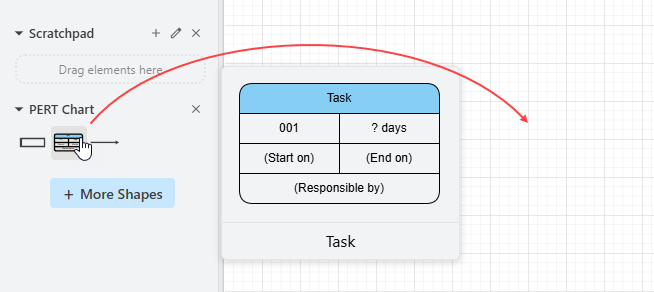
This action opens the dedicated diagram editor. You will see a palette of PERT-specific symbols on the side, which you can drag and drop onto the canvas if you wish to build manually. However, for AI generation, look for the Create with AI button located at the top right corner of the editor.

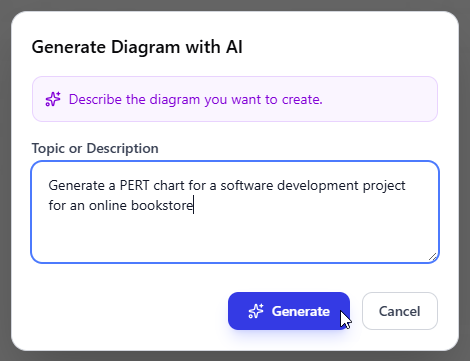
Step 4: Describe Your Project
A text input box will appear. Here, you should provide a clear, concise description of your project, including key phases, tasks, and any known dependencies.
Example Prompt: “Develop a mobile banking app with user registration, transaction processing, and security verification phases.”
Click Generate to let the AI analyze your request.
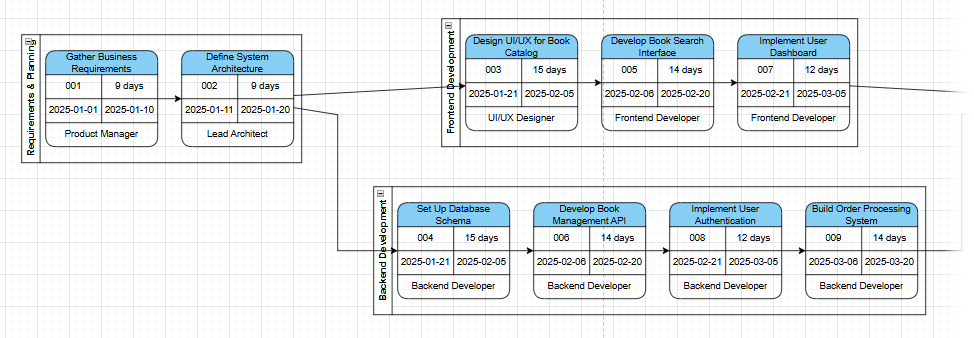
Step 5: Review the AI-Generated Chart
The AI will process your description and produce a complete PERT network diagram, including tasks, dependencies, and estimated timelines. Review the structure to ensure it aligns with your project logic.
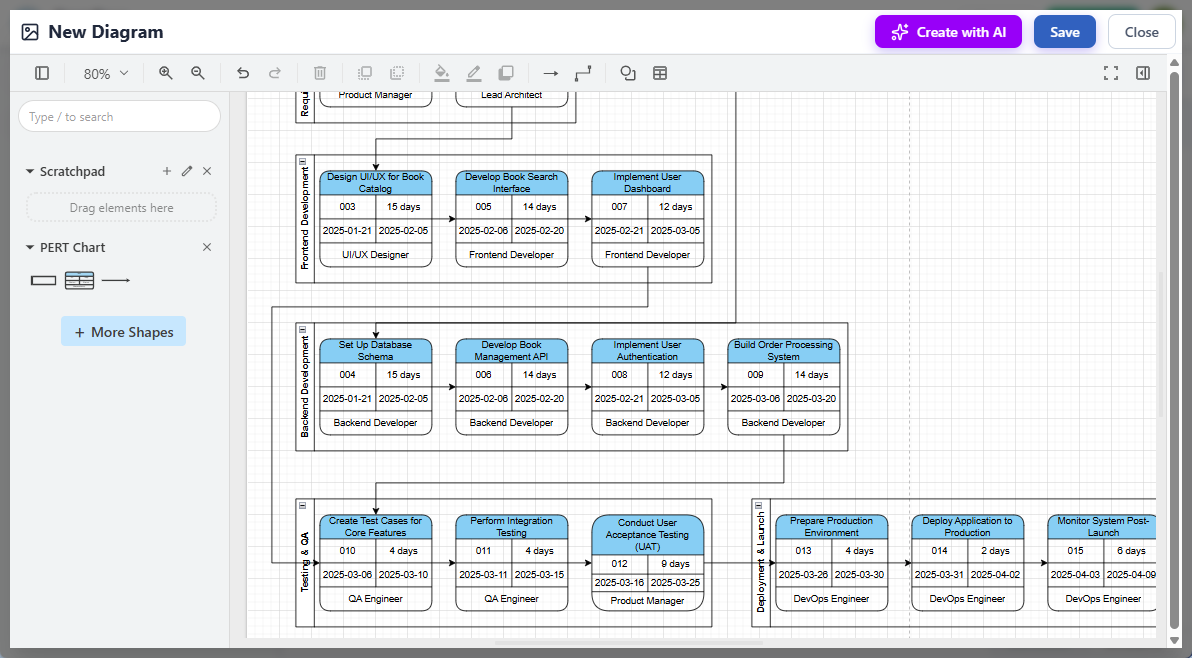
Step 6: Customize and Refine
While the AI provides a strong starting point, manual refinement is often necessary. Use the rich editor to:
-
Adjust the layout for better readability.
-
Add or remove shapes and connections.
-
Update time estimates (Optimistic, Most Likely, Pessimistic).
-
Add detailed labels to milestones.
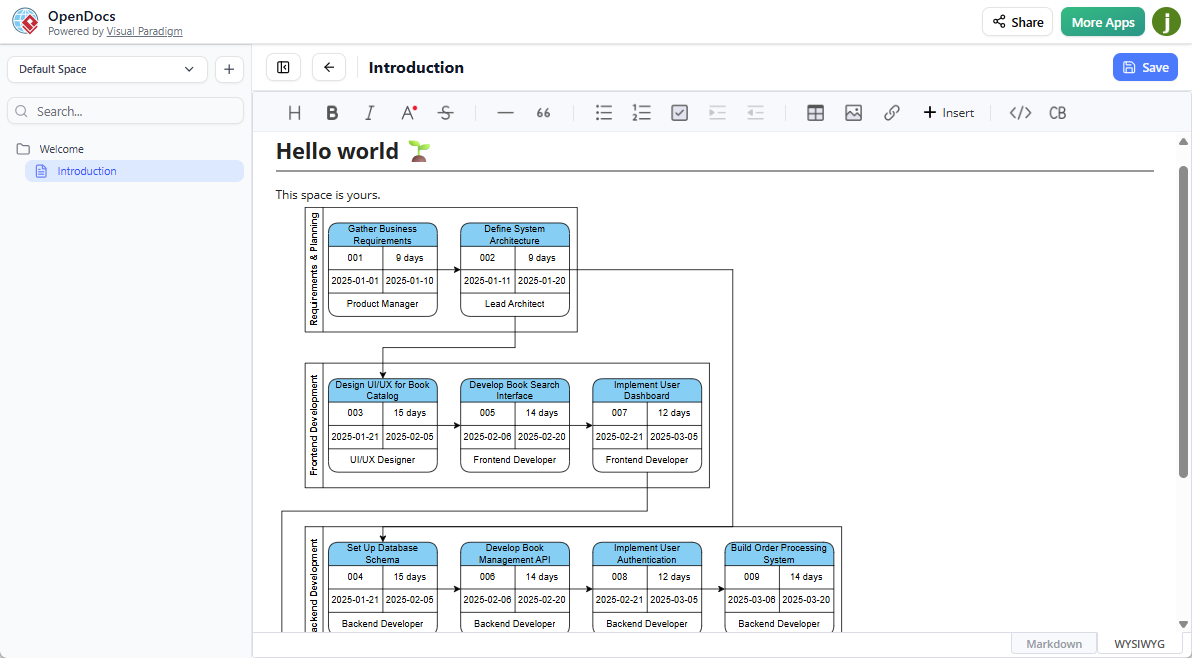
Step 7: Save and Embed
Once satisfied with your chart, click Save at the top right. Then, click Close to return to your main document editor. The PERT chart is now embedded as a live component within your document, ready for sharing and collaboration.
Practical Examples
Example 1: Software Development Lifecycle
Prompt: “Plan a software release cycle including requirements gathering, UI/UX design, backend API development, frontend integration, QA testing, and deployment.”
Result: The AI generates a network where “Requirements Gathering” leads to both “UI/UX Design” and “Backend API Development” in parallel. Both must complete before “Frontend Integration,” which then feeds into “QA Testing,” and finally “Deployment.” The critical path is automatically highlighted based on the estimated durations provided.
Example 2: Marketing Campaign Launch
Prompt: “Launch a new product marketing campaign involving market research, content creation, social media setup, influencer outreach, and launch event planning.”
Result: The chart visualizes “Market Research” as the initial milestone. “Content Creation” and “Social Media Setup” can occur simultaneously after research is complete. “Influencer Outreach” depends on “Content Creation,” while “Launch Event Planning” runs in parallel but must conclude before the final “Campaign Go-Live” milestone.
Conclusion
The integration of AI-powered PERT chart generation into Visual Paradigm OpenDocs represents a significant leap forward in project documentation efficiency. By removing the manual burden of diagram construction, teams can focus on what truly matters: analyzing dependencies, optimizing schedules, and communicating project logic clearly to stakeholders.
Whether you are a seasoned project manager or a technical lead looking to visualize complex workflows, this feature allows you to turn abstract project ideas into actionable, visual plans in seconds. As part of the broader Visual Paradigm Online ecosystem, these charts remain fully editable and seamlessly integrated into your knowledge base, ensuring that your project documentation is always alive, accurate, and accessible.
Ready to transform your project planning? Head over to the OpenDocs app and start generating your first AI-powered PERT chart today.