


Introduction
In the fast-paced world of software architecture, clarity is king. The C4 model—Context, Containers, Components, and Code—has become the gold standard for visualizing system architecture because it balances detail with readability. However, a persistent bottleneck remains: static images.
Whether you are dealing with legacy diagrams saved as PNGs, screenshots from team chats, or exports from tools that don’t support code-based editing, converting these static assets into editable formats has traditionally been a manual, time-consuming nightmare. You often had to recreate the entire diagram from scratch just to change a single label or connection.
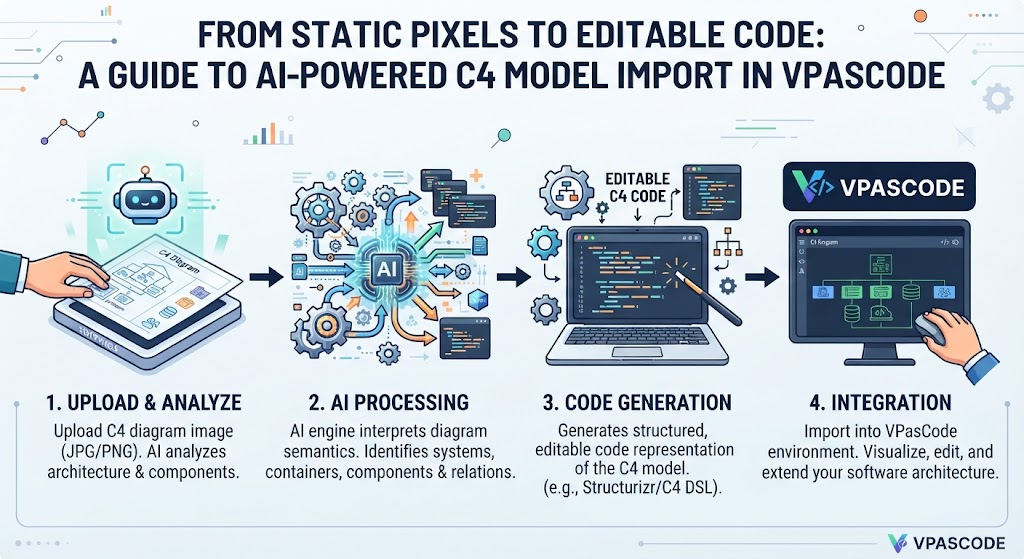
At Visual Paradigm, we believe technical diagramming should be faster, smarter, and more flexible. That’s why we are thrilled to introduce a major enhancement to VPasCode: the all-new Import C4 Model from Image (With AI) feature. This guide will walk you through how to leverage this powerful tool to break free from vendor lock-in and turn your flat images into living, breathing PlantUML code.
What is VPasCode?
If you are new to the ecosystem, VPasCode is a free, unified platform built for technical teams who prefer text-driven visualization. As a modern diagram-as-code editor, VPasCode transforms structured text, domain-specific languages (DSLs), and data definitions into crisp, professional visual diagrams in real time.
VPasCode automatically detects your code syntax—whether it is PlantUML, Mermaid, D2, Graphviz, Markmap, DBML, or SQL—and renders live visual previews instantly without requiring manual setup. Beyond standard code editing, VPasCode features a suite of built-in AI capabilities, including:
-
Natural language diagram generation
-
Automated code refactoring
-
Side-by-side diff views
-
Smart syntax error fixing
[Image Placeholder: Hero Banner]
A hero banner graphic illustrating how VPasCode’s AI feature converts a static C4 architecture model image into editable PlantUML diagram-as-code within an online editor interface.
[Launch VPasCode Free Editor Now]
The Power of Importing C4 Model Images with AI
In software architecture, C4 models are essential for mapping out context, containers, components, and code. However, sharing and maintaining C4 diagrams across teams often hits a bottleneck: diagrams are frequently stored as static image formats like PNG or JPEG. Updating a tiny detail usually meant recreating the entire diagram from scratch in a design tool.
Our new AI PlantUML tool capability breaks down these barriers using advanced optical character recognition (OCR) and machine learning trained specifically on C4 diagram structures.
Why Image Import Matters
-
Break Away from Vendor Lock-In: Traditionally, moving diagrams between software required exporting specific file types that target platforms might not support. AI OCR analyzes the visual structure directly, bypassing format incompatibilities.
-
Instant Conversion to Standard Code: Flat pixels are instantly translated into standard PlantUML C4 code, turning uneditable images into reusable text artifacts.
-
On-the-Fly Editing: Once imported, you can modify labels, restructure containers, add component relations, or refactor layouts directly within the diagram-as-code editor.
Step-by-Step Guide: How to Import a C4 Model Image
Converting your existing C4 architecture images into editable code in VPasCode is straightforward. Follow these steps to transform your static diagrams into dynamic PlantUML code.
Step 1: Open the Import Menu
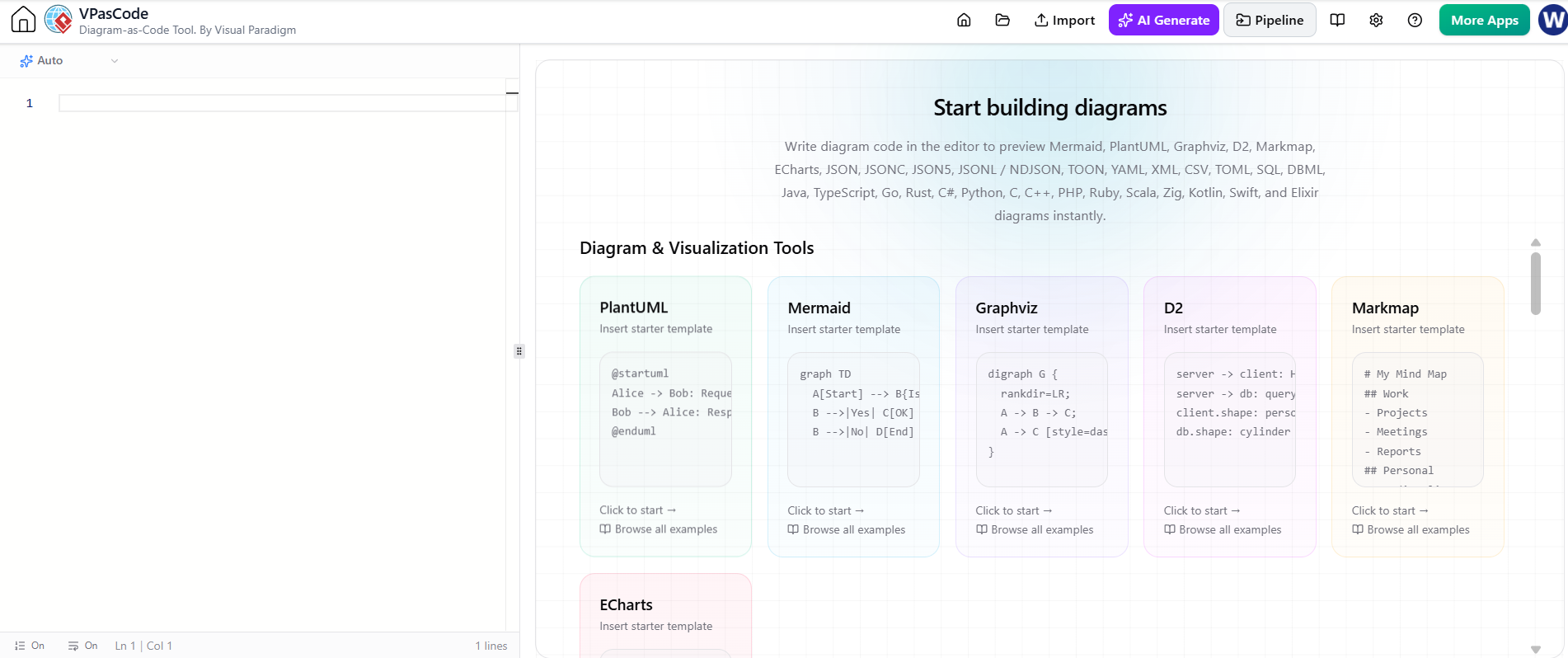
In the top navigation bar of VPasCode, click Import.
[Image Placeholder: Top Menu Bar]
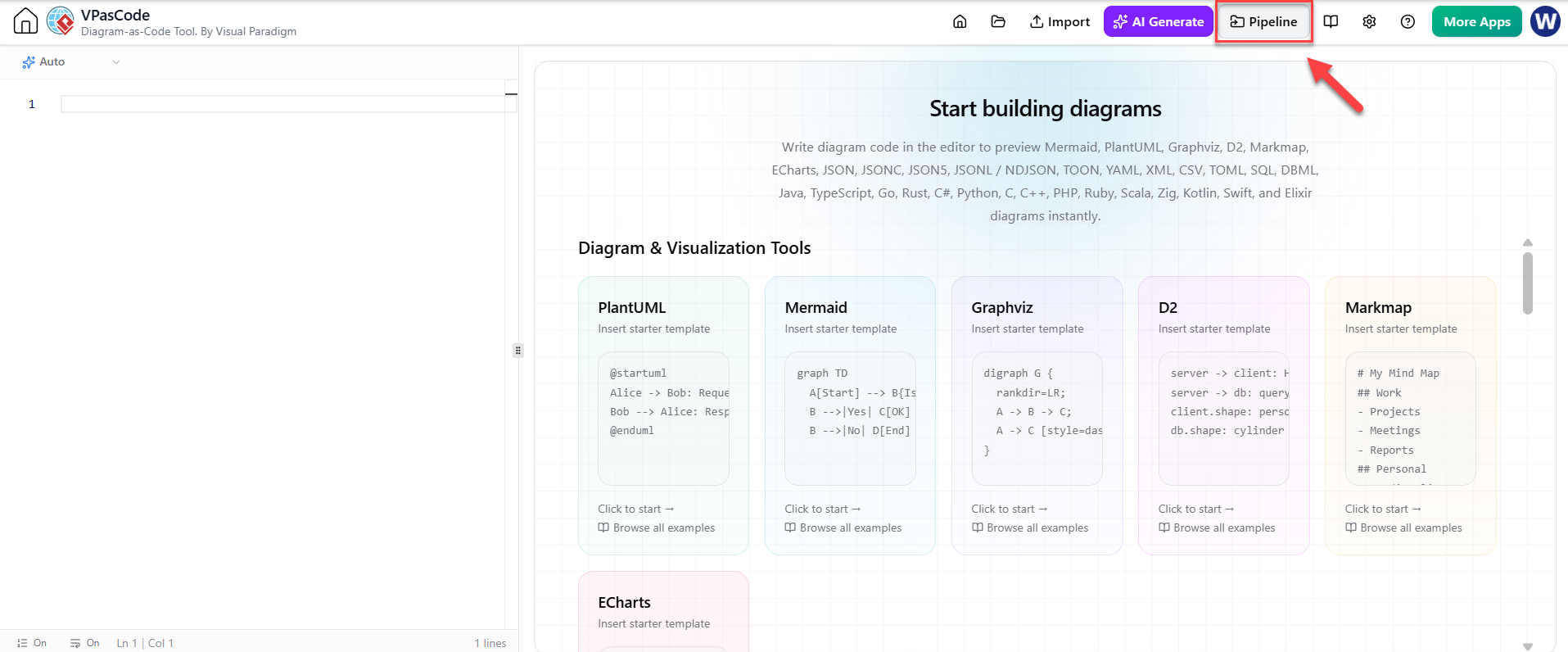
Step 2: Select the AI Import Option
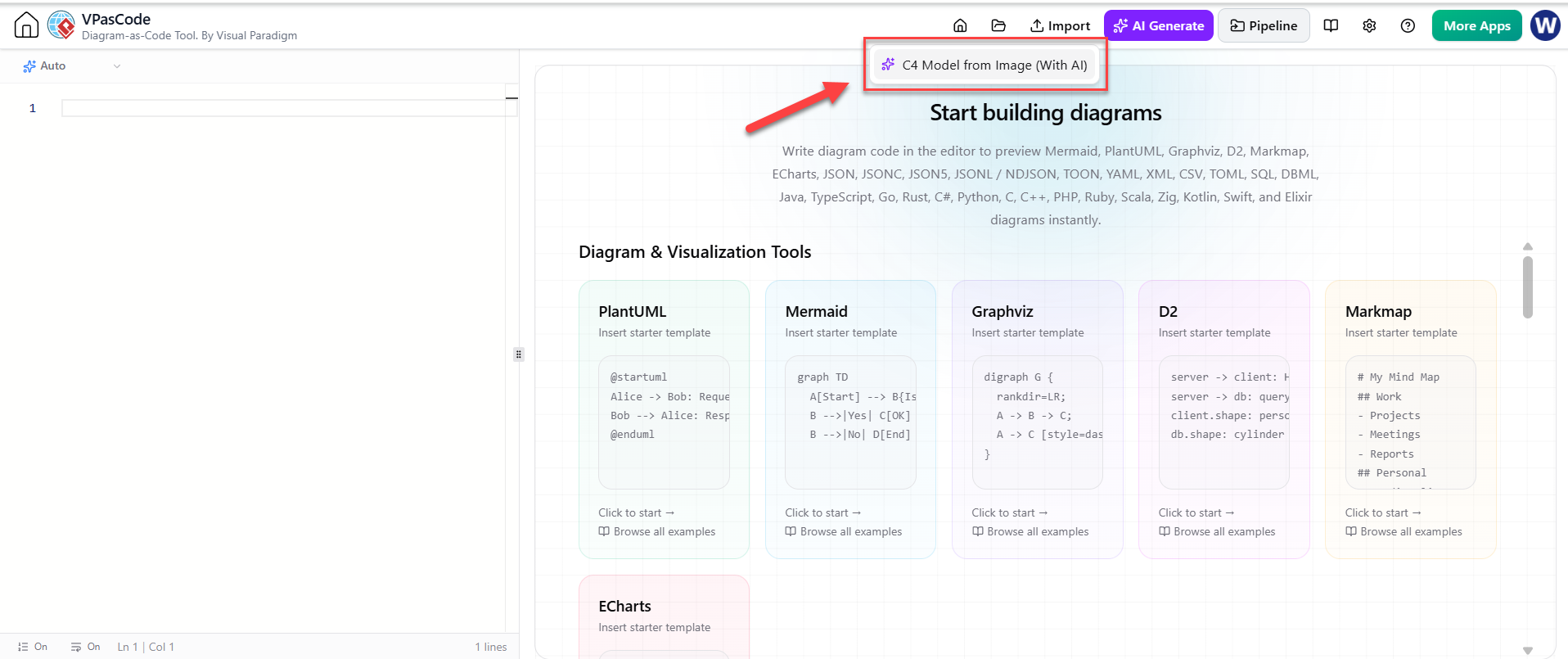
Choose “C4 Model from Image (With AI)” from the drop-down menu to open the upload dialog box.
[Image Placeholder: Drop-Down Menu]
Selecting C4 Model from Image With AI from the VPasCode drop-down menu to open the upload dialog box
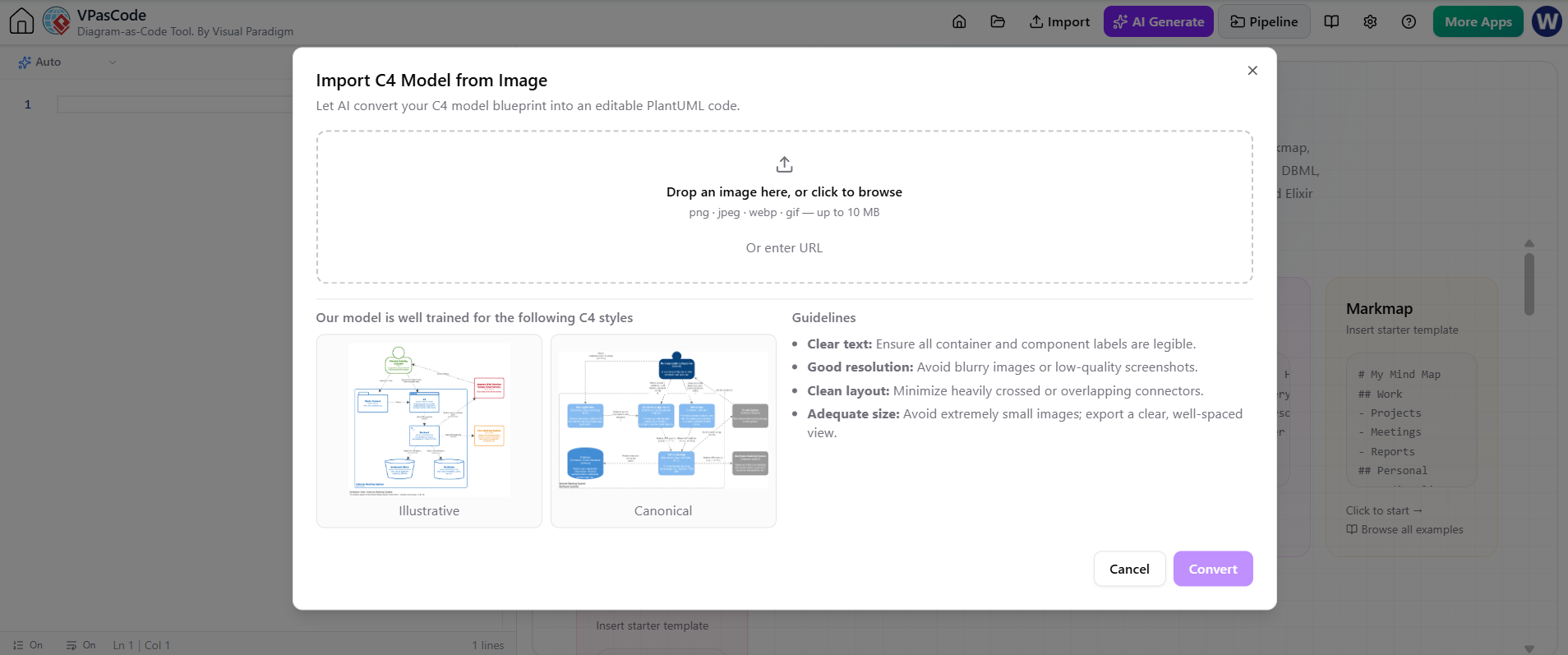
Step 3: Provide Your Image
Drag and drop your C4 image into the drop zone, or select “Or enter URL” to paste a direct image web link.
When preparing your image, keep in mind the two primary visual styles supported for optimal recognition:
-
Canonical Style: Classic C4 appearance featuring traditional blue container shapes.
-
Illustrative Style: Modern appearance utilizing clean white shapes with colored borders.
[Image Placeholder: Upload Dialog]
The VPasCode image upload dialog box showing the drag-and-drop zone and image URL input field.
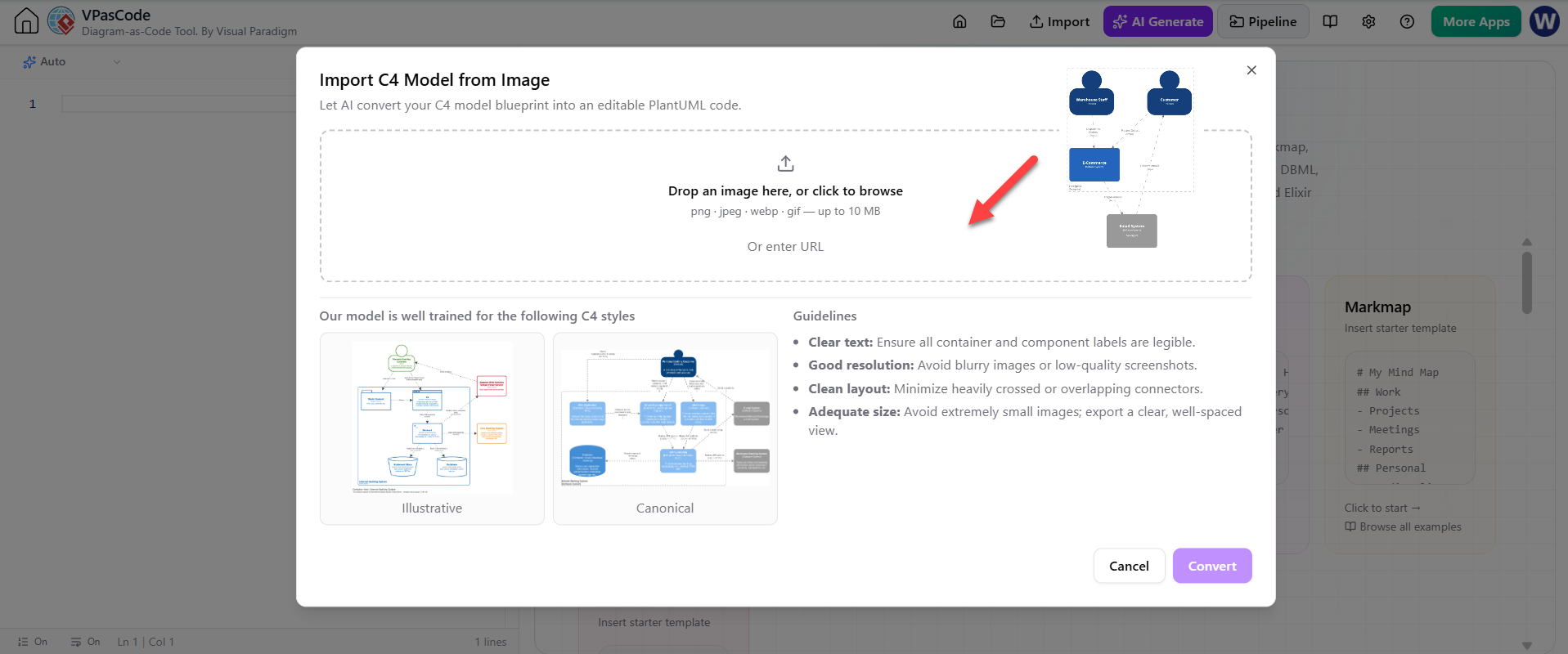
Step 4: Convert with AI
Click Convert. The AI engine uses OCR to read components, text labels, and connection paths.
[Image Placeholder: Convert Button]
Clicking the Convert button in VPasCode to begin AI OCR analysis on the C4 architecture diagram image.
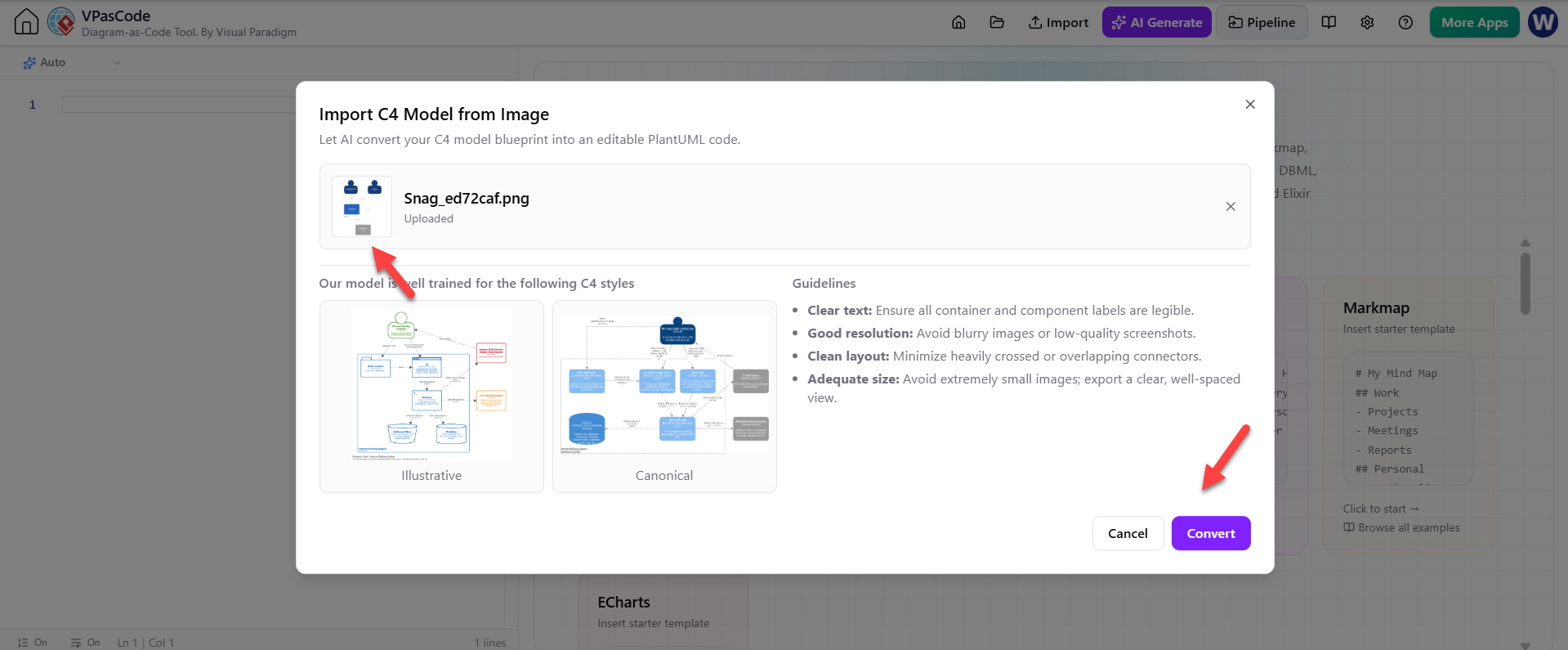
Step 5: Review and Confirm
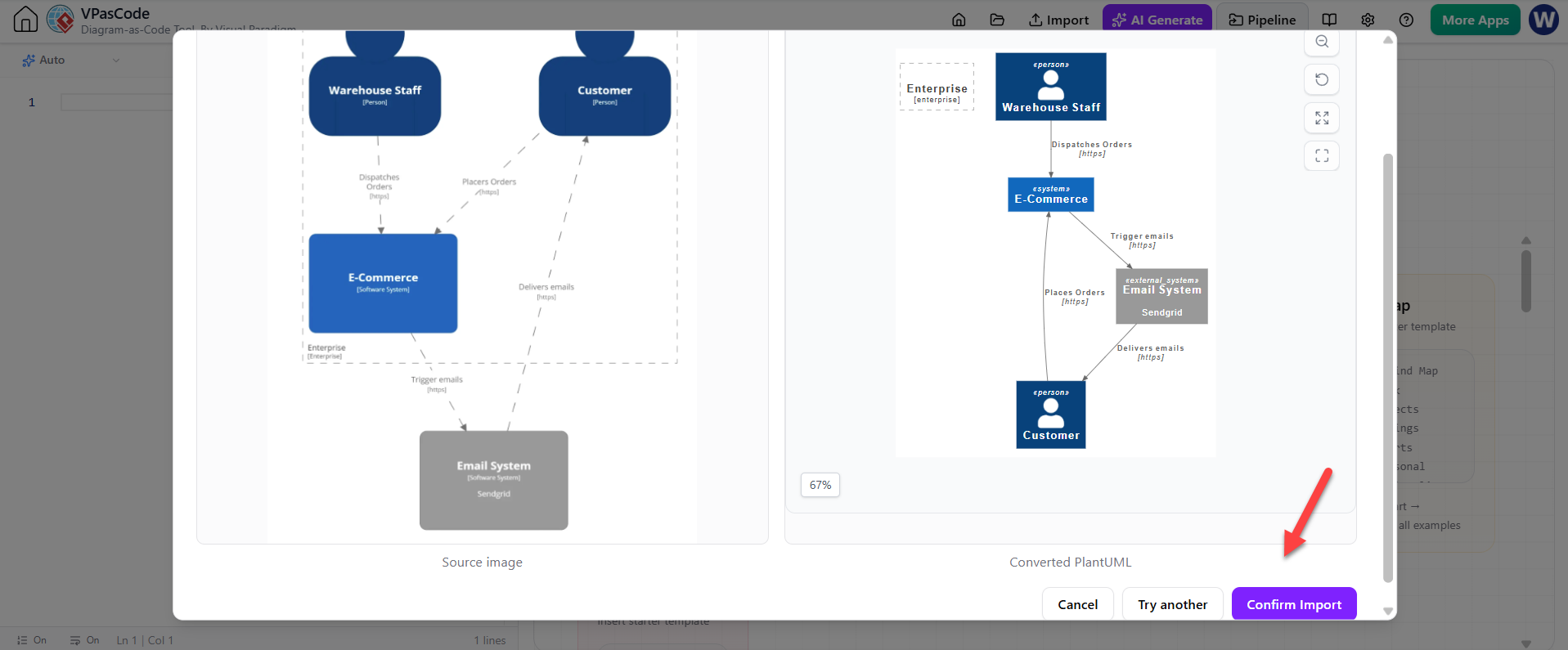
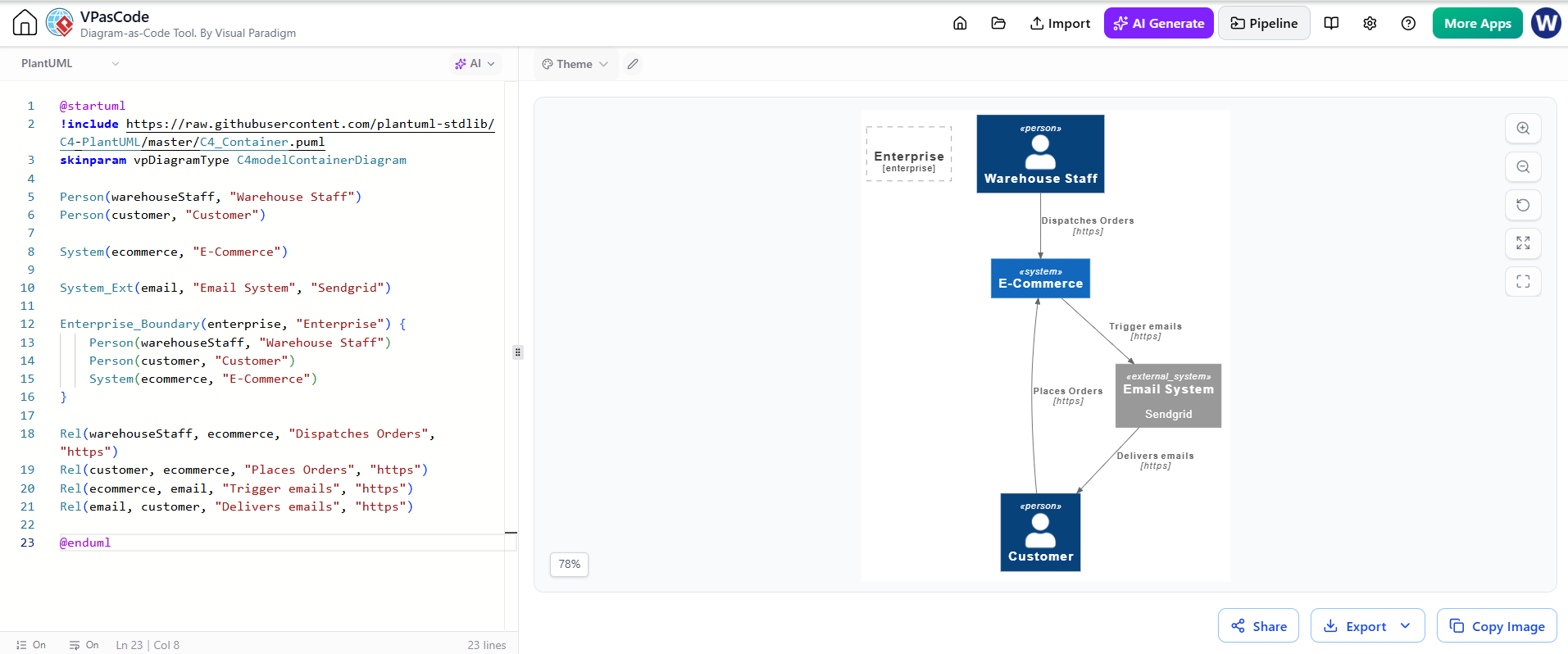
Inspect the side-by-side comparison UI. The original image appears on the left, and the newly generated diagram preview appears on the right (with pan and scroll controls). Click Confirm Import to transfer the generated PlantUML code directly into your editor.
[Image Placeholder: Side-by-Side Comparison]
The side-by-side comparison screen in VPasCode displaying the original C4 image on the left and the rendered PlantUML result on the right.
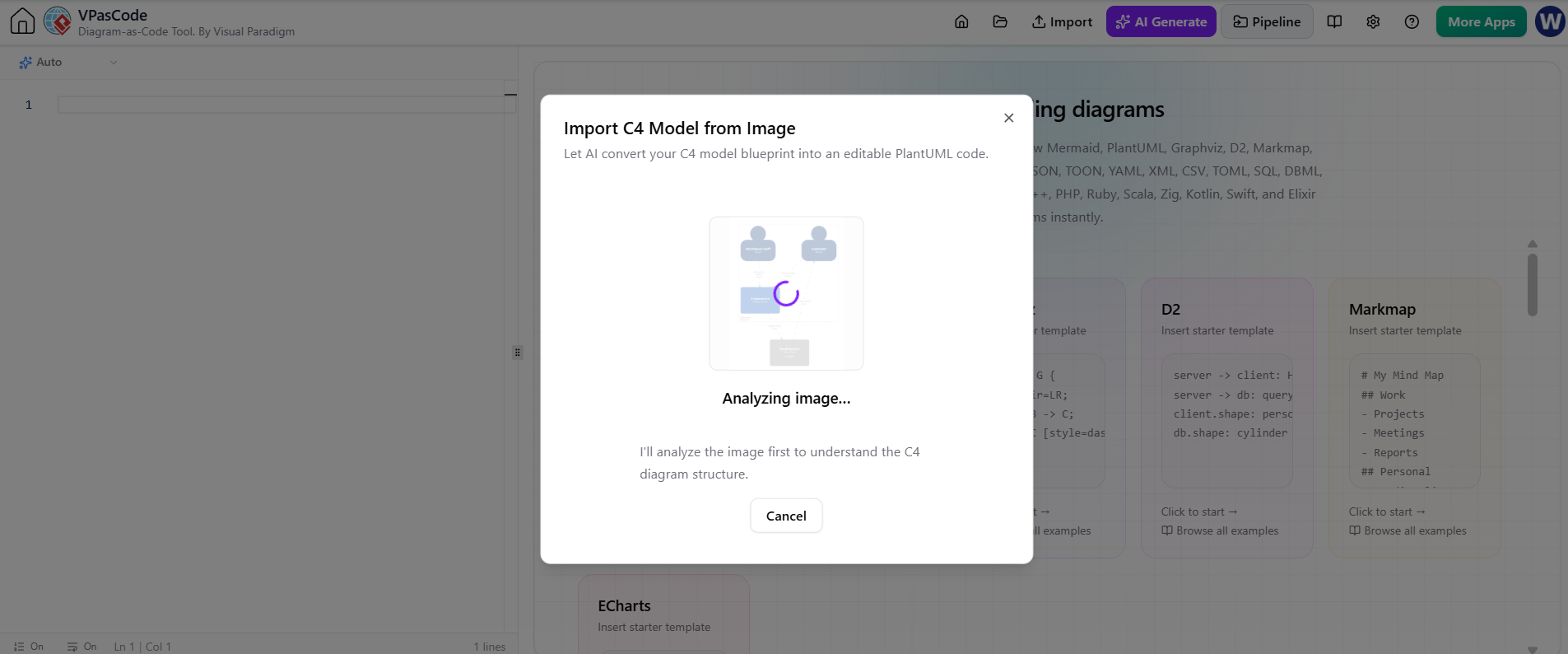
Key Concepts and Best Practices
To ensure the highest accuracy when using the AI Import feature, adhere to the following best practices. The AI relies on clear visual cues to distinguish between containers, components, and relationships.
Best Practices for Optimal AI Recognition
-
Clear Text: Ensure container names and relationship labels are clear and legible. Avoid handwritten fonts or overly stylized typography.
-
Good Resolution: Avoid low-resolution or blurry screenshots. High-DPI exports yield better OCR results.
-
Clean Layout: Minimize overlapping connectors or heavily crossed lines where possible. Clear separation helps the AI trace relationships accurately.
-
Adequate Size: Export a well-spaced image view before converting. Zoomed-in crops may miss context; full-diagram views are preferred.
Example Workflow
Imagine you receive a PNG screenshot of a “User Authentication Service” from a colleague who used a different drawing tool. Instead of manually redrawing the boxes for “Web App,” “API Gateway,” and “Auth Database,” you simply:
-
Upload the PNG to VPasCode.
-
Let the AI generate the PlantUML code.
-
Instantly get an editable code block like this:
@startuml
!include <C4/C4_Container>

Person(user, "User")
System_Boundary(c1, "Authentication System") {
    Container(web_app, "Web Application", "React", "Handles user login UI")
    Container(api_gateway, "API Gateway", "Node.js", "Routes requests")
    ContainerDb(auth_db, "Auth Database", "PostgreSQL", "Stores user credentials")
}

Rel(user, web_app, "Uses")
Rel(web_app, api_gateway, "Calls API")
Rel(api_gateway, auth_db, "Reads/Writes")
@enduml
Now, you can tweak the database type, add a new microservice, or change the layout without ever touching a mouse-dragging tool again.
Seamless Integration with OpenDocs and Visual Paradigm Desktop
Importing and editing your C4 diagram in our online diagram-as-code tool is just the beginning. VPasCode connects directly with the broader Visual Paradigm ecosystem to support your complete technical workflow.
-
Send to OpenDocs for Documentation: Once your C4 code is refined, publish your work directly to Visual Paradigm OpenDocs. Keep technical specs, system architecture docs, and visual diagrams synchronized in one central knowledge hub.
-
Escalate to Visual Paradigm Desktop: When your project demands intensive visual modeling, enterprise architecture alignment, or comprehensive UML compliance, transfer your diagrams directly to Visual Paradigm Desktop for deep architectural analysis.
Conclusion
The transition from static images to dynamic, code-based diagrams represents a significant leap forward in architectural efficiency. With the new Import C4 Model from Image (With AI) feature in VPasCode, you no longer need to choose between the convenience of quick screenshots and the maintainability of diagram-as-code.
By leveraging AI-powered OCR, you can reclaim hours previously spent on manual redrawing, ensure consistency across your documentation, and keep your architecture diagrams as living documents that evolve with your codebase.
Ready to turn your static architectural images into flexible, maintainable code? Experience the new AI Import feature today inside our free AI PlantUML tool environment.
Explore the full platform capabilities on the VPasCode Landing Page or dive straight into creating and converting diagrams on the VPasCode App Page.
This post is also available in Deutsch, Español, فارسی, Français, English, Bahasa Indonesia, 日本語, Polski, Portuguese, Ру́сский, Việt Nam, 简体中文 and 繁體中文.