
This guide covers the six most-used text and annotation elements in PlantUML. Across every example I apply the house conventions: skinparam defaultFontSize 14 and skinparam defaultFontColor #333333 at the top of the file.
A quick orientation on where each element lives relative to the diagram body:
| Element | Position on the rendered image | Multi-line block? | Purpose |
|---|---|---|---|
title |
Top center | Yes (end title) |
Diagram name / version |
header |
Above the diagram (page header) | Yes (endheader) |
Context, org name, classification |
footer |
Below the diagram (page footer) | Yes (endfooter) |
Author, tool, timestamp |
caption |
Just below the diagram | No (single line) | Figure numbering |
legend |
Corner of the diagram | Yes (endlegend) |
Key to symbols / decoding |
note |
Attached to or floating near elements | Both forms | Commentary on a specific element |
1. Title
The diagram title sits centered at the top. It supports inline markup (<size>, <b>, <color>, <u>, <i>) and a multi-line form.
Simple form:
title Order Processing Service
Multi-line form with formatting:
title
<size=20><b>Order Processing Service</b></size>
<size=14><color=#555555>Context Diagram - v1.0</color></size>
endtitle
With a subtitle pattern: PlantUML has no dedicated subtitle keyword, so emulate it with a second, smaller line as shown above.
Common pitfalls
-
titlewithoutend titleis fine only for a single line. If you write anything on the next line, PlantUML will treat it as part of the title only if you opened a block withend title. -
Inline HTML tags must be closed (
<b>...</b>) or rendering is unpredictable. -
The title is part of the diagram, so it appears in exports — don’t duplicate it in the file name caption.
2. Header
The header renders above the diagram body, separated from it. Use it for organizational context, classification banners, or document IDs. Single-line or block form:
header Architecture Review Board - Internal
header
<font color=#777777 size=12>Architecture Review Board</font>
endheader
When to use header vs. title: the title describes what the diagram is; the header describes the document context it belongs to (org, confidentiality, release). Keeping them separate lets you stamp many diagrams with the same header.
3. Footer
The footer mirrors the header at the bottom. Ideal for authorship, tooling, and timestamps.
footer Prepared using Visual Paradigm VPasCode
footer
<font color=#777777 size=11>Prepared using Visual Paradigm VPasCode - Generated 2025</font>
endfooter
Tip: PlantUML substitutes %date% (and %time%) inside header/footer/title text, which is handy for stamped exports:
footer Rendered %date%
4. Caption
A caption is a single line placed directly below the diagram. It is the idiomatic place for figure numbering in documents (pairs naturally with a title above).
caption Figure 1. Order service and its collaborators
Unlike title/header/footer, caption takes a single line — no end caption block is needed or expected. Keep it short and reference-style.
5. Legend
The legend is a boxed key rendered in a corner of the diagram. It accepts rich text and simple table syntax (| | cells). Placement is controlled by a keyword: top, bottom, left, right, or center.
legend right
  |= State |= Meaning |
  | New | Created, not paid |
  | Paid | Payment captured |
  | Shipped | Handed to carrier |
endlegend
Positioning options
legend top left
  Solid arrow = synchronous call
  Dashed arrow = asynchronous event
endlegend
When to use a legend vs. a note: a legend decodes notation used throughout the diagram (what a symbol, line style, or color means). A note comments on one specific element. If your reader must look up a symbol in more than one place, promote it to a legend.
6. Note
Notes attach commentary to a single element or float freely. There are three call styles.
Single-line note attached to an element:
note top of Order : Single-line floating note
Multi-line note attached to an element:
note right of Order
  Multi-line note
  with free **formatting**
end note
Standalone (floating) note: give it an alias so it can later be linked or positioned.
note "Standalone note anchored via alias" as N1
Placement keywords for attached notes: top, bottom, left, right of <element>. You may combine two directions in newer versions (e.g. note top left of), but single-direction placement is the most portable.
Pitfalls
-
The one-liner form after
:is single-line only — use theend noteblock for multiple lines. -
Inside
end noteblocks, standard inline markup and even embedded diagrams/sub-diagrams work; avoid stray unescaped--which some parsers read as a separator.
7. Putting It All Together
The following validates cleanly and demonstrates all elements in one diagram. Notes: header/footer/title/caption frame the diagram from the outside inward, while the legend and note live inside the diagram canvas.
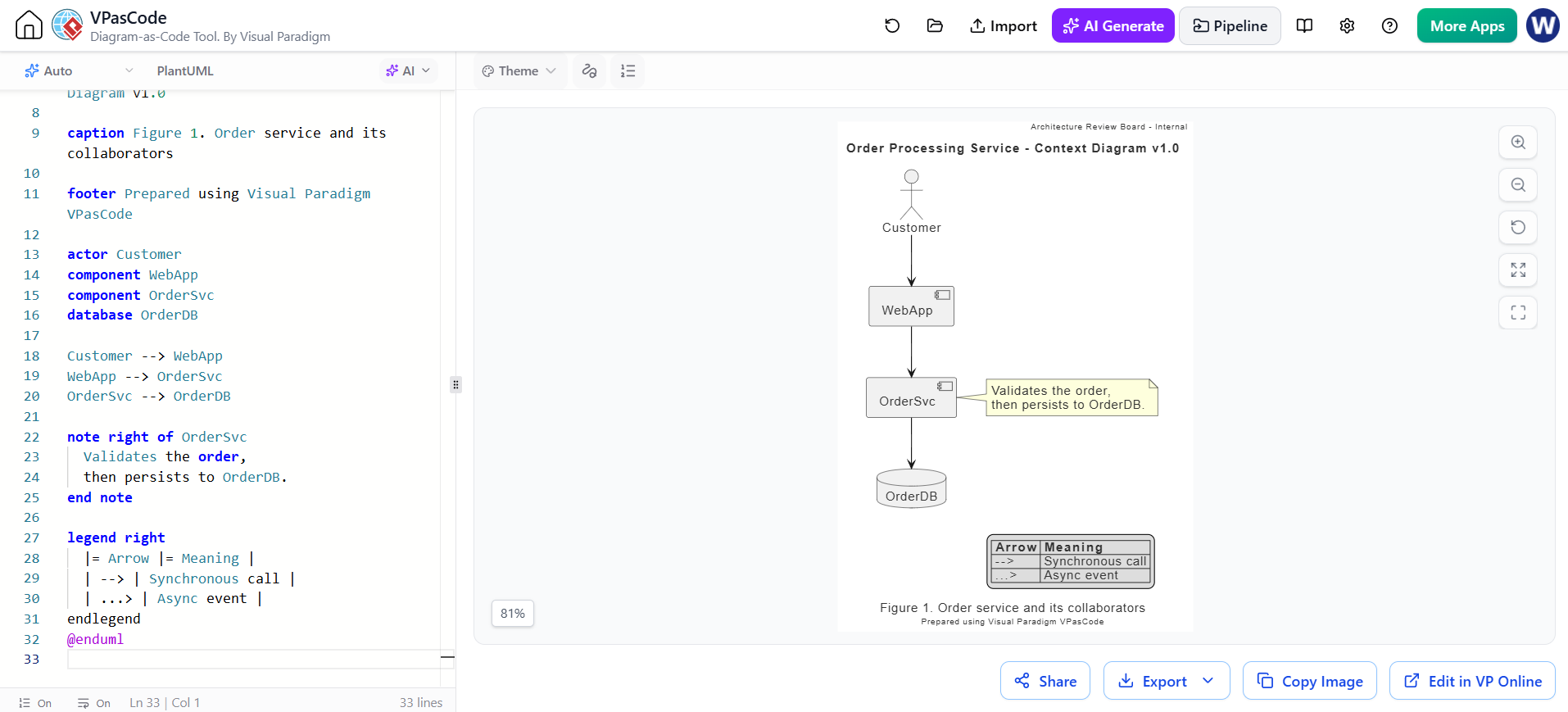
@startuml
skinparam defaultFontSize 14
skinparam defaultFontColor #333333

header Architecture Review Board - Internal

title Order Processing Service - Context Diagram v1.0

caption Figure 1. Order service and its collaborators

footer Prepared using Visual Paradigm VPasCode

actor Customer
component WebApp
component OrderSvc
database OrderDB

Customer --> WebApp
WebApp --> OrderSvc
OrderSvc --> OrderDB

note right of OrderSvc
  Validates the order,
  then persists to OrderDB.
end note

legend right
  |= Arrow |= Meaning |
  | --> | Synchronous call |
  | ...> | Async event |
endlegend
@endumlDocumenting & Rendering with Visual Paradigm VPasCode
Paste any of the full @startuml … @enduml files above into Visual Paradigm VPasCode and it will render the diagram, apply the VP theme, and let you export to PNG/SVG/PDF. The VP theme can also be layered in explicitly at the top of a diagram:
!include https://static.visual-paradigm.com/web/resources/plantuml-stdlib/themes/vp.puml
skinparam vpDiagramType ComponentDiagram
You can view and render these online at https://www.vpascode.com. Order your boilerplate consistently — title and caption for the figure identity, header/footer for document context, legend for decoding notation, note for per-element commentary — and your diagrams will read like a coherent, professionally published set.