


Introduction
In the fast-paced world of system design and product development, clarity is king. Whether you are mapping out a complex microservices architecture, brainstorming user journey maps, or refining business process flows, visual models are essential for translating abstract ideas into concrete plans. However, as conversations with AI assistants deepen, the sheer volume of generated content can become overwhelming.
Previously, navigating back to a specific diagram version or revisiting a critical design decision meant endless scrolling through long chat threads. This friction not only disrupted workflow but also made it difficult to maintain context across iterative design sessions.
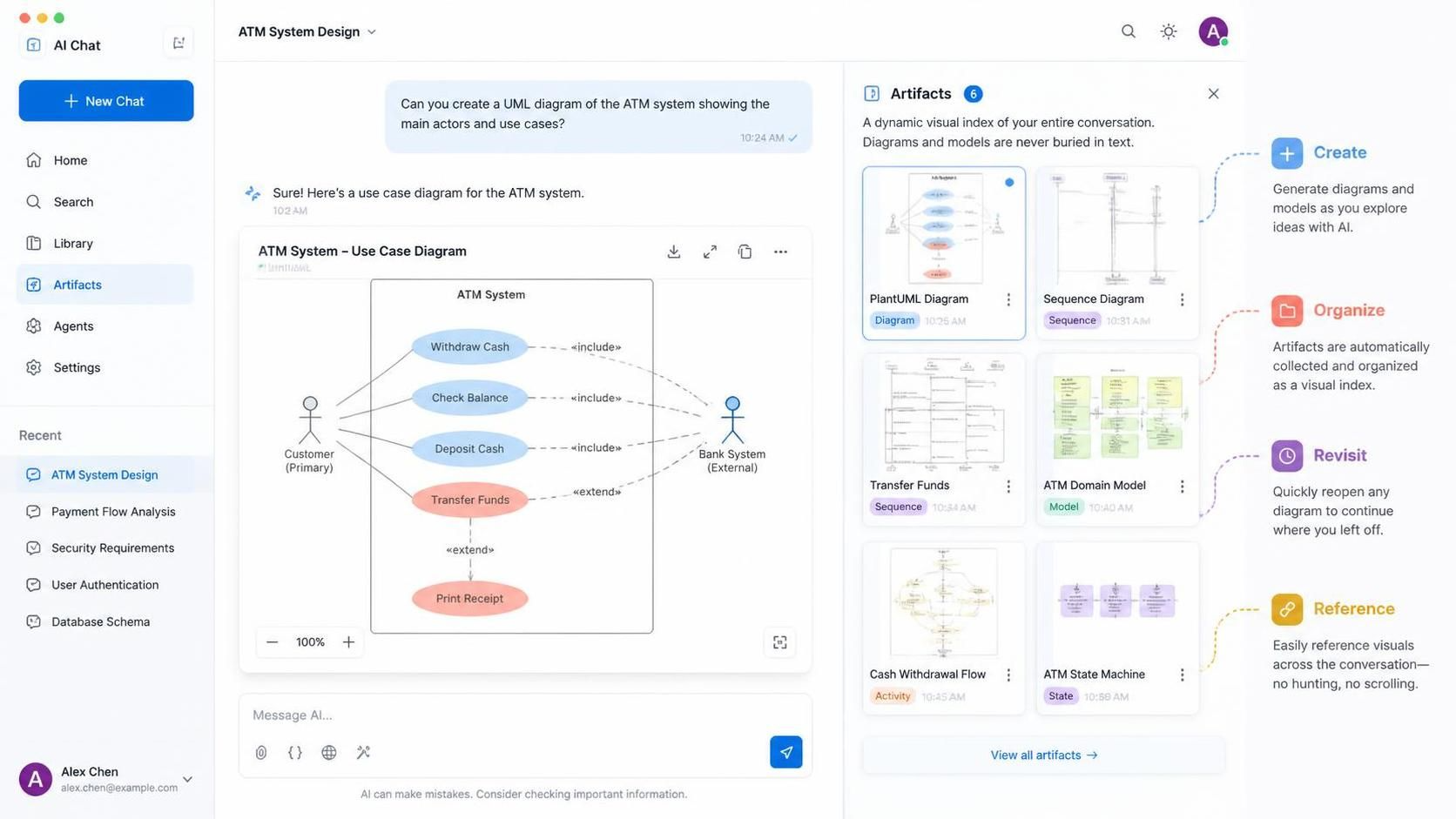
Enter the Artifacts Pane in Visual Paradigm Chatbot—a game-changing feature designed to streamline your visual modeling experience. This guide explores how the Artifacts Pane transforms chaotic chat sessions into organized, navigable design workflows, ensuring you never lose track of your creative progress again.
What is the Artifacts Pane?
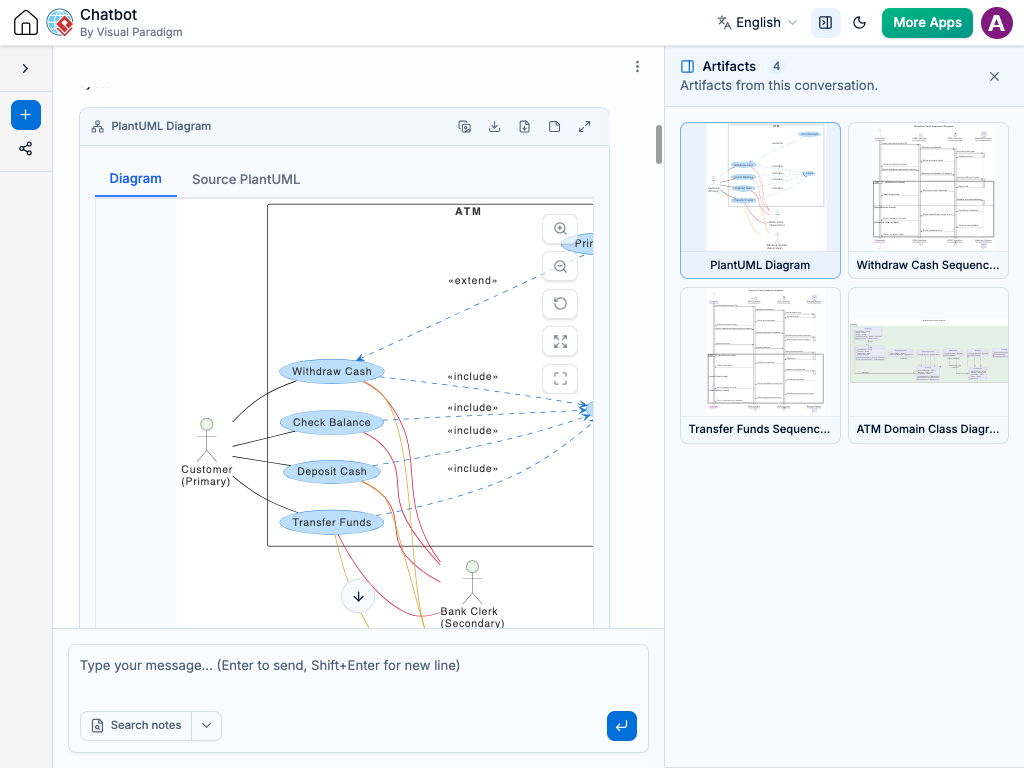
The Artifacts Pane acts as a dynamic visual index for your entire conversation session. Instead of treating diagrams as isolated outputs buried within text, it organizes every visual model created during your chat into a neat, accessible sidebar. This feature bridges the gap between conversational AI and structured design management, making it effortless to manage, revisit, and reference your visual models.
Key Benefits at a Glance
-
Complete Session Overview: Instantly view a clear list of every diagram created during your session. The Artifacts Pane provides an at-a-glance summary of your conversation’s progress from start to finish.
-
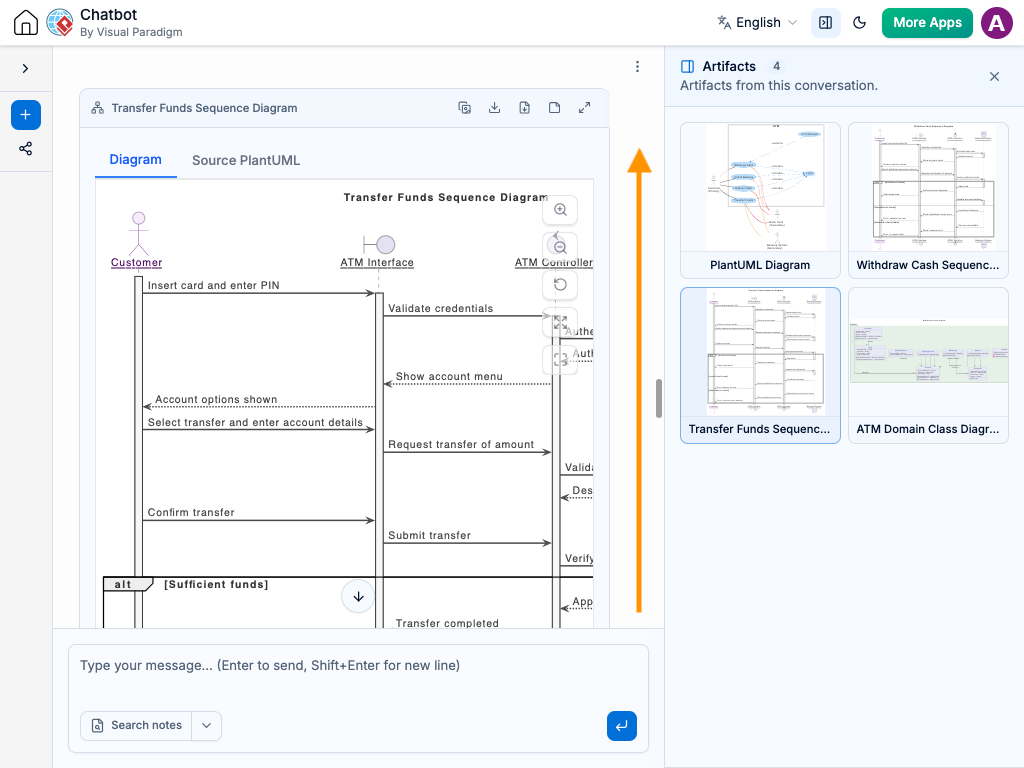
Contextual Navigation: Click on any diagram in the Artifacts Pane to instantly jump to that exact spot in the chat stream. You can review the visual model alongside the original prompts and context surrounding it—without wasting time scrolling up and down.
-
Iterative Design Support: Easily compare earlier versions of a diagram with later refinements, helping you track the evolution of your ideas.
Key Concepts: Why Visual Organization Matters
Before diving into the mechanics, it’s important to understand why tools like the Artifacts Pane are critical for modern product managers and system architects.
1. Cognitive Load Reduction
When designing complex systems, your brain is juggling multiple constraints: user needs, technical feasibility, business goals, and stakeholder feedback. Scrolling through hundreds of lines of text to find a specific diagram adds unnecessary cognitive load. The Artifacts Pane reduces this friction by providing a visual shortcut to your most important assets.
2. Iterative Design Tracking
Design is rarely linear. You might create a initial class diagram, refine it based on feedback, then pivot to a sequence diagram, and later return to adjust the class structure. The Artifacts Pane preserves this non-linear journey, allowing you to trace the logic behind each decision.
3. Context Preservation
A diagram without context is often meaningless. By linking each visual artifact directly to its generating prompt and surrounding discussion, the Artifacts Pane ensures that you always understand why a diagram was created, not just what it shows.
How to Use the Artifacts Pane: Step-by-Step Guide
Using the Artifacts Pane is intuitive and seamless. Here’s how to integrate it into your daily workflow.
Step 1: Start Chatting Naturally
Begin using Visual Paradigm Chatbot as you normally would. Describe your system, ask for diagrams, refine requirements, or brainstorm alternatives. Every diagram generated during this process is automatically captured by the Artifacts Pane.
Example Prompt:
“Create a use case diagram for an e-commerce checkout process, including guest checkout, registered user login, and payment gateway integration.”
Step 2: Open the Artifacts Pane
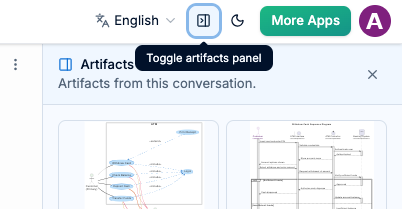
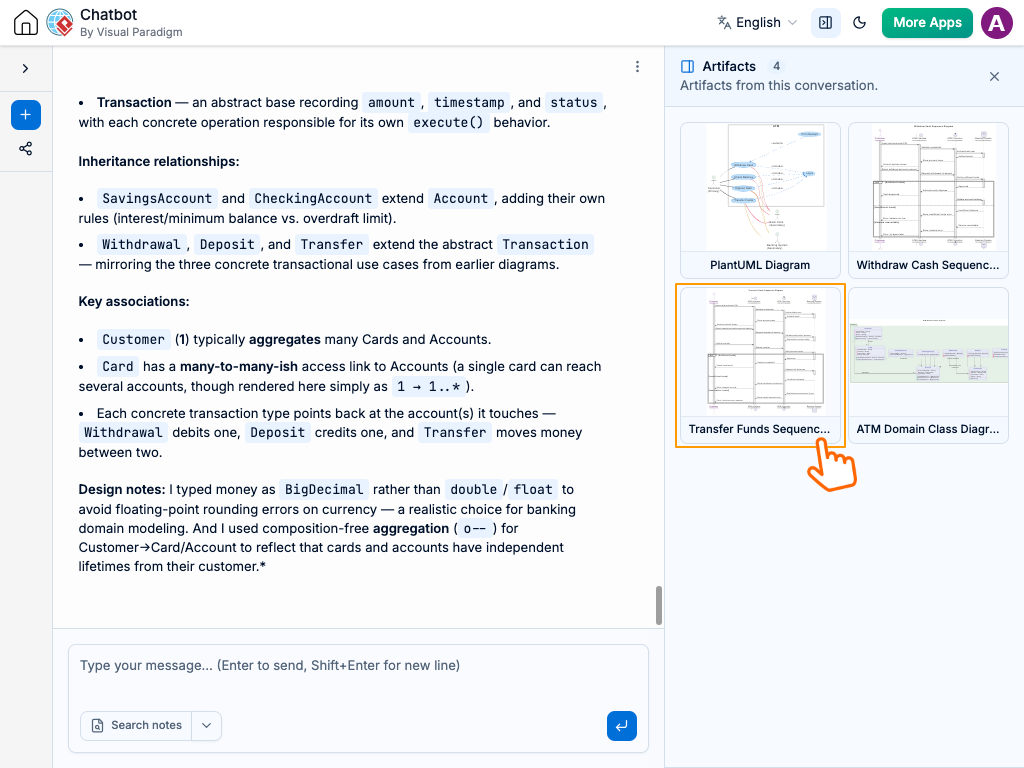
Look at the side panel of the chat interface. You’ll see a button or icon to open the Artifacts Pane. Click it to reveal a live list of all generated diagrams from your current session.
Step 3: Jump Directly to Any Diagram
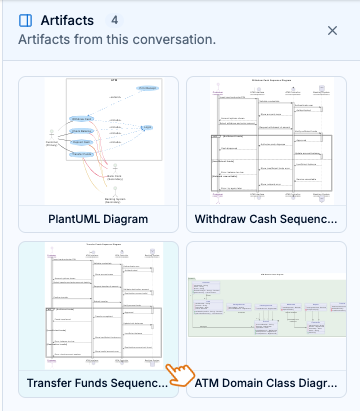
Browse the thumbnails or titles in the Artifacts Pane. Click on any diagram to instantly jump to that point in your conversation. The chat window will auto-scroll to display the diagram alongside its original context.
This feature is particularly useful when:
-
You want to compare two versions of a diagram.
-
You need to reference an earlier decision during a new discussion.
-
You’re preparing a presentation and need to quickly locate key visuals.
Real-World Examples: Putting the Artifacts Pane to Work
Example 1: System Architecture Refinement
Scenario: You’re designing a cloud-native application and start with a high-level component diagram. After discussing scalability concerns, you generate a more detailed deployment diagram. Later, you realize you need to revisit the original component structure.
Without Artifacts Pane: You scroll back through 50+ messages, trying to remember which prompt generated the initial diagram.
With Artifacts Pane: You open the sidebar, click the thumbnail of the first component diagram, and instantly return to that context. You can then compare it side-by-side with the deployment diagram to ensure alignment.
Example 2: User Journey Mapping
Scenario: You’re mapping out a user’s journey through a mobile app. You create separate diagrams for onboarding, core functionality, and offboarding. During a stakeholder review, questions arise about the onboarding flow.
Without Artifacts Pane: You search for keywords like “onboarding” in the chat, hoping to find the right diagram.
With Artifacts Pane: You scan the Artifacts Pane for the onboarding diagram thumbnail, click it, and immediately bring up the relevant visual and discussion points for quick reference.
Example 3: Agile Sprint Planning
Scenario: As a Product Manager, you’re breaking down epics into user stories and creating activity diagrams for each. Mid-sprint, you need to verify the logic of a story completed in week one.
Without Artifacts Pane: You dig through Slack threads and chat logs to find the original diagram.
With Artifacts Pane: You open the Artifacts Pane for that sprint’s planning session, locate the activity diagram, and jump straight to the decision-making context.
Best Practices for Maximizing Value
-
Use Descriptive Prompts: When asking for diagrams, include clear titles or descriptions. This makes it easier to identify them later in the Artifacts Pane.
-
Iterate Visually: Don’t hesitate to generate multiple versions of a diagram. The Artifacts Pane makes it easy to track changes and choose the best version.
-
Review Session Summaries: At the end of a design session, browse the Artifacts Pane to get a holistic view of what was accomplished. This can serve as a quick recap for team updates.
-
Combine with Export Features: Once you’ve identified the final version of a diagram via the Artifacts Pane, export it directly from Visual Paradigm for inclusion in documentation or presentations.
Conclusion
The updated Artifacts Pane in Visual Paradigm Chatbot is more than just a convenience—it’s a productivity multiplier for anyone involved in visual modeling and system design. By eliminating the friction of scrolling and searching, it allows you to focus on what truly matters: creating clear, effective, and well-contextualized designs.
Whether you’re a seasoned architect refining complex systems or a product manager mapping out user journeys, the Artifacts Pane ensures that every diagram you create remains easily accessible and deeply connected to its original intent.
Ready to transform your design workflow? Head over to Visual Paradigm Chatbot and try out the Artifacts Pane on your next project. Say goodbye to endless scrolling and hello to seamless visual navigation.
This post is also available in Deutsch, Español, فارسی, Français, English, Bahasa Indonesia, 日本語, Polski, Portuguese, Ру́сский, Việt Nam, 简体中文 and 繁體中文.