


Business Process Model and Notation, or BPMN, is a standardized visual language for describing how work gets done. It helps business analysts, managers, developers, and process participants understand the same process without relying on lengthy written procedures.
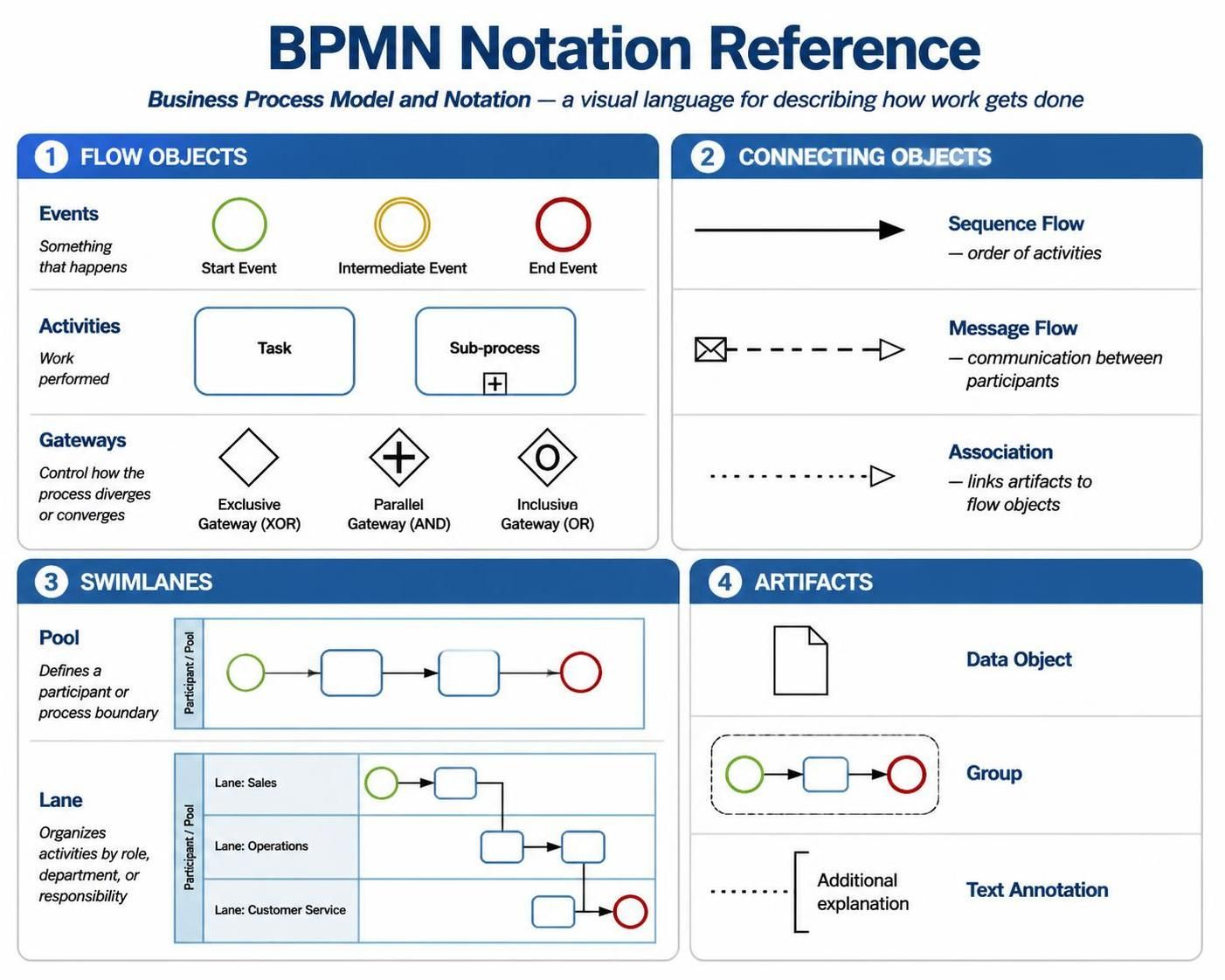
A BPMN diagram is built from four broad categories:
-
Flow objects: Events, activities, and gateways
-
Connecting objects: Sequence flows, message flows, and associations
-
Swimlanes: Pools and lanes
-
Artifacts: Data objects, groups, and text annotations
This guide focuses on the most important category: BPMN flow objects. Flow objects describe what happens in a process, what work is performed, and how the process moves from one path to another.
1. What Are BPMN Flow Objects?
Flow objects are the central elements of a BPMN process diagram. They are connected by sequence flows and represent the behavior of a process.
There are three types:
| Flow object | Basic shape | Main purpose |
|---|---|---|
| Event | Circle | Something that happens |
| Activity | Rounded rectangle | Work that is performed |
| Gateway | Diamond | A decision, split, merge, or synchronization point |
A simple process might look conceptually like this:
Start Event → Activity → Gateway → Activity → End Event
For example:
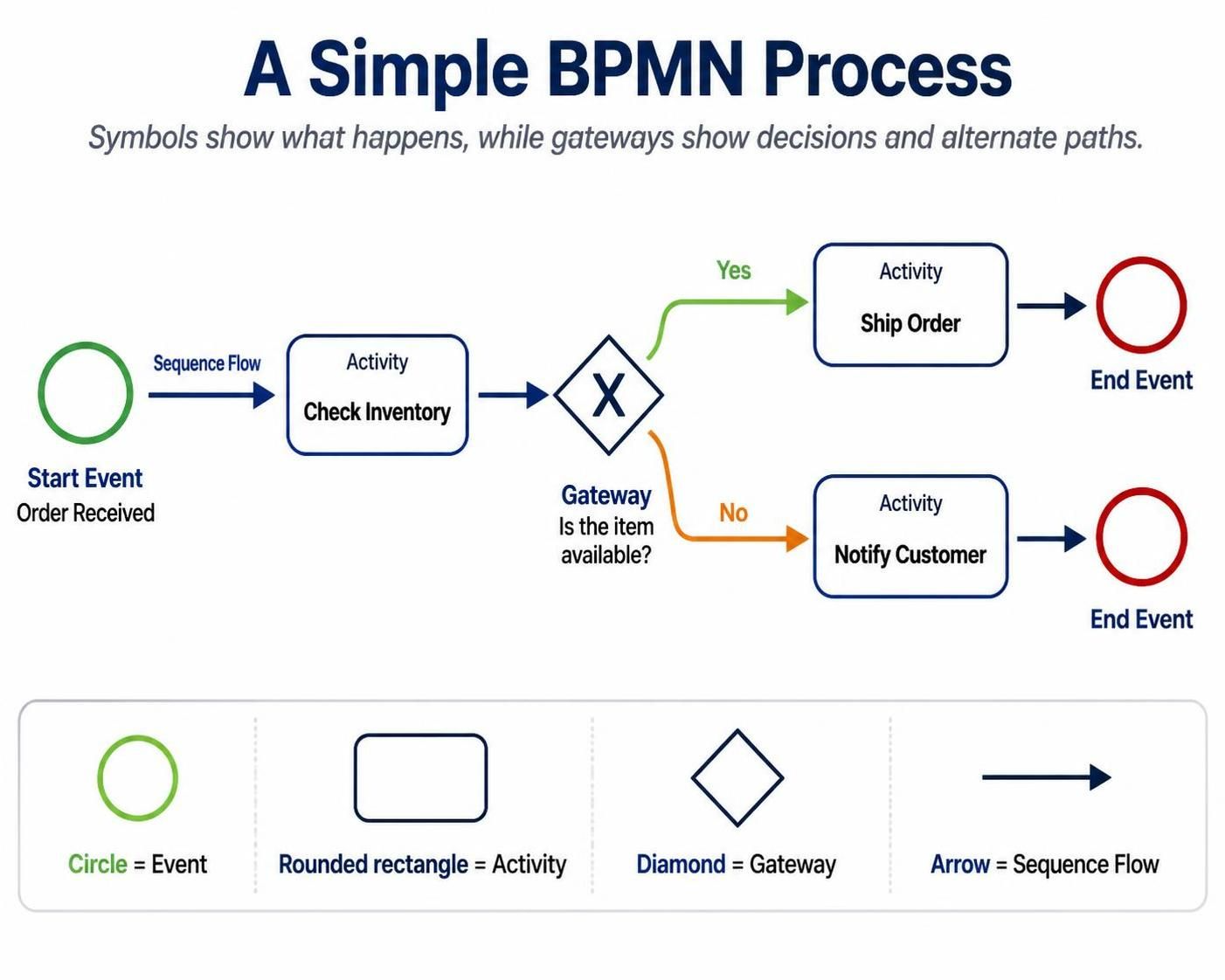
Order Received → Check Inventory → Is the item available?
                                      ├── Yes → Ship Order
                                      └── No  → Notify Customer
The shapes are simple, but the symbols inside them provide additional meaning.
2. Events: Things That Happen
An event represents something that happens during the course of a process. Unlike an activity, an event is not work performed by a person or system. It may trigger a process, interrupt an activity, signal a condition, or indicate how a process ends.
Events are shown as circles. The border indicates where the event occurs in the process:
| Event type | Border appearance | Meaning |
|---|---|---|
| Start event | Thin single line | Shows how a process begins |
| Intermediate event | Double line | Occurs between the start and end |
| End event | Thick single line | Shows how a process path ends |
A start event can catch a trigger, such as an incoming message or a scheduled time. An intermediate event may wait for or send something. An end event produces the final result of a process path.
2.1 Start Events
A start event indicates the trigger that begins a process or subprocess.
It is drawn as a circle with a thin border.
Common examples include:
-
A customer submits an order
-
An employee submits a leave request
-
A timer reaches a scheduled date
-
A message arrives
-
A system detects a condition
-
A new case is created
None start event
A plain start circle means the process begins without a specifically modeled trigger.
○
Example:
○ → Review Application
Use a none start event when the precise trigger is either unknown, irrelevant, or intentionally left general.
Message start event
A message symbol inside the start event indicates that the process begins when a message is received.
Example:
◉ envelope symbol → Process Customer Request
Typical use cases:
-
Receiving an email
-
Receiving an API request
-
Receiving a purchase order
-
Receiving a request from another participant
Timer start event
A clock inside the start event indicates that the process begins according to a schedule or date.
Examples:
-
Start invoice generation every month
-
Begin a renewal process 30 days before expiration
-
Run a daily reconciliation process
Conditional start event
A conditional start event begins when a business condition becomes true.
Example:
Inventory level falls below reorder point
Signal start event
A signal start event begins when a broadcast signal is received. Unlike a message, a signal is generally not directed to one specific recipient.
Example:
Receive “Emergency Closure” signal → Close All Branches
Multiple start event
A multiple start event indicates that several different triggers can begin the same process.
For example, a support case might begin when:
-
A customer submits a web form
-
An agent enters a case manually
-
An automated monitoring system detects an issue
2.2 Intermediate Events
An intermediate event occurs after a process has started but before it has ended. It can pause the process, wait for something, send a message, create an exception path, or respond to a condition.
It is drawn with a double border.
Intermediate events can be:
-
Catching: Waiting for or receiving something
-
Throwing: Sending or producing something
A catching event generally has an unfilled or outline marker, while a throwing event generally uses a filled marker.
Timer intermediate event
A timer event represents a delay, deadline, duration, or recurring schedule.
Examples:
-
Wait three business days
-
Wait until a specific date
-
Escalate if no response arrives within 24 hours
-
Perform a recurring action while the process is active
Example:
Send Quote → Wait 3 Days → Check for Response
Message intermediate event
A message intermediate event either waits for a message or sends one.
Examples:
Send Approval Request → Wait for Approval Response
A message event is especially useful when a process interacts with another participant, department, organization, or system.
Error intermediate event
An error event represents an error condition that affects the normal process flow.
It is commonly used as a boundary event attached to an activity or subprocess.
Example:
Process Payment
      │
      └── Error → Handle Payment Failure
Escalation intermediate event
An escalation event indicates that an issue requires attention at a higher level without necessarily representing a technical failure.
Example:
Resolve Customer Complaint
      │
      └── Escalation → Supervisor Review
Conditional intermediate event
A conditional event waits until a specified condition becomes true.
Example:
Wait until customer account is verified
Signal intermediate event
A signal event broadcasts or receives a signal that may be relevant to multiple process participants.
Example:
Broadcast Product Recall Signal
Link intermediate event
A link event connects two distant points within the same process diagram without drawing a long sequence-flow line across the page.
Use link events carefully. They can improve diagram readability, but excessive use may make the process harder to follow.
Compensation intermediate event
A compensation event triggers corrective work to undo or compensate for an earlier activity.
Example:
Cancel Hotel Reservation
Compensation is different from an ordinary error path. It is specifically concerned with reversing or compensating for completed work.
2.3 Boundary Events
A boundary event is attached directly to the edge of an activity or subprocess. It represents something that can happen while that activity is in progress.
Example:
┌────────────────────┐
│ Process Application │
└────────────────────┘
          ○
          │
          └── Timeout → Escalate Case
Boundary events are useful for modeling:
-
Timeouts
-
Cancellations
-
Errors
-
Escalations
-
Incoming messages
-
Compensation
-
External signals
Interrupting boundary events
An interrupting boundary event stops the attached activity when it occurs.
Example:
Process Payment
      │
      └── Payment Error → Handle Failure
The payment activity ends when the error occurs.
Non-interrupting boundary events
A non-interrupting boundary event starts an additional path while the original activity continues.
It is usually shown with a dashed border.
Example:
Process Application
      │
      └── Timer reminder → Send Reminder
The application process continues while the reminder path runs.
This distinction is important:
| Boundary event type | Effect on attached activity |
|---|---|
| Interrupting | Stops the activity |
| Non-interrupting | Leaves the activity running |
2.4 End Events
An end event indicates the conclusion of a process path. It is drawn as a circle with a thick border.
A process may have more than one end event because different outcomes may terminate the process.
Examples:
-
Order completed
-
Request rejected
-
Payment failed
-
Case canceled
-
Customer notified
-
Process completed with compensation
None end event
A plain end event indicates that the path has finished without specifying a particular result.
●
Message end event
A message end event sends a message when the process ends.
Example:
Order Approved → Send Confirmation → Message End
Error end event
An error end event ends the process by throwing an error to a higher-level process or handler.
Use it for process-level failure conditions that must be handled elsewhere.
Escalation end event
An escalation end event ends the current process path and communicates that an escalation has occurred.
Terminate end event
A terminate end event immediately ends the entire process instance, including other active paths.
This is stronger than an ordinary end event. It should be used when all remaining work must stop.
Compensation end event
A compensation end event triggers compensation activities before the process path concludes.
3. Activities: Work That Is Performed
An activity represents work performed by a person, team, system, or automated service. Activities are drawn as rounded rectangles.
Examples include:
-
Review application
-
Approve invoice
-
Send confirmation
-
Validate customer details
-
Calculate shipping cost
-
Update account
-
Generate report
Activities form the operational backbone of a BPMN diagram because they show where time, effort, cost, and responsibility are concentrated.
3.1 Naming Activities
A good activity name usually follows this pattern:
Verb + object
Examples:
-
Review Application
-
Approve Invoice
-
Create Customer Record
-
Validate Payment
-
Send Confirmation Email
Avoid vague names such as:
-
Processing
-
Handle Request
-
Step 1
-
Other Work
-
Administration
A clear activity name should describe an action and its subject.
| Weak name | Better name |
|---|---|
| Processing | Process Payment |
| Review | Review Application |
| Customer step | Verify Customer Identity |
| Send Approval Email | |
| Update | Update Order Status |
A task normally represents one unit of work that cannot or should not be broken down further. A subprocess represents a collection of related activities.
3.2 Tasks
A task is the simplest type of activity. It represents a single unit of work.
A basic task is shown as a rounded rectangle:
╭────────────────────╮
│ Review Application │
╰────────────────────╯
Tasks may include markers that identify the type of work being performed.
User task
A user task is performed by a human using a system or application.
Examples:
-
Approve expense report
-
Enter customer information
-
Review contract
-
Assign support case
Manual task
A manual task is performed by a person without the assistance of a business process engine or application.
Examples:
-
Inspect equipment
-
Sign a paper document
-
Package a physical product
-
Deliver a document by hand
Service task
A service task is performed automatically by a system, application, web service, or API.
Examples:
-
Retrieve credit score
-
Send automated email
-
Calculate tax
-
Create database record
-
Call payment service
Script task
A script task executes a script or piece of code within the process environment.
Examples:
-
Transform data
-
Calculate a value
-
Format a message
-
Apply a simple data rule
Business rule task
A business rule task evaluates business rules, often through a rules engine.
Examples:
-
Determine credit limit
-
Calculate insurance premium
-
Decide whether an order qualifies for free shipping
-
Determine approval level
Send task
A send task sends a message to another participant or system.
Examples:
-
Send invoice
-
Send order confirmation
-
Send notification to warehouse
Receive task
A receive task waits for a message from another participant or system.
Examples:
-
Receive signed contract
-
Receive payment confirmation
-
Receive shipping status
3.3 Subprocesses
A subprocess is an activity that contains a more detailed process.
It can be shown in two ways:
-
Collapsed subprocess: A rounded rectangle with a plus marker
-
Expanded subprocess: A larger rounded rectangle displaying the internal flow
Use a subprocess when several tasks belong together and the high-level diagram would become too detailed if all of them were shown.
Example:
╭──────────────────────────────╮
│ + Complete Customer Onboarding│
╰──────────────────────────────╯
The subprocess might contain:
Collect Information
        ↓
Verify Identity
        ↓
Create Account
        ↓
Send Welcome Message
When to use a subprocess
Use one when:
-
A group of steps has a clear business purpose
-
The group may be reused conceptually
-
The main diagram is becoming crowded
-
Stakeholders need both a summary and a detailed view
-
The internal process has its own start, end, exception, or decision logic
Embedded subprocess
An embedded subprocess is defined inside its parent process and is part of that process’s flow.
Call activity
A call activity invokes a separately defined reusable process or global task.
Use it when the same process logic is called from multiple places, such as:
Verify Customer Identity
If customer verification appears in several business processes, a reusable call activity may be more appropriate than duplicating all of its internal steps.
Event subprocess
An event subprocess is activated by a start event while its containing process or subprocess is active. It is useful for handling exceptional or parallel situations, such as cancellation requests, urgent escalations, or incoming updates. Event subprocesses may be interrupting or non-interrupting.
Example:
Main Process: Fulfill Order

Event subprocess:
Cancellation Request → Cancel Fulfillment → Refund Customer
3.4 Activity Markers
Activities may include small markers that add information about how they behave.
Loop marker
A loop marker indicates that an activity repeats until a condition is satisfied.
Example:
Review Document
      ↻
Use it for activities such as:
-
Review until approved
-
Attempt delivery until successful
-
Contact customer until reached
Parallel multi-instance marker
This indicates that multiple instances of the same activity run at the same time.
Example:
Obtain Three Approvals
The activity may be performed simultaneously by several reviewers.
Sequential multi-instance marker
This indicates that multiple instances run one after another.
Example:
Review Items One at a Time
Compensation marker
This identifies an activity used to compensate for previously completed work.
Example:
Refund Customer
Ad hoc marker
An ad hoc subprocess is represented by a tilde-like marker. It indicates that activities inside the subprocess may be carried out in a flexible or loosely structured order rather than following one fixed sequence.
4. Gateways: Decisions, Splits, and Merges
A gateway controls how the process flow diverges or converges. Gateways are drawn as diamonds.
A gateway is not normally a task. It does not perform the decision-making work itself. Instead, it represents how the process flow is controlled after a decision, condition, or event has been evaluated.
For example:
Review Application → Is the application complete?
The review activity gathers or evaluates information. The gateway then routes the process according to the result.
Gateways can:
-
Split one path into several paths
-
Merge multiple paths into one
-
Synchronize parallel work
-
Wait for one or more events
-
Route work based on conditions or rules
4.1 Exclusive Gateway: XOR
An exclusive gateway selects exactly one outgoing path.
It is commonly shown as a diamond containing an “X,” although the marker may be omitted in some diagrams.
Example:
                    ┌── Approved → Create Account
Check Application ─◇
                    └── Rejected → Send Rejection
Only one path is followed.
Typical uses:
-
If payment is approved, continue; otherwise reject
-
If the customer is eligible, offer a discount
-
If the request is complete, process it; otherwise return it
The outgoing paths should normally have clear conditions or labels:
-
Approved
-
Rejected
-
Complete
-
Incomplete
-
Amount > $10,000
-
Amount ≤ $10,000
Exclusive merge
An exclusive gateway can also merge alternative paths back into one path. It does not wait for all paths because only one of the alternative paths should have been taken.
Default flow
A default path may be used when none of the specified conditions is true.
For example:
Approved
Rejected
Default → Manual Review
A default path is useful for unexpected or unclassified cases.
4.2 Parallel Gateway: AND
A parallel gateway splits the process into multiple paths that run concurrently.
It is represented by a diamond containing a plus sign.
Example:
                 ┌── Prepare Invoice ──┐
Order Approved ─◇                       ◇── Ship Order
                 └── Reserve Inventory ┘
Both activities begin, and the process may later wait for both to finish.
Parallel split
A parallel split starts all outgoing paths.
Use it when all activities must occur, regardless of conditions.
Examples:
-
Send confirmation and update inventory
-
Notify finance and notify operations
-
Perform security check and fraud check
Parallel join
A parallel join waits for all incoming paths to complete before continuing.
This is sometimes called synchronization.
Prepare Invoice ──┐
                  ◇── Fulfill Order
Reserve Inventory ┘
If one incoming branch is delayed, the join waits for it.
4.3 Inclusive Gateway: OR
An inclusive gateway selects one or more outgoing paths depending on which conditions are true.
It is represented by a diamond containing a circle.
Example:
Customer qualifies for:
- Standard discount
- Loyalty discount
- Promotional discount
More than one discount-related action may be selected if multiple conditions are satisfied.
Use an inclusive gateway when:
-
One or more conditions may be true
-
Several paths can run at the same time
-
The process should continue after all selected paths finish
Unlike an exclusive gateway, an inclusive gateway does not necessarily choose only one path. Unlike a parallel gateway, it does not necessarily choose every path.
4.4 Event-Based Gateway
An event-based gateway routes the process according to whichever event happens first.
It is commonly followed by catching intermediate events or receive tasks.
Example:
Send Quote → Event-Based Gateway
                         ├── Message received → Process Acceptance
                         └── Timer expires → Send Reminder
Only the first event to occur determines the path.
Use an event-based gateway when the process is waiting for external behavior rather than evaluating a known business condition. For example, the process might wait for either a customer response or a timeout.
Event-based versus exclusive gateway
| Question | Exclusive gateway | Event-based gateway |
|---|---|---|
| What determines the path? | A condition or business rule | The first event to occur |
| Typical question | “Is the request approved?” | “What happens first?” |
| Common following elements | Activities or sequence flows | Catching events or receive tasks |
| Decision source | Data or logic | External event |
4.5 Complex Gateway
A complex gateway handles advanced routing logic that cannot be expressed clearly with the standard gateway types.
Examples include:
-
Continue when at least two of three approvals are received
-
Choose a path based on a complex combination of conditions
-
Synchronize selected paths according to custom rules
Complex gateways should be used sparingly. In many cases, several simpler gateways or a clearly named business rule task will be easier to understand and maintain.
4.6 Event-Based Gateway Variants
BPMN also supports event-based gateway variations, including:
-
Exclusive event-based gateways
-
Parallel event-based gateways
-
Instantiating event-based gateways
A parallel event-based gateway may wait for multiple event conditions, while an exclusive event-based gateway proceeds based on the first event that occurs. The correct variant depends on whether the process is waiting for one event or a combination of events.
5. How Flow Objects Work Together
The meaning of a BPMN diagram comes from the relationships among events, activities, gateways, and sequence flows.
Consider an order process:
Start
  ↓
Receive Order
  ↓
Check Inventory
  ↓
Is Item Available?
  ├── Yes → Pack Order → Ship Order → End
  └── No  → Notify Customer → End
This example contains:
-
A start event that begins the process
-
Activities for receiving, checking, packing, shipping, and notifying
-
An exclusive gateway that chooses one path
-
Two end events or end paths representing different outcomes
A more advanced version might be:
Start
  ↓
Receive Order
  ↓
Check Inventory
  ↓
Is Item Available?
  ├── No → Notify Customer → End
  └── Yes → Parallel Gateway
                   ├── Reserve Inventory
                   ├── Prepare Invoice
                   └── Check Fraud
                         ↓
                 Parallel Join
                         ↓
                    Ship Order
                         ↓
                        End
Here:
-
The exclusive gateway determines whether fulfillment can proceed.
-
The parallel gateway launches three activities.
-
The parallel join waits for all three activities.
-
Shipping begins only after synchronization is complete.
6. Events, Activities, and Gateways: A Quick Comparison
| Element | Key question | Example |
|---|---|---|
| Event | What happened or will happen? | Payment received |
| Activity | What work is performed? | Verify payment |
| Gateway | Which route should the process take? | Is payment valid? |
A useful rule is:
-
Events happen
-
Activities are done
-
Gateways control the path
If you are unsure which symbol to use, ask:
-
Is this something that occurs without being treated as work? Use an event.
-
Is someone or something performing an action? Use an activity.
-
Is the process splitting, merging, or waiting for a routing condition? Use a gateway.
7. Connecting Flow Objects Correctly
Flow objects are connected by different types of lines. Using the wrong connector can make a diagram misleading.
7.1 Sequence Flow
A sequence flow is a solid line with an arrowhead. It shows the order in which flow objects are executed within the same process.
Activity A → Activity B
Use sequence flow to connect:
-
Events to activities
-
Activities to gateways
-
Gateways to activities
-
Activities to end events
A sequence flow normally should not cross the boundary between separate pools.
7.2 Message Flow
A message flow is a dashed line with an open arrowhead. It represents communication between separate participants or pools.
Examples:
-
Customer sends order to seller
-
Seller sends confirmation to customer
-
Bank sends payment result to merchant
Use message flow for communication, not for showing internal process order.
7.3 Association
An association is a dotted line used to connect artifacts, notes, or data representations to flow objects.
Examples:
-
Attach a document to a task
-
Link a text annotation to an activity
-
Show that a task uses a data object
The three main types of connecting objects are sequence flows, message flows, and associations.
8. Pools and Lanes
Although pools and lanes are not flow objects, they provide essential context for understanding who performs each activity.
Pool
A pool represents a participant in a process.
Examples:
-
Customer
-
Supplier
-
Bank
-
Company
-
Government agency
-
External system
A pool may contain an entire process or may be shown as a black-box participant with no internal detail.
Lane
A lane divides a pool according to responsibility, role, department, system, or location.
Examples:
-
Customer Service
-
Finance
-
Warehouse
-
Manager
-
Payment System
Lanes help answer the question:
Who is responsible for this activity?
They can also reveal handoffs, delays, duplicated work, and unclear ownership.
9. Data Objects and Other Supporting Elements
Data objects are not flow objects, but they provide useful context about information used, created, or changed by activities.
Examples:
-
Application form
-
Invoice
-
Purchase order
-
Customer record
-
Approval document
-
Shipping label
A data object might be connected to an activity like this:
Application Form → Review Application
Data objects identify relevant information, but they do not necessarily represent every piece of data handled by the process.
Other supporting elements include:
-
Data stores: Persistent locations where data is stored
-
Text annotations: Explanatory notes
-
Groups: Visual organization of related elements
-
Associations: Links between supporting elements and flow objects
10. A Step-by-Step Method for Modeling a Process
Step 1: Define the process scope
Decide where the process starts and ends.
For example:
From: Customer submits order
To: Order is shipped or rejected
Avoid modeling the entire organization in one diagram.
Step 2: Identify the participants
List the people, departments, systems, or organizations involved.
Examples:
-
Customer
-
Sales team
-
Finance department
-
Warehouse
-
Payment gateway
These may become pools or lanes.
Step 3: Identify the start trigger
Ask:
What causes this process to begin?
Use the appropriate start event:
-
Message
-
Timer
-
Conditional trigger
-
Signal
-
None
Step 4: List the major activities
Write each activity using a verb-and-object format:
-
Receive Order
-
Validate Order
-
Calculate Total
-
Approve Payment
-
Ship Order
At this stage, do not worry about every exception.
Step 5: Add decisions
Look for questions such as:
-
Is the order complete?
-
Is payment approved?
-
Is inventory available?
-
Does the customer qualify?
-
Has the deadline passed?
Use gateways to represent how the answer affects the process.
Step 6: Add parallel work
Identify activities that can occur simultaneously.
For example:
-
Update inventory
-
Send confirmation
-
Create invoice
Use parallel gateways when all branches must be completed or synchronized.
Step 7: Add intermediate and boundary events
Ask what may happen while work is in progress:
-
Does the activity have a deadline?
-
Can it be canceled?
-
Can an error occur?
-
Can an external message arrive?
-
Should the process escalate if it takes too long?
Step 8: Add end events
Identify all meaningful outcomes:
-
Completed
-
Rejected
-
Canceled
-
Failed
-
Escalated
-
Compensated
Step 9: Add data and annotations
Include documents, systems, notes, and business rules only where they improve understanding.
Step 10: Review the diagram
Check that:
-
Every process path has a clear start
-
Every path eventually ends
-
Gateway conditions are understandable
-
Activities have clear owners
-
Sequence flows show actual order
-
Message flows are used only between participants
-
No gateway is being used as a task
-
The diagram is not overloaded with unnecessary detail
11. Common BPMN Modeling Mistakes
Mistake 1: Using a gateway as a decision activity
A gateway should route the process, not perform the analysis.
Weak model:
◇ Check Credit Score
Better model:
Check Credit Score → Credit Approved?
The activity performs the check. The gateway routes based on the result.
Mistake 2: Using sequence flow between separate pools
Sequence flow represents internal process order. Communication between separate participants should use message flow.
Incorrect concept:
Customer Pool ── solid sequence flow ── Seller Pool
Better concept:
Customer Pool ── dashed message flow ── Seller Pool
Mistake 3: Leaving gateway paths unlabeled
An unlabeled gateway creates ambiguity.
Instead of:
◇ → Path A
  → Path B
Use:
◇
├── Approved
└── Rejected
Mistake 4: Using an exclusive gateway for parallel work
If all activities must happen, do not use an exclusive gateway.
Incorrect:
◇ ├── Send Confirmation
   └── Update Inventory
This means only one path is selected.
Use a parallel gateway if both activities must happen:
+ ├── Send Confirmation
  └── Update Inventory
Mistake 5: Using a parallel gateway for conditional work
A parallel gateway activates every outgoing path. If only some paths should run, use an exclusive or inclusive gateway.
Mistake 6: Modeling every minor action
A diagram can become unreadable if every click, field entry, and internal system action is included.
Model at the level appropriate for your audience:
-
Executives need major stages
-
Process owners need responsibilities and decisions
-
Developers may need implementation-level detail
-
Auditors may need controls and evidence
Mistake 7: Creating dead-end paths
Every sequence-flow path should eventually reach an appropriate end event or a clearly defined subprocess boundary.
Mistake 8: Mixing business logic and technical implementation unnecessarily
A business process diagram should explain the process first. Technical details should be included only when they help the intended audience.
12. Practical Naming Conventions
Consistent naming makes diagrams easier to read.
Events
Name events with a result, occurrence, or condition:
-
Order Received
-
Payment Confirmed
-
Deadline Reached
-
Customer Canceled
-
Error Occurred
Activities
Use:
Verb + object
Examples:
-
Review Contract
-
Approve Request
-
Update Account
-
Send Notification
Gateways
Gateways are often clearest when associated with a question:
-
Is the application complete?
-
Is payment approved?
-
Is inventory available?
-
Has the deadline passed?
The outgoing paths should contain the answers:
-
Yes / No
-
Approved / Rejected
-
Available / Unavailable
End events
Name end events according to the outcome:
-
Order Completed
-
Request Rejected
-
Payment Failed
-
Case Canceled
13. Choosing the Right Gateway
Use this decision guide:
| Modeling need | Gateway to use |
|---|---|
| Choose exactly one path based on conditions | Exclusive gateway |
| Start every outgoing path | Parallel gateway |
| Choose one or more paths based on conditions | Inclusive gateway |
| Follow the path for the first event that occurs | Event-based gateway |
| Apply highly specialized routing rules | Complex gateway |
A quick mental test:
-
One path? Exclusive
-
All paths? Parallel
-
Some paths? Inclusive
-
First event? Event-based
-
Unusual custom logic? Complex
14. A Complete Example: Customer Refund Process
Consider a customer refund process.
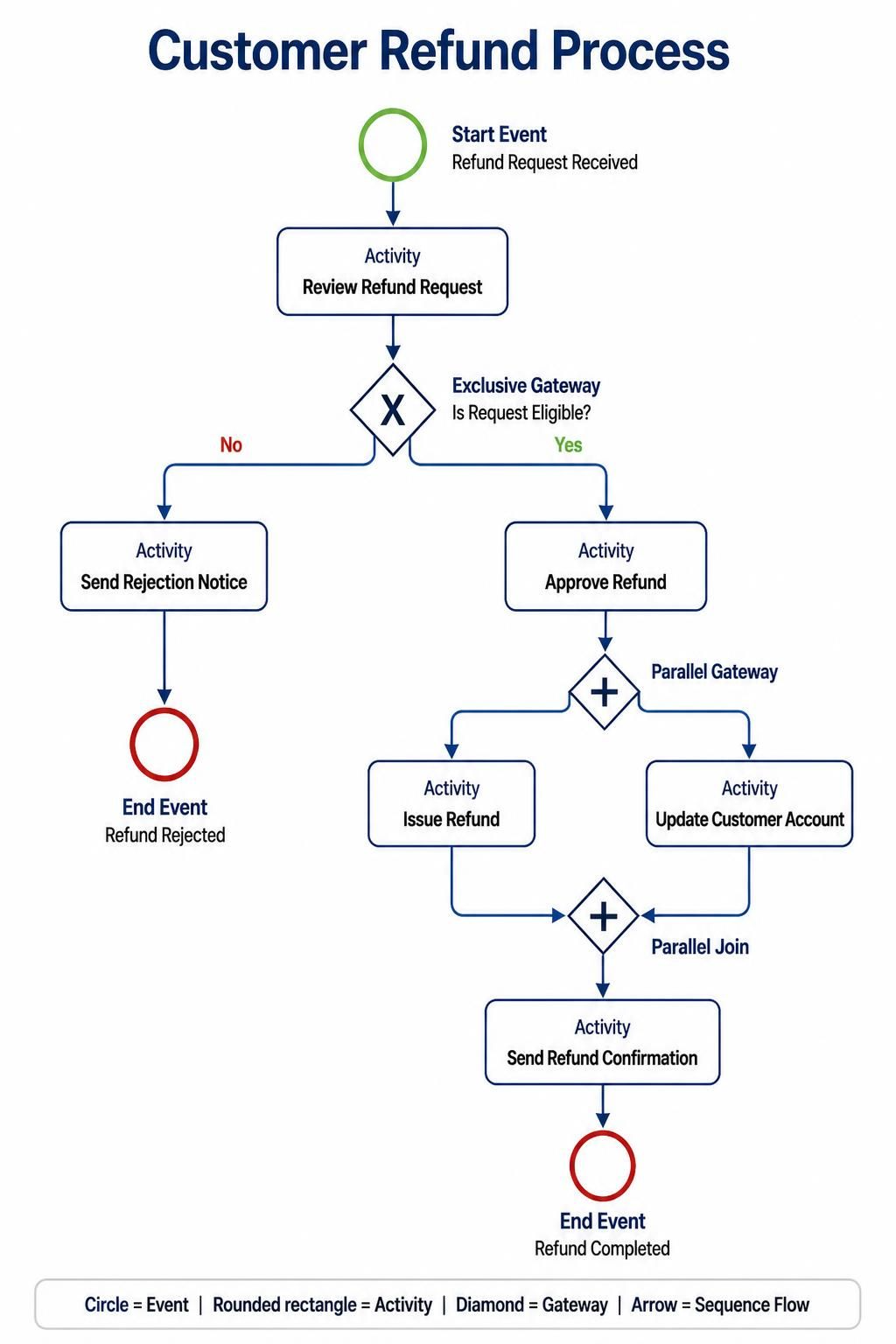
Start: Refund Request Received
                ↓
        Review Refund Request
                ↓
        Is Request Eligible?
          ├── No
          │    ↓
          │  Send Rejection Notice
          │    ↓
          │  End: Refund Rejected
          │
          └── Yes
               ↓
          Approve Refund
               ↓
        Parallel Gateway
          ├── Issue Refund
          └── Update Customer Account
               ↓
        Parallel Join
               ↓
        Send Refund Confirmation
               ↓
        End: Refund Completed
This model demonstrates:
-
A message start event
-
User or manual activities
-
An exclusive gateway
-
A rejection path
-
A parallel split
-
A parallel join
-
A confirmation activity
-
Different end outcomes
If the refund service can fail, add a boundary error event to Issue Refund:
Issue Refund
      │
      └── Error → Create Manual Review Case
If the refund must be completed within five business days, add a boundary timer event:
Issue Refund
      │
      └── 5-day timeout → Escalate Refund
15. A Compact BPMN Symbol Cheat Sheet
| Symbol category | Meaning | Typical use |
|---|---|---|
| Thin circle | Start event | Begin a process |
| Double circle | Intermediate event | Wait, send, receive, or react |
| Thick circle | End event | Finish a process path |
| Rounded rectangle | Task or activity | Perform work |
| Rounded rectangle with plus | Collapsed subprocess | Group detailed work |
| Diamond with X | Exclusive gateway | Choose one path |
| Diamond with plus | Parallel gateway | Run all paths |
| Diamond with circle | Inclusive gateway | Run one or more paths |
| Diamond with event marker | Event-based gateway | Follow the first event |
| Solid arrow | Sequence flow | Show internal order |
| Dashed arrow | Message flow | Show communication |
| Dotted connector | Association | Link notes or data |
| Pool | Participant | Represent an organization or process |
| Lane | Role or responsibility | Assign ownership |
| Document/data shape | Data object | Show information used or produced |
16. Final Modeling Principles
The most effective BPMN diagrams follow a few basic principles:
-
Use events for things that happen.
-
Use activities for work that people or systems perform.
-
Use gateways to control or synchronize paths.
-
Use sequence flows for internal process order.
-
Use message flows for communication between participants.
-
Label decisions and outgoing conditions clearly.
-
Use subprocesses to control complexity.
-
Show responsibility with pools and lanes.
-
Use boundary events for timeouts, errors, and interruptions.
-
Model at the level appropriate for the audience.
-
Give every meaningful path a clear outcome.
-
Prefer simple, understandable diagrams over overly elaborate ones.
Once these three core ideas become familiar—events happen, activities are performed, and gateways control the flow—most BPMN diagrams become much easier to read and create.
This post is also available in Deutsch, Español, فارسی, Français, English, Bahasa Indonesia, 日本語, Polski, Portuguese, Ру́сский, Việt Nam, 简体中文 and 繁體中文.