If you’ve ever tried using an AI presentation generator, you probably know the frustration: you type in a prompt, wait a minute, and get back a rigid, uneditable deck of generic slides. If you don’t like one tiny detail, you’re forced to regenerate the entire thing and start from scratch.
As a content creator who regularly needs to put together engaging video presentations, I was skeptical when I first heard about AI Presentation Studio. But after spending a weekend putting it through its paces, I can confidently say it’s a game-changer. Instead of a black-box “one-shot” generator, this tool offers a structured, step-by-step wizard that actually gives you the control.
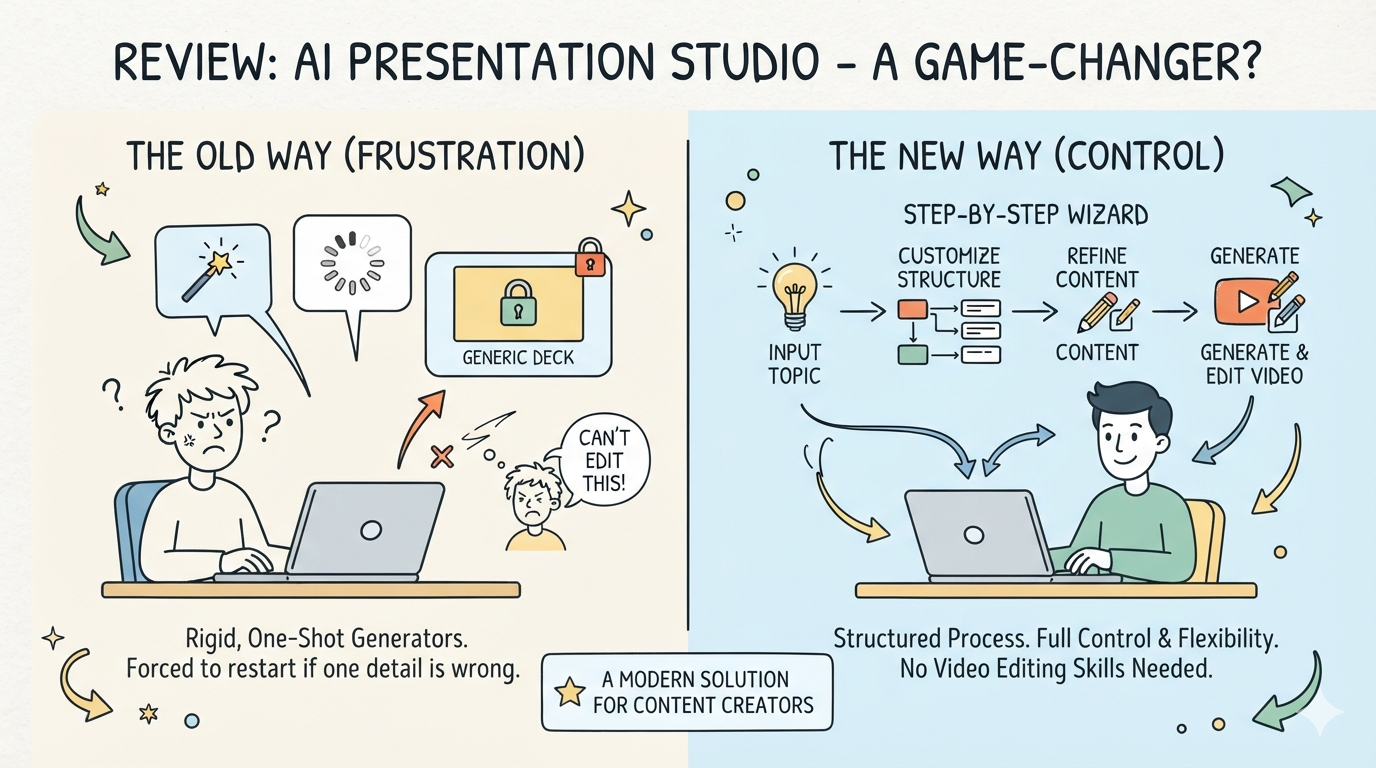
Here is my comprehensive, easy-to-follow review and guide based on my real-world experience using the platform. No technical or professional video editing knowledge required!
Step 1: Taking Control of Content & Layouts
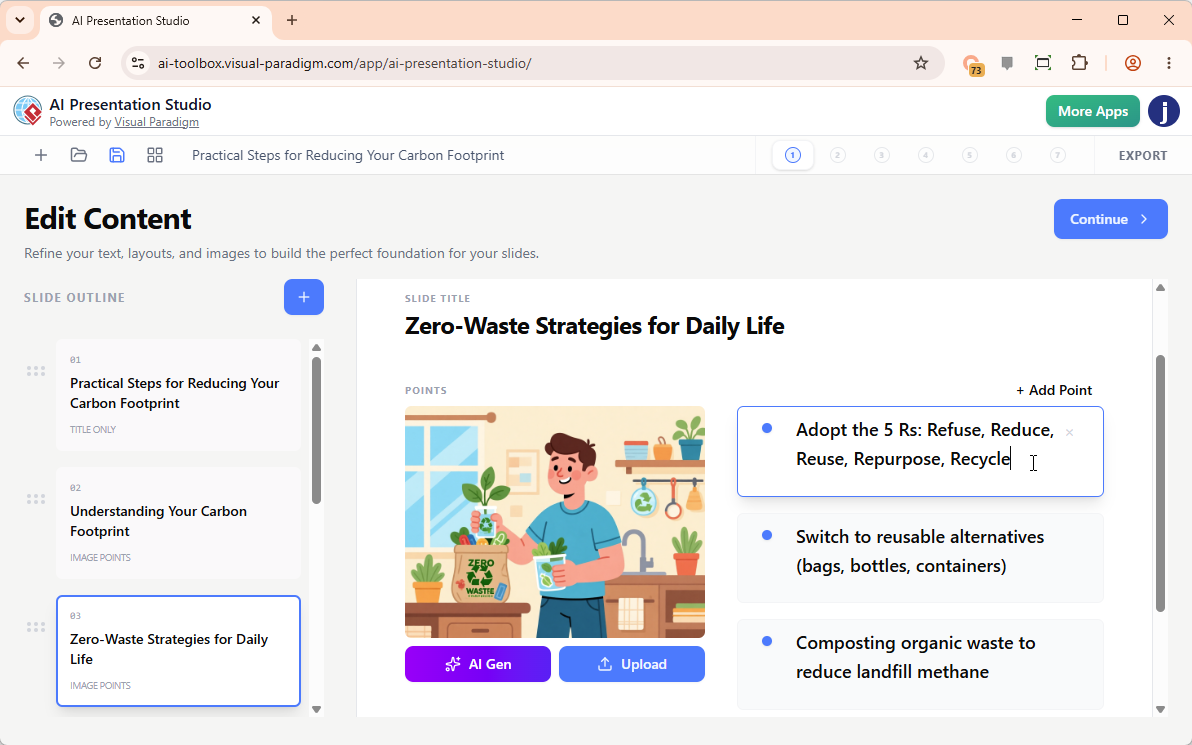
My first impression was how refreshing the onboarding felt. Instead of just dumping a prompt and hoping for the best, the wizard asked me for my topic, target audience, preferred length, and language.
Within seconds, it generated a structured outline and automatically assigned dynamic visual layouts to each slide. But here’s where it shines: I could actually edit everything. I tweaked the text directly in a real-time visual slide editor, dragged to reorder slides, and swapped out layouts with a single click. When I needed a specific graphic, I just uploaded it from my computer. (Pro tip: You can also paste images directly from your clipboard or generate brand-new ones with AI right inside the editor).
My Take: This step alone saves hours of frustration. You aren’t locked into the AI’s first guess; you are collaborating with it.
Step 2: Making It Cinematic with Themes & Transitions
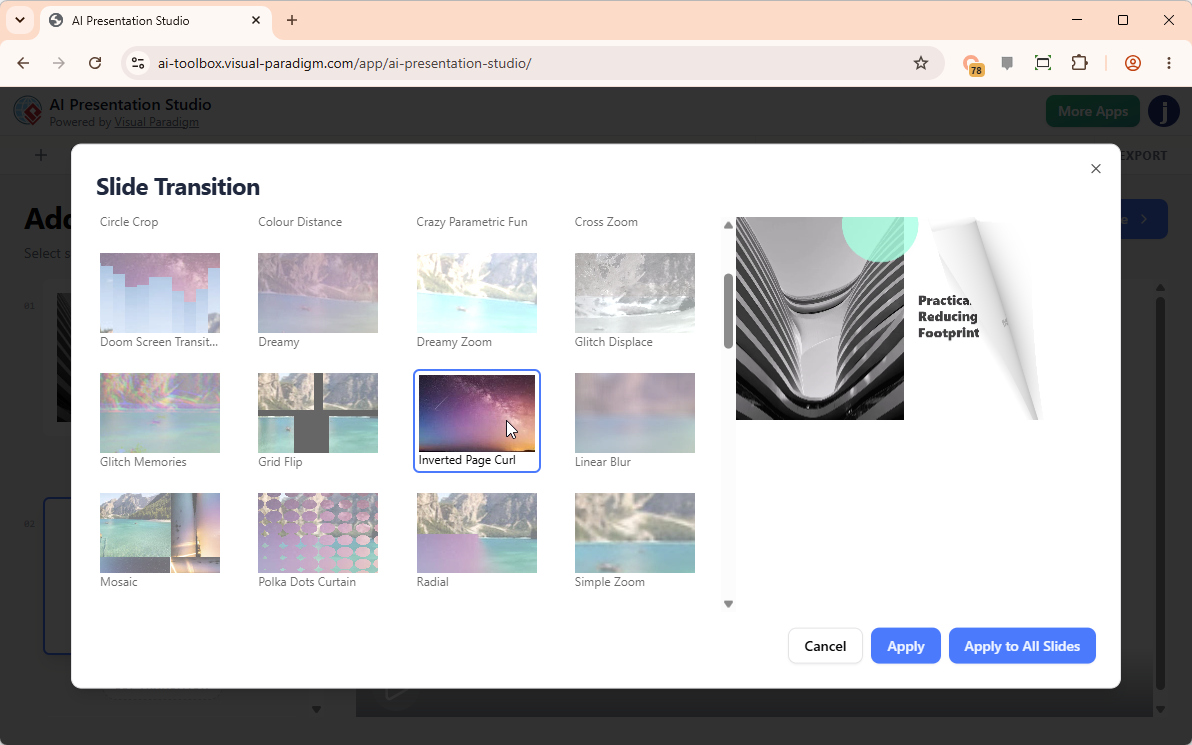
A presentation is only as good as its visual appeal. I browsed the library of professional presentation themes and loved that I could preview exactly how they would look in motion before committing.
To make my video feel less like a boring corporate slideshow and more like a modern video, I explored the transition effects. There are over 60 high-quality cinematic transitions to choose from. I experimented with page flipping, blur, bounce, wave, zoom, swirl, and even wind effects. You can apply a different transition to each slide for a custom feel, or instantly apply one style across the entire deck for consistency.
My Take: The built-in video previews are a lifesaver. No more guessing how a transition will look until after you’ve rendered the final video.
Step 3: Finding the Perfect Voice (Without Recording My Own)
I am notoriously camera-shy and dislike the sound of my own recorded voice. Fortunately, the scripting and voiceover features solved this completely.
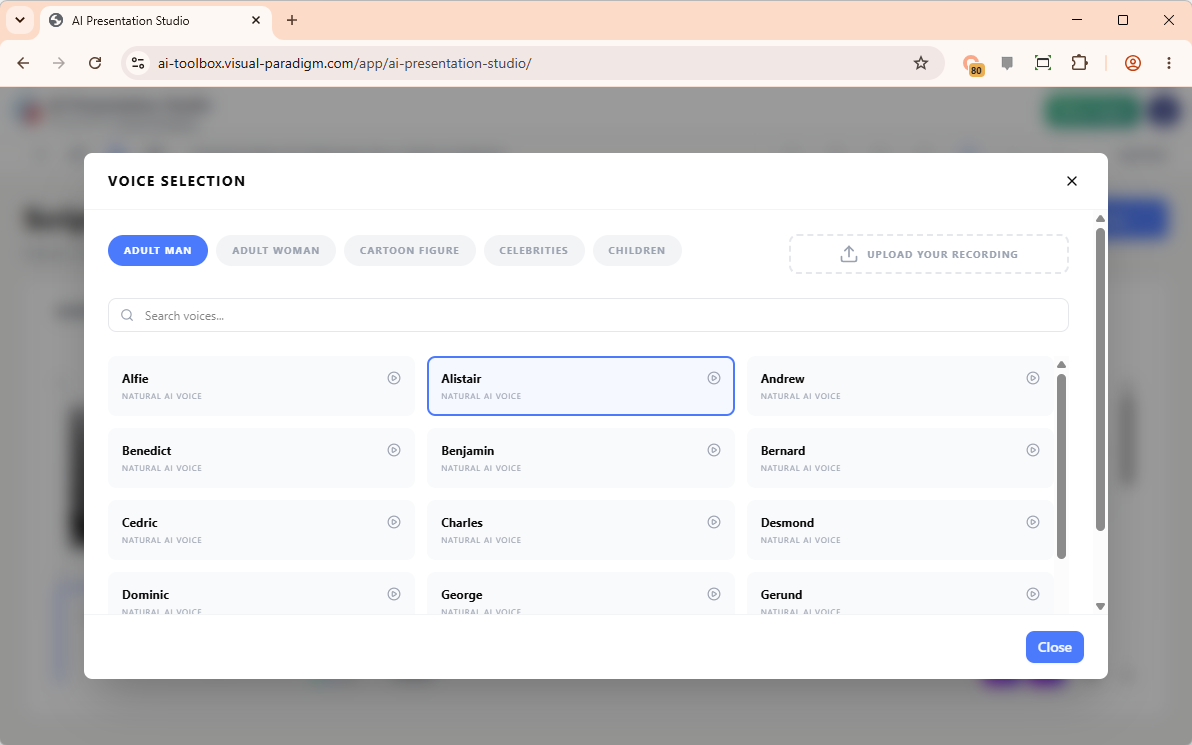
I had three options: type my script manually, upload my own pre-recorded audio, or let the AI generate the script for me (I chose the AI route for a few slides, and it nailed the tone). Then came the Text-to-Speech (TTS) selection. The library features hundreds of high-quality voices categorized by men, women, children, cartoon figures, and even celebrities. I found a warm, professional female voice that matched my brand perfectly in under a minute.
My Take: The variety of voices is staggering. It feels less like robotic TTS and more like hiring a professional voice actor.
Step 4: The “Wow” Factor – Hyper-Realistic Avatars & Face Swap
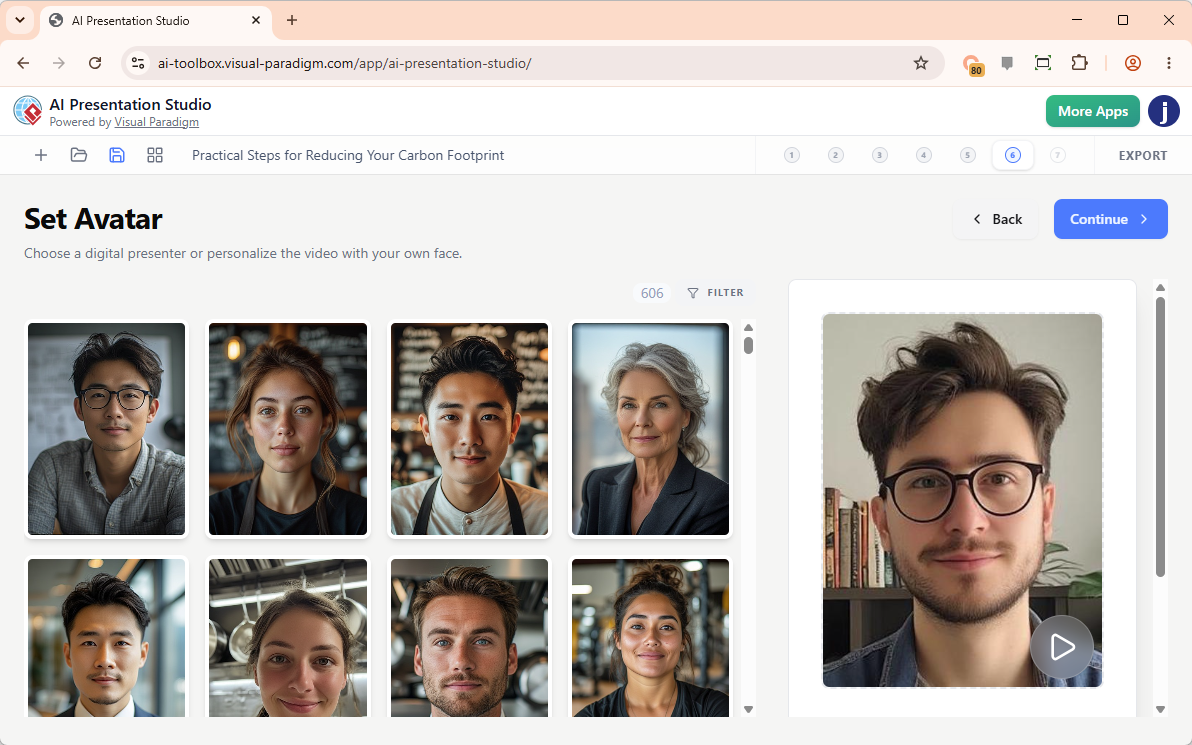
This is the feature that made me say “wow” out loud. If you want a human element without stepping in front of a camera, you can add a lip-synced, hyper-realistic AI avatar to speak your script.
I browsed through the 600+ avatars tailored to specific roles (I went with a “business trainer” look). But the real magic is the AI Face Swap feature. On a whim, I uploaded a casual headshot of myself, and the tool seamlessly mapped my face onto a professional avatar uniform. The lip-syncing with my chosen voiceover was eerily accurate and incredibly natural.
My Take: The Face Swap feature is surprisingly easy to use and yields highly realistic results. It adds a massive layer of personal connection to the video without the hassle of lighting, cameras, or multiple takes.
Step 5: The Grand Finale – Smooth MP4 Export
Once I was happy with the content, transitions, voiceover, and avatar, it was time to export. I clicked “Compile,” and the studio processed everything into a crisp, high-definition MP4 video file.
The download was fast, and the final file was ready to be shared with my team, posted on social media, or uploaded directly to YouTube. No weird watermarks (depending on your plan), no corrupted files, just a clean, professional video.
My Take: The rendering process was smooth and hassle-free, which is often where other AI tools drop the ball.
My Honest Feedback & Minor Critiques
No tool is absolutely perfect, so here is my balanced feedback:
- The Good: The step-by-step control is unparalleled. The Face Swap feature is incredibly fun and functional, and the transition library is robust.
- Room for Improvement: While the free tier is great for testing, accessing the full library of premium celebrity voices and high-end avatars requires a paid plan. Additionally, a feature to auto-generate background music that dynamically fades during voiceovers would be a fantastic future addition.
Conclusion: Is AI Presentation Studio Worth Your Time?
Absolutely. If you are a marketer, educator, small business owner, or content creator who wants to make high-quality video presentations without learning complex video editing software, AI Presentation Studio is a breath of fresh air.
It successfully bridges the gap between AI automation and human creativity. By letting you tweak, refine, and perfect each step of the process, it ensures the final product actually sounds and looks like you, not a generic robot.
I highly recommend giving it a try for your next project. You might just find that creating video presentations is no longer a chore, but a genuinely enjoyable part of your workflow.
Final Rating: ⭐⭐⭐⭐½ (4.5/5)
Best For: Content creators, educators, marketers, and anyone who wants professional video presentations without the professional learning curve.
About Visual Paradigm AI Presentation Studio
Visual Paradigm’s AI Presentation Studio is an advanced, web-based tool designed to automatically generate fully editable, video-driven slide presentations from simple text prompts. [1, 2]
Released as part of the Visual Paradigm 18.1 ecosystem, it moves away from traditional “one-shot” AI slide generators—which often yield flat, unchangeable images—by utilizing a structured, step-by-step wizard workflow that allows users to independently edit text, layouts, and animations at any point. [2, 3, 4]
Core Features
-
Step-by-Step AI Generation: You type a short topic description, and the platform instantly maps out a structured slide outline complete with titles, script content, and slide formatting. [1, 2]
-
Built-In Avatar Presenters: The platform adds a realistic, talking-head AI avatar video overlay to present your slides [0.21]. You can also upload a custom face photo to create a personalized digital narrator. [1]
-
Realistic AI Voice Talents: It features an expansive library of lifelike, professional AI narrator voices to speak and deliver your written slide scripts naturally. [1]
-
Dynamic Visual Customization: You can switch layout themes with a single click, swap out design styles, choose custom slide transitions, and integrate unique backgrounds. [1, 5]
-
Direct Video Export: Once finalized, the presentation seamlessly records and exports into a high-definition video file (such as .webm), ready to be shared on social channels or downloaded for offline use. [5, 6]
If you are looking to build a slide deck, would you like to know how AI Presentation Studio compares to traditional tools like Microsoft PowerPoint, or are you curious about pricing and subscription options for their AI product line?
-
AI Presentation Studio: An overview of the AI Presentation Studio, highlighting its core features like AI content generation, customizable themes, transitions, voice talents, and AI avatars for creating video presentations.
-
Introducing AI Presentation Studio: The Ultimate Step-by-Step AI Video Presentation Builder: The official release announcement for the AI Presentation Studio, detailing its step-by-step workflow, interactive editing, dynamic themes, advanced scripting, and extensive AI avatar options.
-
Introducing Visual Paradigm 18.1: A New Era of Unified Ecosystems and AI-Driven Innovation: An announcement for the Visual Paradigm 18.1 release, which introduces the AI Presentation Studio as one of its four key pillars alongside other AI tools.
-
Introducing Visual Paradigm 18.1: A New Era of Unified Ecosystems and AI-Driven Innovation: A blog post version of the 18.1 release announcement, highlighting the AI Presentation Studio and other new AI-driven features in the unified ecosystem.
-
Illumy AI Slideshow Maker: A feature page for Illumy, an AI slideshow maker that automates content creation and visual design to produce cinematic video slideshows.
-
The Ultimate AI Presentation Makers & AI Slideshow Makers: An overview page for Visual Paradigm’s suite of AI presentation tools, including the AI Presentation Studio, Illumy, Markdown presentation maker, and PowerPoint viewer.
This post is also available in Deutsch, Español, فارسی, Français, English, Bahasa Indonesia, 日本語, Polski, Portuguese, Ру́сский, Việt Nam, 简体中文 and 繁體中文.