
VPasCode is a browser-based editor for creating diagrams and visualizing structured text. You write or generate code in a supported format, see the result in a live preview, then share or export the diagram. It brings several text-to-diagram engines and code or data formats together in one workspace.
VPasCode: Getting started
-
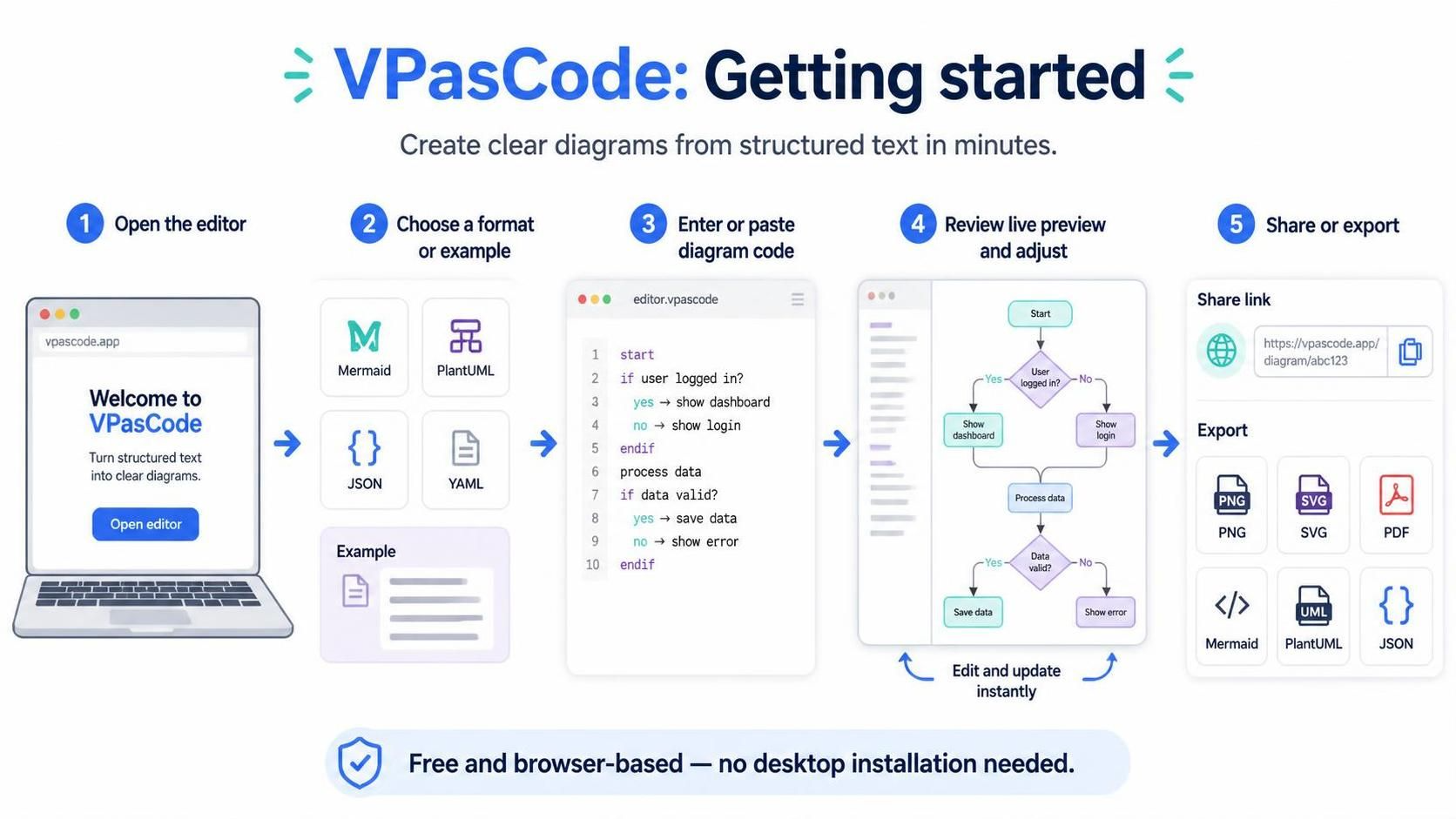
Open the VPasCode editor.
-
Choose a format or start from one of the built-in examples.
-
Enter or paste your diagram code in the editor.
-
Review the live-rendered preview and adjust the code as needed.
-
Share the diagram with a link or export it for use elsewhere.
The editor is described as free and browser-based, so you can work without installing a desktop diagramming application.
VPasCode: Supported formats and diagram types
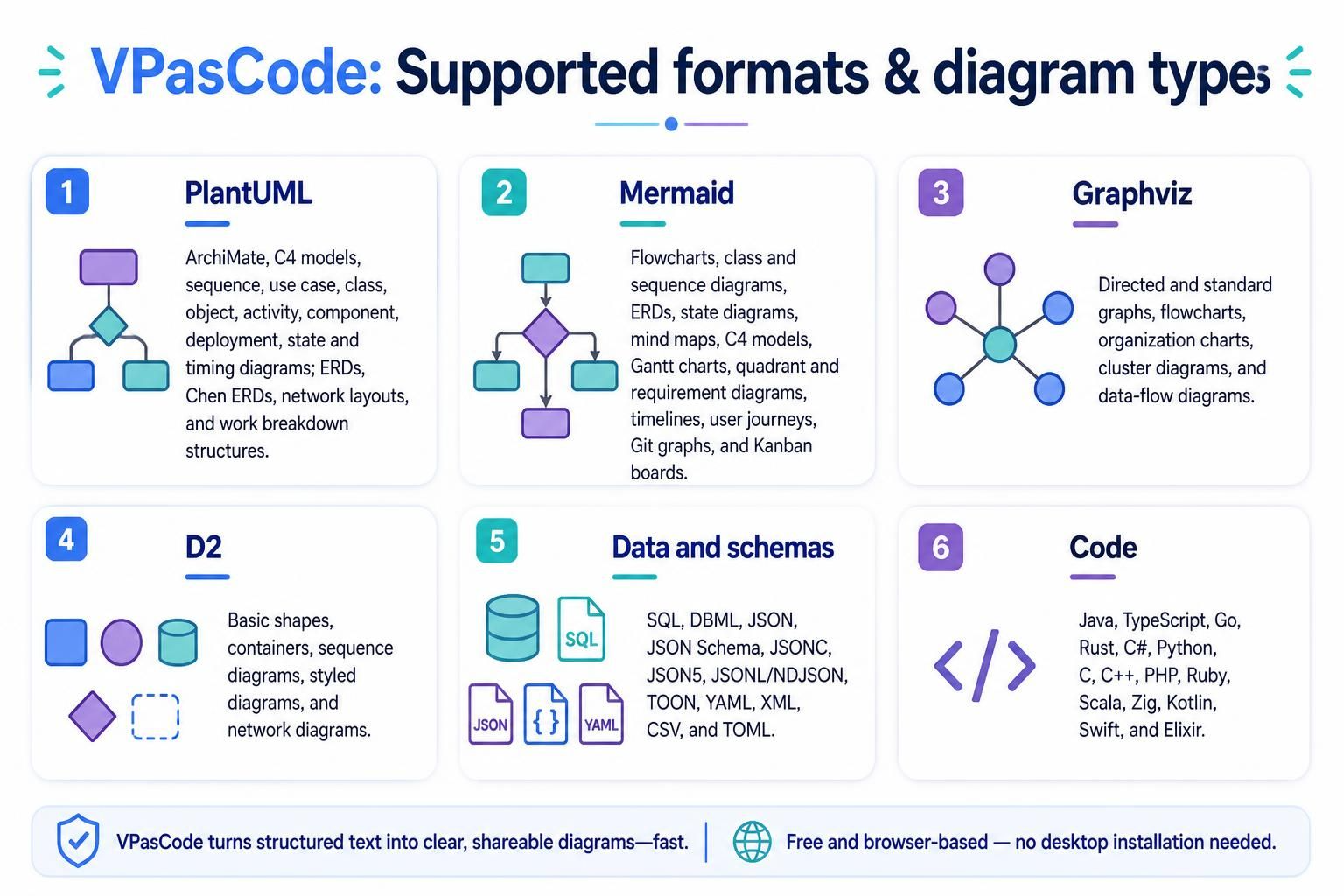
VPasCode supports multiple diagramming languages, data formats, and programming languages.
-
PlantUML: ArchiMate, C4 models, sequence, use case, class, object, activity, component, deployment, state and timing diagrams; ERDs, Chen ERDs, network layouts, and work breakdown structures.
-
Mermaid: Flowcharts, class and sequence diagrams, ERDs, state diagrams, mind maps, C4 models, Gantt charts, quadrant and requirement diagrams, timelines, user journeys, Git graphs, and Kanban boards.
-
Graphviz: Directed and standard graphs, flowcharts, organization charts, cluster diagrams, and data-flow diagrams.
-
D2: Basic shapes, containers, sequence diagrams, styled diagrams, and network diagrams.
-
Data and schemas: SQL, DBML, JSON, JSON Schema, JSONC, JSON5, JSONL/NDJSON, TOON, YAML, XML, CSV, and TOML.
-
Code: Java, TypeScript, Go, Rust, C#, Python, C, C++, PHP, Ruby, Scala, Zig, Kotlin, Swift, and Elixir.
The article notes that additional formats may be added in future updates.
VPasCode: Creating a diagram
You can begin in either of two ways:
-
Write the code yourself: Choose a supported format and enter its syntax in the editor.
-
Start with an example: Browse the built-in examples to learn a format or adapt a template for your own diagram.
As you edit, VPasCode renders a live preview. This lets you spot layout or syntax issues while you work, rather than waiting until a separate export step.
VPasCode: Using AI tools
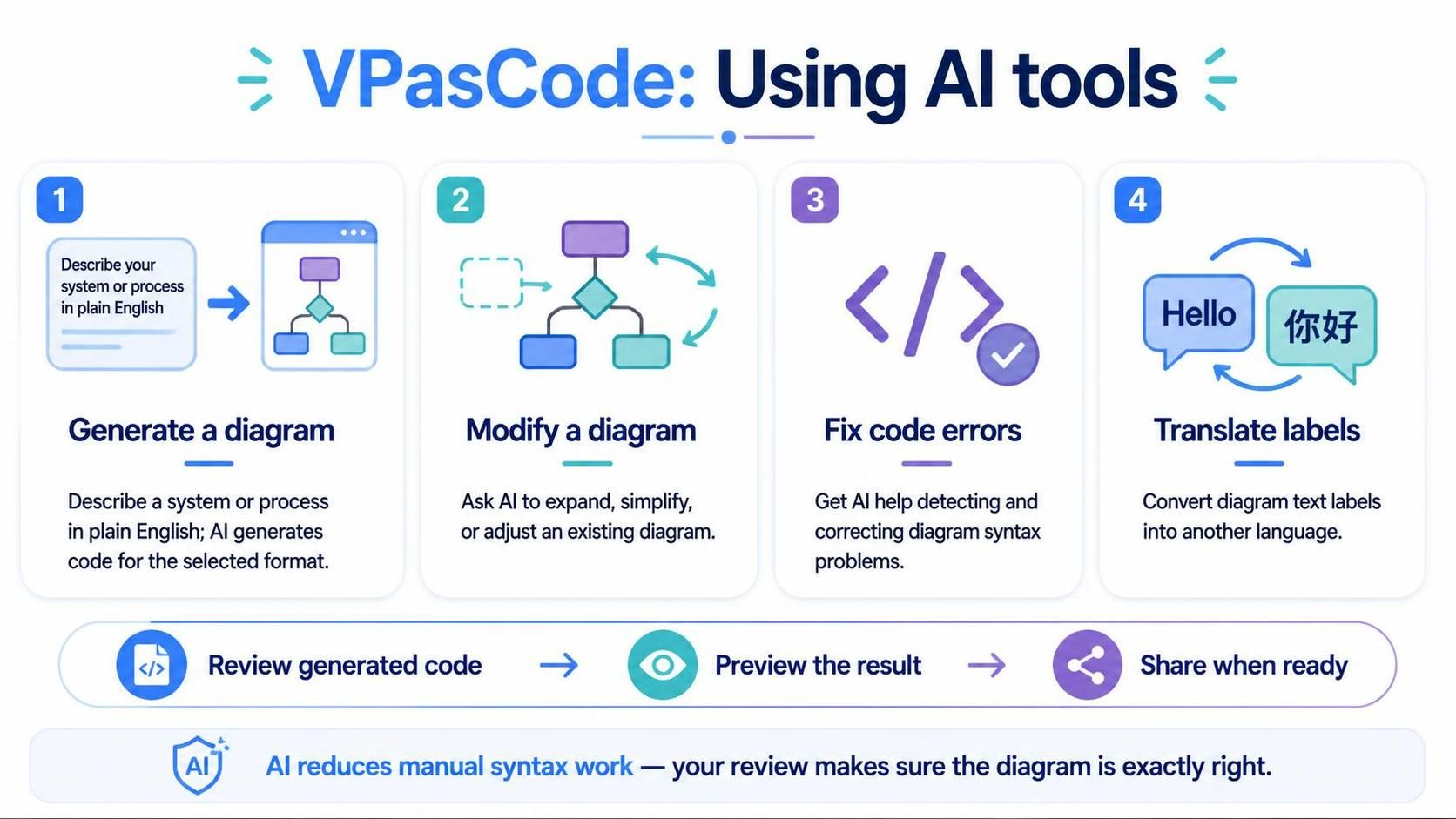
VPasCode’s AI features can help create and refine diagram code:
-
Generate a diagram: Describe a system or process in plain English, and AI generates code for the selected format.
-
Modify a diagram: Give instructions to expand, simplify, or otherwise adjust an existing diagram.
-
Fix code errors: Use AI assistance to detect and correct diagram syntax problems.
-
Translate labels: Ask the translation feature to convert text labels in a diagram into another language.
These tools are intended to reduce manual syntax work. Review the generated or modified code and preview the result before sharing it.
VPasCode: PlantUML themes
For PlantUML diagrams, the editor offers a theme-selection interface. Choose a theme from the available list to apply its syntax and preview the updated appearance. The article also describes custom Visual Paradigm and Rose themes: the former uses blue headers, while the latter draws on the classic light-yellow IBM Rational Rose look.
VPasCode: Sharing and exporting
When your diagram is ready, you can:
-
Create a shareable web link.
-
Export it as a vector PDF.
-
Export it as an SVG vector image.
-
Export it as a high-resolution PNG.
Vector formats such as SVG and PDF are useful when you want to scale a diagram without losing clarity; PNG is convenient for common documents and presentations.
VPasCode: Connecting an AI provider

Organizations can connect their own AI infrastructure and use their existing API credentials. The article lists OpenAI, Anthropic, Google, DeepSeek, Mistral, Qwen, and Groq, among others. This option is intended to provide control over the AI environment, credentials, and spending arrangements; configure it according to your organization’s requirements.
VPasCode: A practical workflow
-
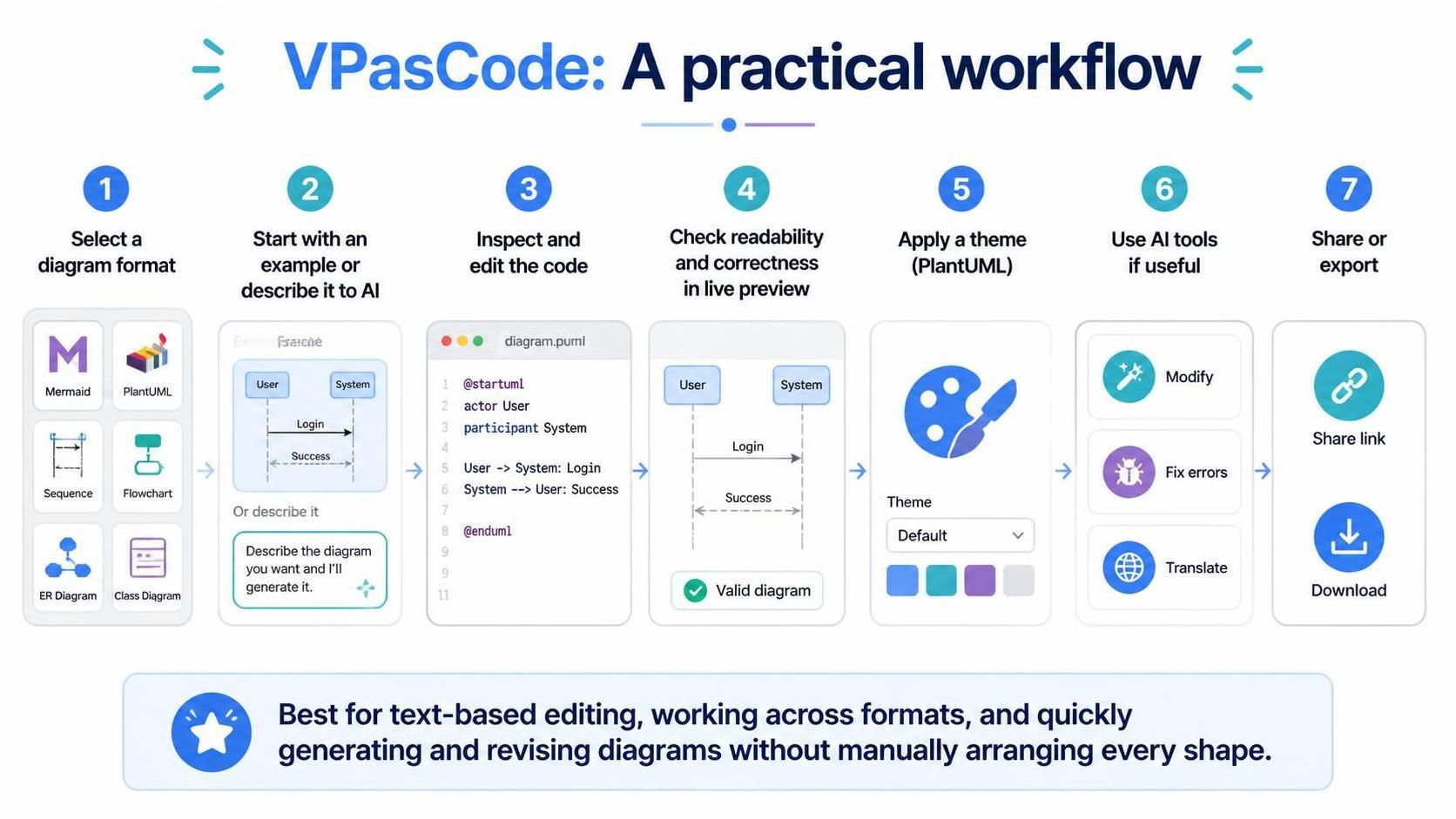
Select the diagram format that fits your use case.
-
Start from a built-in example or describe the diagram to the AI generator.
-
Inspect and edit the resulting code.
-
Use the live preview to check readability and correctness.
-
Apply a theme if you are working in PlantUML.
-
Use AI modification, error correction, or translation if useful.
-
Share a link or export the finished diagram.
VPasCode is most useful when you prefer text-based diagram editing, need to work across several diagram formats, or want a quick way to generate and revise diagrams without manually arranging every shape.