


Introduction
In the fast-paced world of modern software engineering, documentation often struggles to keep up with development. The Diagram-as-Code (DaC) methodology has emerged as a powerful solution, allowing teams to treat diagrams like source code—version-controllable, reproducible, and precise. At the forefront of this revolution is VPasCode, Visual Paradigm’s unified, browser-based platform that supports industry-standard syntaxes like PlantUML, Mermaid, and Graphviz.
While writing code to generate diagrams offers superior precision compared to manual drawing, it introduces a new friction point: manually updating complex structures. Adding attributes to multiple subclasses or refactoring relationships can be tedious and error-prone when done line-by-line.
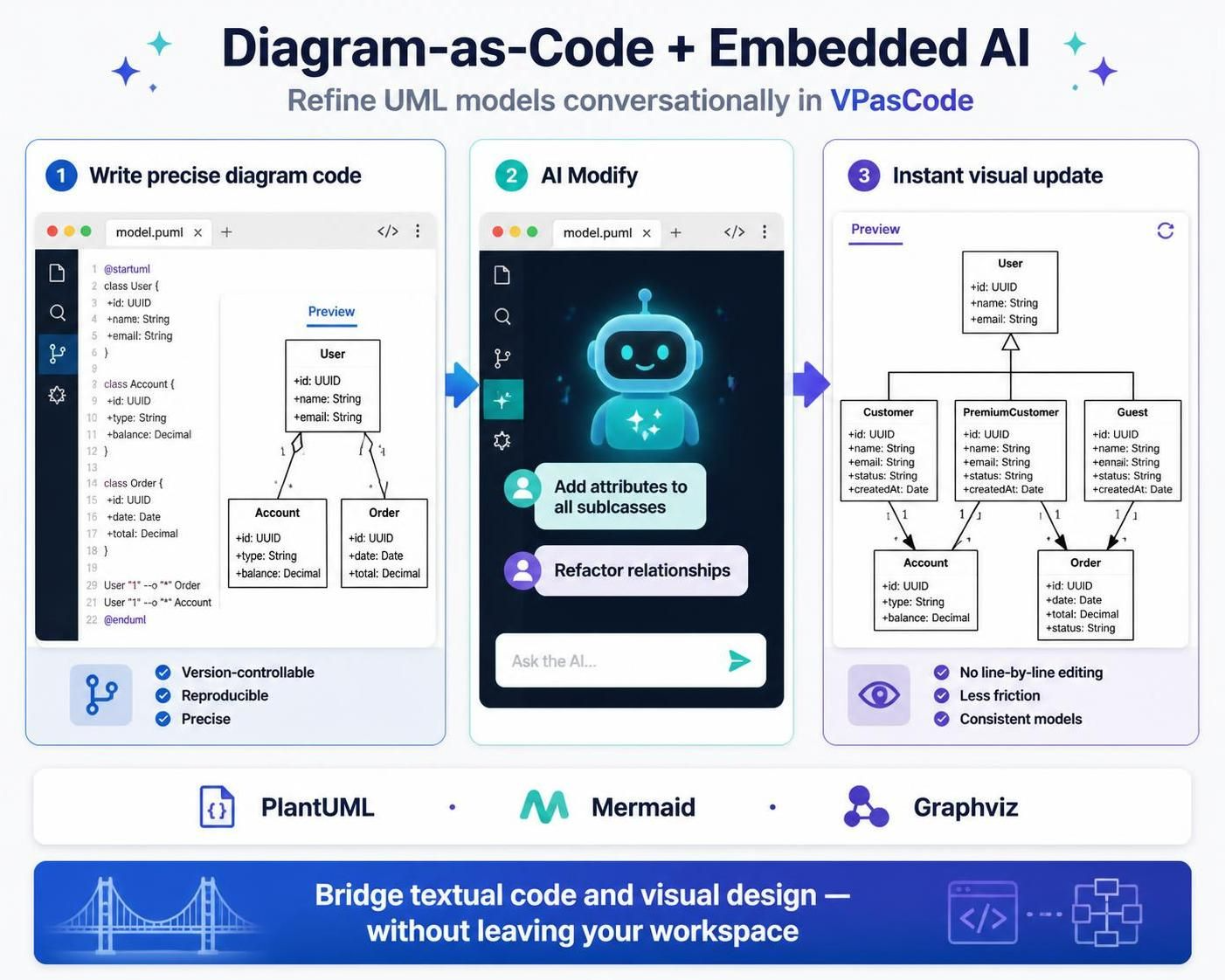
This is where VPasCode’s Embedded AI transforms the workflow. By integrating natural language processing directly into the editor, VPasCode allows developers to refine their visual models conversationally. This guide explores how to leverage the “AI Modify” feature to instantly update a UML Class Diagram, bridging the gap between textual code and visual design without ever leaving your workspace.
Key Concepts
Before diving into the practical steps, it is essential to understand the core technologies that make this seamless refinement possible:
-
Diagram-as-Code (DaC): A methodology where diagrams are generated from text-based source code rather than being drawn manually with a mouse. This ensures diagrams are version-controllable, easily reproducible, and integrated into CI/CD pipelines.
-
PlantUML: A popular open-source tool that uses simple textual descriptions to create UML diagrams. In our example, PlantUML syntax defines the structure of classes like
Customer,Order, andPayment. -
Embedded AI Modification: Unlike external AI tools that require copying and pasting code back and forth, VPasCode’s embedded AI understands the context of your current file. It parses your existing PlantUML code, applies your requested changes (e.g., adding attributes or methods), and rewrites the code automatically within the same environment.
-
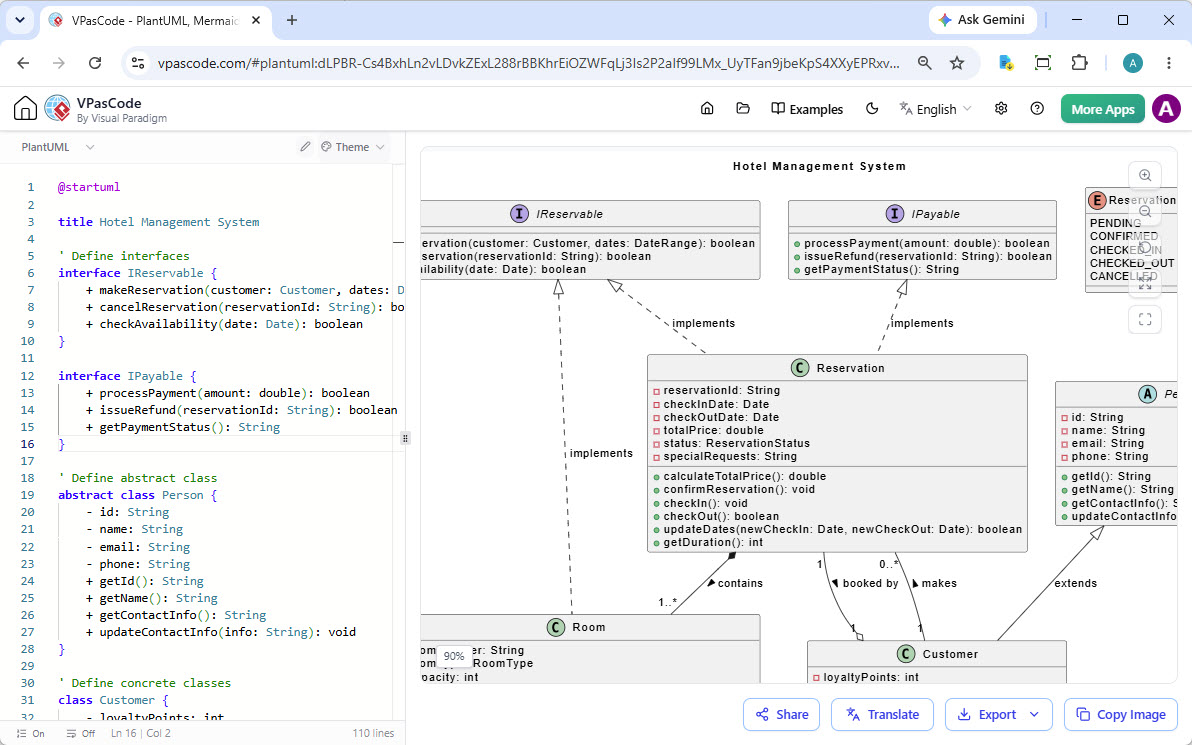
Real-Time Rendering: VPasCode provides a split-screen view where changes to the code on the left are instantly reflected in the visual diagram on the right, ensuring immediate feedback and reducing the cognitive load of switching contexts.
Step-by-Step Guide: Refining a Class Diagram with VPasCode Embedded AI
Refining a Class Diagram quickly and conveniently within VPasCode without external tools can be accomplished in a few simple steps using the built-in AI feature.
The Starting Point
Imagine you have a basic e-commerce class diagram defined in PlantUML. You have a Payment class with three children: Cash, Check, and Credit. Currently, these child classes are empty shells, inheriting only from the parent.
(Note: In the actual interface, this corresponds to the first image provided, showing the code on the left and the rendered diagram on the right with empty child classes.)
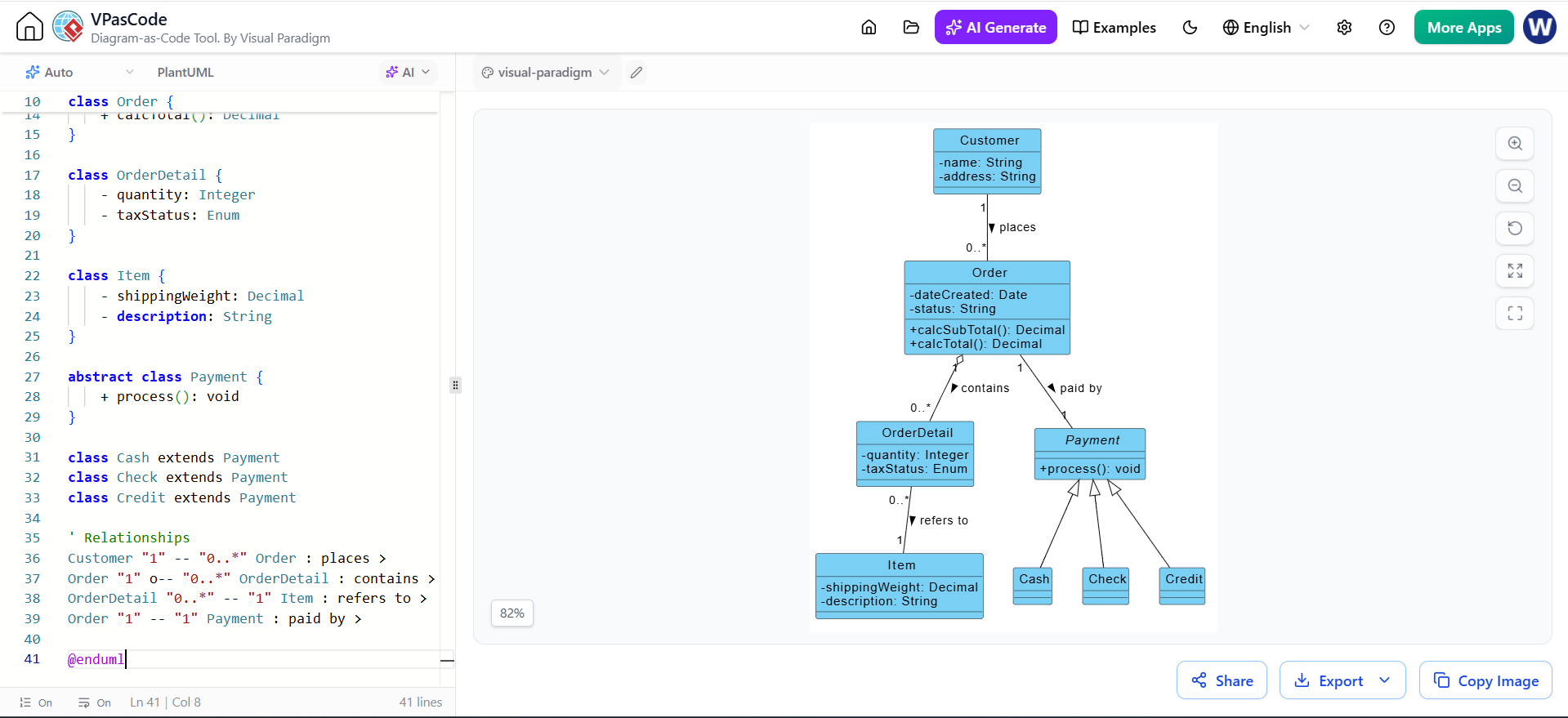
Figure 1: The initial state of the Class Diagram in VPasCode. Note the Cash, Check, and Credit classes lack specific attributes.
Step 1: Open the AI Menu
To begin the refinement process, locate the AI controls within the editor interface.
-
Click on the AI dropdown button located at the top-left section above the code editor. This menu is your gateway to intelligent diagram manipulation.
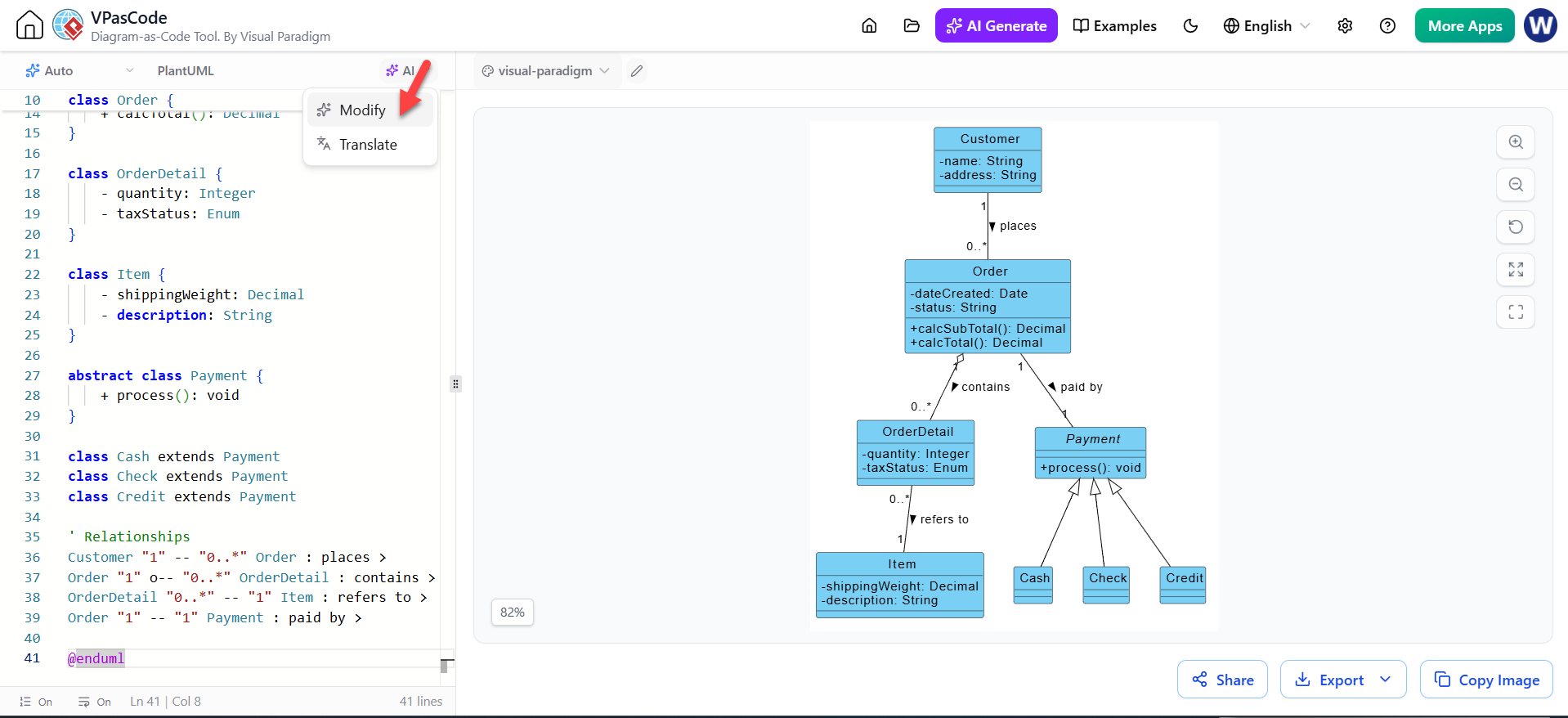
Figure 2: Clicking the AI dropdown reveals options to Modify or Translate the diagram code.
Step 2: Select the Modify Option
The AI menu offers different capabilities depending on your needs. For structural changes, you will use the Modify function.
-
From the dropdown menu, click on the Modify option with the AI icon next to it. This tells the system you intend to alter the existing logic and structure of the diagram rather than generating something from scratch.
Step 3: Describe the Desired Changes
This is the most critical step where natural language replaces manual coding. You do not need to know the exact PlantUML syntax for the new attributes; you simply describe what you want.
-
In the AI Modify dialog box that appears, enter a natural language description of how you want to refine or change your diagram.
-
Example Prompt: “Add some attributes to the children Classes of the Payment Class in the Class Diagram”
-
Click the AI Modify button to submit your request.
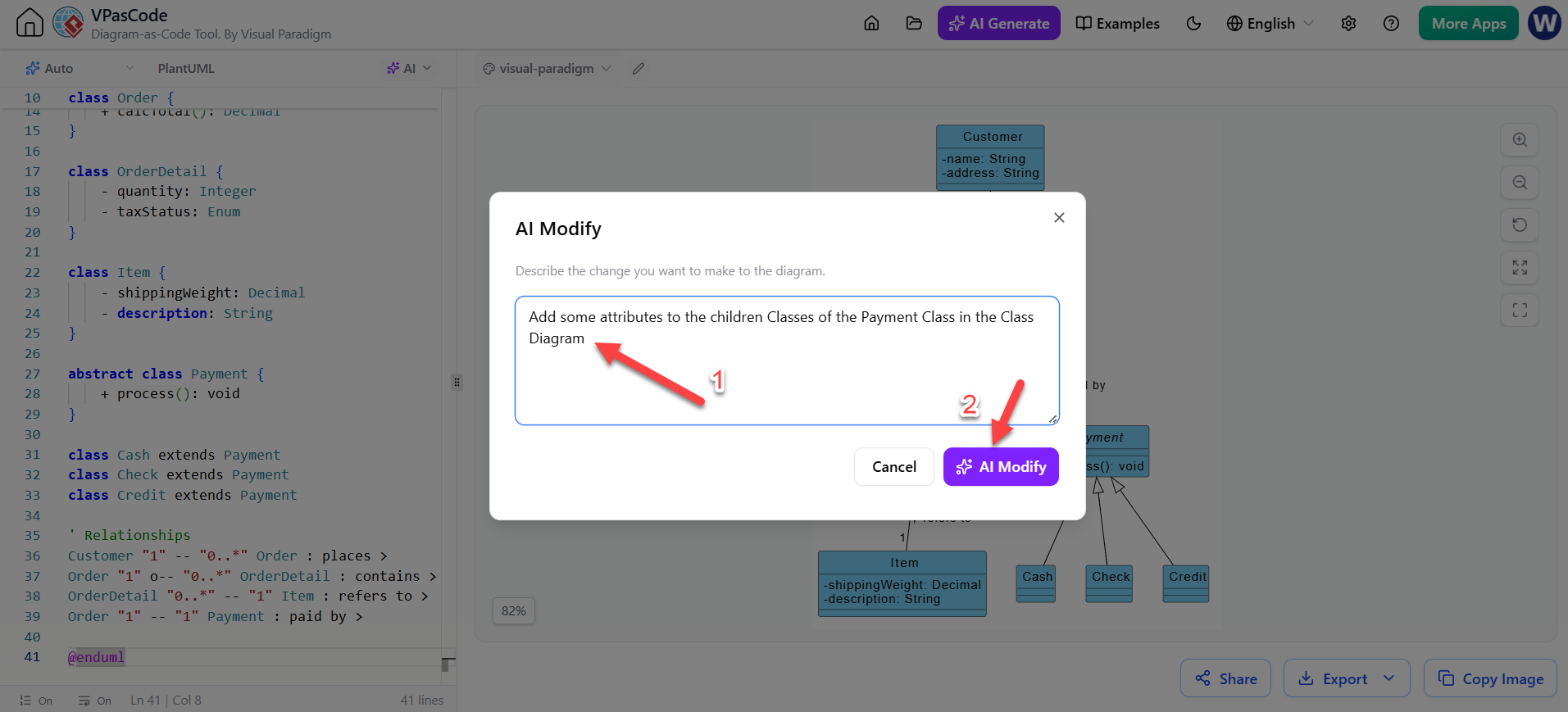
Figure 3: The AI Modify dialog box. The user enters a natural language prompt (1) and triggers the process (2).
Step 4: View the Refined Diagram
Once you submit the prompt, the VPasCode engine goes to work. It analyzes the request, identifies the target classes (Cash, Check, Credit), and injects relevant attributes and methods based on standard domain knowledge.
-
The AI will automatically process your description, update the code, and reflect the newly added classes, attributes, or methods directly in your visual Class Diagram.
-
Result: As seen below, the
Cashclass now hascashTendered, theCheckclass hasbankIDandbankName, and theCreditclass includesnumberandexpDate. The code on the left has been updated to match the visual on the right.
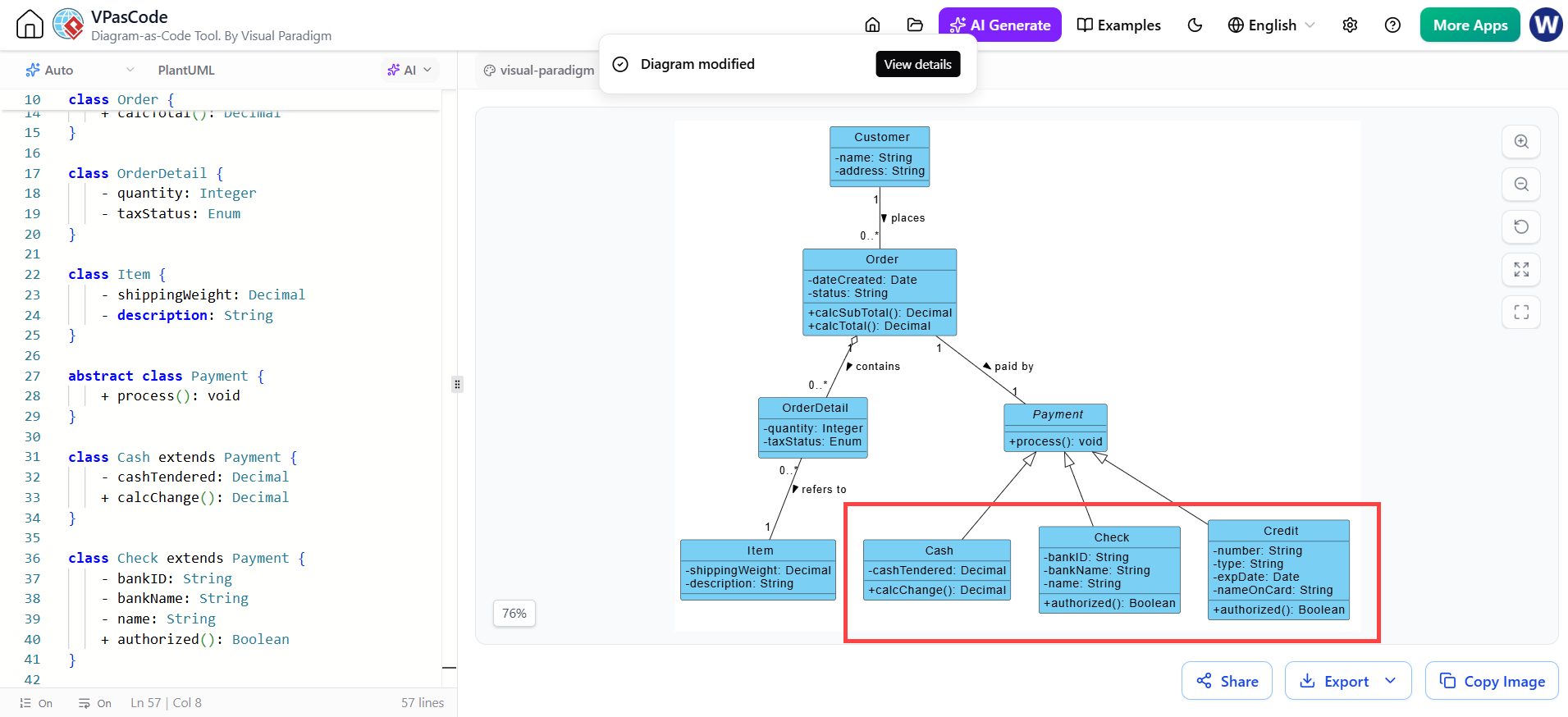
Figure 4: The refined diagram. The AI has successfully populated the child classes with relevant attributes and methods, updating both the code and the visual representation.
Conclusion
The integration of AI into Diagram-as-Code tools like VPasCode represents a significant leap forward in productivity for software architects and developers. By following this simple four-step process, you can transform a skeletal class diagram into a detailed design document in seconds.
The ability to say “Add attributes to the children of Payment” and watch the code and diagram update simultaneously eliminates the friction of manual syntax editing. Whether you are modeling a complex enterprise system or a simple application, VPasCode’s embedded AI ensures that your documentation evolves as fast as your ideas.
Ready to try it yourself? Visit VPasCode to start turning your text into professional diagrams instantly.
This post is also available in Deutsch, Español, فارسی, Français, English, Bahasa Indonesia, 日本語, Polski, Portuguese, Ру́сский, Việt Nam, 简体中文 and 繁體中文.