


Introduction: Why I Tested This Integration
As a technical writer and knowledge management consultant, I’m always on the lookout for tools that bridge the gap between complex documentation systems and public-facing content platforms. When I heard about Visual Paradigm OpenDocs’ new WordPress integration, I was intrigued. Could a diagram-rich knowledge base really publish seamlessly to WordPress without losing fidelity? Over the past two weeks, I put the feature through its paces—from initial setup to live publishing and sync management. Here’s my complete, unbiased walkthrough of the experience, what worked brilliantly, and a few considerations for teams thinking about adopting this workflow.
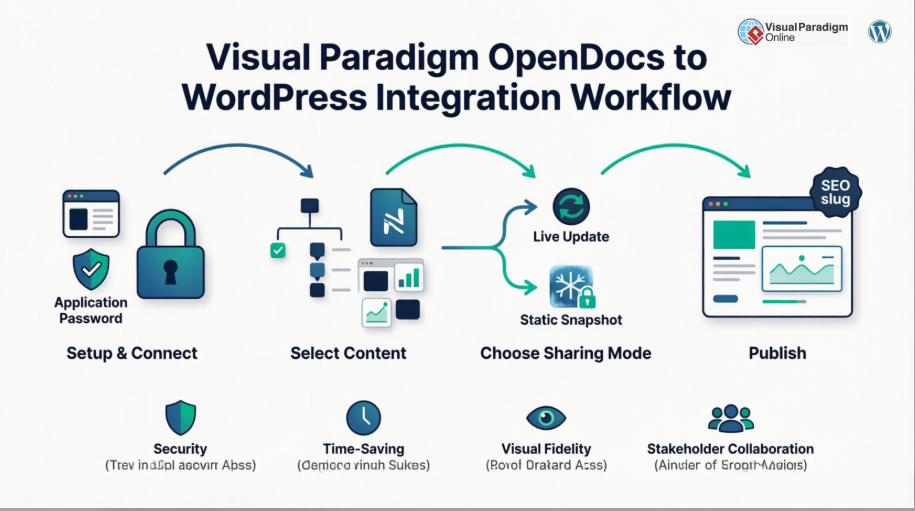
What Is Visual Paradigm OpenDocs? (A Reviewer’s Perspective)
Before diving into the WordPress integration, it’s worth understanding the foundation. OpenDocs isn’t just another documentation tool—it’s an AI-powered knowledge management platform with professional diagramming capabilities. What impressed me most during my evaluation was how naturally I could mix technical diagrams, AI-generated visuals, and structured text on a single page.
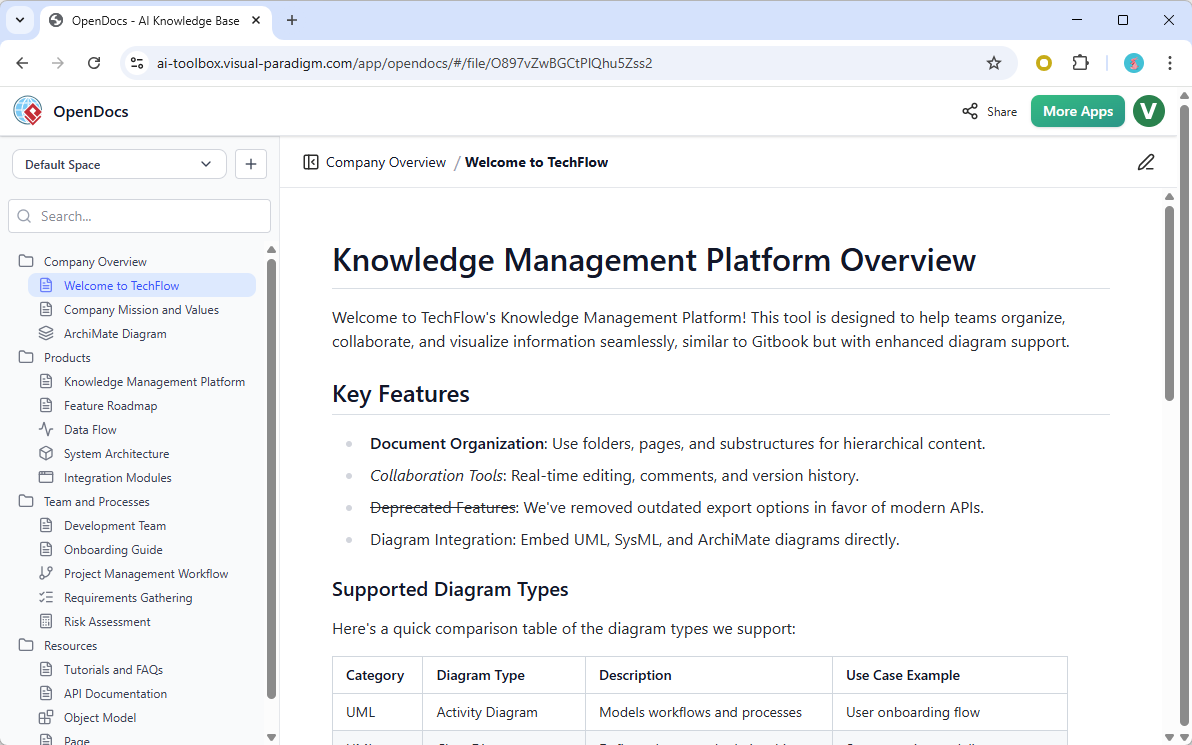
For teams managing enterprise architecture, business process models, or technical specifications, OpenDocs feels purpose-built. The Visual Paradigm Pipeline lets you pull diagrams from Desktop, Online, or even chatbot workflows directly into your knowledge base. The result is a living, visual-rich documentation hub that’s surprisingly intuitive to organize—and now, thanks to the new integration, straightforward to publish.
Setting Up the WordPress Connection: My Step-by-Step Experience
One of my biggest concerns with integrations is complex authentication. I was pleasantly surprised to find that OpenDocs uses WordPress’s native Application Passwords framework—no custom plugins or OAuth headaches required.
Here’s exactly how I connected my test WordPress site:
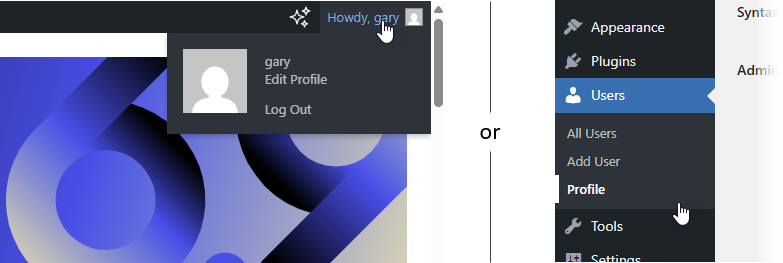
- In my WordPress Dashboard, I navigated to Users → Profile.
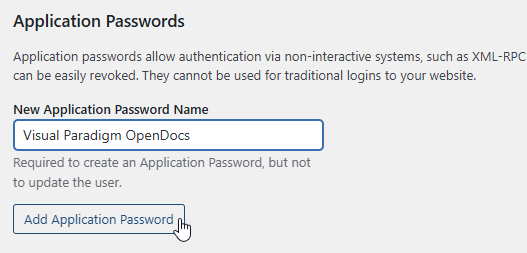
- Scrolling down to Application Passwords, I entered “OpenDocs Integration” as the descriptive name and clicked Add New Application Password.
- I copied the generated 24-character password immediately (WordPress only shows it once).
- Back in my OpenDocs space, I opened the export settings and entered:
- My WordPress site URL
- My WordPress username
- The Application Password I just copied
The connection verified instantly. No errors, no waiting. For a non-developer like me, this simplicity was a major win.

Publishing Pages: My Workflow for Targeted Content Sharing
What truly sets this integration apart is the granular control over what gets published. I didn’t want to dump my entire knowledge base onto WordPress—just specific sections for a client portal.
Here’s the workflow I used:
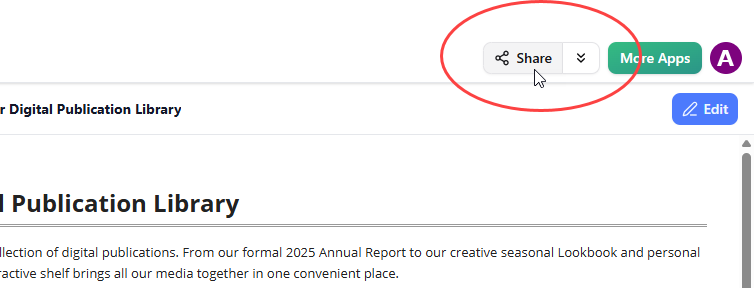
- In OpenDocs, I clicked the Share button in the upper-right corner of my knowledge base.
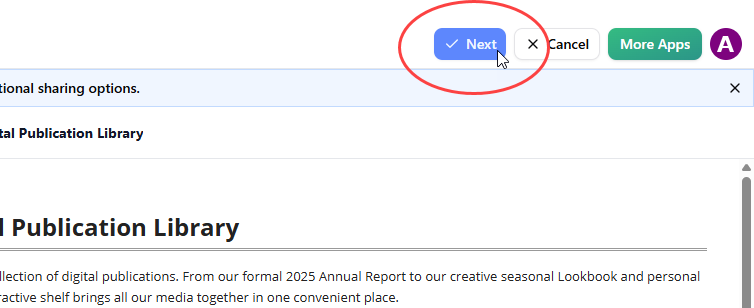
- I entered Page Selection Mode and carefully checked only the pages and folders relevant to my client’s project. Sensitive internal notes stayed private.

- After clicking Next, I added a short description to help my team identify this share later.
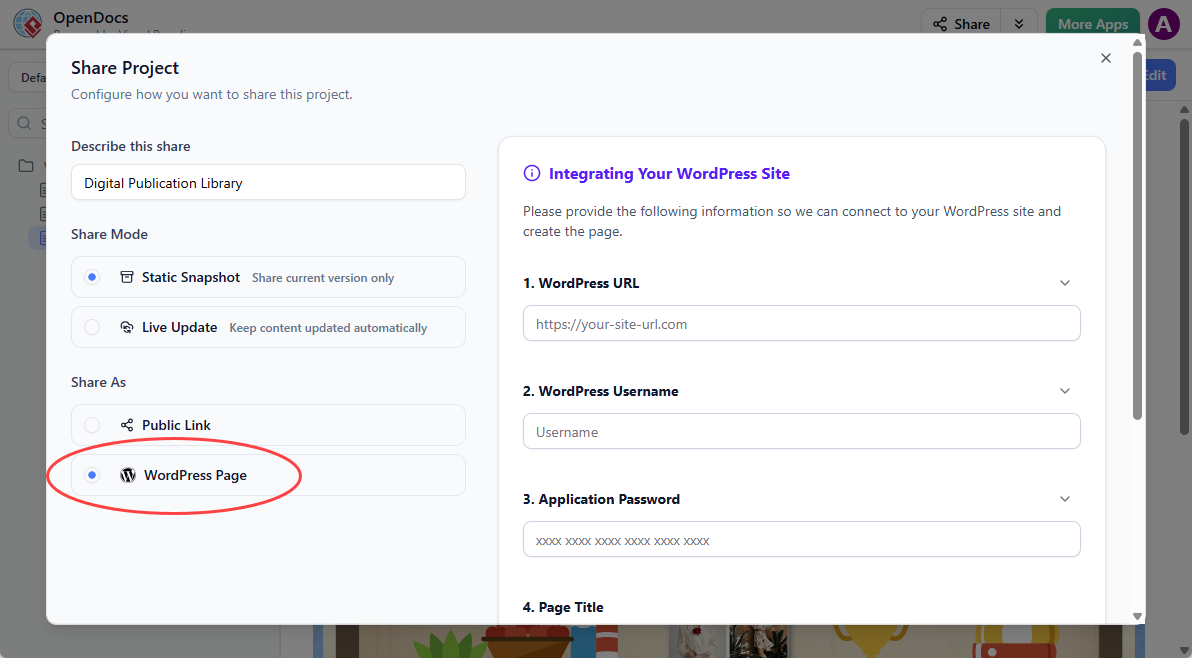
- I chose my Sharing Mode:
- Live Update: For content I knew would evolve
- Static Snapshot: For compliance-ready, frozen versions
- Under Share As, I selected WordPress Page.
- I filled in the final details:
- WordPress URL, username, and Application Password
- A clear Page Title and unique Page Slug for SEO
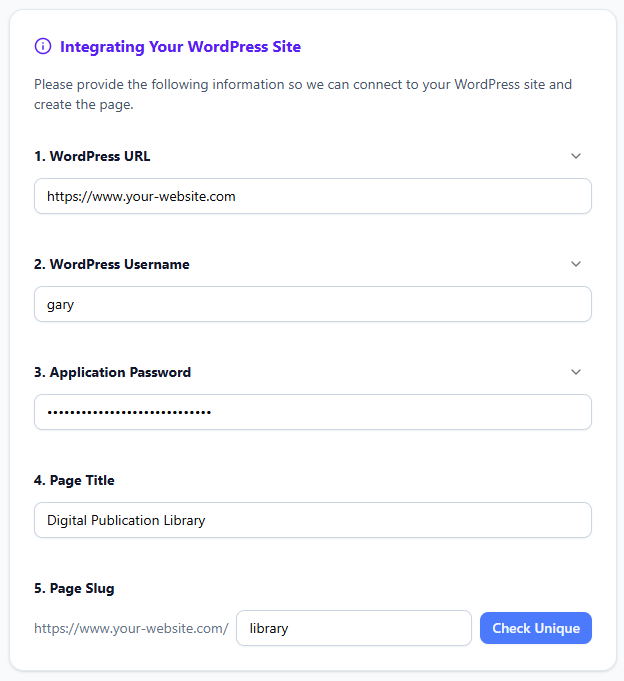
- I clicked Check Unique to confirm the slug wasn’t taken, then Publish to WordPress.

The entire process took under three minutes. When I visited my WordPress site, the page appeared exactly as expected—with interactive diagrams fully functional.
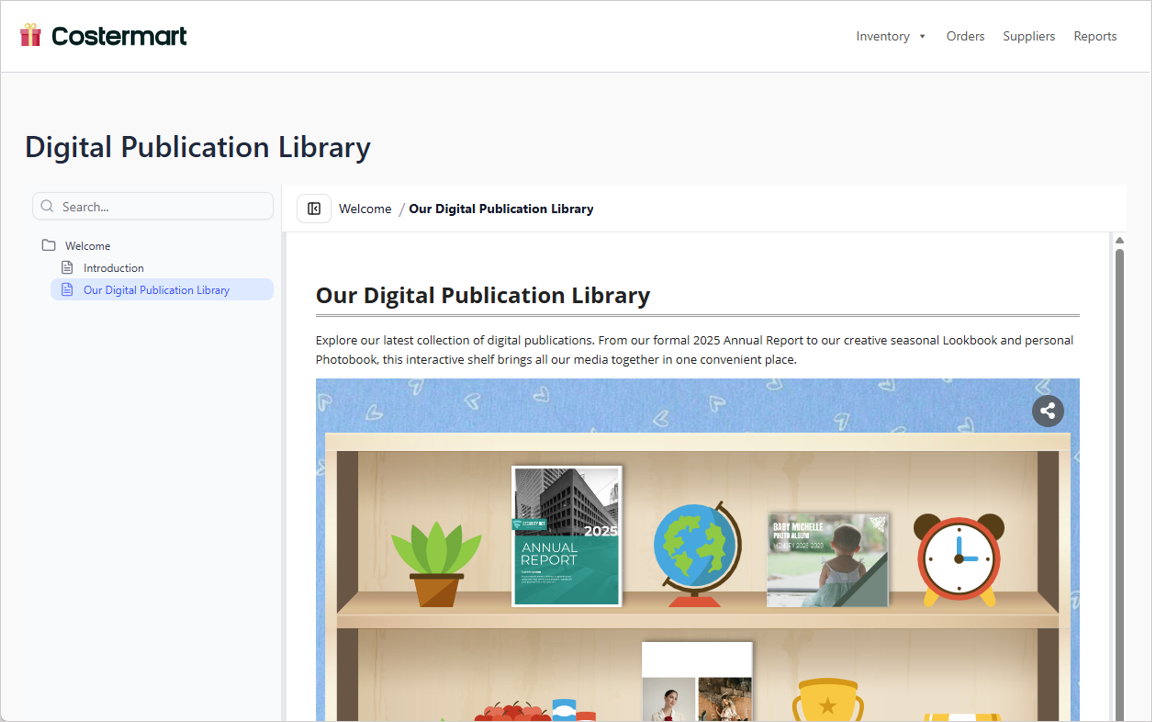
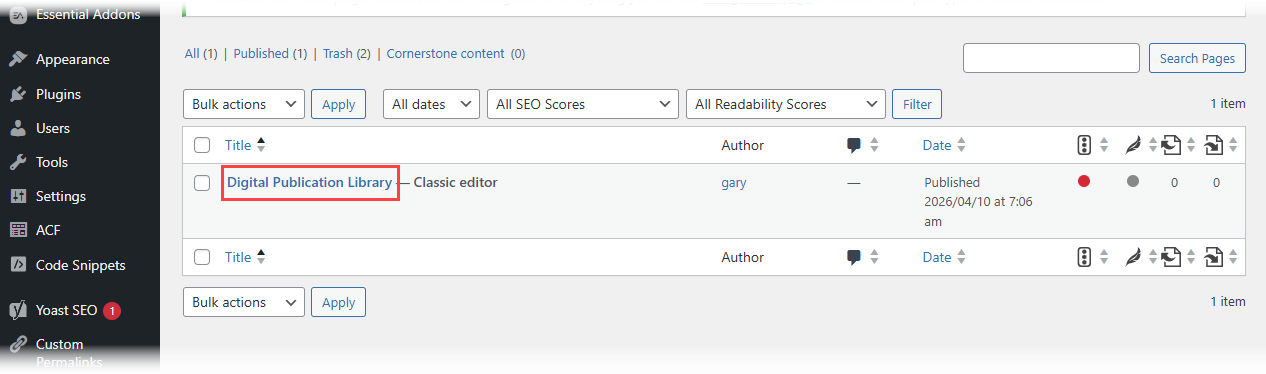
I could also find and further customize the page under Pages in my WordPress admin, giving me flexibility to add WordPress-specific elements like sidebars or custom CSS.
Keeping Content in Sync: Real-World Testing
I tested both sharing modes extensively to understand how synchronization behaves in practice.
Live Update Mode: The Dynamic Workflow
When I edited text or adjusted a diagram in OpenDocs, the changes propagated to my WordPress page within seconds. This is ideal for living documentation—product guides, API references, or internal playbooks that evolve frequently. The formatting remained clean, and I never had to manually re-export assets.
The Diagram Pipeline: Enterprise-Grade Sync
For teams using Visual Paradigm Desktop, the integration shines even brighter. I modified a BPMN diagram in Desktop, pushed it through the OpenDocs Pipeline, and watched as the updated visual appeared in my WordPress page—no manual image exports, no broken links. This end-to-end workflow is a game-changer for architecture teams managing complex, versioned diagrams.
Static Snapshot: Compliance and Archiving
When I needed a frozen version for audit purposes, I selected Static Snapshot. This created a point-in-time copy on WordPress that wouldn’t change, even if I updated the source in OpenDocs. Perfect for regulatory documentation, client deliverables, or release notes that must remain immutable.
WordPress Page Export vs. Embed Code: Which Should You Use?
OpenDocs also offers an HTML embed code option for maximum flexibility. After testing both, here’s my practical guidance:
| Use Case | Recommended Approach |
|---|---|
| Creating a new, dedicated documentation page on WordPress | WordPress Page Export – fastest, cleanest setup |
| Embedding content into an existing page layout | Embed Code – paste anywhere, works on any site |
| Publishing to non-WordPress platforms | Embed Code – universal compatibility |
| Needing WordPress-native features (SEO plugins, themes, comments) | WordPress Page Export – full CMS integration |
Both options support the same page selection granularity and sharing modes, so your content strategy—not technical constraints—should drive the choice.
Benefits I Noticed as a Knowledge Management Practitioner
After two weeks of daily use, several advantages became clear:
- Security by Design: Keep your master knowledge base private in OpenDocs while publishing only curated subsets. Ideal for client portals or public-facing docs without exposing internal workflows.
- Visual Fidelity Preserved: Complex diagrams, flowcharts, and architecture models render beautifully on WordPress without manual screenshotting or reformatting.
- Time Savings: What used to take hours of copying, formatting, and uploading now happens in clicks. I reclaimed significant time for higher-value work.
- Stakeholder Alignment: I could create tailored views for different audiences—executives saw high-level process maps, engineers saw technical specs—all from the same source of truth.
- Future-Proofing: With Live Update mode, documentation stays current without manual intervention. With Static Snapshot, compliance requirements are met without compromise.
Conclusion: Is This Integration Worth Your Time?
After thorough testing, my verdict is clear: Visual Paradigm OpenDocs’ WordPress integration is a thoughtful, powerful addition for teams serious about visual knowledge management. It removes the friction between creating rich, diagram-heavy documentation and sharing it with the world.
The setup is refreshingly simple, the publishing workflow is intuitive, and the sync options provide the flexibility real-world teams need. Whether you’re documenting enterprise architecture, onboarding new team members, or building a public knowledge base, this integration lets you focus on content—not connectivity.
If you’re already using OpenDocs, enabling WordPress publishing is a no-brainer. If you’re evaluating knowledge management platforms, this feature alone may tip the scales. In an era where clarity and accessibility define effective documentation, tools that bridge creation and consumption seamlessly are invaluable—and this integration delivers exactly that.
References
- Export OpenDocs to WordPress Page – Official Release Notes: Step-by-step guide and feature overview for publishing OpenDocs content directly to WordPress pages.
- Visual Paradigm AI OpenDocs WordPress Integration – Technical Walkthrough: Community-authored deep dive into setup, authentication, and synchronization workflows.
- OpenDocs Page-Based Sharing Update: Details on granular content selection and sharing modes for targeted publishing.
- OpenDocs Features Overview: Comprehensive look at OpenDocs capabilities including diagramming, and AI-powered knowledge management.
- Sync AI Diagram to OpenDocs Pipeline Guide: Instructions for pushing diagrams from Visual Paradigm Desktop into OpenDocs and onward to WordPress.
- OpenDocs WordPress Integration Demo Video: Visual walkthrough of the export workflow, connection setup, and live publishing process.
- Visual Paradigm Fishbone Diagram Tool Review: Third-party perspective on Visual Paradigm’s diagramming capabilities relevant to knowledge base content creation.
- OpenDocs HTML Embed Code Tutorial: Alternative method for embedding OpenDocs content into any website, including WordPress pages.
- OpenDocs AI-Powered Knowledge Management Platform: Official product page with feature highlights, use cases, and access to start building your knowledge base.
This post is also available in Deutsch, Español, فارسی, Français, English, Bahasa Indonesia, 日本語, Polski, Portuguese, Ру́сский, Việt Nam, 简体中文 and 繁體中文.
Related posts:
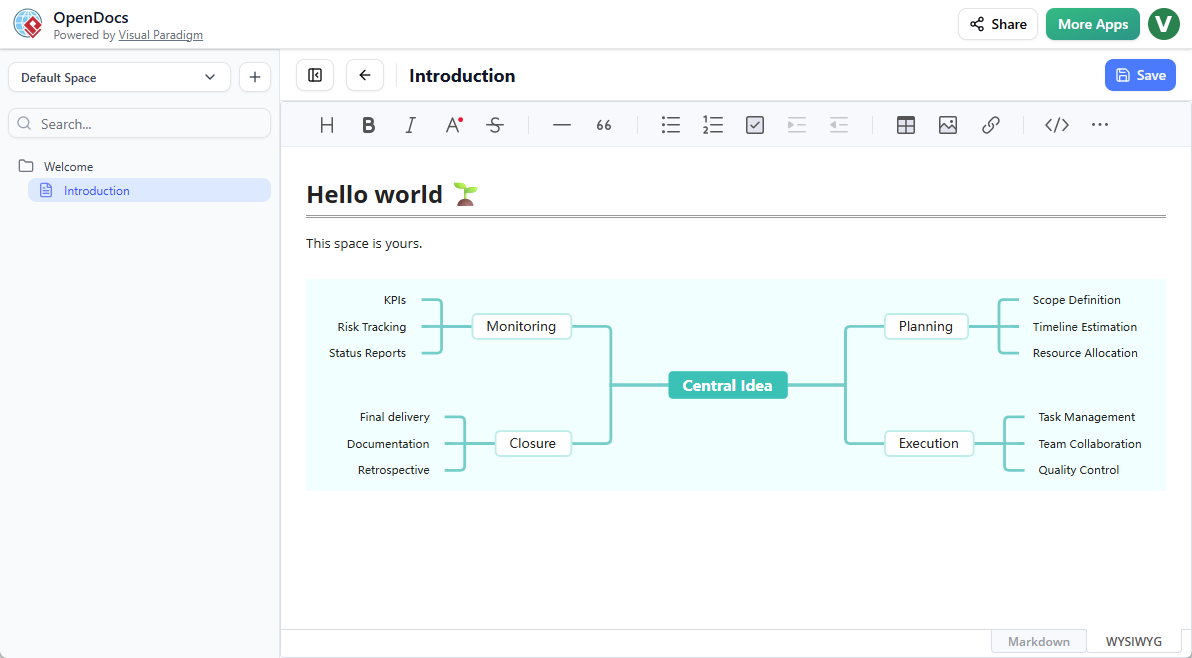 OpenDocs by Visual Paradigm: Revolutionizing Knowledge Management with AI and Visual Thinking
 Comprehensive Guide: Fishbone Diagrams (Ishikawa) in OpenDocs
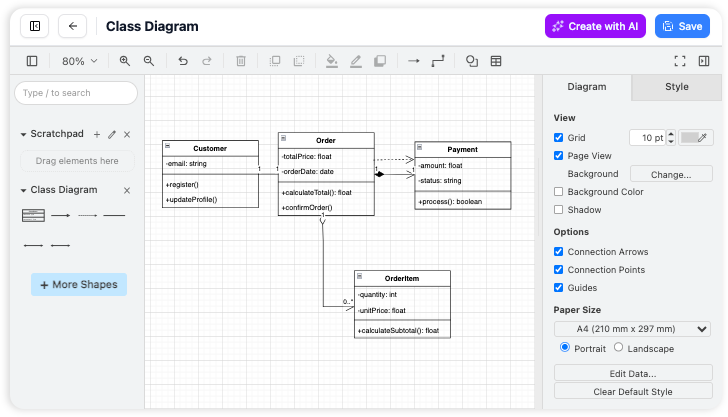 Comprehensive Guide to OpenDocs (February–March 2026 Update): The AI-Powered Visual Knowledge Engine
Mastering the Visual Paradigm AI Ecosystem: A Comprehensive Guide
Comprehensive Guide to OpenDocs (February–March 2026 Update): The AI-Powered Visual Knowledge Engine
Mastering the Visual Paradigm AI Ecosystem: A Comprehensive Guide