


Introduction: The Documentation Dilemma Every Team Faces
If you’ve ever watched a new engineer spend their first week lost in a maze of Confluence pages, or seen a product requirement document stretch to 50+ scrolling sections, you know the pain of fragmented knowledge management. Our team was no different. We juggled static diagrams, external API docs, and meeting notes across five different tools. Context switching wasn’t just annoying—it was costing us hours every week.
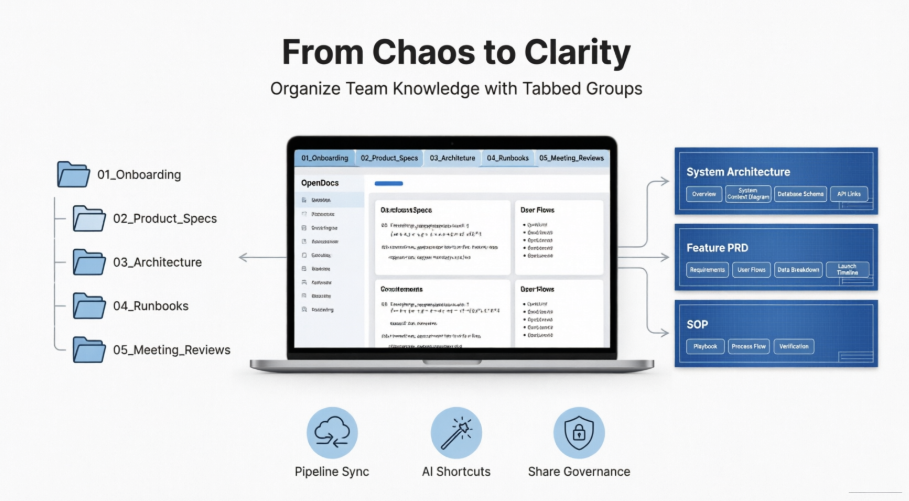
That changed when we adopted Visual Paradigm OpenDocs with its Tabbed Group component. This isn’t just another documentation tool—it’s a visual framework with embedded modeling power, all while eliminating the app-switching fatigue that plagues modern engineering teams. In this guide, I’ll share exactly how we structured our internal knowledge base, the tabbed blueprints that transformed our workflows, and the maintenance habits that keep our documentation alive and useful. Whether you’re managing a startup squad or an enterprise engineering org, these patterns will help you build documentation that scales with your team.
📂 Building Your Foundation: The High-Level Knowledge Tree
Before diving into tabbed layouts, we established a clear folder architecture in OpenDocs. The platform’s tree-like workspace system handles heavy document setups gracefully, but only if you start with intentional categorization. We organized our parent space into five core categories that mirror how our team actually works:
- 01_Onboarding_&_Culture — Team directory, access links, developer environment setup guides, and cultural norms. This is the first stop for every new hire.
- 02_Product_Specifications — Active product requirement documents (PRDs), user stories, roadmap visuals, and feature acceptance criteria.
- 03_System_Architecture — Master infrastructure diagrams, microservice breakdowns, data flow models, and technology stack decisions.
- 04_Runbooks_&_Operations — CI/CD deployment steps, incident response playbooks, API definitions, and monitoring dashboards.
- 05_Meeting_&_Design_Reviews — Historic RFCs (Request for Comments), technical decision records, sprint retrospectives, and design critique notes.
This structure isn’t arbitrary—it reflects the natural workflow of product development. When a feature moves from ideation to launch, its documentation travels predictably through these folders. New team members intuitively know where to look, and seasoned engineers spend less time hunting.
🗂️ Micro-Structure: Mastering Tabbed Groups for Clean, Contextual Layouts
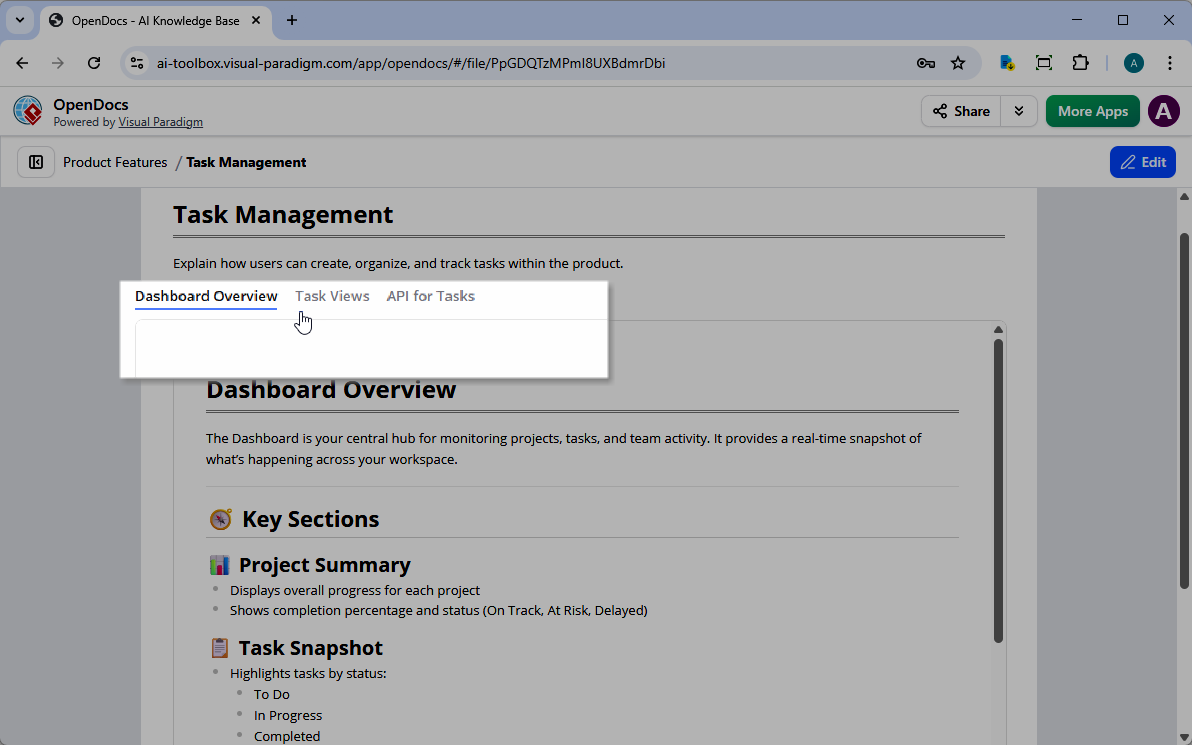
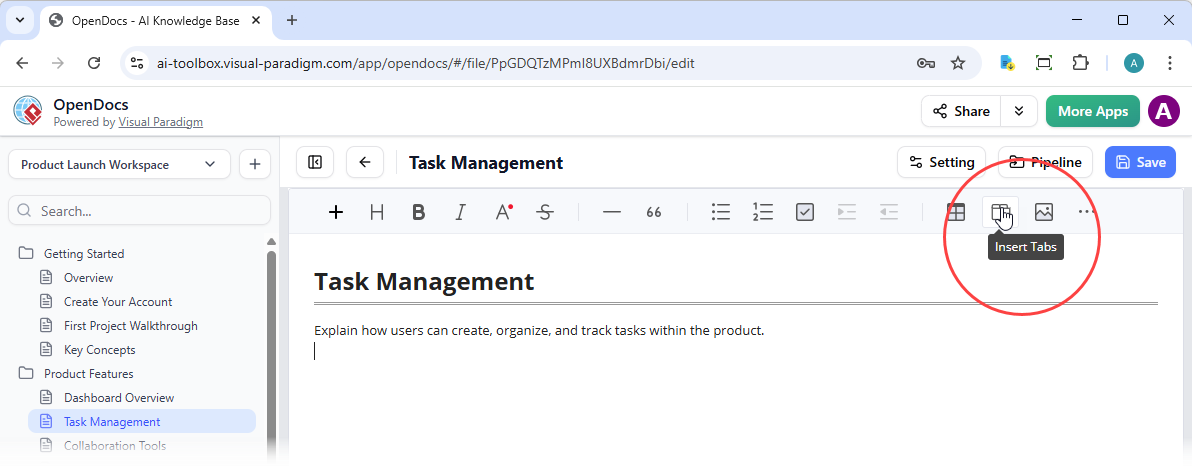
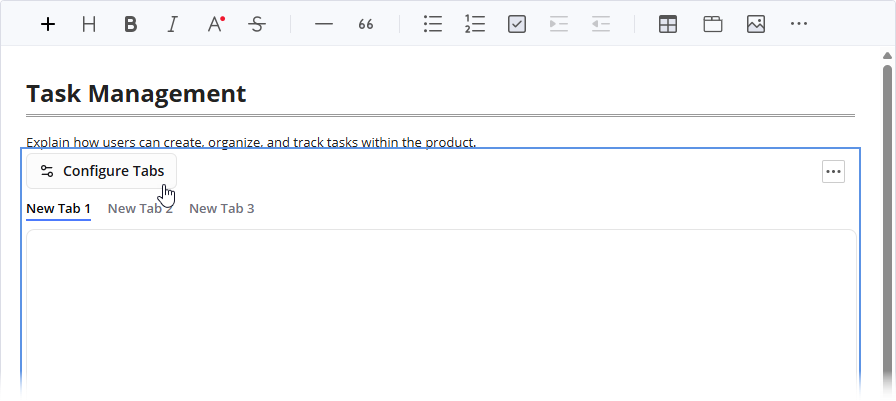
Once our high-level structure was in place, we tackled the page-level experience. Instead of building endlessly scrolling pages for complex topics, we embedded Tabbed Group containers to consolidate multi-dimensional data into one clean, interactive page. Here are the three blueprints that became our team’s secret weapons.
Blueprint 1: System & Microservice Architecture Documentation
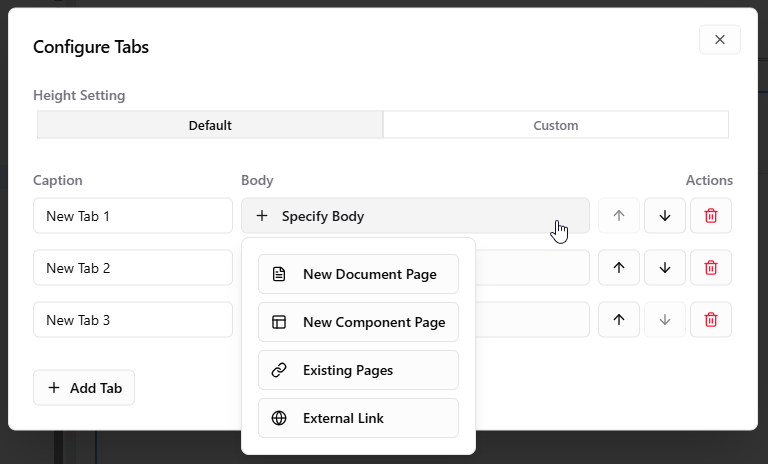
When documenting an application service, we add a Tabbed Group to our OpenDocs page and configure these tab headers:
- Tab 1: Overview — High-level purpose, service owner contact, Slack alert channel, and key dependencies written in clean, searchable text.
- Tab 2: System Context (Component Page) — An embedded, living UML Component Diagram synced directly via the Visual Paradigm Pipeline. When engineers update the source diagram, the documentation reflects changes automatically.
- Tab 3: Database Schema (Component Page) — Our active Entity-Relationship Diagram (ERD) hosted in the workspace, allowing stakeholders to explore table relationships without leaving the page.
- Tab 4: API References (URL Link) — External link routed straight to live Swagger or Postman endpoints, keeping documentation and testing environments seamlessly connected.
Why this works: Engineers get technical depth without clutter. Product managers see the big picture in Tab 1, then dive into diagrams or APIs only when needed. No more “which version of the diagram is current?” debates.
Blueprint 2: Feature PRD (Product Requirement Document) Centralization
Keeping product managers, engineers, and QA aligned used to require three separate documents. Now, we consolidate everything into one tabbed PRD:
- Tab 1: Requirements — Clear functional constraints, user stories, and acceptance criteria for easy editing and version tracking.
- Tab 2: User Flows — AI-generated Use Case or Activity diagrams detailing user interaction sequences, automatically created from text prompts using OpenDocs’ AI engine.
- Tab 3: Data Breakdown — An embedded Breakdown Structure Chart mapped dynamically using the Visual Paradigm Breakdown Maker, showing feature components and dependencies visually.
- Tab 4: Launch Milestones — An interactive, professional timeline visual mapping out feature rollout stages, testing windows, and go/no-go decision points.
Why this works: Stakeholders see the full feature lifecycle in one place. When requirements change, we update Tab 1 and the connected diagrams in Tabs 2-3 stay synchronized. Launch retrospectives become trivial because all context lives together.
Blueprint 3: Standard Operating Procedures (SOP) for Routine Execution
For repeatable, multi-step tasks like deployments or incident response, we use a streamlined three-tab SOP format:
- Tab 1: Playbook — Step-by-step checklist text with built-in code blocks, command examples, and expected outputs for copy-paste execution.
- Tab 2: Process Flow — Visual flowchart explaining decision pathways, error handling loops, and escalation triggers so teams understand the “why” behind each step.
- Tab 3: Verification — Command logs, success metrics, and validation checkpoints to observe when a procedure completes correctly, reducing post-execution uncertainty.
Why this works: Junior engineers can execute complex procedures confidently. The visual flow in Tab 2 prevents costly missteps, while Tab 3’s verification logs create an audit trail for compliance and continuous improvement.
🔄 Keeping Knowledge Alive: Best Practices for Sustainable Documentation
Great structure means nothing if content goes stale. After six months of using OpenDocs, we established three maintenance workflows that keep our knowledge hub vibrant and trusted.
Leverage the Desktop-to-Cloud Pipeline
Never use static image exports again. When engineers modify diagrams inside Visual Paradigm Desktop, they trigger the “Send to OpenDocs pipeline” feature. This automatically signals an update alert inside the documentation workspace, so writers can pull in the latest revision with one click. The result? Diagrams in documentation always match the source of truth, eliminating the “which diagram is current?” confusion that plagued our old workflow.
Employ AI Shortcuts for Rapid Creation
Accelerate writing bottlenecks by instructing the built-in OpenDocs AI Engine to autogenerate complex layouts. Instead of hand-drawing alignment paths for a new flowchart, we simply prompt: “Create a sequence diagram for our user authentication flow.” The AI generates a draft we can refine in minutes, not hours. This frees our technical writers to focus on clarity and context rather than diagram mechanics.
Govern Public and Internal Shares Strategically
When exposing system notes to cross-departmental stakeholders, we use OpenDocs’ secure public sharing configuration. We set specific page visibility scopes and determine whether external readers should view live edits in real-time or lock them to frozen milestones. All distributed links are tracked natively inside our centralized OpenDocs Share History dashboard, giving us full auditability without manual spreadsheets.
Getting Started: Our Step-by-Step Implementation Journey
If you’re ready to adopt this framework, here’s how we rolled it out without disrupting daily work:
Phase 1: Pilot with One High-Impact Page
We started by converting our most-used runbook—the production deployment guide—into a tabbed format. The immediate reduction in support questions (“Which step comes after the database migration?”) proved the value to skeptical team members.
Phase 2: Train Champions, Not Everyone
Instead of mandatory all-hands training, we identified two documentation enthusiasts per team. They mastered Tabbed Groups first, then became go-to resources for their squads. This peer-led approach drove faster adoption than top-down mandates.
Phase 3: Establish Lightweight Governance
We created a one-page “Documentation Style Guide” covering tab naming conventions, folder structures, and update triggers. Keeping it to one page ensured people actually read it. We review and refine this guide quarterly based on team feedback.
Phase 4: Measure and Iterate
We track simple metrics: time-to-find-information (via quick surveys), documentation update frequency, and support ticket volume related to “where do I find X?”. These data points guide our ongoing improvements.
Real Results: What Changed for Our Team
After three months with this OpenDocs + Tabbed Groups framework:
- Onboarding time decreased by 40% — New hires spend less time searching and more time contributing.
- Cross-team alignment improved — Product, engineering, and QA reference the same tabbed PRDs, reducing miscommunication.
- Documentation maintenance became sustainable — The pipeline sync and AI shortcuts cut update time by half, so content stays fresh.
- Stakeholder confidence increased — Executives appreciate the clean, professional presentation of complex information.
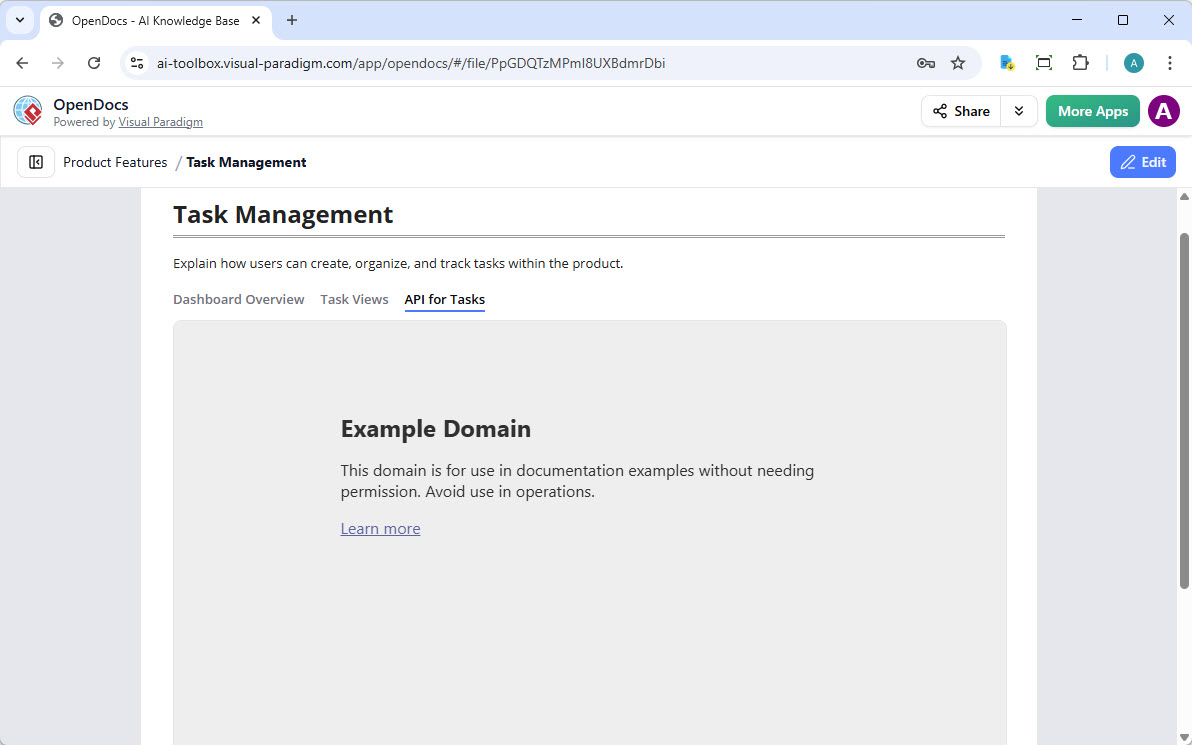 Screenshot of OpenDocs Tabbed Group – Tab body linked to a URL
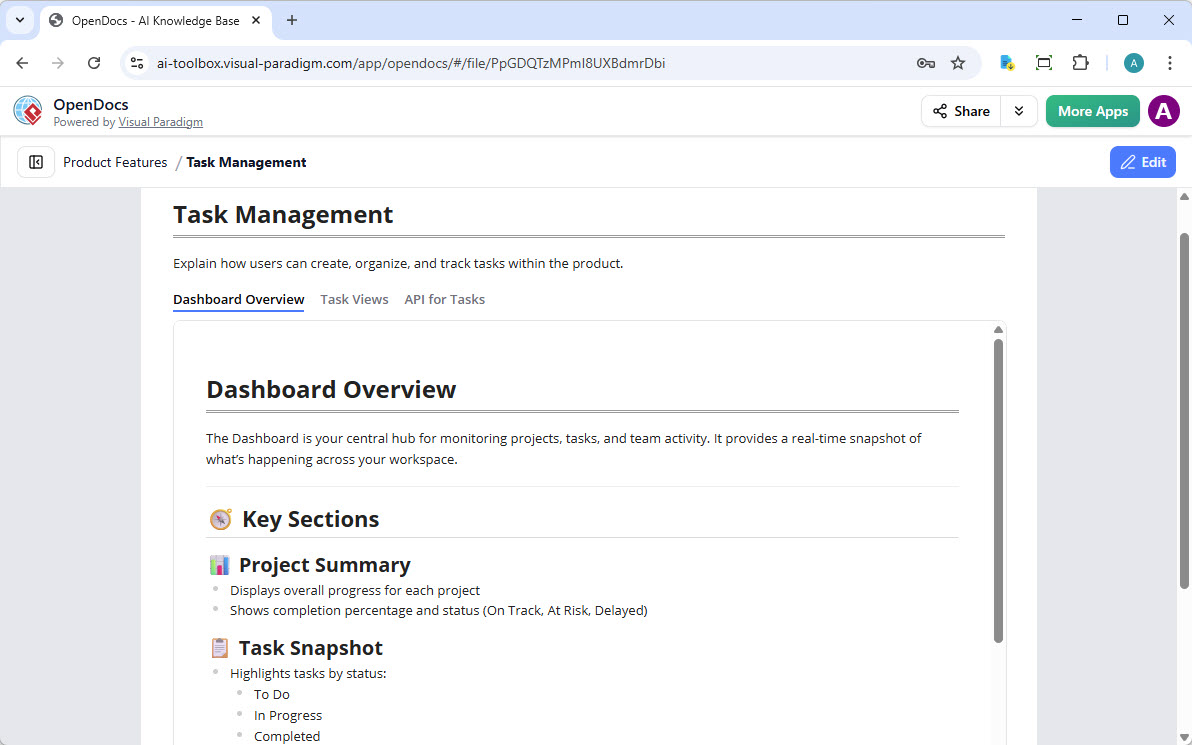 Screenshot of OpenDocs Tabbed Group – Tab body linked to a new page
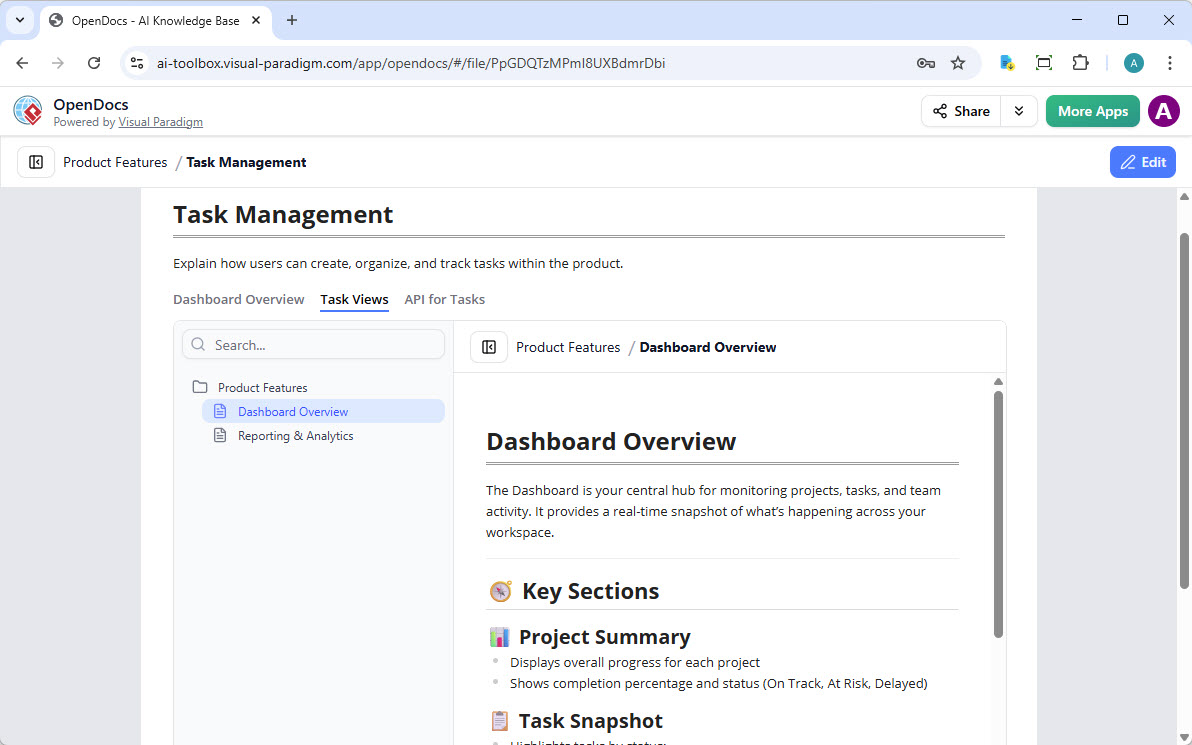 Screenshot of OpenDocs Tabbed Group – Tab body linked to existing pages
Conclusion: Documentation That Grows With Your Ambition
Adopting Visual Paradigm OpenDocs with Tabbed Groups wasn’t just a tool change—it was a mindset shift. We moved from viewing documentation as a compliance chore to treating it as a strategic asset that accelerates every team member’s work. The combination of intuitive folder architecture, flexible tabbed layouts, and intelligent automation creates a knowledge ecosystem that feels alive, not archival.
What makes this approach sustainable is its balance of structure and flexibility. The high-level tree gives everyone a shared mental model, while Tabbed Groups empower individuals to organize content in ways that match their workflow. Add in the AI assistance and pipeline sync, and you have a system that reduces friction rather than adding bureaucracy.
If your team is ready to transform documentation from a cost center into a catalyst for clarity, start small. Pick one high-impact page, apply the Tabbed Group blueprint that fits your use case, and let the results build momentum. In our experience, once your team experiences the joy of finding exactly what they need—without scrolling, searching, or switching apps—they’ll never want to go back.
Reference
- Visual Paradigm Online to OpenDocs Export Guide: Step-by-step instructions for migrating documentation from Visual Paradigm Online to the OpenDocs knowledge management platform.
- OpenDocs Features Overview: Comprehensive breakdown of OpenDocs capabilities including AI integration, and collaborative editing tools.
- OpenDocs Tabbed Group Feature Update: Official announcement and technical details of the Tabbed Group component launch for organized content categorization.
- Visual Paradigm OpenDocs: The Complete Developer’s Guide: In-depth tutorial covering AI-powered documentation workflows, diagram integration, and team collaboration strategies.
- Tabbed Group Feature Deep Dive: Detailed walkthrough of tab configuration options, content types, and use cases for technical documentation.
- OpenDocs AI Tool Landing Page: Official resource for OpenDocs AI capabilities including automated diagram generation, content suggestions, and workflow acceleration.
- OpenDocs Team Collaboration Tutorial: Video guide demonstrating folder structure setup, permission management, and real-time co-editing features.
- AI Breakdown Structure Chart Maker for OpenDocs: Tutorial on using AI to generate dynamic breakdown charts for project planning and feature decomposition.
- OpenDocs AI Organization Chart Integration: Guide to embedding auto-generated org charts and team structure visuals within documentation.
- OpenDocs Beginner’s Getting Started Guide: Entry-level walkthrough for new users covering workspace setup, basic editing, and first document creation.
- OpenDocs AI Timeline Diagram Integration: Instructions for creating interactive project timelines and milestone visuals using AI assistance.
- Sync AI Diagrams to OpenDocs Pipeline Guide: Technical documentation for the desktop-to-cloud sync pipeline that keeps diagrams updated across platforms.
- OpenDocs Advanced Workflow Demo: Video demonstration of advanced features including pipeline sync, version control, and cross-team collaboration patterns.
- Free Online Diagram Software Solutions: Overview of Visual Paradigm’s web-based diagramming tools compatible with OpenDocs embedding.
- OpenDocs Core Features Page: Central hub for learning about OpenDocs’ component embedding, and knowledge management capabilities.
- AI-Powered UML Profile Diagrams in OpenDocs: Industry analysis of OpenDocs’ advanced modeling features for domain-specific documentation needs.
- OpenDocs Feature Showcase Video: Visual walkthrough of key OpenDocs functionalities including Tabbed Groups, AI generation, and sharing controls.
- Complete Guide to AI-Powered Knowledge Management: Comprehensive resource covering strategy, implementation, and optimization of AI-enhanced documentation workflows.
- OpenDocs Sharing and Permissions Tutorial: Video guide on configuring public shares, permission scopes, and access tracking for secure knowledge distribution.
- OpenDocs Share History Dashboard Guide: Instructions for monitoring distributed documentation links, access analytics, and revision tracking.
- Advanced OpenDocs Knowledge Management Strategies: Expert-level patterns for scaling documentation systems across large engineering organizations.
This post is also available in Deutsch, Español, فارسی, Français, English, Bahasa Indonesia, 日本語, Polski, Portuguese, Ру́сский, Việt Nam, 简体中文 and 繁體中文.
Related posts:
 The Visual Paradigm AI Ecosystem: A Comprehensive Guide to the Four Pillars of Modern Modeling
 Complete Guide: Sending Visual Paradigm Creations to OpenDocs via Pipeline
 Visual Paradigm OpenDocs: The Complete Guide to AI-Powered Knowledge Management
 & Documentation
Visual Paradigm OpenDocs: The Complete Guide to AI-Powered Knowledge Management
Visual Paradigm OpenDocs: The Complete Guide to AI-Powered Knowledge Management & Documentation