


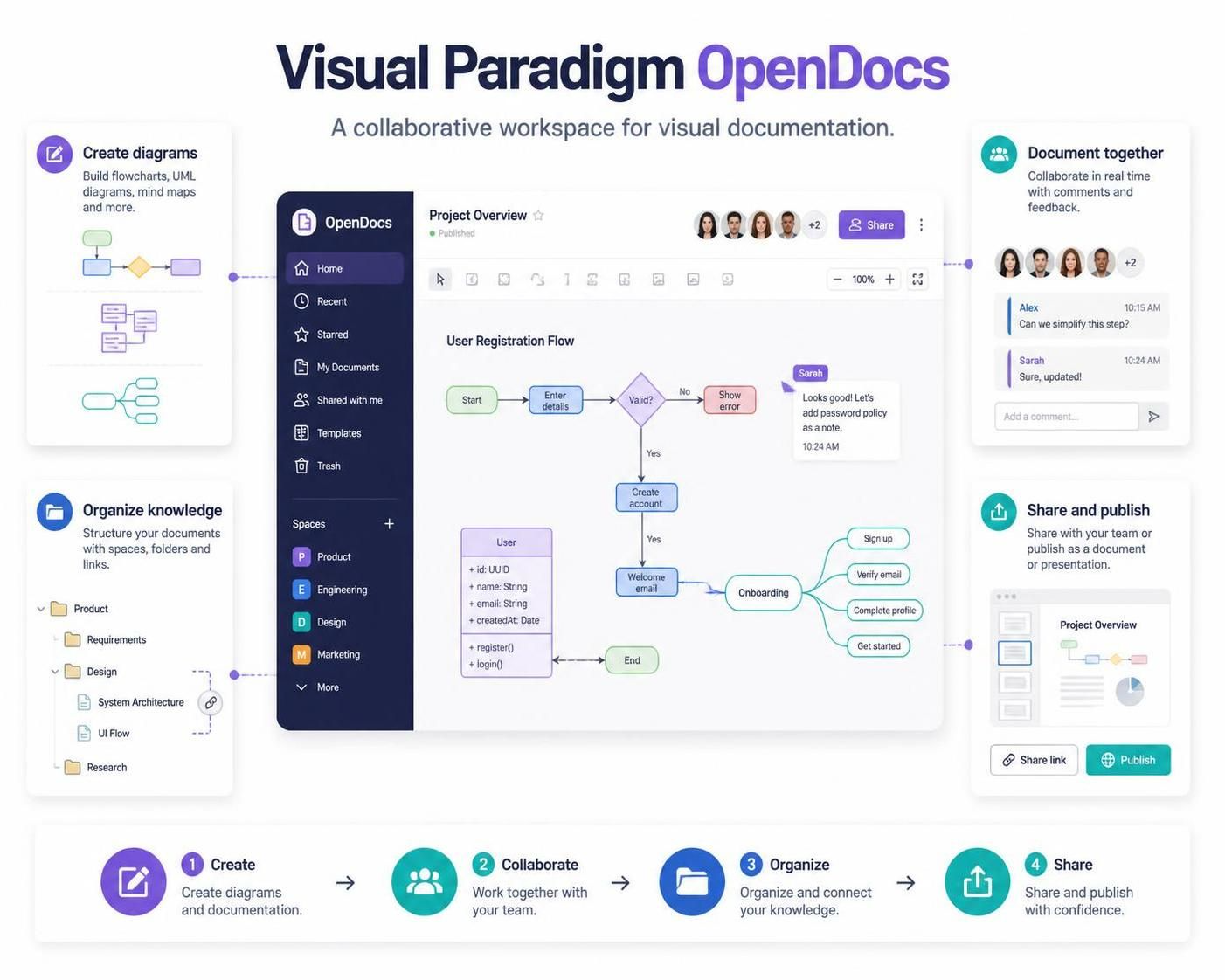
The overview image presents OpenDocs as a place to create diagrams, document together, organize knowledge, and share or publish the result. A useful way to work with it is to treat each document as part of a maintained knowledge base—not as a one-off file.
OpenDocs is described as a web-based knowledge-management and documentation environment that brings written content together with visual models. Visual Paradigm’s Pipeline can also connect diagrams created in Visual Paradigm Desktop or Online to OpenDocs, reducing reliance on manually exported, static images. Available capabilities can depend on your Visual Paradigm edition and setup.
1. Plan the knowledge base
Before writing pages, decide what the space is for and who will use it. A focused structure makes it easier for people to find and maintain information.
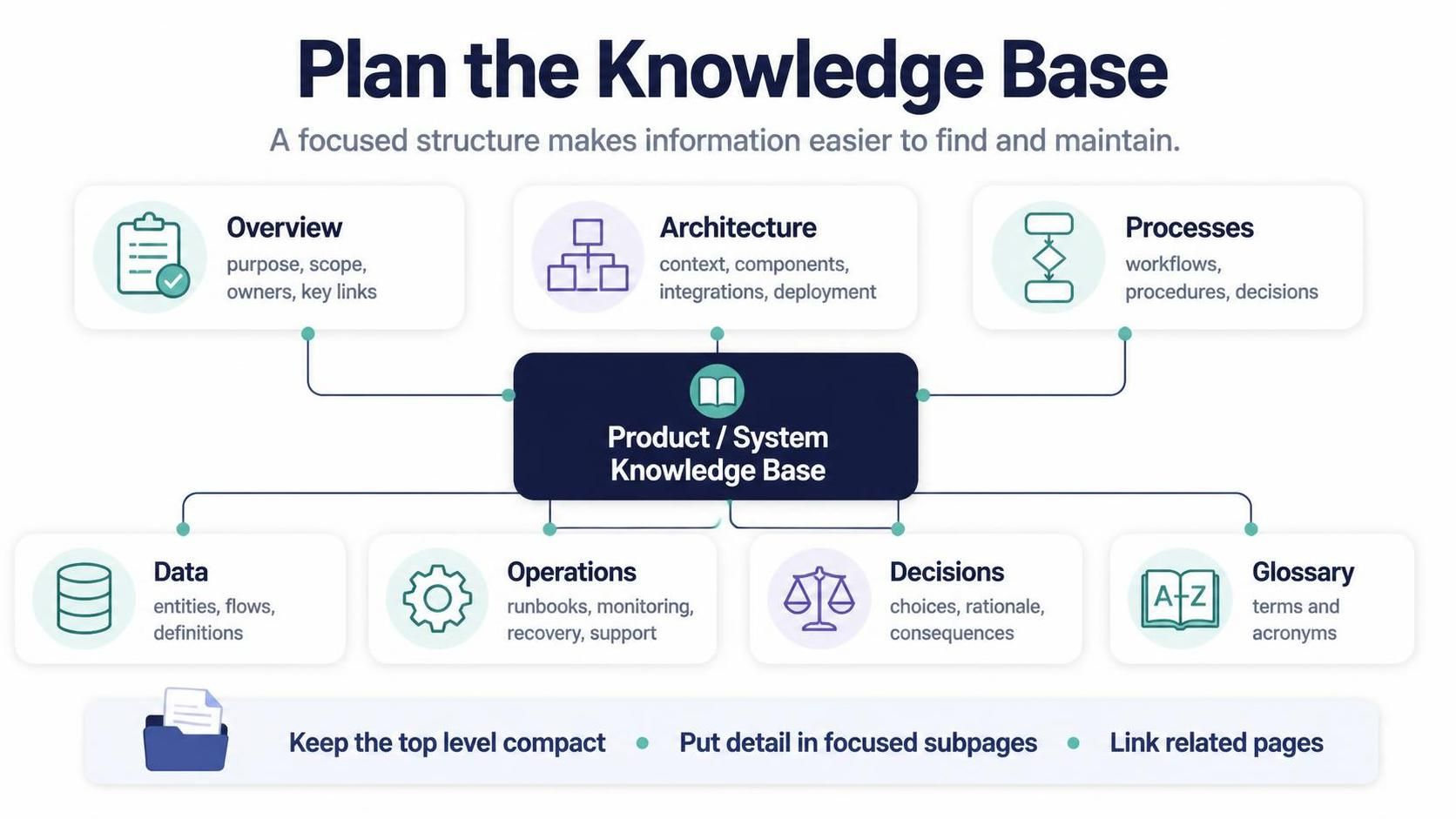
For example, a product or system knowledge base might be arranged like this:
-
Overview — purpose, scope, owners, and links to key pages
-
Architecture — system context, components, integrations, and deployment
-
Processes — workflows, procedures, and decision points
-
Data — entities, data flows, and definitions
-
Operations — runbooks, monitoring, recovery, and support contacts
-
Decisions — design choices, rationale, and consequences
-
Glossary — shared terminology and acronyms
Keep the top level compact. Put detailed material in focused subpages and link related pages to one another.
2. Create a clear overview page
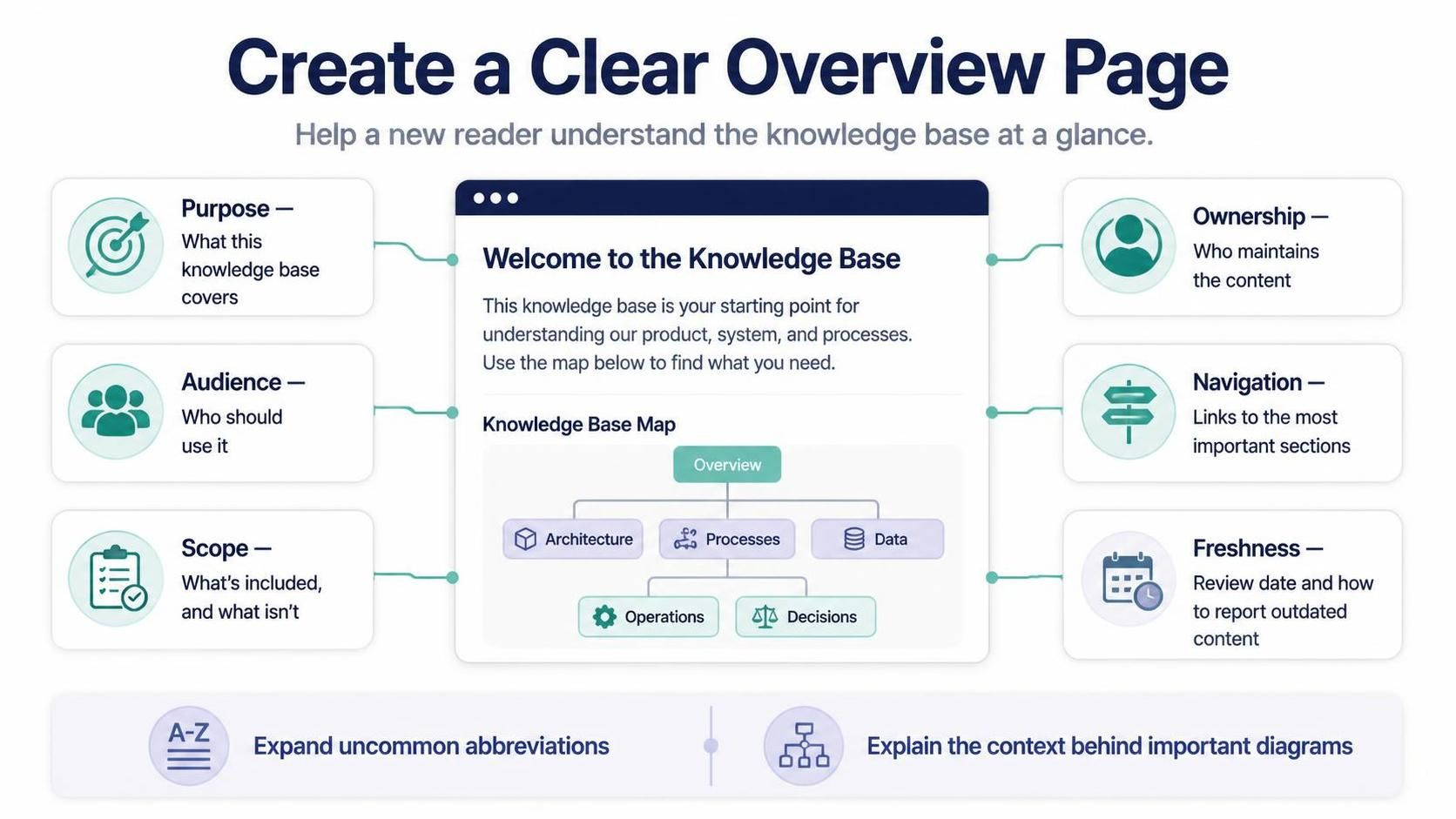
Start with a page that helps a new reader orient themselves. Include:
-
Purpose: What this knowledge base covers.
-
Audience: Who should use it.
-
Scope: What is included—and, if useful, what is not.
-
Ownership: Who maintains the content.
-
Navigation: Links to the most important sections.
-
Freshness: A review date or guidance for reporting outdated content.
Write for readers who don’t already know the project. Expand uncommon abbreviations and explain the context behind important diagrams.
3. Draft and structure the content
OpenDocs supports documentation authoring and visual content in the same workspace. The search results describe a Markdown-oriented editor and, in some workflows, a WYSIWYG editing experience; use the editing mode available in your account.
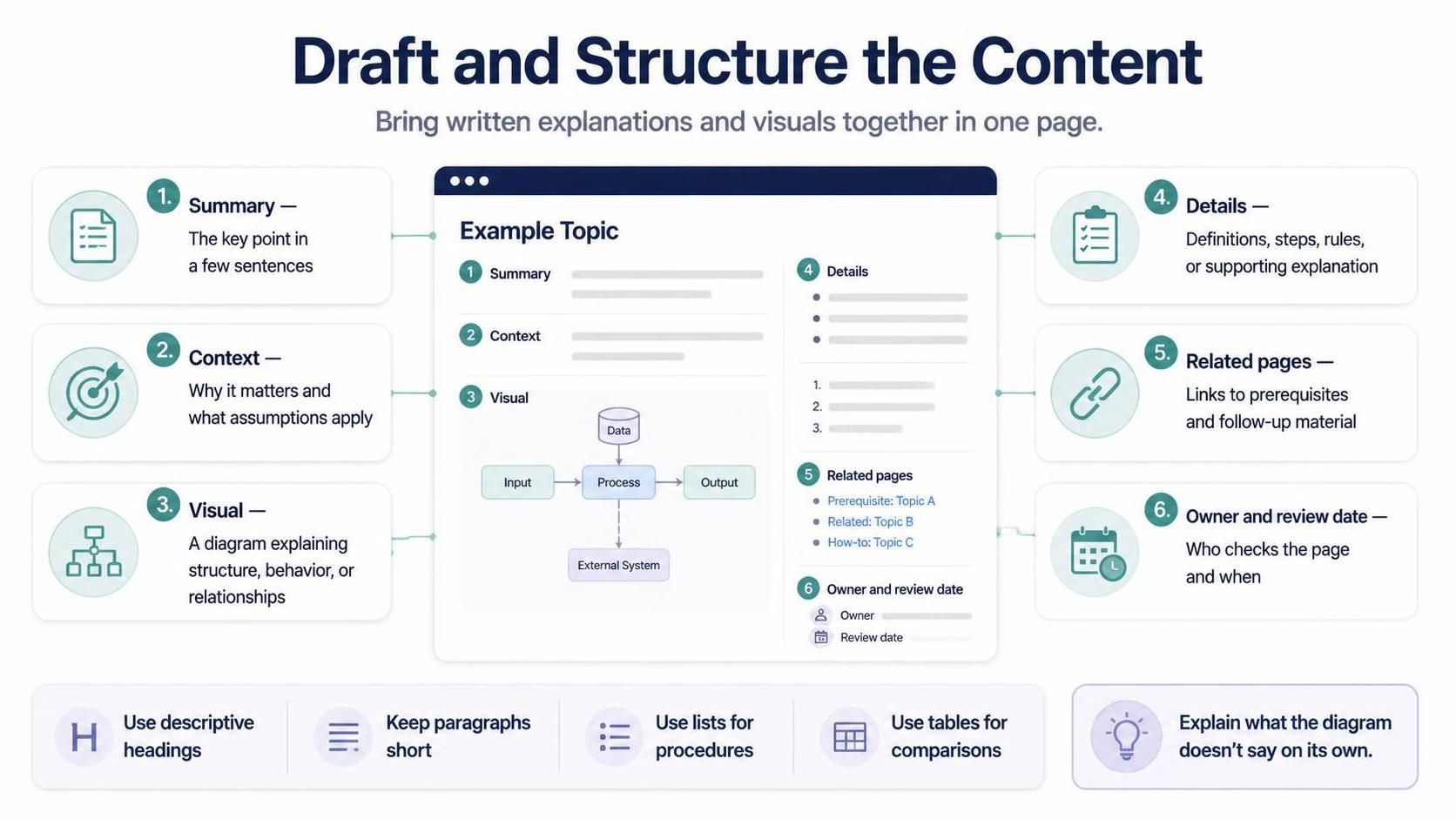
A reliable page pattern is:
-
Summary: The key point in a few sentences.
-
Context: Why the topic matters and what assumptions apply.
-
Visual: A diagram that explains structure, behavior, or relationships.
-
Details: Definitions, steps, rules, or supporting explanation.
-
Related pages: Links to prerequisites and follow-up material.
-
Owner and review date: Who checks the page and when.
Prefer descriptive headings, short paragraphs, and lists for procedures. Use tables when readers need to compare fields or scan structured facts. Avoid making a diagram carry information that the text never explains.
4. Choose diagrams that answer a question
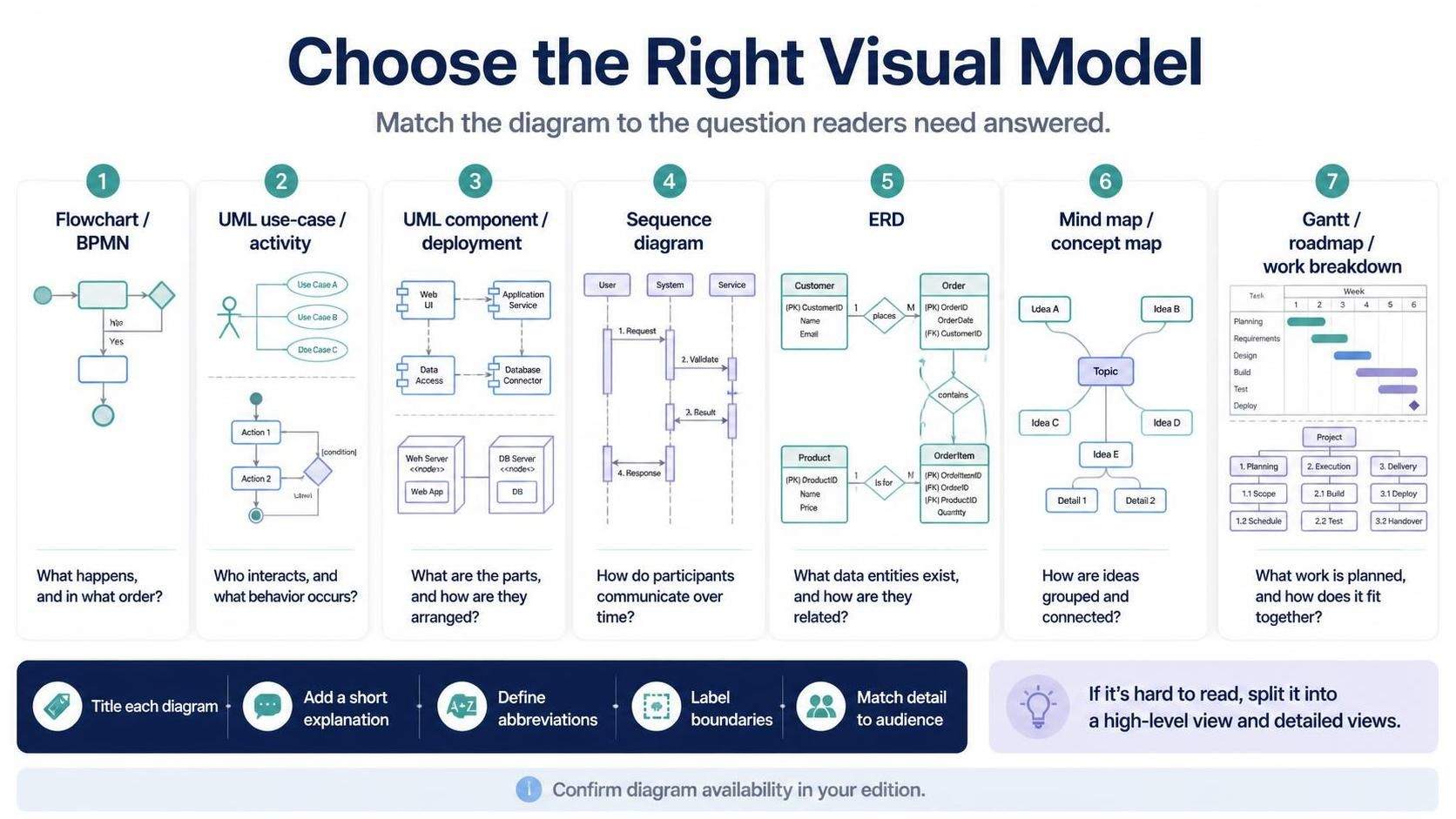
Pick a visual model based on the problem you want the reader to understand:
-
Flowchart or BPMN: What happens, and in what order?
-
UML use-case or activity diagram: Who interacts with the system, and what behavior occurs?
-
UML component or deployment diagram: What are the parts, and how are they arranged?
-
Sequence diagram: How do participants communicate over time?
-
ERD: What data entities exist, and how are they related?
-
Mind map or concept map: How are ideas grouped and connected?
-
Gantt chart, roadmap, or work breakdown structure: What work is planned, and how does it fit together?
Visual Paradigm materials describe OpenDocs workflows involving diagram types such as UML, BPMN, ERD, mind maps, and project-planning visuals. Confirm that a particular diagram type is available in your edition before building a process around it.
Give each diagram a title and a short explanation. Define abbreviations, label important boundaries, and keep the level of detail appropriate for the audience. If a diagram becomes hard to read, split it into a high-level view and one or more detailed views.
5. Add diagrams to the documentation
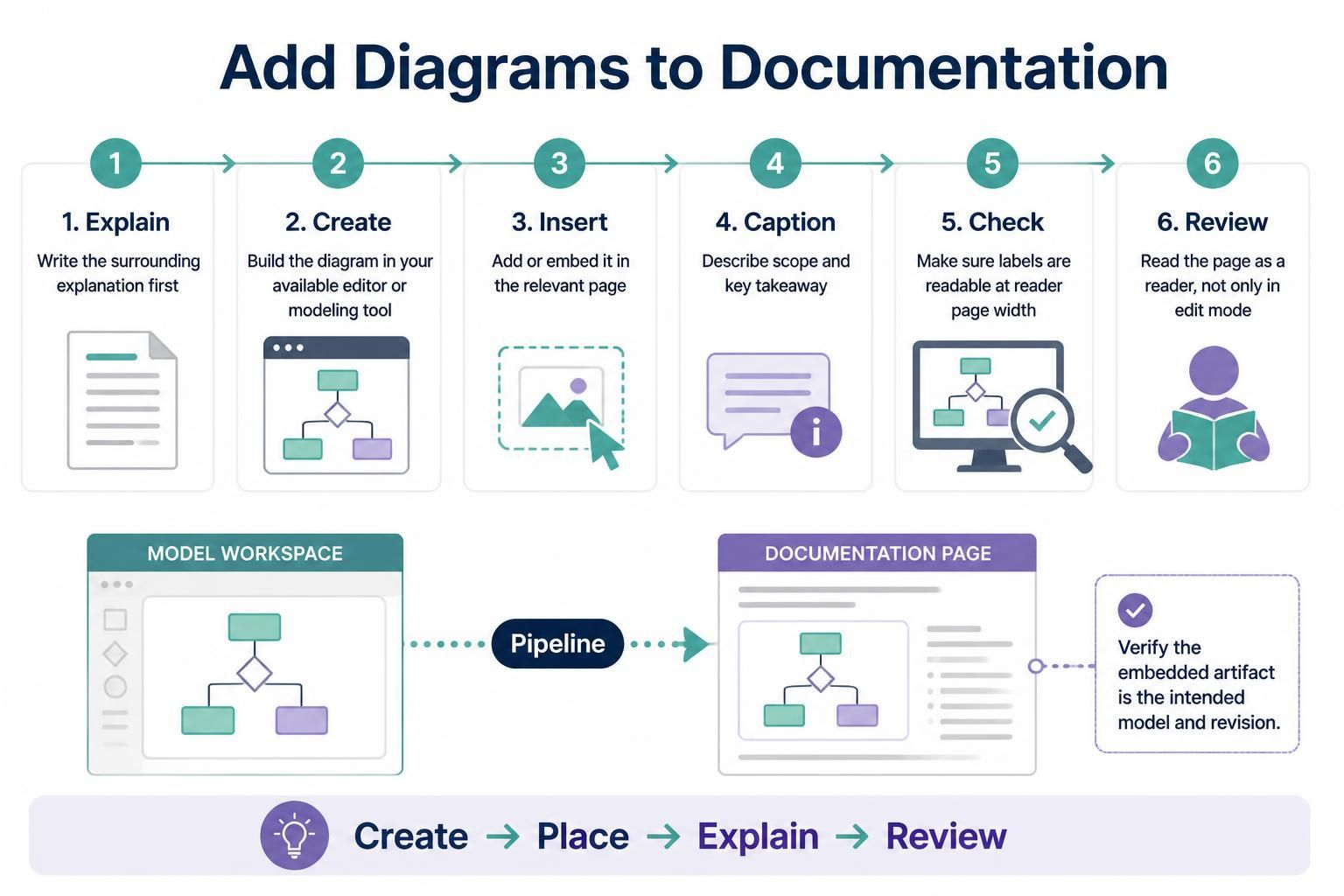
The overview image suggests a simple authoring cycle: create a visual, place it where it supports the text, and explain how to read it.
A practical sequence is:
-
Write the surrounding explanation first, so the diagram has a clear purpose.
-
Create the diagram in the editor or modeling tool available to you.
-
Insert or embed it in the relevant page using your account’s available integration.
-
Add a caption or nearby text describing its scope and key takeaway.
-
Check that labels are readable at the page width readers will use.
-
Review the page as a reader, not just in the editing view.
When diagrams are sent through Visual Paradigm’s Pipeline, the sources describe a workflow for making model artifacts available to OpenDocs and selecting them for use in documents. This can help reduce outdated copies, but teams should still verify that the embedded artifact points to the intended model and revision.
6. Collaborate with a lightweight review process
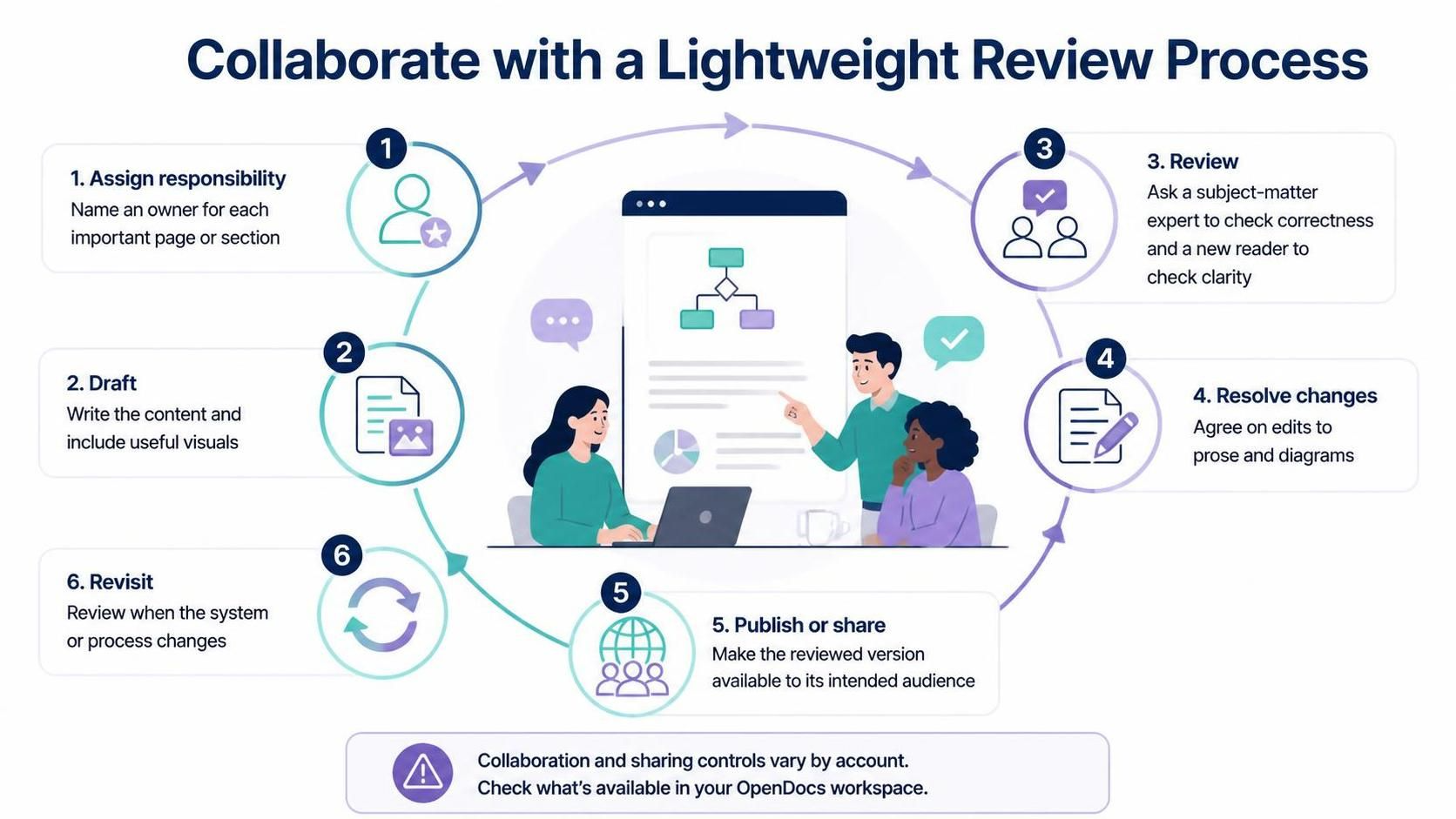
Use a consistent process so that collaboration improves accuracy rather than creating conflicting edits:
-
Assign responsibility: Name an owner for each important page or section.
-
Draft: Write the content and include the visuals needed to explain it.
-
Review: Ask a subject-matter expert to check correctness and a reader outside the immediate team to check clarity.
-
Resolve changes: Agree on edits to both prose and diagrams.
-
Publish or share: Make the reviewed version available to its intended audience.
-
Revisit: Review the page when the system or process changes.
The image depicts team collaboration, but exact collaboration controls and availability may vary. Check the controls shown in your OpenDocs workspace rather than assuming every account supports the same sharing or editing options.
7. Organize and maintain the knowledge base
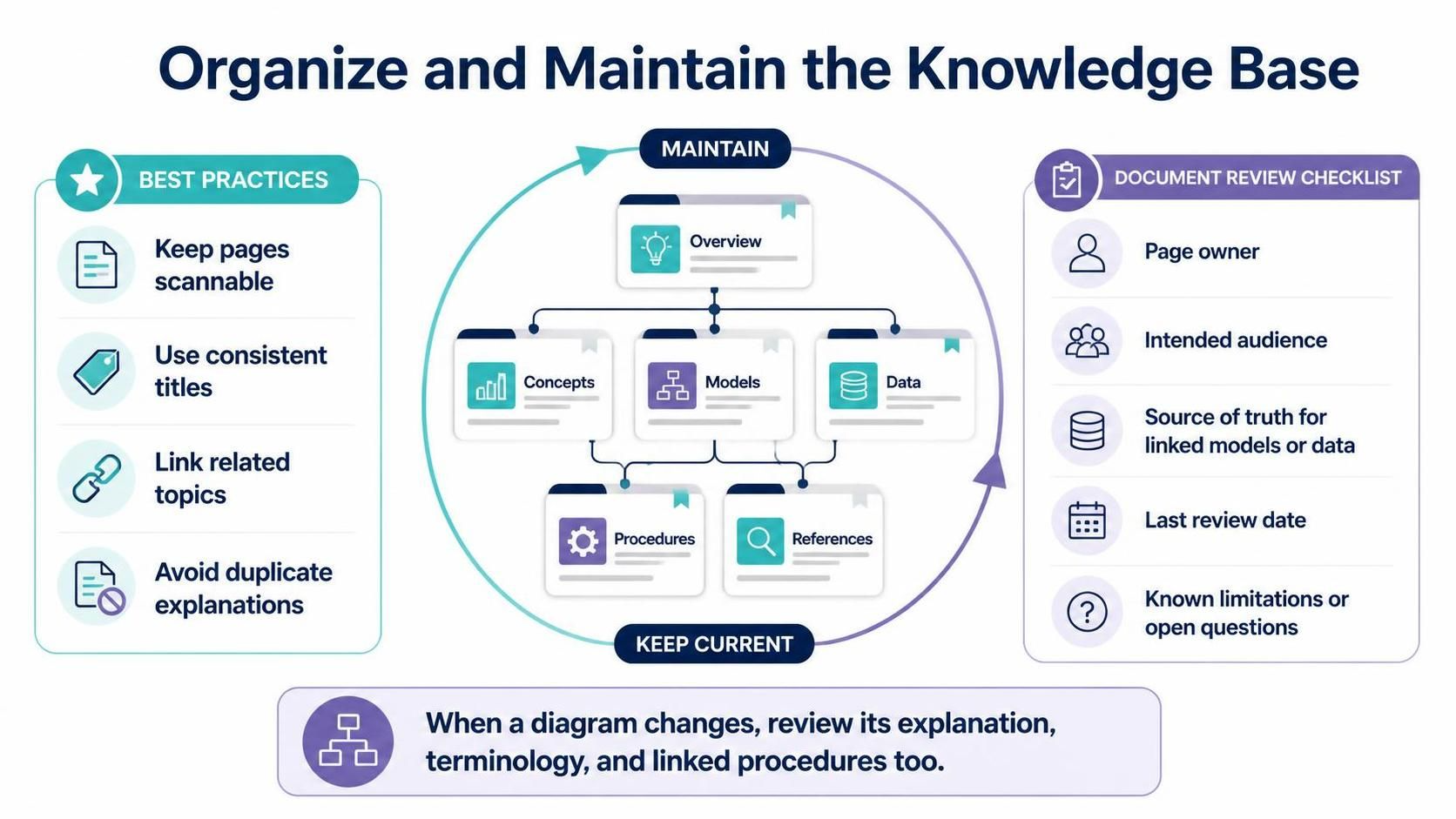
A good knowledge base needs ongoing care. Keep pages small enough to scan, use consistent titles, and link related topics instead of duplicating the same explanation in several places.
For each significant page, track:
-
A clear owner
-
The intended audience
-
The source of truth for linked models or data
-
The last review date
-
Any known limitations or unresolved questions
When a diagram changes, review the text around it too. The picture may be current while the explanation, terminology, or linked procedure is not.
8. Share or publish thoughtfully
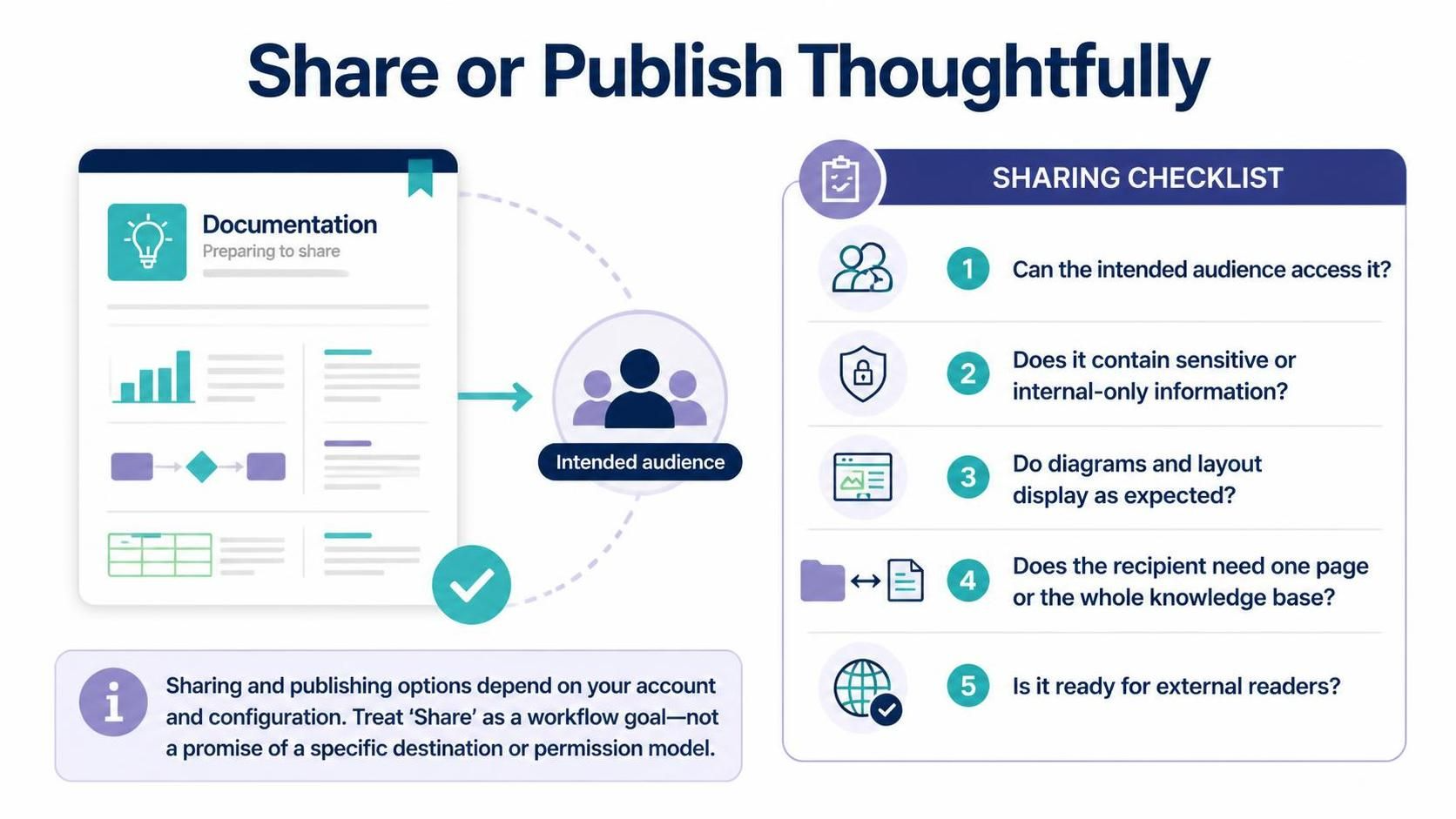
Before sharing a page or space, check:
-
Whether the intended audience can access it
-
Whether the content includes sensitive or internal-only information
-
Whether the shared view displays diagrams and layout as expected
-
Whether a recipient needs a single page or the whole knowledge base
-
Whether the material is ready for external readers
The exact sharing and publishing options depend on the account and configuration. Treat the overview image’s “Share” stage as a workflow goal, not a guarantee of a particular publishing destination or permission model.
9. A reusable page checklist
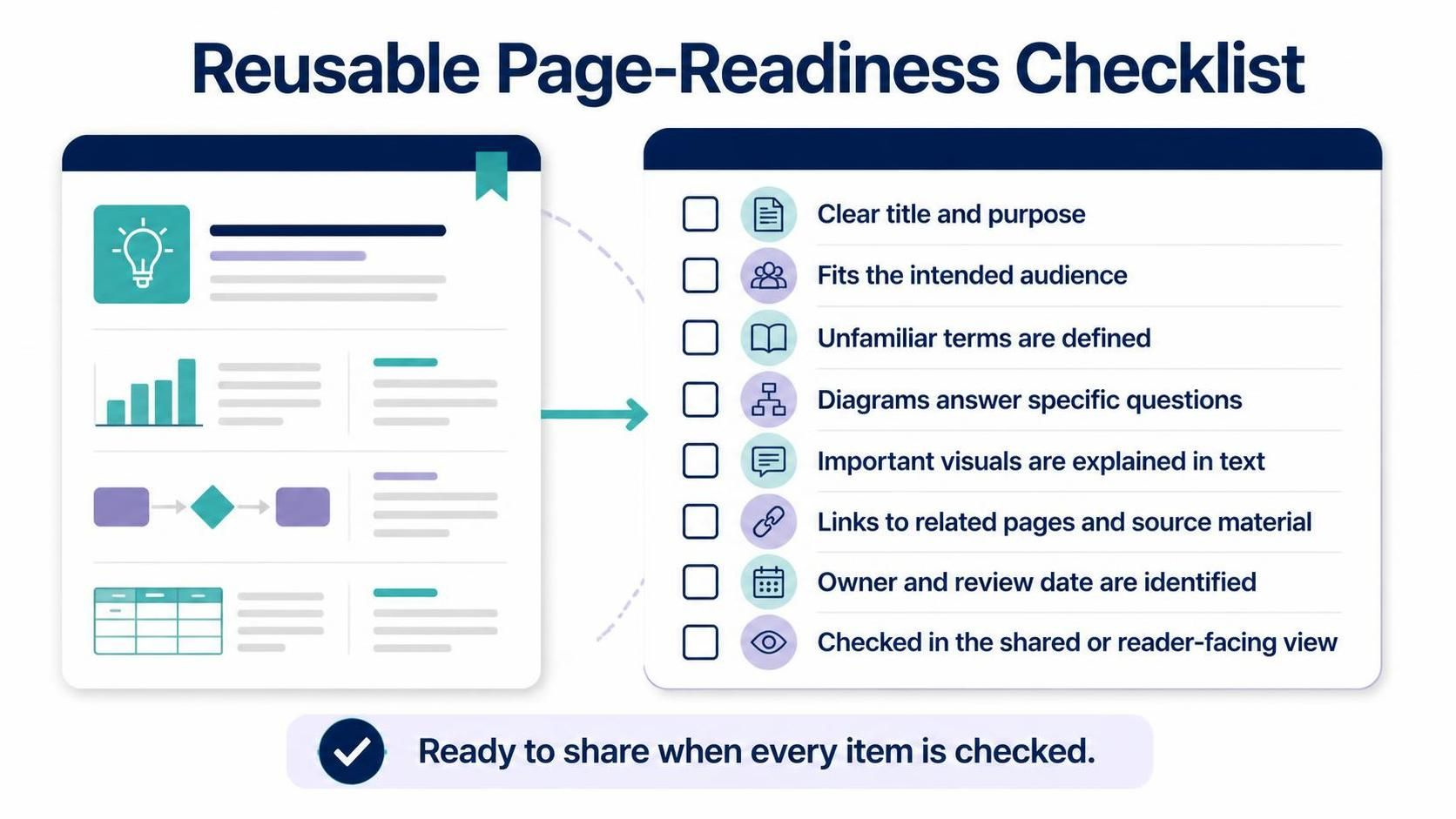
Before considering a page ready, confirm that it:
-
Has a clear title and purpose
-
Makes sense to its intended audience
-
Defines unfamiliar terms
-
Uses diagrams that answer specific questions
-
Explains important visuals in text
-
Links to related pages and source material
-
Identifies an owner and review date
-
Has been checked in its shared or reader-facing view
Example workflow
For documenting a new service, begin with an overview page that explains its purpose and ownership. Add a system-context diagram to show its users and external dependencies. Create a component diagram for its main parts, then document key request flows and operational procedures on separate pages. Link the pages from the overview, review them with the service team, and share the appropriate view with the intended audience. If the underlying model changes, update or recheck the linked visual and its explanation.
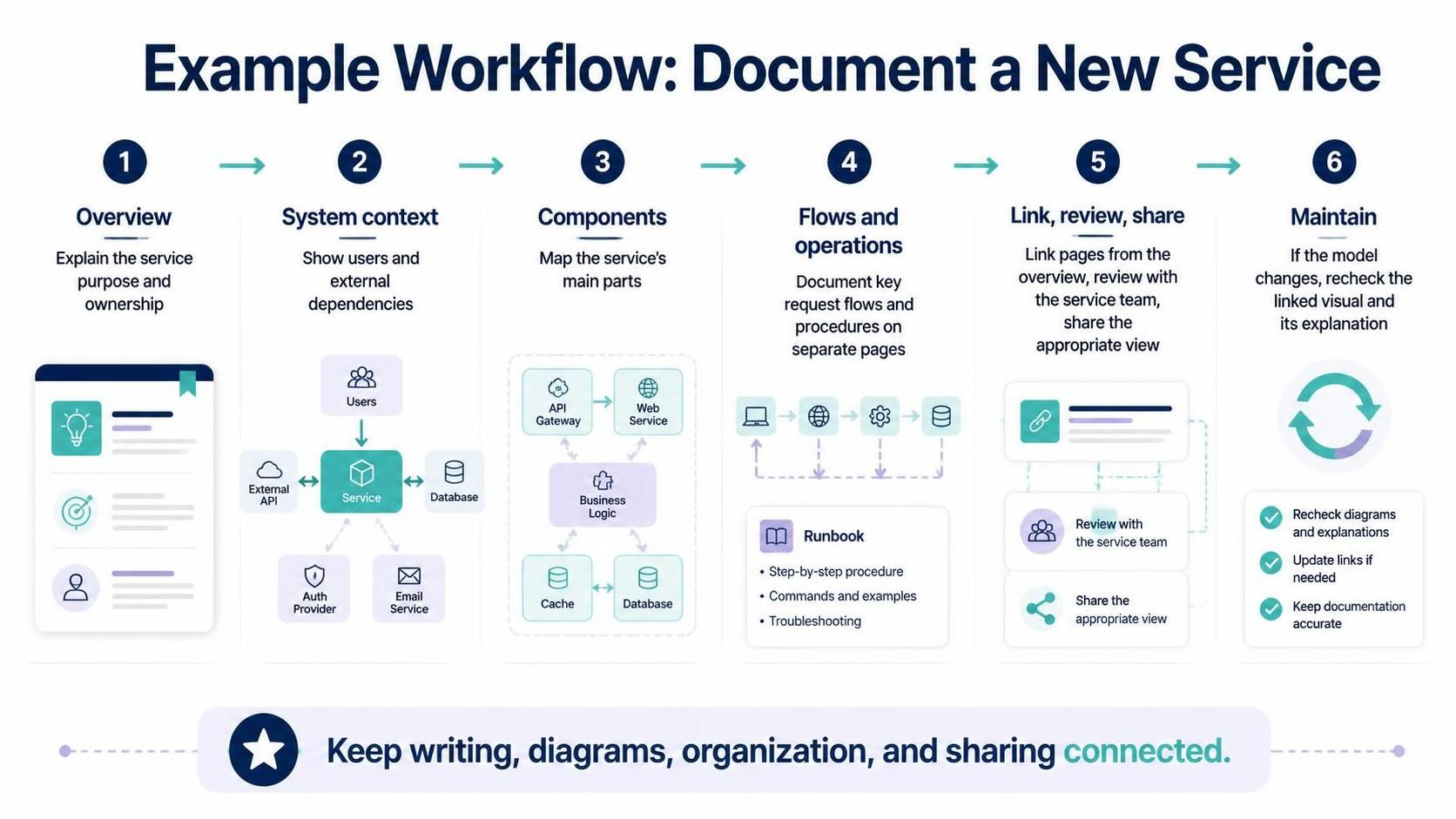
The central principle is simple: keep the writing, diagrams, organization, and sharing process connected. That is what turns a collection of pages and visuals into useful, maintainable documentation.
This post is also available in Deutsch, Español, فارسی, Français, Bahasa Indonesia, 日本語, Polski, Portuguese, Ру́сский, Việt Nam, 简体中文 and 繁體中文.