
Welcome to the comprehensive guide on leveraging Visual Paradigm’s VPasCode—a powerful, browser-based, AI-enhanced diagram-as-code workspace. It serves as a seamless PlantUML editor, live renderer, and smart viewer, supercharging your architectural and software modeling workflows with advanced AI capabilities.
What is VPasCode?
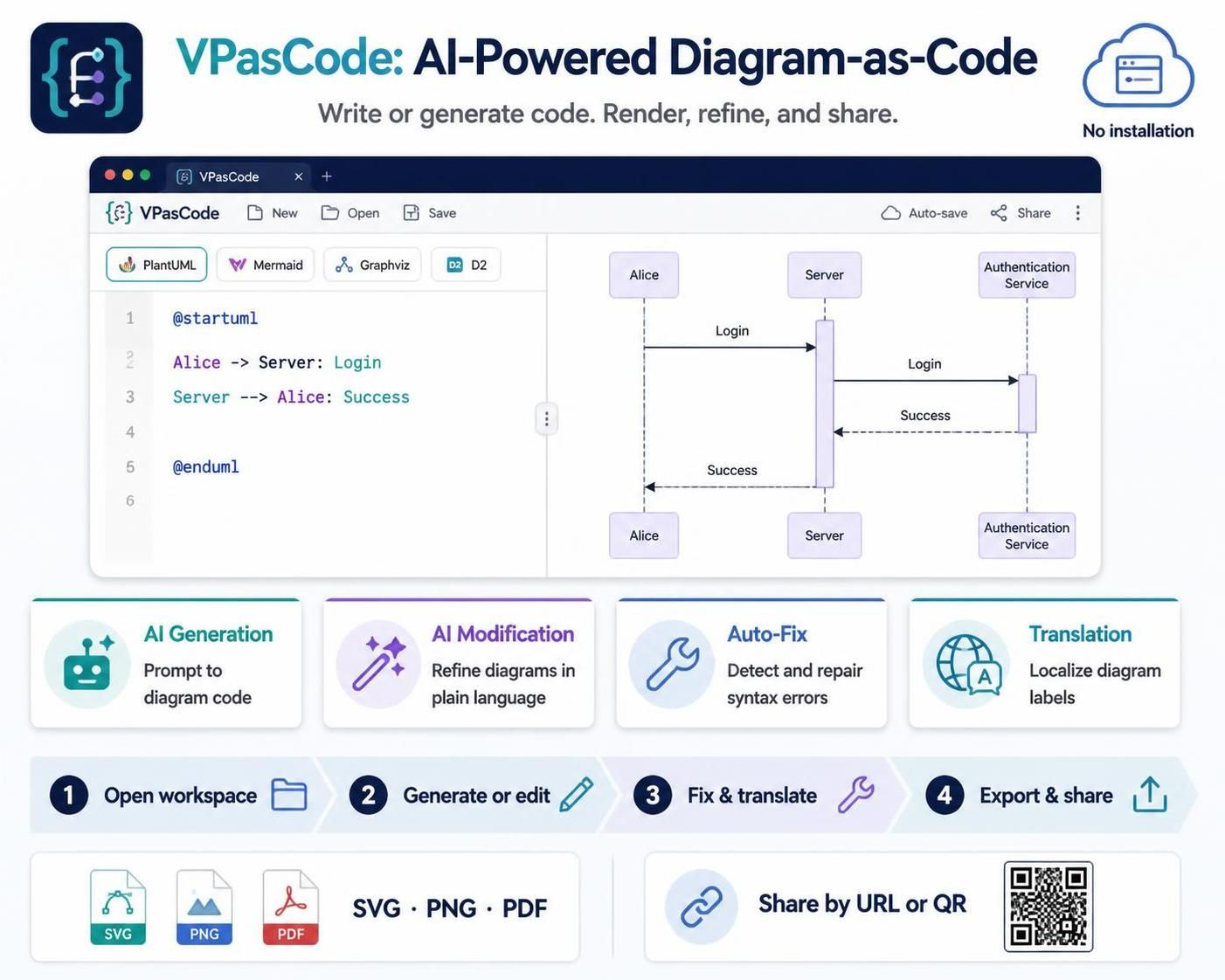
VPasCode is a zero-installation, web-based platform that unifies diagram-as-code languages (such as PlantUML, Mermaid, Graphviz, and D2). Rather than manually dragging shapes or wrestling with clunky layout tools, you write or generate textual scripts, and VPasCode handles the real-time visual rendering. Combined with native AI integration, it acts as an intelligent assistant for drafting, debugging, and translating architectural specifications.
Key AI-Powered Features
| Feature | Description |
|---|---|
| AI Generation | Translate natural language prompts (e.g., “Create a sequence diagram for user login authentication”) into ready-to-render PlantUML code. |
| AI Modification | Update existing code using plain-language commands to insert missing participants, re-sequence steps, or streamline architecture. |
| AI Error Auto-Fix | Automatically diagnose and repair syntax typos, broken brackets, or misaligned tokens with a single click, complete with clear explanations. |
| AI Translation | Instantly translate text labels, class properties, and message descriptions within your diagrams for international team collaboration. |
Step-by-Step Guide: Using VPasCode for PlantUML
Step 1: Open and Initialize Your Workspace
-
Navigate to the official VPasCode platform in your web browser (no local installation or plugin setup is required).
-
Open a blank editor or paste your existing PlantUML script into the code pane.
-
VPasCode features automatic format detection, meaning it will instantly recognize PlantUML syntax (like
@startumland@enduml) and immediately activate the correct rendering engine.
Step 2: Build or Generate Diagrams Using AI
-
From Scratch: Open the AI assistant feature within the workspace and type a descriptive prompt detailing your system requirements (e.g., domain entities, workflows, or sequence steps). Review the generated code drafted in real time.
-
Iterative Refinement: Instead of rewriting code by hand, instruct the AI modifier to tweak specific components (e.g., “Add a payment gateway check right after the order submission step”), preserving the core integrity of your original script.
Step 3: Utilize Live Error Fixing and Translation
-
Fixing Syntax Errors: PlantUML can be sensitive to minor typos or missing brackets. If an error occurs, use the AI Code Error Fixing tool. The engine will spot the invalid line, correct the syntax, and explain what went wrong so you can learn from it.
-
Translating Labels: If you are sharing documentation across global development teams, use the AI Diagram Translation tool to convert text elements into your target language instantly.
Step 4: Styling, Exporting, and Sharing
-
Apply Themes: Enhance your diagram’s visual polish by selecting hand-picked theme settings (such as Classic Visual Paradigm or classic alternative styles) directly inside the editor UI to automatically inject proper skin parameters.
-
Export Options: Once your diagram is finalized, export it in multiple formats depending on your documentation requirements:
-
SVG: Ideal for scalable web documentation and technical wikis.
-
PNG: Perfect for chat applications, bug trackers, and slide presentations.
-
PDF: Best for formal print documents.
-
Collaboration: Share the live state of your diagram instantly using direct URLs or QR codes generated by the platform.