


Introduction
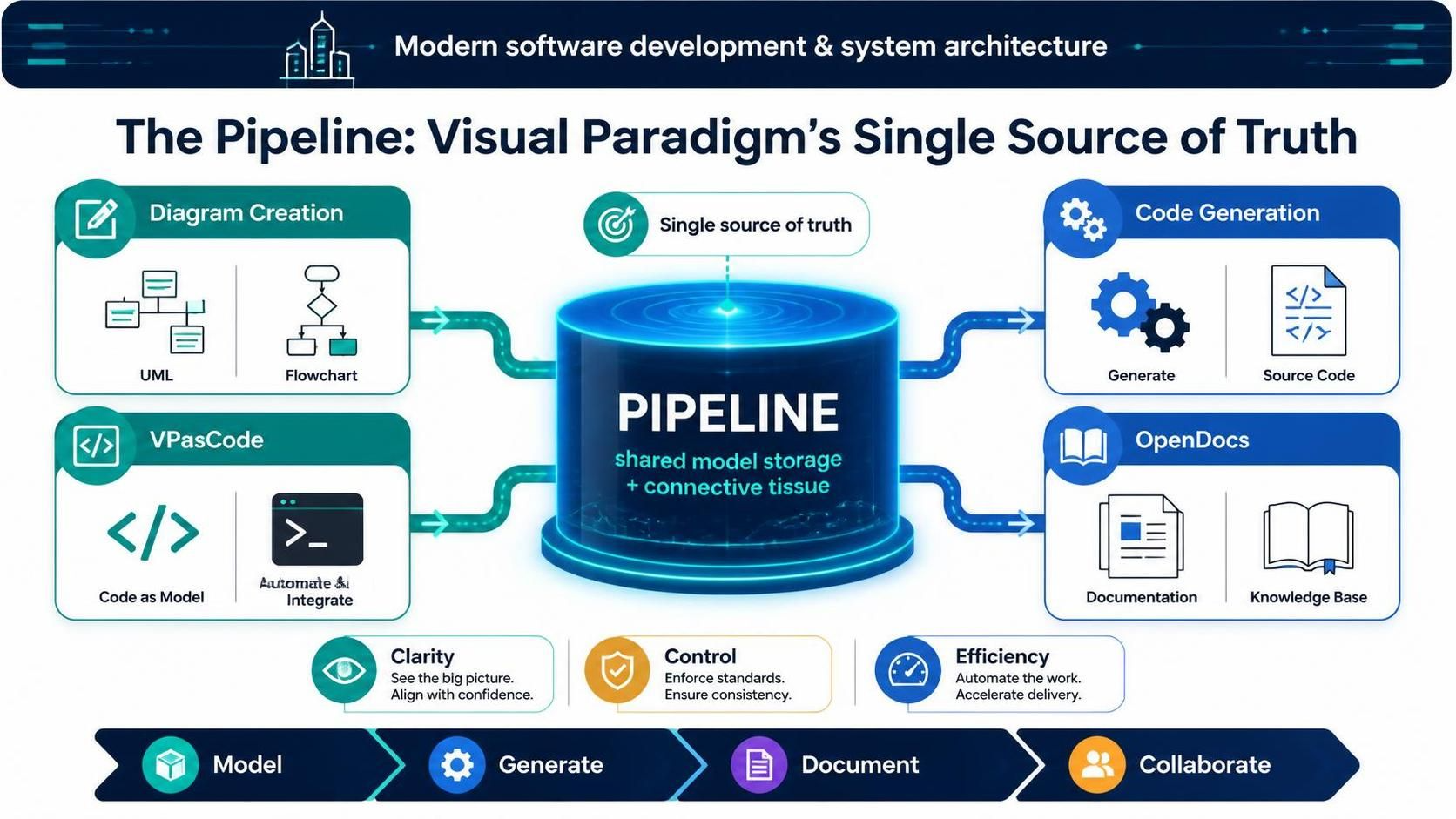
In modern software development and system architecture, maintaining a single source of truth is critical. Visual Paradigm has long been a powerhouse for modeling, but the true magic lies in how its various tools connect. Enter the Pipeline—the central storage hub that acts as the connective tissue between diagram creation, code generation, and living documentation.
Recently, Visual Paradigm introduced significant UI and workflow enhancements to the Pipeline across its ecosystem, including VPasCode and OpenDocs. These updates focus on clarity, control, and efficiency, allowing teams to manage shared assets with greater precision. This guide explores these new features, providing key concepts, practical examples, and a roadmap for streamlining your Visual Paradigm workflow.
Understanding the Visual Paradigm Pipeline
Before diving into the new features, it’s essential to understand what the Pipeline is. The Pipeline is not just a file repository; it is a dynamic bridge that enables seamless cross-application collaboration. It allows you to share, store, and access critical components—such as diagrams, models, and documentation snippets—from one Visual Paradigm application directly inside another.
Whether you are moving from VP Desktop to OpenDocs, or from an AI Chatbot to VPasCode, the Pipeline ensures that your artifacts remain synchronized and accessible.
Key Enhancements: Taking Control of Your Artifacts
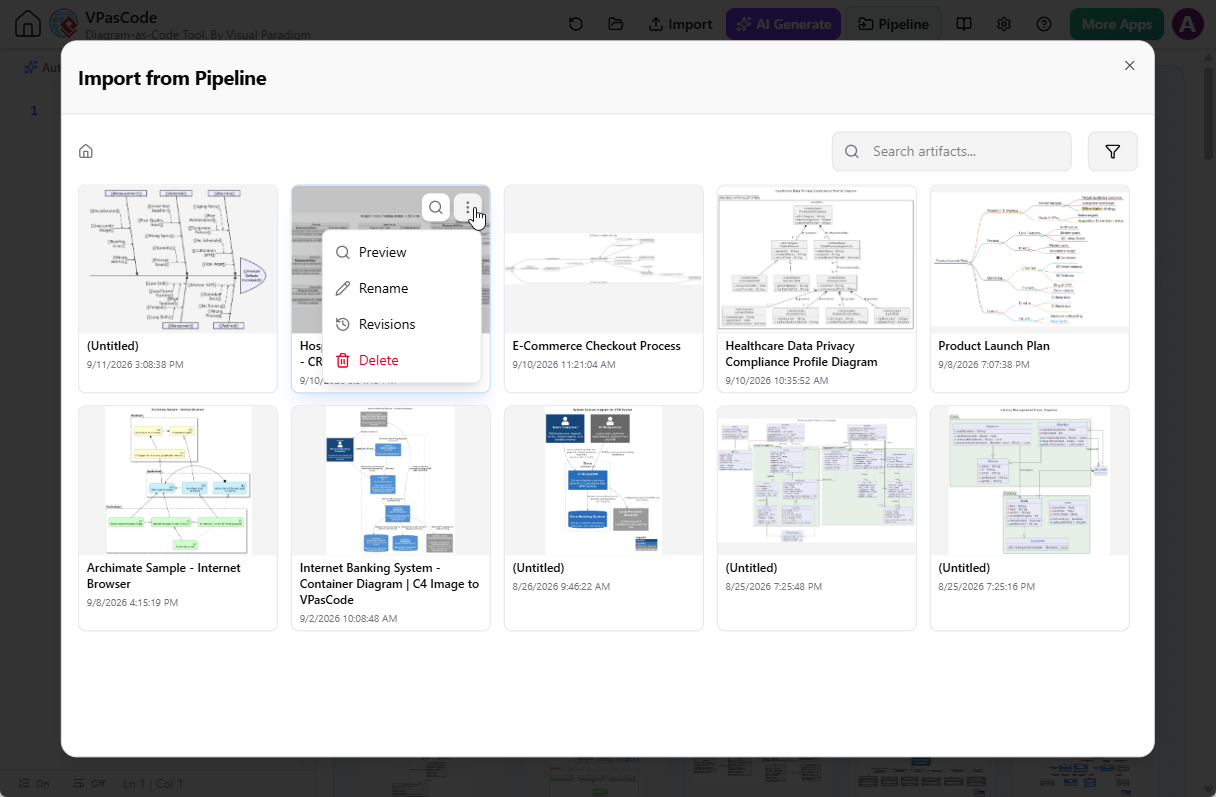
The recent updates introduce four major improvements designed to make managing shared assets more intuitive. Let’s break them down with key concepts and examples.
1. Clearer Artifact Identification with Custom Names
The Problem: Previously, sending an artifact to the Pipeline required entering a description that was often hidden or only visible in specific panes. This made it difficult to quickly identify assets, especially in large projects.
The Solution: The experience has been fully revamped with pre-filled, editable names and unified display.
-
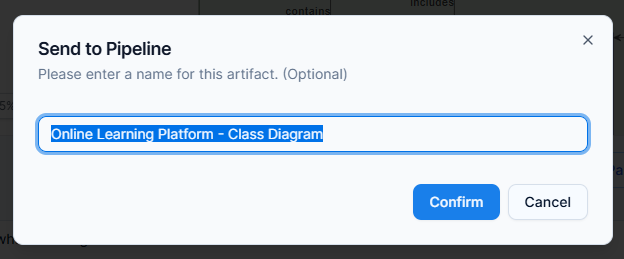
Pre-filled & Editable Names: When you send an artifact to the Pipeline, the system now automatically suggests an appropriate name based on the artifact type (e.g., “Class Diagram – User Module”). You can easily modify this name before saving to ensure it aligns with your team’s naming conventions.
-
Unified Display: The name you assign becomes the primary label for your artifact across all connected apps. This means whether you are viewing the asset in VPasCode, OpenDocs, or VP Desktop, you will see the same clear, consistent identifier.
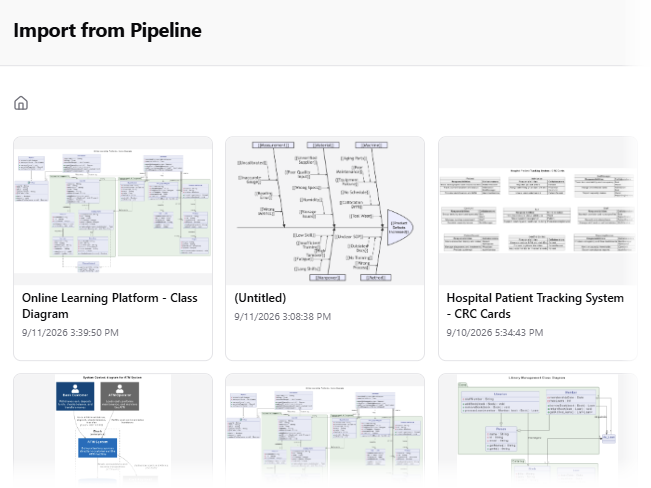
Example: Imagine you create a C4 Context Diagram in VP Desktop. Instead of it appearing as “Untitled Diagram” or a generic ID in the Pipeline, you can name it “E-Commerce Platform Context.” This name will then appear consistently when you embed the diagram into your OpenDocs project.
2. Compact Thumbnail View for Instant Context
The Concept: Screen real estate is valuable. The updated Pipeline thumbnails are now more compact, optimizing the layout to show more information at a glance.
Benefit: You can instantly view both the full artifact name and its last modified date and time without unnecessary scrolling or extra clicks. This is particularly useful when you need to verify you are working with the most recent version of an asset.
3. Direct Artifact Renaming
The Concept: Projects evolve, and so do their requirements. An artifact named “Draft Login Flow” might later become “Final OAuth2 Implementation.”
The Solution: You can now rename existing artifacts directly within the Pipeline UI. This flexibility allows you to maintain clear naming conventions throughout the project lifecycle, keeping your team aligned without needing to delete and re-upload assets.
4. Artifact Deletion
The Concept: Over time, pipelines can become cluttered with outdated drafts, experimental models, or obsolete versions.
The Solution: You can now remove unused artifacts directly from the Pipeline hub. This helps keep your workspace organized and ensures that team members are only accessing relevant, up-to-date assets.
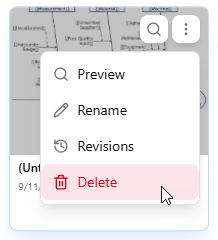
⚠️ Important Note: Pipeline artifact deletion is permanent and cannot be restored. Always ensure you no longer need an item before confirming deletion.
Practical Workflow Examples
To illustrate how these enhancements improve real-world workflows, consider the following scenarios:
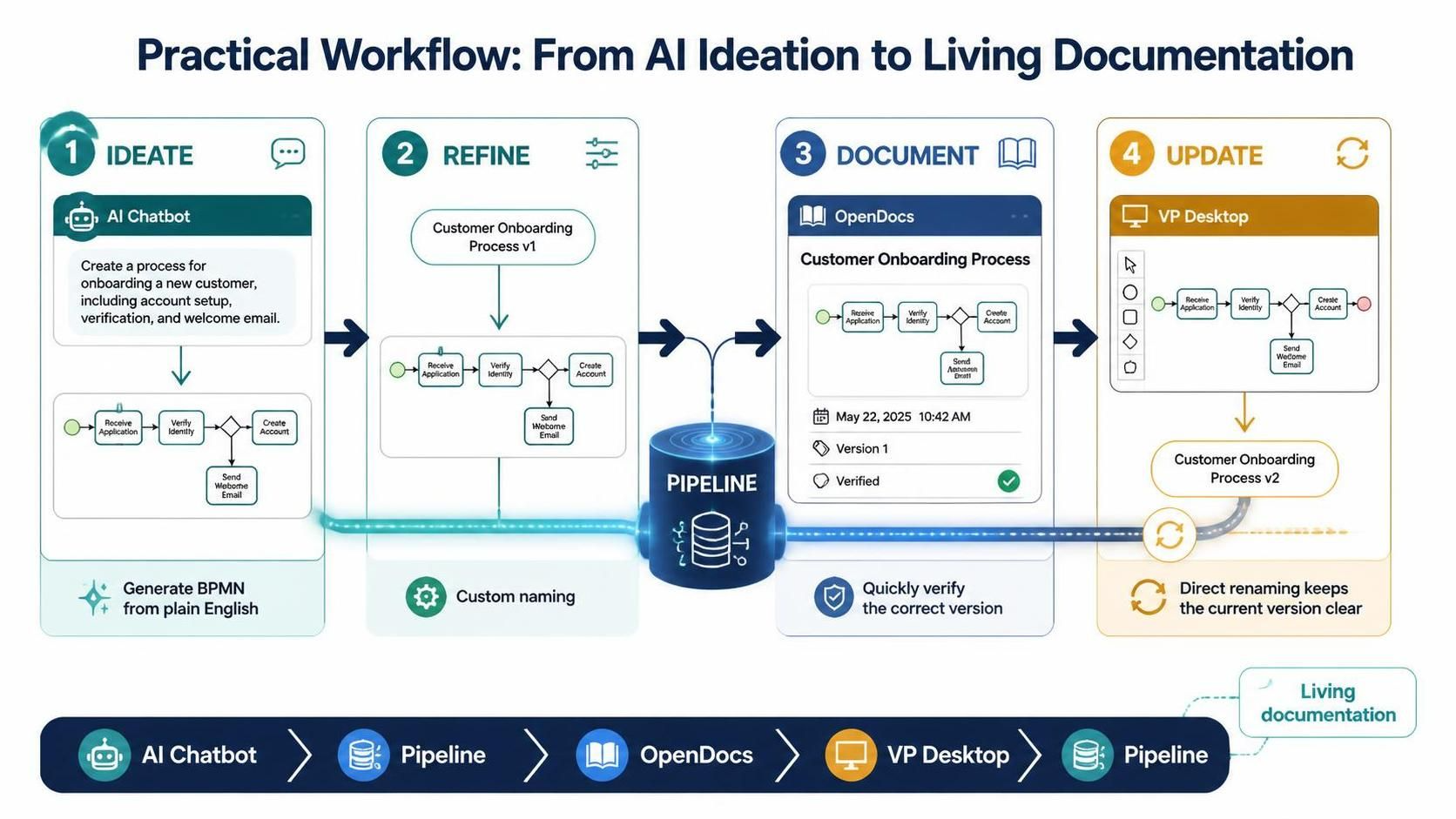
Scenario 1: From AI Ideation to Living Documentation
-
Ideate: Use the Visual Paradigm AI Chatbot to generate a BPMN process flow from a plain-English narrative.
-
Refine: Send the generated diagram to the Pipeline. Thanks to the custom naming feature, you immediately name it “Customer Onboarding Process v1.”
-
Document: In OpenDocs, pull the artifact from the Pipeline. The compact thumbnail allows you to quickly verify it’s the correct version by checking the timestamp.
-
Update: As the process changes, you update the diagram in VP Desktop and send it back to the Pipeline. You use direct renaming to update the asset to “Customer Onboarding Process v2,” ensuring everyone knows which version is current.
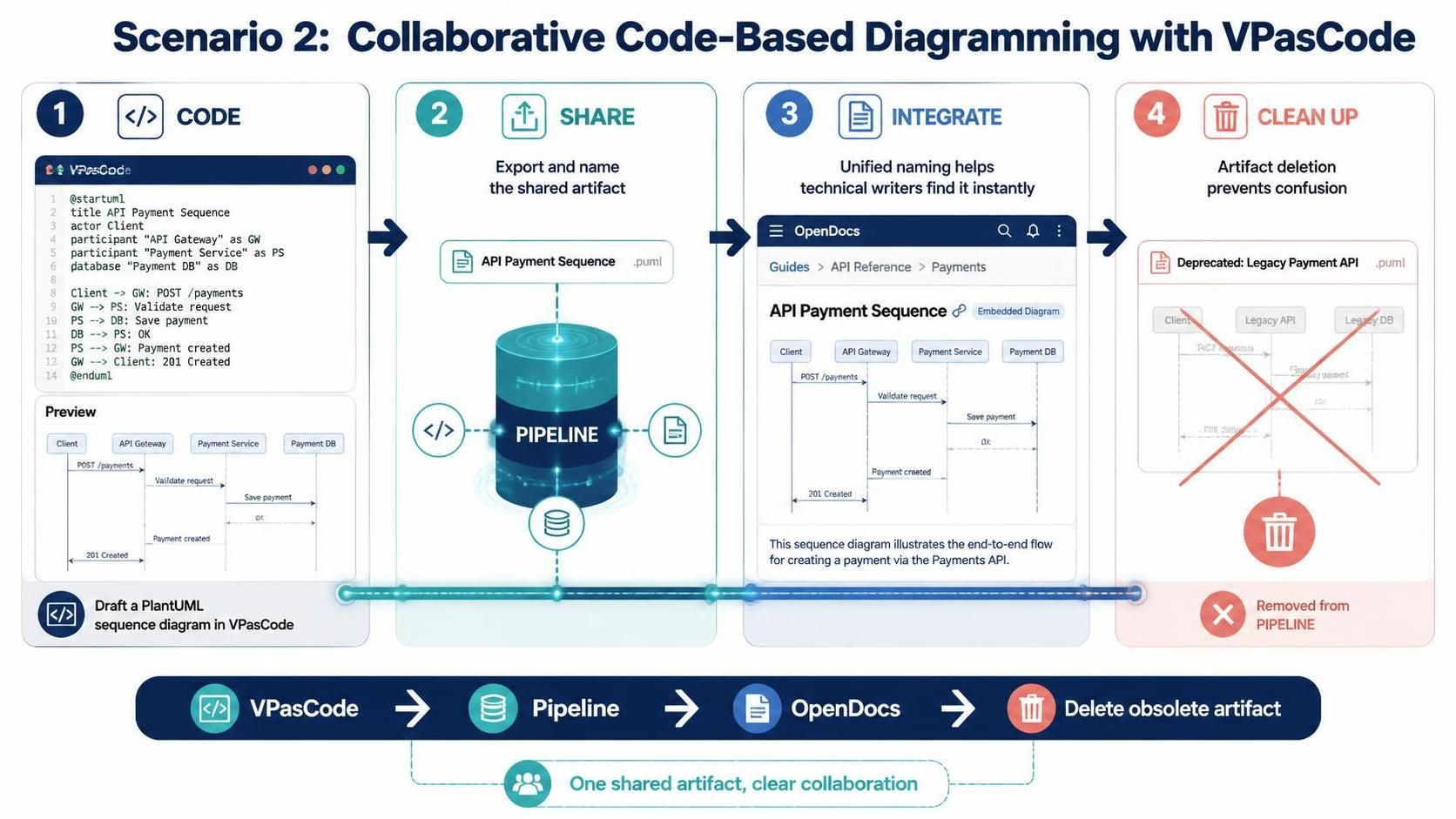
Scenario 2: Collaborative Code-Based Diagramming with VPasCode
-
Code: A developer drafts a PlantUML sequence diagram in VPasCode.
-
Share: They export the diagram to the Pipeline, naming it “API Payment Sequence.”
-
Integrate: A technical writer embeds this artifact into an OpenDocs guide. Because the name is unified, the writer sees “API Payment Sequence” clearly in the editor.
-
Clean Up: After the API is deprecated, the team uses artifact deletion to remove the old diagram from the Pipeline, preventing confusion.
Conclusion
The recent UI updates to the Visual Paradigm Pipeline represent a significant step forward in usability and control. By introducing custom naming, compact thumbnails, direct renaming, and deletion capabilities, Visual Paradigm has made it easier than ever to manage the complex web of artifacts that modern projects require.
These enhancements are not just cosmetic; they are functional improvements that reduce friction, prevent errors, and promote clarity across teams. Whether you are using VP Desktop, VPasCode, or OpenDocs, leveraging the Pipeline effectively will streamline your workflow and ensure your documentation stays in sync with your models.
Log in today to experience the updated Pipeline UI and take control of your project assets.
Recommended Reading: Visual Paradigm Ecosystem Guides
- From Diagram to Documentation: A Beginner’s Guide to the Visual Paradigm Pipeline: A comprehensive step-by-step guide explaining how Pipeline acts as the “connective tissue” between diagram creation and living documentation, featuring a practical PlantUML login flow example.
- Pipeline Visual Paradigm: The Bridge for AI Modeling & Knowledge Management: Details the five core connections within the ecosystem, specifically explaining how to send artifacts from Desktop, Online, and AI Chatbot directly into the Pipeline and OpenDocs.
- Breaking Down Silos: A Comprehensive Guide to the Visual Paradigm Unified Platform: Explains how the Unified Platform, including the Pipeline and Unified Drive, connects local Desktop modeling with cloud collaboration to establish a single source of truth.
- Visual Paradigm AI Tooling: A Step-by-Step Guide to the AI Chatbot + C4 + Pipeline + OpenDocs Workflow: A technical walkthrough demonstrating an end-to-end workflow that moves from AI chatbot ideation to C4 modeling, and finally publishing through the Pipeline to OpenDocs.
- How VPasCode Works with OpenDocs, VP Desktop, and AI Chatbots: Details how VPasCode (Diagram-as-Code) connects with the Pipeline, allowing users to draft scripts in an AI Chatbot, refine in VPasCode, and export to Desktop or OpenDocs.
- Seamlessly Connect As-Code Diagrams to Documentation with OpenDocs: Focuses on the VPasCode to OpenDocs integration via Pipeline, explaining how to export code-based diagrams and embed them as live assets that stay in sync.
- From Narrative to Knowledge: The AI-Powered BPMN and Documentation Pipeline: Explores how to use AI to convert plain-English narratives into BPMN diagrams and push them through the Pipeline to OpenDocs for process documentation.
This post is also available in Deutsch, Español, فارسی, Français, English, Bahasa Indonesia, 日本語, Polski, Portuguese, Ру́сский, Việt Nam, 简体中文 and 繁體中文.