


Introduction
In the world of software engineering, system architecture, and business process management, creating professional visual models has traditionally been a time-consuming manual process. For decades, Unified Modeling Language (UML), BPMN, and other modeling standards have served as essential tools for visualizing complex systems—but at a steep price in terms of time and effort. Manually dragging, dropping, and aligning shapes often leads to outdated documentation and frustrated teams.
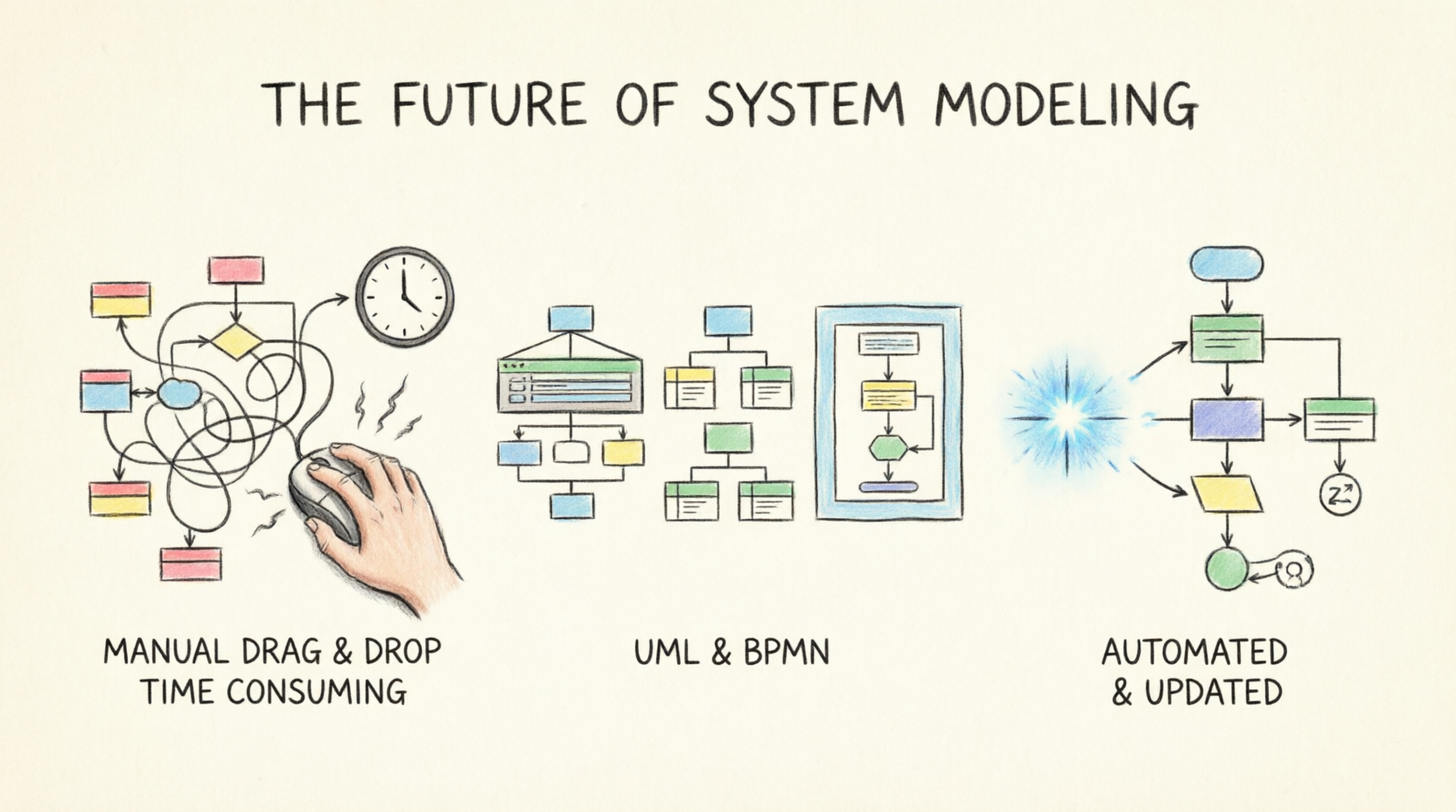
The Visual Paradigm AI Chatbot represents a fundamental shift in this paradigm. By combining natural language processing with robust modeling engines, this AI-powered assistant transforms plain-text requirements into professional, standardized diagrams in seconds. It is like chatting with a UML expert: describe a scenario in plain English, and it generates, refines, and explains the diagram.
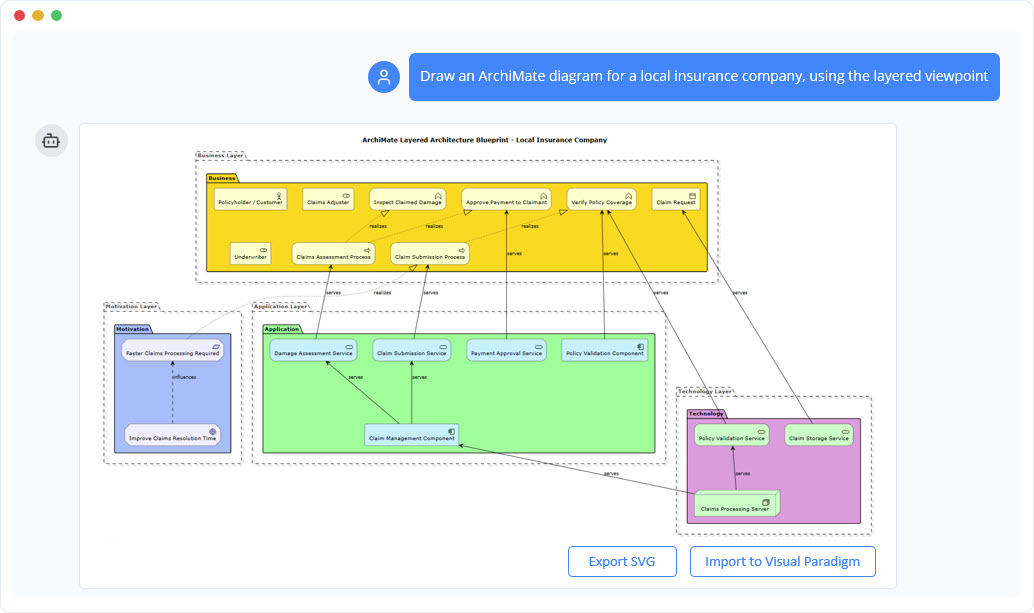
📝 Image Note: This image shows an ArchiMate layered architecture blueprint for a local insurance company, organized into four distinct layers with labeled components and directional connections. It visually maps how business goals translate through applications to underlying technology.
This comprehensive guide will walk you through the basics, provide step-by-step instructions, showcase key concepts with examples, and offer essential guidelines and tricks to master the tool.
Core Concepts
1. Instant Diagram Generation
The AI Chatbot’s primary capability is transforming natural language descriptions into fully structured, editable diagrams within seconds. Users simply describe a system, process, or use case in plain English, and the AI renders complete models without any manual drawing. This capability supports an extensive range of diagram types, including UML 2.5 diagrams, SysML, ArchiMate, C4 models, ERDs, BPMN, and strategic tools like SWOT and PESTLE.
📝 Image Note: This image is a promotional graphic announcing the “Visual Paradigm Chatbot,” featuring a stylized blue robot head and the tool’s logo.
2. Conversational Refinement
One of the most powerful features is the ability to refine and evolve models through natural conversation. Rather than starting over when changes are needed, users can treat their diagrams as living documents that respond to simple chat commands. You can add elements, rename components, modify relationships, and adjust layouts by simply typing requests.
3. Documentation and Analysis
Beyond diagram generation, the AI Chatbot serves as an intelligent analysis and documentation partner. Users can query their models to gain insights, identify gaps, and produce professional reports. You can ask for model summaries, educational explanations of complex concepts, or design improvement suggestions.
Step-by-Step Tutorial
Follow these steps to create your first diagram using the Visual Paradigm AI Chatbot.
Step 1: Access the AI Chatbot
-
Open your web browser and head to chat.visual-paradigm.com.
-
You will see a clean, ChatGPT-like interface. Sign in with a free account (no credit card needed) to save chats and export diagrams.
Step 2: Start a New Conversation
-
Click the + New Chat button in the sidebar.
-
Optionally, name your chat (e.g., “Simple Login Flow” or “E-Commerce Architecture”) for easy reference.
Step 3: Describe and Generate the Diagram
-
In the chat box, type a clear, natural language prompt.
-
Hit Enter. In 5–10 seconds, the AI responds with a rendered diagram, a brief explanation, and options for further refinement.
Step 4: Refine with Natural Language
-
The AI keeps context, so reply directly to make changes.
-
Ask for additions, deletions, or structural updates, and the diagram updates instantly.
Key Concepts and Examples
Example 1: UML Sequence Diagram (Authentication Flow)
Concept: Visualizing the interaction sequence between different components over time.
Prompt: "Generate a UML sequence diagram for a user logging into a website. Include steps for entering credentials, server validation, and success/error handling."
Result: The AI generates a sequence diagram showing lifelines (User, Login UI, Server, Database) with messages for interactions like “enter username/password,” “validate credentials,” and branching logic for valid/invalid inputs.
📝 Diagram Example: A sequence diagram with vertical lifelines for User, Login UI, Server, and Database. Arrows show the flow of authentication messages, including an
altfragment for error handling.
Example 2: Adding Two-Factor Authentication (Conversational Edit)
Concept: Iteratively refining a diagram without starting over.
Prompt (Follow-up): "Add a two-factor authentication step after password validation."
Result: The AI instantly updates the diagram, inserting a new message to an “Authenticator” actor and an opt fragment for SMS/email verification.
Example 3: ArchiMate Enterprise Architecture (Insurance Workflow)
Concept: Modeling multi-layered enterprise architecture with business, application, and technology layers.
Prompt: "Create an ArchiMate diagram for an insurance claims processing system. Include business processes like Claim Submission, Application Services like Damage Assessment, and Technology components like Claims Server."
Result: The AI produces a layered diagram showing how business goals drive principles, which are realized by applications and served by technology.
📝 Diagram Example: An ArchiMate diagram with four layers: Business (Yellow), Application (Green), Technology (Purple), and Motivation (Blue). Arrows indicate “realizes,” “serves,” and “influences” relationships.
Example 4: C4 System Context Diagram (Ride-Sharing App)
Concept: High-level system context showing external entities and system boundaries.
Prompt: "Generate a C4 System Context diagram for a ride-sharing app connecting riders, drivers, and payment processors."
Result: The AI generates a clean diagram showing the application boundary with external actors (Rider, Driver, Payment Processor) and clear interaction lines.
Example 5: SysML Requirement Diagram (Autonomous Driving)
Concept: Modeling system requirements and their traceability to use cases.
Prompt: "Generate a SysML requirement diagram for safety-critical behaviors in a self-driving car. Include requirements for obstacle detection and lane changes."
Result: The AI creates a diagram with functional and constraint elements, properly structured and labeled, showing traceability between high-level use cases and specific requirements.
Example 6: Business Strategy (SWOT Analysis)
Concept: Strategic planning using visual business frameworks.
Prompt: "Create a SWOT analysis for a new cloud storage startup."
Result: The AI generates a structured SWOT matrix with quadrants for Strengths, Weaknesses, Opportunities, and Threats, ready for executive presentations.
Guidelines and Best Practices
1. Prompt Clarity Matters
While the AI is robust, ambiguous prompts can lead to generic outputs. Be specific about scope, actors, and relationships.
-
Bad Prompt: “Make a login diagram.”
-
Good Prompt: “Generate a UML sequence diagram for a user logging in with email and password, including a ‘Forgot Password’ flow and a session timeout error.”
2. Leverage Natural Language Iteration
Treat the chat as a conversation. You don’t need to know the exact syntax or drag-and-drop commands.
-
Add Elements: “Add an admin actor who can reset passwords.”
-
Rename: “Rename Customer to Online Buyer.”
-
Modify: “Change this association to composition.”
-
Layout: “Make the layout more compact for presentation.”
3. Use Built-in Examples
Use /examples in the chat to browse 100+ prompt templates for UML, C4, ArchiMate, and more. This is a great way to learn the best prompting techniques.
4. Verify and Review
The AI accelerates creation, but human expertise remains crucial for validating business logic, security implications, and architectural trade-offs. Always review the generated model against your specific requirements.
5. Understand Licensing Limits
Advanced features like ArchiMate support, full desktop import, or certain enterprise viewpoints may require specific edition licenses (e.g., Professional or Enterprise). Teams should evaluate their edition needs upfront.
Tips & Tricks
-
Be Specific for Complex Scenarios: Mention branching logic, error handling, and exceptions in your initial prompt (e.g., “Handle wrong password twice then lockout”).
-
Mix and Match Diagram Types: Ask the AI to generate related diagrams to provide a complete view. “Generate a class diagram for the inventory system and a sequence diagram for the checkout process.”
-
Ask for Explanations: If a concept is unclear, ask: “Explain the difference between aggregation and composition in this diagram.”
-
Export Options: You can export diagrams as PNG, PlantUML code, or integrate them directly into the Visual Paradigm desktop app for further editing.
-
Use the Desktop App for Advanced Work: While the web chat is powerful for generation and quick edits, import your diagrams into the Visual Paradigm Desktop for advanced modeling features and real-time team collaboration.
Conclusion
The Visual Paradigm AI Chatbot marks the beginning of a new era in visual modeling. It transforms the labor-intensive process of diagramming into a conversational, collaborative, and continuously intelligent workflow. By eliminating the “drawing chores,” it allows architects, analysts, and developers to focus on what truly matters: solving problems and communicating ideas effectively.
Whether you are sketching your first system architecture or documenting enterprise-scale deployments, this AI co-pilot adapts to your needs, learns your context, and elevates your output. Stop wrestling with tools. Start creating with intelligence.
AI Chatbot Reference List
- Visual Paradigm AI Chatbot – Official Feature Page: Explore the core capabilities, licensing options, and integration details.
- Visual Paradigm Chat – AI-Powered Interactive Design Assistant: The live web interface to start generating diagrams instantly.
- A Beginner’s Guide to AI-Powered UML with Visual Paradigm: Comprehensive tutorial covering textual analysis and diagram generation.
- Conversational Sequence Diagrams: Guide on creating and refining sequence diagrams through natural language.
- How AI Chatbot Can Help You Learn UML Faster: Interactive learning resource for mastering UML concepts.
- AI Chatbot for Diagramming: How It Works with Visual Paradigm: Explanation of the natural language to diagram conversion process.
- Case Study: Enhancing System Modeling Efficiency: Real-world example of efficiency gains using the AI Chatbot.
- Visual Paradigm AI Toolbox – Chatbot App: Direct access link for the AI Chatbot application within the cloud toolbox.
- Overcoming the “Blank Canvas”: Guide on using natural language to start from scratch.
- Visual Paradigm Pipeline: The Bridge for AI Modeling: Technical overview of AI integration with the broader modeling ecosystem.
This post is also available in Deutsch, Español, فارسی, Français, English, Bahasa Indonesia, 日本語, Polski, Portuguese, Ру́сский, Việt Nam, 简体中文 and 繁體中文.