


Introduction
As a software architect who has spent the last decade wrestling with UML modeling tools, I was genuinely curious to see how Visual Paradigm has evolved its diagram creation workflow. With the rise of AI-assisted development, I wanted to test whether these new features actually deliver on their promise—or if they’re just marketing hype. Over the past few weeks, I put Visual Paradigm’s three primary UML creation methods through their paces: AI-powered generation, the web-based Online platform, and the traditional Desktop application. This review shares my real-world experience, practical insights, and honest recommendations for teams considering Visual Paradigm for their modeling needs.
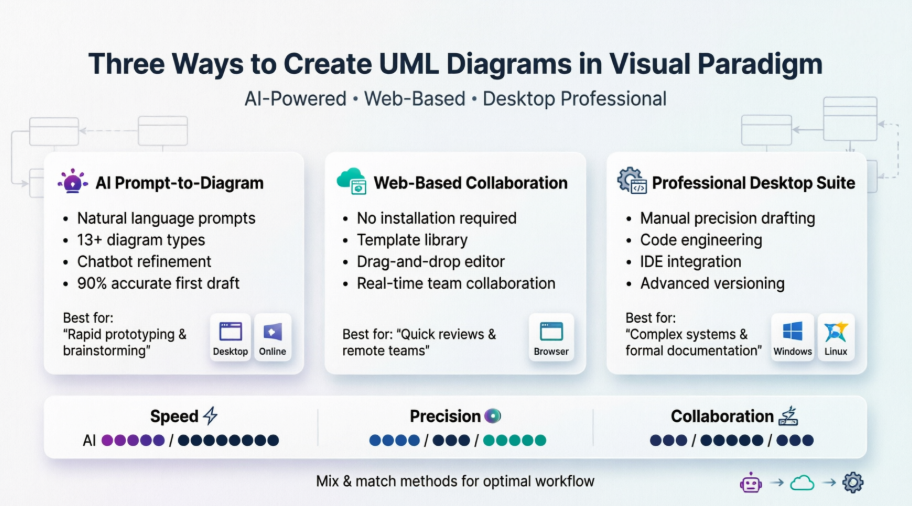
1. AI-Powered Generation (Prompt-to-Diagram): My Testing Experience
Visual Paradigm’s AI tools genuinely surprised me. As someone who usually prefers manual control, I was skeptical about describing requirements in natural language and getting a usable diagram back. Here’s what I found:
AI Diagram Generator (Desktop & Online)
I started with the AI Diagram Generation feature. On Desktop, I navigated to Tools > AI Diagram [10], while in VP Online, I clicked “Create with AI” [9]. The interface accepted prompts like “Generate a sequence diagram for user login with two-factor authentication” and produced a surprisingly coherent first draft in under 30 seconds.
What worked well:
-
Supported over 13 diagram types including Use Case, Class, Sequence, and State Machine diagrams [4]
-
The output was ~90% accurate, requiring only minor tweaks to labels and relationships
-
Great for rapid prototyping during sprint planning sessions
Room for improvement:
-
Complex business logic sometimes required multiple refinement prompts
-
Custom styling options were limited in the initial AI output
AI Chatbot (Conversational Modeling)
The AI Modeling Chatbot felt like pair-programming with a UML expert [11]. I tested conversational commands like:
-
“Add a database to the backend”
-
“Rename ‘User’ to ‘Customer’ across all diagrams”
-
“Show me the error handling flow for payment failure”
The diagram updated instantly with each request. This was my favorite feature for brainstorming sessions with non-technical stakeholders—no need to explain UML syntax; just describe what you need.
AI-Assisted Wizards
For more structured workflows, the AI-Assisted UML Class Diagram Generator guided me through a step-by-step wizard [5, 8]. I defined scope, listed key classes, specified relationships, and let the tool render the final visual. This hybrid approach gave me confidence that the AI understood my intent before committing to a diagram.
💡 Pro Tip from My Testing: Start with a broad prompt, then use the chatbot for iterative refinements. Save the wizard-based approach for mission-critical diagrams where precision matters most.
2. Visual Paradigm Online (Web-Based): My Collaborative Workflow Review
When I needed to quickly share a diagram with remote teammates, Visual Paradigm Online became my go-to. No installation, instant access, and real-time collaboration made it ideal for agile teams.
Template-Based Creation
I explored the extensive library of UML templates [14]. Starting with a Package Diagram template saved me ~15 minutes of setup time. The templates are well-organized by diagram type and use case, making it easy for beginners to find a relevant starting point.
Drag-and-Drop Editor
Building diagrams manually in the browser was smoother than I expected:
-
Intuitive toolbar with categorized UML elements (classes, interfaces, connectors)
-
Snap-to-grid alignment and auto-layout suggestions
-
Real-time collaboration with comment threads and change tracking
When I chose Online over Desktop:
-
Quick stakeholder reviews
-
Cross-team workshops
-
Lightweight documentation updates
Limitations I noticed:
-
Advanced code engineering features require Desktop
-
Very large diagrams (>200 elements) felt slightly sluggish in-browser
3. Visual Paradigm Desktop (Traditional & Professional): My Power-User Assessment
For complex enterprise modeling, I returned to the Desktop application. This is where Visual Paradigm truly shines for professional architects and developers.
Manual Drafting: Precision When You Need It
The traditional workflow—selecting UML shapes from the toolbar and placing them on the canvas—remains the gold standard for high-precision modeling. When I needed pixel-perfect control over diagram semantics or was preparing diagrams for formal documentation, manual drafting was irreplaceable.
Project Import: Bridging AI and Professional Workflows
One of my favorite discoveries: diagrams generated via the AI Chatbot or Online tool can be imported directly into a Desktop project [21]. This meant I could:
-
Brainstorm quickly with AI
-
Import the draft into Desktop
-
Apply advanced editing, code engineering, and version control
This hybrid workflow saved significant time without sacrificing professional rigor.
IDE Integration: Modeling Within Your Development Environment
Visual Paradigm’s integration with environments like Visual Studio [19] allowed me to add UML items directly within my coding solution. For teams practicing model-driven development, this seamless connection between design and implementation is a major productivity booster.
Desktop strengths I relied on:
-
Advanced code engineering (forward/reverse engineering)
-
Robust version control and team collaboration features
-
Extensive customization and reporting capabilities
4. Method Comparison: What Worked Best for My Use Cases
| Method [2, 12, 14, 19, 24, 25] | Platform | Best For (Based on My Testing) |
|---|---|---|
| AI Prompting | Desktop / Online | Rapid prototyping; getting a 90% accurate first draft in minutes |
| AI Chatbot | Browser (chat.visual-paradigm.com) | Conversational editing, stakeholder brainstorming, iterative refinement |
| Templates | Online | Beginners, quick start scenarios, standardized documentation |
| Traditional Manual | Desktop | High-precision modeling, complex systems, code generation, formal reviews |
Conclusion: My Final Recommendations
After thoroughly testing Visual Paradigm’s UML creation ecosystem, I can confidently say it offers one of the most flexible modeling toolsets available today. The key takeaway? You don’t have to choose just one method.
-
For startups and agile teams: Start with VP Online + AI Chatbot for speed and collaboration.
-
For enterprise architects: Leverage Desktop for precision, but use AI tools to accelerate initial drafts.
-
For educators and beginners: Template libraries and AI wizards lower the learning curve significantly.
What impressed me most was how Visual Paradigm has thoughtfully integrated AI without discarding traditional workflows. Whether you’re a prompt-driven developer or a meticulous modeler, there’s a path that fits your style.
If you’re considering Visual Paradigm, I recommend starting with a free trial of VP Online to test the AI features, then evaluating Desktop if you need advanced engineering capabilities. And don’t hesitate to mix methods—my most productive sessions combined AI prototyping with manual refinement.
Have you tried Visual Paradigm’s AI tools? I’d love to hear about your experience in the comments below.
References
- The Complete Guide to UML AI-Powered Modeling: Comprehensive comparison of traditional vs. AI-powered UML workflows, highlighting rapid collaborative iteration benefits.
- AI Class Diagram Generator Access Guide: Step-by-step instructions for accessing Visual Paradigm’s AI Class Diagram Generator feature.
- AI Diagram Generator Now Supports 13 Diagram Types: Official announcement detailing expanded AI diagram generation support across Use Case, Class, Sequence, State Machine, and more.
- AI-Assisted UML Class Diagram Generator Feature Page: Product feature overview of the wizard-based AI tool for generating UML class diagrams from natural language input.
- Visual Paradigm Desktop AI Activity Diagram Generation: Release notes covering AI-powered activity diagram creation capabilities in the Desktop application.
- AI Data Flow Diagram Generator Guide: Online Shopping Example: Practical tutorial demonstrating AI generation of data flow diagrams using an e-commerce use case.
- Create with AI in VP Online Tutorial: Video walkthrough showing how to use the “Create with AI” feature in Visual Paradigm Online for quick diagram generation.
- AI Diagram Generator Release Announcement: Initial launch announcement for Visual Paradigm’s AI Diagram Generator, covering setup and core capabilities.
- Guide to AI-Powered UML Diagram Generation: Conversational guide for using the AI chatbot interface to build and refine UML diagrams through natural language.
- Create UML Object Diagrams with AI: Article exploring techniques for generating UML object diagrams using AI prompts and iterative refinement.
- Tutorial: First UML Diagram with Visual Paradigm AI Generator: Beginner-friendly tutorial walking through creating your first AI-generated UML diagram.
- Beginner’s Guide to Package Diagrams with Visual Paradigm Online: Step-by-step guide for newcomers to create and customize UML package diagrams using the web-based platform.
- How to Visualize System Infrastructure with AI Deployment Diagram Generator: Practical guide for using AI to generate deployment diagrams that map system infrastructure components.
- Import AI-Generated Diagrams into Desktop Project: Video demonstration of importing diagrams created via AI tools into Visual Paradigm Desktop for advanced editing and engineering.
This post is also available in Deutsch, Español, فارسی, Français, English, Bahasa Indonesia, 日本語, Polski, Portuguese, Ру́сский, Việt Nam, 简体中文 and 繁體中文.