Key Insight: The main difference is that a model contains the underlying logic and data of a system, while a diagram is just a specific visual “view” of that data.
📊 Understanding the Core Distinction
Visual Model vs. Diagram: A Fundamental Comparison
| Feature | Visual Model | Diagram |
|---|---|---|
| Definition | A complete database of system information. | A single picture or “snapshot” of a model. |
| Impact of Changes | Changing a name updates it everywhere in the project. | Changing a name usually only updates that one drawing. |
| Consistency | High—prevents contradictory information. | Low—different diagrams can easily become out of sync. |
| Intelligence | “Smart”—knows that “Student” is an object with rules. | “Dumb”—treats “Student” as a box with text inside. |
🏗️ How Models and Diagrams Work Together
The Building Analogy 🏢
Think of a model like a 3D building in a CAD program. A diagram is like a photo of that building from the front, side, or top. You can have many diagrams (views) of the same model.
📦 MODEL (Single Source of Truth)
    │
    ├── 🖼️ Diagram 1: Front View (Class Diagram)
    ├── 🖼️ Diagram 2: Side View (Sequence Diagram)
    ├── 🖼️ Diagram 3: Top View (Deployment Diagram)
    └── 🖼️ Diagram N: Any Perspective You Need
Practical Example: The “Student” Element
In a Model-Centric Approach (VP Desktop):
graph LR
    M[Model Repository: Student Class] --> D1[Class Diagram]
    M --> D2[Sequence Diagram]
    M --> D3[Use Case Diagram]

    style M fill:#e1f5fe,stroke:#01579b
✅ Change the Student class name once in the model → Updates automatically across all diagrams
In a Diagram-Only Approach (Basic VP Online):
graph LR
    D1[Class Diagram: Student Box]
    D2[Sequence Diagram: Student Box]
    D3[Use Case Diagram: Student Actor]

    style D1 fill:#fff9c4,stroke:#fbc02d
    style D2 fill:#fff9c4,stroke:#fbc02d
    style D3 fill:#fff9c4,stroke:#fbc02d
⚠️ Change Student in one diagram → Other diagrams remain unchanged (manual sync required)
🔧 Platform Comparison: VP Desktop vs. VP Online
Visual Paradigm Desktop (Model-First Architecture)
🎯 Key Characteristics:
• Repository-based model storage
• True model-element reuse across diagrams
• Automatic synchronization of changes
• Advanced engineering capabilities (code generation, round-trip)
• Full UML, BPMN, ArchiMate, SysML support [[11]]
Workflow Example: Reusing a Class Element
-
Create a
Vehicleclass in the Model Explorer -
Drag the same
Vehicleelement onto 5 different diagrams -
Rename
Vehicle→Automobilein any diagram or the Model Explorer -
✅ Result: All 5 diagrams instantly reflect “Automobile” [[11]]
Visual Paradigm Online (Simplified Diagramming)
🎯 Key Characteristics:
• Web-based, lightweight interface
• Diagram-focused workflow (optional model layer)
• Manual copy/paste for element reuse
• Ideal for quick visualization and collaboration [[4]]
• Seamless cloud access and sharing [[24]]
Workflow Example: Copying a Shape
-
Draw a
Vehiclebox on Diagram A -
Copy the shape → Paste onto Diagram B
-
Rename
Vehicle→Automobileon Diagram A -
⚠️ Result: Diagram B still shows “Vehicle” (separate instances)
🔄 How to Reuse Model Elements Across Multiple Diagrams
Method 1: Drag-and-Drop from Model Explorer (VP Desktop) [[11]]
sequenceDiagram
    participant ME as Model Explorer
    participant D as Target Diagram
    participant R as Resource Catalog

    ME->>D: Drag "Vehicle" class onto diagram
    D->>R: Hover over existing element
    R->>D: Select "Association" connector
    D->>ME: Auto-link to repository element
    Note right of D: ✅ Same model element, new visual view
Step-by-Step:
-
Open Model Explorer (View → Model Explorer)
-
Locate your source element (e.g.,
Vehicleclass) -
Drag the element directly onto your target diagram
-
Use the Resource Catalog (hover + drag) to create relationships
-
The element now appears as a view of the same underlying model
Method 2: Copy with Visual Paradigm + Paste View [[15]]
📋 Critical Distinction:
• Copy with Visual Paradigm + Paste View = Reuse same model element ✅
• Copy + Paste Model = Create duplicate model element ❌
Procedure:
-
Right-click source element → Copy > Copy with Visual Paradigm
-
Navigate to destination diagram
-
Right-click canvas → Paste View (NOT “Paste Model”)
-
To reveal relationships: Right-click pasted element → Related Elements > Visualize Related Model Element [[11]]
Method 3: Name Completion During Creation [[10]]
⚡ Pro Tip: Use Ctrl+Space for intelligent reuse
-
Begin creating a new shape on any diagram
-
Start typing the element name (e.g., “Veh…”)
-
Press Ctrl+Space to open the name completion list
-
Select the existing model element from suggestions
-
Press Enter → Creates a new view of the existing model element
Method 4: Show Other Views (Navigation) [[15]]
🔍 Find where else an element appears:
-
Right-click any model element view
-
Select Related Elements > Show Other Views…
-
Review the Show View dialog listing all diagrams containing this element
-
Click Go to View to jump directly to that diagram
🎨 Visual Reference: Model vs. Diagram Architecture
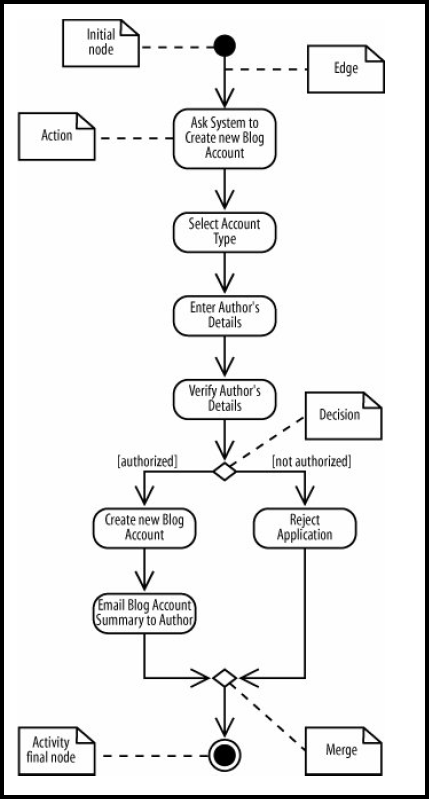
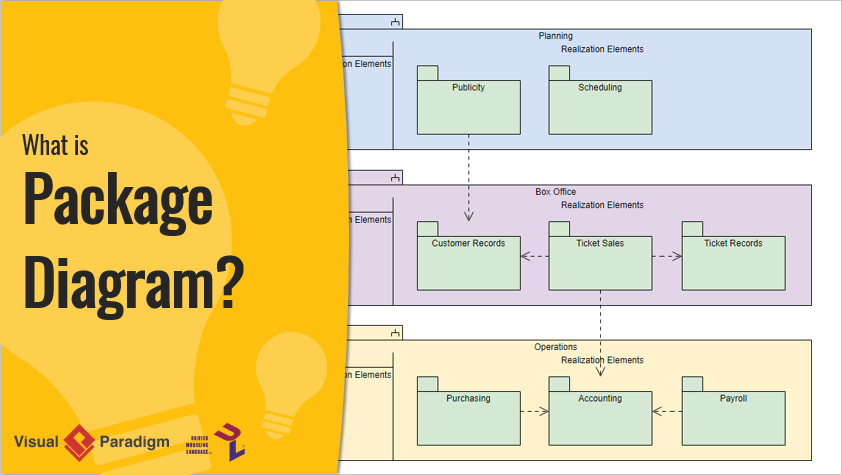
💡 All three diagrams above reference the exact same
StudentandCoursemodel elements. Change an attribute once → updates everywhere.
⚠️ Common Pitfalls & Best Practices
❌ Pitfalls to Avoid
| Mistake | Consequence | Solution |
|---|---|---|
| Copying shapes instead of reusing model elements | Duplicate, unsynchronized elements | Use Paste View, not standard paste |
| Editing diagram text directly instead of model properties | Changes don’t propagate | Edit via Model Explorer or element specification |
| Creating elements directly on diagrams without model awareness | “Orphaned” diagram-only elements | Start from Model Explorer or use name completion |
| Assuming VP Online Simple mode has full model reuse | Unexpected sync behavior | Use VP Desktop for complex projects, or VP Online with model features enabled |
✅ Best Practices for Model-First Design
-
Start in Model Explorer: Create core elements in the repository before placing them on diagrams [[11]]
-
Use consistent naming: Leverage auto-completion to avoid typos and duplicates
-
Leverage visualization tools: Use Visualize Related Model Elements to auto-draw relationships [[15]]
-
Document with notes: Attach descriptions to model elements (not just diagram shapes) for persistent documentation
-
Validate with reports: Use Visual Paradigm’s model validation to catch inconsistencies early [[16]]
🚀 When to Use Which Approach
Choose Model-First (VP Desktop) When:
-
✅ Building complex systems requiring consistency
-
✅ Generating code or database schemas from models
-
✅ Collaborating across teams with shared model repositories
-
✅ Maintaining long-term architecture documentation
-
✅ Performing impact analysis for changes [[7]]
Choose Diagram-First (VP Online Simple) When:
-
✅ Creating quick sketches or presentation visuals
-
✅ Brainstorming with non-technical stakeholders
-
✅ Working on lightweight, single-diagram projects
-
✅ Needing fast cloud-based collaboration without setup [[4]]
-
✅ Teaching basic diagramming concepts
🔗 Reference List
- Re-using model elements in different diagrams: Official Visual Paradigm guide detailing drag-and-drop, copy/paste view, and name completion methods for reusing model elements across multiple diagrams. [[11]]
- Reuse Model Elements in Different Diagrams: Step-by-step tutorial with screenshots demonstrating three techniques for model element reuse: tree dragging, copy/paste view, and showing other views. [[15]]
- Overview of Visual Paradigm Desktop vs. VP Online: Comparative guide explaining architectural differences, feature sets, and use cases for VP Desktop (model-centric) versus VP Online (diagram-centric) platforms. [[23]]
- Mastering UML Visual Modeling in the Visual Paradigm AI Ecosystem: Official learning path covering UML fundamentals, AI-assisted modeling, and professional engineering practices in Visual Paradigm. [[8]]
- Changing model element’s type: Technical reference for modifying model element types while preserving relationships and views across diagrams. [[10]]
- From Model to Implementation: Guide for transitioning from visual models to executable code, database schemas, and documentation outputs. [[5]]
- Explore all the powerful features Visual Paradigm has to offer: Official feature catalog highlighting element reusability, multi-diagram support, and model-driven engineering capabilities. [[16]]
- Desktop and Online – Visual Paradigm: Documentation on hybrid workflows enabling access to online features from the desktop application for flexible modeling. [[24]]
- Compatibility between VP Desktop and VP Online Diagrams: Technical guide explaining synchronization behavior, format compatibility, and best practices for cross-platform project management. [[25]]
📌 Final Takeaway: Models are your single source of truth; diagrams are flexible lenses through which stakeholders view that truth. Mastering the distinction—and the tools to bridge them—is essential for scalable, maintainable system design.
Visual Paradigm documentation referenced is current as of 2026. Always consult the latest official guides at visual-paradigm.com for platform updates.
This post is also available in Deutsch, Español, فارسی, Français, English, Bahasa Indonesia, 日本語, Polski, Portuguese, Ру́сский, Việt Nam, 简体中文 and 繁體中文.