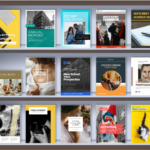
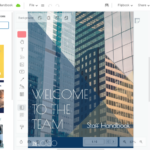
Welcome to the ultimate guide for creating a beautiful, interactive, and shareable virtual bookshelf using the powerful Flipbook Editor from Visual Paradigm. Whether you’re an educator, author, marketer, or book lover, this tool allows you to transform your digital documents into immersive, visually appealing book collections that can be shared instantly with anyone, anywhere.
📚 Introduction: What Is a Virtual Bookshelf?
A virtual bookshelf is a digital, interactive representation of your physical or digital book collection. With the Flipbook Editor, you can:
- Upload and organize PDFs, PPTs, and other documents.
- Design them into flipbook-style publications.
- Arrange them on a customizable virtual bookshelf.
- Share the entire collection via a single clickable link.
This guide walks you through every step—from setup to sharing—so you can build a stunning, personalized digital library.
✨ Key Features of the Virtual Bookshelf Editor
1. Organize Your Books with Drag & Drop
Effortlessly manage your digital library with an intuitive drag-and-drop interface.
- Add books: Simply upload your PDFs, PPTs, Word docs, or any supported file format.
- Reorder books: Drag books to rearrange them in your preferred sequence.
- Create multiple bookshelves: Organize by genre (e.g., Fiction, Non-Fiction), subject (e.g., Business, Education), or personal categories (e.g., “To Read,” “Favorites”).
💡 Pro Tip: Use multiple bookshelves to showcase different themes—perfect for teachers sharing curriculum materials or authors promoting their series.
2. Display PDFs, PPTs, and Other Documents as Flipbooks
Turn static files into dynamic, page-flipping digital publications.
- No design skills needed: The editor automatically converts your files into visually engaging flipbooks.
- Customizable layout: Adjust page size, orientation, and animation effects.
- Interactive elements: Add hyperlinks, buttons, and multimedia to enhance engagement.
📌 Supported file types: PDF, PPT, PPTX, DOC, DOCX, XLS, XLSX, EPUB, and more.
🖼️ Visual Example:
3. Customize Your Bookshelf Theme and Background
Match your bookshelf’s look to your personality or purpose.
- Choose from pre-designed themes (e.g., Modern Minimalist, Classic Wooden, Retro, Academic).
- Select from background styles (solid colors, gradients, textures, or custom images).
- Adjust lighting, shadows, and shelf depth for a 3D effect.
🎨 Why it matters: A well-themed bookshelf enhances user experience and reflects your brand or mood.
🖼️ Visual Example:
4. Decorate with Accessories for Visual Impact
Add charm and personality with a wide range of decorative items.
- Available accessories: Lamps, plants, framed photos, coffee mugs, clocks, trophies, and more.
- Real-time preview: See how accessories look as you place them.
- Smart randomization: If you’re stuck for ideas, use the Auto-Decorate feature—our AI engine suggests optimal placements for empty spaces.
🎯 Design Hack: Use themed accessories (e.g., travel stickers for a travel bookshelf) to reinforce the collection’s identity.
🖼️ Visual Example:
5. Share Your Bookshelf as a Unique Link
Make your digital library accessible to the world with one click.
- Each published bookshelf gets a unique, shareable URL.
- Share via:
- Social media (LinkedIn, Facebook, Twitter/X)
- Email newsletters
- Websites or blogs
- QR codes (ideal for print materials)
🔗 Anyone with the link can view, browse, and read your books—no login required.
🖼️ Visual Example:
✅ Ideal for:
- Educators sharing course materials
- Authors promoting their books
- Businesses showcasing reports or portfolios
- Libraries digitizing collections
🛠️ Step-by-Step Guide to Building Your Virtual Bookshelf
Step 1: Sign Up & Access the Flipbook Editor
- Visit: https://online.visual-paradigm.com
- Create a free account (or log in if you already have one).
Step 2: Start a New Virtual Bookshelf
- Click “Create New Flipbook”.
- Select “Virtual Bookshelf” as your template type.
Step 3: Upload Your Documents
- Drag and drop your PDFs, PPTs, or other files.
- Wait for automatic conversion into flipbook format.
Step 4: Arrange Books on the Shelf
- Use drag-and-drop to place books in desired order.
- Create multiple shelves (e.g., “Fiction,” “Business,” “Research Papers”).
Step 5: Customize the Appearance
- Go to Themes & Backgrounds.
- Choose a theme that matches your style or purpose.
- Apply background textures or images.
Step 6: Add Decorative Accessories
- Open the Accessories Panel.
- Browse and place items on the shelf.
- Use Randomize Layout for instant inspiration.
Step 7: Publish & Share
- Click “Publish”.
- Copy the generated unique link.
- Share it across platforms or embed it in websites.
🌍 Why Use a Virtual Bookshelf?
🎯 Tips for Maximizing Your Bookshelf Experience
- Use consistent formatting across all flipbooks for a professional look.
- Label shelves clearly (e.g., “My Summer Reads,” “Project Blueprints”).
- Update regularly—add new books and refresh accessories to keep it fresh.
- Track engagement (if using a premium plan) to see which books get the most views.
- Combine with QR codes on physical book covers to link to your virtual shelf.
📣 Ready to Create Your Flipbook?
✅ Make a flipbook now and start building a virtual bookshelf that reflects your passion, knowledge, and creativity.
👉 Start Creating Your Virtual Bookshelf Today
📚 Reference List
- Visual Paradigm Flipbook Maker – Create Interactive Digital Flipbooks: This online tool allows users to convert static documents into engaging flipbooks featuring realistic page-flipping effects.
- AI Flipbook Generator: Create & Publish Digital Books Instantly: This tool enables creators to write, design, and publish professional digital flipbooks and storybooks directly from a simple text prompt.
- Lumina AI Slideshow Maker: Create Stunning Presentations with AI: Users can leverage artificial intelligence to generate high-quality slides from simple text input, saving time while enhancing visual creativity.
- AI Animated Presentation Studio: Create Dynamic, Animated Slides with Ease: An AI-powered web studio that combines traditional slide editing with generative AI to automate the writing and design of animated presentations.
- Self-Hosted Flipbook Slideshow: Transform Documents into Interactive Presentations: A technical guide for converting PDFs into interactive flipbook slideshows with full control over hosting and customization.
- Markdown Presentation Maker: Turn Code into Beautiful Slides: This tool transforms Markdown files into polished, animated presentations with syntax highlighting, ideal for technical and developer-focused content.
- Lumina AI: Generate AI-Powered Video Slideshows Instantly: A release update describing a tool that creates dynamic video presentations from text, perfect for rapid marketing content creation and storytelling.
- Flipbook Maker: A Game-Changer for Interactive Content: This article explores how flipbook technology transforms static brochures and reports into immersive digital experiences.
- Creating Animation Flipbooks with AniFuzion & Fliplify: A tutorial focused on combining animation software with flipbook makers to produce visually rich, moving digital publications.
- Why Visual Paradigm Online’s Flipbook Maker Stands Out: An analysis of the unique features that make this flipbook maker suitable for professional KPI presentations and interactive reports.
📌 Final Thoughts
The Virtual Bookshelf feature in Visual Paradigm’s Flipbook Editor is more than just a digital display—it’s a creative, interactive, and shareable experience. Whether you’re building a personal library, promoting your work, or organizing educational content, this tool empowers you to present your documents in a way that’s both beautiful and functional.
Create. Customize. Share. Inspire.
🌟 Your digital bookshelf is just one click away. Start building today!
This post is also available in Deutsch, Español, فارسی, Français, English, Bahasa Indonesia, 日本語, Polski, Portuguese, Việt Nam, 简体中文 and 繁體中文.