
Introduction
Good documentation does more than store information; it helps people understand it. As product managers and technical leads, we often struggle with the “wall of text” problem—dense blocks of prose that fail to convey complex relationships, processes, or comparisons effectively.
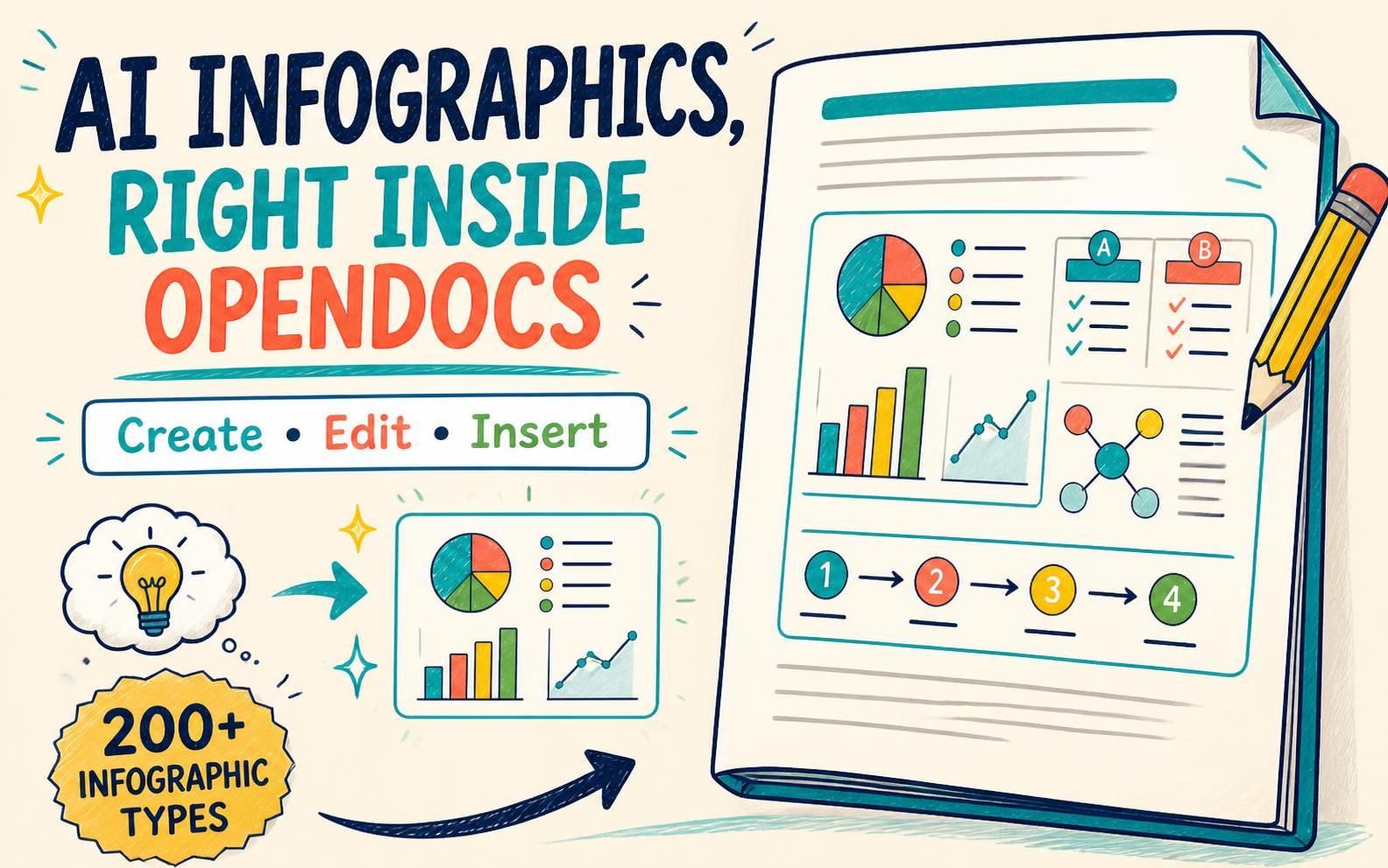
Visual Paradigm OpenDocs has evolved to address this by integrating directly with the Visual Paradigm Infographic Maker. This integration allows you to create and insert editable, AI-powered infographics directly into your document pages. Whether you are roadmapping a new feature, documenting a CI/CD pipeline, or summarizing user research findings, you can now bring explanations, comparisons, and key ideas together with your written content in a single, living document.
This guide explores how to leverage this tool to enhance clarity, maintainability, and engagement in your knowledge base.
Key Concepts: Why Visuals Matter in Documentation
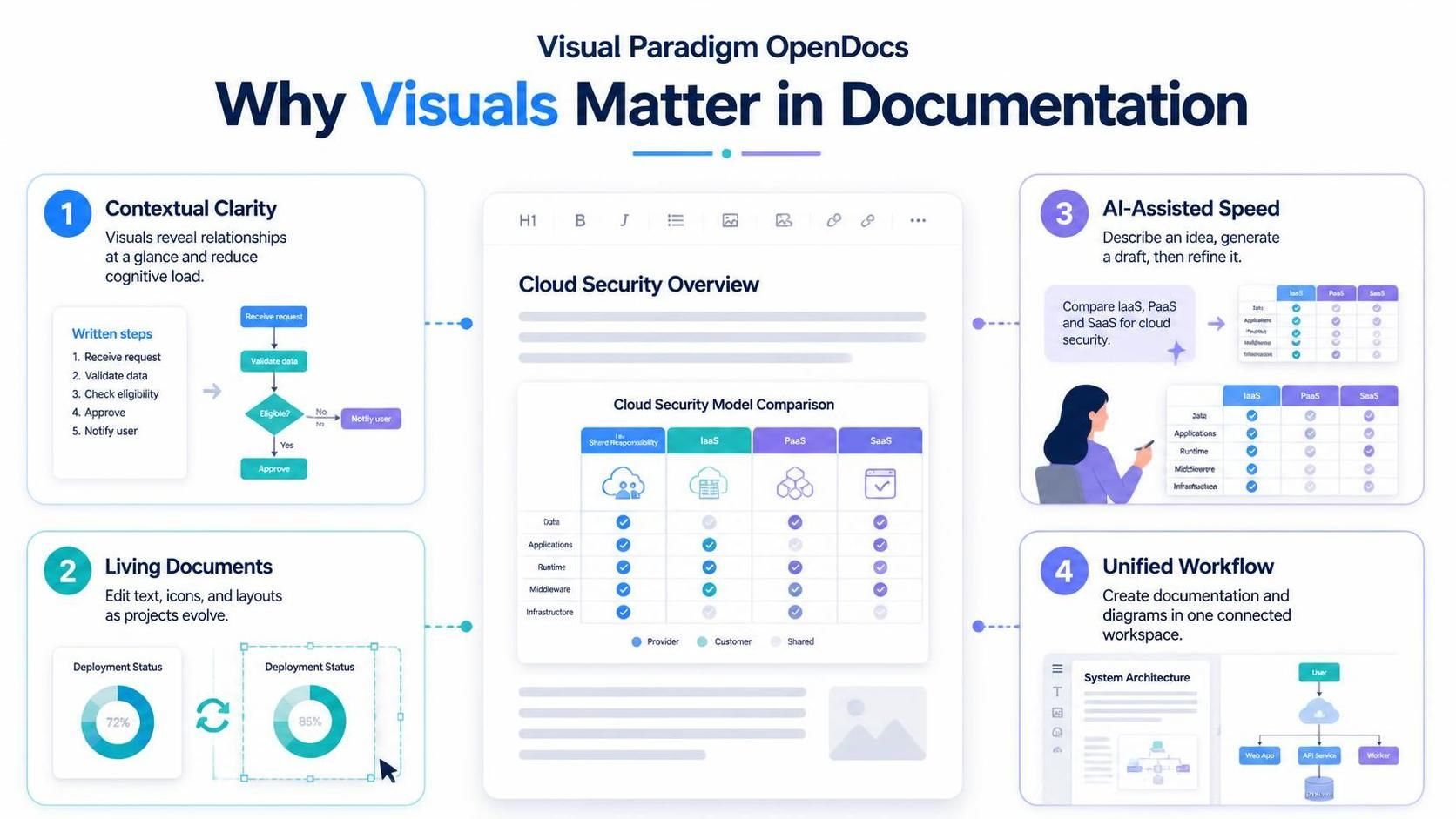
Before diving into the “how,” it is important to understand the “why.” Integrating visuals directly into OpenDocs offers several strategic advantages for teams managing complex projects:
1. Contextual Clarity
Some ideas are inherently visual. A written description can tell readers how steps connect or how options compare, but an infographic makes those relationships graspable at a glance. By placing the visual right where it supports the surrounding text, you reduce cognitive load for the reader.
2. The “Living Document” Advantage
Unlike static images exported from other tools, infographics in OpenDocs remain editable. You can return to the source code or visual interface to update text, icons, or layouts as your project evolves. This ensures your documentation stays synchronized with your actual product state.
3. AI-Assisted Speed
Starting from a blank canvas is daunting. With AI generation, you can describe your subject (e.g., “A comparison of three cloud storage security protocols”) and let the AI generate a draft. You then refine the wording and style, turning hours of design work into minutes of editing.
4. Unified Workflow
There is no need to switch between a diagramming tool and your documentation platform. Everything happens within the OpenDocs ecosystem, keeping your knowledge management centralized and connected to the work.
Step-by-Step Guide: Creating and Inserting Infographics
Here is how you can go from a blank page to a useful visual in OpenDocs.
Step 1: Prepare Your Page
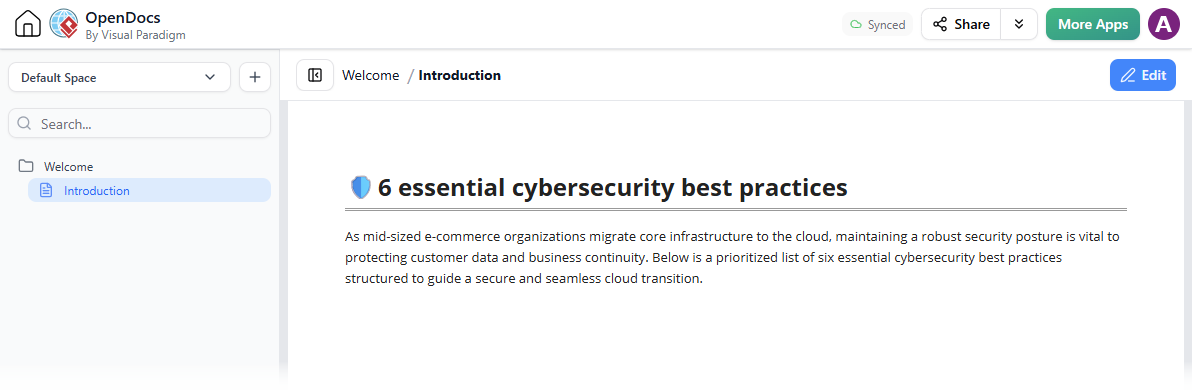
Open Visual Paradigm OpenDocs and create a new page or open an existing one. For this example, imagine we are documenting cybersecurity best practices.
Step 2: Enter Edit Mode
Click Edit at the top-right corner of the page to enable modification tools.

Step 3: Position Your Cursor
Place your text cursor exactly where you want the infographic to appear. This ensures the visual flows naturally with your narrative.

Step 4: Open the Artifact Creator
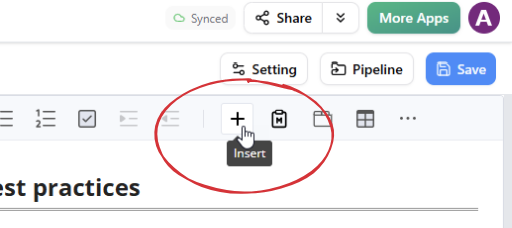
Click the + button on the toolbar to open the “Create an Artifact” window.
Step 5: Select the Infographic Tool
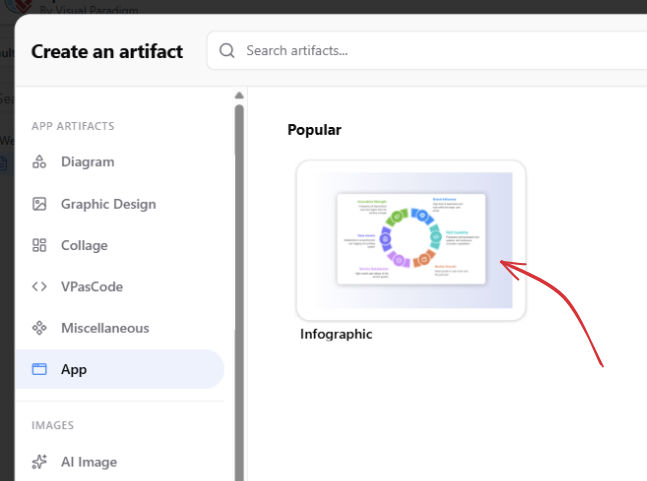
Select App on the left sidebar, then choose and open Infographic. This launches the integration with Visual Paradigm Infographic Maker.
Step 6: Choose Your Creation Method
You have two powerful options to start:
-
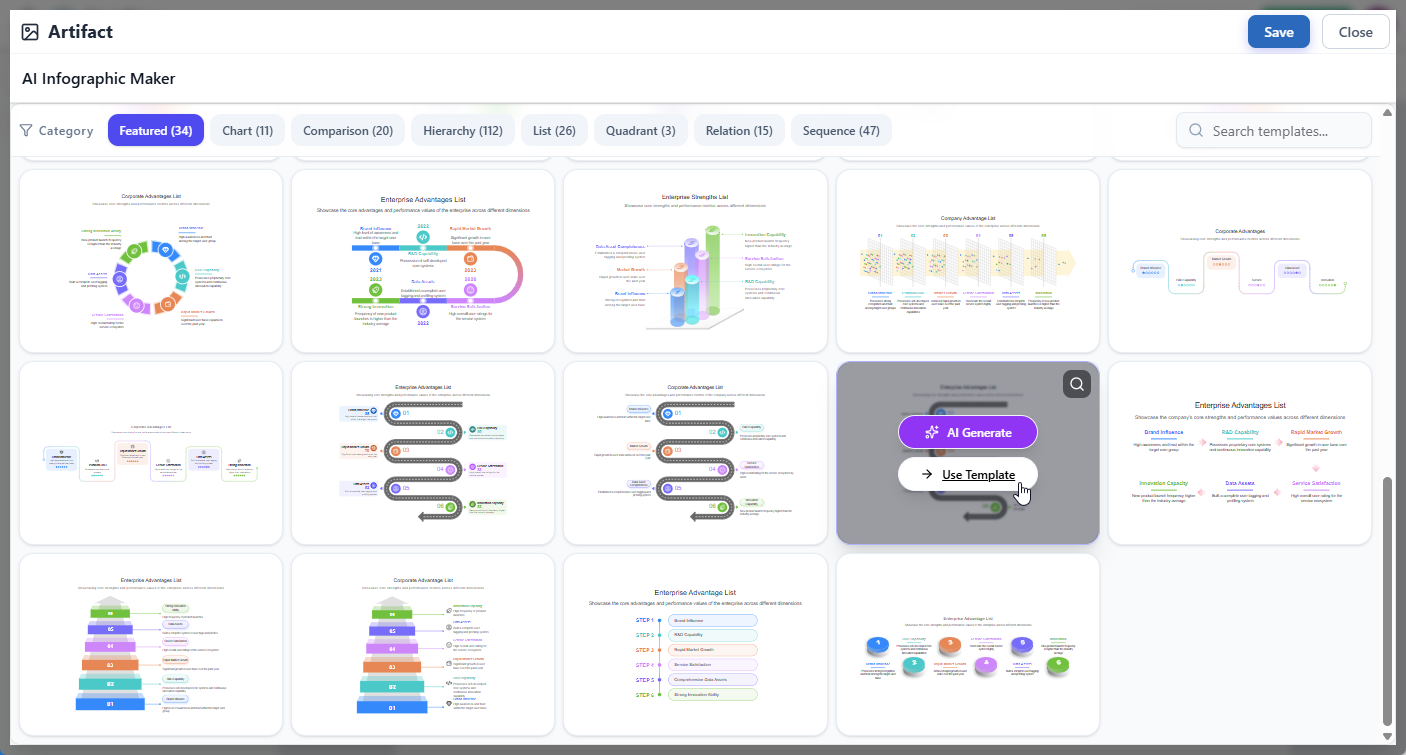
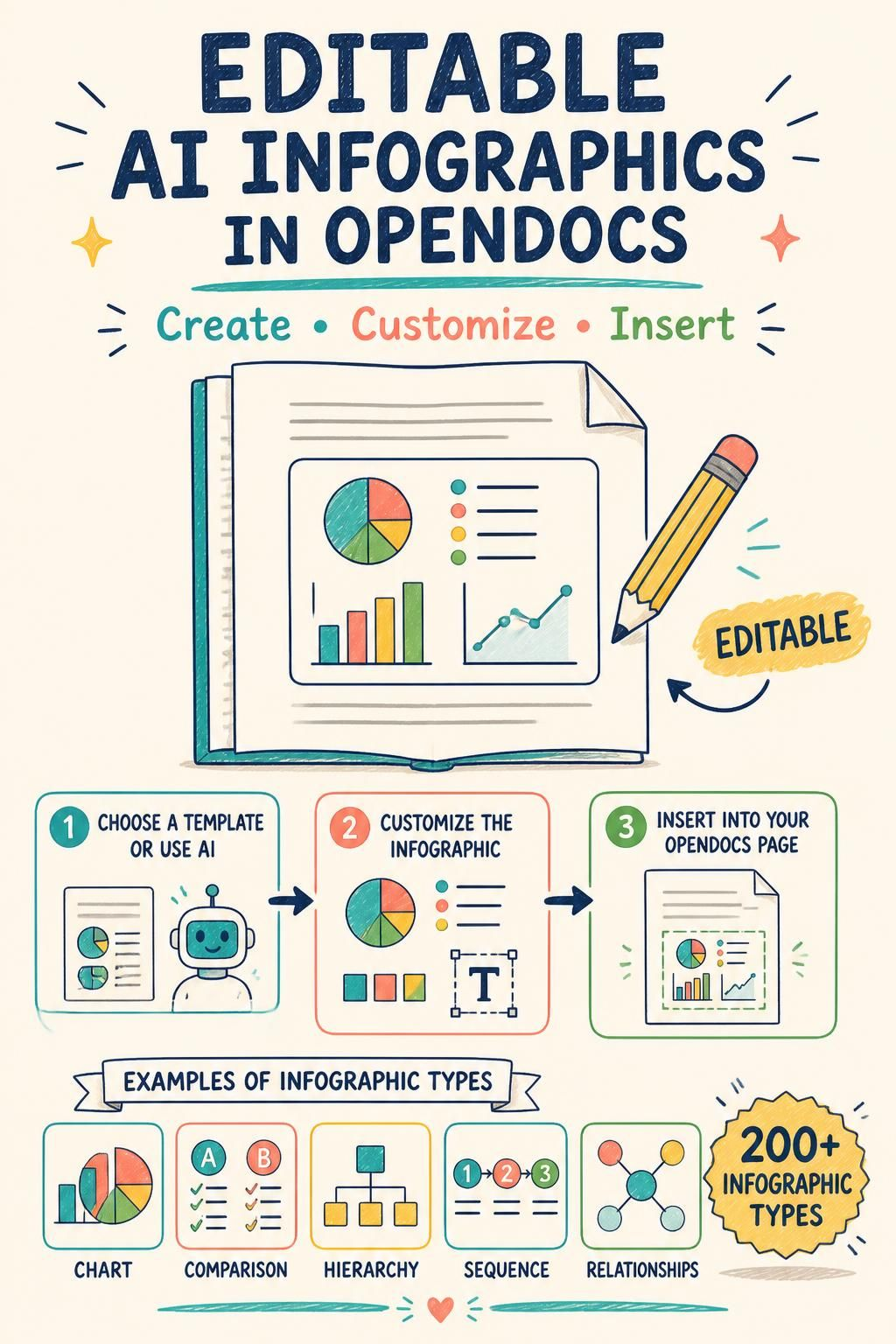
Use a Template: Browse more than 200 infographic types (charts, comparisons, hierarchies, sequences, etc.). Click Use Template to start with a pre-designed layout.
-
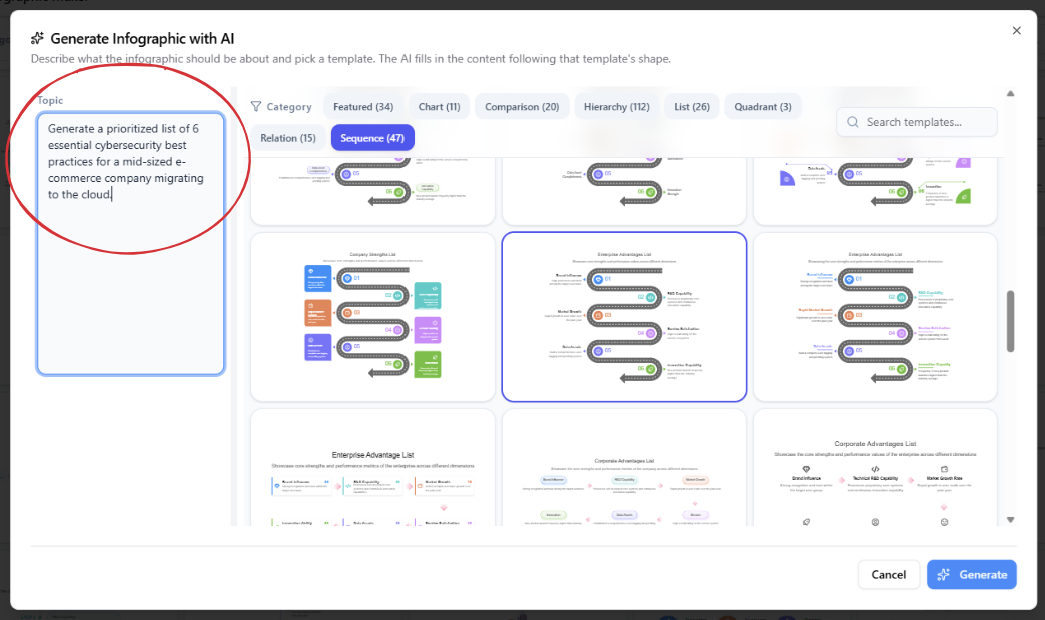
Generate with AI: Point to an infographic type and click AI Generate. Describe your subject in the prompt window (e.g., “Show the 5 stages of our agile sprint process”) and click Generate. The AI will create a draft for you to refine.
Step 7: Edit and Customize
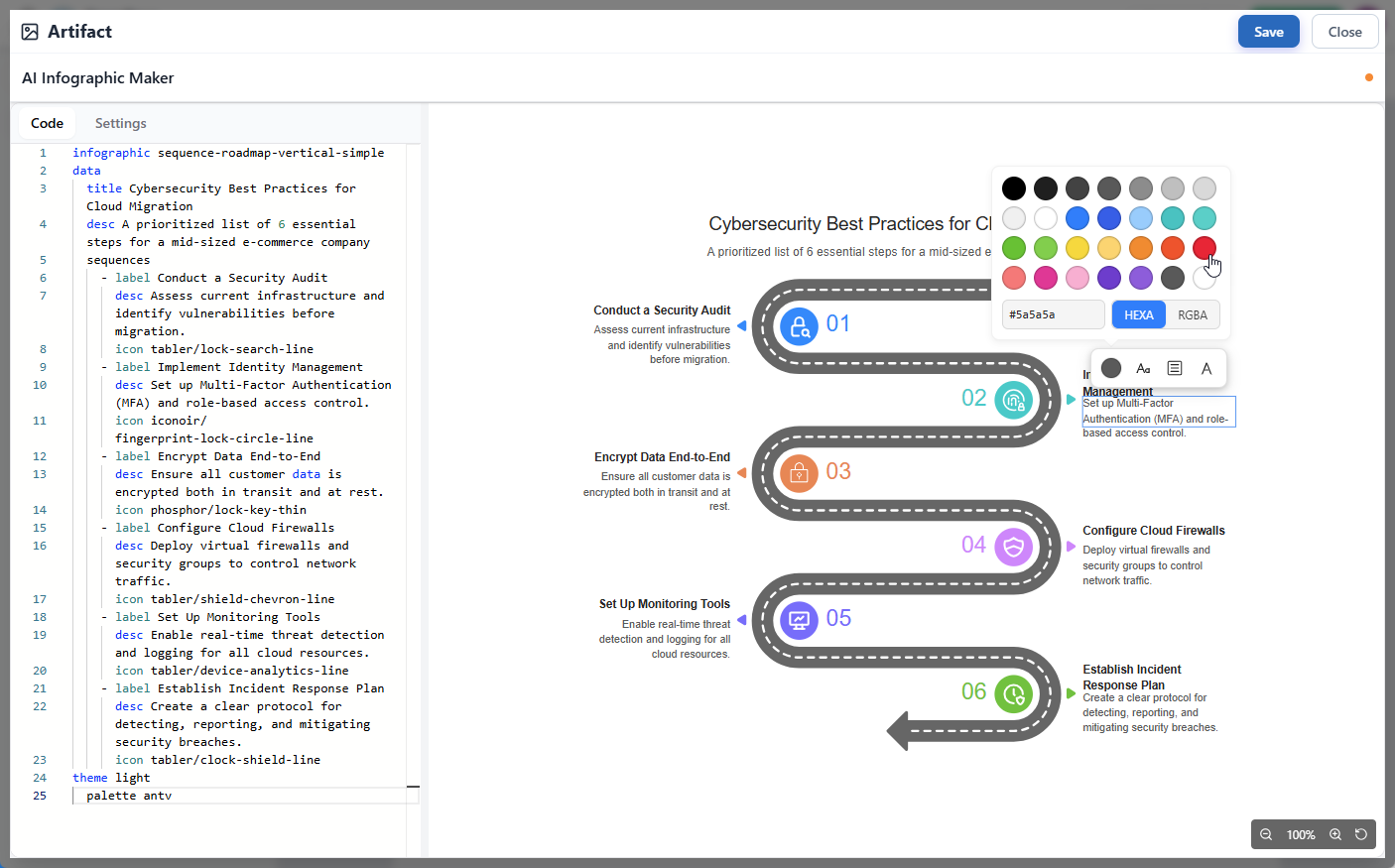
Whether you started with a template or AI, you now have full control. Use the Visual Paradigm infographic editor to change text, swap icons, adjust colors, or modify the layout. You can edit the underlying code or use the visual interface directly.
Step 8: Save and Insert
When you are satisfied, click Save at the top right, then click Close. The infographic is automatically inserted into your OpenDocs page at the cursor position.

Maintaining Your Living Docs: Editing After Insertion
Documentation is never truly “done.” As products change, so must their docs. The beauty of this integration is that embedded infographics are not static images.
To make a change later, simply click the pencil icon at the top-right corner of the infographic on the page. This reopens the editor in Infographic Maker.

Make your updates, click Save, and Close. The infographic in your OpenDocs page refreshes automatically. This ensures your visual explanations remain accurate and relevant over time.
Practical Examples and Use Cases
Here are some ways you can apply this feature in your daily work:
-
Process Workflows: Visualize the stages of your deployment pipeline or user onboarding journey using sequence diagrams.
-
Product Comparisons: Use comparison layouts to explain differences between feature tiers, pricing plans, or technical approaches.
-
Organizational Hierarchies: Map out team structures or decision-making authority levels clearly.
-
Concept Summaries: Break down complex architectural decisions into quadrant charts or relationship diagrams.
-
Engaging Knowledge Bases: Make internal guides and educational resources more scannable and engaging for new hires.
Conclusion
The integration of AI-powered, editable infographics into Visual Paradigm OpenDocs marks a significant step forward for knowledge management. It bridges the gap between written explanation and visual communication, allowing teams to create documents that are not just informative, but intuitive.
By keeping visuals editable and embedded within the document workflow, you ensure that your documentation remains a living, breathing asset that grows with your project. Whether you are a product manager refining a roadmap or a developer documenting system architecture, this tool empowers you to communicate complex ideas with clarity and speed.
Ready to transform your documentation? Start creating in OpenDocs today and bring your next page to life.