
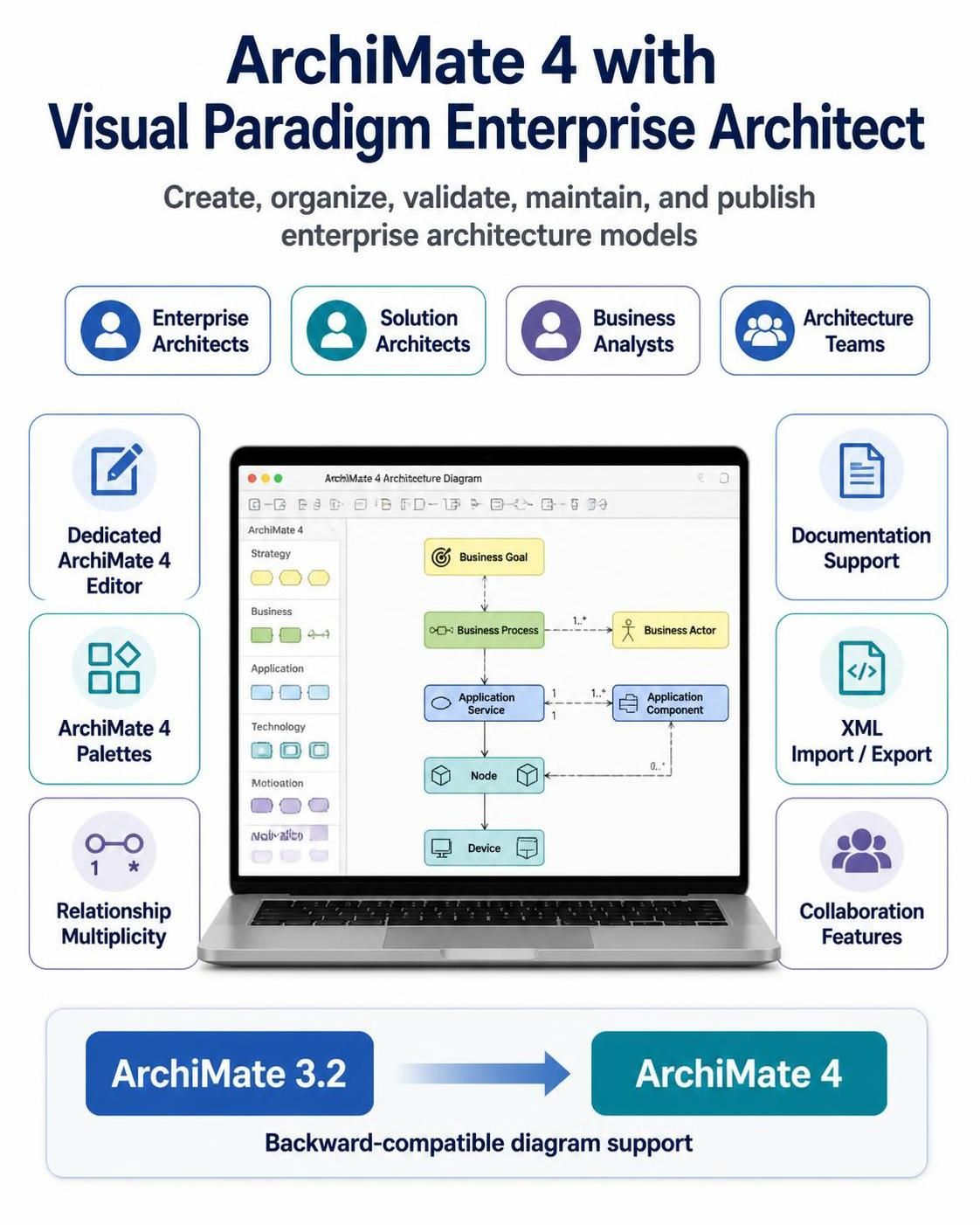
This guide explains how to create, organize, validate, maintain, and publish ArchiMate 4 models using Visual Paradigm Enterprise Architect. It is intended for enterprise architects, solution architects, business analysts, and architecture teams moving from ArchiMate 3.2 to ArchiMate 4.
Visual Paradigm 18.0 and later provides a dedicated ArchiMate 4 editor, ArchiMate 4 palettes, native relationship multiplicity, documentation support, XML import/export, collaboration features, and backward compatibility with ArchiMate 3.2 diagrams.
Menu names can vary slightly between Visual Paradigm releases and editions. The instructions below assume Visual Paradigm Desktop Enterprise Edition 18.0 or later.
1. What ArchiMate Is Used For
ArchiMate is an enterprise architecture modeling language used to describe:
-
Business strategy and goals
-
Organizational structures
-
Products and services
-
Business processes and capabilities
-
Applications and application services
-
Data and information
-
Technology infrastructure
-
Projects, work packages, plateaus, and implementation roadmaps
-
Relationships between architecture domains
ArchiMate is not a project-management methodology and does not replace BPMN, UML, or data modeling. Instead, it provides an integrated architectural view that connects those models.
For example:
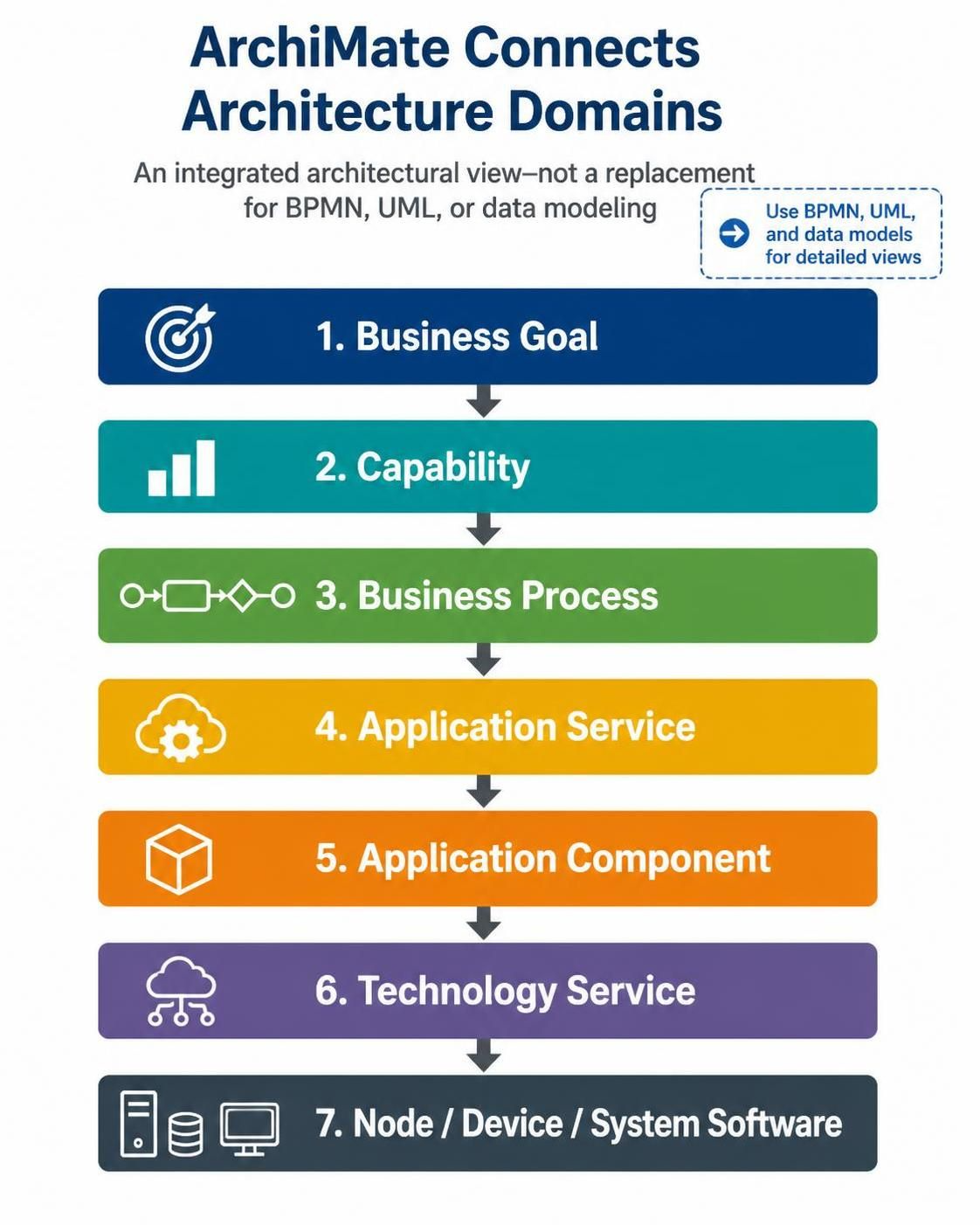 The value of ArchiMate comes from showing the relationships between these concepts rather than modeling each domain in isolation.
2. ArchiMate 4 Conceptual Changes
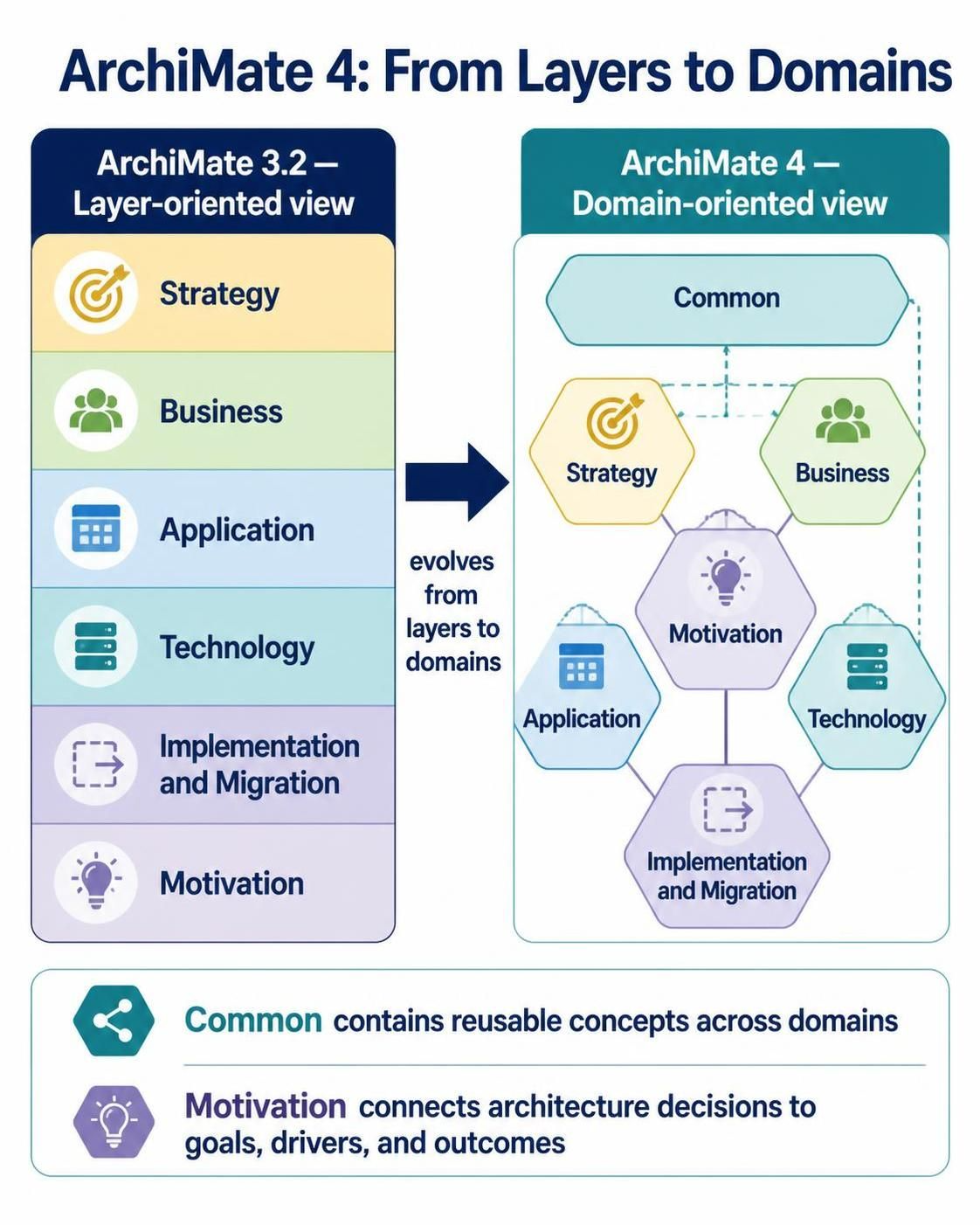
ArchiMate 4 introduces a more domain-oriented structure and reduces the number of specialized, duplicated elements.
2.1 From layers to domains
ArchiMate 3.2 commonly used a layer-oriented view:
-
Strategy
-
Business
-
Application
-
Technology
-
Implementation and Migration
-
Motivation
ArchiMate 4 organizes the language around domains:
-
Common
-
Business
-
Application
-
Technology
-
Motivation
-
Strategy
-
Implementation and Migration
The Common Domain contains reusable concepts that can be applied across different domains. The Motivation Domain is positioned centrally in the ArchiMate 4 framework, emphasizing that architectural decisions should be connected to goals, drivers, and outcomes.
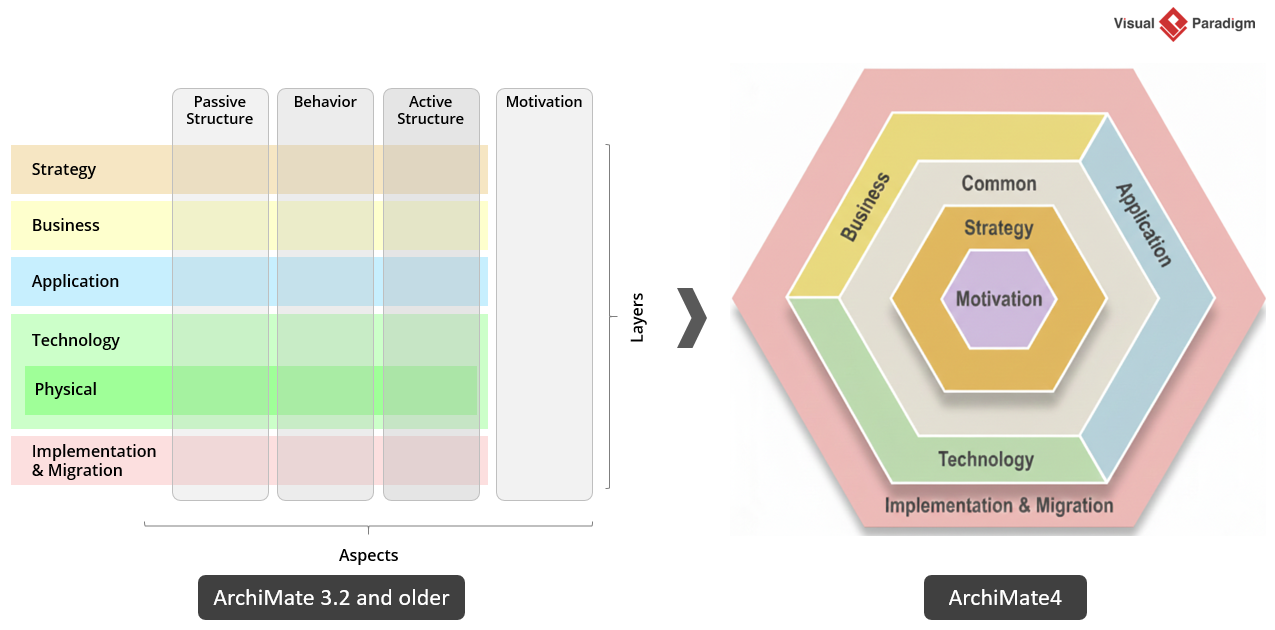
2.2 The ArchiMate Hexagonion
The ArchiMate 4 framework is commonly illustrated as the ArchiMate Hexagonion. It emphasizes relationships among:
-
Motivation
-
Strategy
-
Core architecture
-
Implementation and migration
Use the Hexagonion as a conceptual map, not necessarily as the layout of every diagram. A detailed architecture diagram should usually focus on one stakeholder concern and one specific viewpoint.
2.3 Unified concepts
ArchiMate 4 reduces duplication between business, application, and technology concepts. Rather than creating separate versions of similar behavioral concepts for each layer, the language favors reusable concepts that can be interpreted in context.
This means you should choose elements based on their architectural meaning, not merely on the domain in which they happen to occur.
2.4 Multiplicity on relationships
ArchiMate 4 supports multiplicity on relationships, such as:
-
1 -
0..1 -
1..* -
0..*
For example:
Customer ── uses ── 0..* Customer Service
This allows the model to express cardinality and architectural constraints directly on connectors. Visual Paradigm supports displaying multiplicity on ArchiMate 4 relationships.
2.5 Retired or consolidated concepts
Some concepts from ArchiMate 3.2 have been removed, consolidated, or represented using more general elements. Examples reported in ArchiMate 4 guidance include:
-
Composition removed from the core relationship set
-
Specialized interaction concepts consolidated
-
Contract, Constraint, Gap, and Representation no longer treated as separate concepts
-
Path moved into the Common Domain
When migrating an existing model, do not simply rename every old element. First determine the meaning of the original model element, then represent that meaning using the appropriate ArchiMate 4 concept.
3. Installing and Preparing Visual Paradigm
3.1 Required edition
Use a Visual Paradigm edition that includes Enterprise Architecture and ArchiMate support. The Enterprise Edition is the appropriate choice for organizations requiring:
-
ArchiMate modeling
-
Team collaboration
-
Model validation
-
Documentation generation
-
Project publishing
-
XML import and export
-
Integration with BPMN, UML, and other model types
Visual Paradigm’s ArchiMate capability includes drag-and-drop editing, reusable model elements, custom viewpoints, collaboration, online diagram viewing, and links to BPMN and UML models.
3.2 Create a project
-
Start Visual Paradigm.
-
Select Project > New Project.
-
Enter a project name, such as:
Customer Service Transformation -
Select a project location.
-
Save the project.
-
Create a logical package structure before adding diagrams.
A useful package structure is:
Customer Service Transformation
├── 00 Governance
├── 01 Motivation
├── 02 Strategy
├── 03 Business
├── 04 Application
├── 05 Technology
├── 06 Implementation and Migration
├── 07 Viewpoints
├── 08 Catalogs
└── 09 Reports
3.3 Enable the ArchiMate 4 editor
To create an ArchiMate 4 diagram:
-
Select Diagram > New.
-
Search for ArchiMate.
-
Select the ArchiMate 4 diagram editor, if separate ArchiMate 3.2 and ArchiMate 4 options are displayed.
-
Choose a diagram or viewpoint template.
-
Place the diagram in the appropriate package.
-
Give it a descriptive name, such as:
Customer Service – Motivation View
Visual Paradigm 18.0 introduced a new ArchiMate 4 diagram editor and palette while retaining the ability to work with ArchiMate 3.2 diagrams. Existing 3.2 models do not need to be migrated immediately.
4. Organizing an Architecture Repository
A repository should distinguish between reusable model elements and stakeholder-facing views.
4.1 Reusable elements
Create each important architectural element once whenever possible:
-
One canonical Customer entity
-
One canonical Customer Service
-
One canonical CRM Application
-
One canonical Customer Management capability
-
One canonical CRM Database
Reuse those elements in multiple diagrams instead of redrawing them.
Visual Paradigm supports element reuse across diagrams, so changes to the underlying element can be reflected in other diagrams.
4.2 Views
A view is a diagram created for a specific stakeholder concern. Examples include:
-
Executive motivation view
-
Capability map
-
Business service view
-
Application cooperation view
-
Technology infrastructure view
-
Implementation roadmap
-
Migration impact view
Do not create one enormous diagram containing the entire enterprise. Large diagrams are difficult to read, validate, and maintain.
4.3 Naming convention
Use stable names and avoid embedding temporary project information in element names.
Prefer:
Customer Management Capability
over:
New CRM Capability – Project Phoenix
Use notes, properties, or tagged values for project-specific information.
A practical naming pattern is:
<Element Type>: <Business Meaning>
Examples:
Capability: Customer Management
Business Process: Resolve Customer Request
Application Component: CRM Platform
Technology Service: Identity Authentication
Work Package: Deploy CRM Platform
5. ArchiMate 4 Domains and Typical Elements
The following table summarizes the main modeling purpose of each domain.
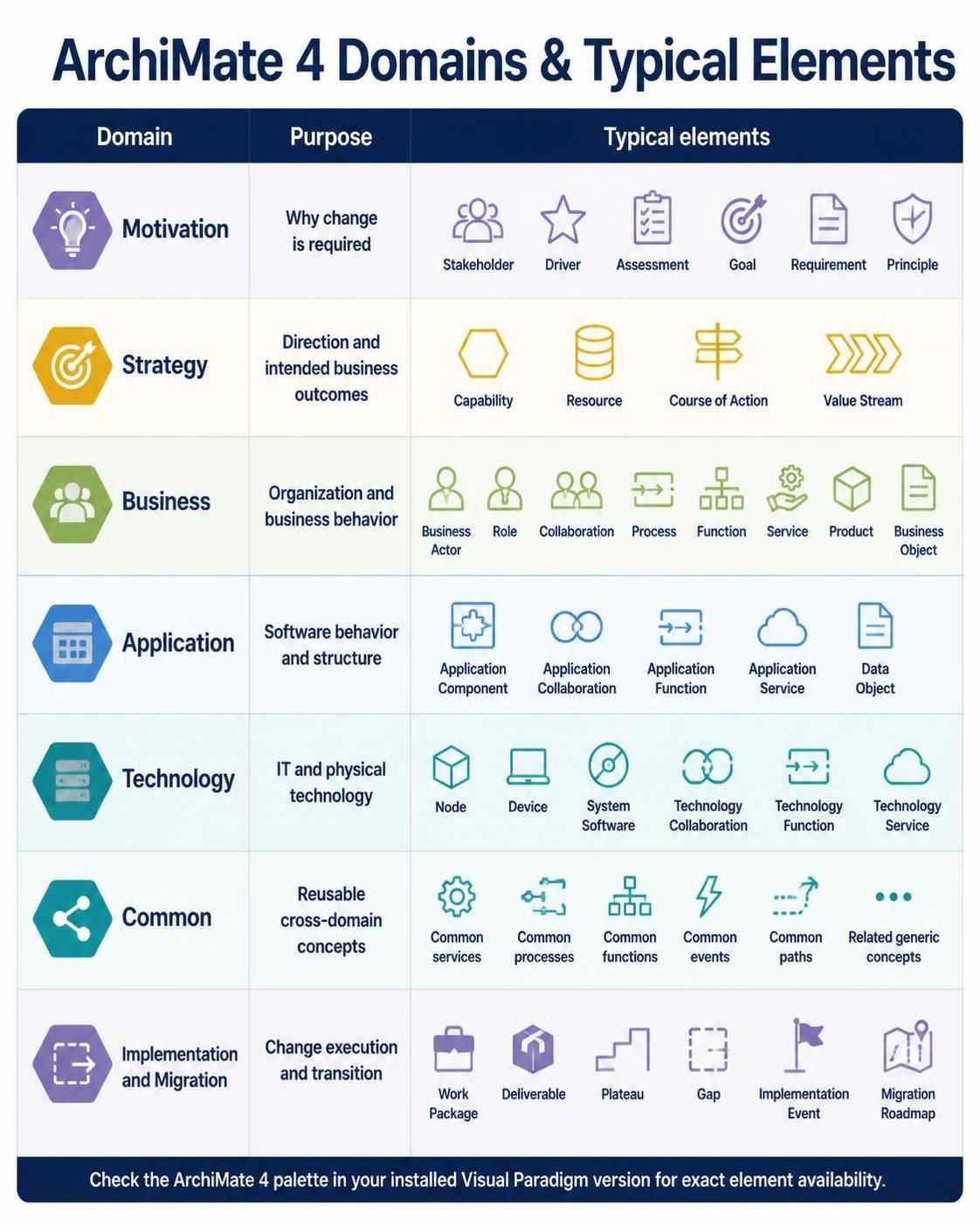
| Domain | Purpose | Typical examples |
|---|---|---|
| Motivation | Why change is required | Stakeholder, Driver, Assessment, Goal, Requirement, Principle |
| Strategy | Direction and intended business outcomes | Capability, Resource, Course of Action, Value Stream |
| Business | Organization and business behavior | Business Actor, Role, Collaboration, Process, Function, Service, Product, Business Object |
| Application | Software behavior and structure | Application Component, Application Collaboration, Application Function, Application Service, Data Object |
| Technology | IT and physical technology | Node, Device, System Software, Technology Collaboration, Technology Function, Technology Service |
| Common | Reusable cross-domain concepts | Common services, processes, functions, events, paths, and related generic concepts |
| Implementation and Migration | Change execution and transition | Work Package, Deliverable, Plateau, Gap, Implementation Event, Migration Roadmap |
The exact element names and availability should be checked against the ArchiMate 4 palette in your installed Visual Paradigm version.
6. Building Your First ArchiMate 4 Model
Use the following example:
A company wants to improve customer support by introducing a unified CRM platform. The change should reduce response time, improve customer visibility, and integrate customer-service channels.
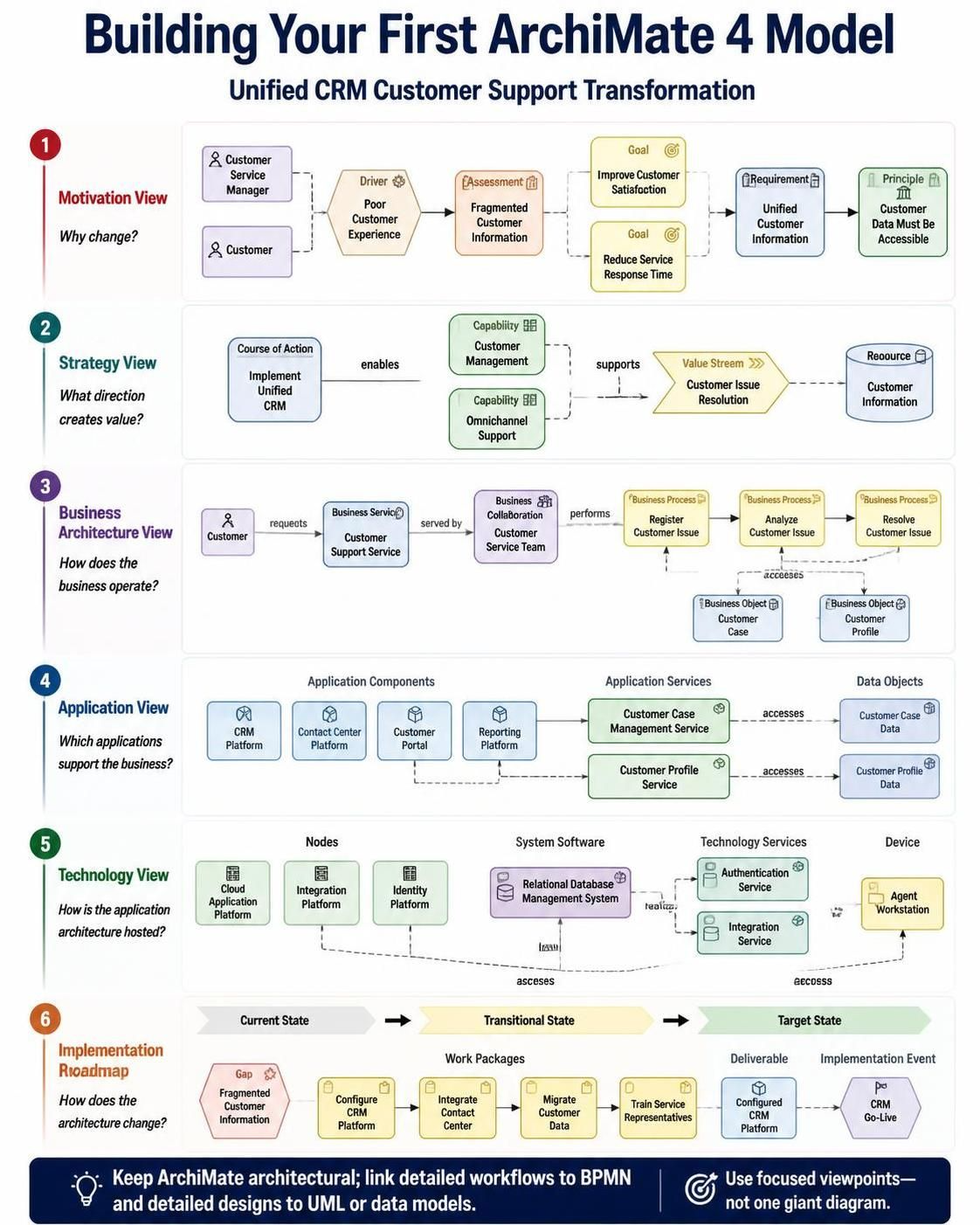
Step 1: Model motivation
Create a diagram named:
Customer Service – Motivation View
Add:
-
Stakeholder: Customer
-
Stakeholder: Customer Service Manager
-
Driver: Poor Customer Experience
-
Assessment: Fragmented Customer Information
-
Goal: Improve Customer Satisfaction
-
Goal: Reduce Service Response Time
-
Requirement: Unified Customer Information
-
Principle: Customer Data Must Be Accessible
Connect the elements using relationships such as:
Poor Customer Experience
    influences
Improve Customer Satisfaction

Fragmented Customer Information
    influences
Unified Customer Information

Unified Customer Information
    supports
Improve Customer Satisfaction
A simplified view might look like this:
[Customer Service Manager]
            |
         values
            v
[Improve Customer Satisfaction]
            ^
         supports
            |
[Unified Customer Information]
            ^
         addresses
            |
[Fragmented Customer Information]
Keep this diagram understandable to business stakeholders. Avoid adding applications or infrastructure at this stage.
Step 2: Model the strategic direction
Create:
Customer Service – Strategy View
Add:
-
Capability: Customer Management
-
Capability: Omnichannel Support
-
Course of Action: Implement Unified CRM
-
Value Stream: Customer Issue Resolution
-
Resource: Customer Information
Connect the elements:
Implement Unified CRM
    enables
Customer Management

Implement Unified CRM
    enables
Omnichannel Support

Customer Management
    supports
Customer Issue Resolution
This diagram answers:
-
What capabilities are required?
-
What strategic initiative will create them?
-
What value stream is improved?
-
What resources are important?
Step 3: Model the business architecture
Create:
Customer Service – Business Architecture View
Add:
-
Business Actor: Customer
-
Business Role: Customer Service Representative
-
Business Collaboration: Customer Service Team
-
Business Process: Register Customer Issue
-
Business Process: Analyze Customer Issue
-
Business Process: Resolve Customer Issue
-
Business Service: Customer Support Service
-
Business Object: Customer Case
-
Business Object: Customer Profile
A typical flow is:
Customer
   |
 requests
   v
Customer Support Service
   |
 served by
   v
Customer Service Team
   |
 performs
   v
Register Customer Issue
   |
 accesses
   v
Customer Case
Model the process sequence in an ArchiMate diagram at an architectural level. If detailed workflow logic is required, link or trace the business process to a BPMN model.
Step 4: Model the application architecture
Create:
Customer Service – Application View
Add:
-
Application Component: CRM Platform
-
Application Component: Contact Center Platform
-
Application Component: Customer Portal
-
Application Component: Reporting Platform
-
Application Service: Customer Case Management Service
-
Application Service: Customer Profile Service
-
Data Object: Customer Case Data
-
Data Object: Customer Profile Data
Connect the model:
CRM Platform
    serves
Customer Case Management Service

Customer Case Management Service
    serves
Customer Service Team

CRM Platform
    accesses
Customer Case Data

Customer Portal
    accesses
Customer Profile Service

Contact Center Platform
    uses
Customer Case Management Service
Use application collaboration where several applications work together to deliver a service.
Step 5: Model the technology architecture
Create:
Customer Service – Technology View
Add:
-
Node: Cloud Application Platform
-
Node: Integration Platform
-
Node: Identity Platform
-
System Software: Relational Database Management System
-
Technology Service: Authentication Service
-
Technology Service: Integration Service
-
Device: Agent Workstation
Connect the elements:
Cloud Application Platform
    realizes
CRM Platform

Integration Platform
    serves
Integration Service

Identity Platform
    serves
Authentication Service

CRM Platform
    uses
Authentication Service

CRM Platform
    accesses
Relational Database Management System
The technology view should explain how the application architecture is hosted and supported. Avoid listing every server, port, library, or deployment parameter unless the diagram is specifically intended for technical operations.
Step 6: Model implementation and migration
Create:
Customer Service – Implementation Roadmap
Add:
-
Work Package: Configure CRM Platform
-
Work Package: Integrate Contact Center
-
Work Package: Migrate Customer Data
-
Work Package: Train Service Representatives
-
Deliverable: Configured CRM Platform
-
Plateau: Current State
-
Plateau: Transitional State
-
Plateau: Target State
-
Implementation Event: CRM Go-Live
-
Gap: Fragmented Customer Information
Create dependencies such as:
Configure CRM Platform
    triggers
Integrate Contact Center

Integrate Contact Center
    triggers
Migrate Customer Data

Migrate Customer Data
    triggers
CRM Go-Live

Current State
    transitions to
Transitional State

Transitional State
    transitions to
Target State
Use a roadmap or migration view to show sequence and architectural change. Detailed scheduling should normally remain in a project-management tool.
7. Creating Viewpoints in Visual Paradigm
A viewpoint limits the model to the concepts relevant to a particular stakeholder or concern.
7.1 Use a predefined viewpoint
When creating a diagram:
-
Select Diagram > New.
-
Choose an ArchiMate 4 diagram or viewpoint.
-
Select an appropriate template, such as:
-
Motivation View
-
Strategy View
-
Business Architecture View
-
Application Cooperation View
-
Technology View
-
Implementation and Migration View
-
-
Add only the elements relevant to that viewpoint.
-
Hide unrelated relationships where necessary.
Visual Paradigm supports predefined and custom viewpoints for focusing diagrams on particular architectural concerns.
7.2 Create a custom viewpoint
Create a custom viewpoint when a standard viewpoint does not meet your organization’s communication needs.
For example, a “Data Compliance View” might contain:
-
Business Object
-
Data Object
-
Application Component
-
Requirement
-
Principle
-
Technology Service
-
Access relationship
-
Realization relationship
A custom viewpoint should specify:
-
Intended audience
-
Architectural concern
-
Allowed element types
-
Allowed relationship types
-
Required metadata
-
Naming and color conventions
7.3 Viewpoint design rules
A good viewpoint should:
-
Answer a specific architectural question
-
Use a limited number of element types
-
Have one primary audience
-
Avoid unrelated detail
-
Use a consistent layout
-
Contain a clear title and legend
Examples:
Which applications support the order-to-cash process?
Which capabilities are affected by the transformation?
Where is regulated customer data stored?
What changes are required to reach the target state?
8. Relationships in ArchiMate 4
Use relationships carefully. The relationship often communicates more meaning than the element itself.
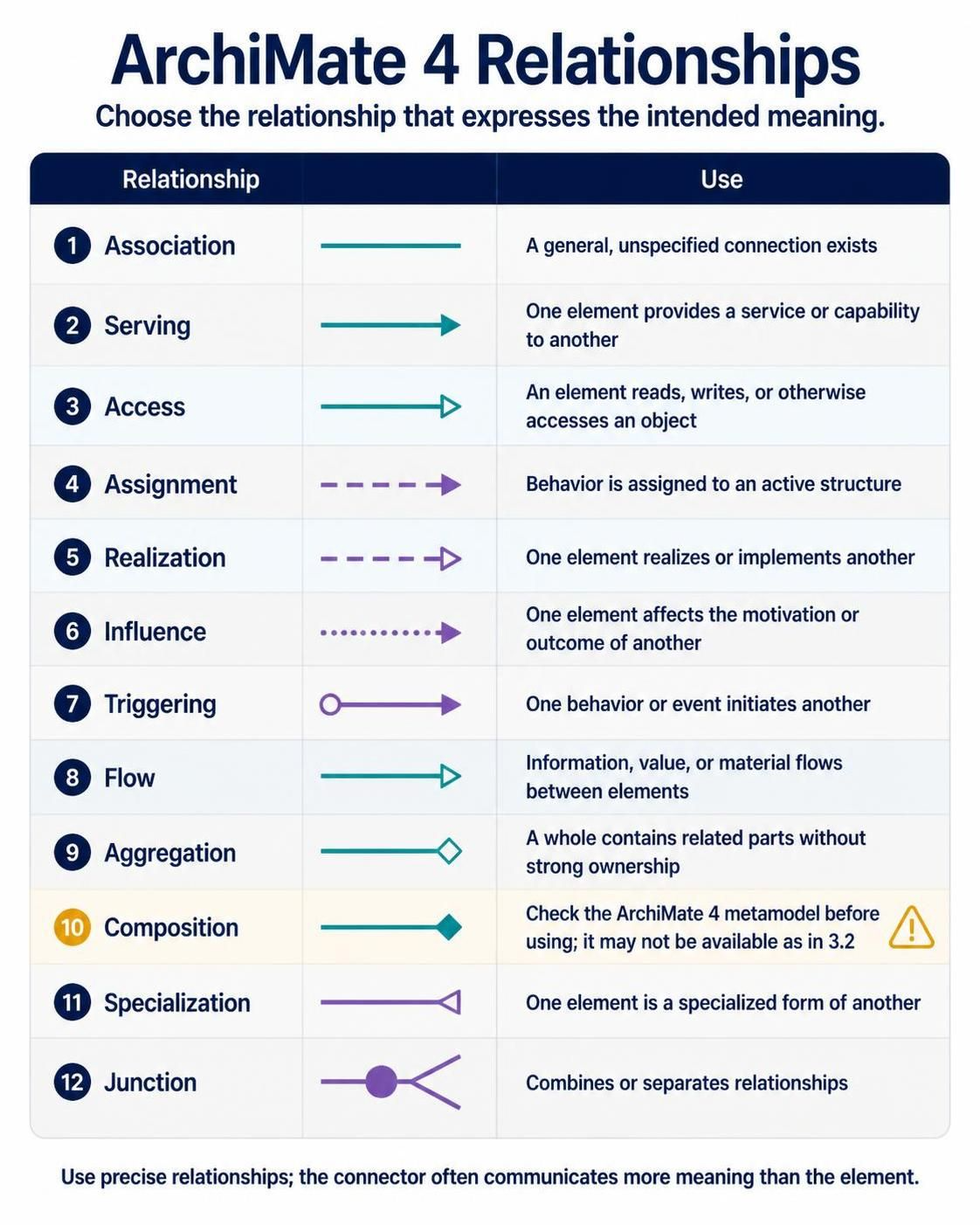
8.1 Common relationship types
| Relationship | Use it when |
|---|---|
| Association | A general, unspecified connection exists |
| Serving | One element provides a service or capability to another |
| Access | An element reads, writes, or otherwise accesses an object |
| Assignment | Behavior is assigned to an active structure |
| Realization | One element realizes or implements another |
| Influence | One element affects the motivation or outcome of another |
| Triggering | One behavior or event initiates another |
| Flow | Information, value, or material flows between elements |
| Aggregation | A whole contains related parts without strong ownership |
| Composition | Check your ArchiMate 4 metamodel before using; it may not be available as in 3.2 |
| Specialization | One element is a specialized form of another |
| Junction | Combines or separates relationships |
8.2 Choosing between serving and realization
Use serving when one element offers functionality to another:
CRM Application
    serves
Customer Service Team
Use realization when one element implements or embodies another:
CRM Platform
    realizes
Customer Case Management Service
Do not use realization simply because two elements are related.
8.3 Modeling multiplicity
Select a relationship connector and open its specification or properties. Enter the source and target multiplicities if the Visual Paradigm version exposes those fields.
Examples:
Customer 1 ── has ── 0..* Customer Cases
Customer Service Representative 1..* ── performs ── Customer Service Process
Application Component 1 ── realizes ── 1..* Application Services
Use multiplicity only when it represents a meaningful architectural rule. Do not add arbitrary cardinalities to every connector.
9. Using Properties, Tagged Values, and Metadata
A mature architecture repository needs more information than names and relationships.
Useful properties include:
-
Owner
-
Lifecycle status
-
Business criticality
-
Data classification
-
Application health
-
Technology health
-
Target state
-
Current state
-
Planned retirement date
-
Regulatory scope
-
Cost center
-
Roadmap phase
-
Risk rating
Example metadata for an application component:
Name: CRM Platform
Owner: Customer Operations
Lifecycle: Target
Criticality: High
Data Classification: Confidential
Roadmap Phase: Phase 2
Technology Health: Good
Business Fit: Medium
Use custom properties or tagged values consistently across the repository. Visual Paradigm supports user-defined properties and ETL-based model customization for project-specific information.
10. Color and Visual Conventions
Color should communicate a controlled meaning, not decorate the diagram.
Example palette:
| Color | Meaning |
|---|---|
| Blue | Existing/current-state element |
| Green | Target-state element |
| Orange | Planned change |
| Red | Risk, gap, or issue |
| Gray | External or contextual element |
| Purple | Shared platform or common capability |
Create a legend for every diagram that uses colors. If colors represent lifecycle status in one diagram and domain type in another, document that distinction clearly.
Visual Paradigm provides formatting options and color legends for ArchiMate diagrams.
11. Linking ArchiMate to BPMN, UML, and Data Models
ArchiMate should operate as the architectural layer above more detailed models.
11.1 ArchiMate and BPMN
Use ArchiMate to model:
-
Business capability
-
Business process at a high level
-
Business service
-
Application support
Use BPMN to model:
-
Detailed process flow
-
Events
-
Gateways
-
Human tasks
-
Message flows
-
Exception handling
Example traceability:
ArchiMate Business Process:
Resolve Customer Issue

linked to

BPMN Process:
Customer Issue Resolution Workflow
11.2 ArchiMate and UML
Use ArchiMate to show:
-
Application component
-
Application service
-
Application collaboration
-
Data object
Use UML to show:
-
Class structure
-
Component interfaces
-
Sequence behavior
-
Deployment detail
-
API design
11.3 ArchiMate and data modeling
Use ArchiMate Data Objects for architectural-level information concepts. Link them to detailed entity-relationship or logical data models where required.
For example:
ArchiMate Data Object:
Customer Profile Data

linked to

Logical Data Model:
Customer, CustomerAddress, CustomerContactPreference
Visual Paradigm supports multiple modeling languages and allows ArchiMate diagrams to be linked to BPMN and UML models for traceability.
12. Model Validation
Validation should be performed continuously rather than only at the end of the project.
12.1 Basic validation checklist
Check that:
-
Elements belong to the intended ArchiMate 4 metamodel
-
Relationships are semantically appropriate
-
Retired ArchiMate 3.2 concepts have not been introduced accidentally
-
Multiplicity values are valid
-
Every major capability is linked to a business outcome
-
Important applications realize or support business services
-
Technology elements support application components or services
-
Work packages contribute to target-state architecture
-
Gaps are connected to transition work
-
Names are unique and meaningful
-
Diagrams have legends where needed
12.2 Run Visual Paradigm validation
Depending on your version, use a command such as:
Tools > Validate Model
or the corresponding model-validation command in the tool window.
The validator can identify unsupported elements, invalid relationships, and other model inconsistencies.
12.3 Semantic review
Tool validation cannot determine whether the model reflects reality. Conduct a review with:
-
Business owners
-
Application owners
-
Infrastructure owners
-
Security representatives
-
Data owners
-
Program or portfolio managers
Ask:
-
Is the architecture factually correct?
-
Are the relationships meaningful?
-
Is the viewpoint understandable to its audience?
-
Are current and target states clearly separated?
-
Are assumptions documented?
-
Are ownership and lifecycle fields complete?
13. Migrating from ArchiMate 3.2
Visual Paradigm supports coexistence of ArchiMate 3.2 and ArchiMate 4 diagrams, so migration can be gradual rather than a single large conversion.
Recommended migration procedure
-
Back up the project.
-
Record the Visual Paradigm version and ArchiMate version.
-
Inventory existing ArchiMate 3.2 diagrams.
-
Classify diagrams as:
-
Keep unchanged
-
Update incrementally
-
Rebuild
-
Retire
-
-
Create an ArchiMate 4 package structure.
-
Reuse stable concepts such as applications, capabilities, and business objects.
-
Replace retired or consolidated elements based on meaning.
-
Review relationships manually.
-
Add multiplicities only where they express real constraints.
-
Run model validation.
-
Publish a migration note for the architecture team.
Example migration mapping
| ArchiMate 3.2 usage | ArchiMate 4 approach |
|---|---|
| Business-specific process | Use the appropriate generic process concept in context |
| Application-specific service | Use the relevant reusable service concept |
| Technology-specific interaction | Use collaboration, service, flow, or another semantically correct relationship |
| Constraint | Consider Requirement, Principle, or another suitable motivation concept |
| Gap | Represent the issue through motivation and implementation concepts |
| Composition | Use aggregation or grouping where appropriate, subject to the current metamodel |
| Layer-based diagram | Reframe as a domain or stakeholder viewpoint |
Do not migrate based only on visual similarity. Migration should preserve architectural meaning.
14. Documentation and Publishing
A model is useful only when stakeholders can access and understand it.
14.1 Generate documentation
Include:
-
Architecture overview
-
Scope and assumptions
-
Stakeholders
-
Motivation
-
Current-state architecture
-
Target-state architecture
-
Gap analysis
-
Roadmap
-
Application catalog
-
Technology catalog
-
Risks and decisions
-
Glossary
-
Diagram index
Use consistent documentation fields for all important elements.
14.2 Publish diagrams
Visual Paradigm provides project publishing and online viewing capabilities for sharing diagrams with stakeholders.
Before publishing:
-
Remove draft-only diagrams
-
Mark diagrams as current, proposed, or retired
-
Add version and owner information
-
Check legibility at normal zoom
-
Confirm that sensitive technical details are appropriate for the audience
-
Include a glossary for non-architectural stakeholders
14.3 Diagram title block
Use a title block containing:
Diagram:
Viewpoint:
Owner:
Status:
Version:
Last Reviewed:
Audience:
Scope:
15. Team Collaboration and Governance
Define basic repository governance from the beginning.
Suggested roles
| Role | Responsibility |
|---|---|
| Enterprise architect | Owns principles, repository structure, and cross-domain consistency |
| Domain architect | Owns a business, application, data, or technology domain |
| Model librarian | Maintains reusable elements, naming, and metadata |
| Solution architect | Maintains solution-specific architecture |
| Business owner | Validates business capabilities and processes |
| Review board | Approves significant architectural decisions |
Review states
Use a controlled lifecycle:
Draft → In Review → Approved → Published → Superseded → Retired
Architecture decision records
For important decisions, record:
-
Decision title
-
Context
-
Options considered
-
Decision
-
Rationale
-
Consequences
-
Related ArchiMate elements
-
Owner
-
Approval date
-
Review date
Link the decision to the affected goals, principles, requirements, applications, or work packages.
16. Common Modeling Mistakes
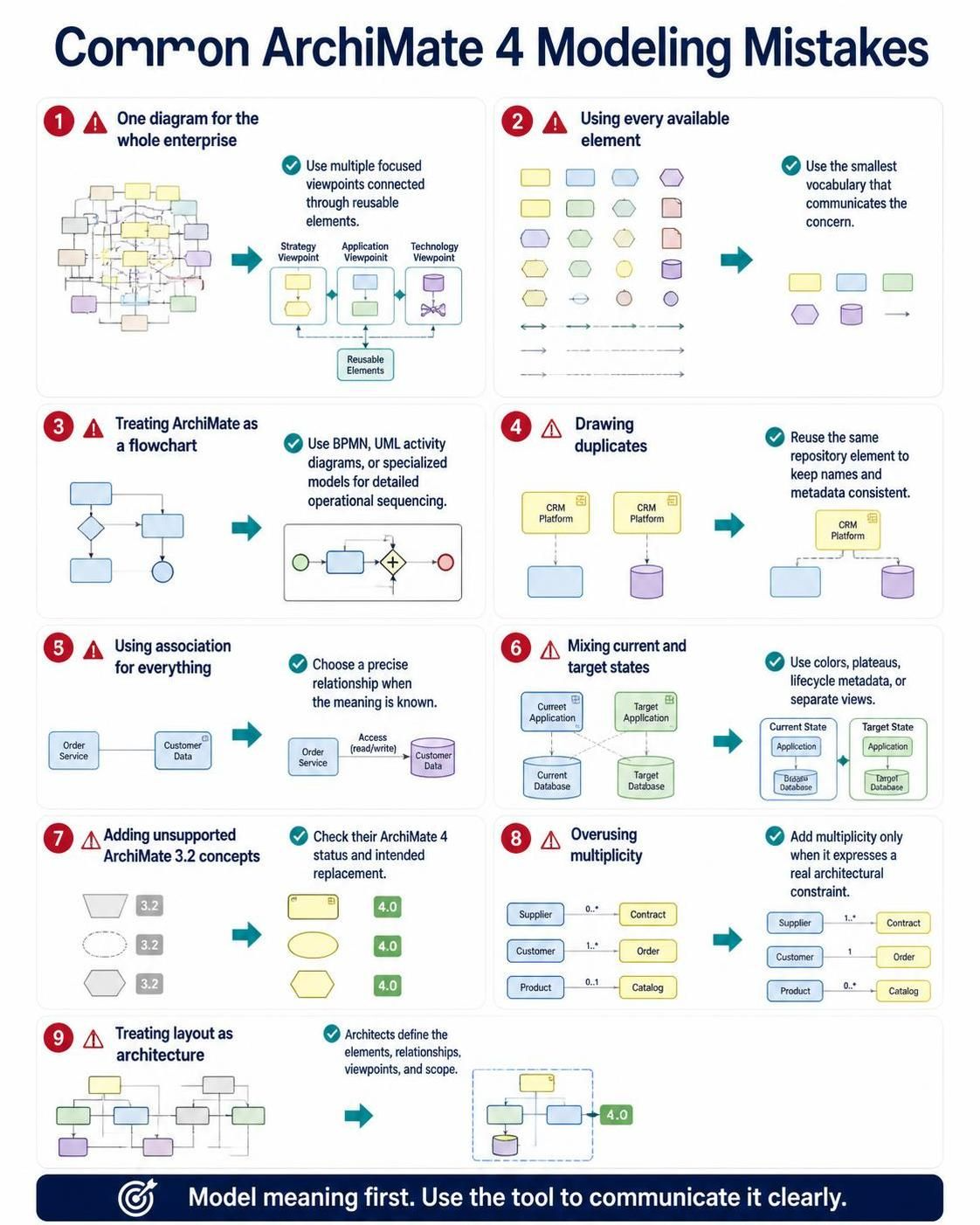
One diagram for the whole enterprise
This creates unreadable models. Use multiple focused viewpoints connected through reusable elements.
Using every available element
More elements do not automatically create a better model. Use the smallest vocabulary that communicates the concern.
Treating ArchiMate as a flowchart language
ArchiMate relationships describe architectural structure and dependency. Detailed operational sequencing belongs in BPMN, UML activity diagrams, or other specialized models.
Drawing duplicates
Repeatedly recreating “CRM Platform” in separate diagrams causes inconsistent names and metadata. Reuse the same repository element.
Using association for everything
Association is useful when the relationship is genuinely unspecified. Prefer a more precise relationship when the meaning is known.
Mixing current and target states without explanation
Use colors, plateaus, lifecycle metadata, or separate views to distinguish current, transitional, and target architecture.
Adding unsupported ArchiMate 3.2 concepts
When using the ArchiMate 4 palette, do not copy old concepts into new diagrams without checking their status and intended replacement.
Overusing multiplicity
Multiplicity should express a real architectural constraint. It should not be added merely to make diagrams appear formal.
Treating the tool’s layout as the architecture
Automatic layout can improve readability, but it cannot determine the correct architectural meaning. Architects must define the elements, relationships, viewpoints, and scope.
17. Recommended Architecture Modeling Workflow
Use this repeatable workflow for most initiatives:
-
Define scope and stakeholders.
-
Create the repository package structure.
-
Record principles, drivers, assessments, and requirements.
-
Model strategic capabilities and value streams.
-
Model the current business, application, and technology architecture.
-
Identify gaps and risks.
-
Model the target architecture.
-
Define work packages, plateaus, deliverables, and migration events.
-
Create stakeholder-specific viewpoints.
-
Validate the model.
-
Review with domain owners.
-
Generate documentation.
-
Publish approved views.
-
Maintain ownership, lifecycle, and review dates.
18. Practical Quality Checklist
Before approving an ArchiMate 4 model, confirm:
Scope
-
The purpose of the model is stated.
-
The audience is known.
-
The architecture boundary is clear.
-
Current, target, or transitional state is identified.
Content
-
Goals are connected to requirements or principles.
-
Capabilities are connected to strategic direction.
-
Business services are supported by applications.
-
Applications are supported by technology.
-
Gaps are connected to implementation work.
-
Important data objects have owners and classifications.
Relationships
-
Relationship types express their intended meaning.
-
Relationships do not cross the diagram unnecessarily.
-
Multiplicity is used only where justified.
-
No obsolete concepts have been copied into ArchiMate 4 diagrams.
Presentation
-
The diagram has a clear title.
-
A legend explains colors and symbols.
-
The layout follows a readable direction.
-
Crossings and unnecessary connectors are minimized.
-
The diagram can be understood without an oral explanation.
Governance
-
The model has an owner.
-
The review status is recorded.
-
The version and review date are visible.
-
Reusable elements are stored centrally.
-
The diagram is linked to related documentation or decisions.
19. Final Recommendations
For successful ArchiMate 4 adoption in Visual Paradigm:
-
Start with a small business problem rather than modeling the entire enterprise.
-
Use motivation and strategy views before designing applications and infrastructure.
-
Treat the Common Domain as a way to avoid unnecessary duplication.
-
Create reusable canonical elements.
-
Use viewpoints to control complexity.
-
Apply multiplicity only when it expresses an actual rule.
-
Keep ArchiMate at the architectural level and link to BPMN, UML, and data models for detail.
-
Migrate ArchiMate 3.2 models gradually.
-
Validate both metamodel correctness and business accuracy.
-
Publish diagrams for the stakeholder groups that need them.
-
Establish naming, ownership, lifecycle, and review conventions early.
The most effective ArchiMate 4 repository is not the one with the most diagrams. It is the one in which each diagram answers a specific question, each element has a clear meaning, and the relationships provide traceability from motivation through strategy, architecture, and implementation.
Reference
-
Part II: Hands-on Modeling with Visual Paradigm: A practical guide covering first steps with the tool, core modeling techniques, and clean diagram habits for ArchiMate.
-
Comprehensive Tutorial: How to Draw ArchiMate Diagrams: A step-by-step tutorial that walks through creating an ArchiMate diagram from scratch, using a hospital patient discharge example.
-
Comprehensive Tutorial: AI-Powered ArchiMate Diagram Generation in Visual Paradigm Desktop: Explains how to use the AI Diagram Generator to instantly create fully compliant ArchiMate models and official viewpoints.
-
Hands-on: Generating a Multi-Layer Model from a Single Topic: Demonstrates how to generate a multi-layer ArchiMate model from a single topic or scenario using AI.
-
ArchiMate Viewpoint: Migration Viewpoint: Describes the Migration Viewpoint, its stakeholders, concerns, and how to apply it for modeling transitions from baseline to target architectures.
-
Creating Custom Viewpoints for Unique Organizational Standards: Explains how to design user-defined viewpoints for specific organizational needs using the Manage Viewpoint tool.
-
Part V: Advanced Integration and Frameworks: Covers integrating ArchiMate with TOGAF ADM, UML, SysML, and BPMN for cross-standard traceability.
-
Build an ArchiMate Library System Diagram with PlantUML: A tutorial for diagram-as-code workflows, building a multi-layer ArchiMate model using PlantUML.
-
Native AI ArchiMate 4 Generation & Viewpoints | Visual Paradigm Desktop: Official release announcing AI-powered generation of native ArchiMate 4 diagrams with full viewpoint support in the desktop application.
-
Mastering Enterprise Architecture with Visual Paradigm: A User’s Journey to AI-Driven ArchiMate Modeling: Practical user experience covering AI generation, element reuse, syntax validation, and the Common Domain shift.
-
Tutorial: Generating and Importing ArchiMate 4 Diagrams with Visual Paradigm’s AI Chatbot: Step-by-step tutorial on using the AI Chatbot to generate and import ArchiMate 4 diagrams into the desktop app.
-
ArchiMate 4 Guide – Evolution of Enterprise Architecture | Visual Paradigm: Detailed guide on the Hexagonion framework, unified behavior concepts, and domain-based architecture
Related posts:
 Common ArchiMate Mistakes New Architects Make (And How to Avoid Them)
 ArchiMate Myths Busted: What You’ve Been Getting Wrong About Enterprise Modeling
 ArchiMate Q&A: Answers to 15 Burning Questions from First-Time Users
 ArchiMate for Solution Architects: Bridging Business and Technology with Clarity