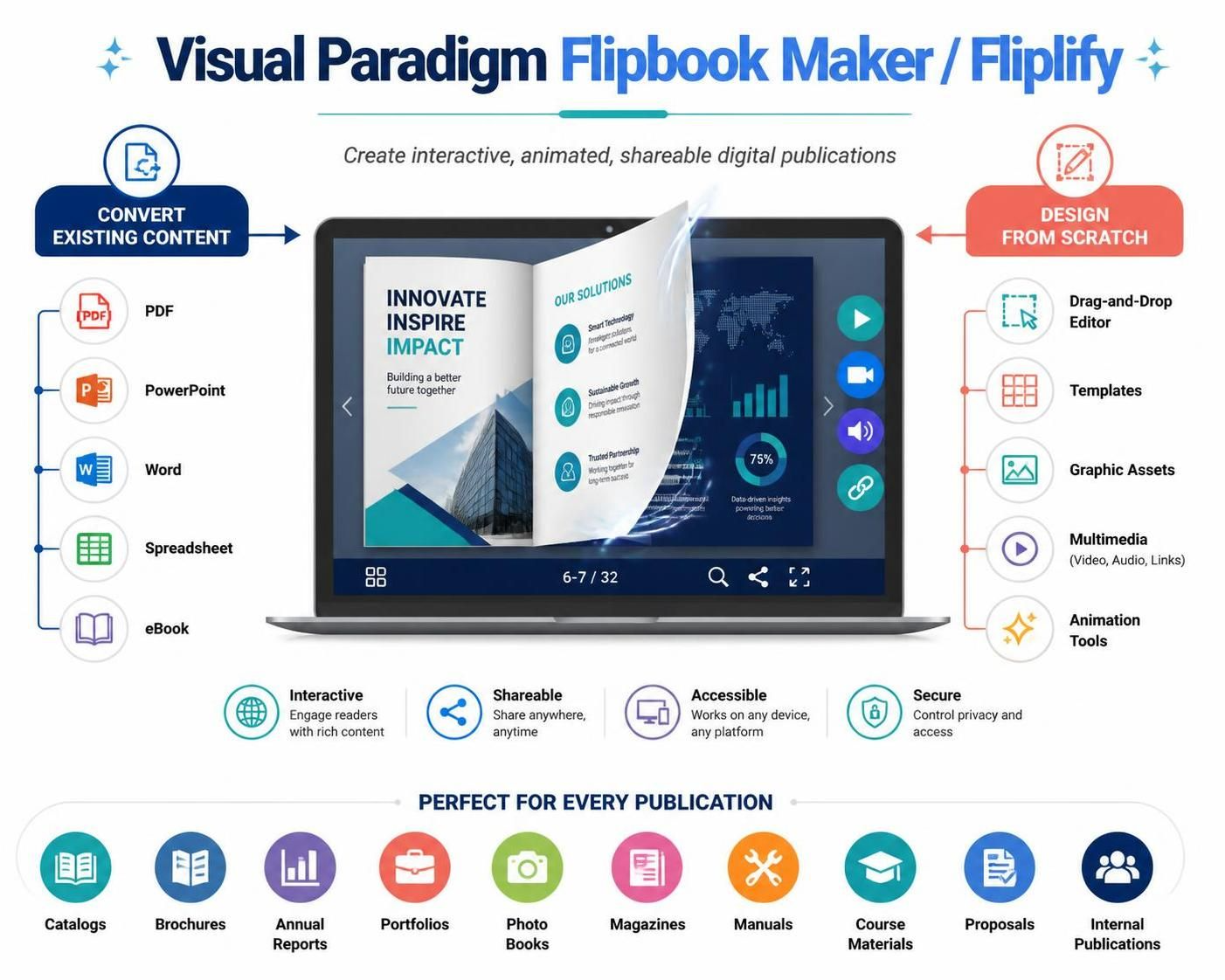
Visual Paradigm Flipbook Maker—also presented within Visual Paradigm Online as Fliplify—is a digital-publication tool for creating interactive, animated, and shareable flipbooks. It supports two complementary workflows:
-
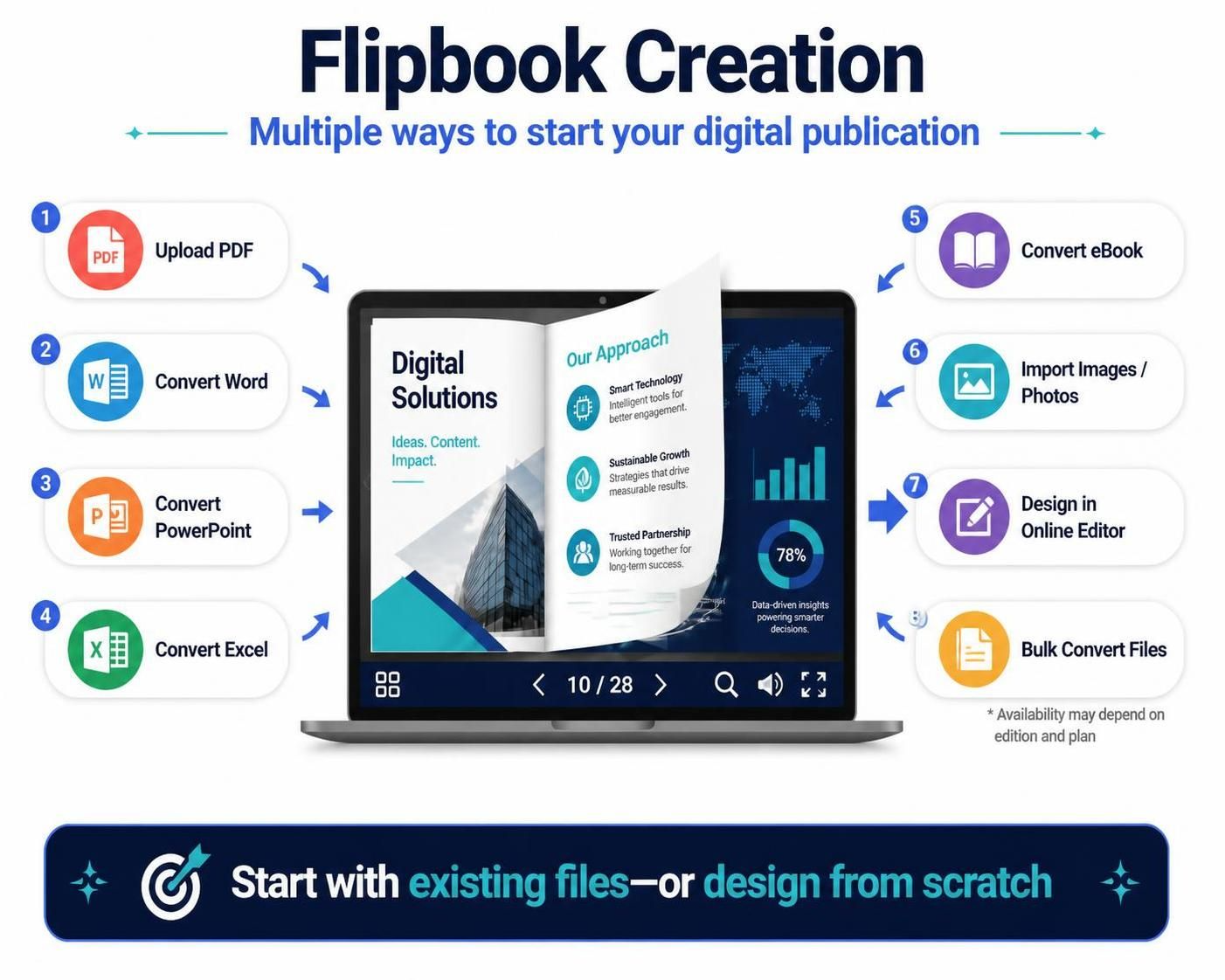
Convert existing content such as PDFs, PowerPoint presentations, Word documents, spreadsheets, and eBooks.
-
Design a flipbook from scratch using a drag-and-drop editor, templates, graphic assets, multimedia, and animation tools.
This combination makes it suitable for catalogs, brochures, annual reports, portfolios, photo books, magazines, manuals, course materials, proposals, and internal publications.
1. Product overview
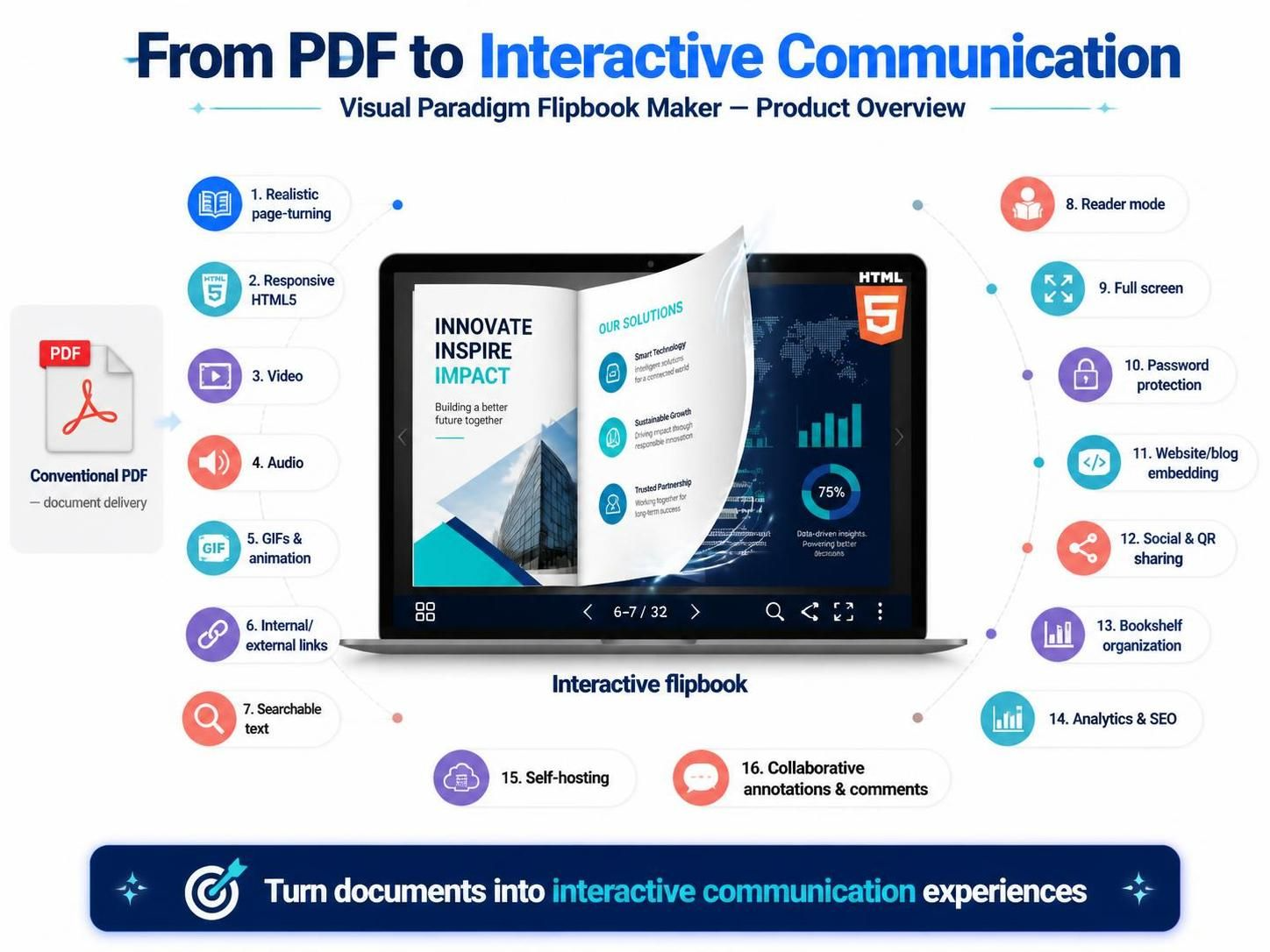
A conventional PDF is primarily a document-delivery format. Visual Paradigm Flipbook Maker adds a presentation and publishing layer around that document. The result can include:
-
Realistic page-turning effects
-
Responsive HTML5 viewing
-
Video, audio, GIF, and animated content
-
Internal and external hyperlinks
-
Searchable text
-
Reader mode and full-screen viewing
-
Password protection
-
Embedding on websites and blogs
-
Social sharing and QR-code sharing
-
Bookshelf-based publication organization
-
Analytics and search-engine visibility options
-
Self-hosted publication options
-
Collaborative annotations and comments
The platform can therefore be used not only to distribute documents but also to turn them into interactive communication experiences.
2. Core feature list
The supported conversion formats include PDF, PPTX, DOCX, XLSX, EPUB, MOBI, and several additional document and eBook formats. Some converters are limited to specific editions, so the exact availability should be checked against the current plan.
Design from scratch
The built-in flipbook designer provides a drag-and-drop editing environment with:
-
Pre-designed templates
-
Page layouts
-
Shapes and decorative objects
-
Stock images
-
Text elements
-
Backgrounds
-
Logos and branding elements
-
Page duplication and deletion
-
Page reordering
-
Page splitting and combining
-
Themes that can be applied to individual pages or an entire book
-
Bulk resizing and background changes
Templates are available for formats such as booklets, photobooks, catalogs, lookbooks, reports, and other business publications.
This makes the product useful even when the user does not already have a finished PDF to convert.
Templates and design assets
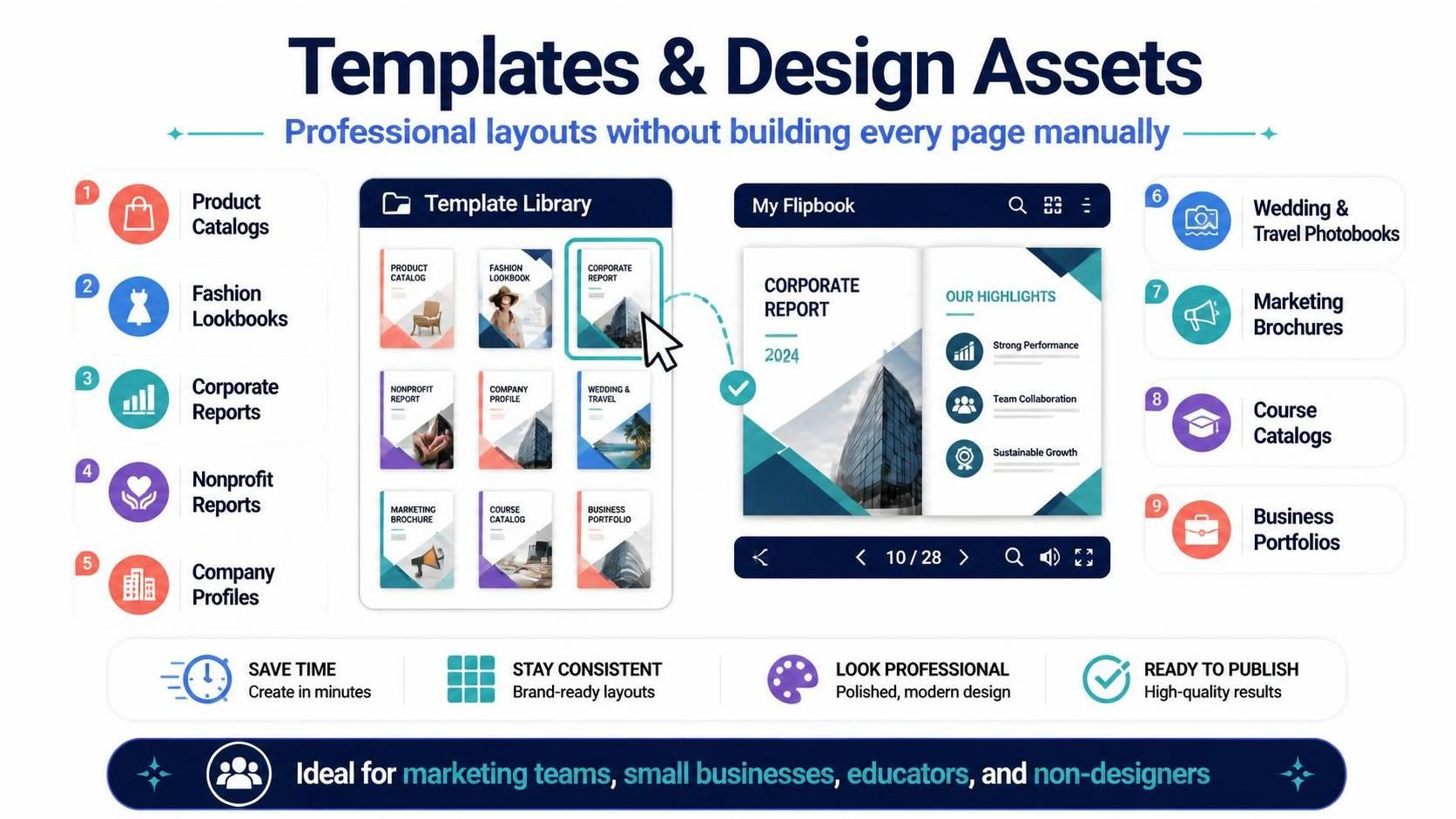
Templates reduce the time required to establish a professional visual structure. Typical use cases include:
-
Product catalogs
-
Fashion lookbooks
-
Corporate reports
-
Nonprofit reports
-
Company profiles
-
Wedding and travel photobooks
-
Marketing brochures
-
Course catalogs
-
Business portfolios
The template-based workflow is especially useful for marketing teams, small businesses, educators, and non-designers who need attractive results without building every page manually.
Branding and customization
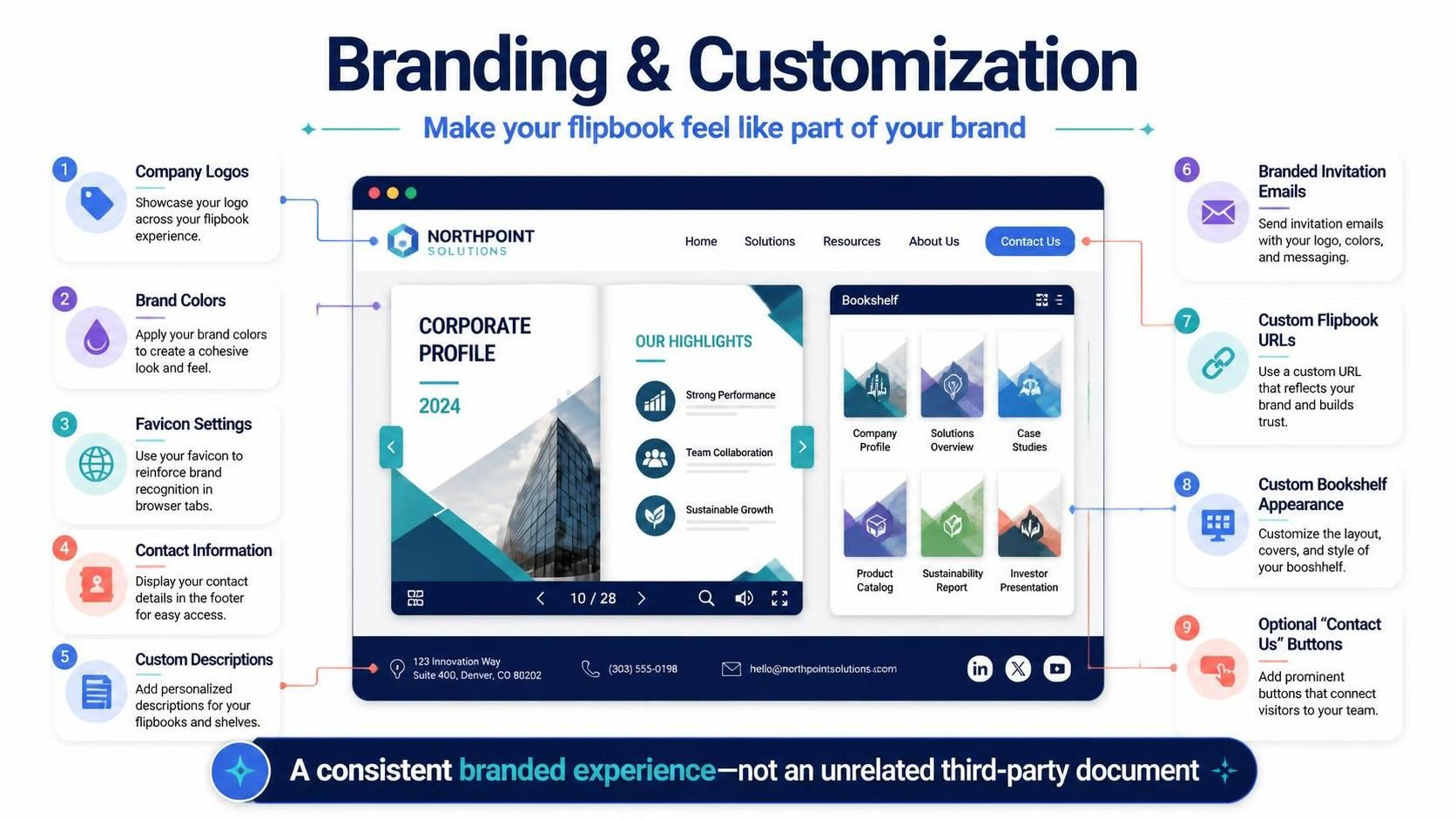
Flipbooks can be customized with organizational branding, including:
-
Company logos
-
Brand colors
-
Favicon settings
-
Contact information
-
Custom descriptions
-
Branded invitation emails
-
Custom flipbook URLs
-
Custom bookshelf appearance
-
Optional “Contact Us” buttons
These features allow the publication to feel like part of a company’s website or communications system rather than an unrelated third-party document.
3. The Flipbook Viewer
The Flipbook Viewer is the reader-facing component. It is responsible for displaying the publication and providing navigation, reading, sharing, and interaction controls.
Page-turning experience
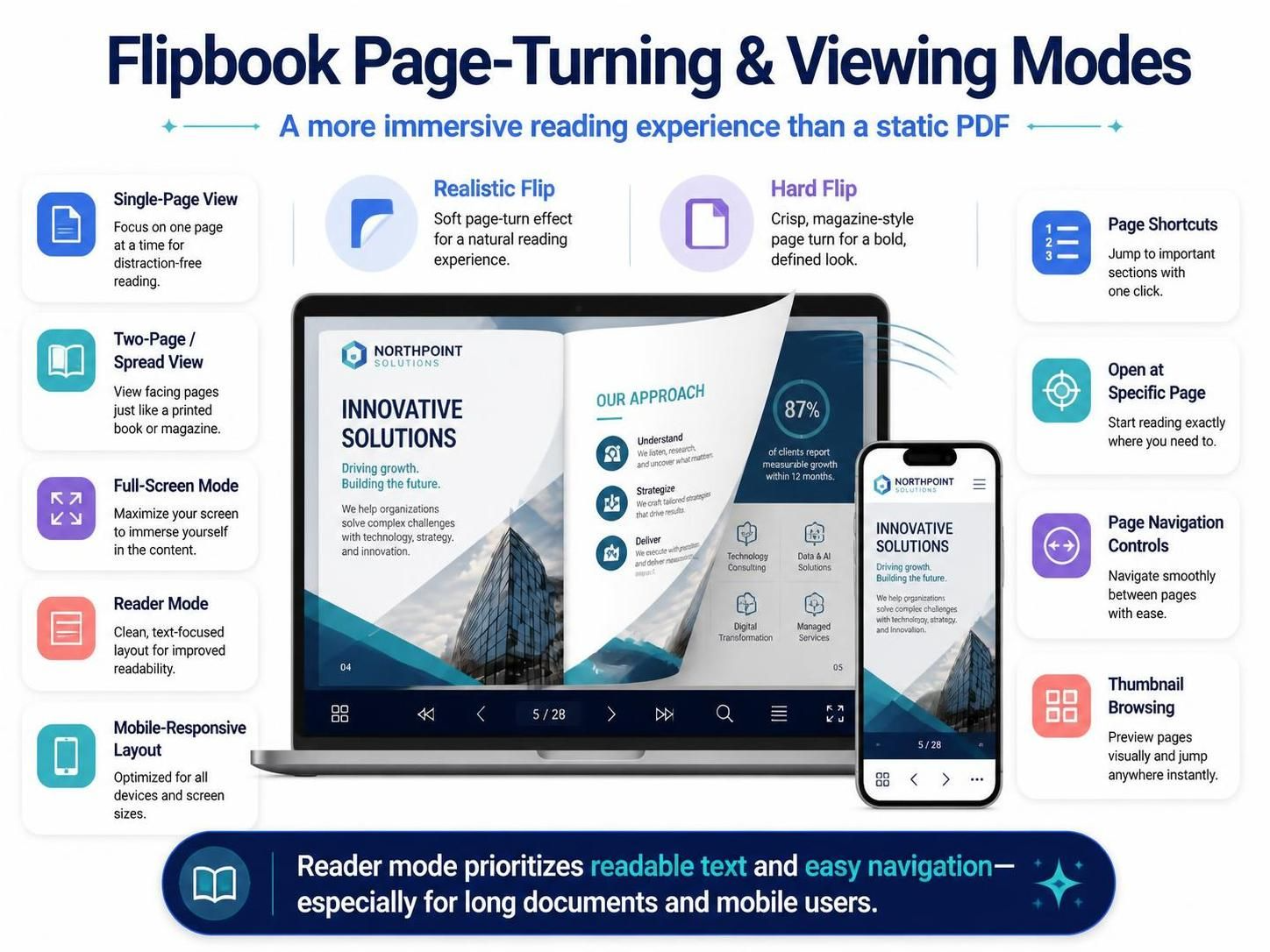
The viewer can display pages with a realistic flip effect that imitates the physical action of turning a book page. A hard-flip effect is also available for publications that benefit from a more rigid, magazine-like presentation. This creates a more immersive experience than scrolling through a static PDF.
Viewing modes
Readers can typically use:
-
Single-page view
-
Two-page or spread view
-
Full-screen mode
-
Reader mode
-
Mobile-friendly responsive layouts
-
Page shortcuts
-
Direct opening at a specified page
-
Page navigation controls
-
Thumbnail-based browsing
https://online.visual-paradigm.com/share/book/typography-portfolio-r0h2w1t33
Reader mode is particularly useful for long documents and mobile users because it prioritizes readable text and straightforward navigation.
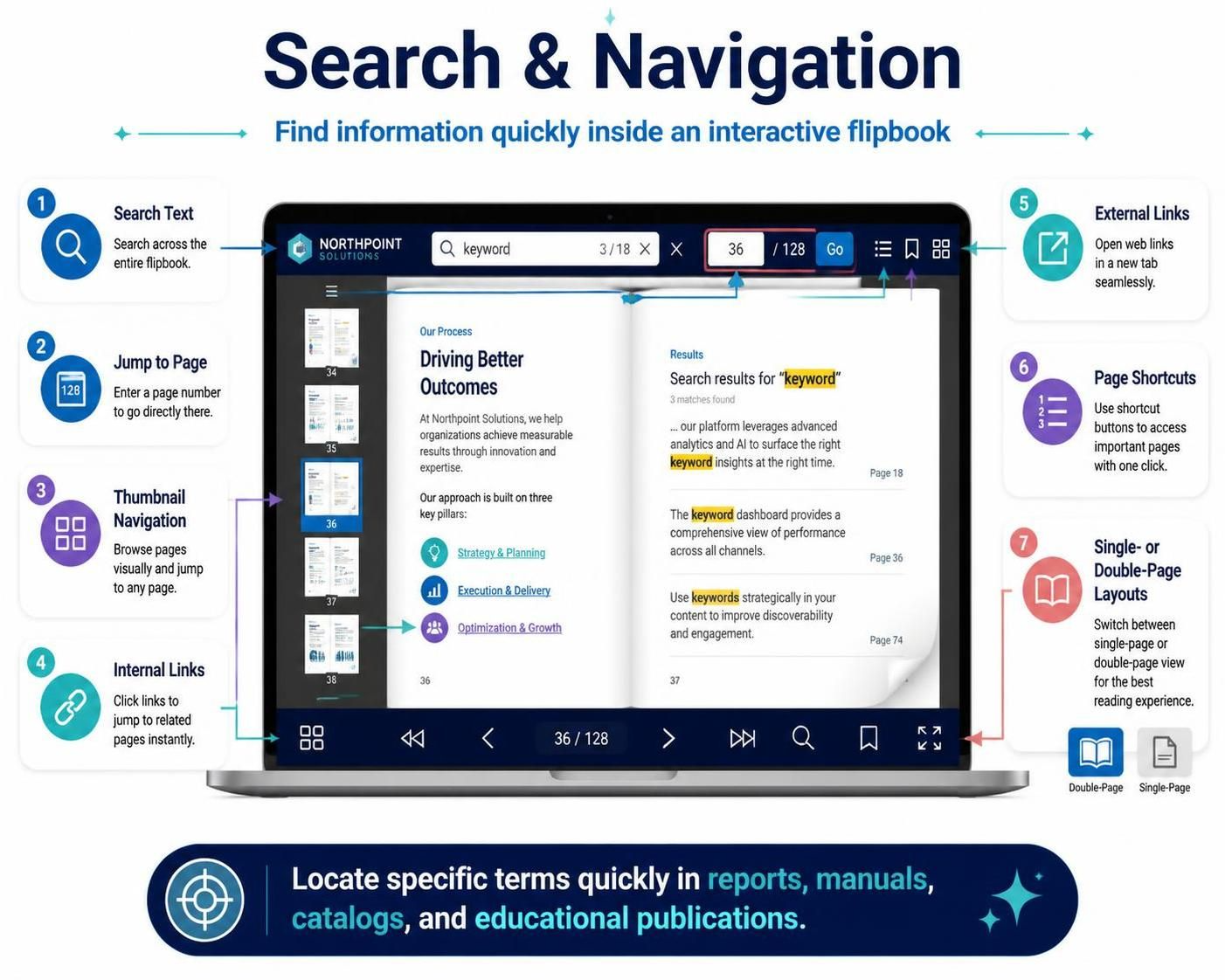
Search and navigation
The viewer supports practical navigation features such as:
-
Searching text within a flipbook
-
Jumping to a page
-
Navigating through thumbnails
-
Following internal links
-
Opening external links
-
Using page shortcuts
-
Browsing in single- or double-page layouts
Text search is important for reports, manuals, catalogs, and educational publications where readers may need to locate a specific term quickly.
Multimedia support
A flipbook can contain more than text and images. Supported interactive content includes:
-
Videos
-
Audio
-
Animated GIFs
-
Animated shapes
-
Lottie animations
-
Clickable links
-
Embedded web destinations
-
Background music
-
Video playback controls
-
Configurable video start and end times
-
Looping sections of video
This changes the publication from a passive document into a multimedia presentation. For example, a product catalog can include demonstration videos, a training handbook can include narrated instructions, and a portfolio can include motion samples.
Accessibility and convenience features
The viewer also includes reader-oriented options such as:
-
Text-to-speech reading
-
Printing
-
PDF download controls
-
Full-screen reading
-
Annotation tools
-
Password-protected access
-
Email invitations to readers
The publisher can control whether options such as PDF downloading are shown. This provides a balance between convenient access and controlled distribution.
4. Bookshelf
The Bookshelf feature provides a visual library for presenting multiple publications together. Instead of distributing isolated flipbook links, an organization can create a collection resembling a digital bookshelf or publication portal.
Bookshelf capabilities
A bookshelf can be used to:
-
Showcase multiple flipbooks
-
Organize publications by topic or category
-
Display book titles
-
Reorder books
-
Customize shelf decorations
-
Choose from different shelf styles
-
Create multiple bookshelves
-
Share a bookshelf through a URL
-
Embed a bookshelf into a blog or website
-
Generate a QR code for the bookshelf
-
Organize self-hosted publications
The current product materials describe multiple shelves, selectable shelf styles, drag-and-drop book ordering, and customization to match a brand or personal style.
Practical bookshelf use cases
A bookshelf can function as:
-
A digital product-catalog center
-
An online annual-report archive
-
An employee handbook library
-
A school or university publication portal
-
A publisher’s magazine rack
-
A design portfolio
-
A company resource center
-
A collection of sales brochures
-
A digital press room
This is one of the product’s most significant differentiators. Many flipbook tools focus on creating and sharing one publication at a time; the bookshelf adds a collection and discovery layer.
5. Animation content authoring
Animation content authoring is where Visual Paradigm Flipbook Maker extends beyond basic PDF conversion.
Animating text and objects
Authors can add motion to:
-
Text
-
Photos
-
Shapes
-
Illustrations
-
Decorative objects
-
Page elements
-
Animated characters
Animations can be used to control the order in which information appears, draw attention to a product feature, create visual emphasis, or make a presentation feel more dynamic.
2D and 3D animated content
The animation workflow can incorporate 2D and 3D characters from AniFuzion. Authors can also use animated shapes and motion effects to produce more presentation-like content.
This is valuable for:
-
Educational explanations
-
Product demonstrations
-
Character-led storytelling
-
Marketing campaigns
-
Interactive portfolios
-
Training materials
-
Digital storytelling
Animated page transitions
In addition to object-level animation, the flipbook can use page transitions and page-turn effects. These operate at two levels:
-
Page-level motion: how the reader moves from one page to another
-
Object-level motion: how content appears or moves within a page
That combination provides more control than a standard document converter.
Animation authoring workflow
A practical animation workflow is:
-
Create or import the page.
-
Arrange the text, images, shapes, and other content.
-
Select an object to animate.
-
Apply an entrance, emphasis, movement, or transition effect.
-
Adjust the sequence and timing.
-
Add multimedia or animated characters if required.
-
Preview the flipbook.
-
Test the result on desktop and mobile layouts.
-
Publish and share the final version.
For professional publications, animation should support the message rather than overwhelm it. Short, purposeful animations generally work better than applying motion to every element.
6. Publishing and sharing
Visual Paradigm supports several distribution methods:
-
Public URL
-
Embedded flipbook on a website
-
Embedded bookshelf
-
Social-media sharing
-
Email invitations
-
QR codes
-
Password-protected access
-
Selected-reader access
-
Self-hosted publication
-
Updating a publication without changing its URL
The ability to update an existing flipbook while retaining its URL is useful for catalogs, reports, schedules, and frequently revised internal documents. The platform also provides options for hosting on Visual Paradigm’s infrastructure or using self-hosting for greater control over the publication environment.
7. Collaboration, annotations, and engagement
The platform includes features that support interactive review and collaboration:
-
Annotations
-
Highlights
-
Notes
-
Shared annotations
-
Team-based discussion
-
Reader invitations
-
Comments or feedback workflows
-
Contact buttons
-
Searchable publication content
For example, a team can review a draft catalog, mark corrections directly in the flipbook, and share those annotations with colleagues.
8. Analytics and discoverability
Flipbooks can be connected to audience-measurement and discoverability workflows through:
-
Google Analytics integration
-
Page-view tracking
-
Click tracking
-
Time-spent analysis
-
Search-engine indexing options
-
Searchable text
-
Shareable URLs
Analytics can help answer questions such as:
-
Which pages receive the most attention?
-
Which products generate the most clicks?
-
Where do readers stop reading?
-
Which links are being used?
-
Are readers coming from email, social media, or a website?
This allows publishers to improve future editions based on reader behavior rather than relying only on download counts.
9. Typical creation workflow
Step 1: Define the publication
Choose the purpose and audience. Examples include a product catalog, annual report, portfolio, course handbook, or internal manual.
Decide whether to:
-
Convert an existing file
-
Start from a template
-
Design the flipbook from a blank document
-
Use AI-assisted content generation where available
Step 2: Import or design content
Upload the source file or select a template. If designing from scratch, establish:
-
Page size
-
Visual theme
-
Typography
-
Color palette
-
Cover design
-
Page structure
-
Brand elements
Step 3: Edit the pages
Use the editor to add or revise:
-
Text
-
Images
-
Shapes
-
Backgrounds
-
Logos
-
Decorative elements
-
Page links
-
Contact information
Step 4: Add interactive content
Enhance the publication with:
-
Video
-
Audio
-
GIFs
-
Lottie animations
-
Animated shapes
-
Clickable links
-
Background music
-
Internal page navigation
Step 5: Add animations
Animate important objects and use page transitions to guide the reader’s attention. Preview the animation sequence and remove effects that do not contribute to the communication goal.
Step 6: Configure the viewer
Set options such as:
-
Single- or double-page display
-
Page-turn effect
-
Reading mode
-
Download availability
-
Printing availability
-
Search behavior
-
Background color or image
-
Branding
-
Password access
-
Sharing controls
Step 7: Publish
Publish the flipbook as:
-
A hosted web publication
-
An embedded website component
-
A bookshelf item
-
A password-protected resource
-
A self-hosted publication
Step 8: Measure and improve
Review analytics, reader feedback, annotations, and interaction patterns. Update the publication when necessary while preserving the existing link where supported.
10. Why Visual Paradigm Flipbook Maker stands out
It combines conversion and original authoring
Many flipbook tools are primarily PDF converters. Visual Paradigm supports conversion but also provides an editor for designing a publication from scratch. This means users are not limited by the quality or structure of an existing source document.
It combines document publishing with presentation design
The platform brings together capabilities commonly found in separate categories:
-
Document conversion
-
Graphic design
-
Presentation creation
-
Animation
-
Multimedia authoring
-
Digital publishing
-
Content organization
That combination is particularly useful when a publication needs to behave like a presentation rather than simply look like a PDF.
It offers deeper animation capabilities
Basic flipbook products often provide a page-turn animation but little control over the content inside each page. Visual Paradigm extends animation to text, shapes, photos, animated characters, page transitions, and multimedia. This gives authors more control over storytelling and attention management.
It provides both a viewer and a publication library
The Flipbook Viewer handles the individual reading experience, while the Bookshelf handles collections of publications. Together, they support both:
-
Per-document engagement: reading, searching, watching, listening, and interacting
-
Collection-level discovery: browsing, organizing, branding, and sharing multiple books
This is more scalable than sending a series of unrelated document links.
It supports rich multimedia
Video, audio, GIFs, Lottie content, animated objects, hyperlinks, and background music allow a flipbook to function as a lightweight interactive microsite. This is a major advantage for sales, training, education, and marketing use cases.
It supports multiple publishing models
Users can publish through hosted links, website embeds, social channels, QR codes, password-protected pages, or self-hosted environments. That range accommodates both public marketing content and more controlled corporate distribution.
It supports branded experiences
Custom URLs, logos, favicons, contact information, branded emails, bookshelf styling, and publication customization make it possible to create a branded reader experience rather than relying on a generic viewer.
It supports the complete content lifecycle
The feature set covers the full process:
-
Create or import content.
-
Design and format pages.
-
Add multimedia.
-
Author animations.
-
Publish the flipbook.
-
Organize it on a bookshelf.
-
Share it across channels.
-
Collect analytics.
-
Update the publication.
That end-to-end workflow is a central reason the product stands out.
11. Best use cases
| Use case | Recommended features |
|---|---|
| Product catalogs | Templates, video, links, search, analytics, branding |
| Annual reports | PDF conversion, reader mode, search, bookshelf, printing |
| Marketing brochures | Animation, multimedia, social sharing, QR codes |
| Portfolios | From-scratch design, image layouts, animation, custom branding |
| Education | Text-to-speech, search, annotations, video, page links |
| Internal handbooks | Password protection, selected-reader access, annotations, self-hosting |
| Photo books | Image import, templates, page-turn effects, background music |
| Training materials | Video, audio, animated shapes, links, analytics |
| Digital magazines | Bookshelf, double-page viewing, multimedia, custom URLs |
| Business proposals | Branded design, animation, embedded media, contact buttons |
12. Strengths and considerations
Main strengths
-
Supports both imported documents and original design
-
Offers a realistic, interactive reading experience
-
Includes animation and multimedia authoring
-
Provides a visual bookshelf for collections
-
Supports website embedding and multiple sharing channels
-
Includes branding, analytics, search, and collaboration features
-
Offers self-hosting options
-
Handles a broad range of document and eBook formats
Important planning considerations
-
Some file converters and advanced capabilities may depend on the edition or subscription.
-
Multimedia-heavy flipbooks should be tested on mobile devices.
-
Large videos and complex animations may affect loading performance.
-
A flipbook should not use animation merely for decoration; motion should reinforce the content.
-
Download, print, password, sharing, and public-visibility settings should be configured deliberately.
-
For large publication libraries, a clear bookshelf taxonomy is important.
Conclusion
Visual Paradigm Flipbook Maker stands out because it is more than a tool for applying a page-turn effect to a PDF. It combines document conversion, graphic design, interactive publishing, animation content authoring, multimedia, branded viewing, bookshelf organization, analytics, and flexible distribution.
Its most distinctive combination is the relationship between the three core components:
-
Flipbook Maker: creates and designs the publication.
-
Flipbook Viewer: delivers an interactive reading experience.
-
Bookshelf: organizes and presents multiple publications as a branded collection.
For organizations that want documents to look polished, behave interactively, remain easy to distribute, and be managed as a growing publication library, this integrated approach makes Visual Paradigm Flipbook Maker a particularly versatile option.
References
- How to Upload an Excel File to Become a Flipbook: Step-by-step guide on converting Excel files into interactive flipbooks using Fliplify .
- From Static Docs to Interactive Libraries: A Hands-On Review of Visual Paradigm’s OpenDocs Flipbook Integration: Detailed review of embedding flipbooks and digital bookshelves into OpenDocs .
- AI Flipbook Generator: Create Stunning Flipbooks & Storybooks with AI: Official announcement of the AI-powered flipbook generator with text and image creation .
- A Comprehensive Case Study on Fliplify’s Interactive Flipbook Platform: In-depth exploration of Fliplify’s features, templates, and sharing capabilities .
- From Static PDFs to Interactive Libraries: My Experience Embedding Visual Paradigm Flipbooks in OpenDocs: Personal hands-on account of the flipbook-to-OpenDocs workflow .
- 为什么选择 Flipbook 与 OpenDocs?用户体验分享: User experience sharing on using Visual Paradigm flipbooks with OpenDocs, covering AI generation and interactive elements .
- Comprehensive Guide to Fliplify by Visual Paradigm Online: Complete reference guide covering supported formats, core features, and self-hosting options .
- AI翻页书制作器:我的数字创作体验分享: Creator’s experience using the AI flipbook maker to generate a complete e-book from a topic prompt .
- How to Create a Catalog: Tutorial on building product catalogs with Fliplify’s templates and animation features .
- Choosing the Perfect Flipbook Maker: A Comprehensive Evaluation Guide with Visual Paradigm: Guide on evaluating Visual Paradigm’s flipbook tool, including page-flip effects and customization .