


By a Product Architect & UML Enthusiast
Introduction: Why Component Diagrams Changed My Design Workflow
As someone who has spent years bridging the gap between technical teams and business stakeholders, I’ve always believed that visual clarity drives better decisions. When I first encountered UML Component Diagrams, I’ll admit—I was skeptical. Another diagram type? More notation to learn? But after integrating them into my workflow (especially with modern AI-powered tools), I’ve found them to be one of the most powerful ways to communicate system architecture, document dependencies, and onboard new team members.
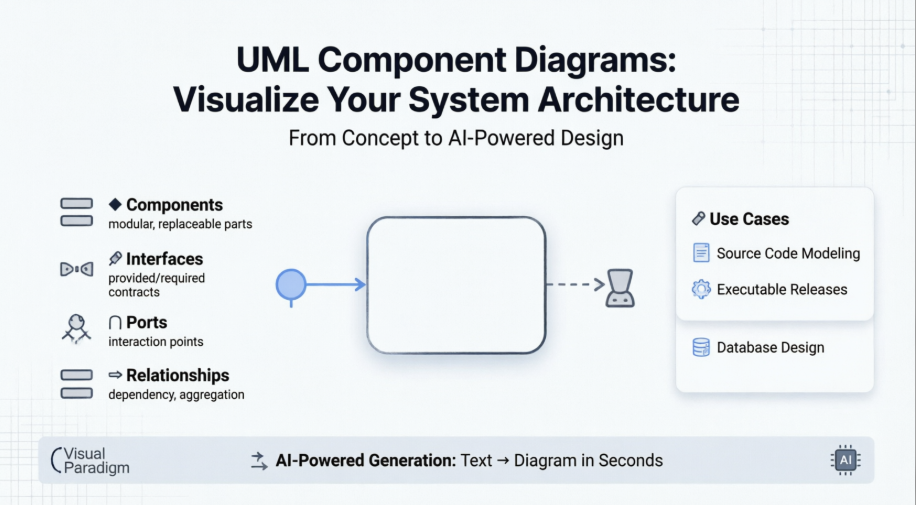
In this guide, I’ll walk you through everything I’ve learned about Component Diagrams—from foundational concepts to cutting-edge AI generation—sharing practical insights, real-world applications, and my honest experience using Visual Paradigm to bring these diagrams to life. Whether you’re a seasoned architect or just starting your modeling journey, I hope this helps you visualize your systems with more confidence and clarity.
What Is a Component Diagram?
UML Component diagrams are used in modeling the physical aspects of object-oriented systems that are used for visualizing, specifying, and documenting component-based systems and also for constructing executable systems through forward and reverse engineering. Component diagrams are essentially class diagrams that focus on a system’s components that often used to model the static implementation view of a system.
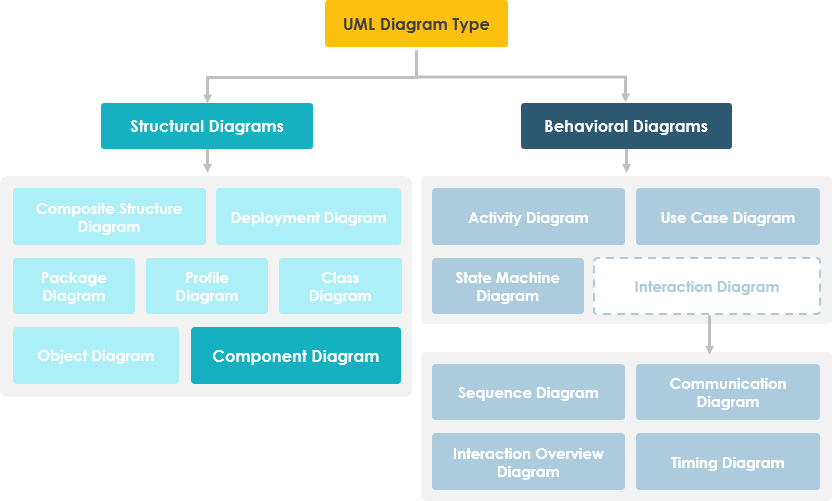
💡 My Take: Think of Component Diagrams as the “blueprint layer” between high-level architecture and low-level code. They answer: What are the major building blocks, and how do they connect?
Learn UML Faster, Better and Easier
Are you looking for a Free UML tool for learning UML faster, easier and quicker? Visual Paradigm Community Edition is a UML software that supports all UML diagram types. It is an international award-winning UML modeler, and yet it is easy-to-use, intuitive & completely free.
Component Diagram at a Glance
A component diagram breaks down the actual system under development into various high levels of functionality. Each component is responsible for one clear aim within the entire system and only interacts with other essential elements on a need-to-know basis.
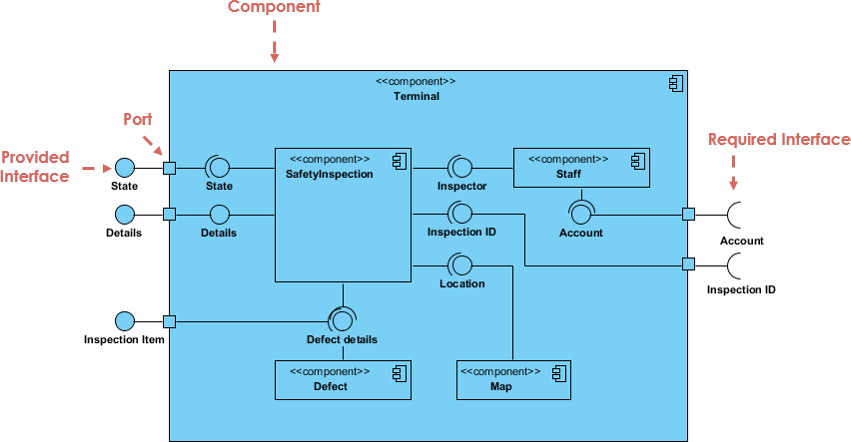
The example above shows the internal components of a larger component:
- The data (account and inspection ID) flows into the component via the port on the right-hand side and is converted into a format the internal components can use. The interfaces on the right are known as required interfaces, which represents the services the component needed in order to carry out its duty.
- The data then passes to and through several other components via various connections before it is output at the ports on the left. Those interfaces on the left are known as provided interface, which represents the services to deliver by the exhibiting component.
- It is important to note that the internal components are surrounded by a large ‘box’ which can be the overall system itself (in which case there would not be a component symbol in the top right corner) or a subsystem or component of the overall system (in this case the ‘box’ is a component itself).
🎯 Pro Tip: When reviewing a component diagram, always trace the data flow from required → internal processing → provided interfaces. This reveals the component’s “contract” with the rest of the system.
Basic Concepts of Component Diagram
A component represents a modular part of a system that encapsulates its contents and whose manifestation is replaceable within its environment. In UML 2, a component is drawn as a rectangle with optional compartments stacked vertically. A high-level, abstracted view of a component in UML 2 can be modeled as:
- A rectangle with the component’s name
- A rectangle with the component icon
- A rectangle with the stereotype text and/or icon

Architect Your Modular Systems with AI
Component diagrams visualize the modular parts and physical manifestation of your system. Using Visual Paradigm’s AI Chatbot, you can instantly brainstorm system architectures, identify provided/required interfaces, and generate initial component diagrams through a simple conversational interface.
NOW AVAILABLE: AI Chatbot: Your Design Partner
Simply describe your modules, microservices, or database structures to the chatbot. It will help you define:
- Modular Boundaries: Identify which parts of your system should be encapsulated as components.
- Dependency Mapping: Visualize how different executables and libraries interact within your release.
Learn more about our AI-driven modeling ecosystem:
AI Component Guide All AI Tools
🤖 My AI Experience: I tested the chatbot with a prompt like “Show me components for an e-commerce checkout flow”. Within seconds, it generated a clean diagram with Payment Service, Inventory Manager, and Notification components—all with proper interfaces. Huge time-saver for initial brainstorming!
Interface
In the example below shows two type of component interfaces:
Provided interface symbols with a complete circle at their end represent an interface that the component provides – this “lollipop” symbol is shorthand for a realization relationship of an interface classifier.
Required Interface symbols with only a half circle at their end (a.k.a. sockets) represent an interface that the component requires (in both cases, the interface’s name is placed near the interface symbol itself).
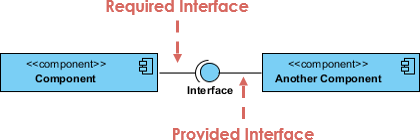
Component Diagram Example – Using Interface (Order System)
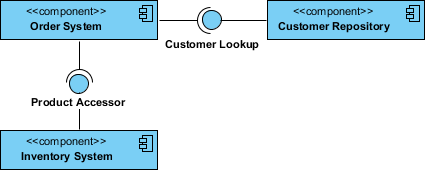
🔗 Interface Insight: The lollipop/socket notation isn’t just visual flair—it explicitly documents who depends on whom. This becomes invaluable during refactoring or microservices decomposition.
Subsystems
The subsystem classifier is a specialized version of a component classifier. Because of this, the subsystem notation element inherits all the same rules as the component notation element. The only difference is that a subsystem notation element has the keyword of subsystem instead of component.
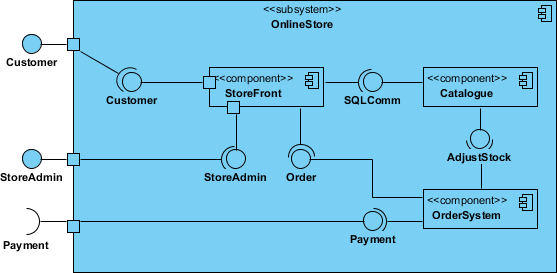
Port
Ports are represented using a square along the edge of the system or a component. A port is often used to help expose required and provided interfaces of a component.
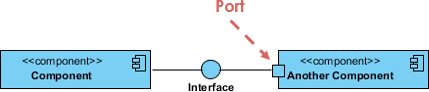
🚪 Port Practicality: Ports act like “API endpoints” for your components. When documenting microservices, I always use ports to clarify which interfaces are externally accessible vs. internal-only.
Relationships
Graphically, a component diagram is a collection of vertices and arcs and commonly contain components, interfaces and dependency, aggregation, constraint, generalization, association, and realization relationships. It may also contain notes and constraints.
| Relationships | Notation |
|---|---|
Association:
|
 |
Composition:
|
 |
Aggregation
|
 |
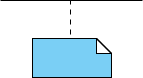
Constraint
|
 |
Dependency
|
 |
Links:
|
 |
🧩 Relationship Reality Check: In practice, I use Dependency arrows 80% of the time. Save Composition/Aggregation for when you truly need to model lifecycle ownership—it keeps diagrams cleaner.
Modeling Source Code
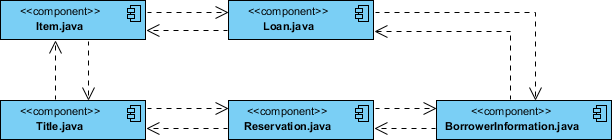
- Either by forward or reverse engineering, identify the set of source code files of interest and model them as components stereotyped as files.
- For larger systems, use packages to show groups of source code files.
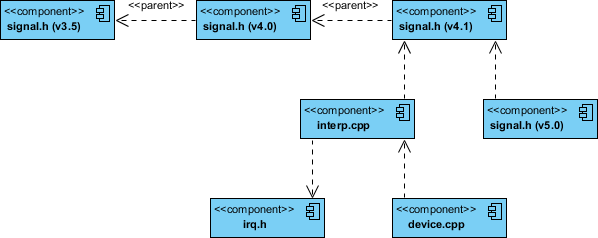
- Consider exposing a tagged value indicating such information as the version number of the source code file, its author, and the date it was last changed. Use tools to manage the value of this tag.
- Model the compilation dependencies among these files using dependencies. Again, use tools to help generate and manage these dependencies.
Component Example – Java Source Code
Component Diagram Example – C++ Code with versioning
📦 Source Code Tip: When reverse-engineering legacy code, I start with high-level component groupings first, then drill down. Trying to model every file upfront leads to diagram overload.
Modeling an Executable Release
- Identify the set of components you’d like to model. Typically, this will involve some or all the components that live on one node, or the distribution of these sets of components across all the nodes in the system.
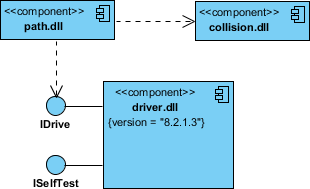
- Consider the stereotype of each component in this set. For most systems, you’ll find a small number of different kinds of components (such as executables, libraries, tables, files, and documents). You can use the UML’s extensibility mechanisms to provide visual cues(clues) for these stereotypes.
- For each component in this set, consider its relationship to its neighbors. Most often, this will involve interfaces that are exported (realized) by certain components and then imported (used) by others. If you want to expose the seams in your system, model these interfaces explicitly. If you want your model at a higher level of abstraction, elide these relationships by showing only dependencies among the components.
Modeling a Physical Database
- Identify the classes in your model that represent your logical database schema.
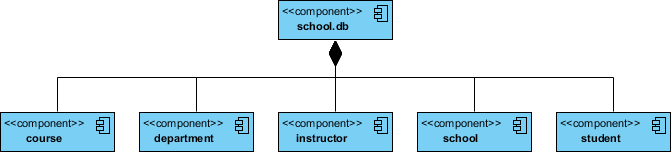
- Select a strategy for mapping these classes to tables. You will also want to consider the physical distribution of your databases. Your mapping strategy will be affected by the location in which you want your data to live on your deployed system.
- To visualize, specify, construct, and document your mapping, create a component diagram that contains components stereotyped as tables.
- Where possible, use tools to help you transform your logical design into a physical design.
🗄️ Database Modeling Note: I use component diagrams alongside ERDs—not instead of them. Components show how services access data, while ERDs show how data relates internally.
Try to Draw UML Component Diagram Now
You’ve learned what a Component Diagram is and how to draw a Component Diagram. It’s time to draw a Component Diagram of your own. Get Visual Paradigm Community Edition, a free UML software, and create your own Component Diagram with the free Component Diagram tool. It’s easy-to-use and intuitive.
Related Links
New Release: Generate UML Component Diagrams with AI in Visual Paradigm
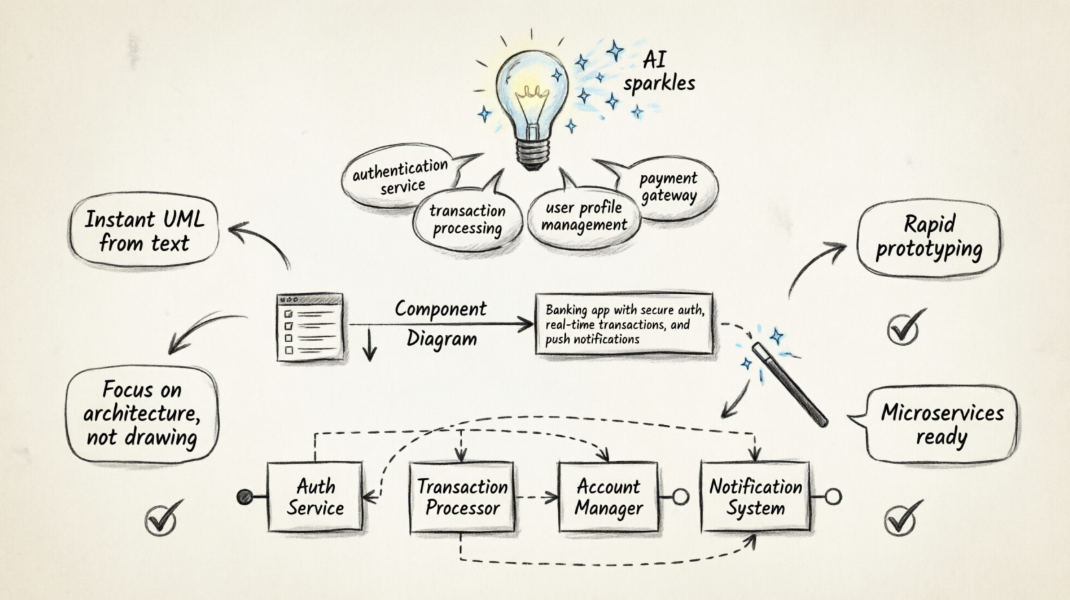
We are excited to announce a significant update to Visual Paradigm Desktop. To further empower software architects and developers, we have integrated advanced generative capabilities into our modeling environment. You can now use our AI component diagram generator to transform textual descriptions into structured UML models instantly.
As systems grow in complexity, visualizing the modular organization of your software becomes critical. This new AI UML tool is designed to reduce the manual effort of drawing components, interfaces, and dependencies, allowing you to focus on high-level design and architectural integrity.
How to Use the AI UML Generator
The process of creating a component diagram with AI is seamless and integrated directly into your existing workflow. Follow these simple steps to get started:
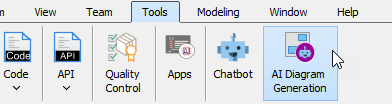
- Navigate to the Tools menu and select AI Diagram Generation. This will open the AI Diagram Generation dialog box.
- From the dropdown menu, select Component Diagram as your desired diagram type.
- Enter your topic or prompt in the text field. For example: “Generate a Component Diagram for a banking application highlighting authentication service, transaction processing, account management, and notification systems.”
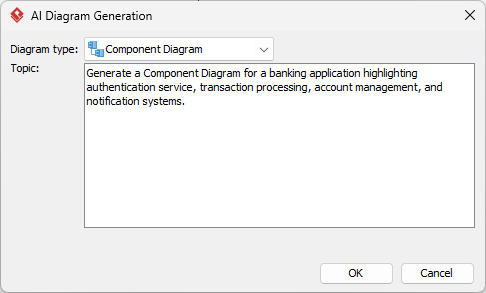
- Click OK.
Within seconds, our AI diagram generator will produce a comprehensive visual representation of your system. Once the diagram is generated, you have full flexibility to revise the elements, refine the layout, and continue your modeling process using Visual Paradigm’s robust suite of editing tools.
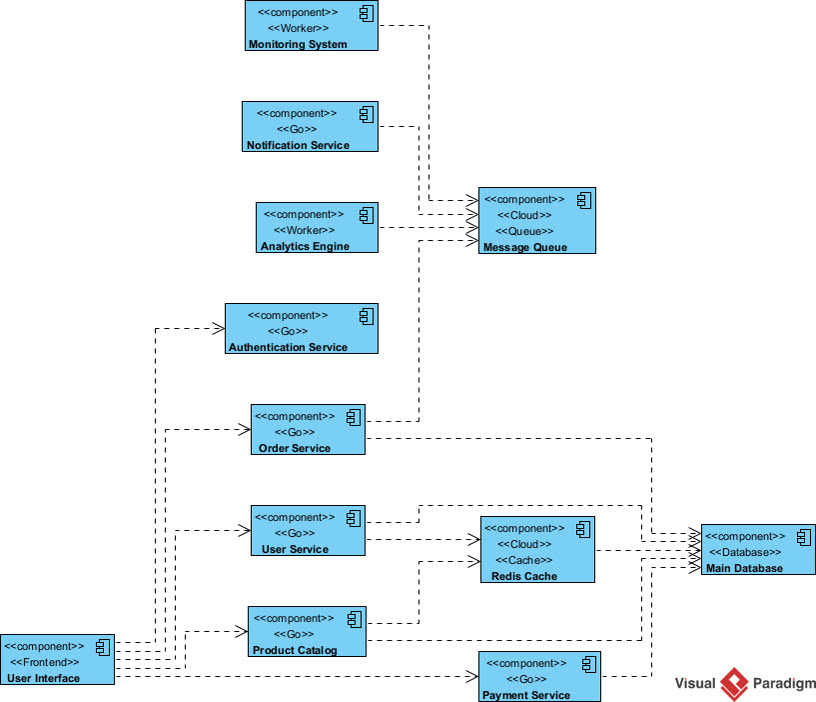
Why Use an AI Component Diagram Generator?
Efficiency is the core of modern development. By utilizing an AI UML generator, you can quickly prototype system architectures during brainstorming sessions or initial requirements gathering. This tool ensures that your team stays agile, moving from concept to visualization faster than ever before.
Whether you are documenting a legacy system or planning a new microservices architecture, this feature provides a solid foundation for your technical documentation.
Explore the Feature
To learn more about how our artificial intelligence integration works and see more examples of what you can build, visit our official AI Diagram Generation landing page.
Ready to try it yourself? Download the latest update or launch your application to experience the best AI UML tool on the market.
My Hands-On Review: AI-Powered Component Diagrams
Yes, the Visual Paradigm Component Diagram feature now supports AI-powered generation and refinement. You can use an AI Chatbot or the AI Diagram Generator to translate plain text descriptions into professional UML or C4 component diagrams instantly. [1, 2, 3, 4]
Visual Paradigm AI x C4 Component Diagram – YouTube
UML Component Diagram – AI Chatbot
Key AI Features for Component Diagrams
- Instant Text-to-Diagram: Describe your system’s architecture (e.g., “a banking application with authentication and transaction services”) and the AI will identify components, interfaces, and connectors to build a structured diagram.
- Conversational Editing: Instead of manual dragging, you can command the AI to “add a database component,” “connect the API gateway to the user service,” or “rename this interface”.
- Support for Multiple Standards: You can generate both standard UML Component Diagrams and C4 Component Diagrams using the same AI assistant.
- Seamless Desktop Integration: Diagrams generated in the web-based chatbot can be imported directly into Visual Paradigm Desktop for advanced modeling, versioning, and code engineering.
- AI Knowledge Management: Through OpenDocs, you can use AI to manage rich documentation that includes automatically generated component diagrams for modular system visibility. [5, 6, 7, 8, 9, 10, 11, 12]
How to Access the AI Generator
- In Desktop: Navigate to the Tools menu and select AI Diagram Generation.
- In VP Online: Click the Create with AI button in your workspace and choose the component diagram tool.
- Via Chatbot: Visit the Visual Paradigm AI Chatbot to start modeling through a conversational interface. [5, 7, 8, 13, 14]
✨ My Verdict on AI Generation: The AI won’t replace thoughtful architecture—but it dramatically accelerates the “blank canvas” problem. I now use it for:
- Rapid prototyping in discovery workshops
- Generating first drafts for documentation
- Exploring alternative component boundaries
Just remember: always review and refine the output. AI suggests; architects decide.
Conclusion: Component Diagrams Are More Relevant Than Ever
After diving deep into Component Diagrams—and testing the latest AI-powered tooling—I’m convinced they’re not just a “nice-to-have” modeling artifact. In an era of microservices, cloud-native architectures, and distributed systems, Component Diagrams provide the clarity teams desperately need to:
✅ Understand system boundaries and responsibilities
✅ Document integration points and dependencies
✅ Onboard new engineers faster
✅ Plan refactoring or migration efforts
✅ Communicate architecture to non-technical stakeholders
The addition of AI generation doesn’t diminish the value of learning the fundamentals—it amplifies it. When you understand what makes a good component diagram (clear interfaces, meaningful boundaries, accurate dependencies), you can guide AI tools to produce higher-quality outputs and spot when adjustments are needed.
My recommendation? Start small. Pick one subsystem you’re working on, sketch its components (manually or with AI), and share it with your team. Iterate based on feedback. Over time, you’ll build a living architectural artifact that evolves with your system.
And if you’re ready to try it yourself? The free Visual Paradigm Community Edition is a fantastic starting point. Pair it with the AI chatbot for rapid experimentation, and you’ve got a powerful toolkit for modern software design.
Happy modeling! 🎨🔧
References
- What is Unified Modeling Language?: Comprehensive introduction to UML fundamentals, diagram types, and modeling best practices from Visual Paradigm’s official guide.
- Professional UML tool: Overview of Visual Paradigm’s professional UML modeling capabilities, including collaboration features, code engineering, and enterprise integrations.
- Visual Paradigm AI x C4 Component Diagram – YouTube: Video tutorial demonstrating how to generate C4-style component diagrams using Visual Paradigm’s AI assistant.
- UML Component Diagram – AI Chatbot: Interactive AI chatbot interface for generating UML Component Diagrams from natural language prompts.
- AI Diagram Generation Feature Page: Official landing page detailing Visual Paradigm’s AI-powered diagram generation capabilities across multiple diagram types.
- AI Component Diagram Generator Update: Release notes and feature highlights for the AI Component Diagram Generator enhancement.
- AI Component Diagram Generator Update : Additional documentation on AI-powered component modeling workflows and integration options.
- Visual Paradigm AI Chatbot: Turn Ideas into Diagrams: Blog post exploring use cases and benefits of the AI Chatbot for rapid diagram prototyping.
- AI Component Diagram Example: Ride-Sharing System: Live example of an AI-generated component diagram for a ride-sharing application architecture.
- Guide to Powered UML Diagram Generation: Step-by-step guide for leveraging AI to accelerate UML diagram creation (Vietnamese language version).
- AI Diagram Generation Demo Video: Screen-recorded demonstration of generating and refining component diagrams using Visual Paradigm’s AI tools.
- AI Component Diagram Generator + OpenDocs Update: Announcement of integration between AI diagram generation and OpenDocs for automated architectural documentation.
- AI-Powered Modeling Workflow Demo: Video walkthrough of end-to-end AI-assisted component modeling from prompt to polished diagram.
- Advanced AI Diagram Techniques: Tutorial covering advanced prompting strategies and refinement techniques for AI-generated UML diagrams.
This post is also available in Deutsch, Español, فارسی, Français, English, Bahasa Indonesia, 日本語, Polski, Portuguese, Ру́сский, Việt Nam, 简体中文 and 繁體中文.