
1. Introduction & Problem Statement
Traditional UML modeling is powerful but slow. Designers spend hours wrestling with syntax, memorizing diagram-specific notations, and manually converting a verbal idea into a precise, error-free model. In fast-moving software teams, this friction delays design reviews and discourages non-engineers from participating.
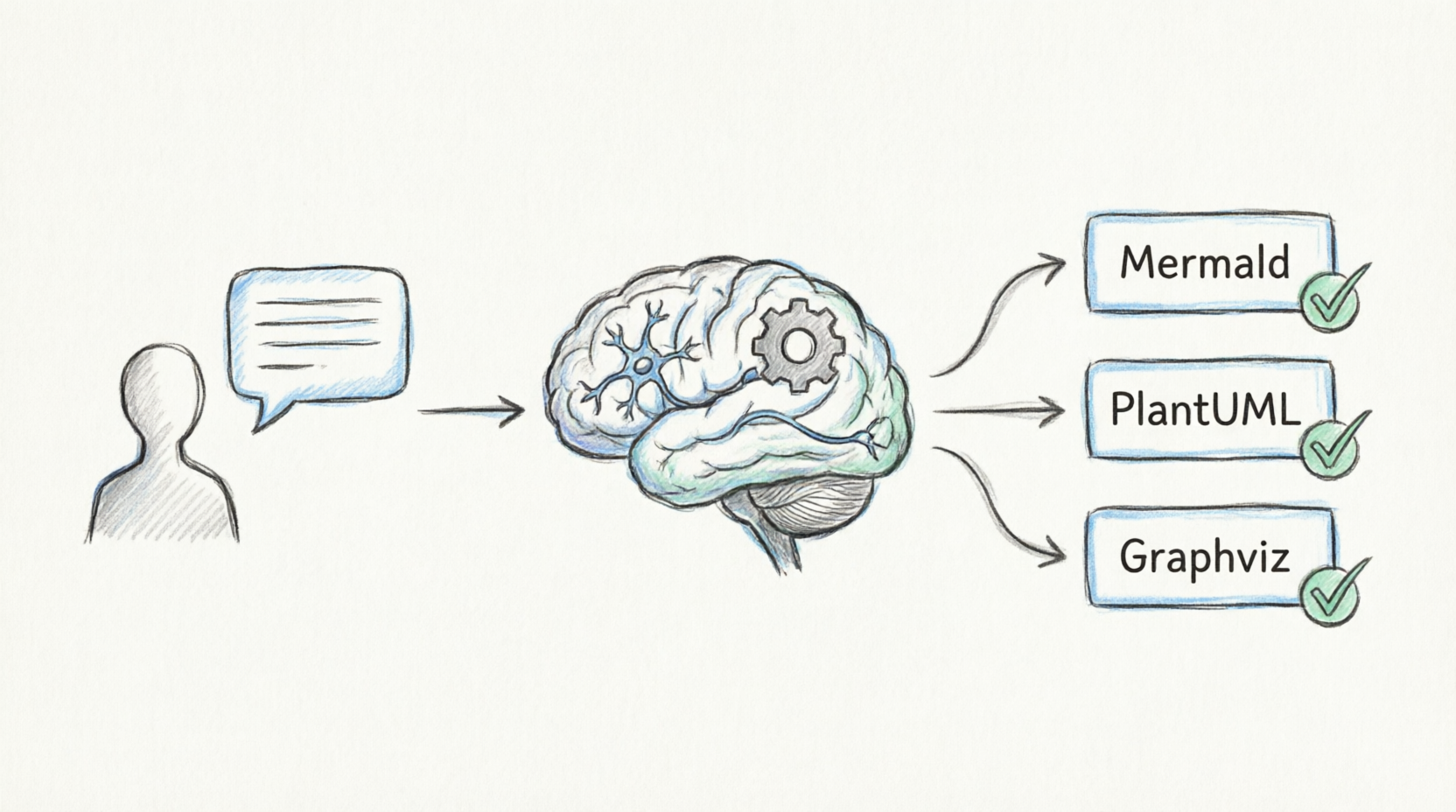
The Visual Paradigm AI Chatbot addresses this by letting you describe a system in plain language and instantly receiving production-quality diagram code — in Mermaid, PlantUML, or Graphviz — that is validated for correctness before it reaches you.
2. Key Concepts
| Concept | What It Means |
|---|---|
| Natural Language → Diagram | Describe your system (“a login flow with a timeout branch”) and the assistant generates diagram code automatically. |
| Multi-Format Support | One description can be rendered as Mermaid (fast text diagrams), PlantUML (full UML/SysML/C4), or Graphviz (network/state graphs). |
| Image Analysis | Paste a screenshot or sketch (even a hand-drawn whiteboard photo) — the assistant reads its contents and converts textual/structural takeaways into modeling input. |
| Automatic Validation | Generated diagram code is syntax-checked before display, eliminating “broken diagram” round-trips. |
| Infographic Frameworks | Beyond UML, it produces SWOT, PESTLE, McKinsey 7S, mindmaps, and ECharts-based charts as structured JSON. |
| Iterative Refinement | You follow up (“make it async”, “add swimlanes”) and the assistant regenerates — a living, collaborative design loop. |
3. How It Works — End-to-End Workflow
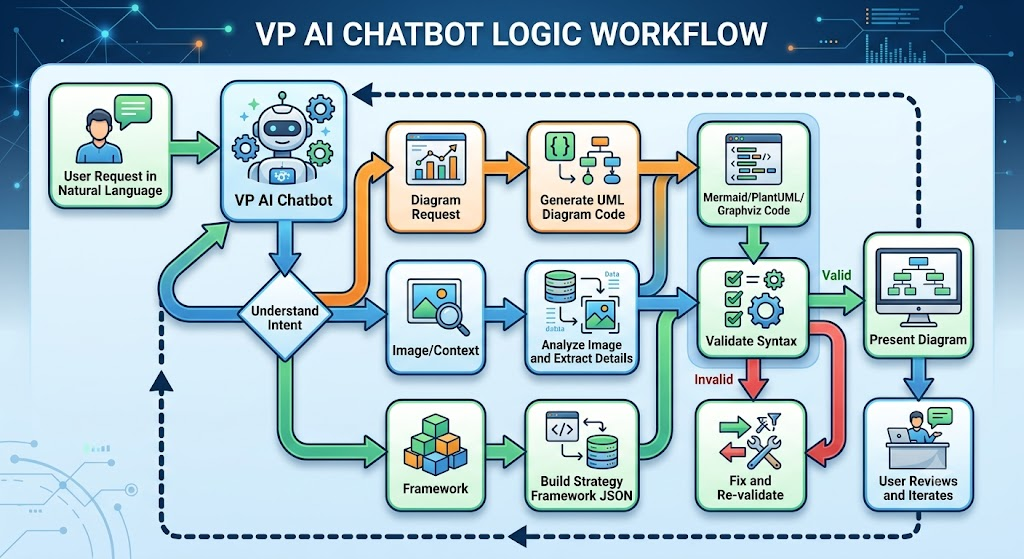
Diagram as Code using Mermaid

flowchart LR
    A[User Request in Natural Language] --> B[VP AI Chatbot]
    B --> C{Understand Intent}
    C -->|Diagram Request| D[Generate UML Diagram Code]
    C -->|Image/Context| E[Analyze Image and Extract Details]
    C -->|Framework| F[Build Strategy Framework JSON]
    D --> G[Mermaid/PlantUML/Graphviz Code]
    G --> H[Validate Syntax]
    H -->|Valid| I[Present Diagram]
    H -->|Invalid| J[Fix and Re-validate]
    J --> H
    I --> K[User Reviews and Iterates]
    K --> B
Diagram Example 1 — Sequence Diagram (generated on request)
A typical interaction where the user asks for a login flow with a timeout branch:
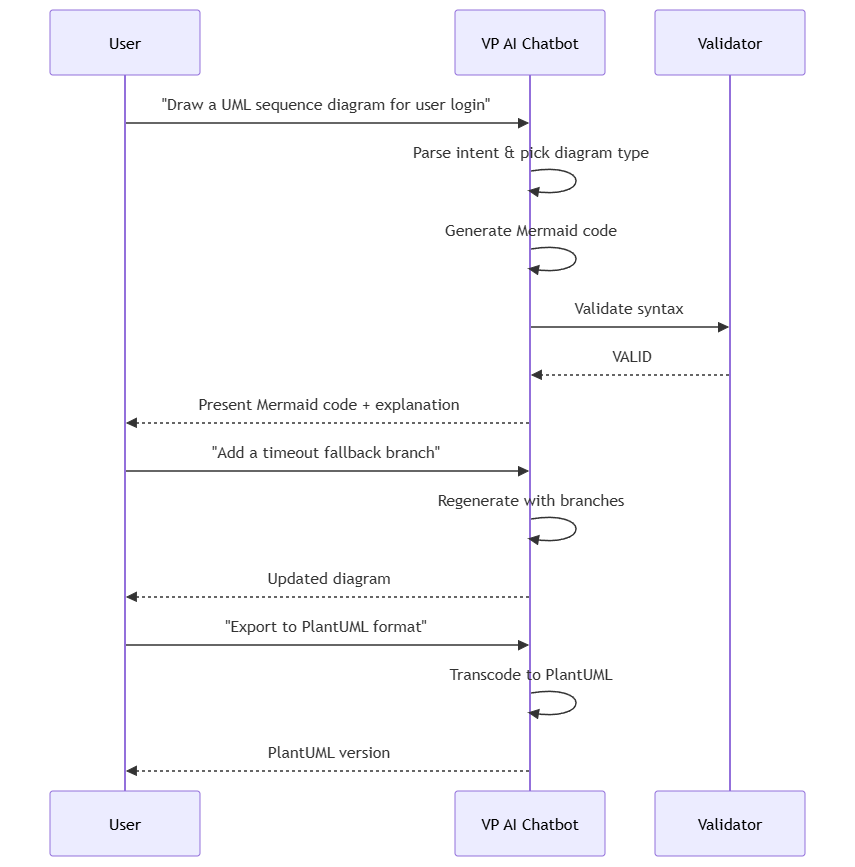
sequenceDiagram
    participant U as User
    participant AI as VP AI Chatbot
    participant V as Validator

    U->>AI: "Draw a UML sequence diagram for user login"
    AI->>AI: Parse intent & pick diagram type
    AI->>AI: Generate Mermaid code
    AI->>V: Validate syntax
    V-->>AI: VALID
    AI-->>U: Present Mermaid code + explanation
    U->>AI: "Add a timeout fallback branch"
    AI->>AI: Regenerate with branches
    AI-->>U: Updated diagram
    U->>AI: "Export to PlantUML format"
    AI->>AI: Transcode to PlantUML
    AI-->>U: PlantUML version
Diagram Example 2 — Class Diagram (domain modeling)
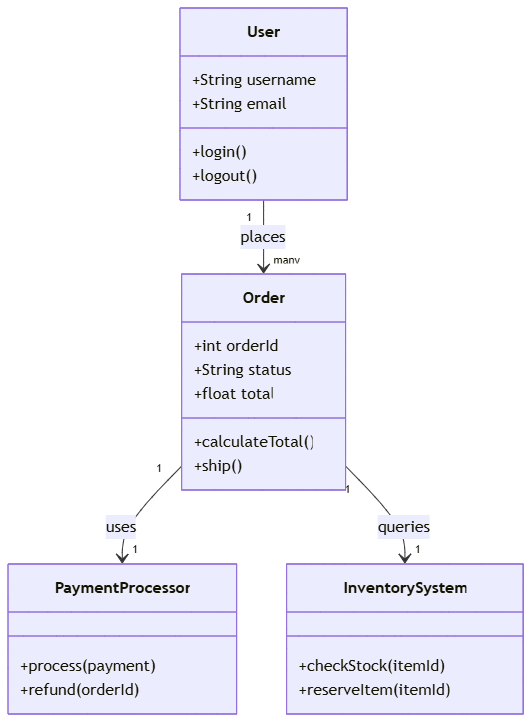
classDiagram
    class User {
        +String username
        +String email
        +login()
        +logout()
    }
    class Order {
        +int orderId
        +String status
        +float total
        +calculateTotal()
        +ship()
    }
    class PaymentProcessor {
        +process(payment)
        +refund(orderId)
    }
    class InventorySystem {
        +checkStock(itemId)
        +reserveItem(itemId)
    }
    User "1" --> "many" Order : places
    Order "1" --> "1" PaymentProcessor : uses
    Order "1" --> "1" InventorySystem : queries
Diagram Example 3 — Collaboration Across Roles
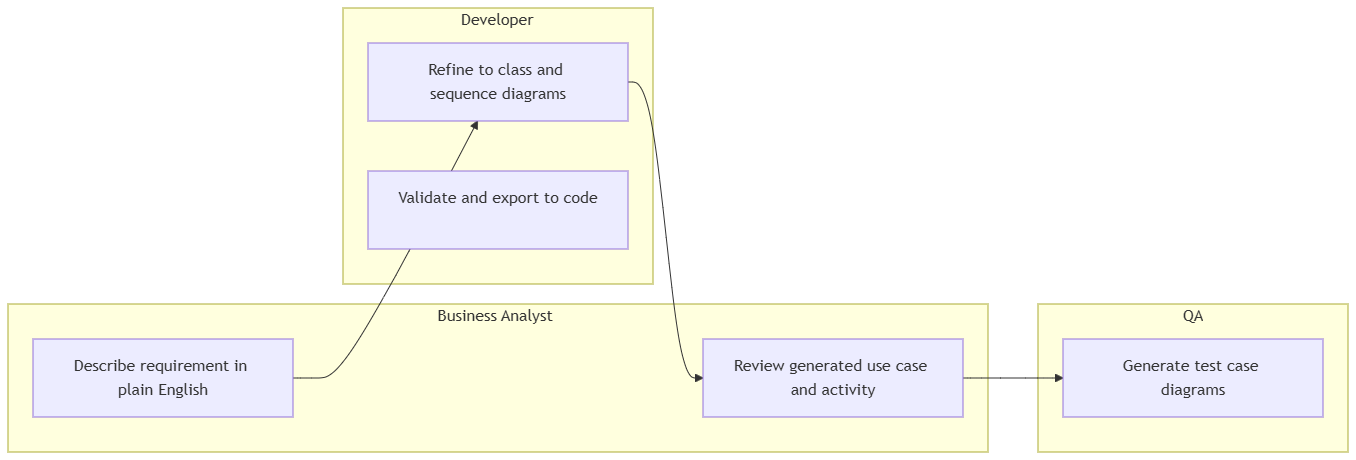
flowchart LR
    subgraph BA[Business Analyst]
        A1[Describe requirement in plain English]
        A2[Review generated use case and activity]
    end
    subgraph DEV[Developer]
        B1[Refine to class and sequence diagrams]
        B2[Validate and export to code]
    end
    subgraph QA
        C1[Generate test case diagrams]
    end
    A1 --> B1 --> A2 --> C1
4. Benefits
-
⚡ Massive speed-up — what took an hour of manual diagram drawing now takes seconds. Development cycles shrink.
-
🎓 Lower barrier to entry — non-engineers (BAs, PMs, stakeholders) can participate in modeling without learning UML syntax first.
-
✅ Error-free output — built-in validation means no more broken diagrams, mismatched connectors, or syntax rabbit holes.
-
🔄 True iteration — “natural-language diffing”: change a branch with one sentence instead of redrawing.
-
📦 Consistent house style — diagrams follow a uniform format, improving documentation quality across teams.
-
🧩 Format flexibility — share the same model as Mermaid in docs, PlantUML in formal UML specs, or Graphviz for low-level graphs.
-
🔍 Image-to-model — existing whiteboards and paper sketches become editable models, reducing re-entry effort.
5. Who Should Use It
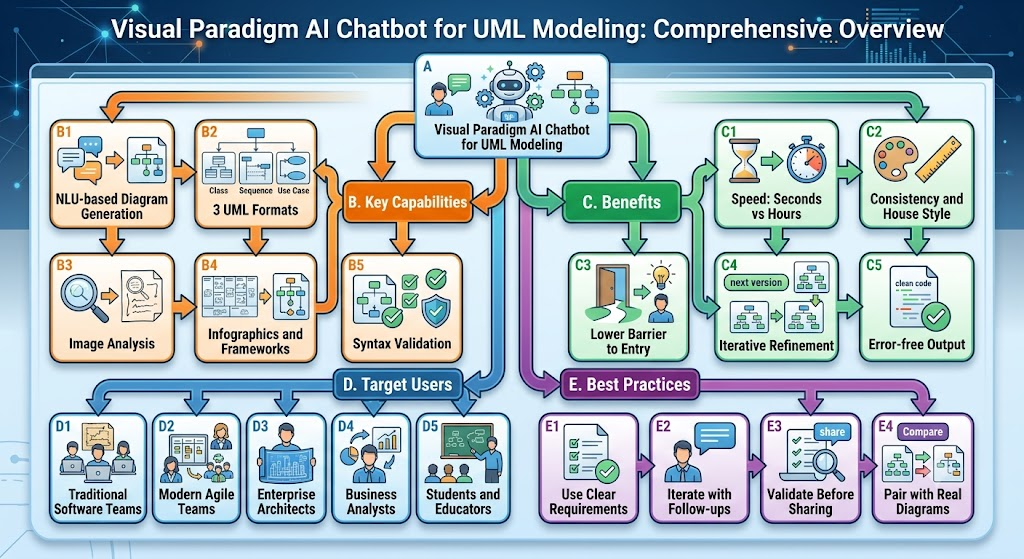
Primary audiences:
-
Enterprise Architects — rapid capability and technology landscape modeling (C4, ArchiMate, deployment views).
-
Business Analysts — turning stakeholder language into use cases, process flows, and activity diagrams.
-
Developers — class, sequence, and state diagrams that feed directly into implementation and docs.
-
QA Engineers — test-case and interaction diagrams.
-
Educators & Students — fast exploration of UML concepts without syntax friction.
6. Traditional Software Team vs Modern Agile Teams
| Dimension | Traditional (Waterfall) Team | Modern Agile Team |
|---|---|---|
| Documentation style | Big, up-front, exhaustive modeling | Just-in-time, lean “just enough” models |
| Best use of AI chatbot | Producing comprehensive upfront specs and sign-off artifacts | Generating a diagram on demand mid-iteration to resolve a design question |
| Iteration speed | Slow, formal change-control | Fast, conversational refinement (perfect fit for follow-up prompts) |
| Collaborators | Mostly dedicated architects/designers | Whole cross-functional team, including non-engineers |
| AI chatbot fit | Good — accelerates a formally documented workflow | ⭐ Excellent — maps naturally to short, iterative, collaborative loops |
Verdict: The chatbot serves both, but it’s a natural fit for modern Agile teams because its iterative, conversational nature mirrors sprint-based modeling and pair-design. Traditional teams gain the most from its ability to produce standards-compliant, validated artifacts quickly.
7. Guidelines, Tips & Tricks
flowchart TB
    T[Best Practices for UML Modeling with the AI Chatbot]
    T --> G1[Give clear, specific requirements]
    T --> G2[Iterate in small steps]
    T --> G3[Ask for validation-friendly output]
    T --> G4[Use images for ambiguous context]
    T --> G5[Choose the right format per need]
    T --> G6[Export and embed in documentation]
-
Be specific and expressive. Instead of “make a login diagram”, say “a sequence diagram for login with a timeout fallback and an account-lockout path.” Specificity = better diagrams.
-
Iterate in small steps. Ask for a first draft, then refine incrementally (“add a retry loop”, “split into two swimlanes”). Small deltas are handled far more reliably than one giant request.
-
Choose the right format. Use Mermaid for quick flowcharts/sequence diagrams in docs, PlantUML for formal UML/SysML/C4 models, and Graphviz for dense state/network graphs.
-
Exploit image analysis. If your design exists as a whiteboard photo or legacy screenshot, let the assistant read it before generating the model — this imports real context instead of guessing.
-
Leverage infographics for non-UML needs. SWOT, PESTLE, mindmaps, and charts are one prompt away when the “diagram” is actually a strategy or reporting artifact.
-
Require validation before sharing. Always request the validated, syntax-correct version so downstream tools never choke on the output.
-
Treat follow-ups as your power tool. You never redraw from scratch — you converse your way to the final model.
-
Combine with code generation. Use validated class diagrams as the blueprint to scaffold real
classdefinitions in your codebase.
8. Conclusion
The Visual Paradigm AI Chatbot turns UML modeling from a time-consuming specialist craft into a fast, collaborative, conversational activity. It removes syntax barriers, guarantees valid output, and adapts to whatever format your team already uses — while giving both heavyweight documentation teams and lean Agile teams exactly the level of rigor they need.
Bottom line: If you model software, the AI chatbot is not a toy — it’s a multiplier on your design throughput.
Related posts:
 Comprehensive Guide: From Problem Statement to Class Diagram, ERD, and Database Modeling with Visual Paradigm
 Visual Paradigm’s AI‑Powered ERD Generator
 How Visual Paradigm’s AI Diagram Generation Turns Your Ideas into Professional UML & BPMN Diagrams in Seconds
 Why Teams Are Switching to Visual Paradigm: Powerful Modeling Meets Cutting-Edge AI