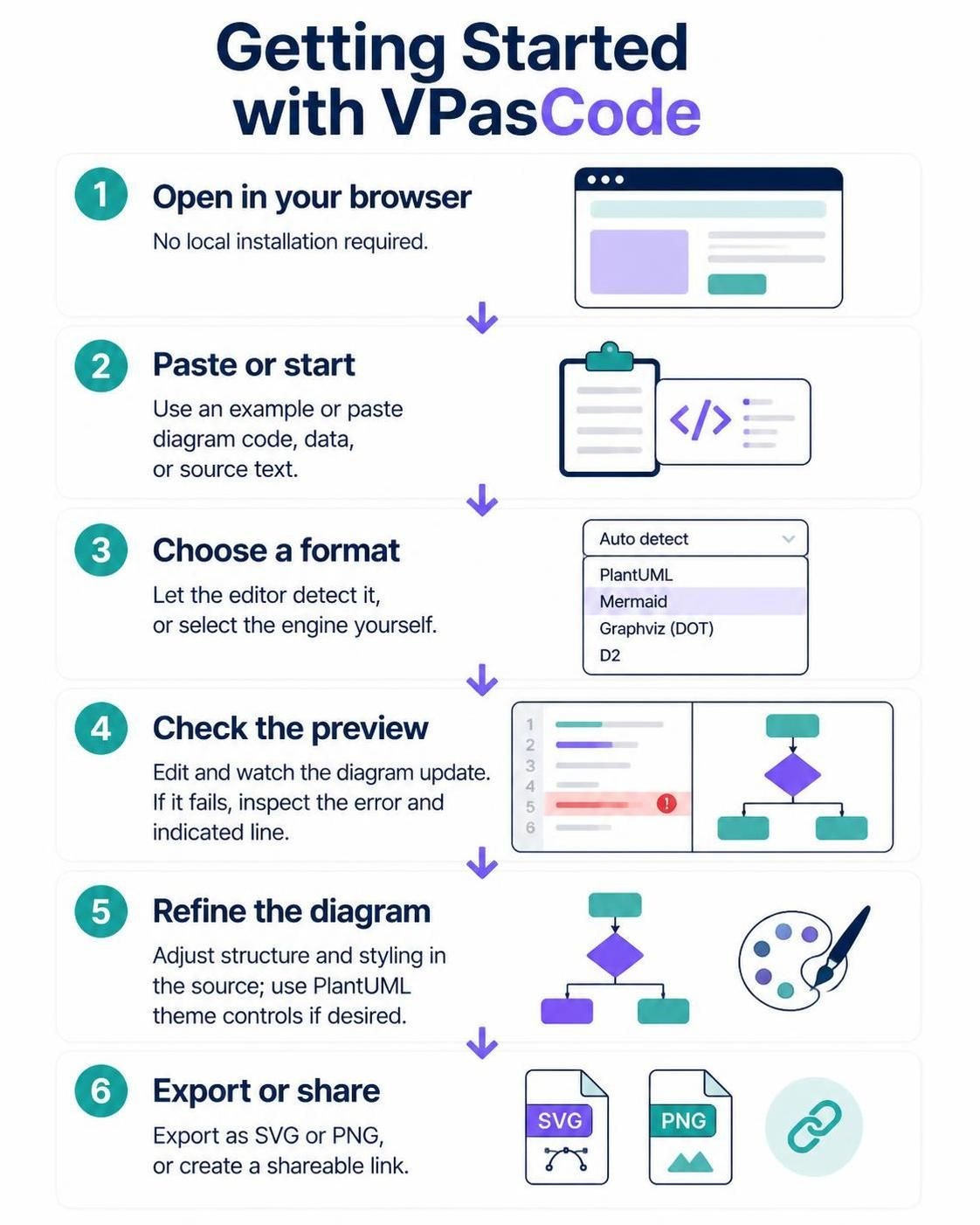
In the modern era of software architecture and system design, the ability to visualize complex data flows quickly is paramount. VPasCode (Visual Paradigm as Code) represents a paradigm shift from traditional drag-and-drop GUI modeling tools to a code-first, declarative approach. By leveraging the power of natural language and specialized markup languages, VPasCode allows developers and architects to create professional diagrams directly within their browser environment.
This tutorial will walk you through the core architecture of the VPasCode ecosystem, guiding you from initial setup to the export of production-ready assets. We will explore how to utilize the “code-as-diagram” philosophy to streamline your documentation workflow.
1. The Zero-Installation Architecture
The first defining characteristic of VPasCode is its browser-based architecture. Unlike legacy modeling tools that require heavy local installations and massive memory footprints, VPasCode operates as a lightweight client-side application. This approach offers two distinct advantages:
- Accessibility: You can start modeling immediately without configuring development environments or waiting for software updates.
- Portability: Your workspace is tied to your browser session, allowing for seamless transitions between different machines.
To begin, simply access the VPasCode editor via your preferred web browser. There is no need to download executables or manage dependencies. The editor serves as the entry point to the Visual Paradigm AI ecosystem, providing a clean slate for your modeling needs.
2. Input Methods and Source Control
Once inside the editor, the workflow diverges from traditional tools where you manually place shapes. In VPasCode, the diagram is generated from source code. This means your diagram is essentially a version-controlled text file.
There are three primary ways to initialize your project:
- Start with Examples: Use pre-built templates to understand syntax without starting from scratch.
- Paste Existing Code: Copy-paste legacy PlantUML or Mermaid code to visualize it immediately.
- Write from Scratch: Define your system elements, actors, and relationships using the specific syntax of your chosen language.
This code-centric approach integrates naturally with Git and other version control systems, allowing you to track changes to your diagrams just as you would with application code.
Example: Basic Sequence Diagram Structure
When pasting or writing code, you define the interaction flow. Below is a standard structure for a sequence diagram using PlantUML syntax:
@startuml
actor User
participant "System" as Sys

User -> Sys: Request Data
activate Sys
Sys -> Sys: Process Request
Sys --> User: Return Data
deactivate Sys
@enduml
3. Engine Detection and Syntax Selection
One of the most powerful features of the VPasCode editor is its intelligent format detection. When you input text, the editor attempts to parse the syntax automatically. However, the ecosystem supports multiple engines, each with unique strengths:
- PlantUML: Excellent for UML diagrams (Class, Sequence, Use Case) and highly customizable via themes.
- Mermaid: Ideal for flowcharts, sequence diagrams, and GitGraphs, with a simpler syntax.
- Graphviz (DOT): Best for graph-based layouts where mathematical layout algorithms are preferred.
If the automatic detection fails to render your diagram, you can manually select the engine in the workspace settings. This flexibility ensures that regardless of the source format you are converting, VPasCode can render it.
4. Real-Time Preview and Debugging
The core of the VPasCode experience is the “Live Preview” capability. The editor splits the screen into two panes: the code editor on the left and the rendered diagram on the right.
This setup facilitates an iterative design process:
- Immediate Feedback: As you type, the diagram updates in real-time.
- Error Highlighting: If a syntax error occurs (e.g., a missing bracket or invalid actor definition), the editor highlights the specific line number in red.
- Error Messages: Clicking on the highlighted line provides a descriptive error message, allowing you to debug the diagram logic instantly without compiling or exporting.
5. Refinement and Styling
While the default rendering is functional, professional diagrams often require specific styling to match corporate standards or improve readability. VPasCode allows you to refine the visual output through code-based styling.
For PlantUML users, the system offers extensive theme controls. You can adjust colors, borders, and layout algorithms without manually dragging boxes. For example, you can define a custom skinparam to change the color of all actors or modify the background of the entire diagram.
skinparam backgroundColor #EEEBDC
skinparam packageStyle rectangle
skinparam componentStyle rectangle
6. Export and Collaboration
Once your diagram is finalized, VPasCode provides robust export options suitable for various deliverables:
- SVG (Scalable Vector Graphics): The preferred format for high-resolution printing and web usage. SVGs are resolution-independent, meaning they can be scaled infinitely without losing quality.
- PNG (Portable Network Graphics): Ideal for embedding in documents, emails, or presentations where vector support is limited.
- Shareable Links: Instead of sending large files, you can generate a shareable link. This allows colleagues to view or even edit the diagram in real-time, facilitating collaborative review and design sessions.
By mastering these six steps, you transition from static diagramming to a dynamic, code-driven workflow that integrates seamlessly with modern development practices.