
Introduction
In the complex world of software engineering and business analysis, clarity is king. Understanding how data moves through a system—where it originates, how it is processed, where it is stored, and where it exits—is fundamental to building robust, efficient, and secure applications. For decades, Data Flow Diagrams (DFDs) have been the gold standard for visualizing these information flows. However, creating them manually has often been a time-consuming, tedious process requiring specialized diagramming skills.
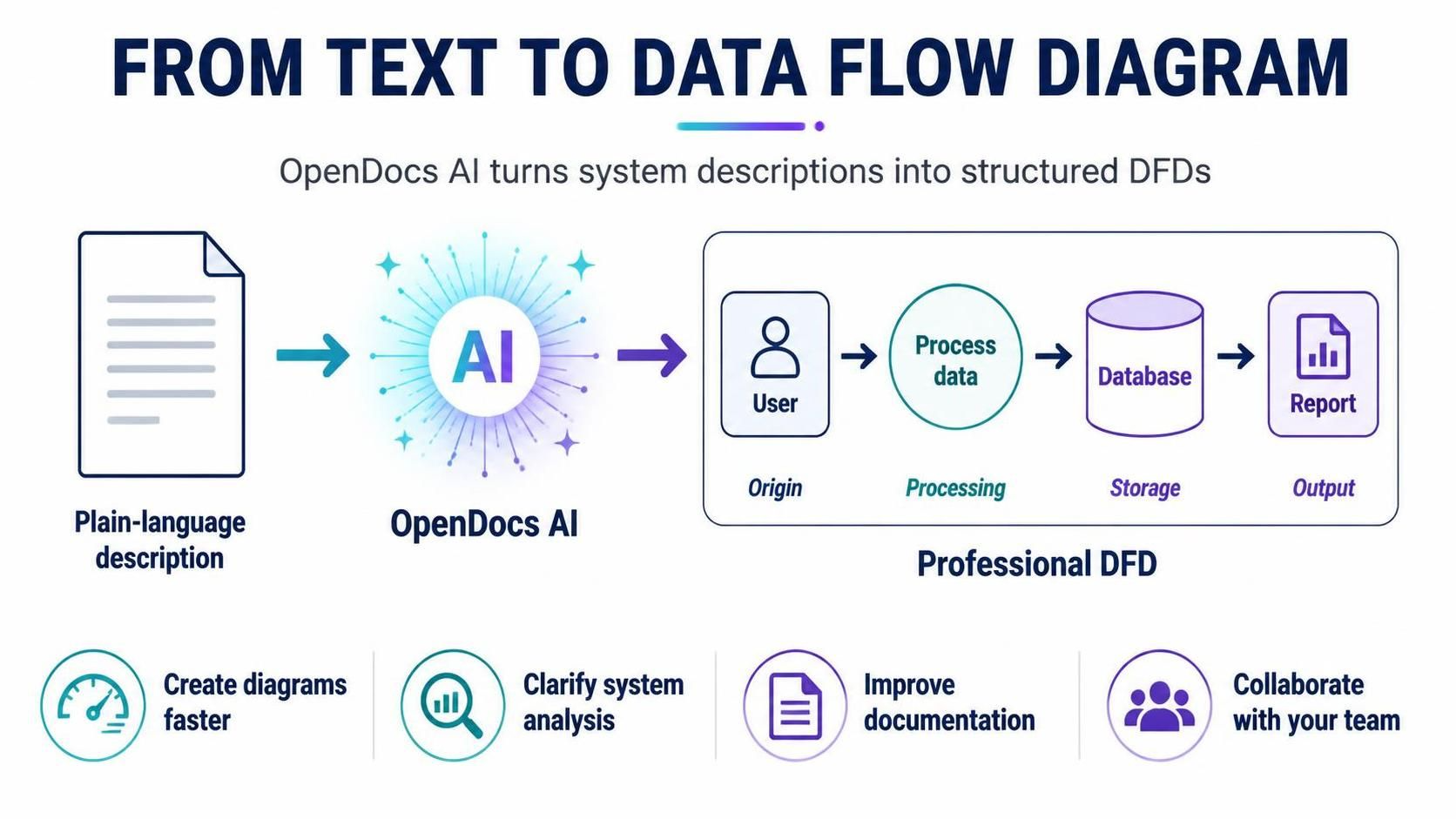
Enter OpenDocs, Visual Paradigm’s powerful AI-powered knowledge management tool. With its latest update, OpenDocs now fully supports Data Flow Diagram (DFD) creation, leveraging artificial intelligence to transform simple text descriptions into professional, structured diagrams instantly. This guide explores how you can leverage this new capability to streamline your system analysis, enhance documentation, and collaborate more effectively with your team.
Key Concepts: Understanding Data Flow Diagrams
Before diving into the tooling, it is essential to understand what a Data Flow Diagram is and why it matters.
What is a DFD?
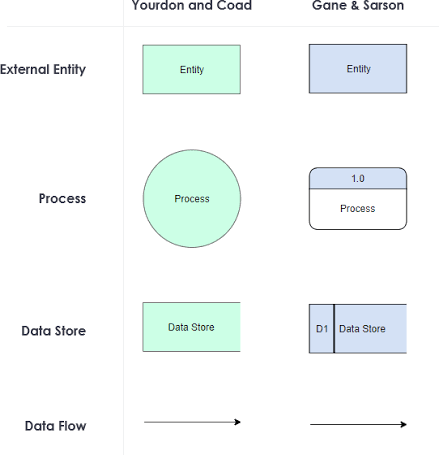
A Data Flow Diagram is a graphical representation of the “flow” of data through an information system. Unlike flowcharts, which focus on the control flow or sequence of operations, DFDs focus on the movement of data. They do not show decision logic or loops but rather highlight:
-
Processes: Transformations of data.
-
Data Stores: Where data rests.
-
External Entities: Sources or destinations of data outside the system.
-
Data Flows: The paths along which data moves.
Standard Notations Supported by OpenDocs
OpenDocs supports three major DFD notations, allowing you to choose the style that best fits your organizational standards or personal preference:
-
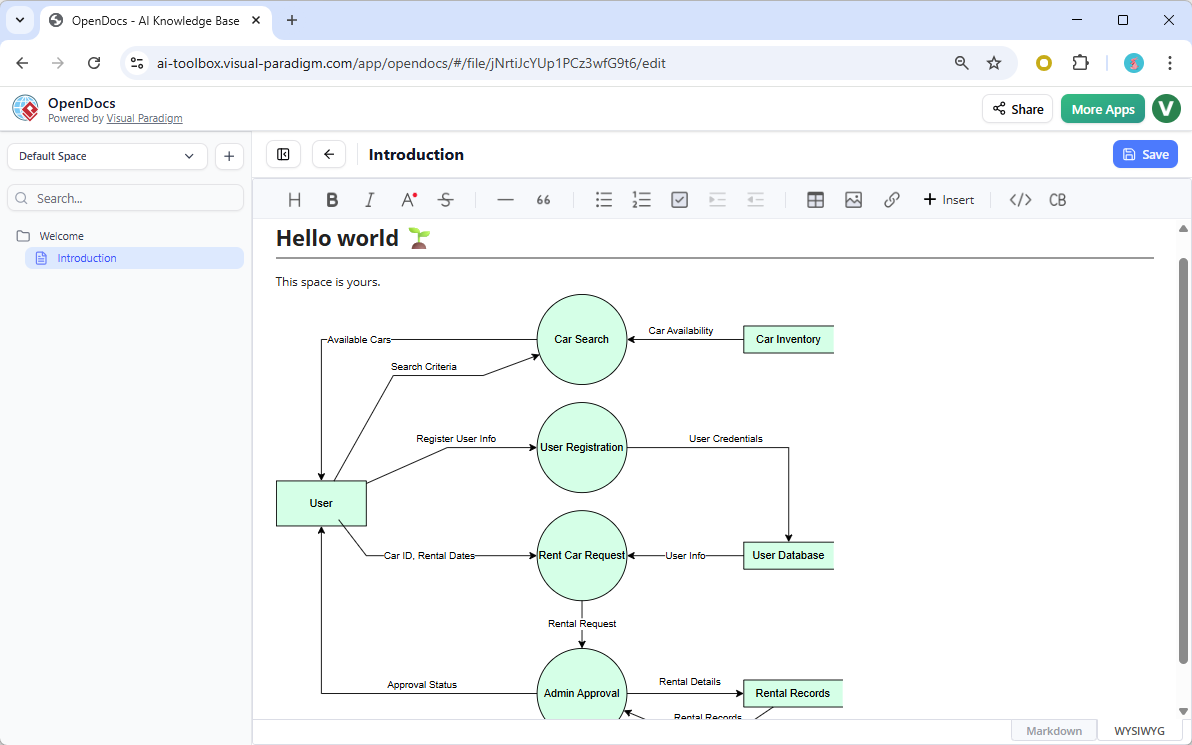
Yourdon DeMarco DFD: Uses circles for processes and open-ended rectangles for data stores. This is one of the most widely recognized notations in traditional systems analysis.
-
Yourdon & Coad DFD: Similar to Yourdon DeMarco but often used in object-oriented analysis contexts. It uses rounded rectangles for processes.
-
Gane Sarson DFD: Uses squares with rounded corners for processes and parallel lines for data stores. This notation is popular in structured systems analysis and design.
AI-Powered DFD Generation: How It Works
The standout feature of OpenDocs is its AI Data Flow Diagram generator. This tool eliminates the blank-canvas anxiety and manual dragging-and-dropping associated with traditional diagramming tools.
From Text to Diagram
The process is intuitive and natural. You simply describe your system in plain English. For example:
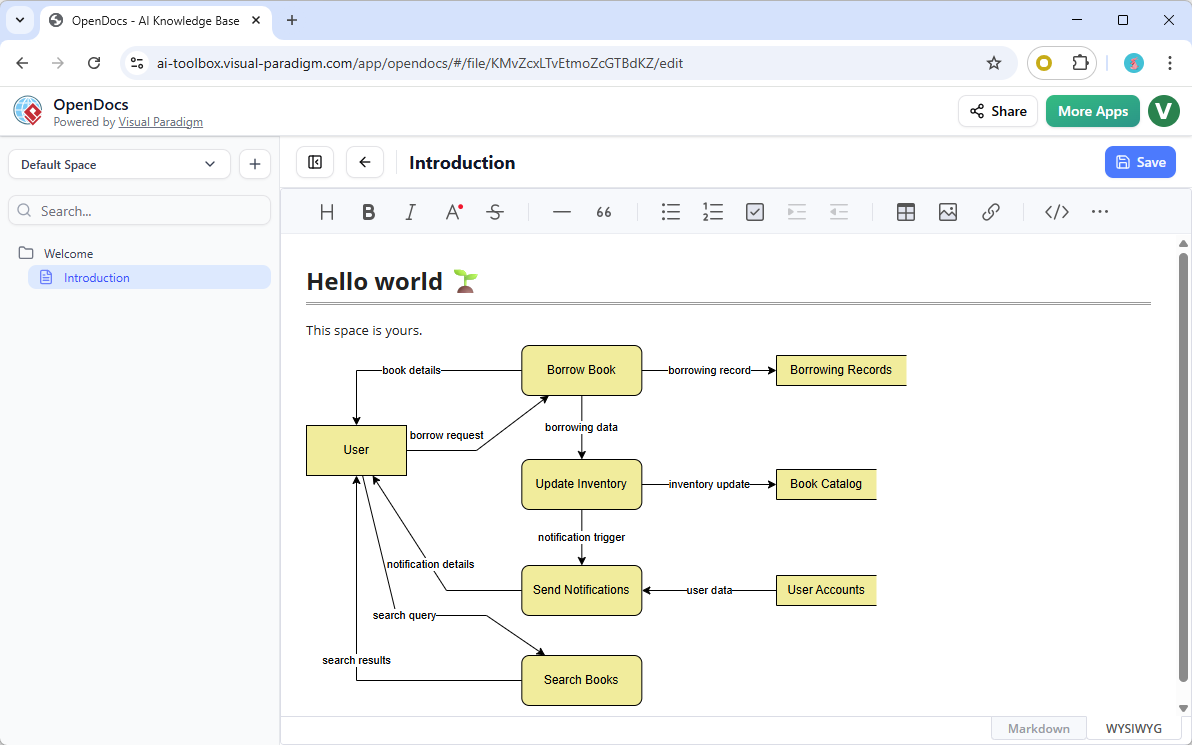
“Create a DFD for an online library system where users search books, borrow them, and the system updates inventory and sends notifications.”

The AI interprets this prompt, identifies the key components (Users, Search Process, Borrow Process, Inventory Data Store, Notification System), and generates a complete, well-structured DFD. This includes correctly labeled processes, data flows, external entities, and data stores, adhering to the chosen notation style.
Refinement and Editing
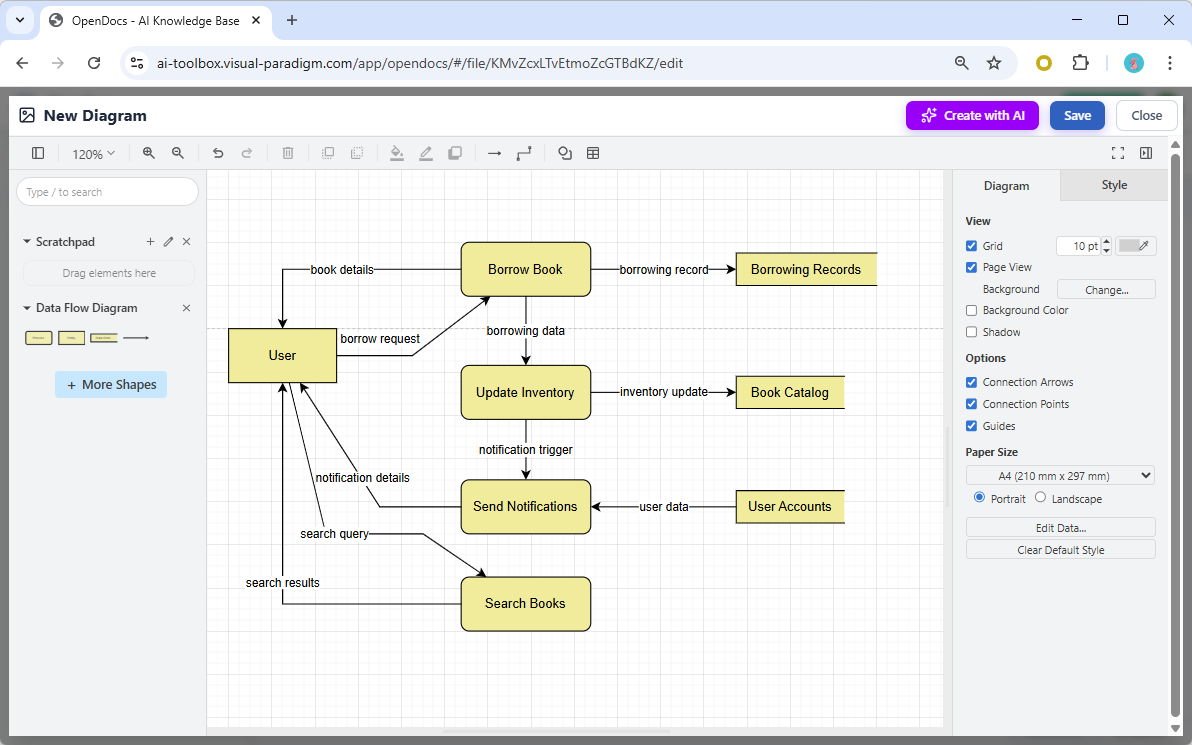
While the AI provides a strong starting point, OpenDocs ensures you retain full control. The generated diagram is not a static image but a live, editable component. You can:
-
Adjust the layout for better readability.
-
Add or remove elements as requirements evolve.
-
Change notation styles if needed.
-
Embed the diagram directly into your documentation pages.
Practical Examples and Use Cases
Example 1: E-Commerce Order Processing
Prompt: “Generate a Gane Sarson DFD for an e-commerce checkout process. Customers enter payment details, the system validates with a payment gateway, updates the order database, and sends a confirmation email.”
Result: The AI creates a diagram showing the Customer as an external entity, the Payment Validation and Order Update as processes, the Order Database as a data store, and the Email Service as another external entity or process, connected by clear data flows like “Payment Info,” “Validation Result,” and “Confirmation.”
Example 2: Healthcare Patient Record System
Prompt: “Create a Yourdon DeMarco DFD for a hospital patient intake system. Nurses input patient vitals, doctors access records, and the system stores data in a central patient repository.”
Result: A clear visualization of how sensitive patient data flows from entry (Nurse) to storage (Patient Repository) and retrieval (Doctor), highlighting critical data touchpoints for security and compliance reviews.
How to Use Data Flow Diagrams in OpenDocs
Integrating DFDs into your workflow is seamless thanks to OpenDocs’ flexible component architecture.
-
Embed a Diagram Component: Insert live, editable DFDs directly into your project documentation, requirement specs, or wiki pages. This keeps your visual models contextually linked to your textual explanations.
-
Create a Component Page: Build standalone diagram pages focused entirely on your DFD. This is ideal for detailed system analysis, architectural reviews, or sharing specific views with stakeholders who need a high-level overview without the surrounding text.
All diagram types support full editing, customization, and real-time updates across your collaborative Spaces, ensuring everyone is always looking at the most current version of the system model.
Why Choose OpenDocs for Your DFD Needs?
-
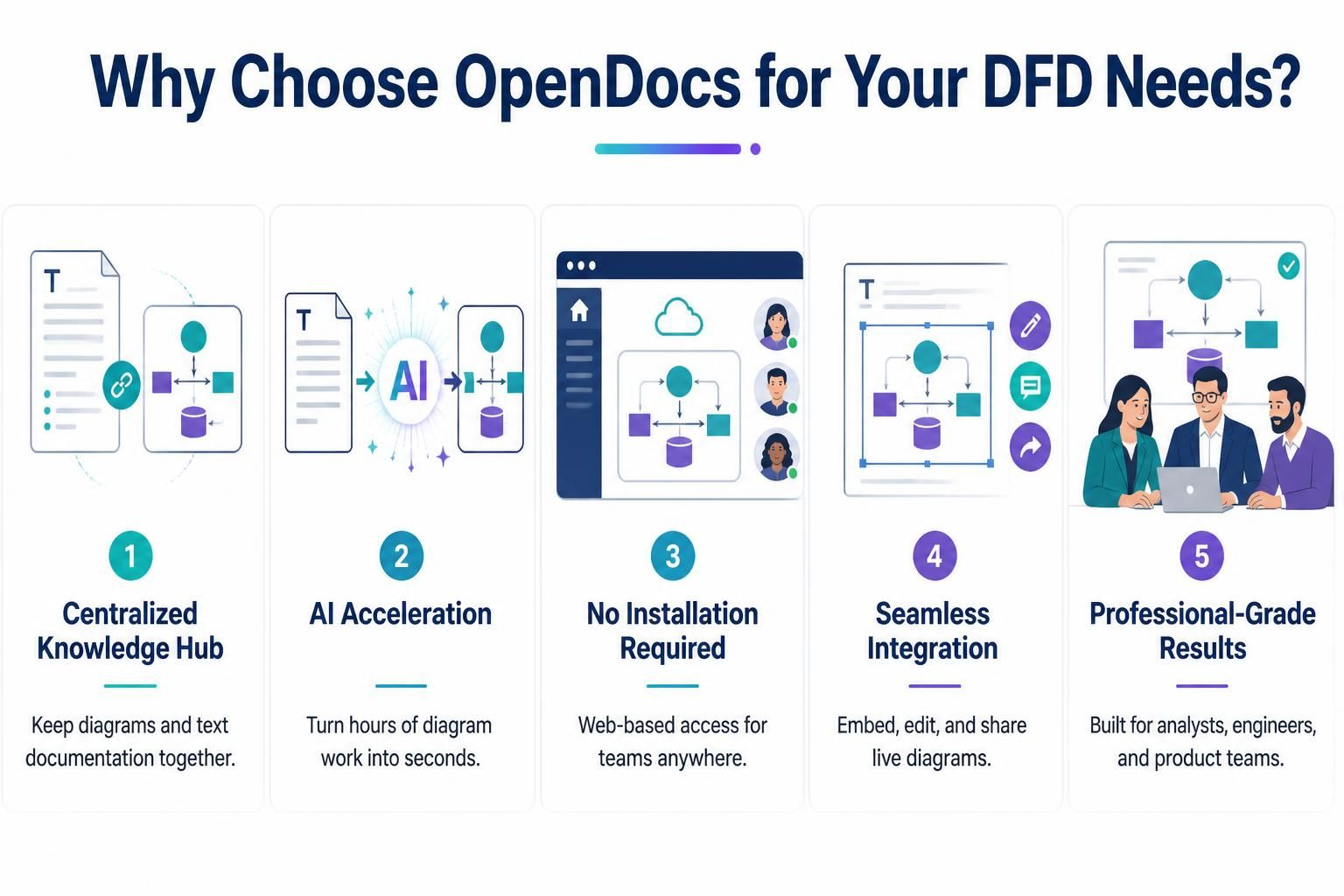
Centralized Knowledge Hub: Keep your diagrams and text documentation in one place, eliminating the disconnect between Visio files and Word docs.
-
AI Acceleration: Reduce diagram creation time from hours to seconds. Let the AI handle the structure while you focus on the logic.
-
No Installation Required: Fully web-based and accessible anywhere, making it easy for remote teams to collaborate.
-
Seamless Integration: Embed, edit, and share with ease. Diagrams are live components, not static images.
-
Professional-Grade Results: Tailored for analysts, engineers, and product teams, ensuring your documentation meets industry standards.
Conclusion
The addition of Data Flow Diagram support to OpenDocs marks a significant step forward in AI-assisted system documentation. By combining the analytical rigor of DFDs with the speed and convenience of AI generation, Visual Paradigm has created a tool that empowers teams to visualize complex data flows with unprecedented ease. Whether you are a business analyst mapping out a new customer journey, a software architect designing a microservices ecosystem, or a product manager documenting requirements, OpenDocs provides the clarity and efficiency you need to succeed.
Ready to transform how you document data flows? Head over to the OpenDocs home page to learn more about this feature and how it fits into your workflow. Or jump straight in and start creating your first AI-generated Data Flow Diagram today: Try OpenDocs AI-Powered Diagram Tool Now →
Recommended Reading: Visual Paradigm Resources
-
Visual Paradigm Online: Complete Guide to Diagramming: An overview of the various diagram types supported by Visual Paradigm Online, including UML, BPMN, and ERD.
-
What is a Data Flow Diagram?: A foundational article explaining the core concepts, symbols, and benefits of using DFDs in system analysis
-
Mastering Data Flow Diagrams with Visual Paradigm: A Step-by-Step Guide: Starting from templates, systematically explains the basic steps of DFD drawing (identifying external entities, processes, data stores, and data flows), and provides practice cases for online shopping, library management, and other systems.
-
The Complete Guide to Drawing Effective Data Flow Diagrams: In-depth explanation of DFD symbol meanings, three-level decomposition structure (context diagram, Level 1, Level 2), and core rules such as naming conventions, balancing rules, and numbering systems.
-
How to Draw Data Flow Diagram? (Official User Guide): Visual Paradigm official operation documentation, covering the complete process from creating a new DFD to notation descriptions and process decomposition operations.
-
How to Create DFD with Visual Paradigm Desktop: A practical guide for the desktop version, detailing the steps for drawing a context diagram (Level 0) and decomposing into lower-level DFDs, and including balancing checks and export methods.