

Introduction
Diagrams are the universal language of systems thinking. Whether you’re explaining a complex software architecture, mapping out a business workflow, or sketching a user journey, visual representations communicate ideas faster and more clearly than text alone. However, there’s a persistent challenge in the diagramming world: static images are dead ends.
When you receive a diagram as a PNG, JPG, or even a photograph of a whiteboard sketch, you can view it, but you can’t easily edit it, extend it, or integrate it into your documentation pipeline. Recreating these diagrams manually in a modern diagramming tool is time-consuming and error-prone.
Enter VPasCode AI, Visual Paradigm’s enhanced diagram-as-code platform that now supports image-based AI Diagram Generation. This feature transforms static visual references—screenshots, legacy diagrams, hand-drawn sketches, or exported images from other tools—into editable, maintainable diagram code using popular formats like PlantUML, Mermaid, and Graphviz.
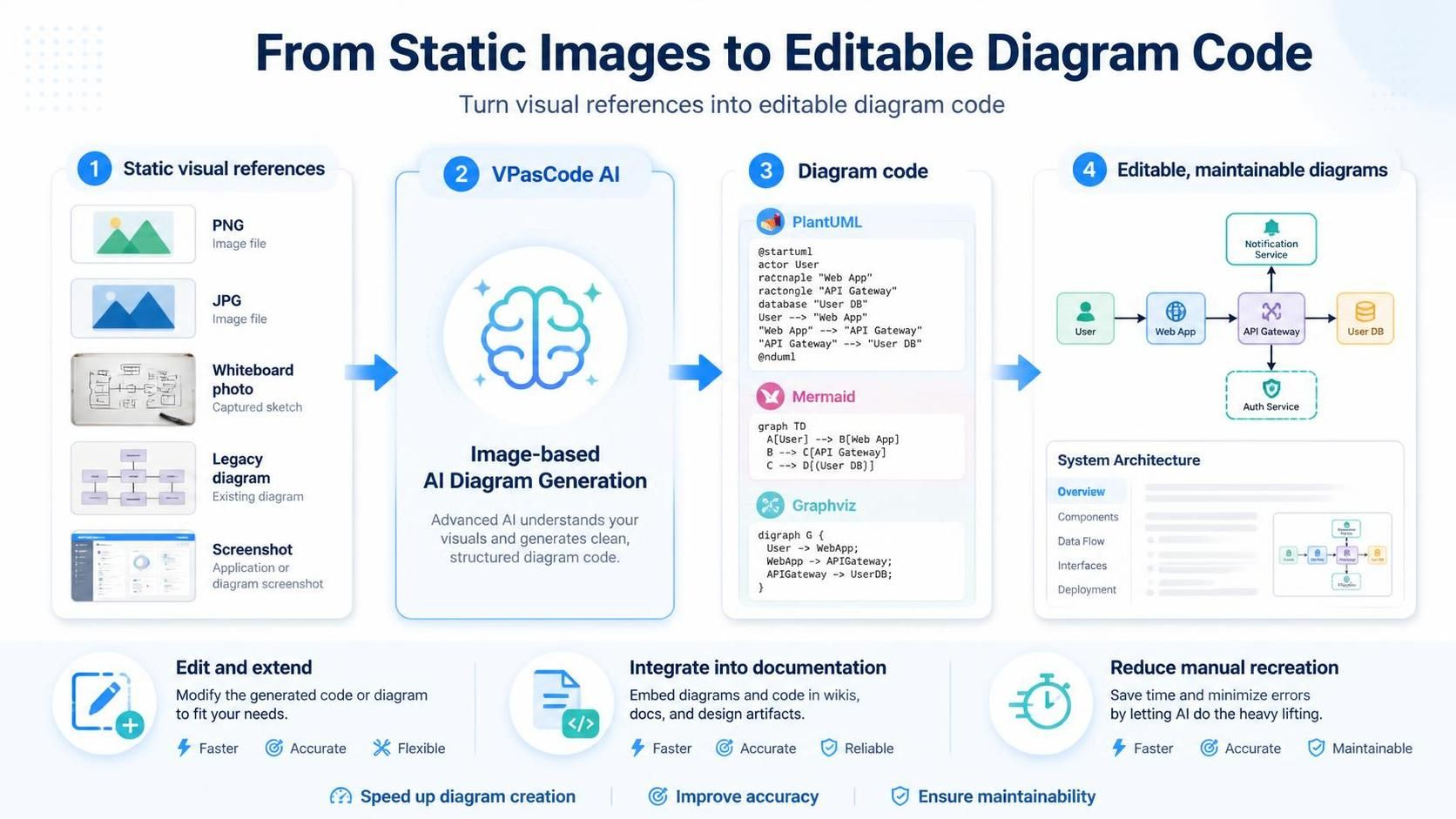
This comprehensive guide will walk you through everything you need to know about leveraging this powerful capability, from basic usage to advanced workflows that connect your generated diagrams to broader documentation and modeling ecosystems.
Key Concepts
What Is VPasCode?
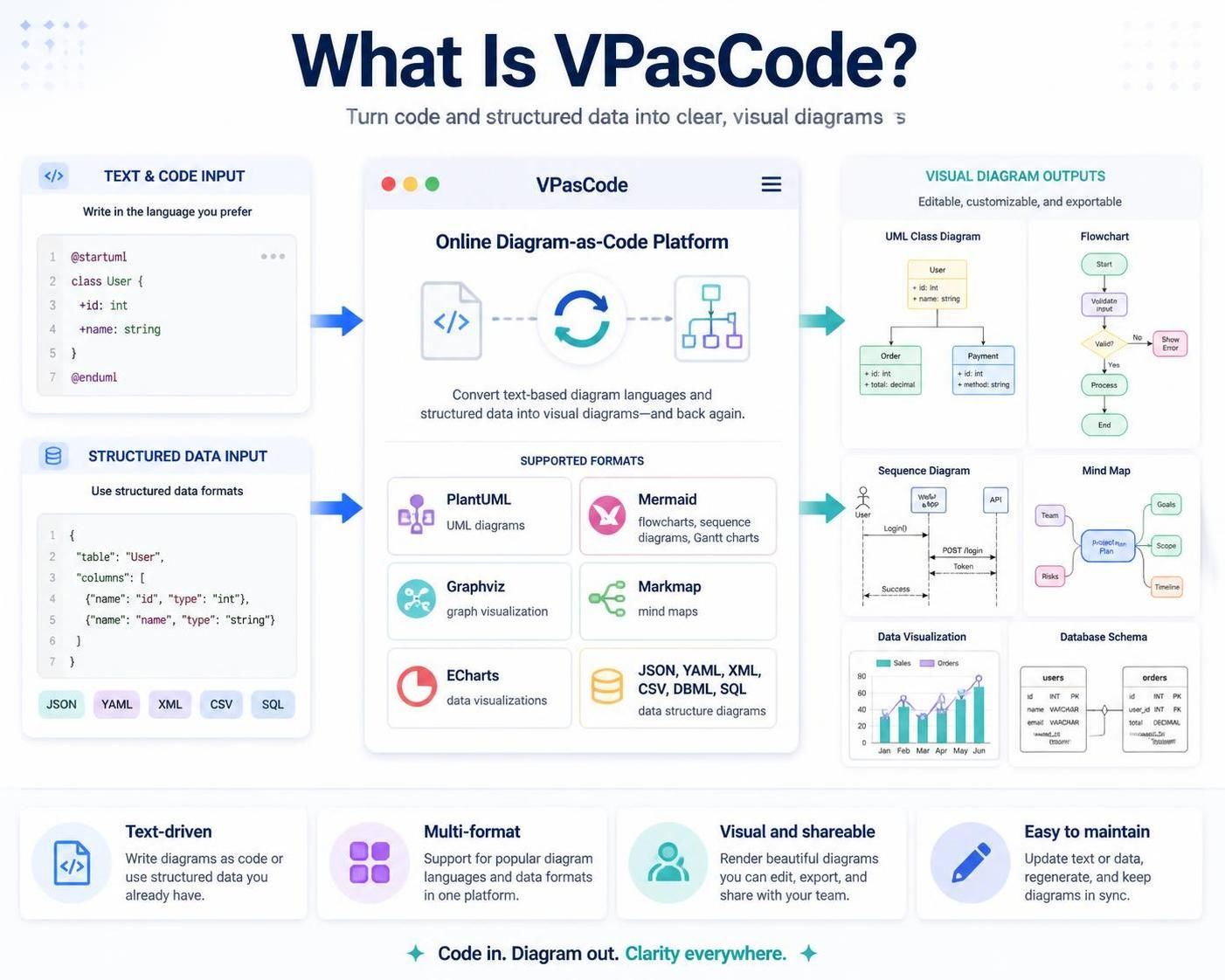
VPasCode is an online diagram-as-code platform that converts text-based diagram languages and structured data into visual diagrams. It supports multiple formats including:
-
PlantUML (UML diagrams)
-
Mermaid (flowcharts, sequence diagrams, Gantt charts)
-
Graphviz (graph visualization)
-
Markmap (mind maps)
-
ECharts (data visualizations)
-
JSON, YAML, XML, CSV, DBML, SQL (data structure diagrams)
What Is AI Diagram Generation?
AI Diagram Generation uses artificial intelligence to create diagram code from natural-language instructions. The recent enhancement adds image input capability, allowing you to provide both a visual reference and a text prompt. The AI analyzes the image structure, interprets relationships and labels, and generates corresponding diagram code that you can immediately edit and refine.
Why Diagram-as-Code Matters
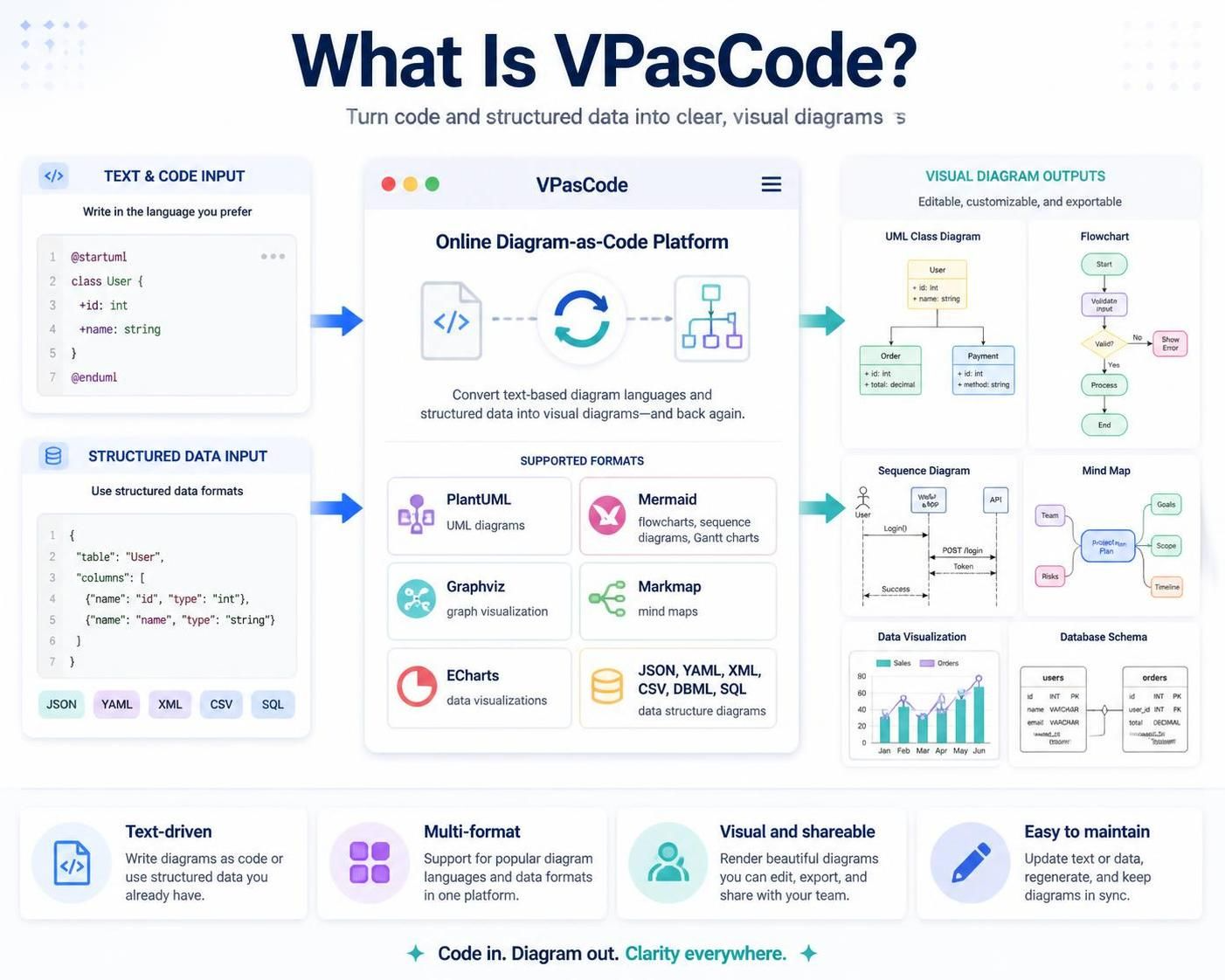
Traditional diagramming tools produce static images or proprietary file formats that are difficult to version control, review, or maintain. Diagram-as-code offers several advantages:
-
Version control friendly: Store diagrams alongside your source code in Git
-
Easy collaboration: Review changes through pull requests
-
Automated regeneration: Update diagrams when underlying models change
-
Text-based editing: Use familiar code editors and IDEs
-
Reusability: Copy, paste, and modify diagram structures easily
How to Generate Diagram Code from an Image
The workflow is straightforward and takes only a few steps:
Step 1: Open AI Generate
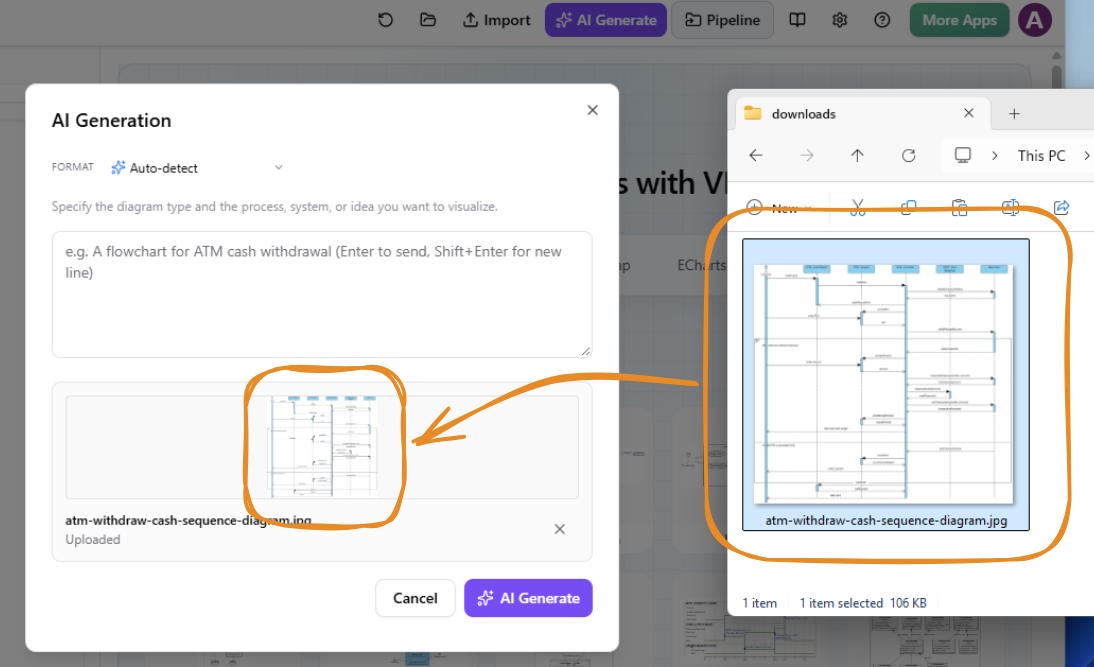
In VPasCode, click AI Generate at the top of the application. The AI Generation dialog box will appear.

Step 2: Upload Your Diagram Image
Click Upload Image at the bottom of the dialog and choose an image from your computer. Alternatively, you can copy an image to your clipboard and press Ctrl-V to paste it directly into the dialog.
Step 3: Enter an Instruction
Describe what you want VPasCode to generate and specify the desired diagram language or format. Be specific about the diagram type and target format.
Example instruction:
Generate a Sequence Diagram in PlantUML based on the image provided.
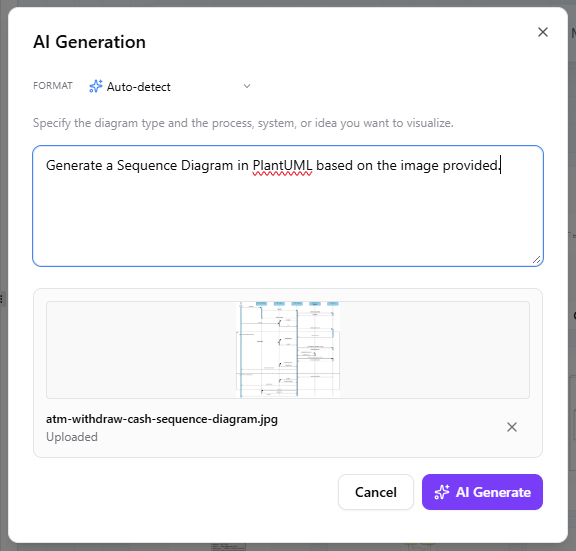
Step 4: Click AI Generate
VPasCode processes the image and instruction, then generates diagram code.
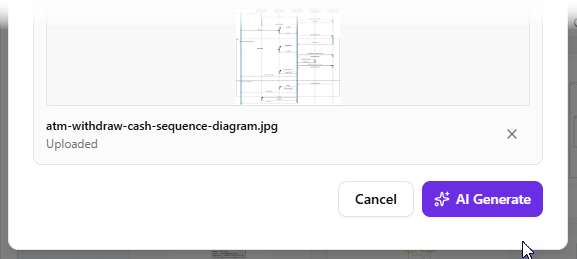
Step 5: Review and Edit the Result
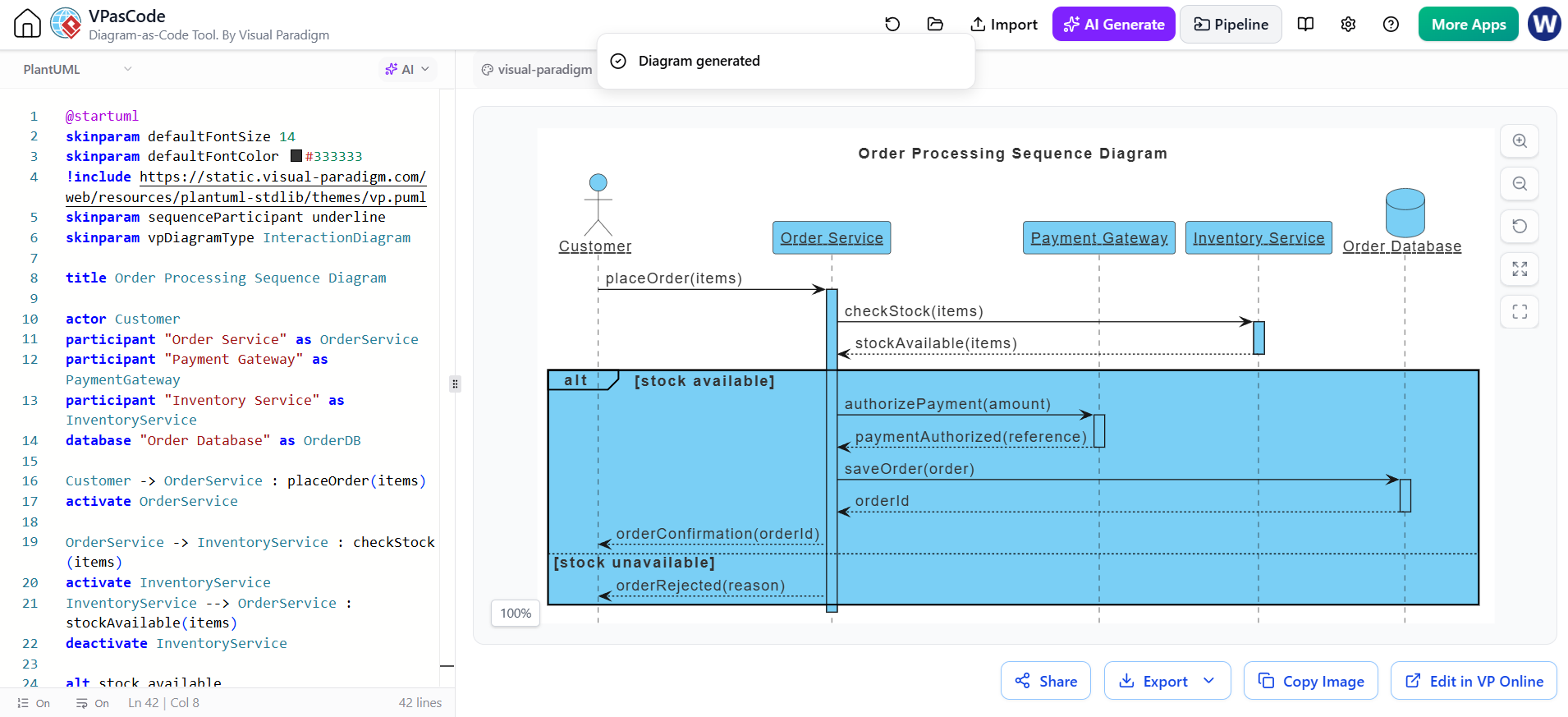
The generated code appears on the left side of the VPasCode editor, while the rendered diagram appears on the right. You can edit the code and see the visual result update in real time.
What Images Can You Use?
The image input feature is versatile and works with various source types:
-
Screenshots of diagrams created in another diagramming application
-
Images copied from technical books, articles, or websites
-
Architecture diagrams included in project documentation
-
Whiteboard photographs from brainstorming sessions
-
Hand-drawn process diagrams and system sketches
-
Reference images supplied by customers or stakeholders
-
Legacy diagrams available only as PNG, JPG, GIF, or other image files
-
Concept diagrams used as visual inspiration for new models
Tip: Image quality matters. For best results, use images with readable labels, good contrast, and clearly visible connectors. Complex diagrams may require iterative refinement.
Practical Examples
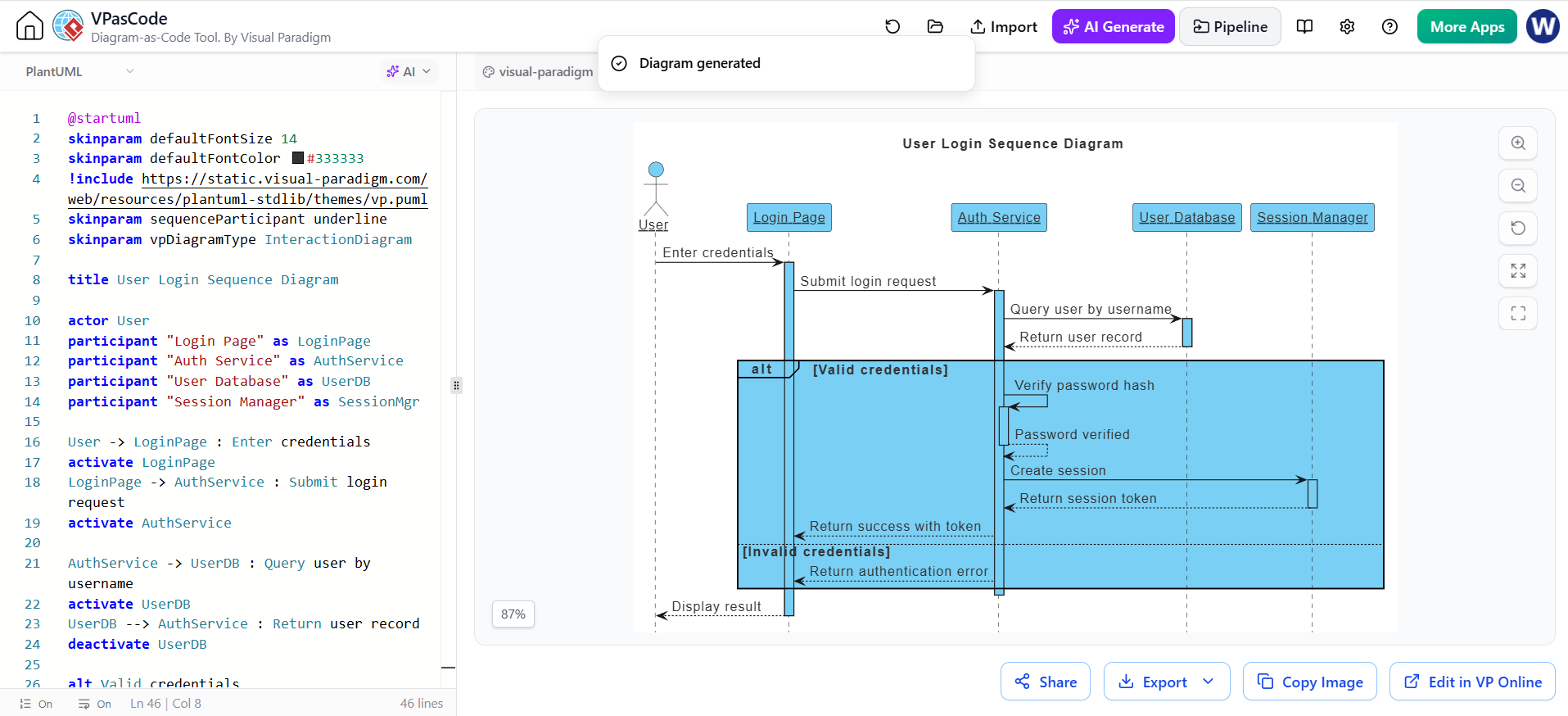
Example 1: Converting a Legacy Sequence Diagram
Scenario: You have a screenshot of a sequence diagram from an old Word document showing user authentication flow.
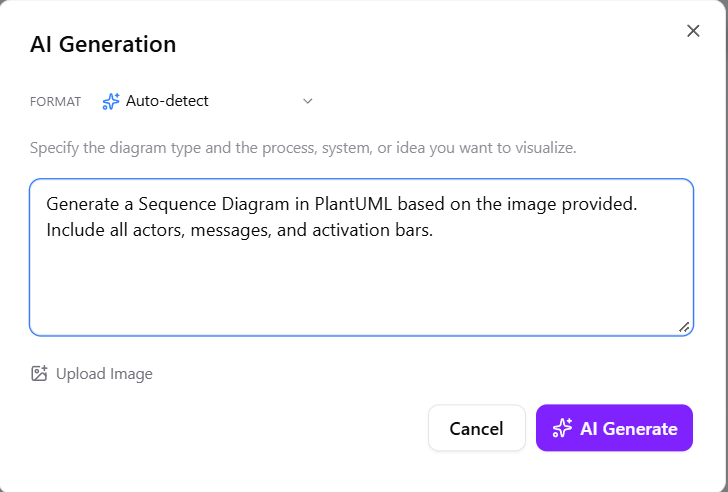
Instruction:
Generate a Sequence Diagram in PlantUML based on the image provided. Include all actors, messages, and activation bars.
@startuml
skinparam defaultFontSize 14
skinparam defaultFontColor #333333
!include https://static.visual-paradigm.com/web/resources/plantuml-stdlib/themes/vp.puml
skinparam sequenceParticipant underline
skinparam vpDiagramType InteractionDiagram

title Order Processing Sequence Diagram

actor Customer
participant "Order Service" as OrderService
participant "Payment Gateway" as PaymentGateway
participant "Inventory Service" as InventoryService
database "Order Database" as OrderDB

Customer -> OrderService : placeOrder(items)
activate OrderService

OrderService -> InventoryService : checkStock(items)
activate InventoryService
InventoryService --> OrderService : stockAvailable(items)
deactivate InventoryService

alt stock available
    OrderService -> PaymentGateway : authorizePayment(amount)
    activate PaymentGateway
    PaymentGateway --> OrderService : paymentAuthorized(reference)
    deactivate PaymentGateway

    OrderService -> OrderDB : saveOrder(order)
    activate OrderDB
    OrderDB --> OrderService : orderId
    deactivate OrderDB

    OrderService --> Customer : orderConfirmation(orderId)
else stock unavailable
    OrderService --> Customer : orderRejected(reason)
end

deactivate OrderService

@endumlResult: VPasCode generates PlantUML code that you can immediately edit to add new authentication steps, modify message names, or adjust the layout.
Example 2: Transforming a Hand-Drawn Architecture Sketch
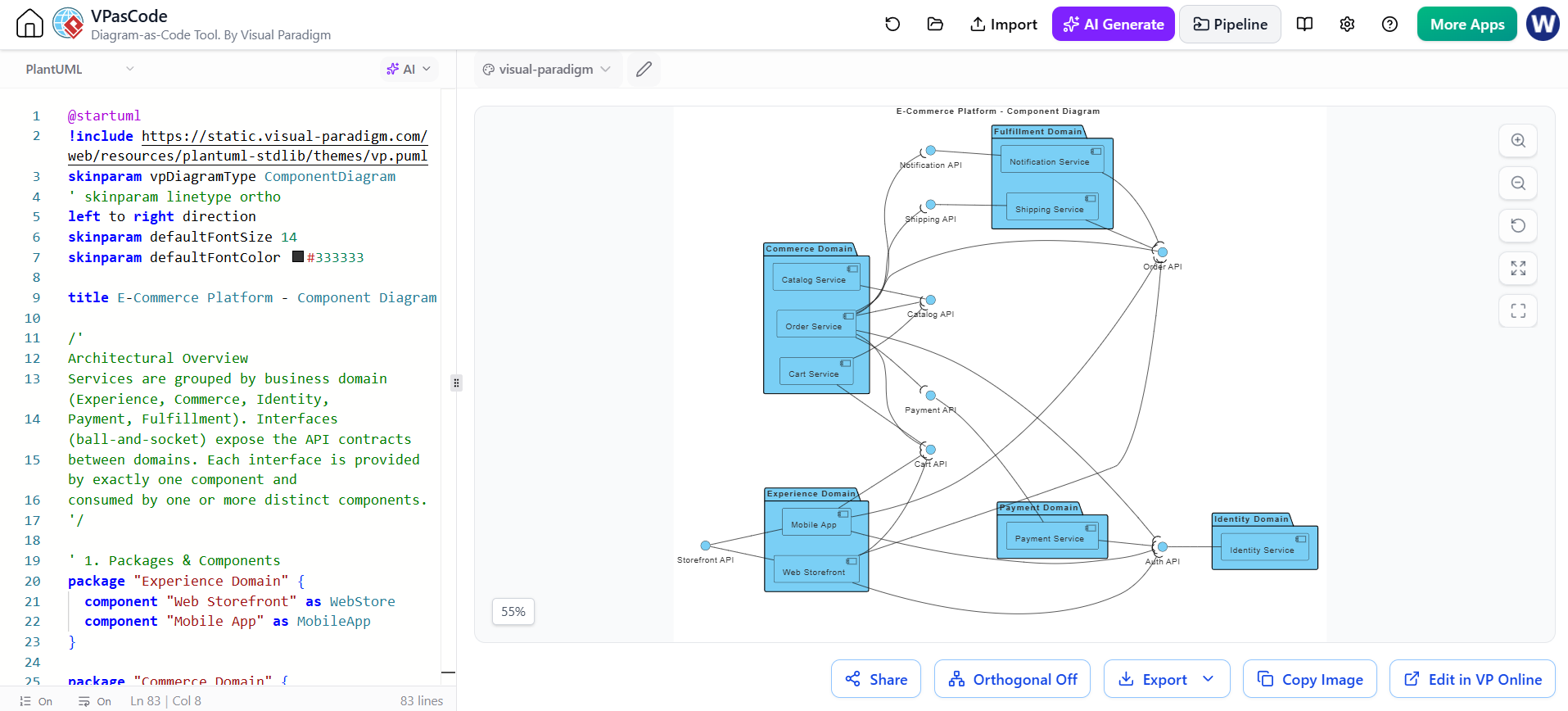
Scenario: Your team sketched a microservices architecture on a whiteboard during a design session.
Instruction:
Generate a Component Diagram in PlantUML based on this hand-drawn sketch. Organize services by domain and show API connections.
@startuml
!include https://static.visual-paradigm.com/web/resources/plantuml-stdlib/themes/vp.puml
skinparam vpDiagramType ComponentDiagram
' skinparam linetype ortho
left to right direction
skinparam defaultFontSize 14
skinparam defaultFontColor #333333

title E-Commerce Platform - Component Diagram

/'
Architectural Overview
Services are grouped by business domain (Experience, Commerce, Identity,
Payment, Fulfillment). Interfaces (ball-and-socket) expose the API contracts
between domains. Each interface is provided by exactly one component and
consumed by one or more distinct components.
'/

' 1. Packages & Components
package "Experience Domain" {
  component "Web Storefront" as WebStore
  component "Mobile App" as MobileApp
}

package "Commerce Domain" {
  component "Order Service" as OrderSvc
  component "Catalog Service" as CatalogSvc
  component "Cart Service" as CartSvc
}

package "Identity Domain" {
  component "Identity Service" as IdentitySvc
}

package "Payment Domain" {
  component "Payment Service" as PaymentSvc
}

package "Fulfillment Domain" {
  component "Shipping Service" as ShippingSvc
  component "Notification Service" as NotifySvc
}

' 2. Interface Declarations
interface "Storefront API" as iStorefrontAPI
interface "Cart API" as iCartAPI
interface "Catalog API" as iCatalogAPI
interface "Order API" as iOrderAPI
interface "Auth API" as iAuthAPI
interface "Payment API" as iPaymentAPI
interface "Shipping API" as iShippingAPI
interface "Notification API" as iNotifyAPI

' 3. Provided Interfaces
iStorefrontAPI -- WebStore
iStorefrontAPI -- MobileApp
iCartAPI -- CartSvc
iCatalogAPI -- CatalogSvc
iOrderAPI -- OrderSvc
iAuthAPI -- IdentitySvc
iPaymentAPI -- PaymentSvc
iShippingAPI -- ShippingSvc
iNotifyAPI -- NotifySvc

' 4. Required Interfaces
CartSvc --( iCatalogAPI
OrderSvc --( iCartAPI
OrderSvc --( iCatalogAPI
OrderSvc --( iAuthAPI
OrderSvc --( iPaymentAPI
OrderSvc --( iShippingAPI
OrderSvc --( iNotifyAPI
PaymentSvc --( iAuthAPI
ShippingSvc --( iOrderAPI
NotifySvc --( iOrderAPI
WebStore --( iCartAPI
WebStore --( iOrderAPI
WebStore --( iAuthAPI
MobileApp --( iCartAPI
MobileApp --( iOrderAPI
MobileApp --( iAuthAPI

@endumlResult: You get a structured component diagram that captures the essence of your sketch, which you can then refine with proper service names, add database components, and export for documentation.
Example 3: Migrating from Another Tool
Scenario: You’re moving from a proprietary diagramming tool to VPasCode, but can only export images.
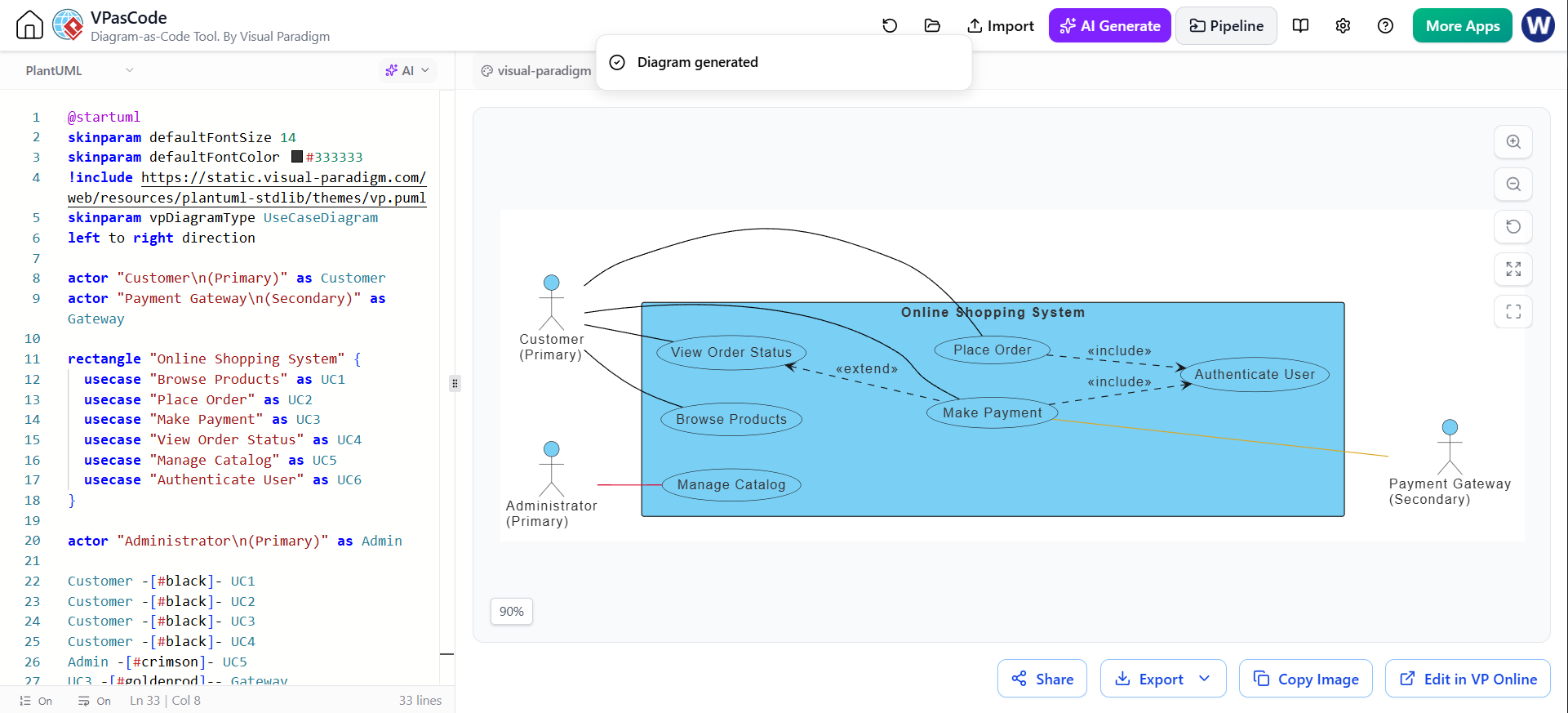
Instruction:
Generate a Use Case Diagram in PlantUML based on this image. Preserve all actors, use cases, and relationships.
@startuml
skinparam defaultFontSize 14
skinparam defaultFontColor #333333
!include https://static.visual-paradigm.com/web/resources/plantuml-stdlib/themes/vp.puml
skinparam vpDiagramType UseCaseDiagram
left to right direction

actor "Customer\n(Primary)" as Customer
actor "Payment Gateway\n(Secondary)" as Gateway

rectangle "Online Shopping System" {
  usecase "Browse Products" as UC1
  usecase "Place Order" as UC2
  usecase "Make Payment" as UC3
  usecase "View Order Status" as UC4
  usecase "Manage Catalog" as UC5
  usecase "Authenticate User" as UC6
}

actor "Administrator\n(Primary)" as Admin

Customer -[#black]- UC1
Customer -[#black]- UC2
Customer -[#black]- UC3
Customer -[#black]- UC4
Admin -[#crimson]- UC5
UC3 -[#goldenrod]-- Gateway

UC2 ..> UC6 : <<include>>
UC3 ..> UC6 : <<include>>
UC4 <.. UC3 : <<extend>>

@endumlResult: An editable PlantUML diagram that serves as your starting point in the new tool, eliminating hours of manual recreation.
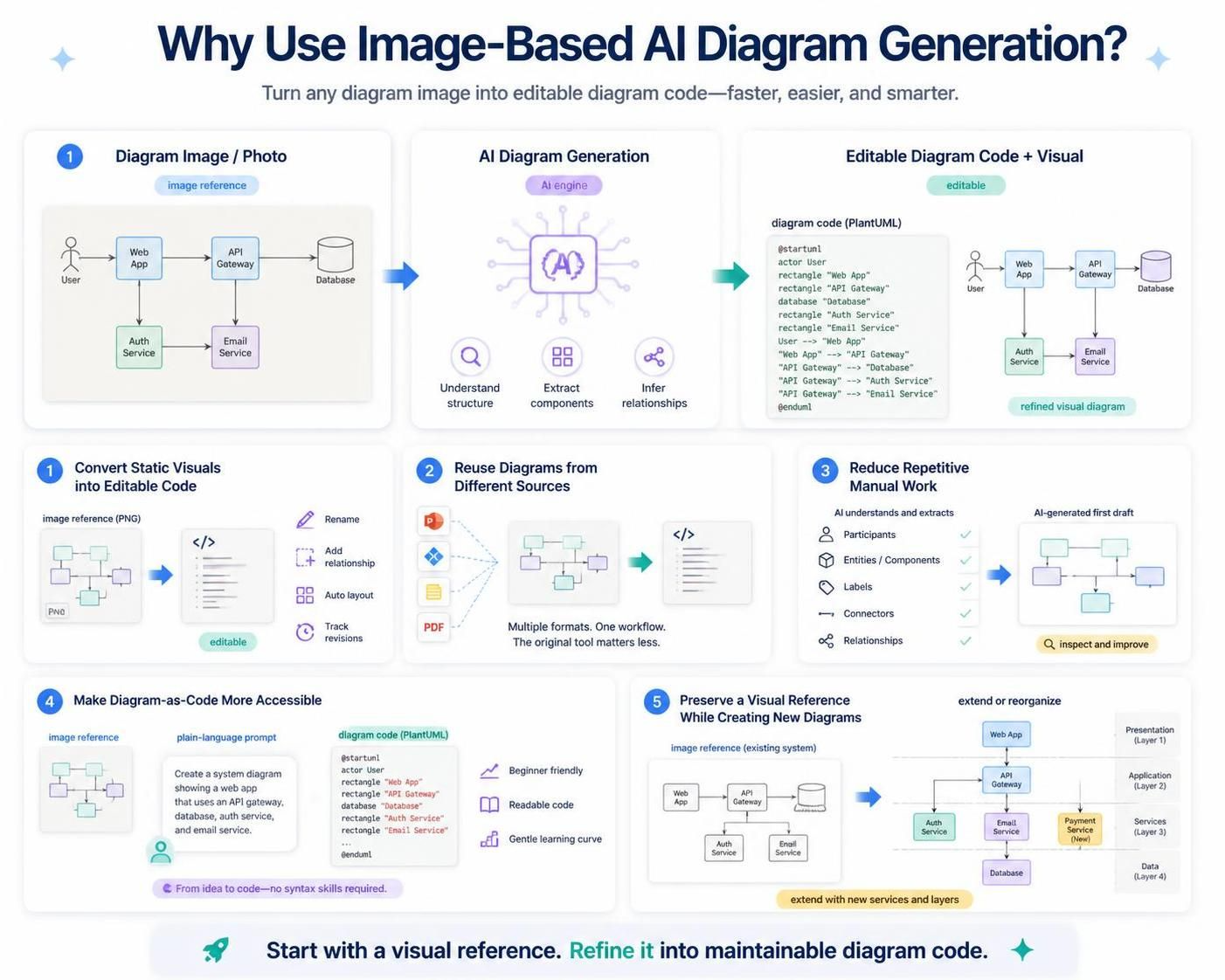
Why Use AI Diagram Generation from Images?
1. Convert Static Visuals into Editable Diagram Code
A diagram image is useful for viewing and sharing, but it’s difficult to maintain. You cannot easily rename an element, add a new relationship, change the layout, or track revisions in a PNG file. AI Diagram Generation provides a practical way to move from a static visual reference to editable diagram code.
2. Reuse Diagrams from Different Sources
Traditional import workflows often require specific file formats. If a diagram was created in an application that doesn’t support the required export format, recreating it manually may be the only option. With image-based AI diagram generation, the original authoring tool is less important.
3. Reduce Repetitive Manual Work
Rebuilding a diagram manually involves identifying every participant, entity, component, label, connector, and relationship. AI can help produce the first version of the diagram code quickly, giving you a generated structure to inspect and improve rather than starting from blank.
4. Make Diagram-as-Code More Accessible
Diagram-as-code offers important benefits, but learning the syntax can be a barrier for new users. AI Diagram Generation helps bridge the gap between visual modeling and diagram code. Users can start with an image and plain-language instruction, then learn and refine the generated code.
5. Preserve a Visual Reference While Creating New Diagrams
You don’t have to reproduce an image exactly. An uploaded image can serve as a reference for creating a modified or extended diagram. For example, provide an existing system architecture image and ask VPasCode to generate a PlantUML diagram that adds a payment service or reorganizes the architecture into logical layers.
Advanced Features Beyond Image Generation
VPasCode is more than just an AI diagram generator. It’s a complete diagram-as-code workspace:
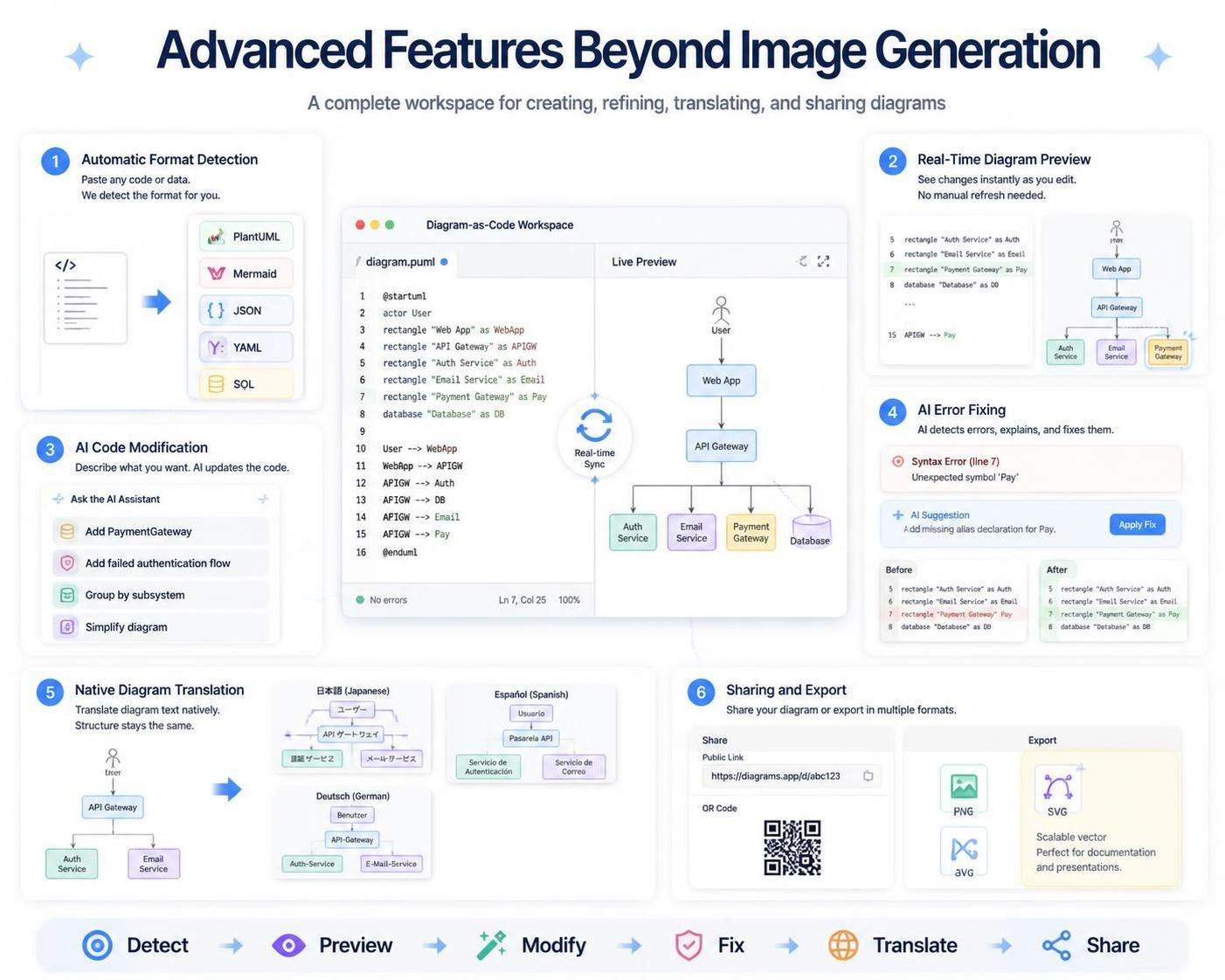
Automatic Format Detection
VPasCode can detect the diagram or data format from the content you paste into the editor, reducing the need to manually configure the language.
Real-Time Diagram Preview
As you edit the generated code, the rendered diagram updates in the preview panel, making it easy to test changes and improve layout.
AI Code Modification
After generating a diagram, continue working with AI by asking it to modify the code. Examples:
-
“Add a new actor called PaymentGateway”
-
“Introduce an exception flow for failed authentication”
-
“Group components by subsystem”
-
“Simplify this complex diagram”
AI Error Fixing
If the generated or manually edited code contains syntax problems, VPasCode can help fix them. The AI error-fixing capability suggests corrections and displays code differences so you understand what changed.
Native Diagram Translation
Diagram labels can be translated into other languages, useful for teams preparing technical diagrams for international users or project offices.
Sharing and Export
Share diagrams through URLs or QR codes, or export as PNG or SVG images. SVG export is particularly useful for scalable diagrams in documentation and presentations.
Connecting Generated Diagrams to the Visual Paradigm Ecosystem
VPasCode integrates with the wider Visual Paradigm ecosystem, allowing AI-generated diagrams to become part of broader workflows:
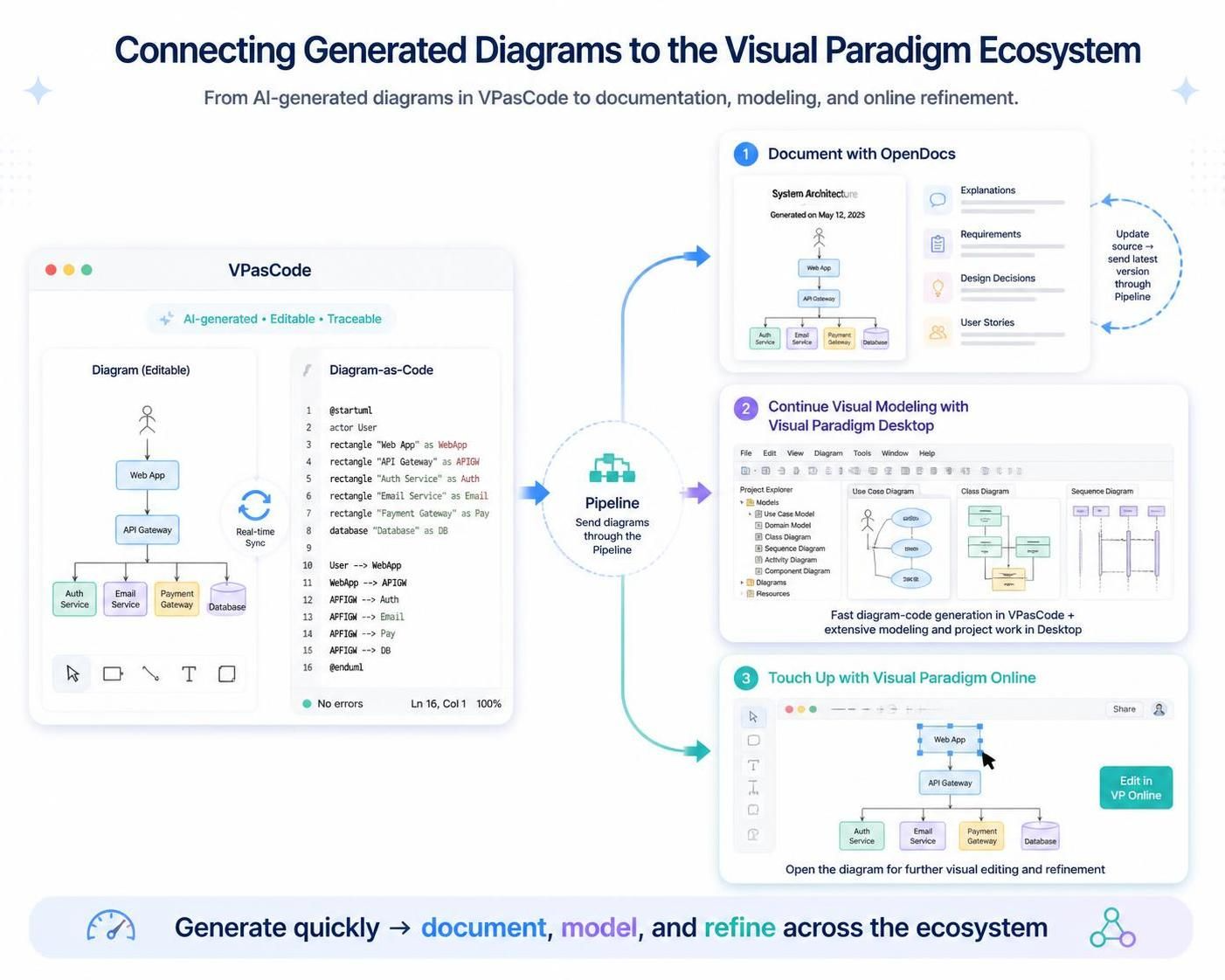
Document with OpenDocs
Send the diagram to the OpenDocs Pipeline and reuse it in a document page. Combine generated diagrams with explanations, requirements, design decisions, and user stories. When the diagram changes, update the diagram source and send the latest version through the Pipeline.
Continue Visual Modeling with Visual Paradigm Desktop
Send the diagram to the Pipeline and import it into Visual Paradigm Desktop as a new diagram. Use VPasCode for fast diagram-code generation and Visual Paradigm Desktop for extensive modeling and project work.
Touch Up with Visual Paradigm Online
Click Edit in VP Online at the bottom right of the diagram viewer to open the diagram for further visual editing and refinement in Visual Paradigm Online.
Tips for Better AI-Generated Diagrams
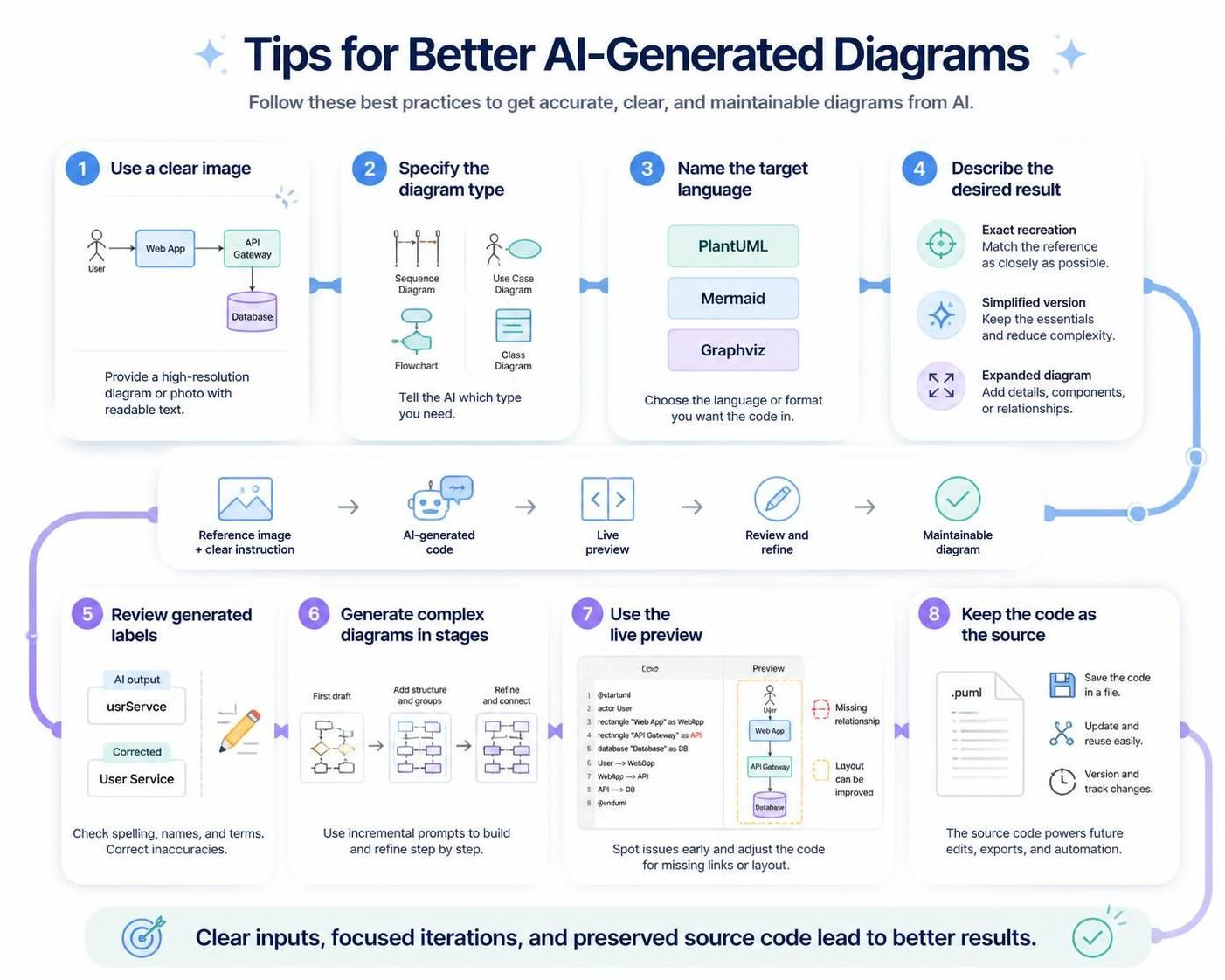
-
Use a clear image: Higher-resolution images with readable text generally provide better references.
-
Specify the diagram type: State whether you want a sequence diagram, use case diagram, flowchart, class diagram, or another format.
-
Name the target language: Include PlantUML, Mermaid, Graphviz, or another supported format in your instruction.
-
Describe the desired result: Explain whether you want an exact recreation, simplified version, or expanded diagram.
-
Review generated labels: Text in screenshots and handwritten images may require manual correction.
-
Generate complex diagrams in stages: For large diagrams, create a first version and then ask AI to add or reorganize specific sections.
-
Use the live preview: Check the rendered diagram while editing the code to catch missing relationships or unexpected layout changes.
-
Keep the code as the source: Once the diagram is correct, preserve the generated code so future updates are easier.
Who Can Benefit?
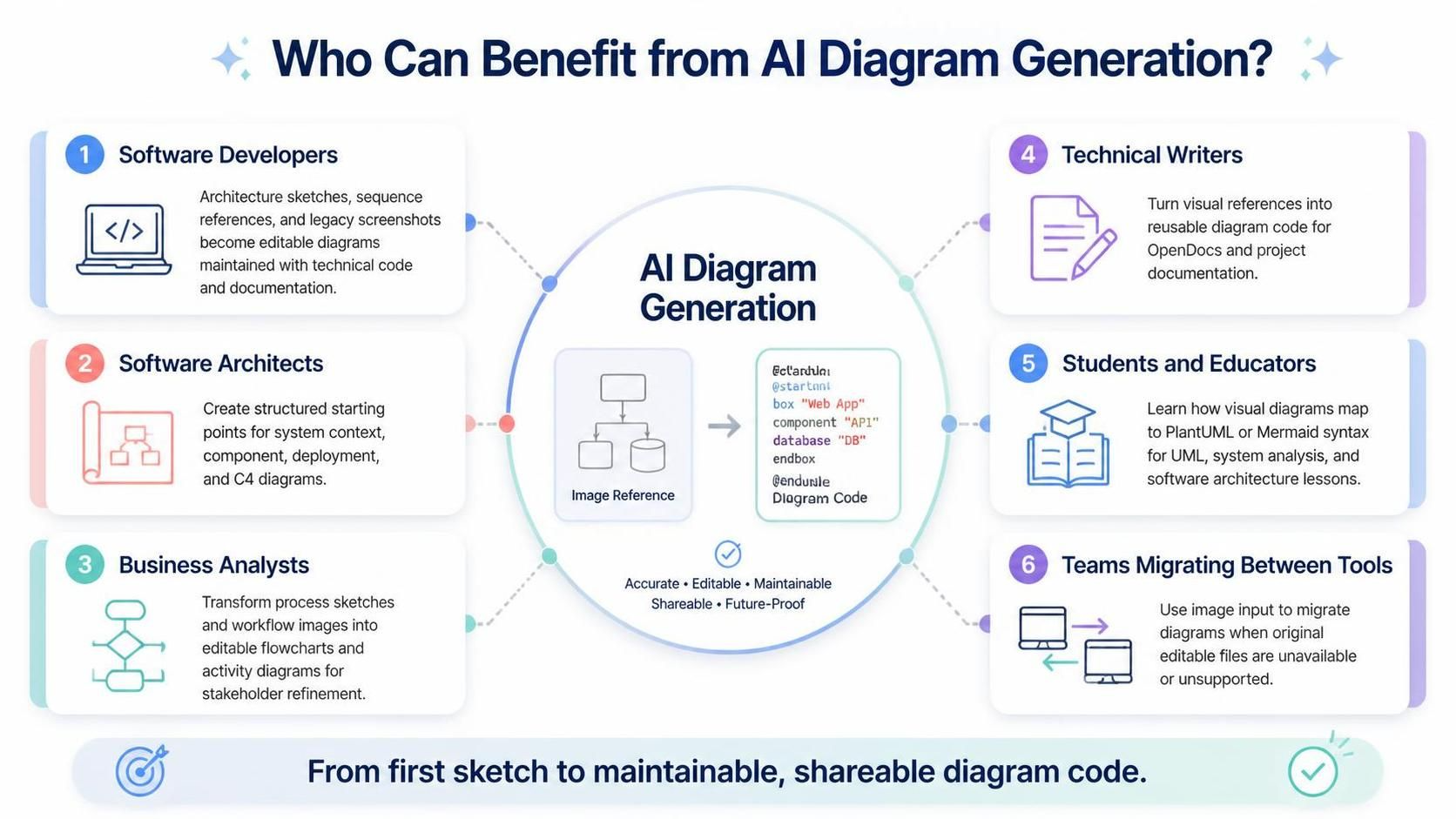
Software Developers
Convert architecture sketches, sequence references, and legacy screenshots into editable diagrams maintained alongside technical code and documentation.
Software Architects
Use image references to create structured starting points for system context diagrams, component diagrams, deployment diagrams, and C4 models.
Business Analysts
Transform process sketches or workflow images into editable flowcharts and activity diagrams, then refine with stakeholders.
Technical Writers
Convert visual references into reusable diagram code and include resulting diagrams in OpenDocs or other project documentation.
Students and Educators
Explore how visual diagrams map to PlantUML or Mermaid syntax. Use reference diagrams as examples for lessons involving UML, system analysis, or software architecture.
Teams Migrating Between Tools
Use image input as a practical migration aid when original editable files are unavailable or cannot be imported directly.
From Image Reference to Living Diagram
The most important benefit of this workflow is that it changes what you can do with an existing diagram image. Previously, an image was often the final form—you could look at it or place it in a document, but making changes required access to the original source file or a complete redraw.
With image-based AI Diagram Generation, the image becomes the beginning of a new diagram-as-code workflow:
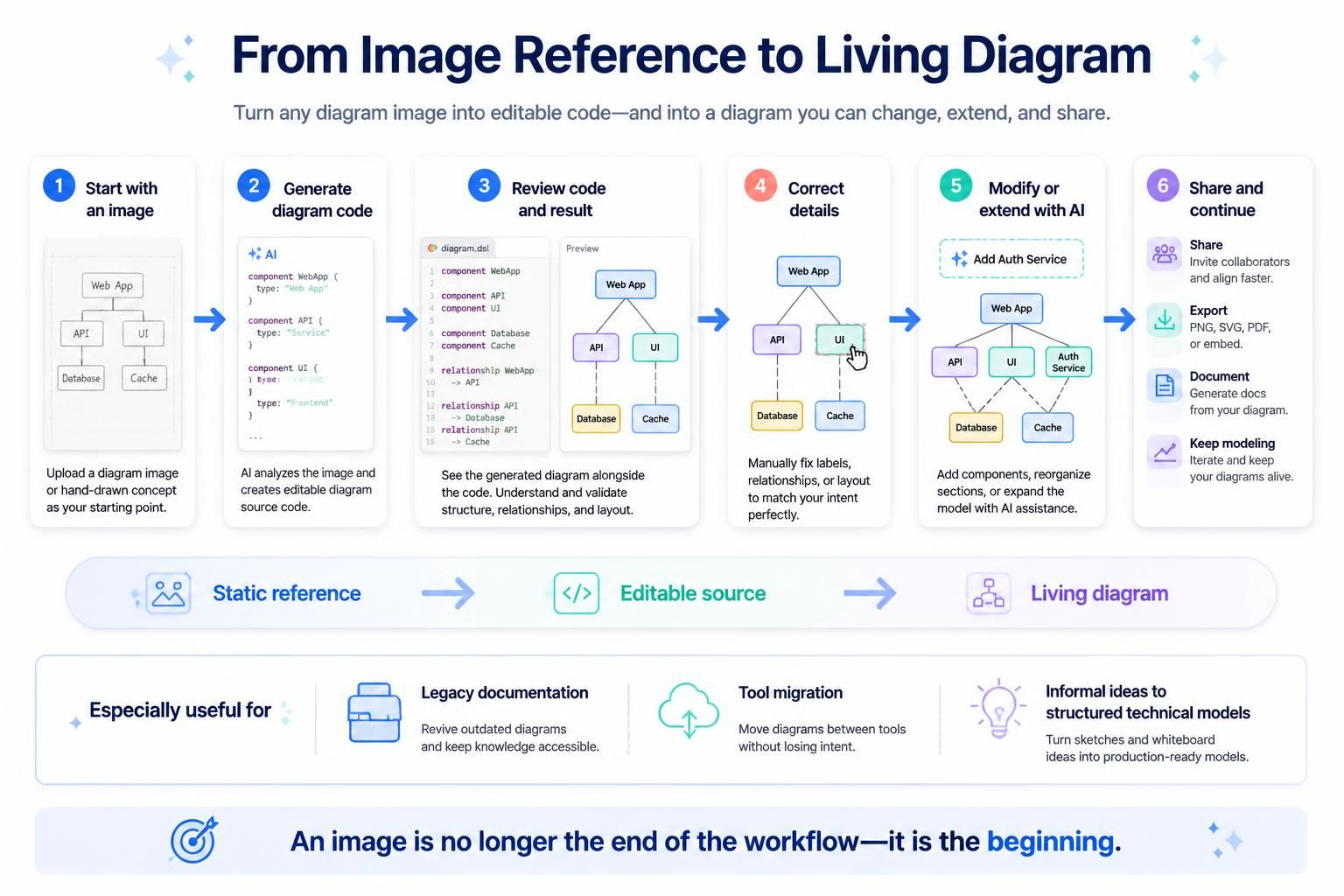
-
Start with an existing image or hand-drawn concept
-
Use AI to generate an editable diagram script
-
Review the generated code and rendered result
-
Correct labels, relationships, and layout details
-
Ask AI to modify or extend the diagram
-
Share, export, document, or continue modeling the result
This approach is especially useful when teams inherit legacy documentation, migrate diagrams between tools, or need to transform informal ideas into structured technical models.
Conclusion
VPasCode’s AI Diagram Generation feature represents a significant leap forward in how we work with diagrams. By bridging the gap between static visual references and editable diagram-as-code formats, it eliminates one of the most tedious aspects of diagram maintenance: manual recreation.
Whether you’re starting with a text idea, an existing diagram image, a screenshot, or a hand-drawn sketch, VPasCode helps you move from visual concept to editable diagram code more quickly. The combination of AI-powered generation, real-time preview, code modification capabilities, and integration with the Visual Paradigm ecosystem creates a powerful workflow for developers, architects, analysts, and technical writers.
The key takeaway is this: your diagrams no longer have to be dead ends. With VPasCode, every image can become the starting point for a living, evolving diagram that grows with your project.
Reference
-
From Prompt to Publication: Mastering AI-Driven UML Modeling using Diagram-as-Code with Visual Paradigm: A comprehensive guide on combining AI-assisted diagram generation, VPasCode, and OpenDocs for a complete workflow from natural language prompts to living documentation .
-
Comprehensive Guide to the Benefits of VPasCode Editor in Visual Paradigm’s Ecosystem: Explores how VPasCode brings developer-oriented workflows into visual modeling, covering collaboration practices, maintainable documentation, and scalability .
-
AI Component Diagram Generator | Visual Paradigm AI: Introduces Visual Paradigm’s AI chatbot for generating component diagrams through conversational prompts, with integration into VP Desktop and OpenDocs .
-
What’s New in VPasCode – Launch Feature Roundup: An overview of VPasCode’s launch features, including multi-syntax support (PlantUML, Mermaid, Graphviz), AI-powered error fixing, translation, and OpenDocs integration .
-
Revolutionize Your Workflow: Introducing Native AI Diagram Generation in VPasCode: Details the embedded native AI engine in VPasCode for instant diagram generation, AI-powered modification, and automated error fixing directly within the editor .
-
Your First Diagram in VPasCode – A 5-Minute Quickstart: A beginner-friendly tutorial for creating your first diagram in VPasCode, covering live preview, export options, and AI error fixing .
-
VPasCode: Free Text to Diagram Tool & Diagram-as-Code Editor: The official product page showcasing VPasCode’s capabilities, supported engines, AI features, and enterprise provenance backed by Visual Paradigm .
-
How VPasCode Works with OpenDocs, VP Desktop, and AI Chatbots: Explains the integration pipeline connecting AI chatbot ideation, VPasCode refinement, VP Desktop modeling, and OpenDocs publishing .
-
BPMN Text to Diagram with VPasCode: A User-Friendly BPMN PlantUML Tool: Demonstrates how to create BPMN business process diagrams using PlantUML-style text syntax in VPasCode, including task types, gateways, and swimlanes .
-
Welcome to Visual Paradigm VPasCode: The Diagram-as-Code (DaC) Shift: An introduction to the philosophy behind VPasCode, explaining the advantages of text-driven diagramming over traditional drag-and-drop tools .
-
Diagram-as-Code Tool: Unified PlantUML, Mermaid, and More | VPasCode: Discusses why developers are adopting code-based diagramming tools and how VPasCode unifies multiple diagram syntaxes into one platform .
-
Visual Paradigm VPasCode: Unified Diagram-as-Code Platform: The official feature page listing all supported diagram types, AI-powered capabilities, and export options for VPasCode .
-
Introducing Visual Paradigm 18.1: A New Era of Unified Ecosystems and AI-Driven Innovation: Release announcement covering VPasCode as a key pillar of Visual Paradigm 18.1, with details on supported frameworks and AI superpowers .
-
VPasCode Archives – Visual Paradigm Blog: A categorized archive of all blog posts related to VPasCode, including guides on pairing VPasCode with OpenDocs and mastering ECharts .
This post is also available in Polski.