
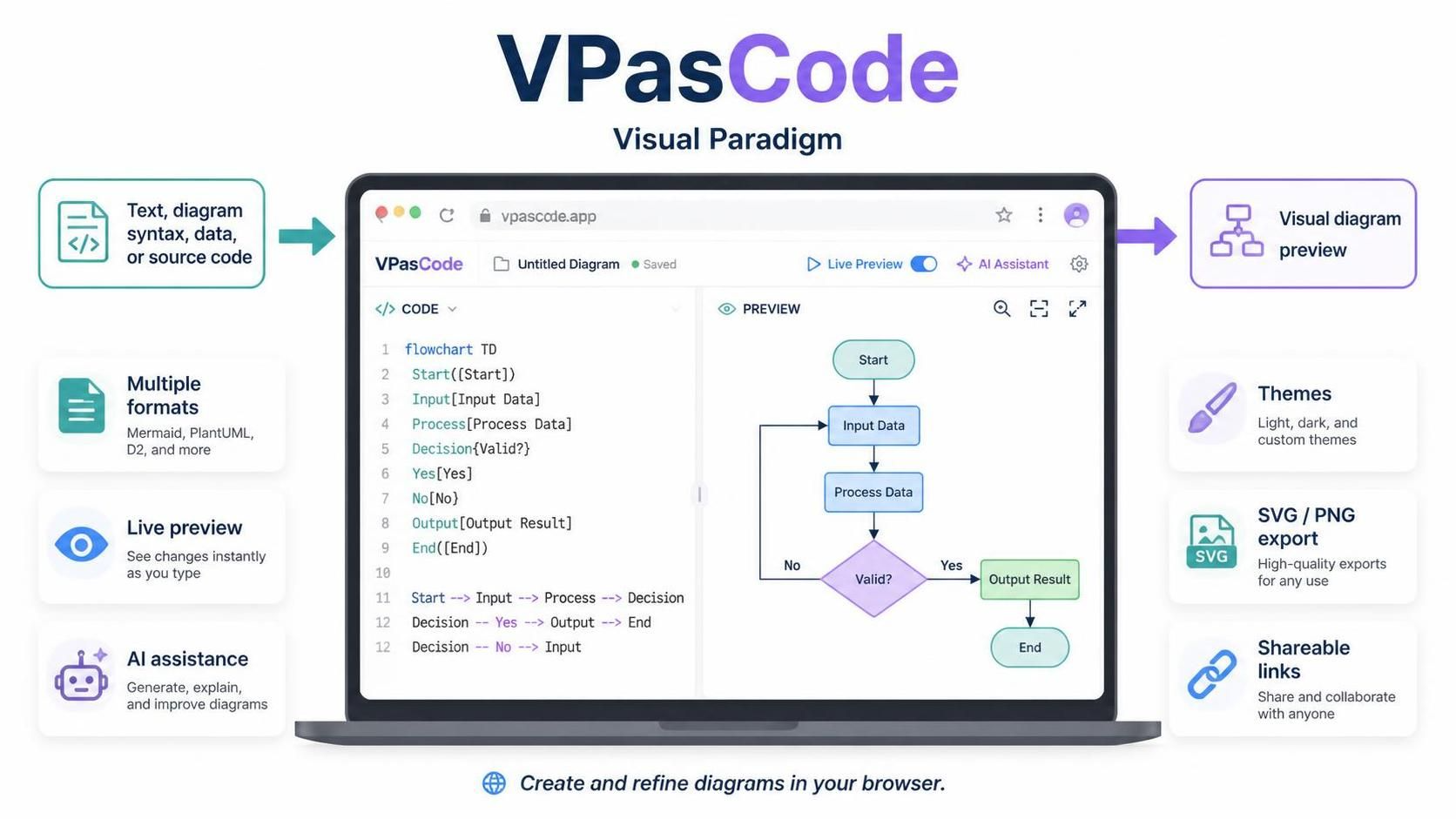
VPasCode is Visual Paradigm’s browser-based diagram-as-code editor. You write or paste text—diagram syntax, data, or supported source code—and the tool renders a visual preview. It brings several formats into one workspace, so you can create and refine diagrams without installing a local diagramming engine.
Features at a glance
| Feature | What it does |
|---|---|
| Code editor and live preview | Edit text and see the rendered diagram update in the workspace. |
| Format detection | Identifies supported formats from the content you paste, reducing manual setup. |
| Multiple diagram engines | Use PlantUML, Mermaid, Graphviz, and D2, alongside additional chart and text-visualization formats. |
| Data and code visualization | Turn supported data, schemas, and programming files into visual representations. |
| AI assistance | Generate diagrams from prompts, modify existing diagrams, fix syntax, and translate labels. |
| Styling | Choose themes and adjust presentation; PlantUML includes a theme-selection interface. |
| Export and sharing | Export diagrams as SVG or PNG and create shareable links. |
| Product integrations | Move diagram work between VPasCode and Visual Paradigm’s other tools and documentation workflow. |
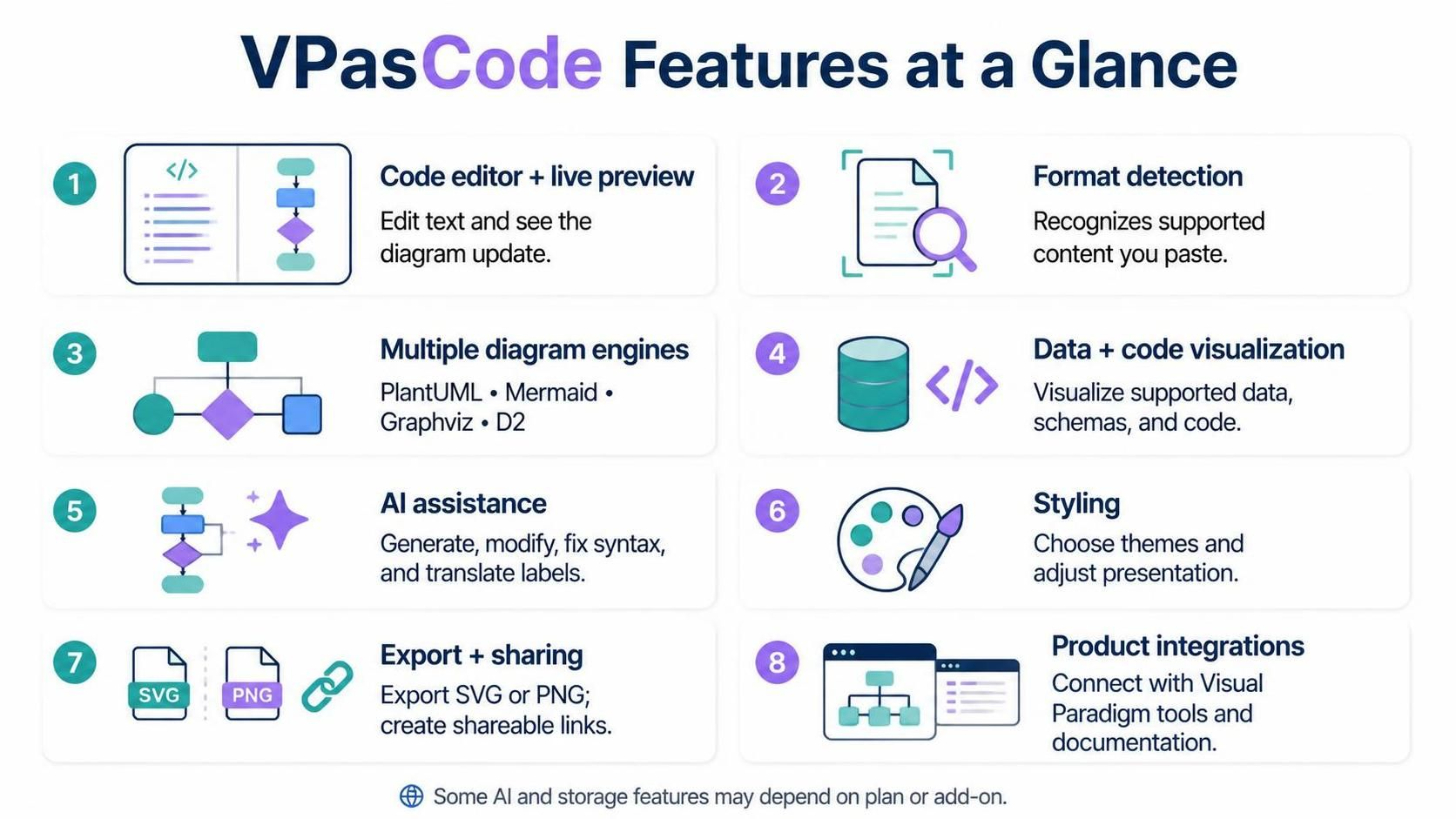
These capabilities are described across Visual Paradigm’s VPasCode feature pages. Availability of particular AI and storage capabilities may depend on the plan or add-on.
Supported formats and what they’re good for
-
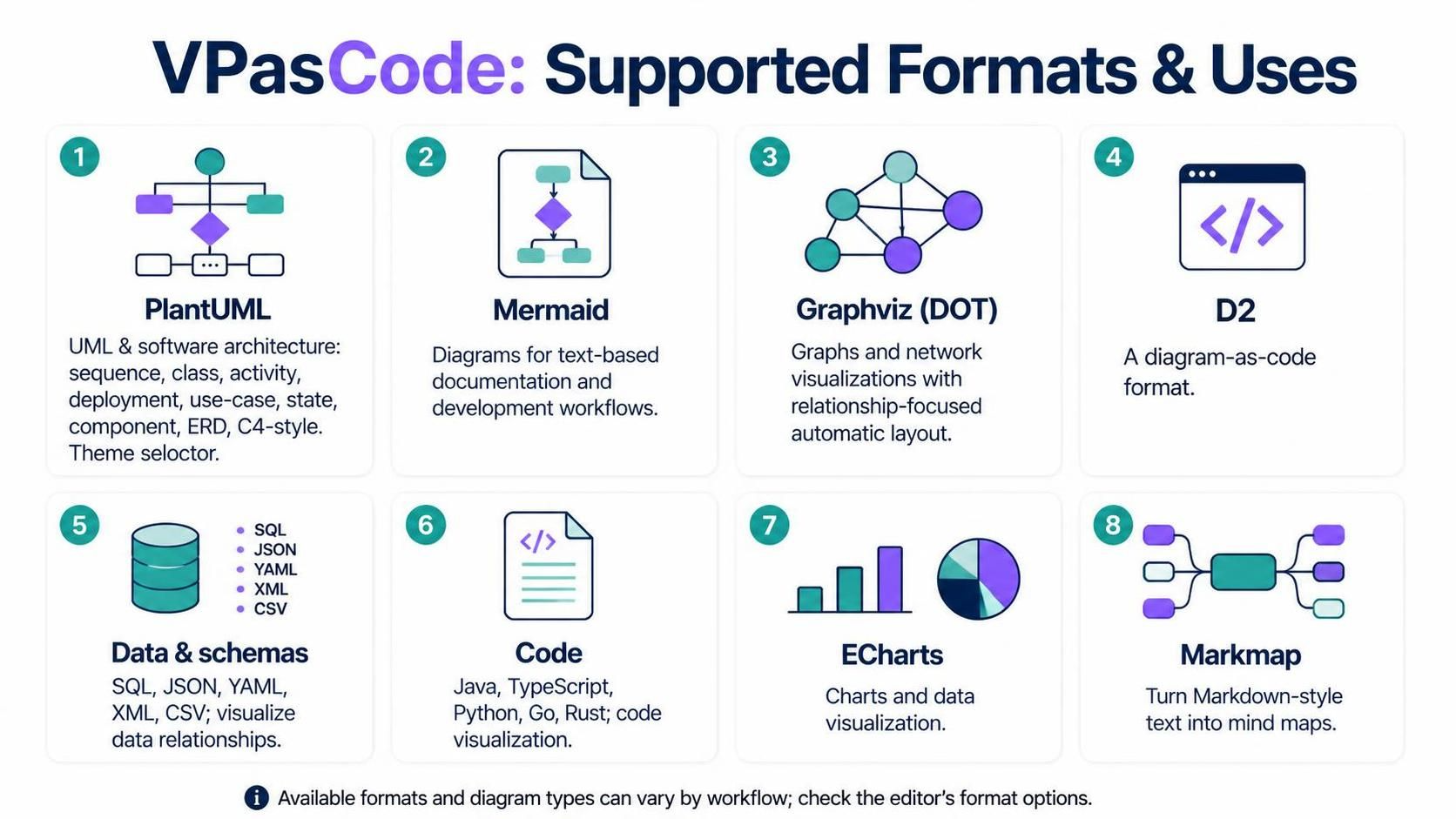
PlantUML: UML and software architecture diagrams, including sequence, class, activity, deployment, use-case, state, component, ERD, and C4-style diagrams. Its theme selector can apply a style without requiring you to remember the theme syntax.
-
Mermaid: Diagrams that fit naturally into text-based documentation and development workflows.
-
Graphviz (DOT): Graphs and network-style visualizations where relationships and automatic layout are central.
-
D2: Another diagram-as-code option supported by the platform.
-
Data and schemas: The feature page lists formats such as SQL, JSON, YAML, XML, and CSV for visualizing data relationships.
-
Code: The feature page lists source files such as Java, TypeScript, Python, Go, and Rust for code visualization.
-
ECharts and Markmap: Use ECharts for charts and Markmap to turn Markdown-style text into mind maps.
The exact formats and diagram types available can vary by feature or workflow, so check the editor’s format options when starting a specific project.
Getting started
-
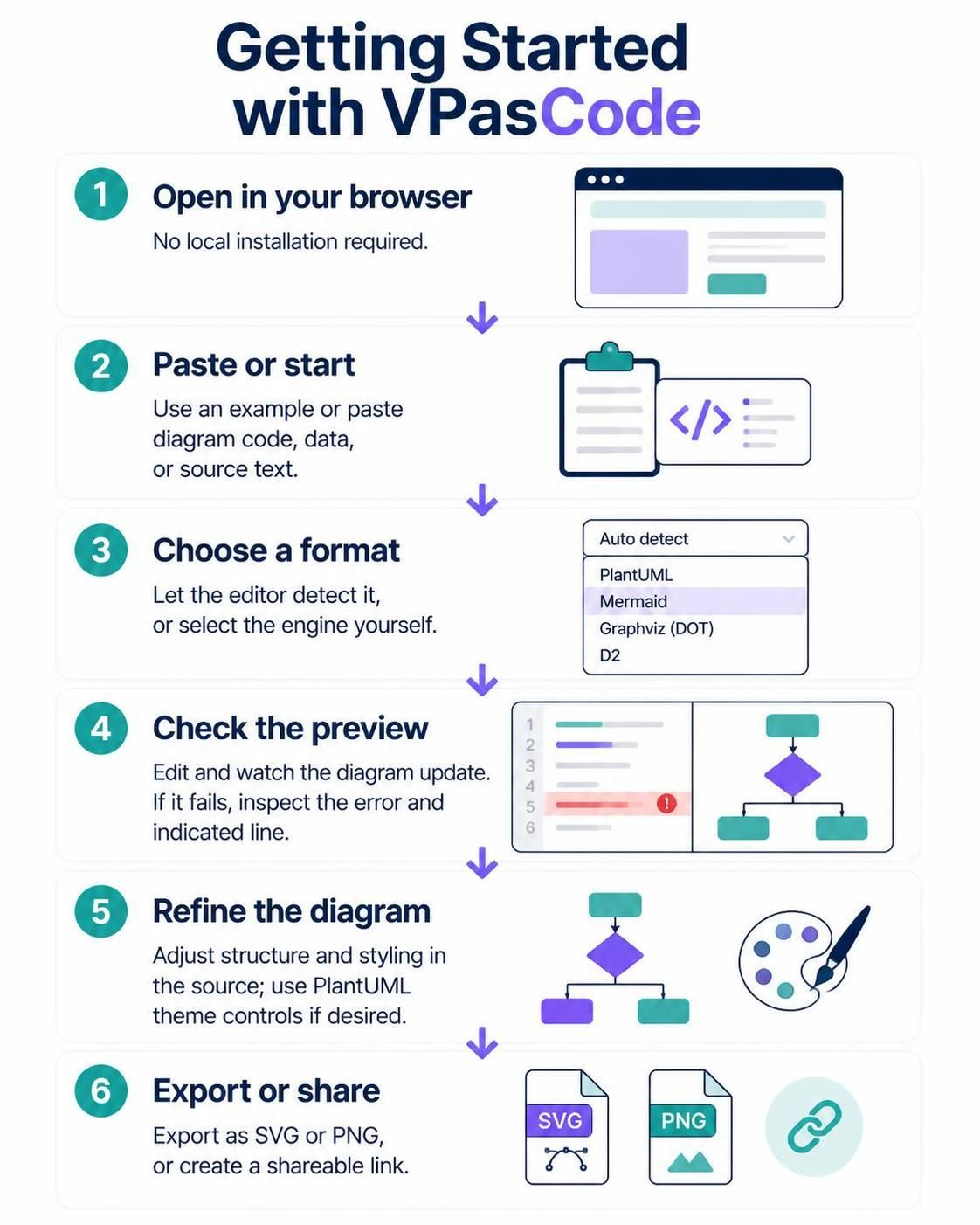
Open the VPasCode editor in a browser; the product is presented as requiring no local installation.
-
Start with a supported example or paste in existing diagram code, data, or source text.
-
Let the editor detect the format where possible. If it does not, select the appropriate engine or format in the workspace.
-
Watch the preview as you edit. If the diagram does not render, inspect the error message and the indicated line before changing the code.
-
Refine the diagram’s structure and styling in the source. For PlantUML, try the theme controls if you want to change its appearance.
-
Export the finished result as SVG or PNG, or create a shareable link for review.
AI features
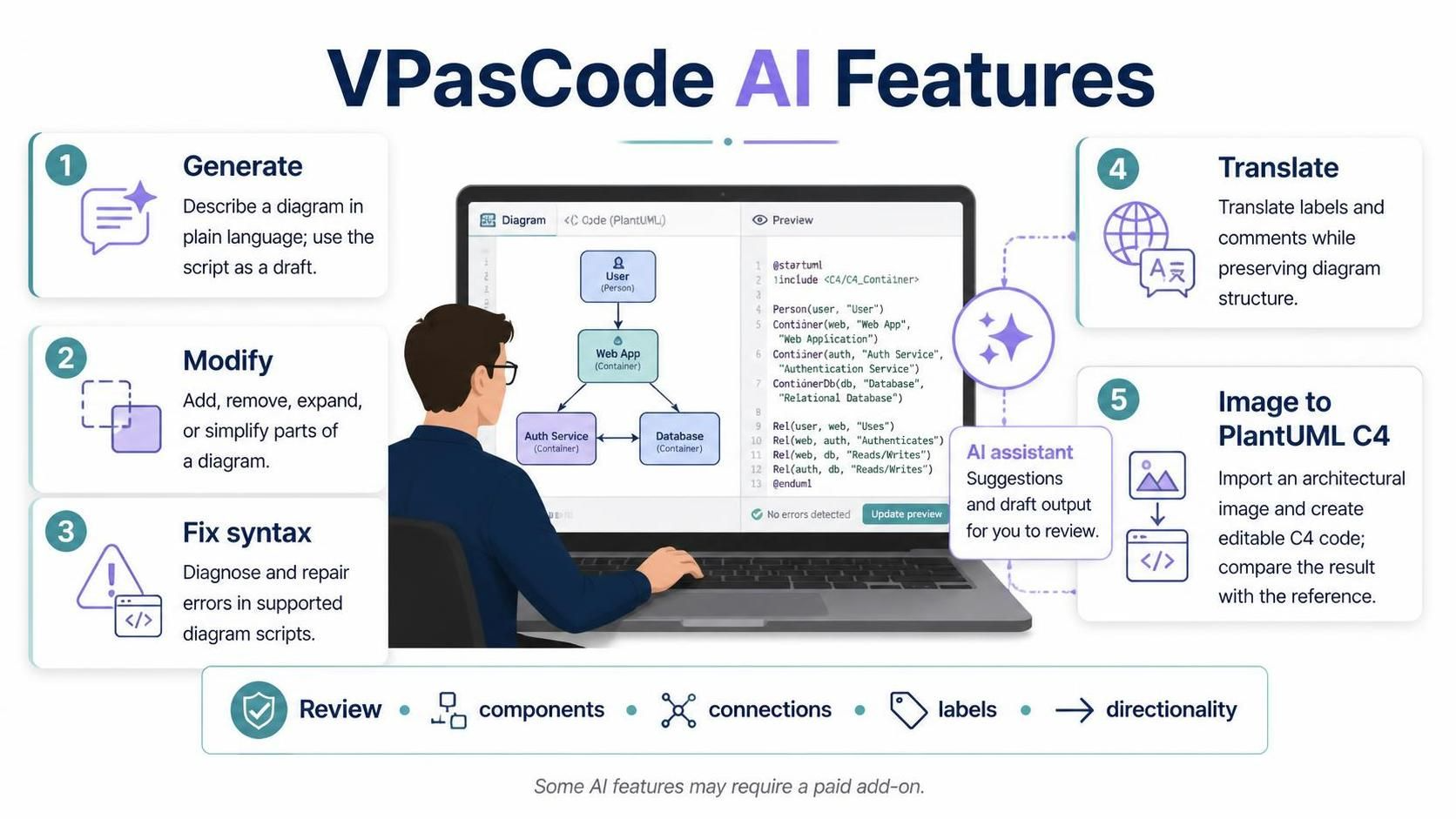
VPasCode’s AI tools can support several stages of diagram work:
-
Generate: Describe a diagram in plain language—for example, a login sequence or order-approval workflow—and use the resulting script as a draft.
-
Modify: Ask the assistant to add, remove, expand, or simplify parts of an existing diagram.
-
Fix syntax: Use AI assistance to diagnose and repair errors in supported diagram scripts.
-
Translate: Translate diagram labels and comments while retaining the surrounding diagram structure.
-
Convert an architectural image: The feature page also describes importing architectural images and using AI to produce editable PlantUML C4 code. Treat the output as a starting point: image interpretation may miss or misread details, so compare it with the reference.
AI-generated output should be reviewed before it is used as technical documentation. Check that components, connections, labels, and directionality match the system you intend to describe. Some AI features are listed as paid add-ons, so don’t assume every capability is included in the free editor.
Editing, styling, sharing, and export
The core workflow is text-first: edit the source, inspect the live rendering, and adjust the code until the diagram communicates clearly. Automatic formatting and theme options can make scripts and diagrams easier to work with. Visual Paradigm lists SVG and PNG exports and shareable web links; its product pages differ on whether PDF export is available, so check the export menu in your current editor rather than relying on PDF being supported.
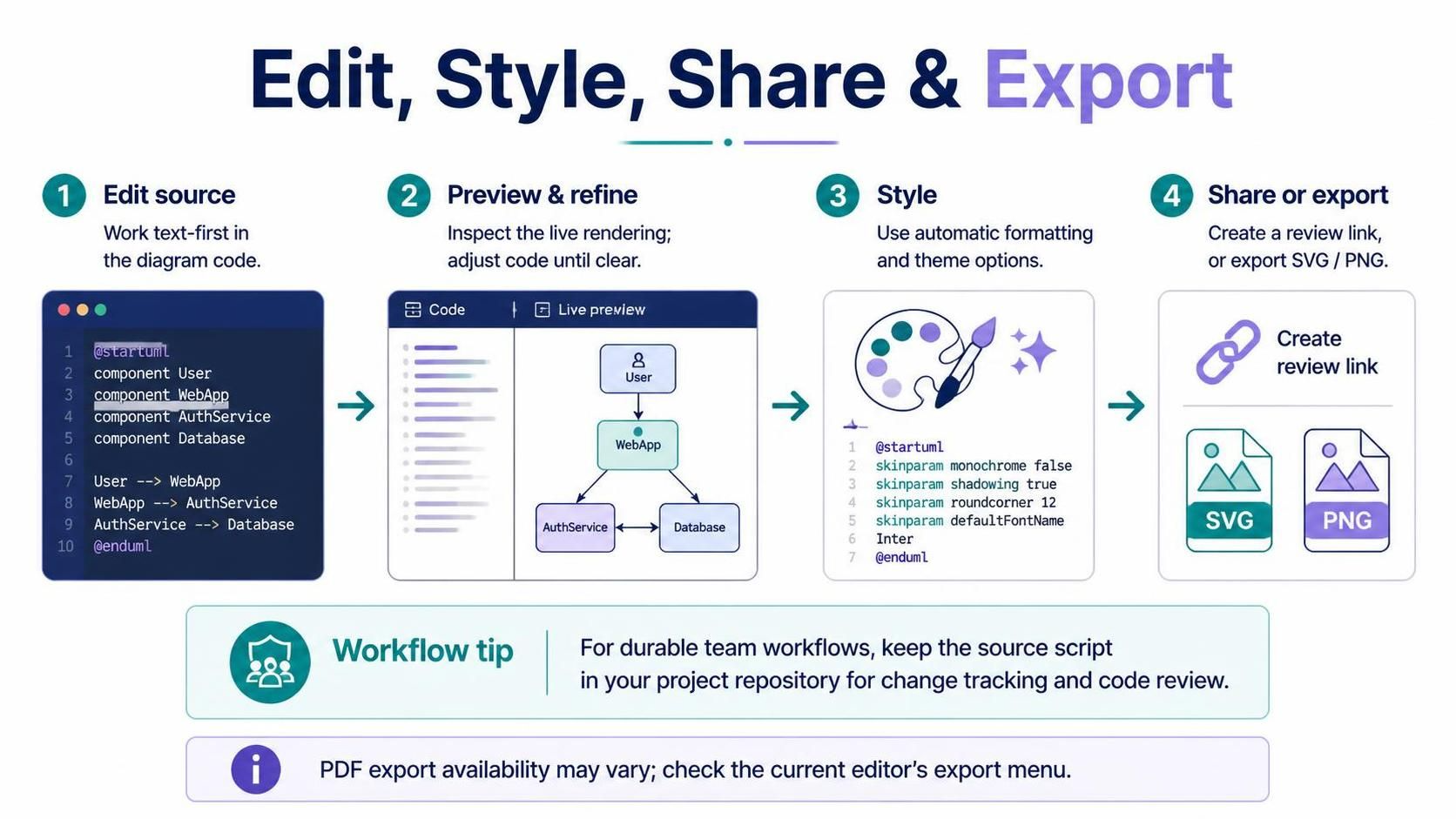
A shared link is useful for quick reviews. For durable team workflows, keep the source script in your project repository as well: the text-based format makes it practical to track changes and review diagram edits alongside code.
Integrations and workflow
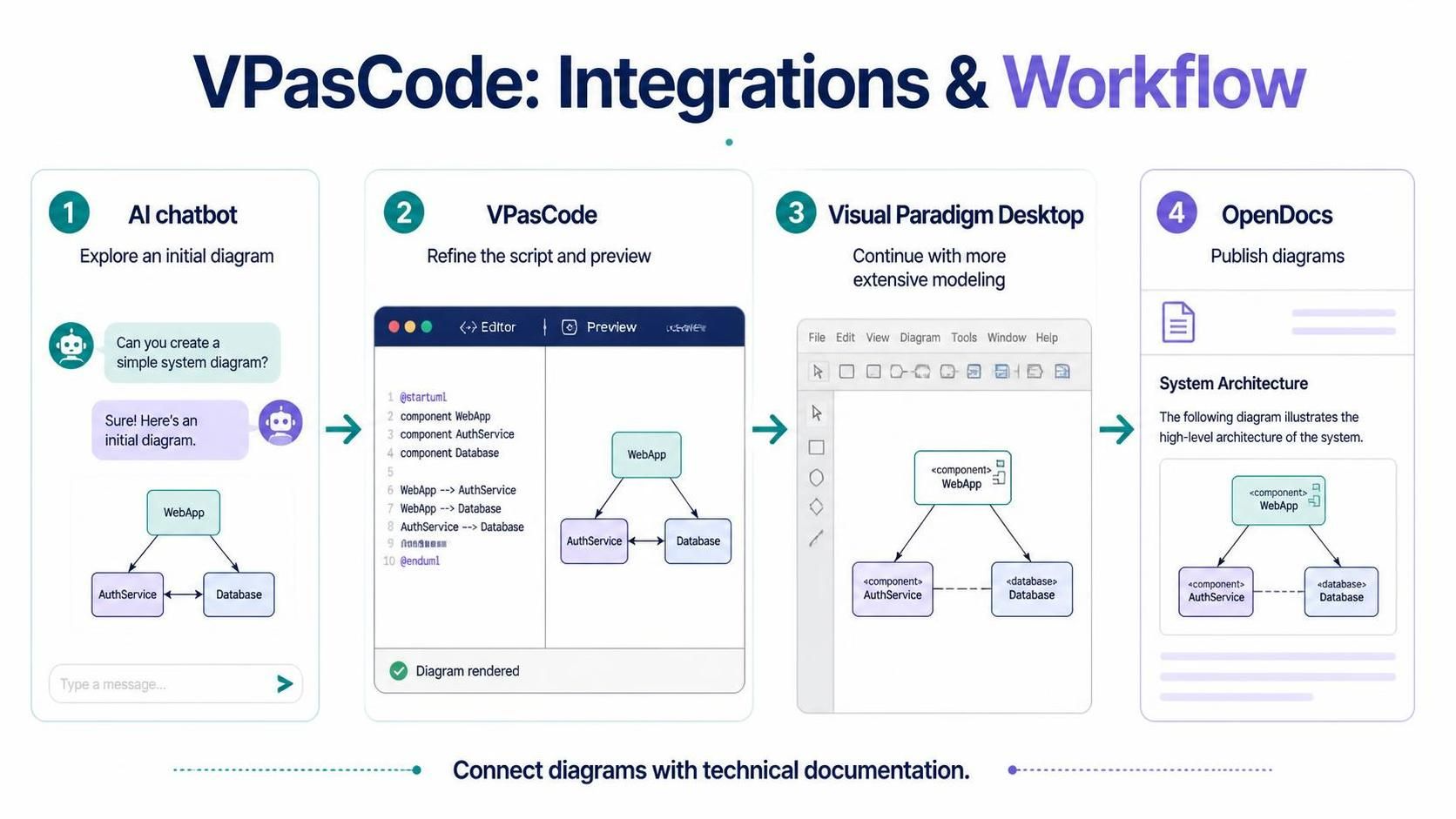
VPasCode is positioned as part of a broader Visual Paradigm workflow. You can use an AI chatbot to explore an initial diagram, refine the script and preview in VPasCode, take the work into Visual Paradigm Desktop for more extensive modeling, and publish diagrams through OpenDocs. The features page also describes connecting diagrams with technical documentation.
Best practices
-
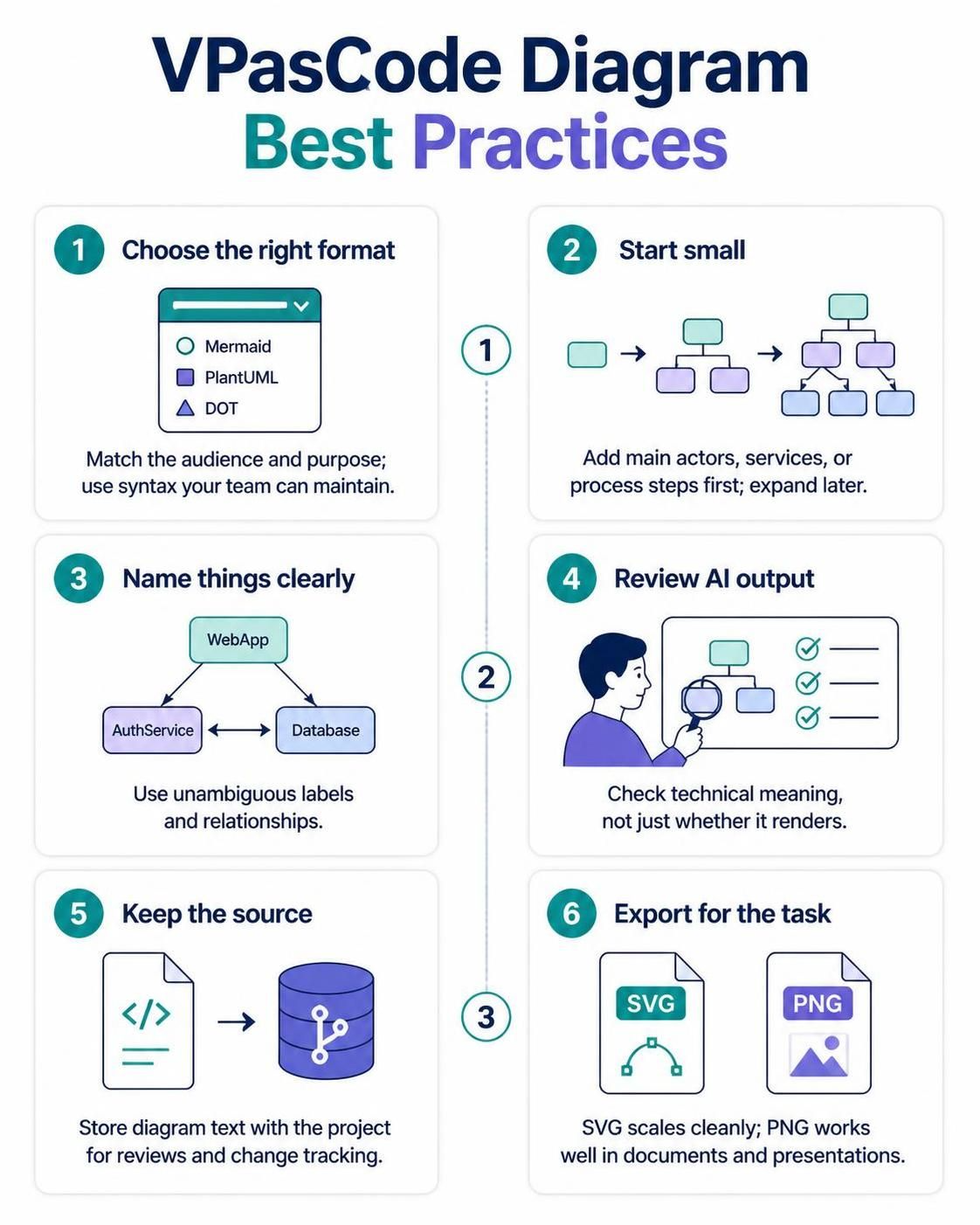
Choose the format for the audience and purpose. Use the syntax your team already understands and can maintain.
-
Start small. Build the main actors, services, or process steps first, then add detail.
-
Use clear names and relationships. A diagram is only useful if its labels and connections are unambiguous.
-
Check AI output carefully. Confirm technical meaning, not just whether the diagram renders.
-
Keep source text with your project. This makes review and change tracking easier than relying only on exported images.
-
Export for the task. SVG is useful when you need scalable vector output; PNG is convenient for common document and presentation workflows.
Overall assessment
VPasCode’s main strength is consolidating several text-to-diagram formats in a browser editor with live preview, AI assistance, and export and sharing features. It is a good fit for developers, architects, and technical writers who prefer editable text-based diagrams. Its trade-offs follow from that approach: you need to be comfortable editing syntax, AI output needs review, and the available formats and paid features should be confirmed in the editor for your account.