
Visual Paradigm’s ecosystem brings together desktop modeling, browser-based tools, AI-assisted diagramming, diagram-as-code editing, project-data queries, and knowledge management. The main advantage is the ability to move work between these activities: capture knowledge, generate or refine a model, analyze project data, and publish the result in documentation.
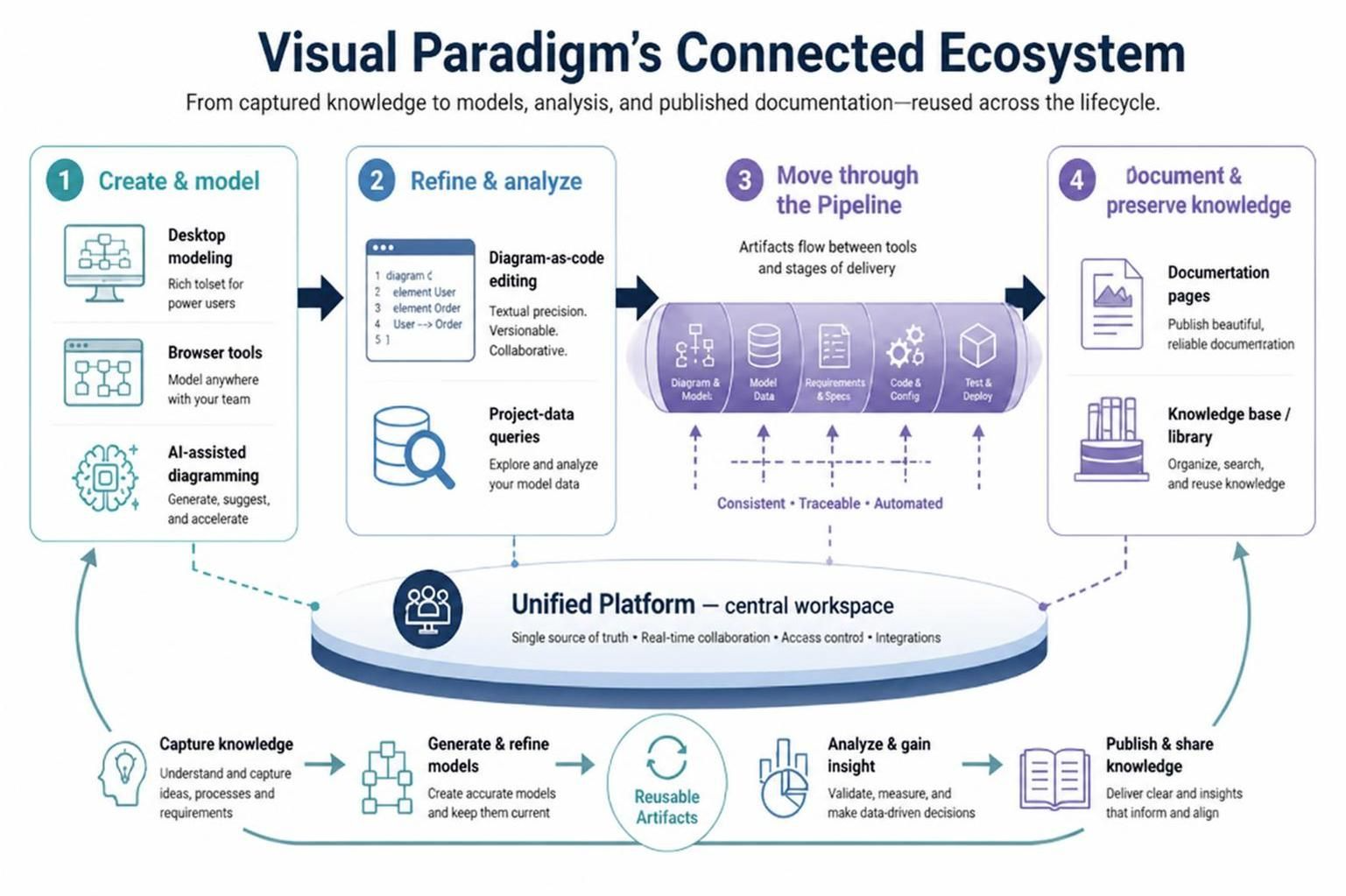
A useful mental model is:
Create and model → refine and analyze → move artifacts through the Pipeline → document and preserve project knowledge.
The Unified Platform acts as the central workspace; the Pipeline connects tools and artifacts.
1. The main components
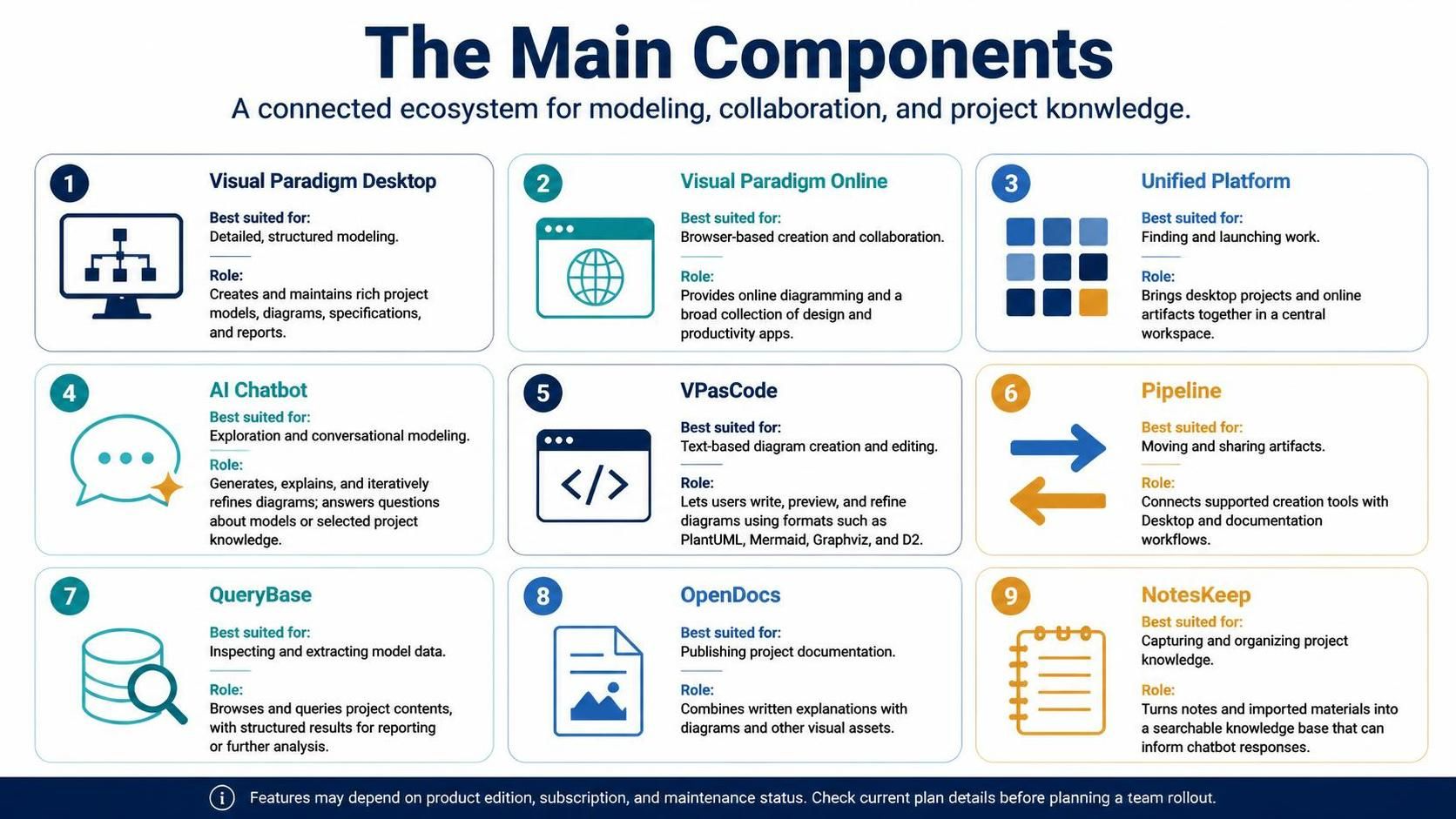
| Component | Best suited for | Role in the ecosystem |
|---|---|---|
| Visual Paradigm Desktop | Detailed, structured modeling | Creates and maintains rich project models, diagrams, specifications, and reports. |
| Visual Paradigm Online | Browser-based creation and collaboration | Provides online diagramming and a broad collection of design and productivity apps. |
| Unified Platform | Finding and launching work | Brings desktop projects and online artifacts together in a central workspace. |
| AI Chatbot | Exploration and conversational modeling | Generates, explains, and iteratively refines diagrams and can answer questions about models or selected project knowledge. |
| VPasCode | Text-based diagram creation and editing | Lets users write, preview, and refine diagrams using formats such as PlantUML, Mermaid, Graphviz, and D2. |
| Pipeline | Moving and sharing artifacts | Connects supported creation tools with Desktop and documentation workflows. |
| QueryBase | Inspecting and extracting model data | Browses and queries project contents, with structured results for reporting or further analysis. |
| OpenDocs | Publishing project documentation | Combines written explanations with diagrams and other visual assets. |
| NotesKeep | Capturing and organizing project knowledge | Turns notes and imported materials into a searchable knowledge base that can inform chatbot responses. |
The exact features available can depend on the product edition, subscription, and maintenance status. Check the current plan details before designing a team rollout.
2. Visual Paradigm Desktop and Online
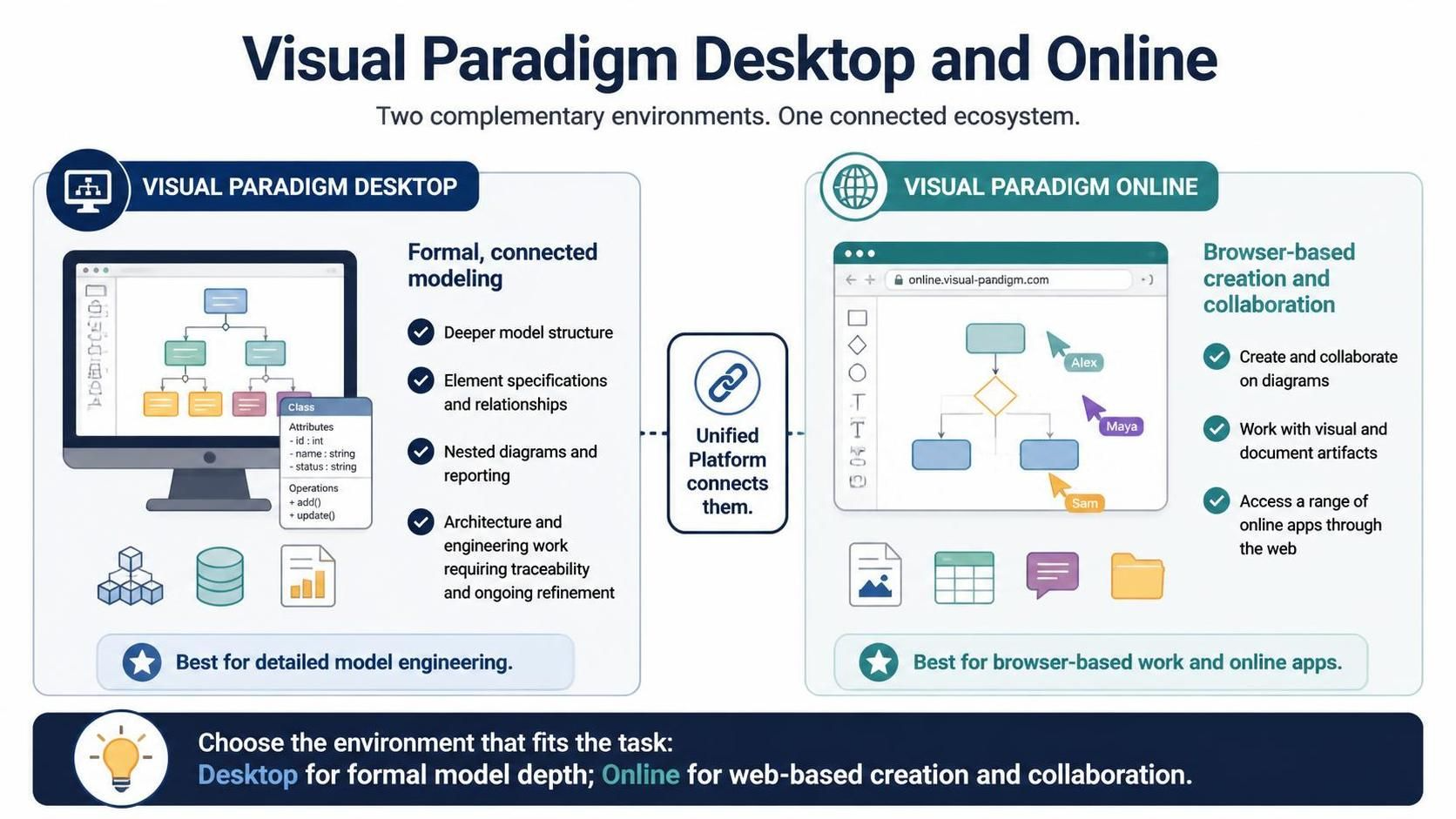
Visual Paradigm Desktop is the environment to use when a project needs a formal, connected model rather than only a visual sketch. It supports deeper model structure, element specifications, relationships, nested diagrams, and reporting. It is a good fit for architecture and engineering work that needs traceability and ongoing refinement.
Visual Paradigm Online is the browser-based environment for creating and collaborating on diagrams and other visual or document artifacts. It offers a range of online apps accessible through the web.
These environments complement one another. Desktop is the stronger choice for detailed model engineering; Online is useful for browser-based work and access to online apps. The Unified Platform connects them, but it does not make them identical or eliminate the need to choose the right environment for the task.
3. Unified Platform: the shared workspace
The Unified Platform is a centralized workspace for accessing Visual Paradigm tools and managing artifacts. It provides a drive-like view of work created across the ecosystem and a central way to launch online apps. Desktop users can open it inside the application through Team / Unified Platform > Unified Platform; browser users can access it through their Visual Paradigm Online account.
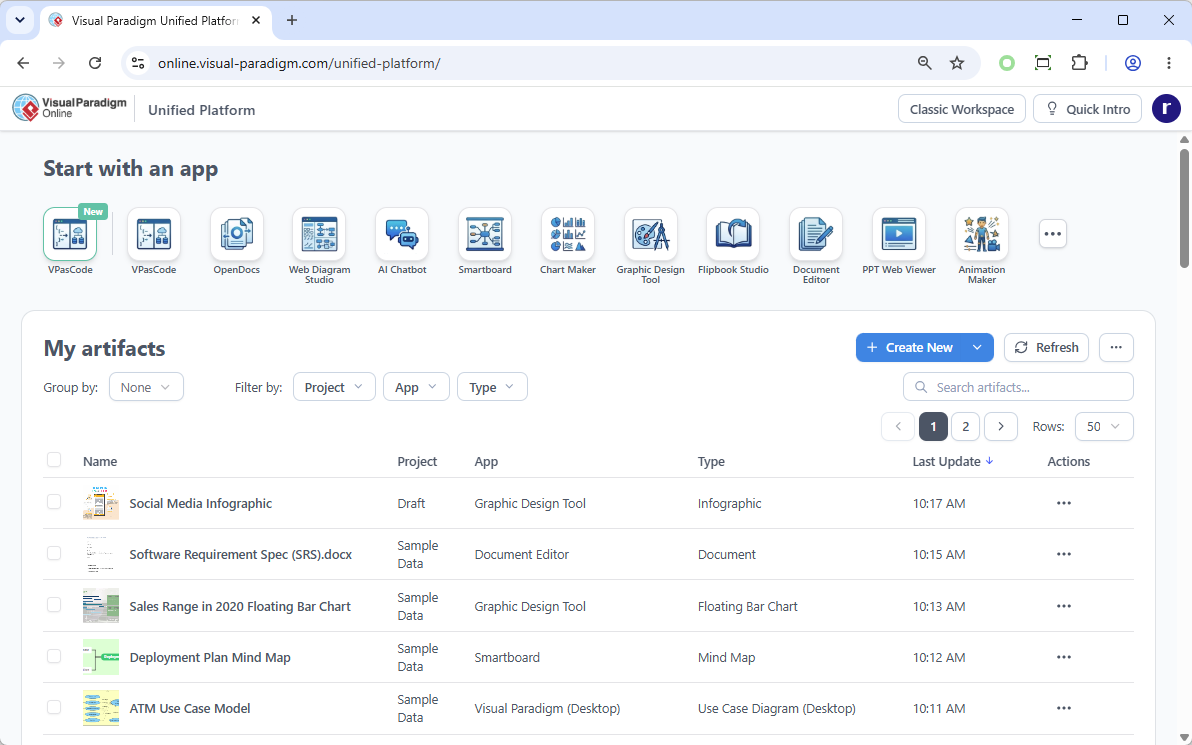
Use the Unified Platform when you need to:
-
Find or open work without remembering which app created it.
-
Launch an online app for a particular task.
-
Move between Desktop-based modeling and web-based tools.
-
Keep diagrams, documents, and other artifacts accessible from a central workspace.
Think of it as a workspace and access layer, not as a replacement for Desktop, Online, or the specialized apps themselves.
4. AI Chatbot: explore, generate, and ask
The AI Chatbot turns natural-language requests into diagrams and supports follow-up refinement. Depending on the workflow and supported diagram type, it can also explain models, generate summaries or documentation, and work with project knowledge. Supported diagram families include UML, C4, ArchiMate, SysML, BPMN, flowcharts, and others.
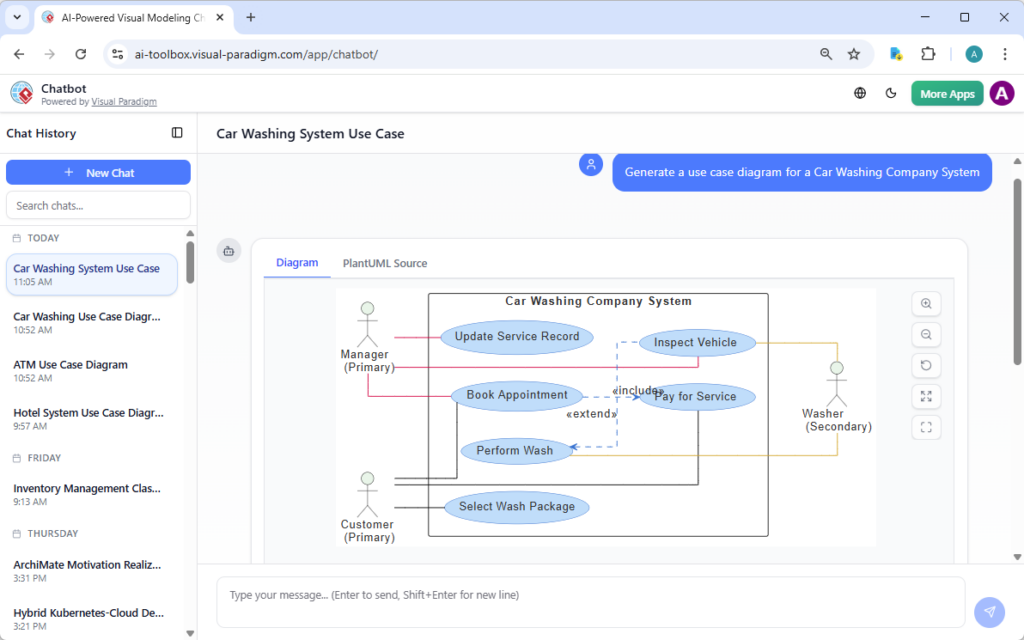
A practical way to use it:
-
Describe the system or process, including its scope and key participants.
-
Request a specific diagram type and level of detail.
-
Review the output for missing rules, assumptions, and relationships.
-
Ask focused follow-ups—for example, add an exception path or split a high-level view into a sub-diagram.
-
Send the result to a suitable next step: VPasCode for text-level edits, the Pipeline for supported handoffs, or Desktop for deeper modeling.
Treat the first output as a draft, not as a validated specification. Confirm important requirements, terminology, and business rules with domain experts before relying on the diagram.
The AI Chatbot can also answer questions about .vpp projects in supported workflows, helping users inspect model content conversationally rather than manually navigating every diagram.
5. AI VPasCode Tool: refine diagrams as text
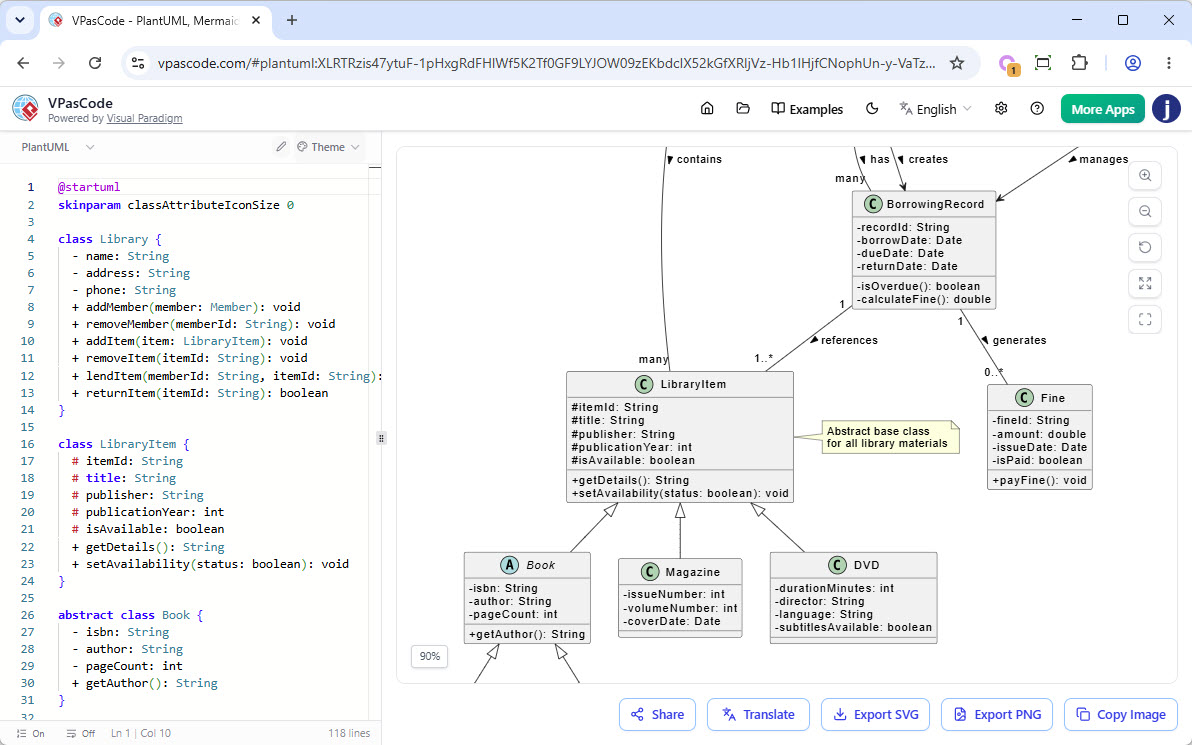
VPasCode is a browser-based diagram-as-code workspace. It combines text editing with a live diagram preview and supports formats including PlantUML, Mermaid, Graphviz, and D2. It is useful when you want more control over structure, layout, or styling than a generated visual alone provides.
A common working pattern is:
-
Generate a first draft in the AI Chatbot or VPasCode.
-
Open the diagram in VPasCode.
-
Edit the underlying diagram text and inspect the live preview.
-
Use built-in AI assistance, where available, to modify the diagram or help correct syntax.
-
Send or publish the finished artifact through a supported Pipeline workflow.
This makes VPasCode a useful refinement step: the chatbot helps establish a starting point, while text editing makes deliberate, precise changes. Keep diagram text organized and focused; large, overloaded diagrams are harder to review and maintain.
6. Pipeline: connect creation, modeling, and documentation
The Pipeline is an artifact handoff mechanism. It can collect outputs from supported tools and make them available in downstream workflows, such as importing diagrams into Desktop or inserting them into OpenDocs. The exact action can vary by source tool: for example, a chatbot-generated diagram may offer Send to Pipeline, while Desktop has its own import or sharing workflow.
A representative workflow from the AI Chatbot to Desktop is:
-
Generate a diagram in the chatbot.
-
Select Send to Pipeline for that diagram.
-
In Desktop, choose Project > Import > Visual Paradigm Pipeline.
-
Select the artifact and import it for further modeling.
In that Desktop workflow, the imported result can become an editable model artifact rather than only a flat image.
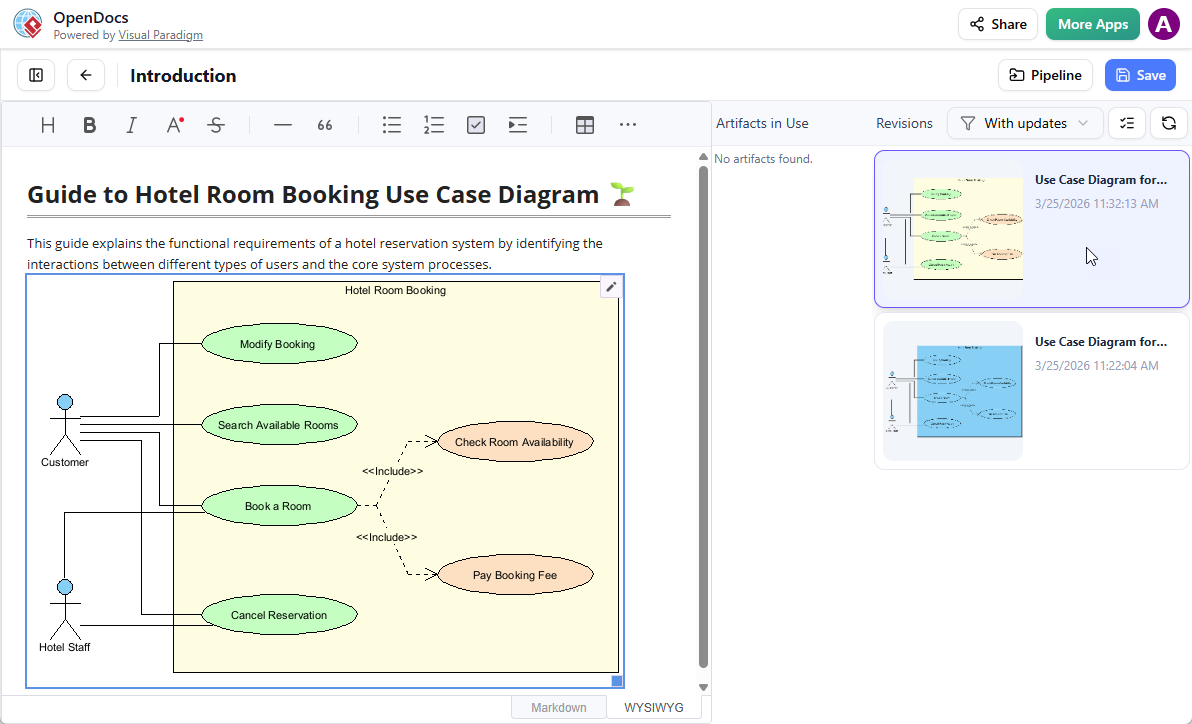
For documentation, the Pipeline can also help make diagrams available to OpenDocs. Some workflows support embedding an artifact into a document and updating it as the source changes. Confirm the specific integration behavior in the app and edition you use rather than assuming every artifact type has identical sync or revision support.
7. Model QueryBase: explore and extract project data
QueryBase is a web application for exploring data in Visual Paradigm projects stored in the cloud workspace. It is designed for structured inspection and extraction, rather than conversational diagram generation.
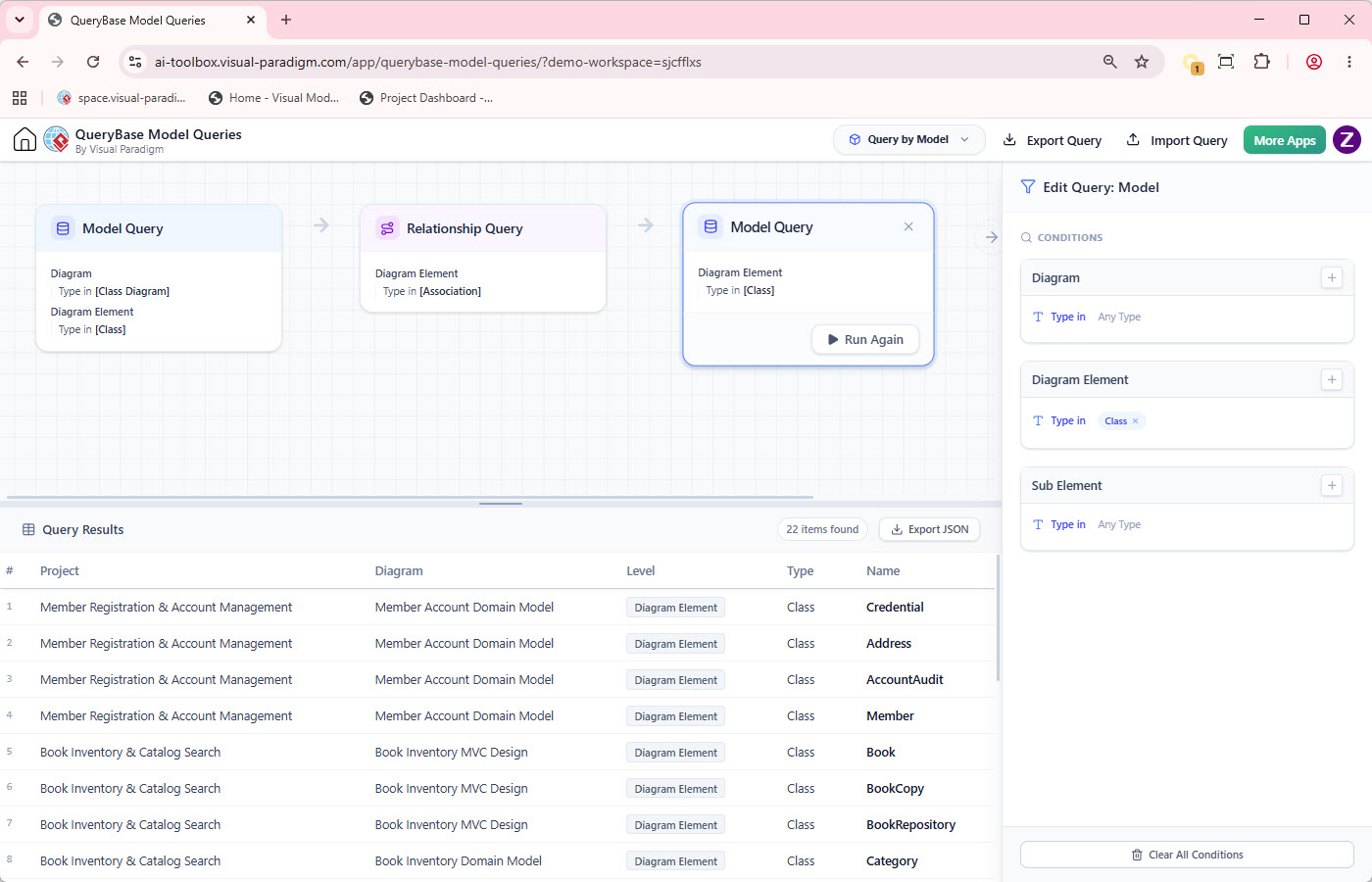
Its main capabilities include:
-
Project Explorer: Browse projects, diagrams, shapes, and model elements; search for elements and navigate to them.
-
Hierarchical queries: Select project, diagram, and element data and export structured JSON.
-
Model queries: Chain queries to trace relationships—for example, find an actor, locate its relationships, and identify connected use cases.
Typical uses include custom reporting, impact analysis, model validation, and exporting data for scripts or business-intelligence workflows. QueryBase’s product information describes it as an independent product, so check its current licensing separately from Desktop or Online.
8. VP OpenDocs: turn artifacts into documentation
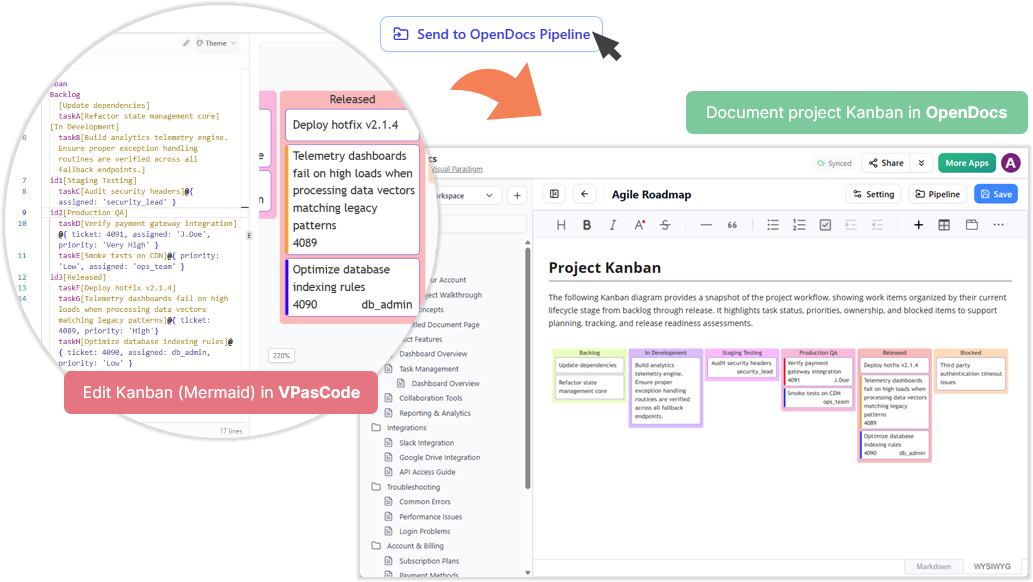
OpenDocs is the documentation destination for project explanations, specifications, and knowledge pages. It lets teams place written context alongside visual assets, making it easier to explain what a diagram represents and how it should be interpreted.
A practical documentation flow:
-
Create or refine a diagram in Desktop, Online, the AI Chatbot, or VPasCode.
-
Send or make it available through the relevant Pipeline workflow.
-
Create or open an OpenDocs page for the relevant feature, system, or process.
-
Insert the diagram and add context: purpose, scope, decisions, assumptions, and links to requirements.
-
When the source changes, check whether the embedded asset has an update available and refresh it as appropriate.
This turns a diagram from an isolated visual into part of a maintained explanation. Use descriptive page titles and include revision context so readers can tell which decisions are current.
9. NotesKeep: project knowledge that AI can use
NotesKeep is a collaborative note-taking and knowledge-management tool designed to collect project information in shared workspaces. It supports importing common business materials—such as Word, PDF, Excel, PowerPoint, text, and image files, as well as web pages—and organizing the resulting notes.
Its distinctive ecosystem role is its connection to the AI Chatbot: users can enable Search notes, choose a project or scope, and ask questions grounded in the notes. The chatbot can use text and, in supported cases, visual content embedded in notes; it can also use that project context to help generate diagrams.
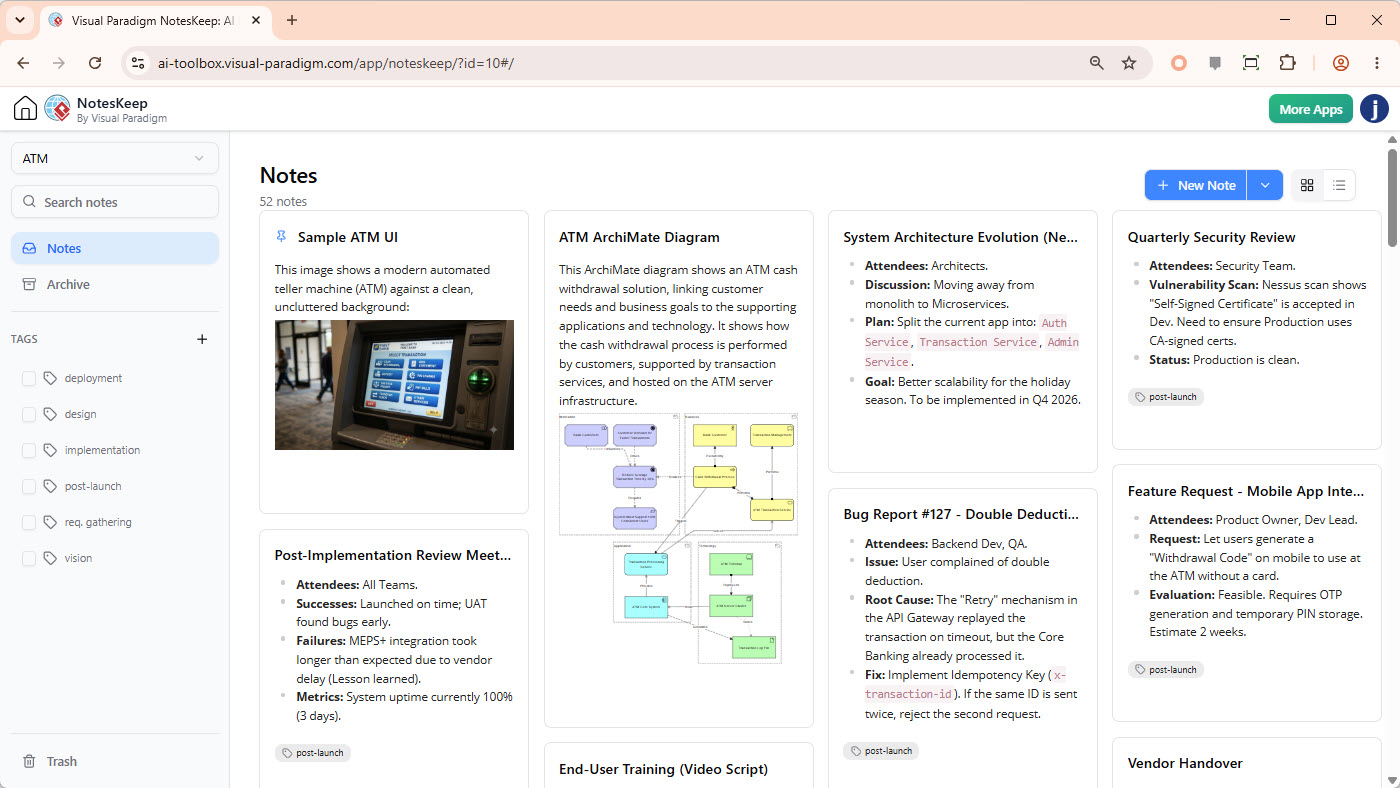
A reliable NotesKeep-to-AI workflow:
-
Create a workspace or project for a specific body of knowledge.
-
Add notes with clear titles, dates, and tags.
-
Import relevant documents or capture meeting outcomes, requirements, decisions, and changes.
-
When asking the chatbot, enable Search notes and select the relevant project.
-
Ask for a traceable answer, such as: “What is the current policy, and which note records the change?”
-
Review the cited or referenced material and verify that later decisions have not superseded it.
-
If useful, ask the chatbot to turn the collected information into a diagram, then refine and document that diagram.
For best results, treat NotesKeep as a curated project knowledge base, not an undifferentiated dumping ground. Record when a decision became effective, what it replaced, and which source is authoritative. That helps both people and AI distinguish current information from historical context.
About the Google Keep and MCP comparison
NotesKeep can be understood as an AI-connected project knowledge base, but it should not be assumed to be a drop-in Google Keep replacement or a Google Keep MCP connector. Google Keep MCP servers are separate integrations, and their permissions, credentials, and data access are distinct from Visual Paradigm’s NotesKeep workflow. If you need Google Keep data in Visual Paradigm, plan for an explicit import or integration path and confirm what is supported; do not assume the NotesKeep–chatbot connection automatically reads Google Keep.
10. Putting the pieces together
Here are three end-to-end patterns.
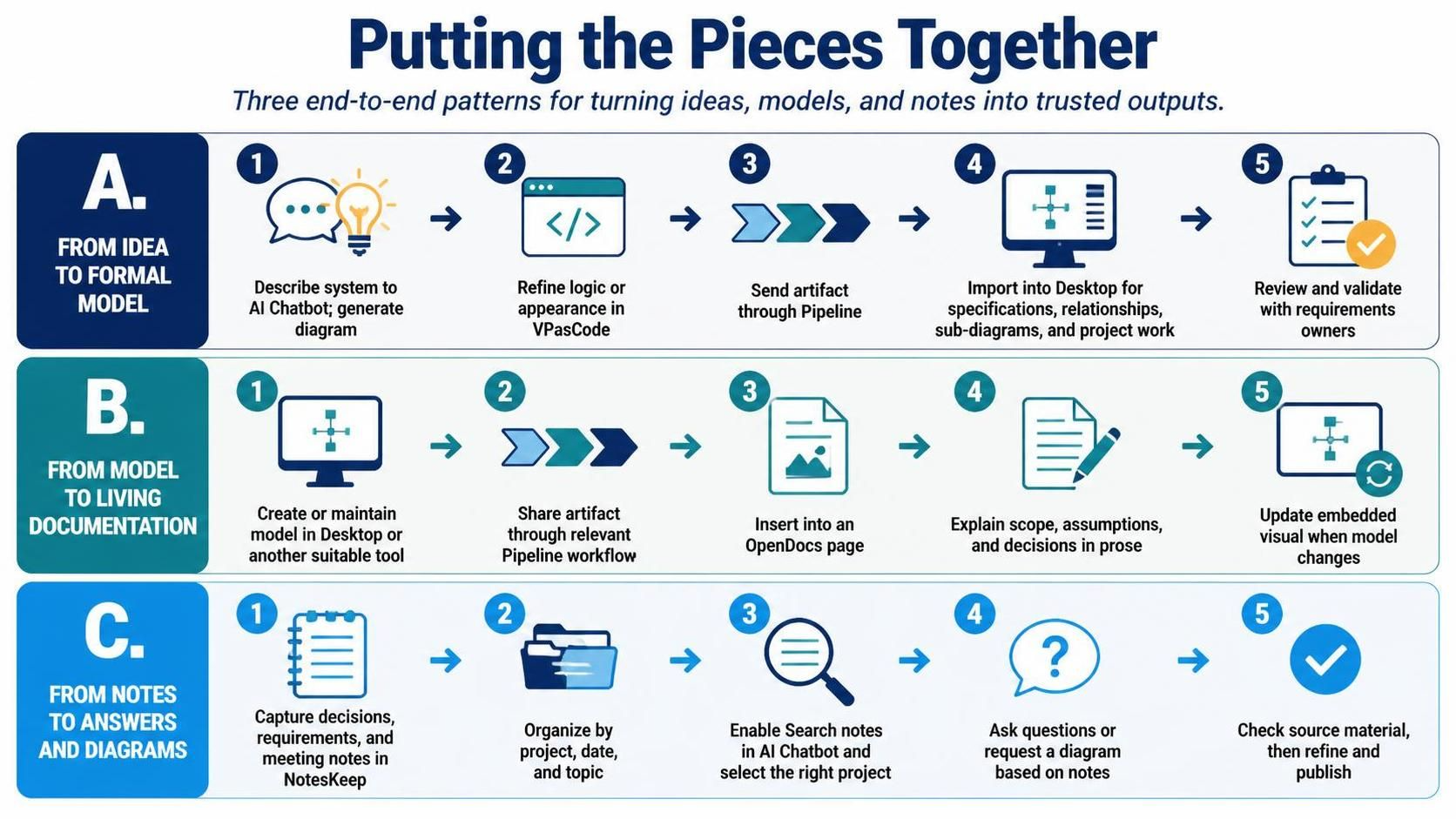
A. From idea to formal model
-
Describe the system to the AI Chatbot and generate a diagram.
-
Refine its logic or appearance in VPasCode when text-level control is useful.
-
Send the artifact through the Pipeline.
-
Import it into Desktop for specifications, relationships, sub-diagrams, and project-level work.
-
Review and validate the model with the people responsible for the requirements.
B. From model to living documentation
-
Create or maintain the model in Desktop or another appropriate tool.
-
Share the artifact through the relevant Pipeline workflow.
-
Insert it into an OpenDocs page.
-
Explain its scope, assumptions, and decisions in prose.
-
Update the embedded visual when the underlying model changes.
C. From notes to answers and diagrams
-
Capture decisions, requirements, and meeting notes in NotesKeep.
-
Keep the material organized by project, date, and topic.
-
Enable Search notes in the AI Chatbot and select the right project.
-
Ask questions or request a diagram based on those notes.
-
Check the source material, then refine and publish the output.
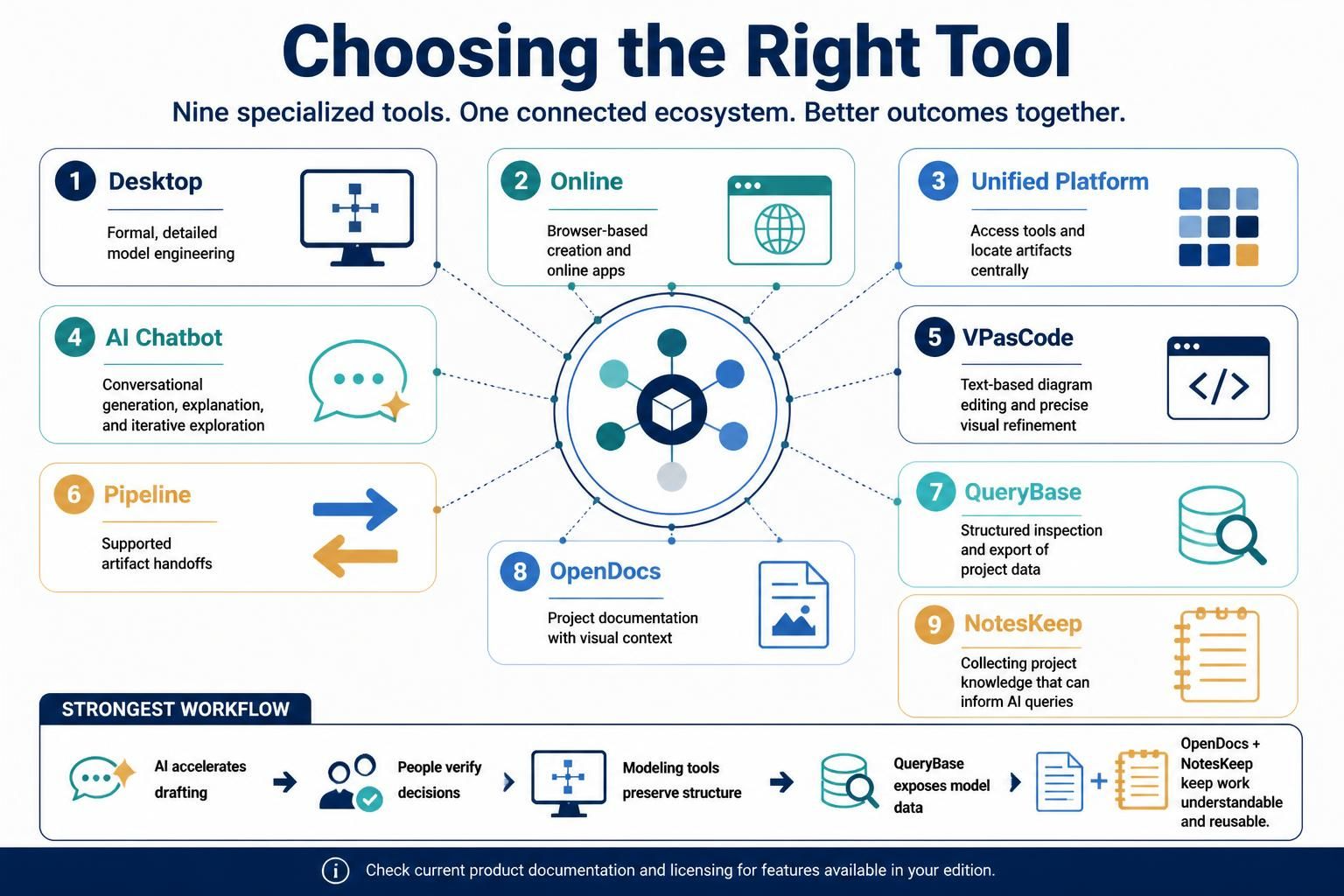
11. Choosing the right tool
-
Choose Desktop for formal, detailed model engineering.
-
Choose Online for browser-based creation and online apps.
-
Choose the Unified Platform to access tools and locate artifacts centrally.
-
Choose the AI Chatbot for conversational generation, explanation, and iterative exploration.
-
Choose VPasCode for text-based diagram editing and precise visual refinement.
-
Choose the Pipeline for supported artifact handoffs.
-
Choose QueryBase for structured inspection and export of project data.
-
Choose OpenDocs for project documentation with visual context.
-
Choose NotesKeep for collecting project knowledge that can inform AI queries.
The strongest workflow is usually not “AI does everything.” It is AI accelerates drafting; people verify decisions; modeling tools preserve structure; QueryBase exposes model data; and OpenDocs and NotesKeep keep the work understandable and reusable. Check current product documentation and licensing for the exact features available in your edition.