


Mastering State Diagrams with Visual Paradigm AI: A Guide for Automated Toll Systems
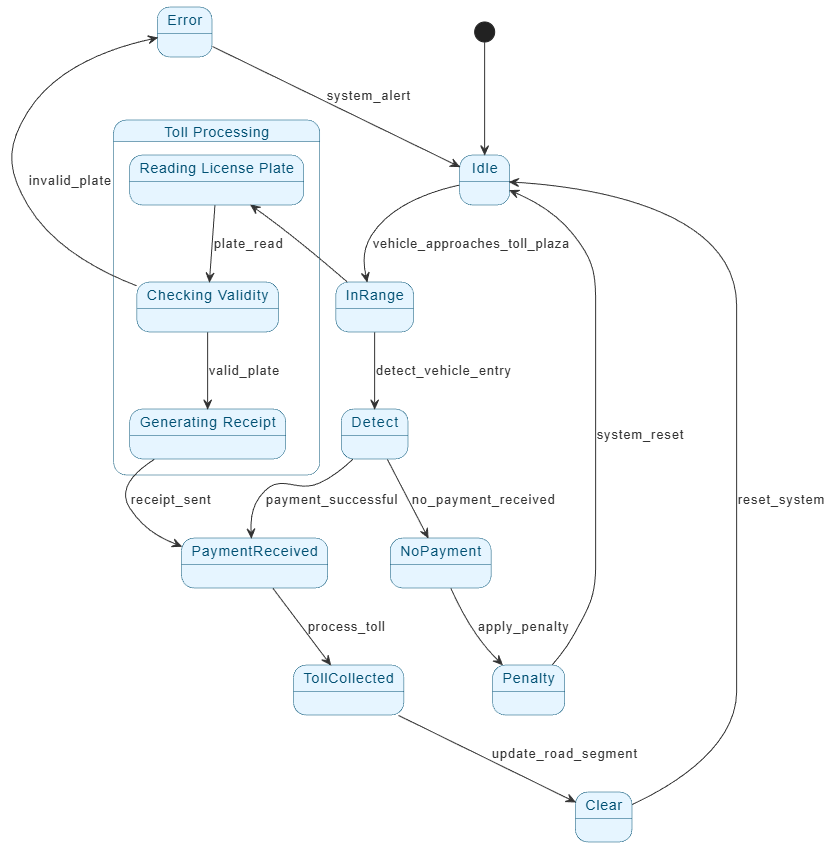
Creating robust system architecture for real-time applications, such as an Automated Toll Collection System, requires precise modeling. State diagrams (or state machines) are essential for visualizing how a system transitions between states like “Idle,” “Payment Received,” or “Penalty.”
Traditionally, drawing these diagrams manually was time-consuming. However, with Visual Paradigm AI, you can now generate comprehensive state diagrams using plain language descriptions. This guide provides a step-by-step walkthrough on leveraging AI to build a state diagram for a toll collection system.
Why Use Visual Paradigm AI for State Machines?
Visual Paradigm’s AI features bridge the gap between conceptual logic and visual representation. Instead of manually dragging and dropping every transition, you describe the system’s behavior, and the AI constructs the UML logic for you. This is particularly useful for complex scenarios involving sub-states (e.g., plate validation) and error handling
Step-by-Step Guide to Creating the Diagram
Step 1: Launch and Initialize
Begin by setting up your workspace in Visual Paradigm (available on both desktop and online versions).
- Launch Visual Paradigm.
- Open a new diagram or load your existing project.
- From the toolbar, select “State Diagram” (sometimes listed under UML Diagrams).
Note: This creates the visual environment where your state machine will be rendered.
Step 2: Access the AI Assistant
Locate the AI capabilities within the interface:
- Look for the AI Assistant icon in the top-right corner (often labeled as “AI” or “Chat”).
- Click it to open the AI Chatbox sidebar.
Troubleshooting: If the AI icon is missing, ensure you are using Visual Paradigm V10 or newer. Check Help > About to verify your version. If your license does not include AI, you can generate PlantUML code externally and import it manually.
Step 3: Engineering the Prompt
The quality of your diagram depends on the clarity of your prompt. In the chatbox, describe the toll system in plain English. Ensure you mention specific states and conditional logic.
Recommended Prompt:
“Create a state diagram for an automated toll collection system. The system detects when a vehicle enters a toll zone. If the vehicle pays, it processes the toll and clears the lane. If it doesn’t pay, it applies a penalty and resets. Include states like Idle, In Range, Payment Received, No Payment, and Penalty. Also include sub-states for plate validation and receipt generation.”
Alternative Prompt:
“Generate a state machine for a toll system that handles vehicle detection, payment, and error handling with clear transitions.”
Step 4: AI Generation and Analysis
Once you submit the prompt, the AI will process the logic and generate a structured diagram. It automatically handles:
- Core States: Idle, InRange, PaymentReceived, etc.
- Transitions: Mapping “Vehicle approaches” to the “Detect entry” state.
- Sub-states: Breaking down complex processes like “Reading License Plate” or “Validating Plate.”
- Error Handling: Defining paths for “Invalid Plate” or “Payment Failure.”
Pro Tip: The AI might ask clarifying questions, such as “Do you want to show penalties as a separate state?” Be prepared to provide feedback for a more accurate result.
Step 5: Review and Refine
AI generation is the starting point, not the finish line. Review the output in the editor:
- Logic Check: Ensure all transitions are logically ordered (e.g., the gate shouldn’t open before payment is validated).
- Missing States: Double-check that all key states mentioned in your requirements are present.
- Customization:
- Rename states for clarity (e.g., change “Toll Processing” to “Toll Handling”).
- Adjust colors to differentiate between normal flow (green) and error states (red).
Stakeholder Tip: Add a legend or text note explaining the diagram. For example: “This diagram illustrates the automated workflow, ensuring the system resets automatically after every vehicle to prevent data overlap.”
Step 6: Export and Share
Once the diagram is finalized, export it for your technical documentation or stakeholder presentations:
- File > Export > PNG: Best for PowerPoint presentations.
- File > Export > PDF: Ideal for formal technical reports.
- File > Export > PlantUML: Useful if you need to port the code to other tools like Draw.io or StarUML.
Visual Paradigm AI vs. PlantUML Code
While experienced developers often use PlantUML code snippets to generate diagrams, Visual Paradigm AI simplifies this process significantly.
- PlantUML: Requires knowledge of specific syntax and manual coding. It is excellent for portability but has a steeper learning curve.
- Visual Paradigm AI: Allows you to use natural language. You describe the system, and the software writes the underlying logic and renders the visual instantly.
If you are using an older version of Visual Paradigm without AI, you can still use the PlantUML method by writing the code externally and importing it. However, the AI workflow is faster and more accessible for rapid prototyping.
Conclusion
Using AI to generate state diagrams for systems like Automated Toll Collections allows architects to focus on logic rather than drawing mechanics. By following this workflow—prompting, generating, and refining—you create professional, error-free diagrams that clearly communicate system behavior to both technical teams and business stakeholders.
Resources
- Mastering State Diagrams in UML: A Comprehensive Guide
- State Machine Diagram Tutorial
- Online State Machine Diagram Tool – Visual Paradigm
- UML State Machine Diagram: A Definitive Guide to Modeling Object Behavior with AI
- State Machine Diagram – UML Diagrams
- Visual Paradigm AI Chatbot
- All You Need to Know about State Diagrams
- Instantly Generate Complex Diagrams with Our New AI Diagram Generator
- Mastering Sequence Diagram Modeling: A Practical Approach with Visual Paradigm
- Beginner’s Guide to State Machine Diagrams
- Applying State Diagrams: A Comprehensive Guide
- Visualizing System Behavior: A Practical Guide to State Diagrams with Examples Guides
- State Diagram – A Quick Tutorial
- How to Draw State Machine Diagram?
- State machine diagram
This post is also available in Deutsch, Español, فارسی, Français, English, Bahasa Indonesia, 日本語, Polski, Portuguese, Ру́сский, Việt Nam, 简体中文 and 繁體中文.
Related posts:
 How to Generate Professional Written Reports from Diagrams Using Visual Paradigm’s AI Chatbot
 Creating SysML Block Definition Diagrams with an AI Chatbot
 UML Modeling Tutorial: Key Concepts, Traditional Challenges, and AI-Powered Streamlining with Visual Paradigm
 What is Visual Paradigm AI ArchiMate Diagram Generation?