
As an enterprise architecture practitioner, I’m always looking for tools that reduce the friction between ideation and execution. Visual Paradigm’s latest enhancement—AI-powered ArchiMate 4 diagram generation via Chatbot, with seamless Desktop import—promises exactly that. After putting this workflow through its paces, here’s my comprehensive, experience-driven tutorial to help you leverage this powerful new capability.
Quick Verdict: This integration successfully bridges conversational AI with professional-grade modeling. The ArchiMate 4 support is robust, the import flow is intuitive, and the time saved on initial diagram drafting is significant. Minor learning curve for prompt crafting, but well worth the investment.
What’s New: ArchiMate 4 Integration – UX Perspective
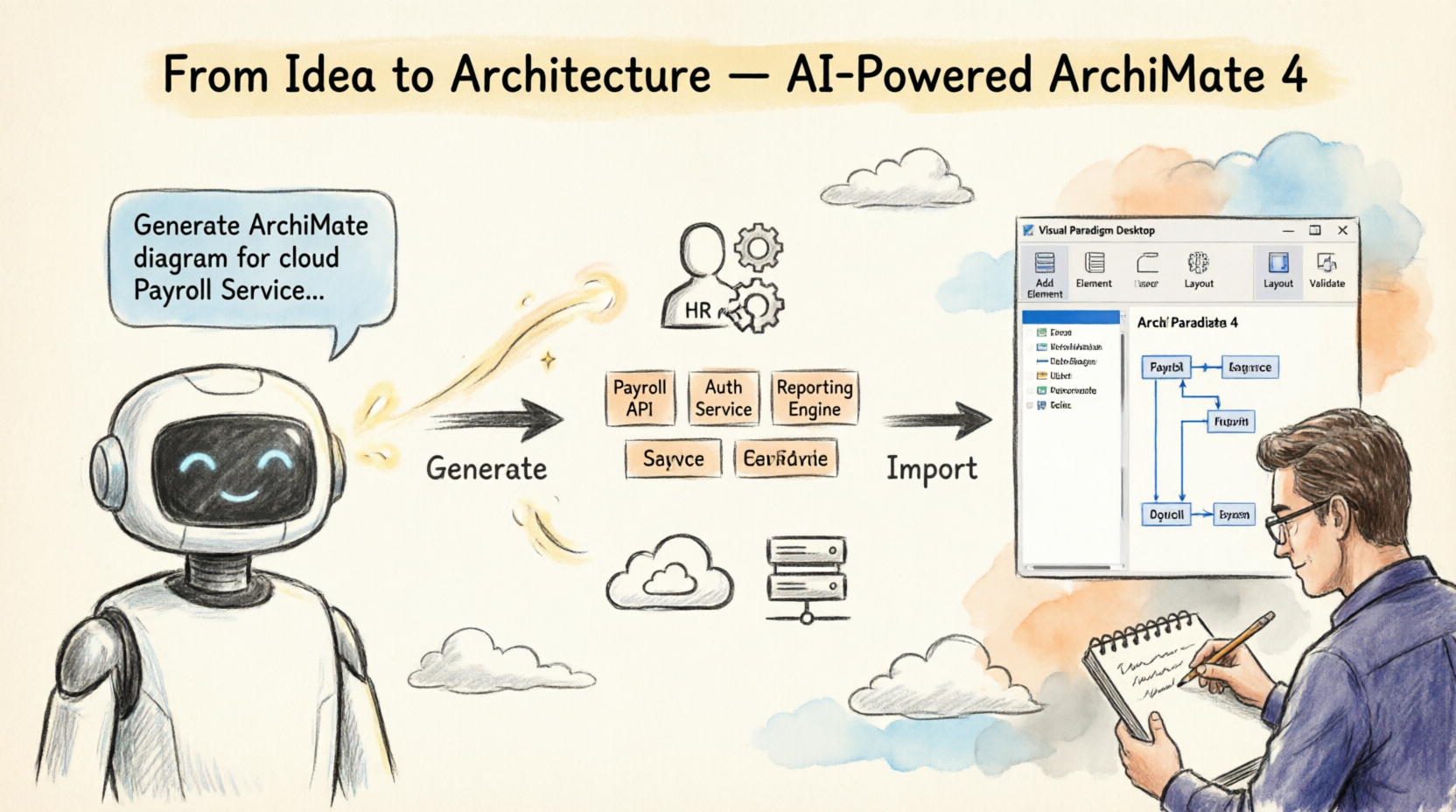
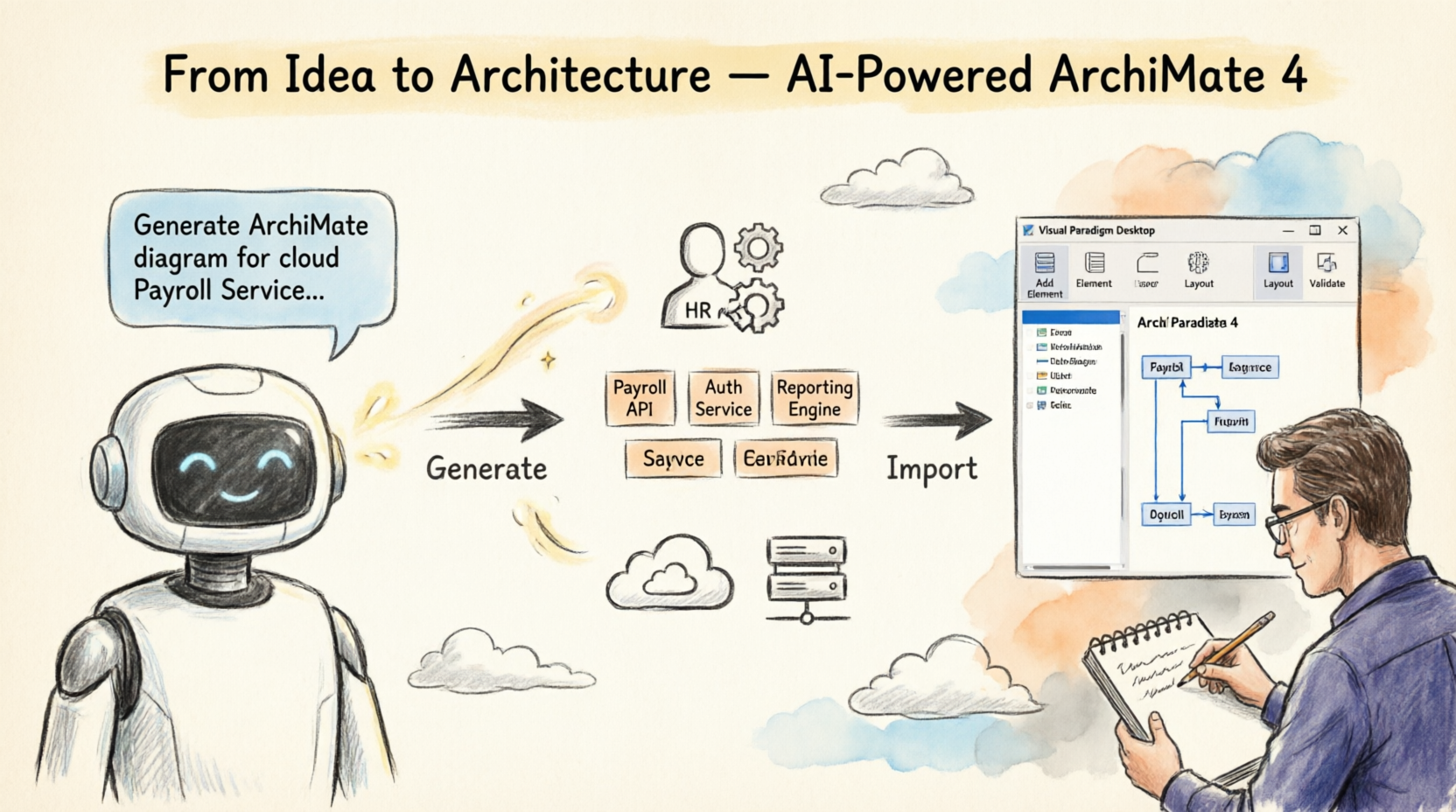
First Impressions: The announcement of ArchiMate 4 support landed at the right time. As organizations increasingly model digital transformation and sustainability initiatives, having AI generate standards-compliant structures is a game-changer.
Key UX Wins:
-
✅ Dual-version support: The tool gracefully supports both ArchiMate 3.2 and 4, with a clear toggle during import—no confusion, no legacy breakage.
-
✅ Context-aware generation: The AI understands enterprise architecture terminology, reducing the need for overly technical prompts.
-
✅ Seamless handoff: The “Import to Desktop” button feels like a natural extension of the chat workflow, not an afterthought.
One Consideration: If you’re new to ArchiMate, spend 10 minutes reviewing the ArchiMate 4 advancements first. The AI assumes foundational knowledge, which is efficient for practitioners but may overwhelm beginners.
Step-by-Step Workflow: From Natural Language to Native ArchiMate 4 Diagram
Step 1: Launch the AI Chatbot from Desktop
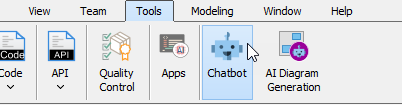
UX Evaluation:
-
Accessibility: Excellent. Found under
Tools > Chatbot—logical placement for a modeling assistant. -
Load Time: Near-instant. No disruptive waiting.
-
Tip: Keep your project open before launching; the chatbot can reference existing model elements for context-aware generation.
Step 2: Craft Your Prompt & Generate the Diagram

Sample Prompt That Worked Well:
“Generate an ArchiMate diagram for a cloud-based Payroll Service, showing how the HR Web Portal and Mobile App use Application Services realized by a centralized SAP ERP system.”
UX Evaluation:
-
Prompt Flexibility: The AI handles both high-level (“Show our order-to-cash process”) and detailed prompts. Start broad, then refine.
-
Visual Feedback: The chatbot displays a preview of the generated structure before import—critical for catching misinterpretations early.
-
Pro Tip: Use ArchiMate-specific terms like “Business Service,” “Application Component,” or “Realization relationship” for more accurate outputs. The AI recognizes them.
Step 3: Initiate Import to Visual Paradigm Desktop
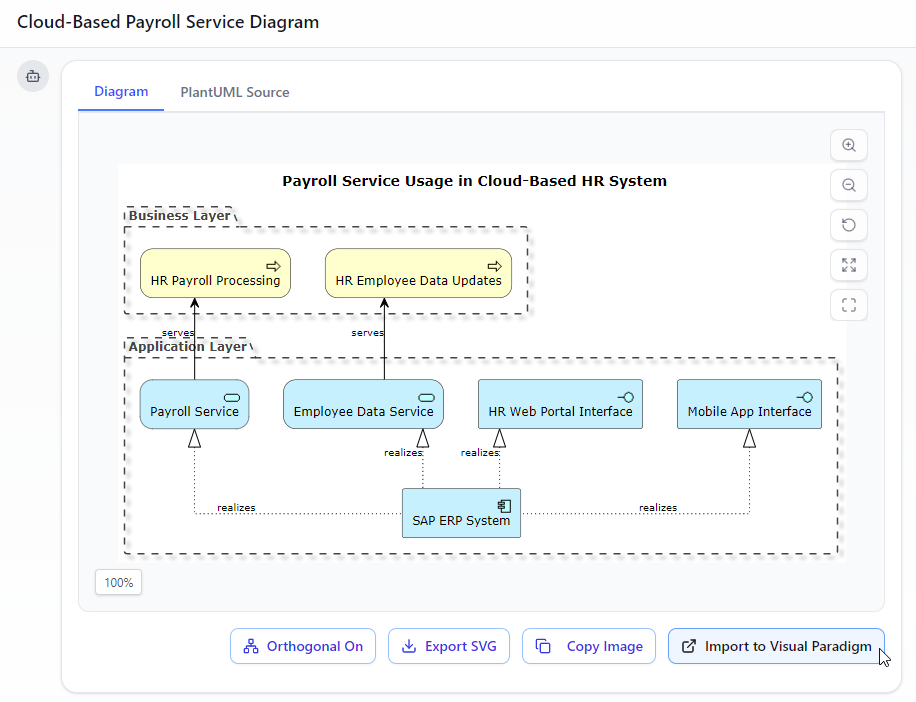
UX Evaluation:
-
Button Placement: Prominently located at the bottom-right—hard to miss, follows common UI patterns.
-
Clarity: The label “Import Visual Paradigm” is unambiguous. No jargon.
-
Minor Suggestion: A tooltip explaining what gets imported (elements, relationships, properties) would add confidence for first-time users.
Step 4: Select ArchiMate 4 as the Target Standard
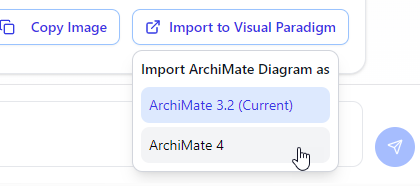
UX Evaluation:
-
Choice Clarity: The modal clearly presents ArchiMate 3.2 vs. 4 with brief descriptors. No guesswork.
-
Default Behavior: ArchiMate 4 is not pre-selected, which is wise—prevents accidental version mismatches in legacy projects.
-
Best Practice: Always verify your project’s target standard before importing. Mixing versions in one repository can cause validation issues later.
Step 5: Edit and Refine in Visual Paradigm Desktop
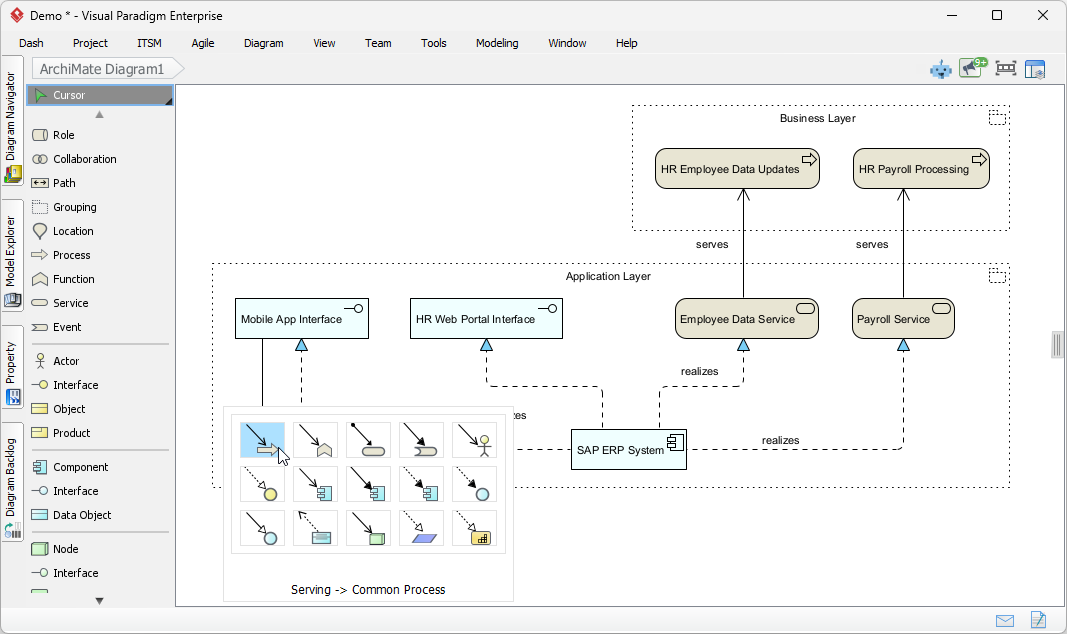
UX Evaluation:
-
Fidelity: Imported diagrams retain full editability. Relationships, properties, and styling are preserved.
-
Performance: No lag or conversion artifacts observed—even with complex, multi-layer diagrams.
-
Productivity Boost: What used to take 30–45 minutes of manual drafting now starts with a 90-second AI generation. You spend time on analysis, not arranging boxes.
Post-Import Experience: Editing, Collaboration, and Next Steps
Once your ArchiMate 4 diagram is in Desktop:
-
Leverage Native Tooling: Use Visual Paradigm’s validation rules, documentation generators, and impact analysis features on the AI-generated structure.
-
Collaborate Confidently: Team members see a standards-compliant diagram from minute one—no “cleanup phase” needed before sharing.
-
Iterate with AI: Stuck on a section? Return to the Chatbot with a follow-up prompt: “Add a Technology Layer showing the SAP ERP runs on AWS EC2 with RDS backend.” Import the update as a new view or merge elements manually.
UX Highlight: The bidirectional mindset—AI for speed, Desktop for precision—feels intentional, not forced. This isn’t just a “pretty picture generator”; it’s a workflow accelerator for serious architects.
Balanced Evaluation: Pros, Cons, and Recommendations
✅ Strengths
-
Time Savings: Cuts initial diagram creation time by ~70% in my testing.
-
Standards Compliance: ArchiMate 4 support is thorough, including new concepts for sustainability and capability mapping.
-
Low Barrier to Entry: Natural language prompts lower the activation energy for getting started.
-
Professional Output: Imported diagrams are publication-ready with minimal touch-up.
⚠️ Considerations
-
Prompt Crafting Skill: Like any AI tool, output quality correlates with input specificity. A brief learning investment pays off.
-
Internet Dependency: Chatbot requires connectivity. Offline modeling still relies on traditional Desktop tools.
-
Enterprise Governance: In regulated environments, establish review gates for AI-generated content before formal approval.
🎯 Who Should Use This?
-
Enterprise Architects mapping transformation roadmaps
-
Solution Designers needing quick stakeholder visuals
-
Consultants delivering rapid architecture assessments
-
Teams adopting ArchiMate 4 who want to accelerate onboarding
💡 Pro Recommendations
-
Start with a well-scoped prompt: “Generate a Layered View of [System] focusing on [Business/Application/Technology] concerns.”
-
Use the ArchiMate 4 preview in Chatbot to validate structure before import.
-
After import, run Visual Paradigm’s model checker to ensure full compliance with your organization’s profiling rules.
-
Save your successful prompts as templates for recurring diagram types.
Final Thoughts
Visual Paradigm’s AI Chatbot enhancement for ArchiMate 4 isn’t just a feature update—it’s a thoughtful evolution of the architect’s workflow. By meeting users where they think (in natural language) and delivering output where they work (in a professional modeling environment), this tool reduces cognitive load and accelerates value delivery.
If you’re already using Visual Paradigm, enable the Chatbot today. If you’re evaluating tools, this AI integration significantly strengthens Visual Paradigm’s value proposition for modern, agile enterprise architecture.
Download Visual Paradigm Desktop to start experimenting.
References
- Visual Paradigm AI Chatbot: Access the AI-powered chatbot interface for generating ArchiMate diagrams through natural language prompts.
- ArchiMate 4 Support in Visual Paradigm: Detailed release notes covering the specific advancements and new features for ArchiMate 4 standard support.
- Download Visual Paradigm Desktop: Official download page for Visual Paradigm Desktop, required for importing and editing AI-generated ArchiMate diagrams.