


Sequence diagrams are a fundamental part of system design in software engineering, illustrating the interactions between objects or components over time. They are particularly useful for visualizing use cases—specific scenarios describing how users interact with a system to achieve a goal. However, starting from a high-level use case description and manually refining it into a detailed, architecturally sound diagram can be time-consuming and error-prone.
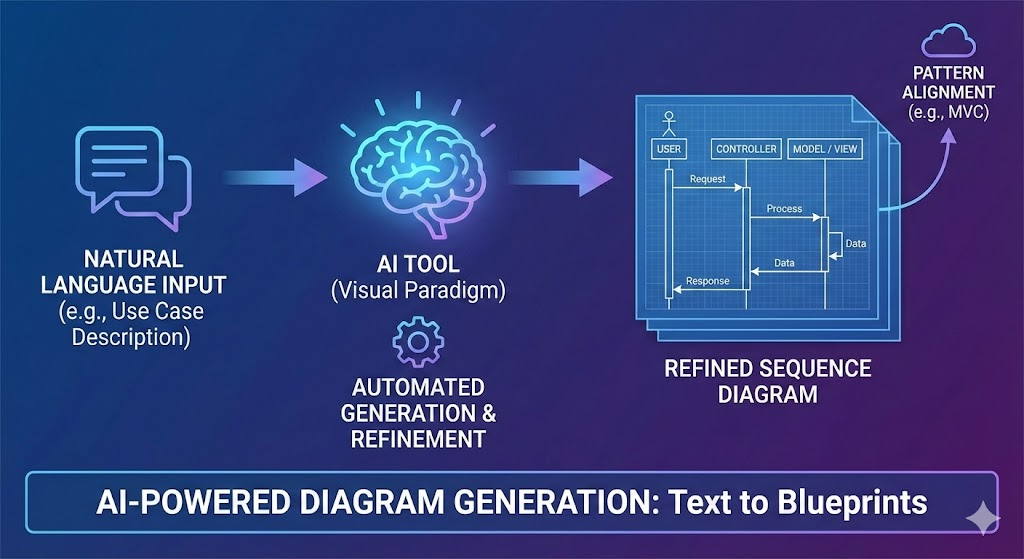
Visual Paradigm’s AI Sequence Diagram Refinement Tool addresses this challenge by leveraging artificial intelligence to automatically generate and refine sequence diagrams directly from natural language inputs, such as use case descriptions. This tool transforms simple, textual prompts into multi-layered architectural blueprints, often aligning with patterns like MVC (Model-View-Controller) to ensure separation of concerns. In this guide, we’ll explore how to use the tool step by step, explain its inner workings, and provide practical examples based on its capabilities.
Why Use This Tool for Refining Use Case Descriptions?
Before diving into the how-to, let’s understand the value. A use case description is typically a narrative outlining actors, preconditions, main flows, alternative flows, and postconditions. Refining it into a sequence diagram involves breaking it down into precise interactions between components.
The AI Sequence Diagram Refinement Tool excels here because:
- It Handles Natural Language Directly: No need for initial diagramming skills or code—input plain English descriptions.
- Automatic Layering and Enrichment: The AI identifies key elements (e.g., actors, controllers, models, views) and adds detailed message flows, ensuring compliance with architectural best practices.
- Efficiency and Accuracy: Reduces manual effort while producing implementation-ready diagrams.
- Integration with MVC: It visualizes how the use case adheres to MVC, separating user interfaces (View), business logic (Controller), and data handling (Model).
This makes it ideal for developers, architects, and stakeholders who need clear, actionable visuals from conceptual use cases.
Step-by-Step Guide: How to Refine a Sequence Diagram from a Use Case Description
The process is straightforward and integrated into Visual Paradigm’s platform. Assuming you have access to Visual Paradigm (online or desktop version), follow these steps to go from a use case description to a refined sequence diagram.
Step 1: Access the AI Sequence Diagram Refinement Tool
- Open Visual Paradigm and navigate to the main menu.
- Select Tools > Apps to browse available applications.
- Search for or locate the Sequence Diagram Refinement Tool app.
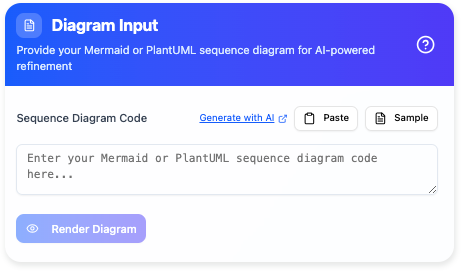
- Click Start Now to launch the tool. This opens an interface where you can input your use case description.
If you’re new to the tool, check out Visual Paradigm’s tutorial (often linked within the app) for a quick overview of the interface.
Step 2: Input Your Use Case Description as Natural Language
The tool accepts simple, natural language prompts derived from your use case. This is where the refinement begins:
- Craft a Clear Prompt: Start with a high-level summary of the use case. Include key actors, actions, and interactions. Avoid overly complex jargon; the AI is designed to interpret everyday language.
- Focus on Use Case Elements: Incorporate details like actors (e.g., “user”), triggers (e.g., “logs in”), and outcomes (e.g., “access granted”). If your use case follows MVC, hint at it, but the AI can infer this automatically.
- Input Format: Enter the description as text. For example, a basic prompt could be a single sentence, or you can provide a more structured use case outline.
The AI processes this input to expand it into a diagram, identifying:
- Actors and Lifelines: Representing users or system components.
- Messages and Flows: Synchronous/asynchronous interactions, loops, alternatives, etc.
- Architectural Layers: Automatically mapping to MVC where applicable (e.g., View for UI, Controller for logic, Model for data).
No coding is required—though if you have a basic UML-like code snippet, you can input that too for even faster refinement.
Step 3: Let the AI Generate and Refine the Diagram
- Submit your prompt by clicking the generate or refine button (interface may vary slightly).
- The AI engine analyzes the input:
- Parsing Natural Language: It uses NLP (Natural Language Processing) to extract entities, actions, and sequences.
- Enrichment: Adds details like error handling, conditional flows, or MVC compliance if not explicitly stated.
- Multi-Layering: Transforms a flat sequence into a hierarchical one, showing deeper interactions (e.g., database calls in the Model layer).
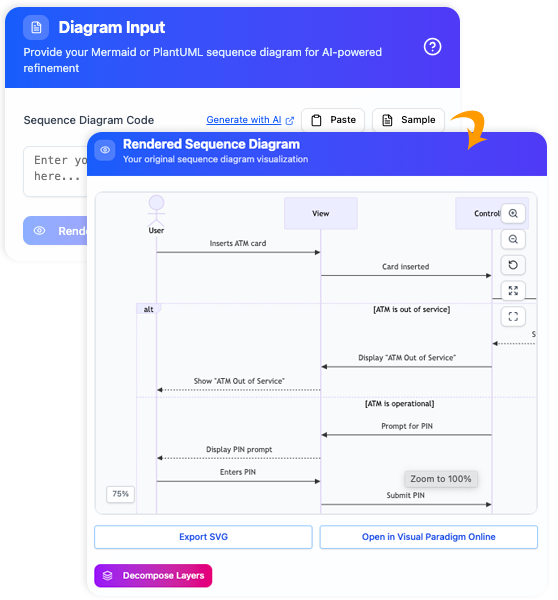
- Review the Output: The tool displays a preview of the refined sequence diagram. It includes:
- Lifelines for components (e.g., User, LoginController, UserModel).
- Arrows for message flows with labels (e.g., “submitCredentials()” from View to Controller).
- Frames for loops, alternatives, or references to other diagrams.
If the result isn’t perfect, you can iterate by tweaking the prompt and regenerating.
Step 4: Edit, Export, and Collaborate
Once generated:
- Edit in Visual Paradigm Online: Click to open the diagram in the web-based editor. Here, you can manually add, remove, or adjust elements for fine-tuning.
- Export Options:
- Save as SVG for high-quality, scalable images suitable for docs, presentations, or reports.
- Export to other formats like PNG, PDF, or integrate into larger UML models.
- Collaborate: Share the diagram via Visual Paradigm’s cloud features for team feedback, ensuring everyone aligns on the refined use case.
This step closes the loop, turning your refined diagram into a foundational document for development.
Examples: Refining Use Cases with the Tool
Let’s walk through two examples based on the tool’s described capabilities. These demonstrate going from a simple use case description to a detailed sequence diagram.
Example 1: Basic User Login Use Case
Use Case Description (Input Prompt): “A user logs into the system by entering username and password. The system verifies the credentials and grants access if correct, or shows an error if not.”
How the AI Refines It:
- The tool interprets “user logs in” as a sequence involving MVC:
- View: Handles user input (e.g., login form).
- Controller: Processes the request (e.g., LoginController validates input).
- Model: Manages data (e.g., UserModel checks database).
- Generated Diagram Outline:
- Lifelines: User (Actor), LoginView, LoginController, UserModel, Database.
- Flows:
- User → LoginView: enterCredentials(username, password)
- LoginView → LoginController: submitCredentials()
- LoginController → UserModel: validateUser(username, password)
- UserModel → Database: queryUser()
- Database → UserModel: returnResult()
- If valid: UserModel → LoginController: success → LoginView: displayDashboard()
- If invalid: Alt frame with error message back to View.
- Refinement Benefits: Adds error handling and database interaction not in the original prompt, ensuring MVC compliance.
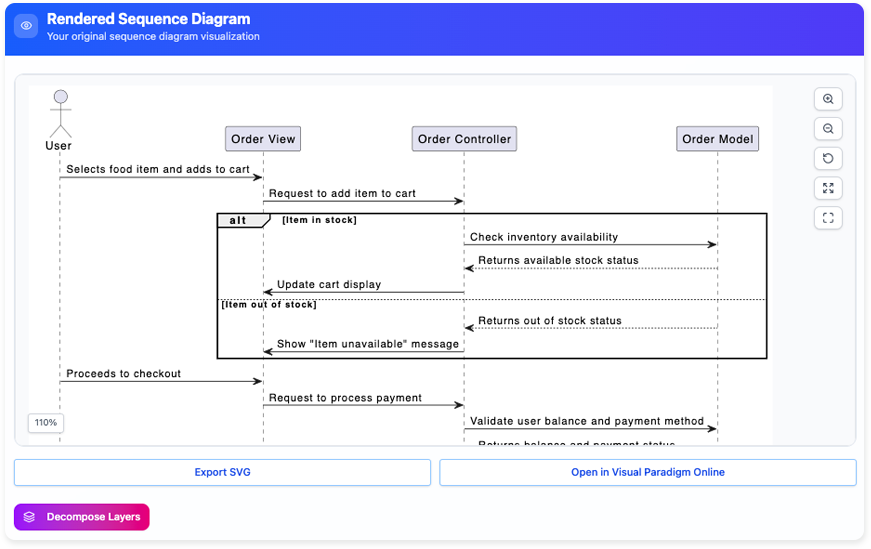
Export this as SVG for your project wiki, and edit online to add specifics like API calls.
Example 2: E-Commerce Checkout Use Case
Use Case Description (Input Prompt): “A customer adds items to cart, proceeds to checkout, enters payment details, and confirms the order. The system processes payment and updates inventory.”
How the AI Refines It:
- The AI expands this into a multi-layered diagram:
- Identifies actors (Customer) and MVC components (CartView, CheckoutController, OrderModel, PaymentGateway, InventoryModel).
- Adds loops for item addition and alternatives for payment failure.
- Generated Diagram Outline:
- Lifelines: Customer, CartView, CheckoutController, OrderModel, PaymentGateway, InventoryModel.
- Flows:
- Loop: Customer → CartView: addItem(itemID)
- Customer → CartView: proceedToCheckout()
- CartView → CheckoutController: initiateCheckout()
- CheckoutController → OrderModel: createOrder(cartItems)
- CheckoutController → PaymentGateway: processPayment(details)
- If success: PaymentGateway → CheckoutController: confirmation → InventoryModel: updateStock() → CartView: displaySuccess()
- Alt: If failure, return error to View.
- Refinement Benefits: Introduces external integrations (e.g., PaymentGateway) and ensures clear separation (View for UI, Model for data/persistence).
This refined diagram saves hours of manual drawing and provides a blueprint for implementing the checkout flow.
Tips for Best Results
- Prompt Quality Matters: Be descriptive but concise. Use action verbs (e.g., “verifies,” “updates”) to guide the AI toward accurate flows.
- Iterate as Needed: If the output misses details, refine the prompt (e.g., add “handle invalid payment” for alternatives).
- Align with Architecture: Mention patterns like MVC in your prompt if required, but the AI often infers them.
- Handle Complexity: For large use cases, break them into sub-prompts and combine diagrams later.
- Limitations: The tool is AI-driven, so review for domain-specific accuracy. It’s not a replacement for expert review but a accelerator.
By following this guide, you can efficiently refine use case descriptions into detailed sequence diagrams, streamlining your design process. For more advanced features, explore Visual Paradigm’s documentation or tutorials. If you encounter issues, their support team can assist with integration.
This post is also available in Deutsch, Español, فارسی, Français, English, Bahasa Indonesia, 日本語, Polski, Portuguese, Ру́сский, Việt Nam, 简体中文 and 繁體中文.