
Introduction: From Workflow Chaos to Connected Clarity
As a technical documentation specialist who’s wrestled with disconnected diagramming tools for over a decade, I’ve seen countless “solutions” promise seamless integration—only to deliver more manual exports, version confusion, and broken links. When I first heard about Visual Paradigm’s Pipeline feature, I approached it with healthy skepticism. But after integrating it into my daily workflow across three different client projects—from enterprise UML modeling to process engineering documentation—I’m ready to share my genuine, experience-based perspective. This isn’t a marketing pitch; it’s a real-user review of how the Pipeline actually performs when the pressure’s on and deadlines loom.
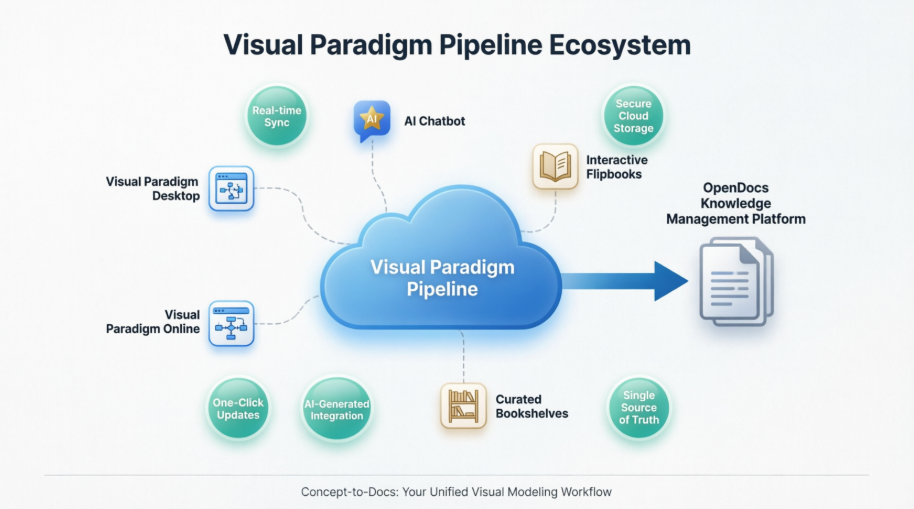
What Is the Pipeline, Really? A User’s Perspective
In my experience, the Pipeline functions exactly as advertised: a secure, cloud-based “Asset Transit Hub” that eliminates the tedious back-and-forth between creating visuals and documenting them. Before adopting this workflow, my team would export diagrams as PNGs, email them to writers, wait for manual updates, and constantly chase “which version is current?” With Pipeline, that friction vanished.
What struck me most wasn’t just the technical capability—it was the psychological shift. Knowing that a diagram edited in Visual Paradigm Online could automatically propagate to our OpenDocs knowledge base meant our documentation finally felt alive, not static. The Pipeline preserves editability, which is critical when stakeholders request last-minute tweaks. No more “I’ll just redraw that in PowerPoint” compromises.
The OpenDocs Connection: Where Diagrams Become Living Documentation
For me, OpenDocs is where the Pipeline truly shines. It’s not just a document editor—it’s a “diagram-aware” platform that treats visuals as first-class citizens. When I embed a Pipeline artifact into a technical specification, I’m not inserting a flat image; I’m linking to a dynamic asset that can evolve.
Here’s how this “Work-to-Publish” flow has changed my routine:
-
Model with confidence: I create complex SysML architectures in Visual Paradigm Desktop, knowing they won’t get stranded on my local drive.
-
Iterate without fear: When a client requests a BPMN adjustment, I update the source diagram, re-send to Pipeline, and refresh the OpenDocs page—done in minutes, not hours.
-
Collaborate seamlessly: Team members across time zones access the same canonical version, reducing misalignment and rework.
The 5 Core Connections: Real-World Usage Scenarios
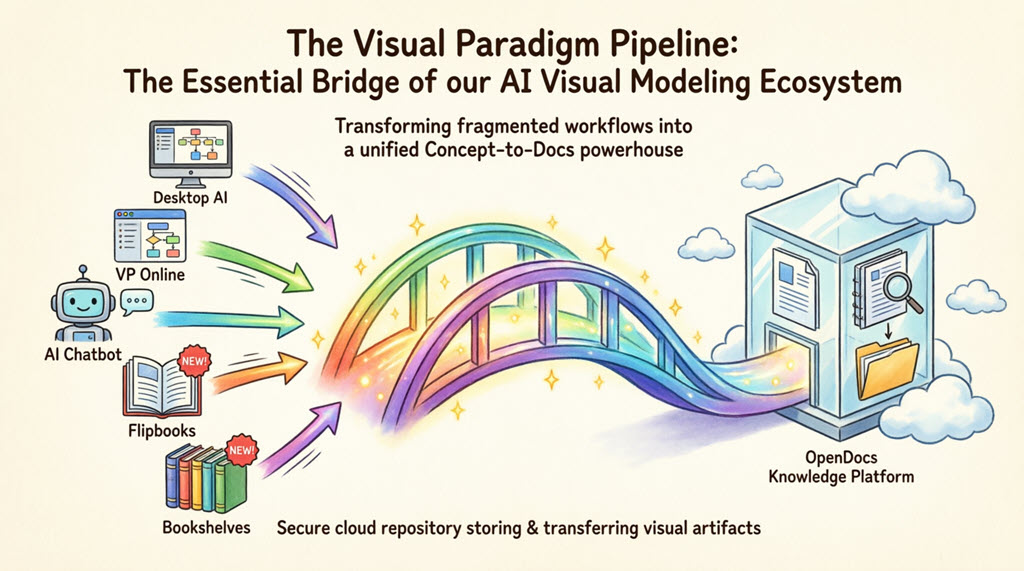
1. Visual Paradigm Desktop → OpenDocs: Power User’s Dream
As someone who relies on advanced UML and SysML modeling, the Desktop-to-OpenDocs pipeline has been transformative. Here’s my step-by-step experience:
-
I open a complex class diagram in Visual Paradigm Desktop.
-
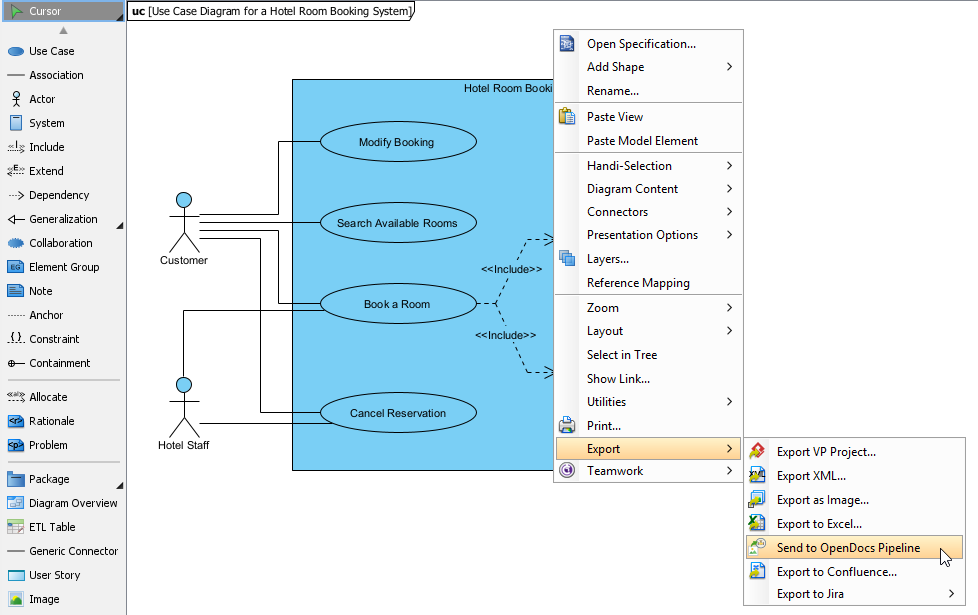
Right-click the diagram canvas → Export > Send to OpenDocs Pipeline.
-
Save the project when prompted (a quick step that ensures version integrity).
-
Add a brief comment like “V2.1 – Added payment gateway integration” for team context.
-
Confirm export—the diagram uploads to the cloud repository in seconds.
-
In OpenDocs, I edit my specification document, click Insert > Pipeline, and select the artifact. It embeds instantly, retaining full fidelity.
My takeaway: This workflow cut my documentation update time by ~70% on a recent fintech project. No more screenshot crops or resolution worries.
2. Visual Paradigm Online → OpenDocs: Cloud-Native Efficiency
For quick iterations or collaborative sessions, I often use Visual Paradigm Online in-browser. The Pipeline integration here feels native and intuitive:
-
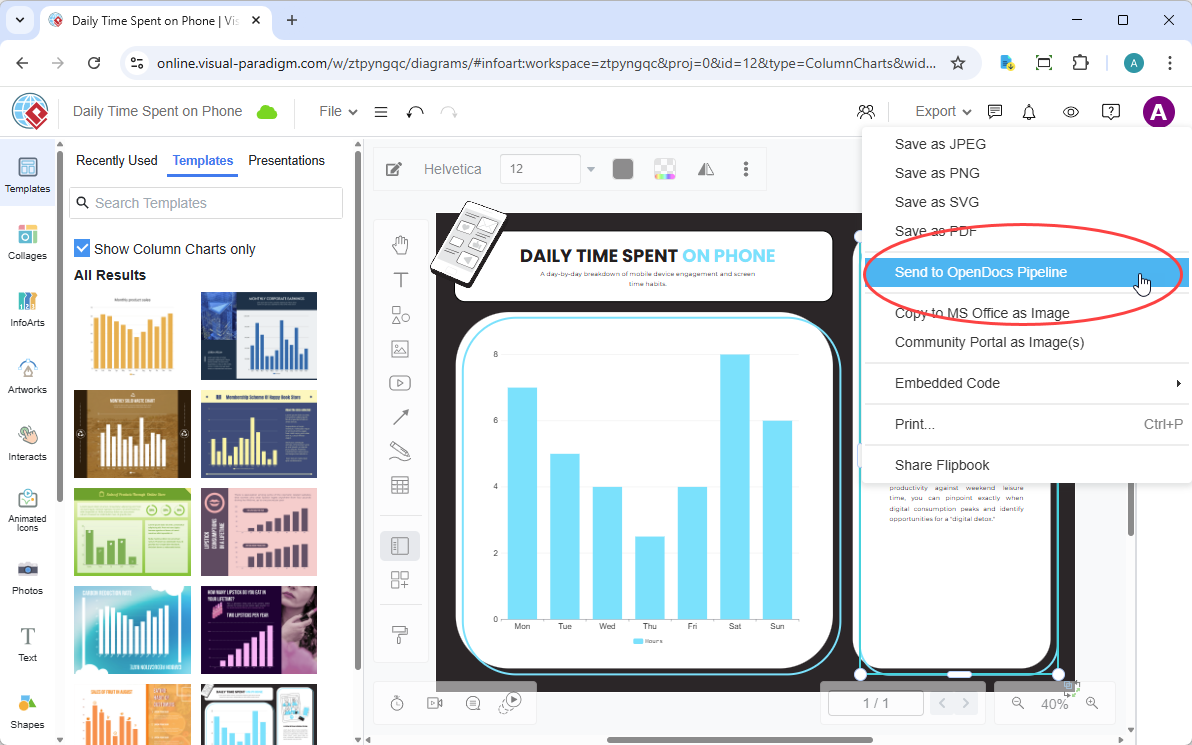
While refining a flowchart in VP Online, I navigate to Export > Send to OpenDocs Pipeline.
-
Add a descriptive note (e.g., “Customer onboarding journey – Q2 revision”).
-
Confirm export—the asset appears in my Pipeline library immediately.
-
In OpenDocs, I insert it via Insert > Pipeline and position it within my process documentation.
My observation: This cloud-to-cloud flow is perfect for agile teams. During a recent sprint planning session, we updated a user journey map and had it reflected in our shared documentation before the meeting ended.
3. AI Chatbot → OpenDocs: Accelerating Ideation to Documentation
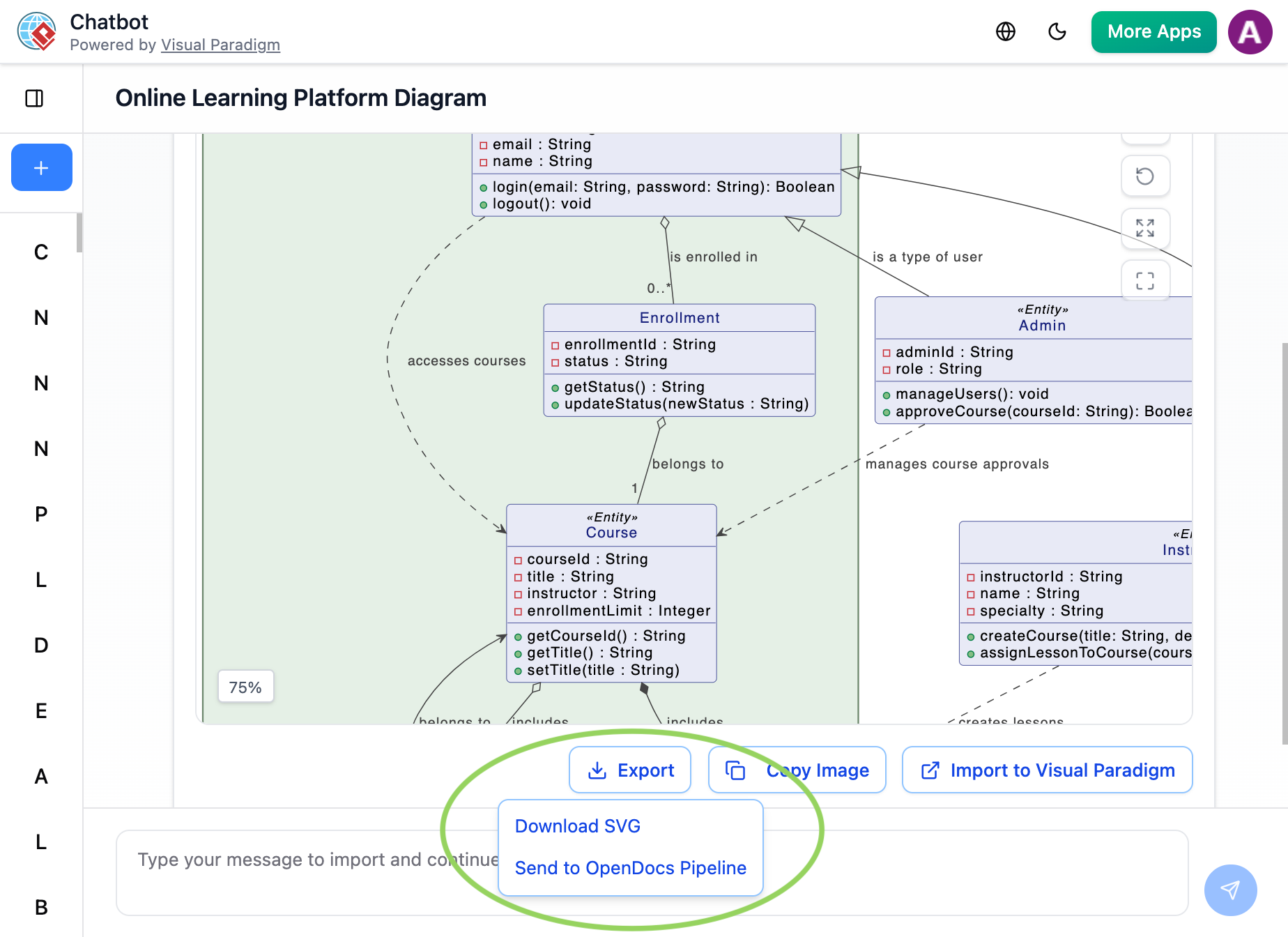
This connection surprised me with its practicality. When brainstorming system architectures, I’ll prompt the AI Chatbot: “Generate a microservices architecture diagram for an e-commerce platform.” Once the visual appears:
-
I click Export > Send to OpenDocs Pipeline directly from the chat interface.
-
The AI-generated artifact lands in my Pipeline library, ready for refinement.
-
In OpenDocs, I embed it into a requirements document and add contextual notes.
My insight: This isn’t just about speed—it’s about capturing fleeting ideas before they evaporate. The Pipeline ensures AI-assisted visuals don’t get lost in chat history.
4. Flipbooks → OpenDocs: Interactive Media, Simplified
Recently, I needed to embed a product catalog with flipbook functionality into a client-facing knowledge base. Sending the Flipbook through Pipeline preserved its interactivity within OpenDocs—a huge win for engagement. No iframe hacks or external hosting required.
5. Bookshelves → OpenDocs: Scaling Knowledge Management
When organizing training materials across multiple projects, sending entire Bookshelves to OpenDocs via Pipeline created a centralized, searchable library. This scaled beautifully for a recent enterprise onboarding initiative, reducing content discovery time significantly.
Why the Pipeline Changed My Workflow: A Side-by-Side Comparison
| My Old Workflow | My Pipeline-Enabled Workflow |
|---|---|
| Export diagram as PNG/JPG → email to writer → wait for manual insertion | One-click “Send to Pipeline” → instant availability in OpenDocs |
| Manual re-upload for every revision → version confusion | “Update to latest revision” in OpenDocs → always current |
| Static images that can’t be edited post-export | Deep-linked, editable artifacts that evolve with the project |
| Files scattered across local drives, cloud folders, and email attachments | Centralized cloud repository with search, comments, and access control |
My verdict: The time savings are substantial, but the bigger win is cognitive load reduction. I spend less energy managing files and more energy on actual content quality.
Application Areas: Where I’ve Seen Real Impact
Based on my hands-on use across different domains, the Pipeline excels in:
-
UML & IT Systems: Modeling microservices architectures and class diagrams for development teams. The real-time sync keeps technical docs aligned with code changes.
-
Process Engineering: Creating P&ID diagrams for manufacturing clients. Pipeline ensures safety-critical documentation always references the latest design revision.
-
Project Management: Embedding PERT charts and WBS structures directly into project charters. Stakeholders see live progress visuals without requesting exports.
-
Strategic Analysis: Integrating SWOT and Business Canvas visuals into executive reports. The professional presentation elevates strategic discussions.
Important Considerations from a User’s Lens
A few practical notes based on my experience:
-
Subscription requirements: Pipeline access requires Visual Paradigm Online Combo Edition or Professional Edition. I confirmed this during onboarding—worth verifying before committing to a workflow change.
-
Learning curve: The initial setup took my team about 30 minutes to grasp, but adoption was rapid because the mental model (“send to cloud, insert anywhere”) is intuitive.
-
Offline limitations: As a cloud-centric feature, Pipeline requires internet connectivity. For highly regulated environments with air-gapped systems, this may need evaluation.
Conclusion: Is the Pipeline Worth Your Workflow Investment?
After months of daily use across diverse projects, my answer is a confident yes—with caveats. If your team already uses Visual Paradigm tools and struggles with documentation synchronization, the Pipeline isn’t just convenient; it’s transformative. It turns fragmented, error-prone processes into a cohesive “Concept-to-Docs” pipeline that respects both creator intent and consumer needs.
However, if you’re using disparate tools without Visual Paradigm at the core, the value proposition diminishes. This isn’t a universal integration layer—it’s a powerful accelerator within a specific ecosystem.
For me, the Pipeline’s greatest gift wasn’t technical—it was psychological. It restored my faith that documentation could be dynamic, collaborative, and genuinely useful—not a bureaucratic afterthought. If that resonates with your workflow pain points, I’d encourage a hands-on trial. Sometimes, the right tool doesn’t just save time; it changes how you think about the work itself.
References
- Visual Paradigm Pipeline Demo Video: A video walkthrough demonstrating the Pipeline workflow between Visual Paradigm tools and OpenDocs documentation platform.
- New Feature: Send Your Visual Paradigm Online Creations Directly to OpenDocs: Official release notes detailing the integration between Visual Paradigm Online and OpenDocs via the Pipeline feature.
- New Feature Alert: Send Diagrams from Visual Paradigm AI Chatbot Directly to OpenDocs!: Announcement covering AI-generated diagram export capabilities to the Pipeline and OpenDocs integration.
- Pipeline Workflow Tutorial Video: Step-by-step video guide showing how to use the Pipeline feature for diagram synchronization and documentation embedding.
- Visual Paradigm Features Overview: Comprehensive listing of Visual Paradigm’s product capabilities, including diagramming, modeling, and documentation tools.
- Visual Paradigm Official Website: Main portal for Visual Paradigm products, resources, and ecosystem information.
- Visual Paradigm Diagram Examples Library: Collection of sample diagrams across UML, BPMN, flowcharts, and other modeling notations for reference and inspiration.
- P&ID Software Features in Visual Paradigm Online: Dedicated page outlining Piping and Instrumentation Diagram capabilities within the cloud-based diagramming tool.
- Visual Paradigm User Guide: Pipeline Feature Documentation: Official user guide section providing detailed instructions for using the Pipeline export and embedding functionality.
- Class Diagram Tutorial Using Visio (Comparative Reference): External resource on class diagram creation, included for contextual comparison of modeling approaches across different tools.