


At Visual Paradigm, the commitment to empowering creators and professionals drives constant innovation. The latest update to the Markdown Presentation Maker transforms it into a powerhouse AI presentation maker, streamlining workflows and boosting creativity. Whether you are looking for the best AI slideshow maker or a reliable tool to convert text to slides, these new enhancements—specifically AI Image Generation, workspace saving, and URL sharing—make this tool indispensable.
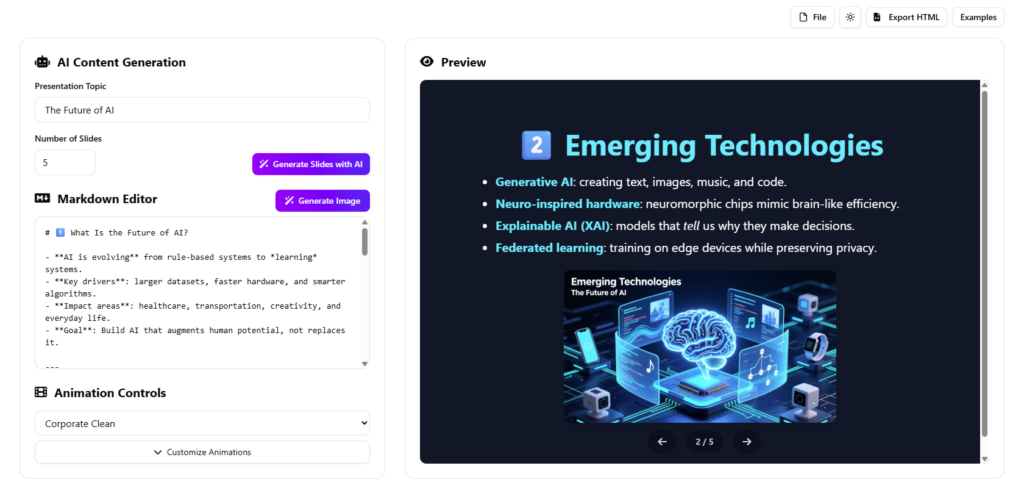
In this tutorial, we will walk you through how to leverage these new features to create stunning, professional presentations effortlessly.
Key Concepts
Before diving into the tutorial, let’s define a few core concepts used in this AI slides maker:
- Markdown: A lightweight markup language used to format text. In this tool, you write simple text (like using
#for headings), and the engine converts it into designed slides. - AI Image Generation: The ability of Artificial Intelligence to create unique visual assets based on textual descriptions (prompts).
- Prompt Engineering: The art of crafting descriptions to get the best possible image from an AI. Visual Paradigm simplifies this with an auto-prompt generation feature.
- Workspace Persistence: The capability to save work to a cloud-based personal area, ensuring you can pause and resume projects across different sessions.
Step-by-Step Tutorial: Using the New Features

Step 1: Elevate Slides with AI Image Generation
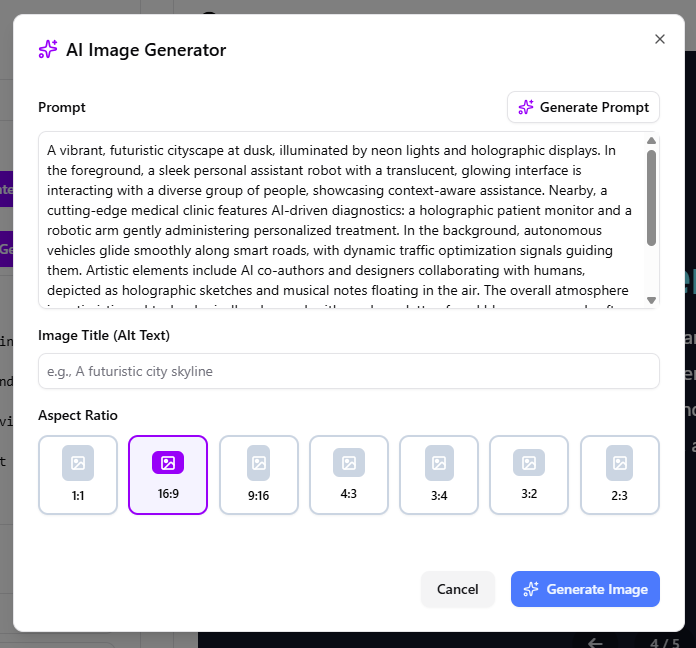
The standout feature in this update is the AI Import Generation capability. This allows you to generate custom visuals without leaving the application. Here is how to use it:
- Access the Generator: While editing your markdown slide, click on the button labeled “Generate Image”. This opens the AI Image Generator popup.
- Input Your Vision: Enter a text prompt describing the image you want.
Pro Tip: If you are unsure what to write, click “Generate Prompt”. The AI will analyze your current presentation context and suggest a relevant, high-quality description for you. - Configure Settings:
- Alt Text: Optionally add alternative text for accessibility.
- Aspect Ratio: Select the ratio that fits your slide layout. Options include 1:1, 16:9, 9:16, 4:3, 3:4, 3:2, and 2:3.
- Generate and Refine: Click “Generate Image”. It may take a moment to craft the high-quality visual. If the result isn’t perfect, click “Regenerate Image” to try again.
- Insert: Once satisfied, click “Insert Image”. The image will appear directly on your active slide in the Preview pane.
Step 2: Seamless Saving to Your Workspace
Previously, session management could be tricky. Now, support for saving directly to your personal workspace is formalized.
- Save Your Progress: Navigate to the top menu and select File > Save.
- Access Anytime: Your presentation is now securely stored in your Visual Paradigm workspace. You can close the browser and reopen the project later without losing data, ensuring continuity across work sessions.
Step 3: Effortless Sharing via URL
Collaboration is key for any AI presentation tool. Sharing your deck is now easier than ever.
- Ensure the File is Saved: Perform the save action described in Step 2.
- Generate Link: Go to File > Share.
- Distribute: The tool generates a unique URL. Copy this link and send it to colleagues, clients, or your audience. They can view the presentation instantly without needing an account.
Examples: The Workflow in Action
Scenario: Creating an Educational Deck on Space Exploration
Before (Text Only):
You have a markdown slide with the following content:
# The Mars Rover
Exploring the red planet’s surface.
The Process:
1. You click “Generate Image”.
2. You click “Generate Prompt”. The AI suggests: “A high-resolution visualization of a Mars rover traversing a rocky, red terrain under a dusty orange sky.”
3. You select a 16:9 aspect ratio to fill the slide background.
4. You click Insert.
After (Visual Impact):
The slide now features a custom, high-definition background of the rover, perfectly matching your text content. This transforms a simple text slide into an immersive experience.
Tips and Tricks
To get the most out of Visual Paradigm’s Markdown Presentation Maker, keep these tips in mind:
- Maximize Screen Real Estate: We have expanded the screen width to utilize the full available space. Use this extra room to review your slide previews in greater detail while editing markdown on the side.
- Watch for Alerts: We have added alerts to warn you about potential content overwrites when generating slides with AI. Always read these popups to prevent accidental data loss.
- Preview Navigation: Animation playback in the Preview pane has been corrected when navigating back to previous slides. Use the preview frequently to ensure your flow is smooth.
- HTML Export: If you plan to host the presentation elsewhere, rest assured that the exported HTML now matches the preview exactly for consistent output.
Why Choose Visual Paradigm?
As a leading provider of AI presentation tools, Visual Paradigm continues to innovate. Whether you are building educational decks, business pitches, or creative stories, this tool stands out with its intuitive interface and powerful AI capabilities. The new image generation and workspace saving features solidify its position as a top-tier AI slides maker.
Ready to transform your presentations? Try the Markdown Presentation Maker today and experience the future of slide creation.
Resources
- AI Markdown Presentation Maker | Create Animated Slides Instantly
- Free AI Markdown Presentation Maker – Visual Paradigm AI
- Online Presentation Maker
- Presentation Maker
- Transform Your PowerPoint Presentations with Visual Paradigm Online Presentation Maker – Visual Paradigm Blog
- Markdown Editor – Visual Paradigm AI
- Visual Paradigm AI: Advanced Software & Intelligent Apps
- Unlocking Creativity: Exploring Visual Paradigm’s Visual Design Editor Features – Visual Paradigm Blog
- Create Presentations with Visual Paradigm Online Templates – Visual Paradigm Blog
- AI Animated Presentation Studio – Visual Paradigm AI
- Visual Paradigm – Online Productivity Suite
- Streamlining Graphic Design and Infographics Creation with Visual Paradigm’s Professional Templates – Visual Paradigm Blog
- Features of Visual Paradigm Online
- Concept Mapping Made Easy – Visual Paradigm Blog
- AI-Powered Business Model Canvas Tool – Visual Paradigm Guides
This post is also available in Deutsch, Español, فارسی, Français, English, Bahasa Indonesia, 日本語, Polski, Portuguese, Ру́сский, Việt Nam, 简体中文 and 繁體中文.