


Tired of PowerPoint-induced misery? This free (with generous trial) online tool combines AI content generation + Markdown editing + 20+ beautiful animation styles to help you create professional, animated, HTML-based slideshows in minutes instead of hours.
Step 1: Access the Tool
- Go to: https://www.visual-paradigm.com/features/markdown-presentation-maker/
- No login required for basic use, but signing up (free) lets you save and organize your presentations.
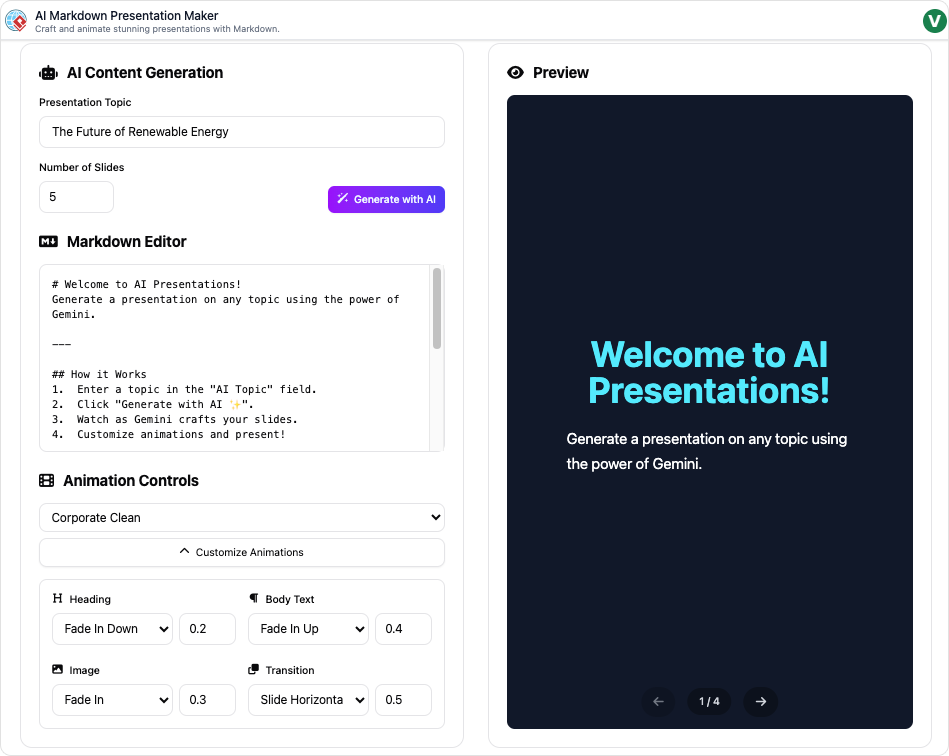
Step 2: Generate Your First Presentation with AI (Takes ~10–30 seconds)
- In the big text box at the top, type or paste your topic or brief. Examples:
- “Sustainable energy solutions for cities”
- “Introduction to Quantum Computing for beginners”
- “Q4 Marketing Campaign Results and 2026 Strategy”
- “The impact of climate change on coastal regions”
- (Optional but recommended) Choose the number of slides you want:
- Quick pitch → 5–8 slides
- Standard presentation → 10–15 slides
- In-depth lecture or report → 18–25 slides
- Click “Generate Presentation” (big blue button).
The AI will instantly create:
- A logical slide structure
- Headings and bullet points
- Suggested places for images/charts
- Speaker notes (optional)
Step 3: Choose a Packaged Animation Preset (The “Wow” Factor)
After generation, you’ll land on the editor page. On the right sidebar you’ll see “Animation Effect”.
Click the dropdown and choose one of the 20+ packaged presets. Popular choices:
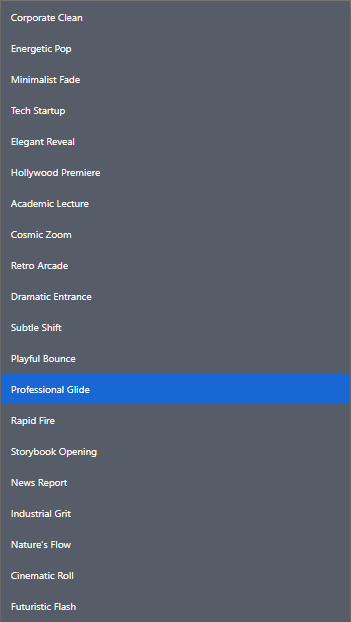
| Preset Name | Best For | Feel |
|---|---|---|
| Professional Glide | Corporate, investor pitches | Smooth, clean, trustworthy |
| Corporate Clean | Internal business meetings | Minimal, professional |
| Energetic Pop | Product launches, startups | Fun, modern, attention-grabbing |
| Minimalist Fade | Academic, research | Subtle, distraction-free |
| Elegant Reveal | Luxury brands, weddings, keynotes | Sophisticated |
| Hollywood Premiere | Marketing, trailers | Cinematic, dramatic |
| Academic Lecture | University classes | Clear and educational |
| Tech Startup | Demo days, SaaS companies | Modern, slightly playful |
| Playful Bounce | Education, kids, creative | Energetic and fun |
| Cinematic Roll | Storytelling, documentaries | Film-like |
Step 4: Fine-Tune Animations (Optional but Powerful)
Want even more control? Click “Customize Animations” under the preset dropdown.
Example settings for the default “Professional Glide” (feel free to copy):
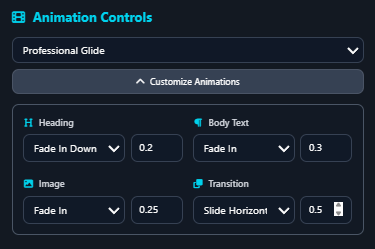
| Element | Effect | Duration | Delay | Notes |
|---|---|---|---|---|
| Heading | Fade In Down | 0.2s | 0s | Appears first |
| Body Text | Fade In | 0.3s | 0.2s | Slightly after heading |
| Image | Fade In | 0.25s | 0.3s | |
| Slide Transition | Slide Horizontal | 0.5s | — | Left → Right or Right → Left |
Step 5: Edit Content with Markdown (Super Easy)
The entire presentation is written in simple Markdown. You already know most of it!
Common Markdown you can use:
# Slide Title
## Subtitle (optional)
- Bullet point 1
- Bullet point 2
- Sub-bullet
**Bold text** or __bold__
*Italic* or _italic_

> Block quote / highlight
[Link text](https://your-link.com)- Press Enter twice to create a new slide
- Use — (three dashes` on a blank line to force a new slide
- Real-time preview on the right updates instantly
- Click any slide thumbnail on the left to jump to it
Step 6: Add or Replace Images
- On any slide, type or paste an image description inside parentheses, e.g.: 
- The AI will suggest relevant royalty-free images. Click the one you like.
- Or upload your own: click the image placeholder → “Upload Image”.
Step 7: Preview Your Presentation
Click the “Play” button (▶) at the top-right or press Spacebar to enter full-screen presenter mode.
- Use arrow keys or click to navigate
- Presenter view shows upcoming slide + timer + notes
- Test your animation timing here
Step 8: Export & Share
When you’re happy, click “Export” → “Export as HTML (recommended).
You get a single, standalone .html file that:
- Works offline
- No internet required for viewers
- Keeps all animations perfectly
- Opens in any browser
- Can be uploaded to your website, sent by email, or put on a USB stick
Alternative export options:
- PDF (static)
- PNG per slide
- Shareable online link (if you’re logged in)
Real-World Workflow Examples
- 5-Minute Investor Update → Topic: “Series A Progress Update” → 7 slides → Preset: Professional Glide → Done in <6 minutes
- 45-Minute University Lecture → Topic: “Machine Learning Fundamentals” → 22 slides → Preset: Academic Lecture + some Energetic Pop elements → Add diagrams using Mermaid syntax → Export to HTML and host on course page
- Social-Media Product Teaser → Topic: “New Feature Launch – Smart Scheduler” → 8 slides → Preset: Hollywood Premiere or Energetic Pop → Export → record screen (or use built-in recorder) → post as video
Bonus Tips & Tricks
- Use <!– pause –> in Markdown to make the presenter wait for a click before next animation
- Add speaker notes with <!– note: Your private notes here –>
- Want a vertical timeline? Just type “vertical timeline of ancient Rome” in a slide and the AI often generates it automatically
- Combine with ChatGPT: ask GPT writes the outline → paste into Visual Paradigm → instant polished deck
Start Right Now (Free)
Head over to: https://flavorfiesta.foodiesconnect.net/revolutionize-your-slides-meet-visual-paradigms-ai-markdown-presentation-maker/
Type your next big idea and hit “Generate Presentation”.
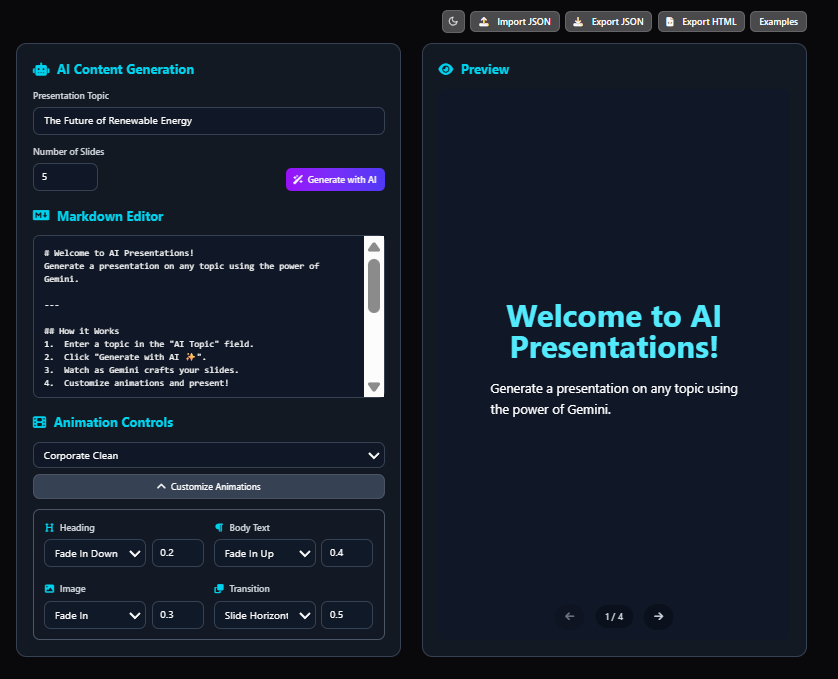
In under a minute you’ll have a beautiful, animated deck that used to take you hours.
Stop wrestling with clunky slide software. Start dazzling your audience today!
This post is also available in Deutsch, Español, فارسی, Français, English, Bahasa Indonesia, 日本語, Polski, Portuguese, Ру́сский, Việt Nam, 简体中文 and 繁體中文.