
Introduction: The Rise of AI-Powered Visual Design
In today’s fast-paced digital world, transforming ideas into visual representations has become a cornerstone of innovation—whether in software development, business process modeling, or system architecture. Traditionally, creating diagrams required technical expertise, time, and manual effort. But with the advent of artificial intelligence, this process is being revolutionized.
Enter Visual Paradigm’s AI Chatbot—a powerful, intuitive tool that bridges the gap between natural language and professional-grade diagrams. This guide walks you through every step of using the AI Chatbot to generate accurate, beautiful, and instantly usable diagrams from simple text prompts.
Why Visual Paradigm’s AI Chatbot?
Before diving into the mechanics, let’s understand why this feature stands out:
✅ No Coding Required – Create diagrams using plain English or technical descriptions.
✅ Instant Results – Generate diagrams in seconds, not hours.
✅ Supports 20+ Diagram Types – From UML and ERD to BPMN, flowcharts, and mind maps.
✅ Smart Interpretation – AI understands context, relationships, and structure.
✅ Seamless Integration – Works within the Visual Paradigm IDE, cloud platform, and desktop apps.
✅ Customizable & Exportable – Edit, refine, and export diagrams in multiple formats (PNG, SVG, PDF, etc.).
Step-by-Step Guide: From Text Prompt to Visual Diagram
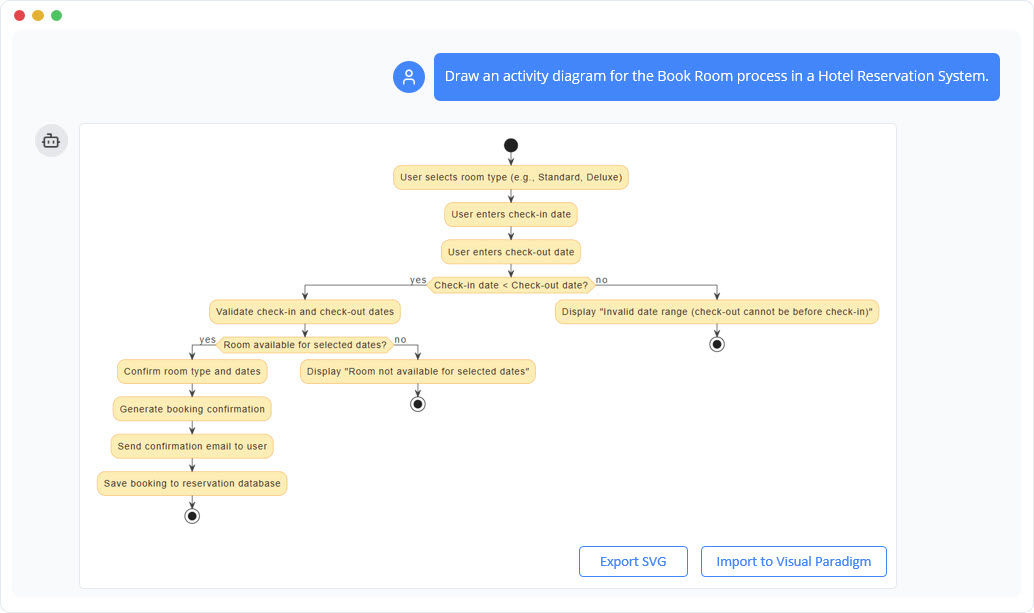
Step 1: Accessing the AI Chatbot
-
Open Visual Paradigm (Desktop or Online).
-
Navigate to the “AI” tab or look for the AI Chatbot icon (usually a chat bubble with a lightbulb).
-
Click to open the chat interface.
💡 Tip: You can also access the AI assistant via the sidebar or through the “Help” menu.
Step 2: Crafting Your Prompt – The Art of Effective Input
The quality of your diagram depends heavily on how clearly you describe your idea. Here are best practices:
✅ Best Practices for Prompts
-
Be specific about the diagram type: “Create a UML class diagram for a library management system.”
-
List key elements: “Include Book, Member, Loan, and Author classes with attributes and relationships.”
-
Specify relationships: “Show inheritance between Book and EBook, and association between Loan and Member.”
-
Use structured language for complex systems:
“Design a BPMN diagram for an online order process:
-
Start with customer placing order
-
Check inventory
-
If in stock → process payment → ship order
-
If out of stock → notify customer
-
End with order confirmation.”
-
❌ Avoid Vague Prompts
-
❌ “Make a diagram about a store.”
-
✅ “Create a UML component diagram for an e-commerce store with Product, Order, Payment, and Inventory components.”
🧠 Pro Tip: Use bullet points or numbered lists in your prompt for better AI parsing.
Step 3: Generating Your Diagram
-
Type your well-crafted prompt into the AI chatbox.
-
Press Enter or click the send icon.
-
The AI analyzes your input and generates a first draft of the diagram within seconds.
📌 Visual Paradigm’s AI uses advanced NLP (Natural Language Processing) and deep learning models trained on thousands of technical diagrams to interpret your request accurately.
Step 4: Reviewing & Refining the Output
Once the diagram appears, you’ll see a live preview with editable elements.
Key Features During Review:
-
Auto-layout: The AI applies optimal layout (e.g., hierarchical, radial, or freeform).
-
Smart Auto-Labeling: Elements are automatically named based on context.
-
Color-Coding: Different types of elements (e.g., actors, classes, processes) are color-assigned.
-
Editable Fields: Double-click any element to rename, add attributes, or modify properties.
Refining Tips:
-
Add missing details: If the AI missed a relationship, just type: “Add a dependency from Payment to Order.”
-
Rephrase for clarity: If the result is off, rephrase your prompt: “Recreate the UML class diagram with stronger inheritance between DigitalBook and Book.”
-
Use commands: Try commands like:
-
“Make it more detailed.”
-
“Convert to flowchart.”
-
“Add a swimlane for customer and system.”
-
Step 5: Customizing & Enhancing the Diagram
Once satisfied, enhance your diagram using Visual Paradigm’s rich toolkit:
| Feature | How to Use |
|---|---|
| Themes & Styles | Apply pre-built themes (e.g., Modern, Minimalist) via the “Style” panel. |
| Icons & Images | Insert icons for actors, processes, or data. |
| Annotations & Notes | Add explanatory notes using the “Note” tool. |
| Zoom & Pan | Use the canvas navigation tools for better view control. |
| Version Control | Save multiple versions and track changes. |
🖼️ Export your diagram as PNG, SVG, PDF, or embed it in documentation (Word, Confluence, etc.).
Advanced Use Cases: Pushing the Boundaries
1. Agile & Scrum Planning
Prompt: “Create a user story map for a fitness app with 3 key features: workout tracking, meal planner, and progress dashboard.”
-
Result: A horizontal user story map showing epics, user tasks, and story cards.
-
Use: Great for sprint planning and backlog grooming.
2. System Architecture Design
Prompt: “Generate a cloud architecture diagram for a SaaS platform with microservices: Auth, Billing, User, and Dashboard. Use AWS services (EC2, S3, Lambda, API Gateway).”
-
Result: A clean, professional architecture diagram with cloud components and inter-service communication.
-
Use: Ideal for technical documentation and stakeholder presentations.
3. Business Process Modeling (Using UML Activity Diagram)
Prompt: *“Design UML activity diagram for a loan approval workflow:
Application submitted → Credit check → If approved → Underwriting → If approved → Disbursement
If rejected at any stage → Notify applicant.”*
-
Result: A fully annotated activity diagram with gateways, tasks, and events.
-
Use: Perfect for process optimization and compliance audits.
4. Brainstorming & Mind Mapping
Prompt: “Create a mind map for a startup pitch: Central idea: AI-powered education platform. Branches: Target users, core features, monetization, tech stack, competitors.”
-
Result: A visually engaging mind map to organize ideas before prototyping.
Tips for Optimal AI Performance
-
Start Simple – Begin with basic prompts and gradually add complexity.
-
Iterate – Use follow-up prompts to refine the diagram.
-
Use Keywords – Terms like “show,” “include,” “connect,” “inherit,” “sequence,” “parallel” improve accuracy.
-
Leverage Templates – Use existing templates as a base to guide the AI.
-
Check Consistency – Ensure class names, verbs, and relationships match your domain.
Frequently Asked Questions (FAQ)
Q: Can I use the AI chatbot without a Visual Paradigm account?
A: No. The AI feature requires a subscription (Free, Pro, or Enterprise tiers).
Q: Is there a limit to how many diagrams I can generate?
A: Yes—free users get 5 AI-generated diagrams/month; Pro users get 50/month; Enterprise users enjoy unlimited generation.
Q: Does the AI understand technical jargon?
A: Yes—AI is trained on software engineering, business process, and system design terminology.
Q: Can I generate diagrams in other languages?
A: Yes—prompt in English, Chinese, Spanish, or German. The AI will generate diagrams accordingly.
Q: How accurate is the AI’s interpretation?
A: Over 90% accuracy on standard technical prompts. For complex systems, minor manual adjustments are recommended.
Conclusion: Empower Your Creativity with AI
Visual Paradigm’s AI Chatbot is not just a tool—it’s a visual thinking partner. It transforms abstract ideas into clear, professional diagrams in seconds, empowering students, developers, business analysts, and designers to communicate with precision and speed.
Whether you’re sketching out a new app idea, documenting a complex system, or presenting a business process, your next diagram starts with a single sentence.
Get Started Today
👉 Visit: https://www.visual-paradigm.com
👉 Try the AI Chatbot for Free (14-day trial)
👉 Download Visual Paradigm Desktop or use the Cloud version
“The best way to predict the future is to invent it.”
— Grace HopperWith Visual Paradigm’s AI Chatbot, you’re not just predicting the future—you’re visualizing it, one prompt at a time.
-
AI Chatbot Feature – Intelligent Assistance for Visual Paradigm Users: This article introduces the core chatbot functionality designed to provide instant guidance, automate tasks, and enhance productivity within the modeling software.
-
Introducing Visual Paradigm AI Chatbot: A Smarter Way to Create Diagrams: This resource explores how the chatbot enables natural language diagram generation, smart editing, and contextual analysis for enterprise modeling and planning.
-
AI Chatbot for Diagramming: How It Works with Visual Paradigm: An explanation of how the chatbot acts as an AI-powered modeling assistant that turns natural language directly into diagrams without requiring users to learn specific modeling syntax.
-
How to Turn Requirements into Diagrams with an AI Chatbot: This guide demonstrates the workflow of converting project requirements into clear visual models through a continuous conversational interface.
-
How AI Chatbot Can Help You Learn UML Faster: This article details how users can practice UML interactively, visualize concepts instantly, and receive immediate feedback to improve their modeling skills.
-
Case Study: Enhancing System Modeling Efficiency with Visual Paradigm’s AI-Powered Chatbot: A real-world study demonstrating how the chatbot improves productivity and accuracy by enabling conversational diagram creation.
-
Mastering Sequence Diagrams with Visual Paradigm: AI Chatbot Tutorial: A beginner-friendly tutorial that uses a real-world e-commerce chatbot case study to teach users how to build sequence diagrams using the AI assistant.
-
Comprehensive Tutorial: Generating and Modifying C4 Component Diagrams with AI Chatbot: This step-by-step guide shows how to use the chatbot to create and iteratively refine internal software structures using the C4 model.
-
The Future of Collaborative Modeling: AI as Your Team’s Co-Designer: This article examines the role of the AI chatbot as a co-designer that helps teams create standards-compliant diagrams from natural language.
-
How to Use Visual Paradigm AI Chatbot’s Multi-Language Features: A tutorial on leveraging the chatbot’s enhanced multi-language support to create, refine, and analyze diagrams in various native languages, including Spanish, French, and Chinese.