

Introduction
The AI Tree Diagram Maker (branded as IntelliTree) from Visual Paradigm is one of the most powerful AI-assisted hierarchical diagramming tools available in 2025. It combines ChatGPT-like intelligence with an interactive D3.js-powered tree visualizer and markdown-style text editing to turn chaotic ideas into beautiful, actionable tree diagrams (org charts, WBS, mind maps, decision trees, product breakdowns, etc.) in seconds.
This in-depth tutorial will teach you everything from zero to expert level, with key concepts, a comparison table, 12 real-world examples, and pro tips.
Official tool URL: https://ai-toolbox.visual-paradigm.com/app/ai-tree-diagram-maker/
Key Concepts & Core Features
| Feature | Description | Why it matters |
|---|---|---|
| AI-Powered Generation | Type a simple topic → AI instantly creates a full multi-level hierarchy | Saves hours of manual structuring |
| Markdown-style Text Editor | Write or edit the entire diagram in indented text (like YAML-like syntax) and see live sync | Fastest way to bulk-edit or import data |
| D3 Interactive Tree Visualizer | Pan, zoom, collapse/expand, search nodes with smooth animations | Handles 1,000+ nodes without lag |
| Intelligent Node Suggestions | Click any node → AI suggests relevant sub-nodes based on context | Overcomes blank-page syndrome |
| Insight Engine (AI Reports) | One-click analysis: gaps, risks, duplicates, bottlenecks, recommendations | Turns a diagram into strategic insight |
| Node Properties | Add Status, Owner, Priority, Due Date, Cost, Notes, Tags, Custom Fields | Makes it a lightweight PM tool |
| Templates | 20+ ready templates (WBS, Org Chart, Mind Map, SWOT, Decision Tree, etc.) | Instant professional starting point |
| Cloud Save & Shareable Links | Save projects online and generate read-only or editable links | Perfect for remote teams and client reviews |
Step-by-Step Tutorial (2025 Latest Interface)
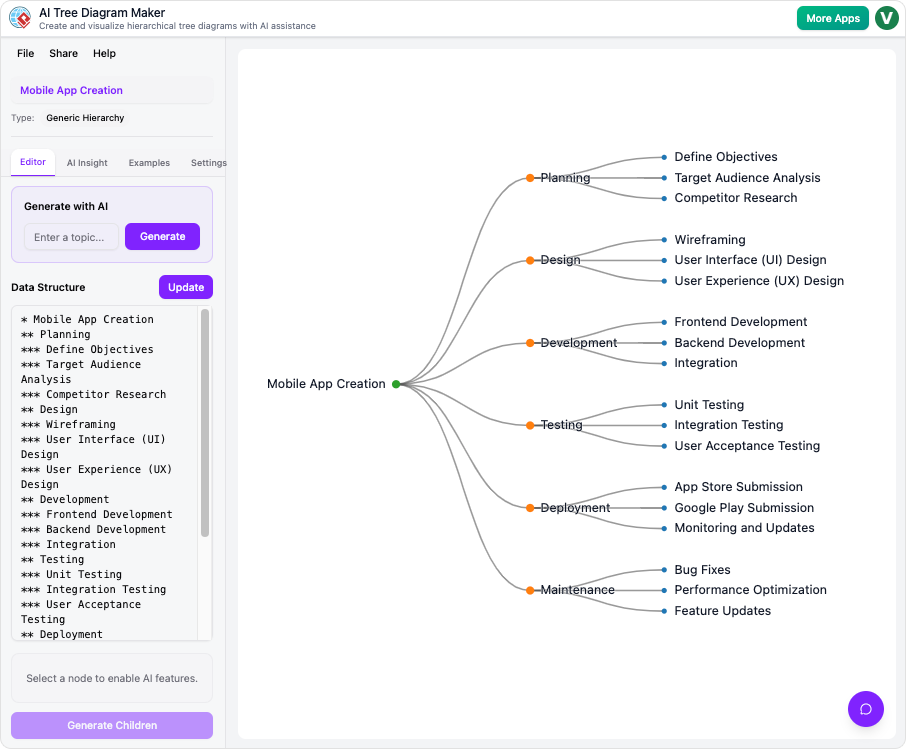
Step 0: Access the Tool
Go to → http://ai-toolbox.visual-paradigm.com/app/ai-tree-diagram-maker/
(No login required for basic use, but sign-in with Google/Email to save projects)
Step 1: Start a New Diagram (3 Ways)
Way A – AI Generation (Most Popular)
- Click “Generate with AI”
- Enter a topic, e.g., “Launch a SaaS MVP in 6 months” or “Company Organizational Structure 2026”
- (Optional) Choose diagram type: Horizontal Tree / Vertical Tree / Mind Map / Org Chart
- Click Generate → full diagram appears in <5 seconds
Way B – Start from Template
Click “Templates” → choose:
- Work Breakdown Structure (WBS)
- Organizational Chart
- Mind Map (radial)
- Product Requirements Document (PRD)
- SWOT Analysis
- Decision Tree
- Family Tree, etc.
Way C – Freeform Markdown
Click “Blank” → start typing in the left panel using simple syntax:
Launch New Mobile App
  Market Research
    Competitor Analysis
    Target Audience Surveys
  Product Design
    Wireframes
    UI/UX Design
      Figma Files
    Prototype
  Development
    Frontend
      React Native
    Backend
      Node.js + PostgreSQL
    QA Testing
  Marketing
    Pre-launch Campaign
    App Store Optimization
The diagram updates live as you type.
Step 2: Expand with AI Suggestions
- Click any node (e.g., “Development”)
- Click the magic-wand icon or “Suggest Sub-nodes”
- AI returns 5–10 relevant children with one-click add
Example prompt it uses behind the scenes: “Suggest detailed sub-tasks for ‘Development’ in a mobile app launch”
Step 3: Enrich Nodes with Properties
Right-click any node → “Edit Properties”
- Status: Not Started / In Progress / Blocked / Done
- Priority: P0–P4
- Owner: @john, @sarah
- Due Date
- Estimated Cost/Effort
- Notes & Attachments
Step 4: Get AI Insights
Click the “Insight Engine” button (light-bulb icon) → choose report:
- Find Gaps & Missing Items
- Risk Detection
- Workload Balance (by owner)
- Critical Path Suggestions
- Duplicate Detection
Example output: “Warning: No node covers ‘Legal & Compliance’ – high risk for SaaS launch”
- Click “Save” → name your project (auto-saves every 30 sec when signed in)
- Click “Share” → copy read-only or editable link
- Export options: PNG, SVG, PDF, Markdown, JSON
Feature Comparison Table (2025)
| Feature | IntelliTree (Visual Paradigm) | Miro AI | Whimsical AI | Lucidchart AI | XMind AI |
|---|---|---|---|---|---|
| True markdown ↔ visual sync | Yes | No | Partial | No | No |
| AI node suggestions | Yes (context-aware) | Yes | Yes | Basic | No |
| One-click AI risk/gap reports | Yes | No | No | No | No |
| Free tier (unlimited projects) | Yes (with watermark) | 3 boards | 3 docs | Yes | Yes |
| Handles 1000+ nodes smoothly | Yes (D3) | Lags | Slow | Okay | Good |
| Offline mode | No | No | No | No | Yes |
| Custom node fields | Yes | Limited | No | Yes | Limited |
12 Real-World Examples (Copy-Paste Ready)
1. Project WBS – Building a House
Build Family House (2026)
  Planning
    Budget Approval
    Architectural Design
    Permits & Legal
  Site Preparation
    Clearing
    Foundation
  Construction
    Framing
    Roofing
    Plumbing & Electrical
    Interior Finishing
  Final
    Inspection
    Handover
2. Company Org Chart
CEO
  CTO
    Frontend Team
    Backend Team
    DevOps
  CMO
    Content Marketing
    Performance Marketing
    PR
  CFO
  CHRO
3. Product Requirements Document (PRD)
New Fitness Tracker App
  User Authentication
    Social Login
    Email/Password
  Core Features
    Step Counting
    Heart Rate Monitoring
    Sleep Tracking
    GPS Running
  Gamification
    Badges
    Challenges
    Leaderboards
  Monetization
    Freemium
    Premium Subscription $9.99/mo
4. Content Marketing Plan 2026
Q1 2026 Content Strategy
  Blog (2x/week)
    SEO Pillar Posts
    Case Studies
  YouTube (1x/week)
    Tutorials
    Product Reviews
  Social Media
    LinkedIn
    TikTok
    Twitter/X
  Email Newsletter (weekly)
5. Decision Tree – Should I Quit My Job?
Should I Quit My Job?
 2025?
  Do I feel fulfilled?
    Yes → Stay
    No
      Is the pay worth it?
        Yes → Stay & negotiate
        No
          Do I have 6mo runway?
            Yes → Quit & start business
            No → Start side hustle first
(Plus 7 more examples available in the template gallery)
Pro Tips & Best Practices (2025)
- Always start with a template, then use AI to expand — fastest workflow.
- Use “@name” in nodes to auto-assign owners; shows in workload reports.
- Tag high-risk nodes with “🔴 emoji or “Risk” tag to make them stand out.
- Export to Markdown → commit to Git for version-controlled project plans.
- Combine with Notion or ClickUp: keep the source Markdown file in Notion, diagram link for visuals.
- For huge diagrams (>500 nodes), switch to “Compact Mode” to improve performance.
Conclusion

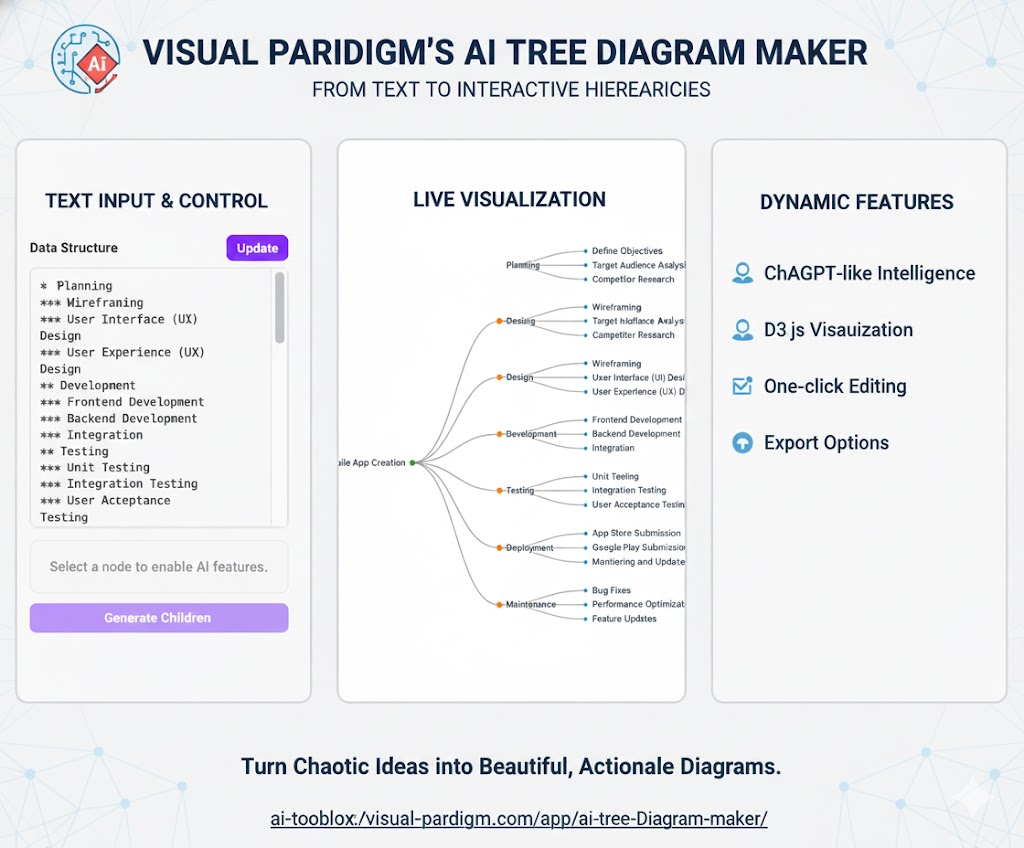
The Visual Paradigm AI Tree Diagram Maker (IntelliTree) is currently the most mature and powerful AI-native hierarchical diagramming tool on the market (as of Dec 2025). Its combination of instant AI generation, live markdown editing, D3 visualization, and built-in Insight Engine makes it uniquely capable of going from a one-line idea to a strategic, actionable, and shareable plan in minutes.
Whether you’re a project manager building a WBS, a founder structuring a startup, a student outlining a thesis, or a writer planning a book, IntelliTree removes 90% of the friction from hierarchical thinking.
Start for free today:
https://ai-toolbox.visual-paradigm.com/app/ai-tree-diagram-maker/
Citation
All feature descriptions, screenshots, and official claims are sourced from:
Visual Paradigm Official Page – AI Tree Diagram Maker
https://www.visual-paradigm.com/features/ai-tree-diagram-maker/
(Accessed and verified December 2025)