


Introduction: A New Era of Data Modeling in OpenDocs
Visual Paradigm has unveiled a groundbreaking enhancement to its AI-powered knowledge management platform — native support for Entity Relationship Diagrams (ERDs) in OpenDocs. This powerful addition seamlessly integrates data modeling into collaborative documentation, empowering teams to design, visualize, and share database schemas directly within their workflows.
Whether you’re a database designer, software architect, business analyst, or part of a cross-functional project team, this feature transforms how you approach data modeling — from concept to documentation — all in one intuitive, AI-driven environment.
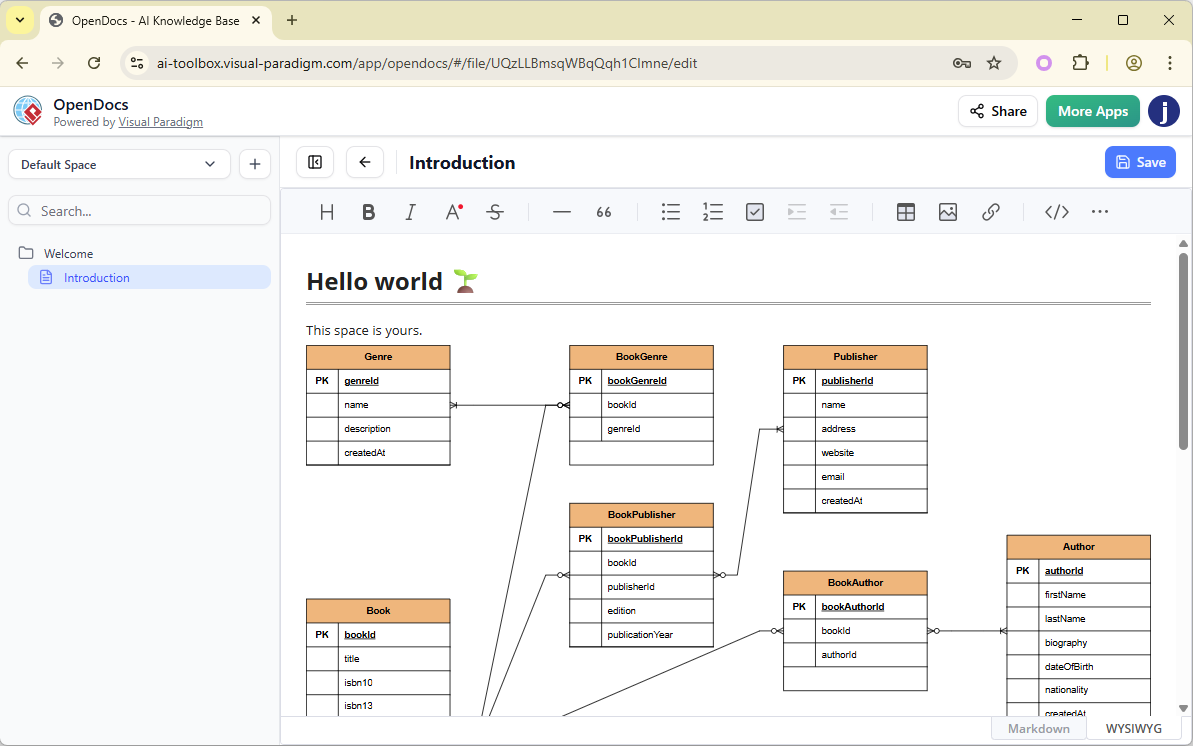
In this comprehensive guide, we’ll walk you through everything you need to know about ERDs in OpenDocs: from foundational concepts and best practices to step-by-step instructions for both manual creation and AI-powered generation.
What Is an Entity Relationship Diagram (ERD)?
An Entity Relationship Diagram (ERD) is a visual blueprint of a system’s data structure. It maps out how entities (real-world objects or concepts) relate to each other, making it essential for designing robust, scalable databases and understanding complex data relationships.
ERDs are widely used in:
-
Software development
-
Database architecture
-
Business process modeling
-
Requirements gathering and documentation
By clearly defining entities, attributes, relationships, and cardinalities, ERDs help ensure:
-
Data integrity
-
Reduced redundancy
-
Clear communication across teams
-
Easier system maintenance
Core Concepts in ERDs
To effectively use ERDs in OpenDocs, it’s critical to understand these fundamental components:
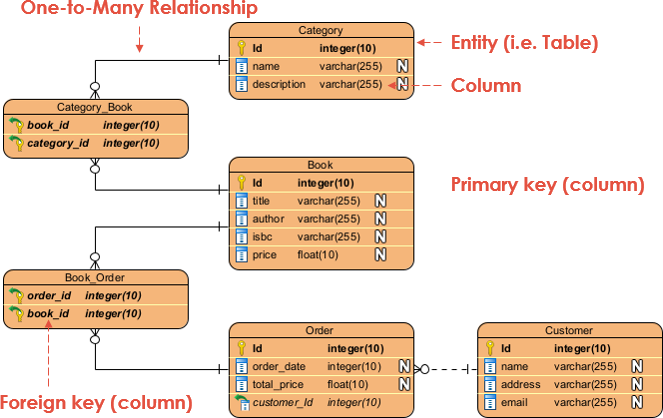
| Element | Description |
|---|---|
| Entities | Represent real-world objects such as Book, Member, or Loan. Depicted as rectangles. |
| Attributes | Properties of entities (e.g., Title, Author, ISBN for Book). Displayed as ovals or listed inside entity boxes. |
| Relationships | Interactions between entities (e.g., Borrows, Reserves). Represented by diamonds or labeled lines. |
| Cardinality | Defines quantity constraints: • 1:1 (One-to-One) • 1:N (One-to-Many) • N:M (Many-to-Many) Notations like Crow’s Foot or Chen notation are supported. |
| Keys | Unique identifiers: • Primary Key (PK): Uniquely identifies a record (e.g., MemberID).• Foreign Key (FK): Links two entities (e.g., MemberID in Loan table). |
| Weak Entities | Depend on another entity for identification (e.g., Reservation tied to Book). |
| Associative Entities | Resolve many-to-many relationships (e.g., Loan entity linking Member and Book). |
💡 Pro Tip: OpenDocs automatically applies standard conventions for these elements, whether you’re drawing manually or using AI.
ERD Support in OpenDocs: Key Features
OpenDocs now brings data modeling into the heart of collaborative knowledge work. Here’s what makes ERD integration revolutionary:
✅ Seamless Embedding
Insert live, editable ERDs directly into any document page — ideal for contextual documentation.
✅ Standalone Component Pages
Create dedicated ERD pages for in-depth modeling, versioning, and sharing across your knowledge base.
✅ Full Manual Editing Tools
Drag-and-drop interface with:
-
Predefined shapes (entities, attributes, relationships)
-
Smart connectors with automatic alignment
-
Cardinality indicators (Crow’s Foot, arrows)
-
Customizable styles and layouts
✅ AI-Powered ERD Generation
Transform natural language descriptions into professional-grade ERDs in seconds:
-
Understands entities, attributes, relationships, and constraints
-
Suggests optimal layouts and key assignments
-
Learns from your past inputs for improved accuracy
🚀 This means: No more switching tools. No more guesswork. Just faster, smarter modeling.
Why Use ERDs in OpenDocs? Key Benefits
| Benefit | How OpenDocs Delivers |
|---|---|
| Massive Time Savings | AI generates a draft ERD in minutes instead of hours. |
| Centralized Documentation | Keep diagrams, text, code snippets, and images in one place. |
| Real-Time Collaboration | Multiple users edit the same ERD simultaneously in shared Spaces. |
| Enhanced Accessibility | No advanced modeling skills required — ideal for non-technical stakeholders. |
| Future-Proof Integration | Pair with OpenDocs’ AI image generation, Markdown, and publishing features. |
✅ Perfect for agile teams, startups, and enterprises alike.
How to Create an ERD Manually in OpenDocs
For full control and precision, use the built-in diagram editor:
-
Open your document in OpenDocs.
-
Click Insert > Diagrams > Entity Relationship Diagram.
-
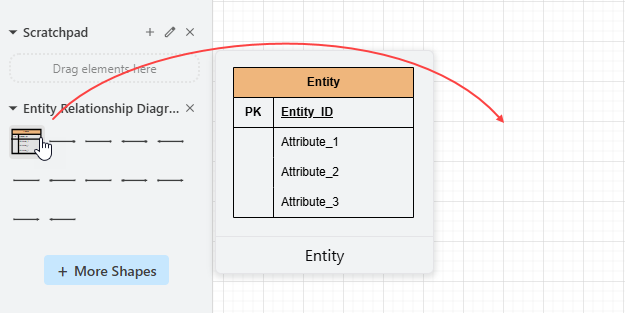
The ERD Editor opens with a palette of shapes:
-
Rectangles for entities
-
Ovals for attributes
-
Diamonds for relationships
-
-
Drag and drop onto the canvas:
-
Add entities (e.g.,
Book,Member) -
Attach attributes (e.g.,
Title,Author,MemberID) -
Draw relationships (e.g.,
Borrows) -
Apply cardinality (e.g., 1:N using Crow’s Foot)
-
-
Use the Layout Assistant to auto-align and distribute elements.
-
Customize colors, fonts, and borders via the Style Panel.
-
Click Save (top-right) → Close to embed the diagram.
✏️ Ideal for refining complex models, validating business rules, or preparing for technical documentation.
How to Generate an ERD with AI in OpenDocs
Leverage the power of AI to turn ideas into diagrams instantly:
-
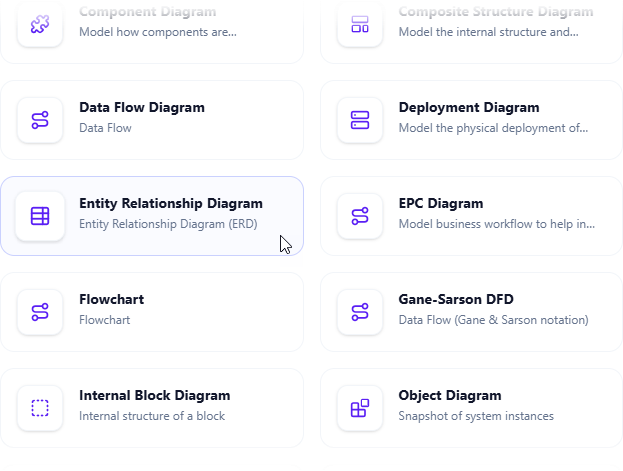
Open the Insert Diagram menu → Select Entity Relationship Diagram.
-
Click Create with AI in the top-right corner.
-
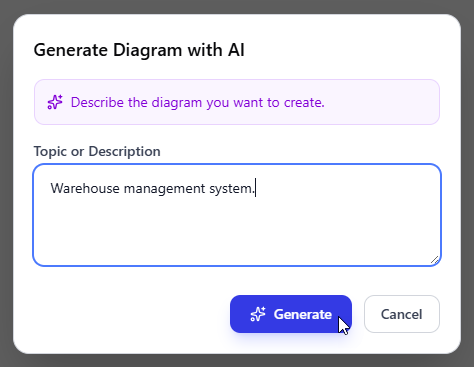
In the prompt box, describe your system naturally:
🔤 “Design a library management system with books, members, loans, and reservations. Books have titles, authors, and ISBNs. Members have IDs, names, and contact info. Loans track due dates and return status. A member can borrow multiple books, but each book can only be borrowed by one member at a time.”
-
Click Generate.

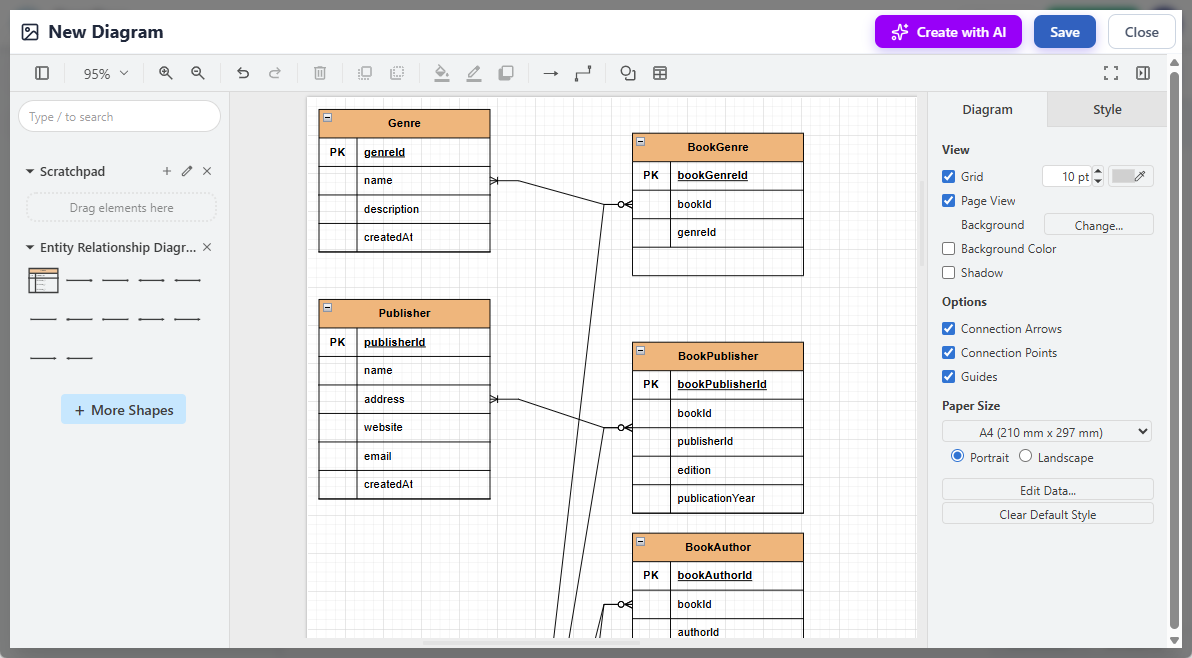
🧠 The AI analyzes your input and returns:
-
A structured list of entities and their attributes
-
Suggested relationships with cardinalities
-
An initial layout with proper connectors and keys
-
Review the output:
-
Adjust layout if needed
-
Add missing attributes or relationships
-
Fix cardinality (e.g., change N:M to 1:N if required)
-
-
Click Save → Close to embed in your document.
🎯 Example Output:
Entities:
Book (Title, Author, ISBN),Member (ID, Name, Email),Loan (LoanDate, DueDate, Status)Relationships:
Member → Loan (1:N),Book → Loan (1:N)Keys:
Book.ISBN(PK),Member.ID(PK),Loan.LoanID(PK),Loan.BookID(FK)
✅ Perfect for rapid prototyping, sprint planning, or onboarding new team members.
Embedding and Managing ERDs in Documents
Once created, ERDs are dynamic components within OpenDocs:
| Action | How to Do It |
|---|---|
| Embed in Document | After saving, the ERD appears as a clickable, editable component. Click to reopen the editor. |
| Use as Standalone Page | Save as a separate component page. Link it from other documents for navigation. |
| Auto-Sync Updates | Changes propagate instantly across all references — no outdated diagrams! |
| Export & Share | Export as PNG/SVG or publish the entire Space for team access. |
| Version History | Track changes over time using OpenDocs’ built-in version control. |
🔄 No more “out-of-sync” diagrams!
Best Practices & Guidelines
To get the most out of ERDs in OpenDocs, follow these expert tips:
🔹 Write Clear AI Prompts
Be specific: Include entities, attributes, relationships, and constraints.
❌ Avoid: “Make a database for a library.”
✅ Use: “Create an ERD for a library system with Books, Members, Loans, and Reservations. Each Book has a unique ISBN, title, and author. Each Member has a unique ID, name, and email. A Member can borrow many Books, but each Book can be borrowed by only one Member at a time.”
🔹 Iterate Incrementally
Use AI for a first draft → Refine manually → Validate with stakeholders.
🔹 Stick to One Notation Style
Choose either Crow’s Foot or Chen notation and apply consistently across projects.
🔹 Validate AI Outputs
AI is powerful but not perfect. Always cross-check:
-
Are all required entities included?
-
Are relationships logically sound?
-
Are keys correctly assigned?
🔹 Collaborate Smartly
-
Assign roles in Spaces (e.g., Designer, Reviewer, Stakeholder).
-
Use comments and @mentions to gather feedback.
-
Leverage version history to roll back if needed.
🔹 Break Down Large Diagrams
For complex systems (e.g., enterprise ERP), split into modular ERDs:
-
Customer Management
-
Order Processing
-
Inventory Tracking
Then link them together in a master architecture diagram.
🔹 Check Licensing & Access
Ensure your team has:
-
Visual Paradigm Online (Combo Edition) or
🔐 Note: ERD generation requires a premium license.
🔹 Combine with Other OpenDocs Features
-
Use AI image generation to create visual metaphors (e.g., a library scene).
-
Add Markdown annotations to explain business rules.
-
Embed code snippets to show schema SQL.
⚠️ Avoid over-reliance on AI. Always validate critical designs manually.
Who Benefits Most from ERD in OpenDocs?
| Role | How They Use It |
|---|---|
| Database Designers & Developers | Rapidly prototype schemas, document technical specs, generate DDL. |
| Software Architects & Analysts | Visualize data alongside use cases, workflows, and requirements. |
| Project Managers & Product Owners | Understand system architecture without technical jargon. |
| Business Analysts | Translate business rules into visual models for stakeholder alignment. |
| Startups & Agile Teams | Keep documentation lightweight, collaborative, and up-to-date. |
🌐 From startups to Fortune 500s — this feature scales with your team.
Getting Started: Your First ERD in OpenDocs
Ready to build your first ERD? Follow these steps:
-
Ensure You Have Access
-
Upgrade to Visual Paradigm Online (Combo Edition) or Desktop Professional Edition.
-
Confirm your workspace is updated.
-
-
Launch OpenDocs
-
Create a new document or Space.
-
-
Insert Your First ERD
-
Click Insert > Diagrams > Entity Relationship Diagram.
-
Choose: Manual or Create with AI.
-
-
Try the AI Prompt
Use this starter prompt:“Create an ERD for a university system with Students, Courses, Enrollments, and Professors. Students have IDs, names, and majors. Courses have codes, titles, and credits. Enrollments track enrollment dates. Professors teach courses. A student can enroll in many courses, and a course can have many students. A professor teaches one or more courses.”
-
Save, Review, and Share
-
Refine the layout.
-
Embed in your document.
-
Share the Space with your team.
-
📌 Pro Tip: Bookmark the OpenDocs – AI-Powered Knowledge Management Tool page for tutorials, templates, and community examples.
Final Thoughts: The Future of Data Modeling Is Here
The integration of AI-powered ERD generation in OpenDocs marks a major leap forward in how teams design, document, and collaborate on data-driven systems. By combining the precision of manual modeling with the speed of AI, OpenDocs eliminates friction between idea and implementation.
Whether you’re:
-
Prototyping a new app,
-
Documenting a legacy system,
-
Onboarding new developers,
-
Or aligning business and technical teams,
ERDs in OpenDocs make data modeling intuitive, collaborative, and accessible.
Conclusion: Transform Your Workflow with AI-Driven Data Modeling
The integration of Entity Relationship Diagrams in OpenDocs isn’t just a feature — it’s a paradigm shift in how teams approach database design and documentation.
With:
✅ Instant AI generation
✅ Seamless collaboration
✅ Real-time editing
✅ Centralized knowledge
✅ Professional-grade output
You’re no longer just documenting data — you’re building smarter systems, faster.
🚀 Start today. Turn ideas into diagrams. Turn diagrams into reality.
Ready to Experience the Future of Documentation?
🌐 Visit: https://www.visual-paradigm.com/features/opendocs/
This post is also available in Deutsch, Español, فارسی, Français, English, Bahasa Indonesia, 日本語, Polski, Portuguese, Ру́сский, Việt Nam, 简体中文 and 繁體中文.