
Whether you’re creating technical UML models, business process diagrams, or high-impact marketing graphics, Visual Paradigm now offers a seamless cloud workflow that connects your visual creations directly to your documentation hub. This comprehensive guide walks you through sending diagrams from both Visual Paradigm Online and Visual Paradigm Desktop to Visual Paradigm OpenDocs using the powerful Pipeline integration.
🚀 Overview: The Unified Cloud Workflow
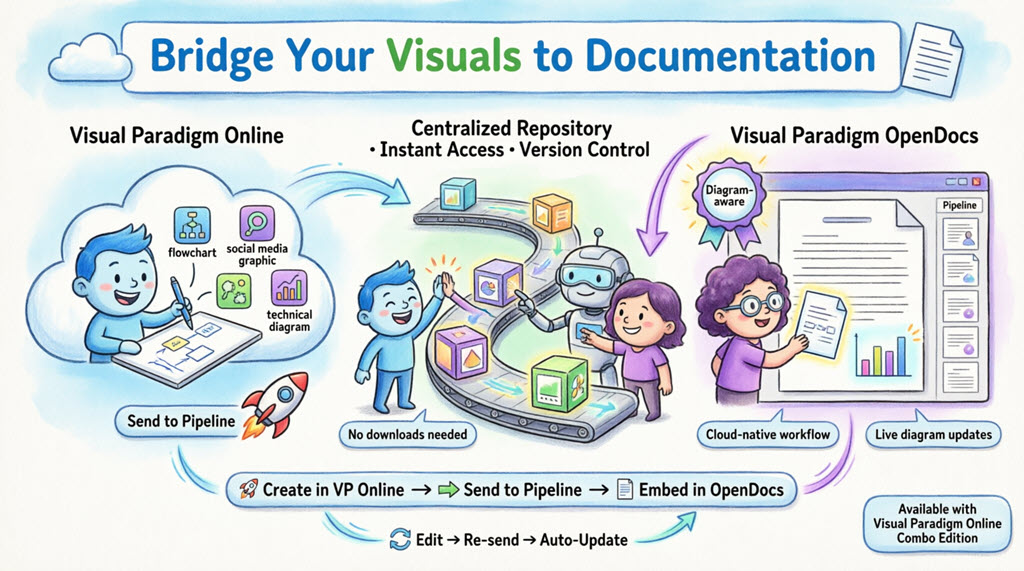
Visual Paradigm Online and Desktop now support direct integration with Visual Paradigm OpenDocs, bridging the gap between versatile diagramming tools and centralized knowledge management.
Key Benefits:
-
✅ Create diagrams in your browser or desktop application
-
✅ Send visuals instantly to OpenDocs via the Pipeline
-
✅ Embed and re-edit diagrams directly within documentation
-
✅ Eliminate manual downloads and file management
-
✅ Keep documentation synchronized with evolving models
Note:
Visual Paradigm Online integration requires Combo Edition subscription
Visual Paradigm Desktop integration requires Professional Edition or above
📚 What is Visual Paradigm OpenDocs?
OpenDocs is Visual Paradigm’s premier AI-powered knowledge and document management platform. Unlike standard word processors, OpenDocs is “diagram-aware”:
-
🔹 Integrates a full diagramming engine directly into the document editor
-
🔹 Insert, view, and re-edit visuals without leaving the page
-
🔹 Functions as a “single source of truth” for project specifications, notes, and visual models
-
🔹 Provides a unified, searchable web-based environment for team collaboration
By connecting Visual Paradigm Online or Desktop to OpenDocs, your cloud diagrams become living parts of your documentation—always up-to-date and fully editable.
🔗 Understanding the Pipeline
The Pipeline acts as your personal “Asset Transit Hub”—a centralized, secure repository for “artifacts” (diagrams, graphics, and models) created across the Visual Paradigm ecosystem.
How Pipeline Works:
-
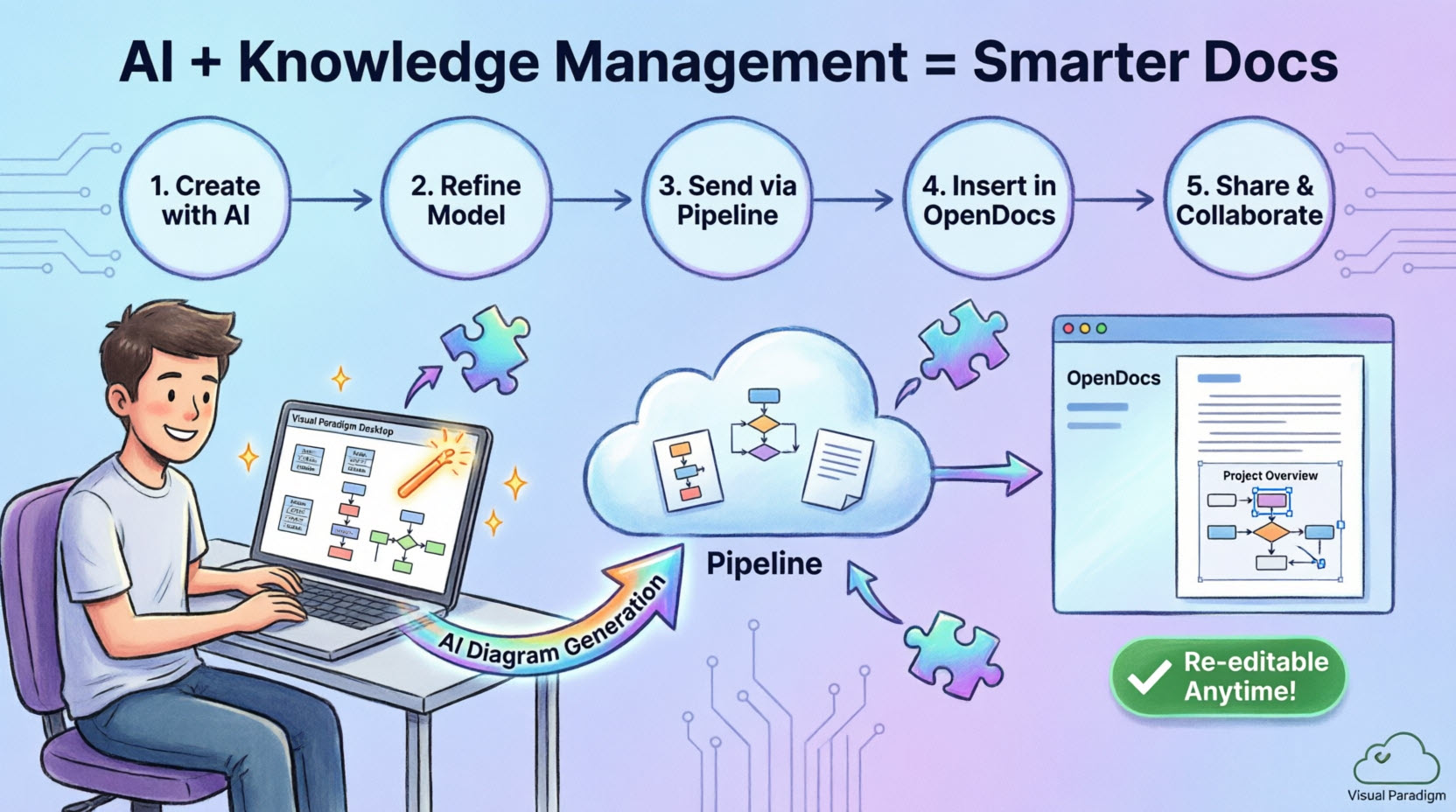
Create a diagram in Visual Paradigm Online or Desktop
-
Send it to Pipeline via the export function
-
Access the artifact from OpenDocs for embedding
-
Update the source diagram and sync revisions automatically
This architecture allows output from one tool (like an AI-generated UML diagram) to become input for another (such as a technical manual in OpenDocs), streamlining your entire documentation workflow.
🌐 Part 1: Sending Visuals from Visual Paradigm Online to OpenDocs
Step-by-Step Export Process
Step 1: Open Your Diagram
Open your diagram or graphic in Visual Paradigm Online.
Step 2: Access Export Menu
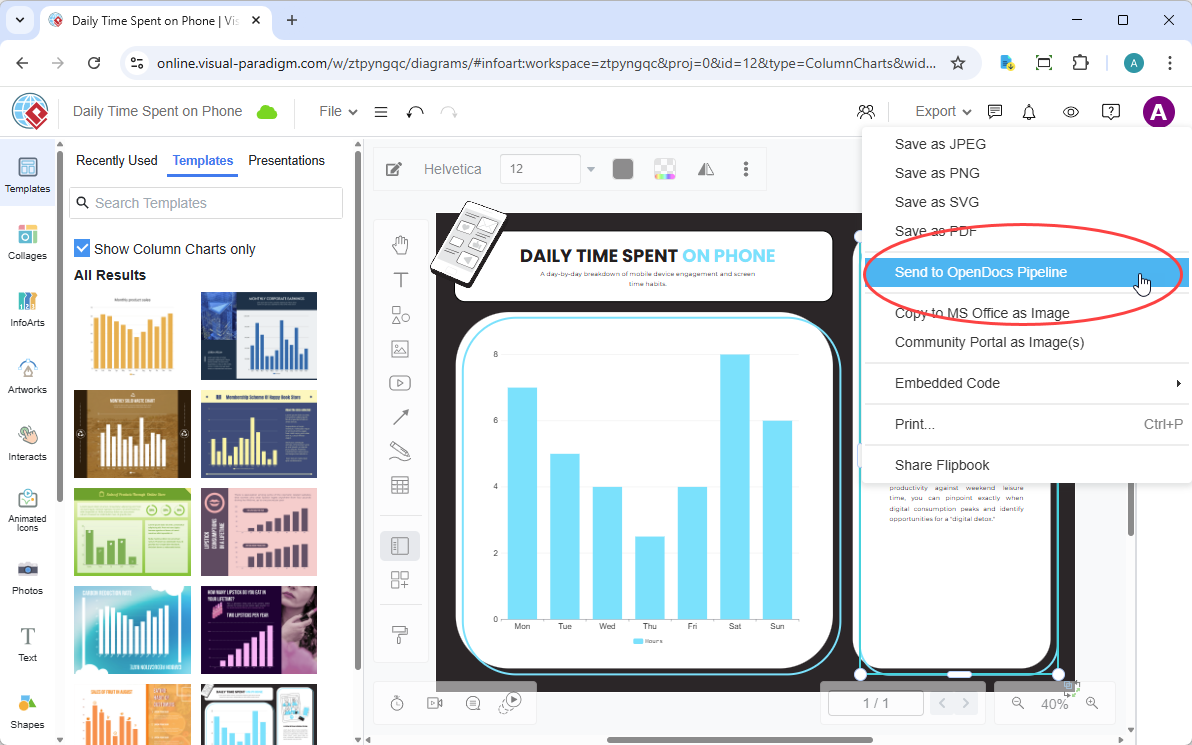
In the top menu, select Export > Send to OpenDocs Pipeline.
Step 3: Add Optional Comment
Add a descriptive comment to help identify the artifact later in the Pipeline pane.
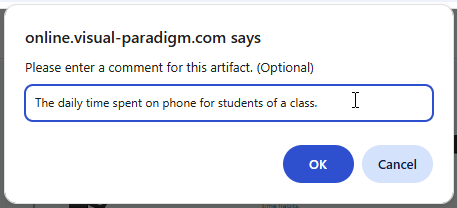
Step 4: Confirm Export
Confirm the export. Your visual is now securely stored in the Pipeline and ready for embedding.
💻 Part 2: Exporting Diagrams from Visual Paradigm Desktop to OpenDocs
Step-by-Step Export Process
Step 1: Open Your Diagram
In Visual Paradigm Desktop, open the diagram you wish to send (whether created manually or via AI generation).
Step 2: Right-Click Export
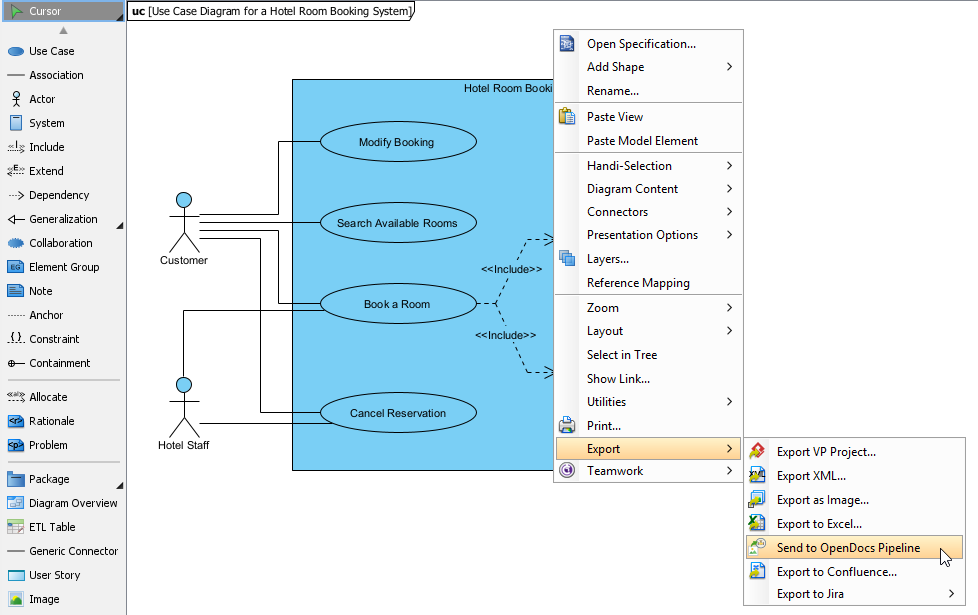
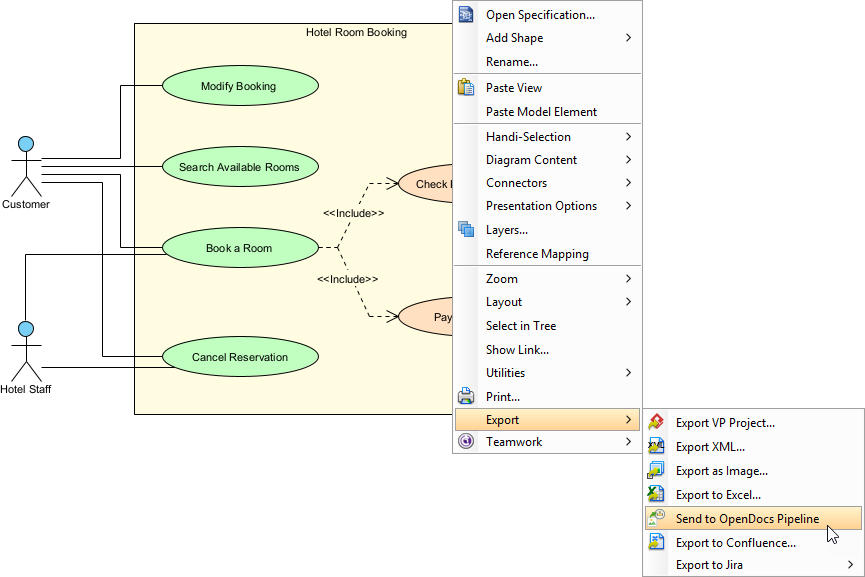
Right-click on the diagram and select Export > Send to OpenDocs Pipeline.
Step 3: Save Project
When prompted, save your project by clicking OK.
Step 4: Add Optional Comment
Enter a comment to help identify the version or purpose of the artifact in the Pipeline pane.
Step 5: Confirm Export
Confirm the export to output your diagram to the cloud-based Pipeline.
📄 Embedding Artifacts in OpenDocs
Once your diagram is in the Pipeline, you can place it anywhere in your knowledge base.
Insertion Steps (Works for Both Online & Desktop Sources)
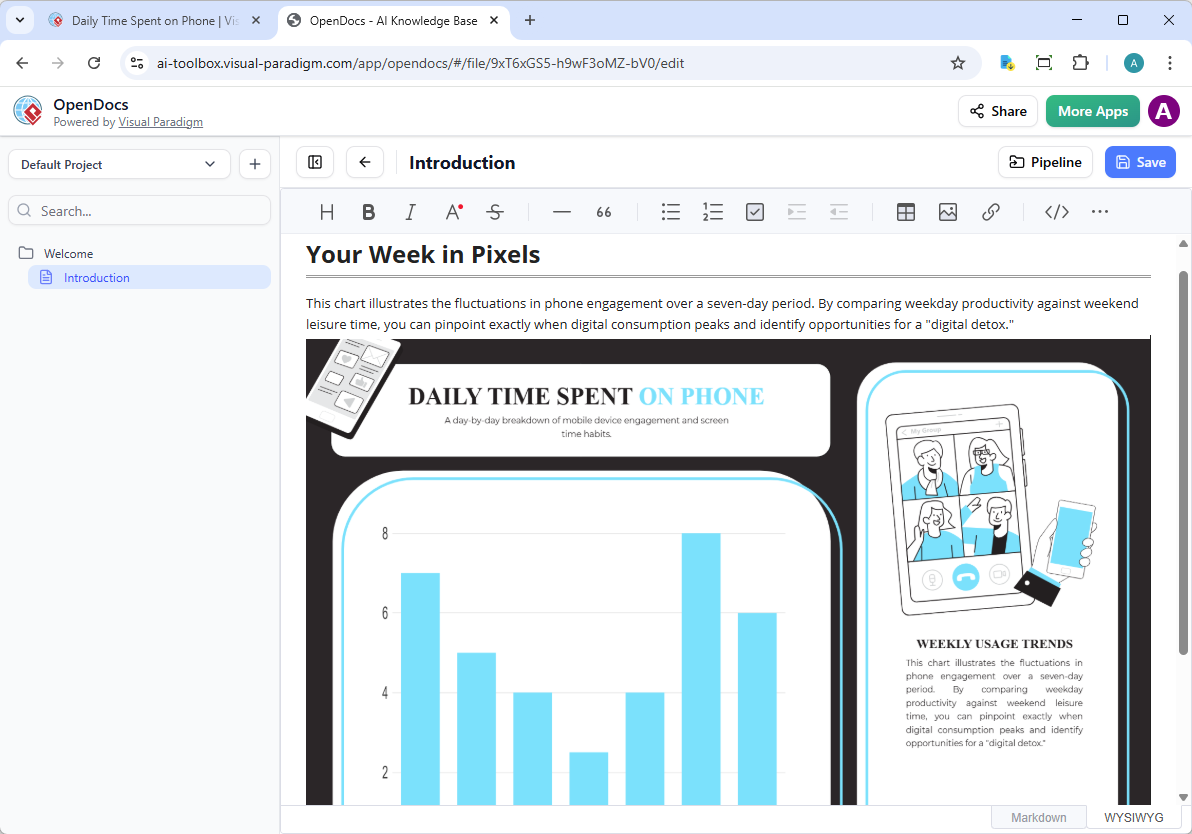
Step 1: Open Document for Editing
Open any document page in OpenDocs and click Edit.

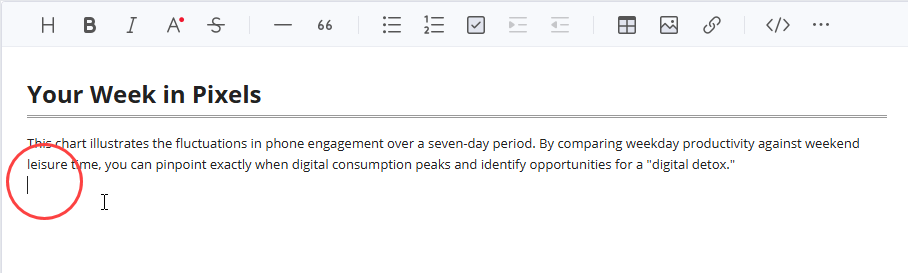
Step 2: Position Cursor
Click on the page where you want to insert the diagram.
Step 3: Access Insert Menu
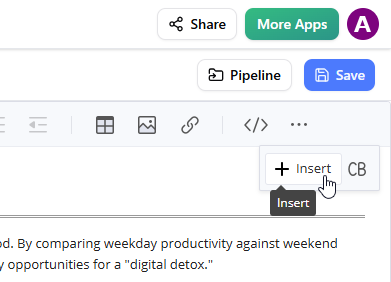
On the toolbar, click Insert.
Step 4: Select from Pipeline
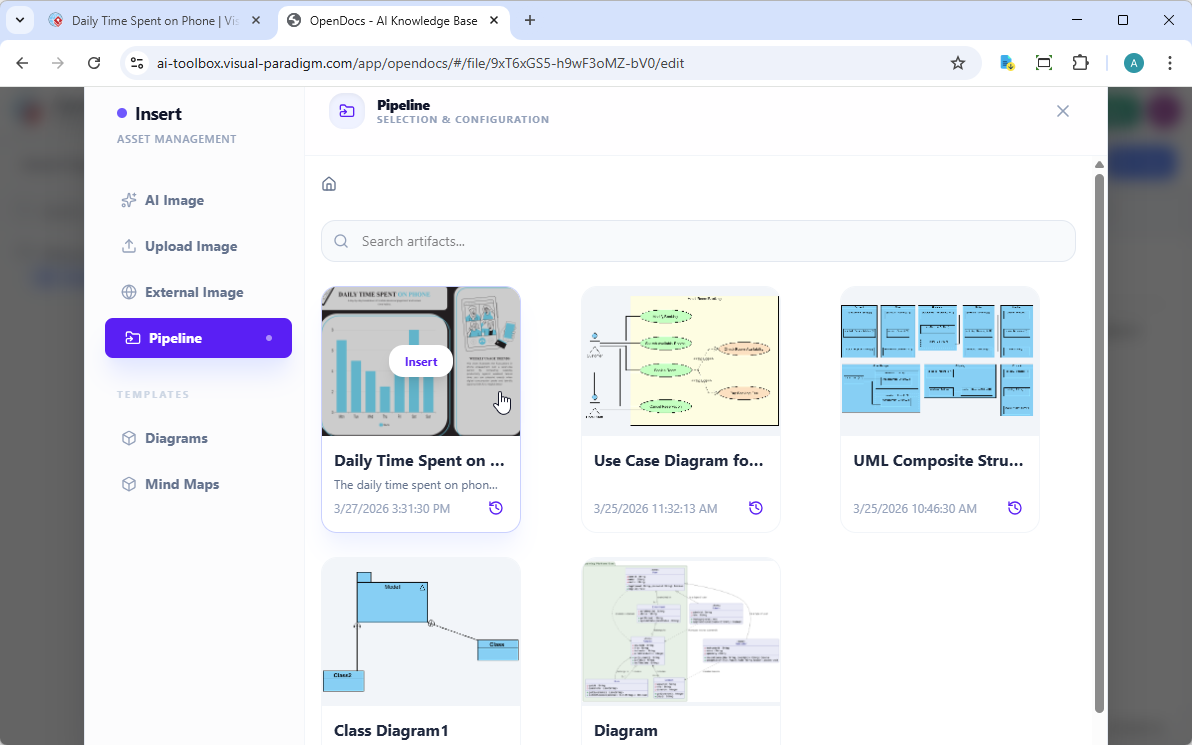
In the Insert window, select Pipeline from the left-hand sidebar. Your sent diagrams will appear here.
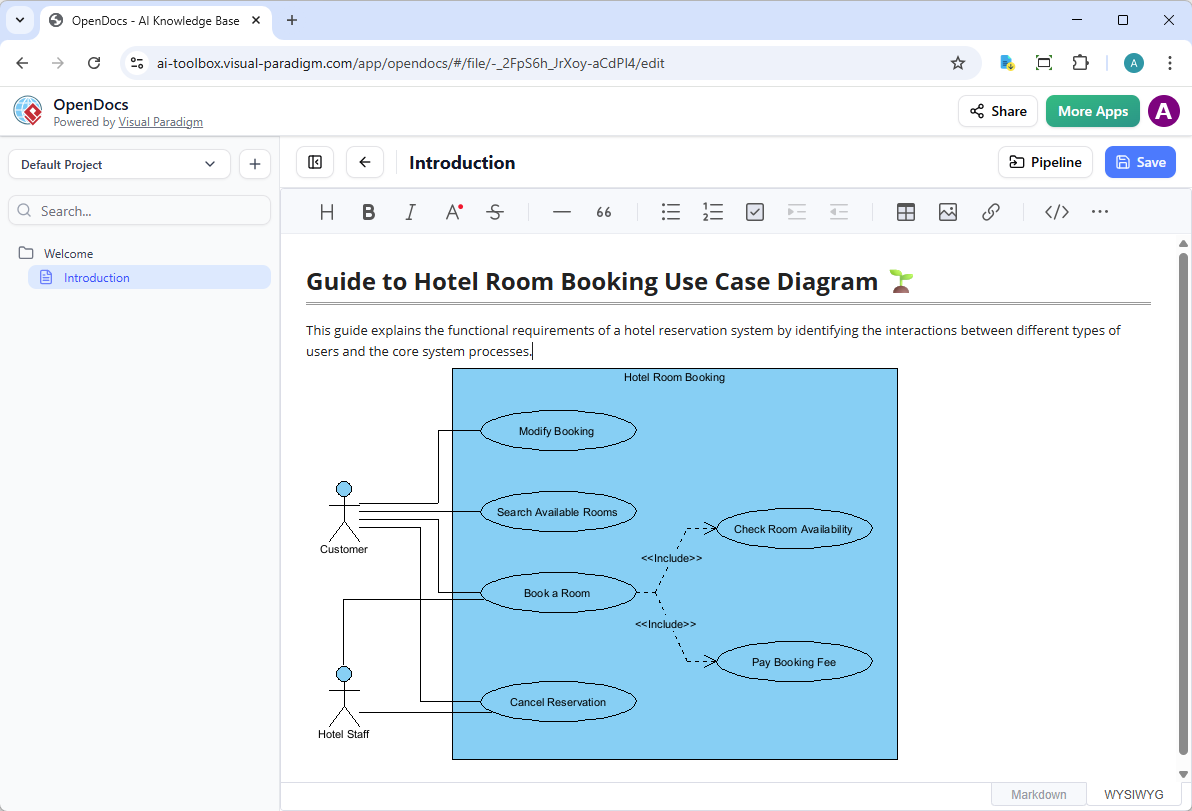
Step 5: Insert Diagram
Click on the diagram to insert the image directly at your cursor position.
🔄 Keeping Documentation in Sync: Updating Artifacts
One of the most powerful aspects of this integration is the ability to update your documentation as your models evolve.
Update Workflow
Step 1: Open the Source Diagram
In OpenDocs, click the Edit icon at the top right of the diagram image to open the Edit Diagram window.
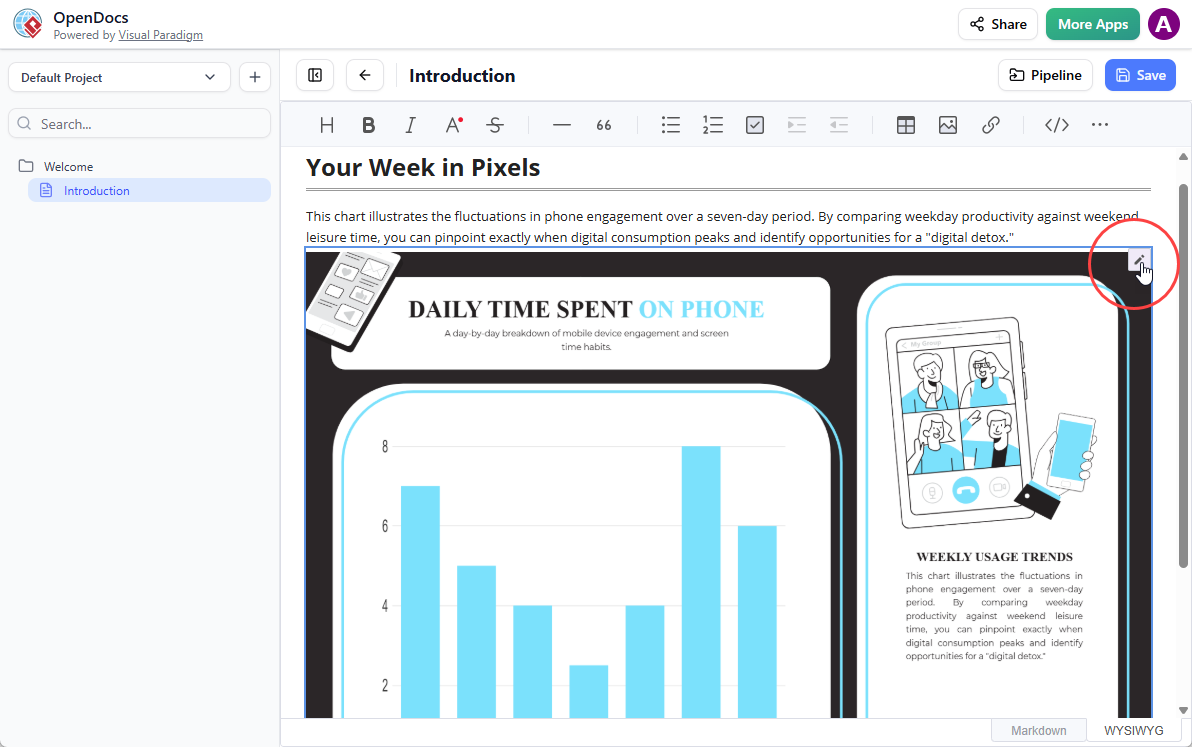
For Desktop Users: Copy the diagram link provided. In Visual Paradigm Desktop, go to Project > Open, paste the link, and the software will open the source model for you.
Step 2: Edit and Re-send
Modify your diagram in Visual Paradigm Online or Desktop. Once finished:
-
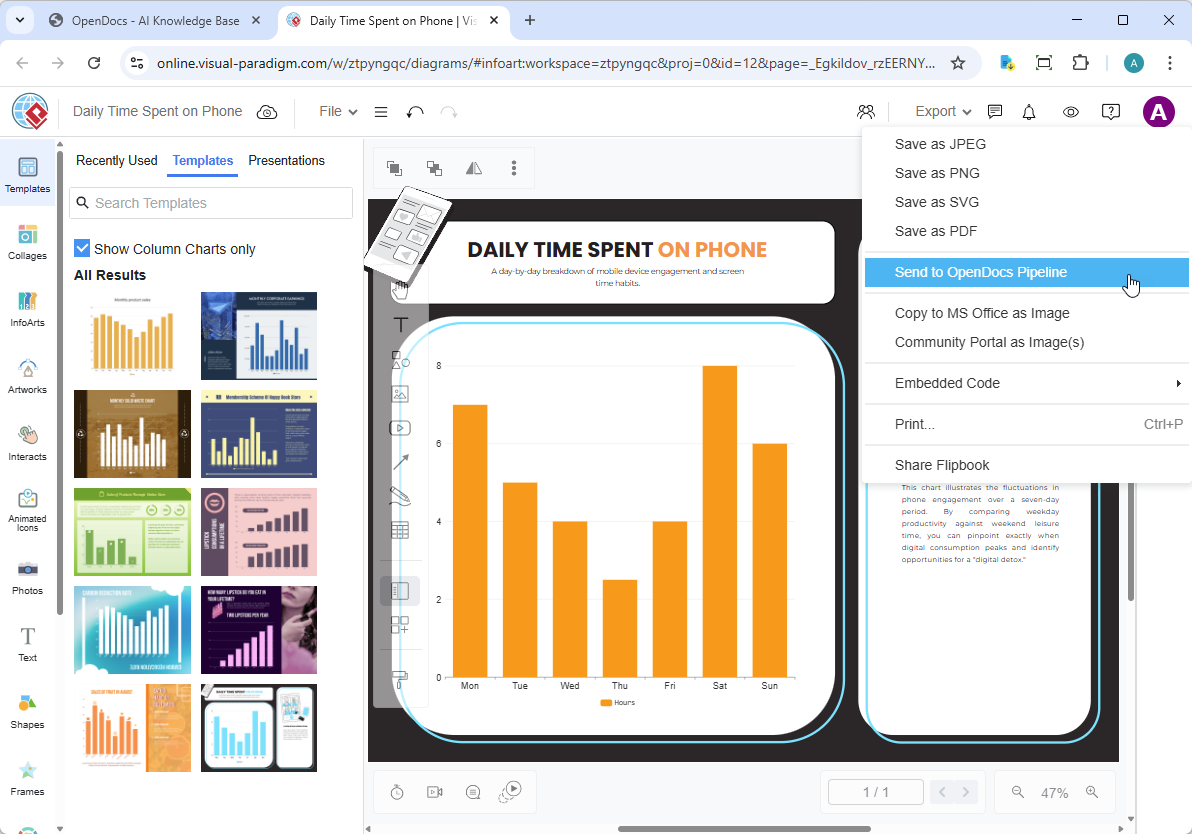
Online: Select Export > Send to OpenDocs Pipeline from the top menu
-
Desktop: Right-click the diagram and select Export > Send to OpenDocs Pipeline again
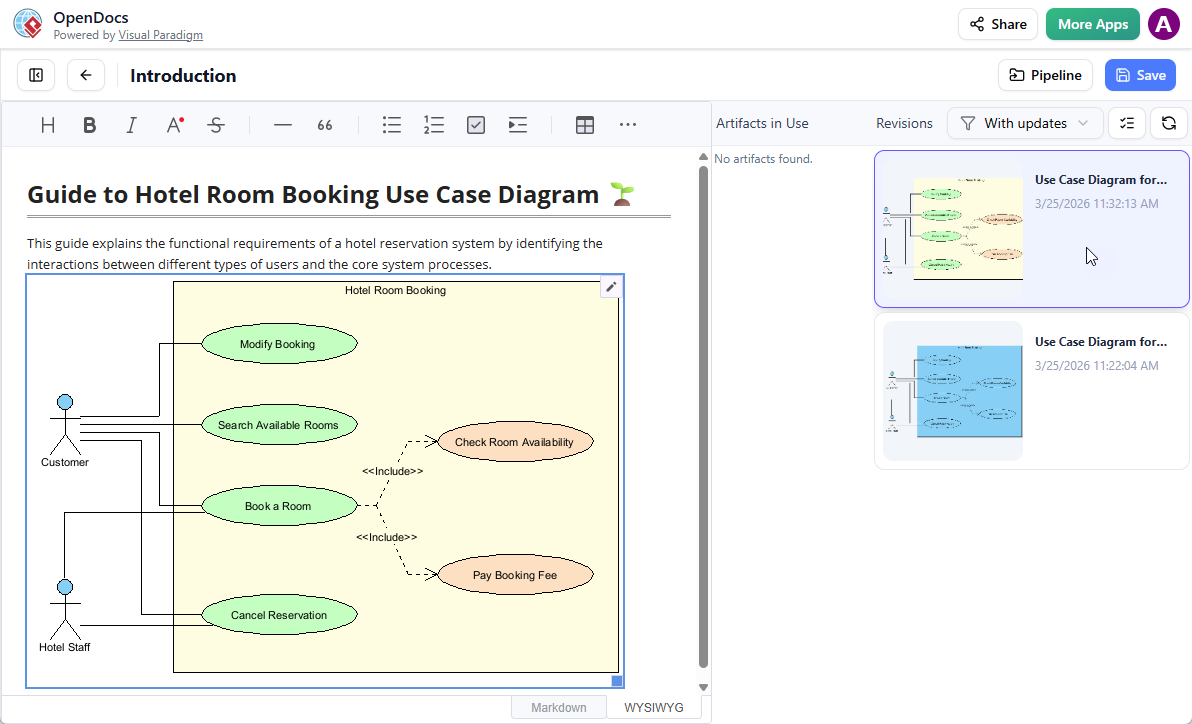
Step 3: Swap to Latest Revision in OpenDocs
-
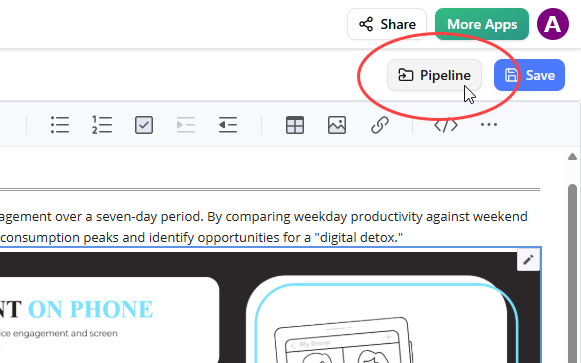
Back in the OpenDocs editor, click Pipeline at the top right.
-
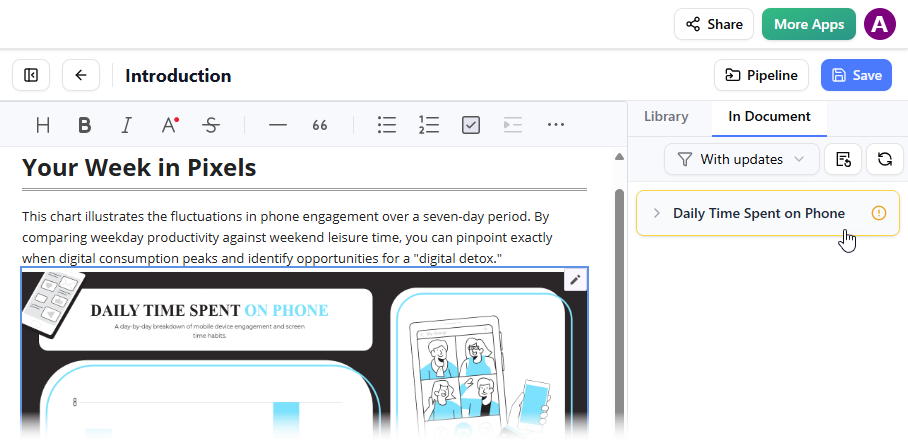
Open the In Document tab. The filter “With updates” is active and the pane lists modified artifacts.
-
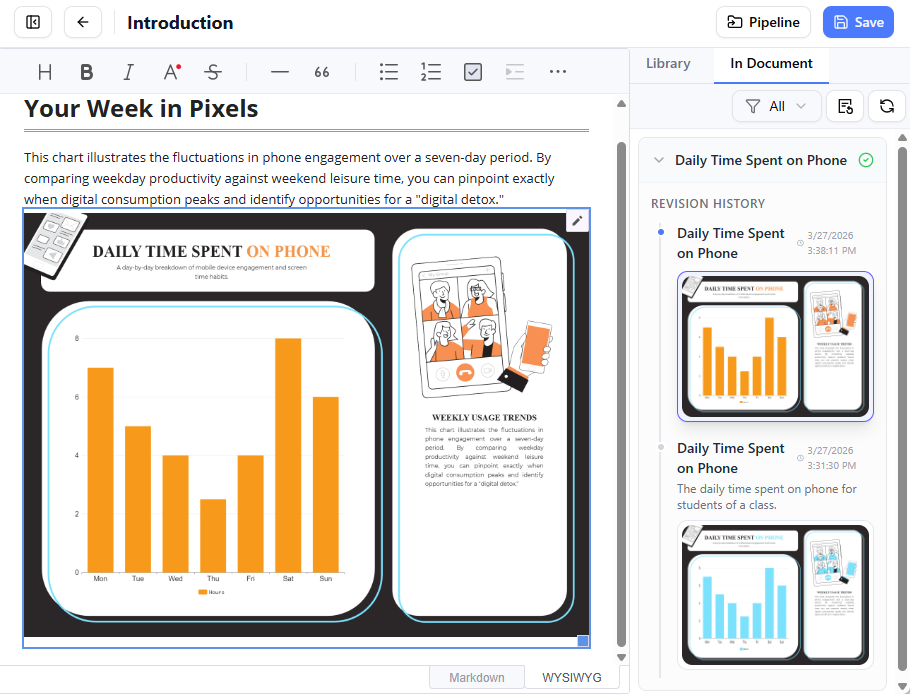
Click on the visual you just modified. You can see the available revisions for the selected visual.
-
Click on the latest revision to instantly swap the old diagram for the updated version, or click Update to latest revision directly.
✨ OpenDocs Core Features That Enhance This Workflow
Documentation & Writing
-
Rich Markdown & WYSIWYG Editor: Distraction-free writing with full Markdown syntax support and real-time previews
-
Knowledge Tree Structure: Hierarchical folder system with nested sub-folders and drag-and-drop organization
-
Unified Workspace: Create and edit professional diagrams directly within narrative text documents
AI-Powered Capabilities
-
AI Content Assistant: Generate article drafts, summarize technical documents, and simplify complex topics
-
AI Diagram Generation: Transform natural language descriptions into flowcharts, PERT charts, and UML models
-
Contextual Q&A: Get answers based specifically on information within your OpenDocs knowledge base
-
Smart Visual Suggestions: Receive diagram recommendations to enhance documentation comprehension
Collaboration & Integration
-
One-Click Sharing: Generate secure, read-only links for stakeholders without login requirements
-
Shared Workspaces: Real-time multi-user editing with version history and change tracking
-
Web-Based Accessibility: Access via any modern browser—ideal for remote and distributed teams
🔗 Related Releases & Resources
Expand your workflow with these complementary integrations:
Get Started Today:
📚 Reference
- OpenDocs: AI-Powered Knowledge Management Platform | Visual Paradigm: Official release announcement introducing Visual Paradigm OpenDocs as an AI-powered knowledge management and documentation platform with integrated diagramming capabilities.
- Export Diagrams from Visual Paradigm Desktop to OpenDocs: Pipeline Guide: Step-by-step technical guide for exporting diagrams from Visual Paradigm Desktop Professional Edition to OpenDocs via the Pipeline integration, including version control and synchronization workflows.
- AI Profile Diagram Generation in OpenDocs | UML Profile Support: Documentation on using artificial intelligence to generate UML profile diagrams directly within the OpenDocs environment, enhancing modeling efficiency.
- Visual Paradigm OpenDocs Features Overview: Official feature specification page detailing OpenDocs capabilities including rich text editing, diagram integration, AI assistance, collaboration tools, and knowledge management architecture.
- Visual Paradigm OpenDocs: The Complete Guide to AI-Powered Knowledge Management: Comprehensive third-party guide covering setup procedures, feature deep-dives, workflow optimization, and best practices for implementing OpenDocs in team environments.
- OpenDocs Tutorial Video: Getting Started: Official video tutorial demonstrating core OpenDocs functionality, interface navigation, diagram embedding, and basic collaboration features for new users.
- OpenDocs AI Tool Landing Page: Official AI-focused landing page for OpenDocs featuring feature highlights, use case examples, direct access links, and integration pathways with other Visual Paradigm tools.
- Mastering the Pipeline in Visual Paradigm OpenDocs: In-depth technical guide on leveraging the Pipeline feature for artifact management, cross-tool synchronization, version control, and streamlined knowledge workflows.
- AI Breakdown Structure Chart Maker in OpenDocs: Release documentation for AI-powered work breakdown structure (WBS) and organizational chart generation capabilities within the OpenDocs platform.
- Exporting Diagram Images from Visual Paradigm Chatbot to OpenDocs: Guide for exporting AI-generated diagrams created through the Visual Paradigm Chatbot interface directly to OpenDocs via the Pipeline, enabling conversational diagram creation workflows.
💡 Pro Tip: Bookmark this guide and the Pipeline documentation for quick reference as you integrate these powerful tools into your team’s workflow.