


Introduction
When I first encountered Class-Responsibility-Collaborator (CRC) cards during an agile workshop, I was skeptical. How could simple index cards possibly help design complex software systems? After spending several weeks using Visual Paradigm’s CRC card diagram feature on a real-world project, I can confidently say: this lightweight technique punches far above its weight.
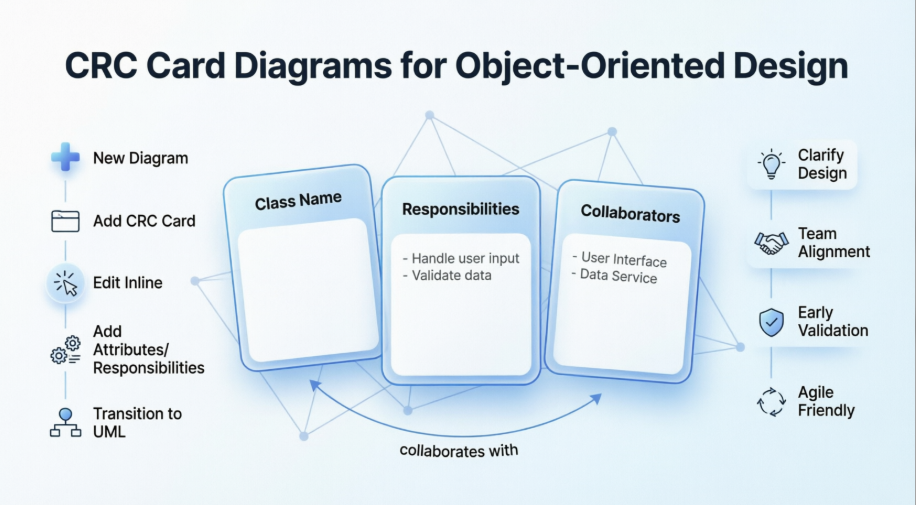
CRC cards aren’t just a diagramming exercise—they’re a collaborative brainstorming tool that helps teams identify core system components, clarify responsibilities, and map interactions before writing a single line of code. Whether you’re a seasoned architect or a developer new to object-oriented design, this guide shares my practical experience creating CRC card diagrams in Visual Paradigm, complete with step-by-step instructions, pro tips, and honest reflections on what works (and what doesn’t).
Getting Started: Setting Up Your CRC Card Diagram
Creating a new CRC card diagram in Visual Paradigm is refreshingly straightforward. Here’s how I approached it:
-
Navigate to Diagram > New from the application toolbar. The interface is clean and intuitive—no hunting through nested menus.
-
Select CRC Card Diagram in the New Diagram window. I appreciated that Visual Paradigm categorizes diagram types logically, making discovery easy.
-
Click Next, then enter your diagram name and description. The Location field lets you choose which model stores the diagram—a small but valuable feature for organizing larger projects.
-
Click OK, and you’re ready to start brainstorming.
💡 Pro Tip: I recommend naming your diagram after the domain you’re modeling (e.g., “Order Processing CRC”) to keep your workspace organized as your project grows.
Creating and Populating CRC Cards
Adding Your First Card
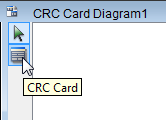
Click the CRC Card button on the diagram toolbar, then click anywhere on the canvas to place a new card. You can repeat this step to add as many cards as your design requires. The drag-and-drop workflow felt natural, and cards automatically snap into a tidy grid if you prefer structure.
Editing Card Properties Inline
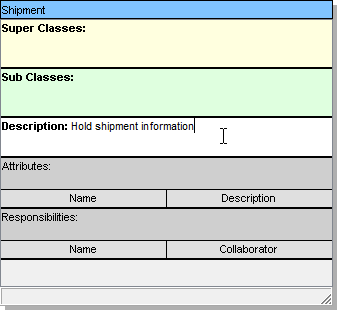
One feature I genuinely enjoyed: all CRC card properties are edited inline. Simply double-click any field (Class Name, Description, etc.), type your update, and click the diagram background to confirm. No modal dialogs, no property panels cluttering your screen—just direct, fluid editing.
Adding Attributes
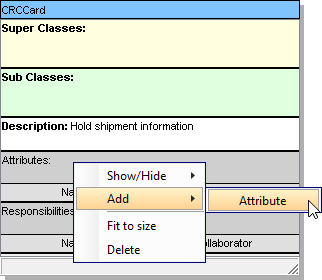
To define what data a class holds:
-
Right-click the Attributes heading on your CRC card
-
Select Add > Attribute from the context menu
-
Enter the attribute name and optional description
-
Repeat until all attributes are captured
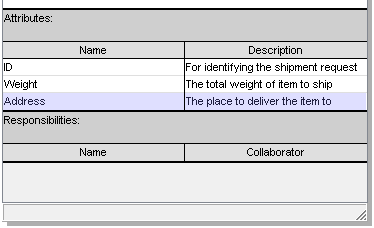
The result is clean and scannable:
Defining Responsibilities and Collaborators
This is where CRC cards truly shine. Responsibilities describe what a class does; collaborators identify who it works with to get it done.
-
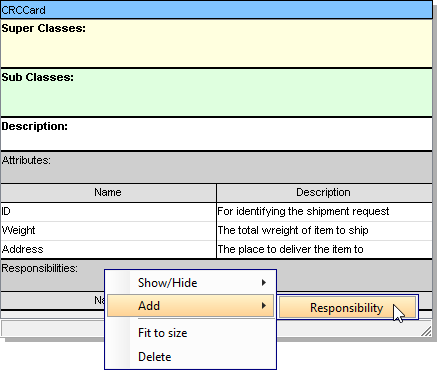
Right-click the Responsibilities heading
-
Choose Add > Responsibility
-
Enter the responsibility name and specify collaborating classes
🎯 Real-World Insight: During a recent e-commerce project, mapping responsibilities this way helped our team spot a missing “PaymentValidator” class early—saving us significant rework later.
Understanding the CRC Card Structure
Each card follows a simple three-part format that keeps focus on essentials:
| Section | Purpose | Example |
|---|---|---|
| Class Name | Identifies the object or entity | ShoppingCart, UserAccount |
| Responsibilities | High-level tasks or knowledge the class manages | “Calculate order total”, “Validate user credentials” |
| Collaborators | Other classes this card interacts with | PaymentProcessor, InventoryManager |
This structure forces clarity. If you can’t articulate a responsibility in one concise phrase, or if a class collaborates with too many others, it’s often a signal to refactor your design.
Advanced Features That Elevated My Workflow
🔍 Textual Analysis Integration
Visual Paradigm’s Textual Analysis feature was a game-changer for me. By pasting requirement documents into the tool, I could highlight key nouns (potential classes) and verbs (potential responsibilities), then convert them directly into CRC cards. This bridged the gap between raw user stories and structured design seamlessly.
🤖 AI-Powered Card Generation
Newer versions include an AI engine that parses problem descriptions and drafts initial CRC cards. While I still review and refine the output manually, this feature cut my initial brainstorming time by nearly 40%. It’s particularly helpful for kickstarting discussions in team workshops.
🔄 Seamless Transition to UML
Once CRC brainstorming is complete, Visual Paradigm lets you evolve cards into formal Class Diagrams with minimal effort. Responsibilities become methods, attributes stay attributes, and collaborators turn into associations. This continuity from informal sketch to detailed model is invaluable for maintaining design integrity.
Honest Reflections: What I Loved (and What Could Improve)
✅ What Worked Well:
-
The inline editing experience felt modern and distraction-free
-
Visual clarity of cards made team reviews highly effective
-
Integration with broader UML tooling meant no context switching
-
Export options (PDF, image) simplified sharing with stakeholders
⚠️ Areas for Growth:
-
The learning curve for advanced features like textual analysis could be gentler
-
Collaboration features (real-time co-editing) would enhance remote team workflows
-
More customizable card templates would support domain-specific notations
Overall, Visual Paradigm’s CRC implementation strikes an excellent balance between simplicity and power. It respects the agile spirit of CRC cards while providing just enough structure to scale to real projects.
Conclusion
CRC card diagrams remain one of the most underutilized yet powerful techniques in object-oriented design. Through my experience with Visual Paradigm, I’ve seen how this lightweight approach can clarify complex systems, foster team alignment, and prevent costly design missteps early in the development cycle.
If you’re exploring CRC cards for the first time, start small: model one core feature with 3–5 cards. Focus on responsibilities and collaborators before worrying about perfect syntax. And remember—the goal isn’t a polished diagram; it’s shared understanding.
Visual Paradigm provides a robust, intuitive platform to practice this discipline. Whether you’re refining an existing architecture or greenfielding a new system, investing time in CRC card modeling pays dividends in design clarity, team communication, and ultimately, software quality.
Have you used CRC cards in your projects? I’d love to hear how this technique has worked for your team.
References
- CRC Card Diagram Overview: Official documentation explaining Class-Responsibility-Collaborator card visualization and diagram creation in Visual Paradigm.
- CRC Card Gallery Example: Visual Paradigm gallery showcasing CRC card examples for modeling conceptual system views.
- Comprehensive Guide to CRC Card Approach: Third-party article discussing how Visual Paradigm’s CRC tool enhances documentation and UML integration.
- CRC Model Fundamentals: Agile Modeling resource explaining the three-section structure and purpose of CRC models.
- How to Draw CRC Card Diagram: Step-by-step Visual Paradigm tutorial for creating CRC card diagrams.
- Creating CRC Card Diagrams in Circle: Circle documentation guide for CRC diagram creation workflows.
- Fraud Detection System CRC Cards Example: Real-world case study demonstrating AI-powered CRC card generation for fraud detection systems.
- PDF Guide: CRC Card Diagram Creation: Downloadable PDF version of the CRC diagram creation guide.
- Textual Analysis Feature Guide: Documentation on using textual analysis to extract nouns and verbs for CRC card generation.
- Forming Diagrams from Textual Analysis: Guide on converting textual analysis results into visual CRC diagrams.
- Class Diagram Documentation: Reference for transitioning from CRC cards to formal UML class diagrams.
- Wikipedia: Class-Responsibility-Collaboration Card: Encyclopedic overview of CRC cards, their history, and usage in object-oriented design.
This post is also available in Deutsch, Español, فارسی, Français, English, Bahasa Indonesia, 日本語, Polski, Portuguese, Ру́сский, Việt Nam, 简体中文 and 繁體中文.