


Introduction
The Architecture Development Method (ADM) is the core of the TOGAF standard, providing a structured approach to designing, planning, implementing, and governing enterprise architecture. While Visual Paradigm has long offered a ADM Guide-Through Process to help users navigate this methodology, Visual Paradigm 18.0 introduces a significant upgrade: the TOGAF AI Assistant.
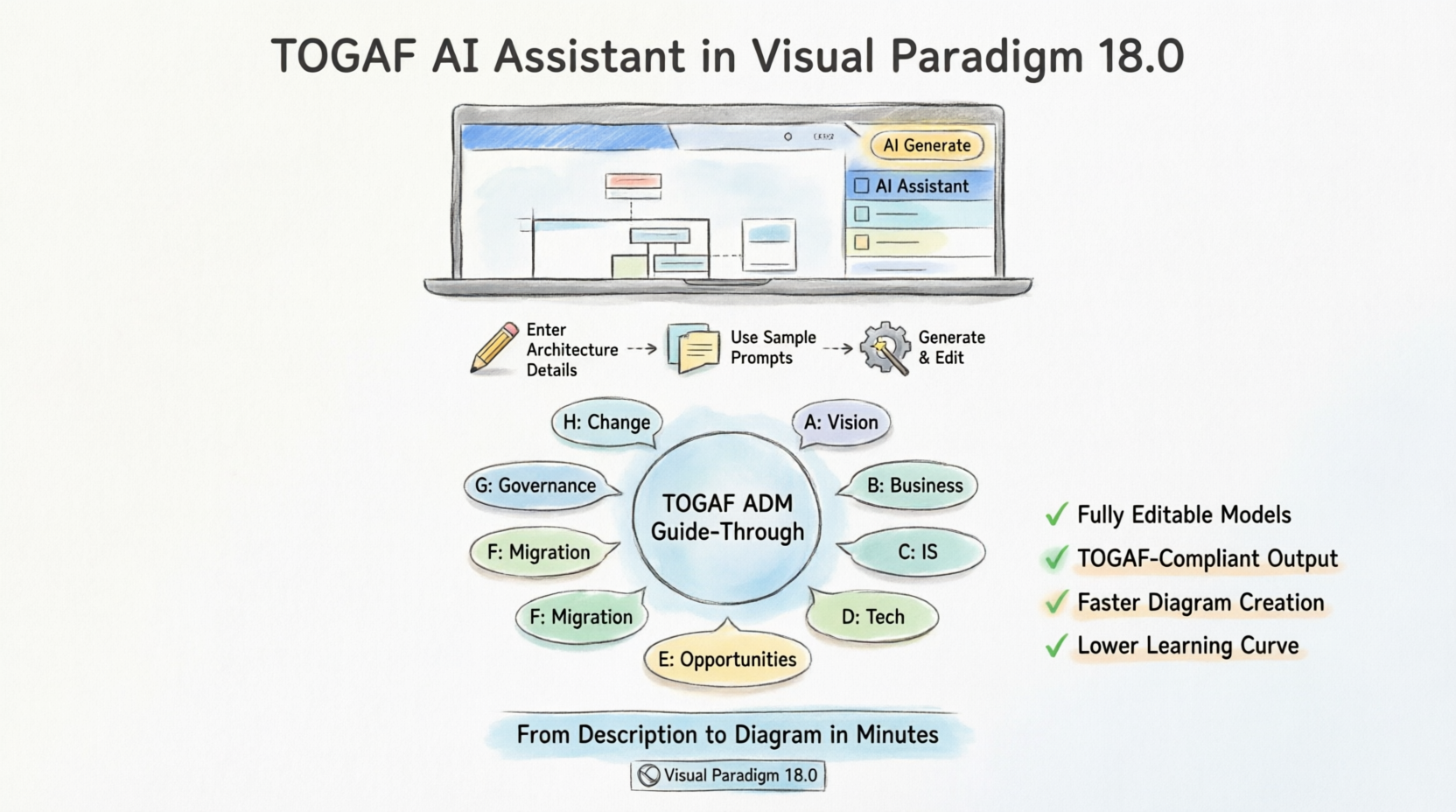
This guide details how to leverage this new AI capability to automatically generate architecture diagrams, streamline your workflow, and reduce the manual effort involved in creating TOGAF-compliant models.
1. Understanding the AI-Enhanced ADM Process
The TOGAF AI Assistant is integrated directly into the ADM Guide-Through Process. Its primary function is to assist architects in creating diagrams at various stages of the ADM lifecycle by converting textual descriptions into visual models.
-
Purpose: To automate the creation of architecture diagrams.
-
Integration: Works within the existing TOGAF ADM Guide-Through pathway.
-
Output: Generates fully editable diagrams that comply with TOGAF standards.
2. Accessing the TOGAF AI Assistant
There are two distinct methods to access the AI Assistant, depending on whether you are starting a new diagram or working on an existing one.
Option A: Creating a New Diagram (First-Time Open)
When you initiate a new diagram within a specific phase of the TOGAF ADM Guide-Through Process:
-
Open the diagram for the first time.
-
Look for a prompt in the top-right corner of the interface.
-
This prompt will notify you that AI generation is available.
-
Click the Generate button to launch the TOGAF AI Assistant.
Option B: Working on an Existing Diagram
If you are already working within a diagram and wish to utilize AI features:
-
Locate the drawer on the right side of the editor window.
-
Open the drawer to access the AI Assistant at any time.
-
This allows you to invoke AI assistance without leaving your current workspace.
3. Generating Architecture Diagrams
Once the AI Assistant is open, you can begin the generation process. The tool is designed to be flexible, catering to both experienced architects and those who need guidance.
Step 1: Input Your Architecture Details
-
Custom Input: Enter the specific details of your architecture into the text field. Describe your business actors, technical components, data flows, or relationships as clearly as possible.
-
Context: Ensure your description aligns with the specific ADM phase you are working in (e.g., Business Architecture vs. Technology Architecture).
Step 2: Utilize Sample Prompts
To accelerate the process, the TOGAF AI Assistant provides a variety of sample prompts.
-
Fill-in-the-Blanks: Use these templates to quickly structure your request.
-
Modification: You can modify these samples to better describe your specific system requirements.
-
Benefit: This feature helps users who may be unsure how to phrase their request for optimal AI results.
Step 3: Generate the Diagram
-
Once your details are entered (either via custom text or sample prompts), instruct the AI to generate the diagram.
-
The AI will process the input and render a visual diagram representing your architecture.
4. Post-Generation: Editing and Customization
A key feature of the Visual Paradigm AI Assistant is that the output is not a static image. It is a fully editable model.
-
Refine: You can modify shapes, connectors, and labels to ensure technical accuracy.
-
Customize: Adjust the layout or styling to match your enterprise standards.
-
Govern: Because the result is a native Visual Paradigm model, it remains compliant with the governance structures of the TOGAF ADM process.
5. Best Practices for AI-Driven Architecture
To get the most out of the TOGAF AI Assistant in Visual Paradigm 18.0, consider the following workflow tips:
-
Start with Samples: If you are new to the tool, begin with the provided sample prompts to understand the level of detail the AI expects.
-
Iterative Design: Treat the AI generation as a first draft. Use the “fully editable” nature of the tool to refine the diagram rather than expecting a perfect final product immediately.
-
Phase Alignment: Ensure your prompts are relevant to the specific ADM phase you are navigating within the Guide-Through Process.
-
Accessibility: Remember that the AI drawer is always available on the right side for existing diagrams, allowing for incremental updates as your architecture evolves.
Conclusion
The integration of AI into the Visual Paradigm 18.0 TOGAF ADM process marks a shift from manual diagramming to intelligent design assistance. By automating the initial creation of diagrams while maintaining full editability, architects can focus more on designing and governing rather than drafting. Whether you are using the top-right generation prompt for new diagrams or the side drawer for existing ones, the TOGAF AI Assistant provides a structured, efficient pathway to enterprise architecture excellence.
This post is also available in Deutsch, Español, فارسی, Français, English, Bahasa Indonesia, 日本語, Polski, Portuguese, Ру́сский, Việt Nam, 简体中文 and 繁體中文.
Related posts:
 Why Visual Paradigm 18.0 Is More Than Just a Free LLM: The Case for Intelligent, Specialized AI in Professional Work
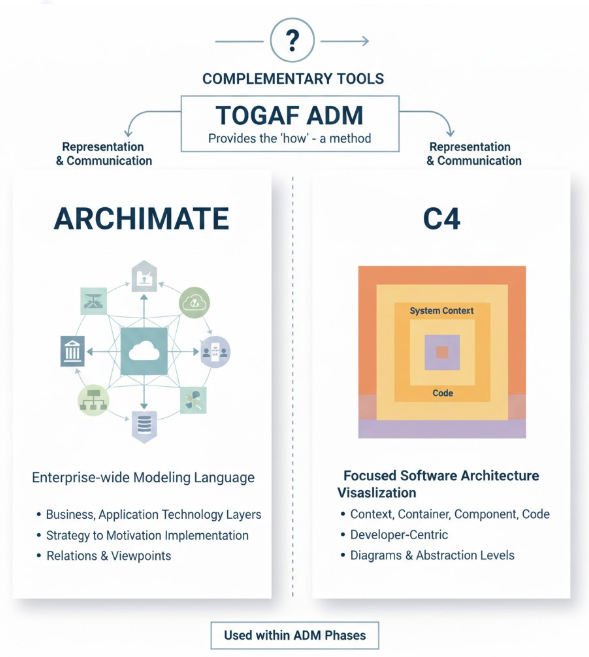 Unifying Enterprise Architecture: How Visual Paradigm Empowers TOGAF ADM, ArchiMate, and C4 with AI-Powered Intelligence
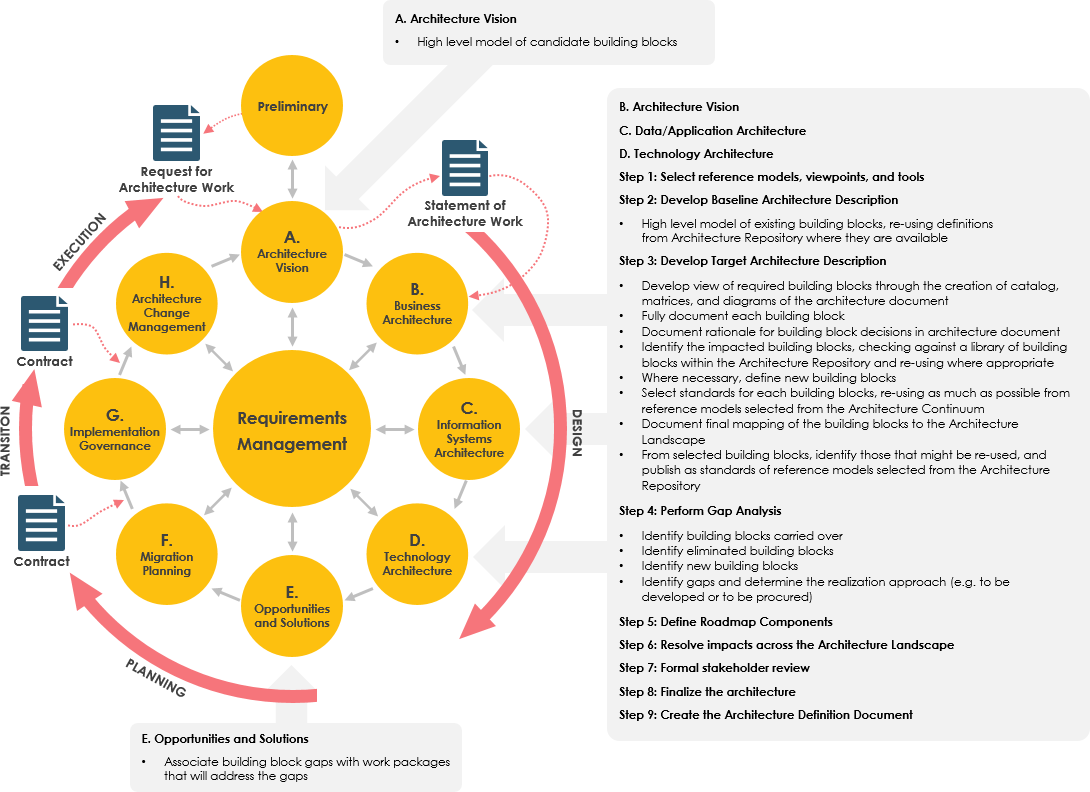 Streamline Enterprise Architecture with Visual Paradigm’s Intelligent AI TOGAF and ArchiMate Support
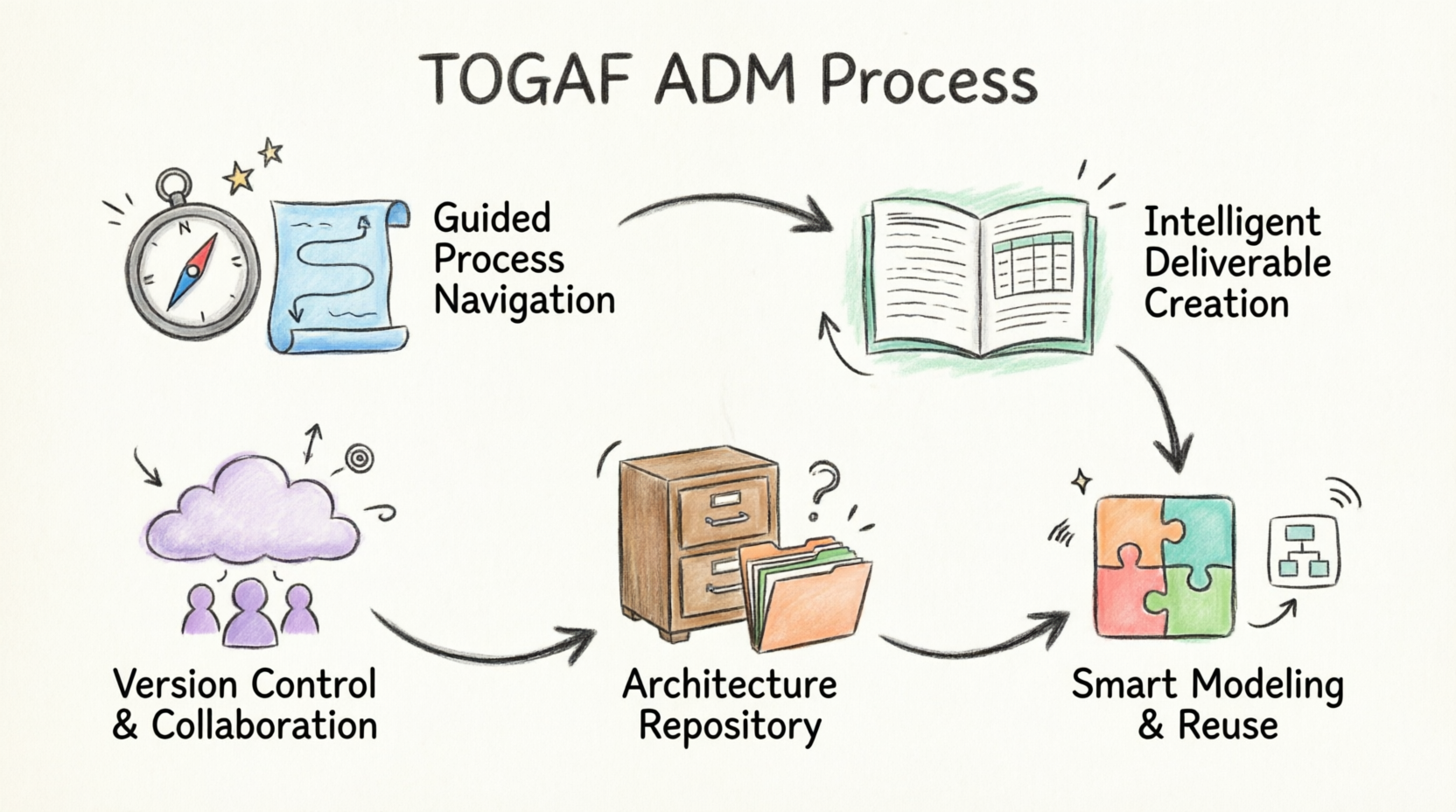 The Enterprise Architect’s Journey: Mastering TOGAF ADM with Visual Paradigm