


In today’s fast-paced software development landscape, bridging the gap between user needs and technical implementation is critical. Visual Paradigm (VP), as an all-in-one visual modeling and agile development platform, enables teams to design a use case-driven agile process that seamlessly integrates high-level user goals with iterative technical delivery—powered by artificial intelligence (AI). This guide walks you through the complete workflow, leveraging VP’s AI features to automate modeling, story mapping, technical design, sprint execution, and documentation.
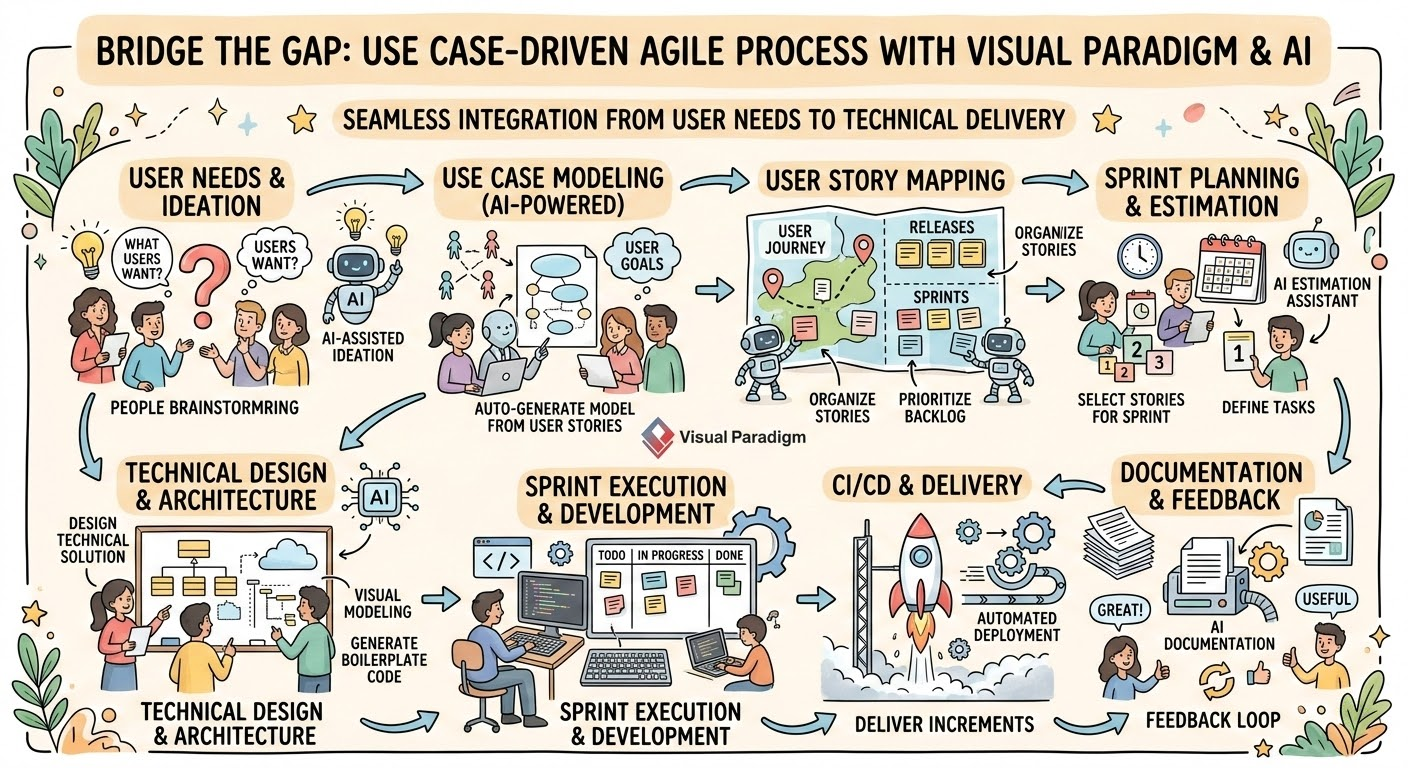
🔷 Overview: Why Use Case-Driven Agile with AI?
Traditional software development often suffers from misalignment between business stakeholders and technical teams. A use case-driven agile approach ensures that every feature originates from real user goals, while AI automation accelerates modeling, reduces errors, and maintains consistency across artifacts.
Visual Paradigm’s AI-powered tools eliminate manual overhead, transforming natural language requirements into actionable, traceable, and testable deliverables—enabling teams to move from idea to implementation faster and with greater confidence.
✅ Key Benefits:
Rapid creation of UML diagrams from plain text
Seamless conversion of use cases into user stories
Automated generation of technical models (activity, sequence, class diagrams)
Real-time sprint tracking and documentation
Full traceability from user goals to code
🧩 Step 1: Requirements Engineering & Modeling (AI-Powered)
The foundation of any successful agile project lies in clear, accurate, and actionable requirements. Visual Paradigm’s AI tools streamline this phase by turning informal descriptions into formal, structured models.
1.1 Generate Use Case Diagrams with AI
Start by defining your domain. For example:
“A web-based tutoring system where students can enroll in courses, view lessons, take quizzes, and receive feedback.”
✅ Steps:
-
Open Visual Paradigm Online.
-
Click “Create with AI” > Select “Use Case Diagram Refinement Tool”.
-
Paste your domain description into the input field.
-
The AI generates a preliminary Use Case Diagram with:
-
Identified Actors (e.g., Student, Instructor, Admin)
-
Core Use Cases (e.g., Enroll in Course, View Lesson, Take Quiz)
-
📌 Pro Tip: Use specific, domain-focused prompts for better results. Example:
“Generate a use case diagram for a student tutoring platform with features for course enrollment, video lessons, quiz submission, and grade tracking.”
1.2 Refine Diagram with AI
After initial generation, enhance the model using AI-driven refinement.
✅ Use the “Refine Diagram with AI” button:
-
Automatically detects missing associations, generalizations, and dependencies.
-
Suggests include and extend relationships based on logical flow.
-
Validates consistency with UML standards.
📌 Reference: [30] Visual Paradigm’s AI Use Case Diagram Refinement Tool ensures high-quality, compliant UML diagrams with minimal manual effort.
1.3 Detail Use Cases Using Use Case Modeling Studio
Now that the diagram is structured, expand each use case into a detailed specification.
✅ Steps:
-
Open the Use Case Modeling Studio.
-
For each use case, define:
-
Preconditions: What must be true before the use case starts?
-
Postconditions: What is true after it completes?
-
Basic Flow (Main Success Scenario): Step-by-step sequence of actions.
-
Alternative Flows: Branches (e.g., invalid login, course full).
-
Exceptions: Error conditions and recovery steps.
-
📌 Reference: [2] Use Case Modeling Studio provides a structured editor for writing rich, traceable use case descriptions that serve as the foundation for agile planning.
🧱 Step 2: Agile Backlog & User Story Mapping
Transform your use cases into an agile-ready backlog using Story Mapping, a proven technique for organizing features by user journey.
2.1 Create a Story Map (3–4 Levels)
Use Visual Paradigm’s Story Map Tool to build a hierarchical map:
| Level | Description |
|---|---|
| Level 1: Activity | High-level user goals (e.g., “Take a Course”) |
| Level 2: Task | Sub-goals (e.g., “Browse Available Courses”) |
| Level 3: Epic | Large feature sets (e.g., “Course Enrollment System”) |
| Level 4: User Story | Small, testable units (e.g., “As a student, I want to see course details so I can decide whether to enroll”) |
✅ How to Build:
-
Go to Tools > Story Map.
-
Drag and drop use case descriptions into the map.
-
Break down each use case into granular user stories using the 3C’s:
-
Card: Title + brief description
-
Conversation: Discussion points (e.g., acceptance criteria)
-
Confirmation: Testable acceptance criteria
-
📌 Reference: [16] Understanding user stories in Visual Paradigm helps teams capture requirements in a collaborative, agile-friendly format.
2.2 Convert Use Cases to User Stories
Leverage Agilien, Visual Paradigm’s AI-powered backlog generator:
-
Input a use case (e.g., “Take Quiz”).
-
Click “Convert to User Story” with AI.
-
Agilien outputs a Jira-ready user story with:
-
Acceptance criteria
-
Effort estimation (T-shirt sizes or story points)
-
Traceability back to the original use case
-
📌 Reference: [1] Visual Paradigm’s guide on User Story vs Use Case explains how both models coexist and complement each other in agile environments.
2.3 Prioritize with Affinity Table
Use the Affinity Table to assess risk, effort, and value.
✅ Steps:
-
Add user stories to the Affinity Table.
-
Group similar items (e.g., all UI-related stories).
-
Rate each story on:
-
Effort (Low/Med/High)
-
Risk (Low/Med/High)
-
Value (High/Med/Low)
-
-
Drag-and-drop to reorder for sprint planning.
📌 Reference: [13][14][15][16][17] Visual Paradigm’s Agile User Story Mapping Tool supports collaborative prioritization and backlog grooming.
⚙️ Step 3: Iterative Development & Technical Modeling
With the backlog prioritized, begin designing the solution. Visual Paradigm’s AI tools help bridge the gap between business logic and technical architecture.
3.1 Generate Activity & Sequence Diagrams
✅ Use Case to Activity Diagram Tool:
-
Select a detailed use case (e.g., “Enroll in Course”).
-
Click “Generate Activity Diagram”.
-
AI analyzes the basic and alternative flows and produces a UML Activity Diagram with:
-
Decision nodes
-
Swimlanes (if applicable)
-
Flow of control
-
📌 Reference: [20] This feature ensures that design matches the user’s intent and supports process validation.
✅ Generate Sequence Diagrams:
-
Use the Use Case to Sequence Diagram tool.
-
AI maps interactions between actors and system components.
-
Output includes:
-
Lifelines
-
Message sequences
-
Activation bars
-
✅ Ideal for backend logic, API design, and integration planning.
3.2 Wireframe & Prototype UI Components
Visual Paradigm allows you to design UI wireframes and wireflows directly within the platform.
✅ Steps:
-
Use the Wireframe & Prototype Tool.
-
Create screens for key user journeys (e.g., login, course list, quiz page).
-
Link screens to form wireflows that reflect the user journey from the use case.
-
Attach wireflows to specific user stories via traceability links.
✅ This visual feedback loop ensures alignment between UX and requirements.
3.3 Database & Code Engineering
As the system evolves, generate technical artifacts from models.
✅ Entity Relationship Diagram (ERD):
-
From the conceptual model, generate an ERD using Model to ERD.
-
Define entities, attributes, relationships, and constraints.
-
Support for normalization and database schema validation.
✅ Forward Engineer Code:
-
From Class Diagrams, generate:
-
Java
-
Python
-
C#
-
TypeScript
-
-
Includes constructors, methods, and encapsulation rules.
-
Synchronize changes between model and code.
📌 Reference: [21][22][23][24] Visual Paradigm’s Visual Modeling Tool supports full lifecycle development from concept to code.
🏃 Step 4: Sprint Execution & Tracking
Now that the team is ready, execute the sprint with full visibility and control.
4.1 Use the Scrum Board
Visual Paradigm includes built-in Scrum Board and Canvases for Scrum, LeSS, and Nexus.
✅ Features:
-
Drag-and-drop user stories into To Do, In Progress, Done columns.
-
Assign stories to team members.
-
Add comments, attachments, and links to diagrams.
📌 Reference: [22] Visual Paradigm’s Agile UML Diagram Tool integrates with Scrum practices for real-time sprint management.
4.2 Monitor Progress with Burn-Down Charts
Automatically generate burn-down charts from sprint data.
-
Charts show remaining work vs. time.
-
Highlight velocity trends and potential delays.
-
Enable early intervention and sprint retrospectives.
📌 Reference: [25][26][27][28] Visual Paradigm’s Agile Tool provides real-time analytics for team performance.
📄 Step 5: Automated Documentation
No more manual documentation! Visual Paradigm’s Document Composer generates professional, up-to-date reports with a single click.
✅ Steps:
-
Open Document Composer.
-
Drag and drop:
-
Use Case Diagrams
-
Activity & Sequence Diagrams
-
User Story Maps
-
ERD, Class Diagrams
-
Detailed use case descriptions
-
-
Apply templates (e.g., Software Requirement Specification (SRS), Design Document, Test Plan).
-
Export as PDF, Word, or HTML.
✅ Ideal for compliance, stakeholder reviews, and onboarding new team members.
📌 Reference: [29] The Use Case-Driven Agile Approach in Visual Paradigm enables on-the-fly documentation that evolves with the project.
🤖 Key AI Features to Leverage
Visual Paradigm’s AI is not just a convenience—it’s a game-changer. Here are the must-use AI tools:
| AI Feature | Function | Benefit |
|---|---|---|
| Agilien | Translates natural language into structured, Jira-ready user stories | Eliminates backlog creation time; ensures consistency |
| Use Case Scenario Analyzer | Converts narrative scenarios into structured decision tables | Enables automated test case generation and validation |
| AI-Driven Refinement | Detects missing steps, suggests improvements, validates UML compliance | Improves quality and reduces rework |
| AI-Powered Diagram Generation | Instantly creates use case, activity, and sequence diagrams | Accelerates modeling and reduces cognitive load |
📌 Reference: [31] The AI Use Case Scenario Analyzer helps teams identify edge cases and improve scenario completeness.
📚 Additional Learning Resources
To deepen your understanding of AI-enhanced UML and agile modeling, explore these official Visual Paradigm resources:
-
How AI Chatbot Can Help You Learn UML Faster:
This article details how the AI chatbot provides an interactive environment to practice UML, offering instant visualization and feedback for learners.
✅ Perfect for beginners and educators. -
Comprehensive Guide to Agile Story Mapping in Visual Paradigm:
A detailed walkthrough of story mapping techniques, including tips for sprint planning and team collaboration. -
Visual Paradigm UML Tool Overview:
Explore the full suite of UML diagramming capabilities, including AI integration. -
Agile UML Diagram Tool:
Learn how UML diagrams support agile workflows and continuous delivery.
✅ Conclusion: From Idea to Delivery in One Platform
By following this use case-driven agile process in Visual Paradigm, teams can:
-
Start fast with AI-generated models from natural language.
-
Plan smarter with story mapping and prioritization.
-
Design accurately with automated UML diagrams and wireflows.
-
Develop efficiently with code and database generation.
-
Track progress in real time with Scrum boards and burn-down charts.
-
Document automatically with professional reports.
This end-to-end, AI-powered workflow ensures that every user goal is traced to code, reducing ambiguity, accelerating delivery, and improving product quality.
📌 Final Reference List (Markdown Format)
- [1] User Story vs Use Case – Visual Paradigm
- [2] Use Case Modeling Studio – Visual Paradigm
- [3] AI-Powered Use Case Diagram Generation – YouTube
- [6] Use Case Modeling Studio Tutorial – YouTube
- [7] Detailed Use Case Writing – YouTube
- [8] Use Case Flow Example – YouTube
- [10] UML Tool Overview – Visual Paradigm
- [11] Comprehensive Guide to Agile Story Mapping – Cybermedian
- [13] Enterprise Edition – Visual Paradigm
- [14] Agile User Story Mapping Tool – Visual Paradigm
- [15] Enterprise Edition – Visual Paradigm
- [16] What Is a User Story? – Visual Paradigm
- [17] What Is a User Story? – Visual Paradigm (CN)
- [20] Use Case to Activity Diagram – Visual Paradigm
- [21] Visual Modeling Tool – Visual Paradigm
- [22] Agile UML Diagram Tool – Visual Paradigm
- [25] Agile Tool – Visual Paradigm
- [29] Use Case-Driven Agile Approach – Visual Paradigm
- [30] AI Use Case Diagram Refinement Tool – Visual Paradigm
- [31] AI Use Case Scenario Analyzer – Visual Paradigm
How AI Chatbot Can Help You Learn UML Faster
🚀 Ready to Transform Your Agile Workflow?
Start your free trial of Visual Paradigm Online today and experience the power of AI-driven, use case-driven agile development.
This post is also available in Deutsch, Español, فارسی, Français, English, Bahasa Indonesia, 日本語, Polski, Portuguese, Ру́сский, Việt Nam, 简体中文 and 繁體中文.
Related posts:
 GourmetReserve Development Simplified: Transforming Requirements with the Best AI-Powered Use Case Modeling Studio
 Automating Student Record System Analysis: From Raw Text to Class Models with Visual Paradigm
 Why Teams Are Switching to Visual Paradigm: Powerful Modeling Meets Cutting-Edge AI
 Comprehensive Guide to Behavior Modeling with Visual Paradigm’s AI-Powered Tools