


The Future of Active Reading & Team Collaboration
In today’s digital world, we spend hours reading articles, research papers, product designs, and technical documentation — but much of that time is spent passively consuming, not actively thinking.
Enter Visual Paradigm Annotator — a powerful, browser-based tool that transforms how you interact with online content. Whether you’re a student analyzing academic papers, a designer reviewing a prototype, or a team collaborating on a project, this tool lets you annotate, discuss, and organize knowledge directly on any webpage or online PDF — all without leaving your browser.
✅ Free to use
✅ No downloads required
✅ Works on any public website or online PDF
✅ Real-time collaboration with team members
This comprehensive guide walks you through every feature, step-by-step workflow, and practical example — so you can start using the Annotator like a pro from day one.
🎯 Why Annotate Directly on the Web?
❌ The Problem: Research Is Fragmented
- You open 10 tabs, copy-paste quotes into Google Docs, lose context.
- Feedback on a design or document lives in messy email threads or outdated screenshots.
- You can’t trace back where an idea came from — weeks later, it’s gone.
✅ The Solution: Annotate Where the Content Lives
Visual Paradigm Annotator lets you:
- Highlight and comment directly on any text, image, or section
- Attach rich notes, tags, and discussions to specific content
- Collaborate in real time with teammates in secure groups
- Build a searchable, living knowledge base
💡 Your research isn’t just saved — it’s anchored to the source.
🛠️ How to Get Started: Installation & Access
Step 1: Sign In or Create a Free Account
- Go to https://online.visual-paradigm.com
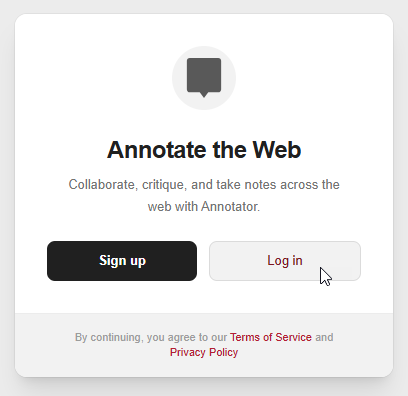
- Click “Log In”. Enter your email address and password, and click Login.
- If you don’t have an account, click “Sign Up” (takes under 2 minutes).
📌 Use your email or Google account for fast sign-up.
Step 2: Install the Browser Extension (Recommended)
- Visit the add-on page in Chrome Web Store or Firefox Browser Add-ons.
- Click “Add to Chrome” or “Add to Firefox”, depending on whether you are using Chrome or Firefox.
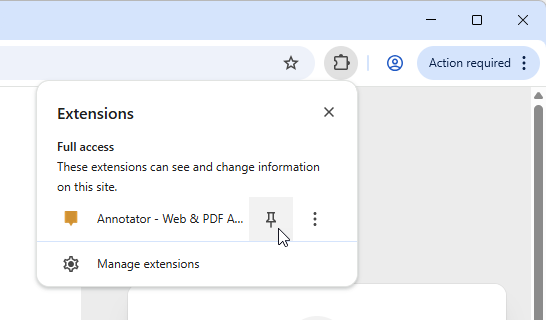
- You can find Visual Paradigm Annotators from the Extensions list. We recommend that you pin the Annotator extension for faster access.
- Click on Log in. You should be logged in right away.
🌐 Works on: Chrome, Firefox, Edge, Safari
Step 4: Open Any Webpage or PDF
- Navigate to a research paper, product design, wiki, or PDF.
- Click the 📝 Annotator icon, this reveals several buttons at the top right of the browser.
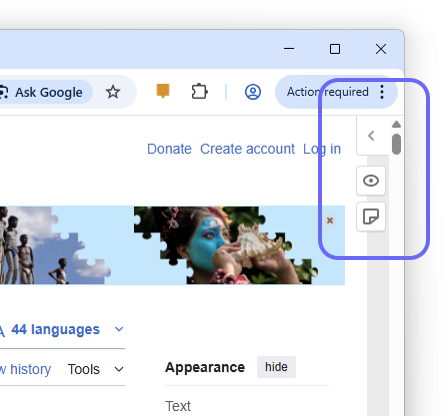
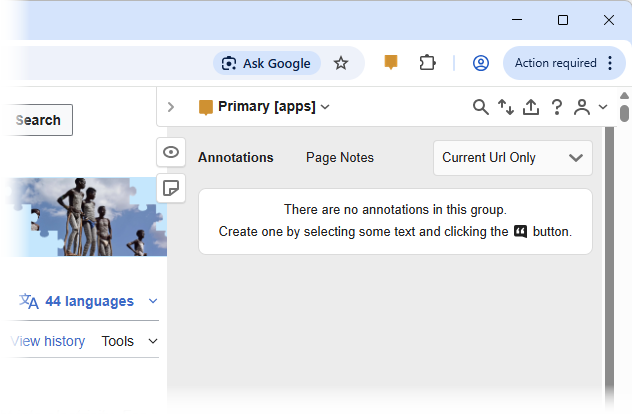
- Click on
 to toggle the Annotator pane.
✅ Supports:
- Public websites (e.g., Wikipedia, Medium, news sites)
- Online PDFs (e.g., arXiv, SSRN, Google Drive PDFs)
- Web-based documentation (e.g., Notion, Confluence, GitHub Pages)
📌 Core Features & Step-by-Step Usage
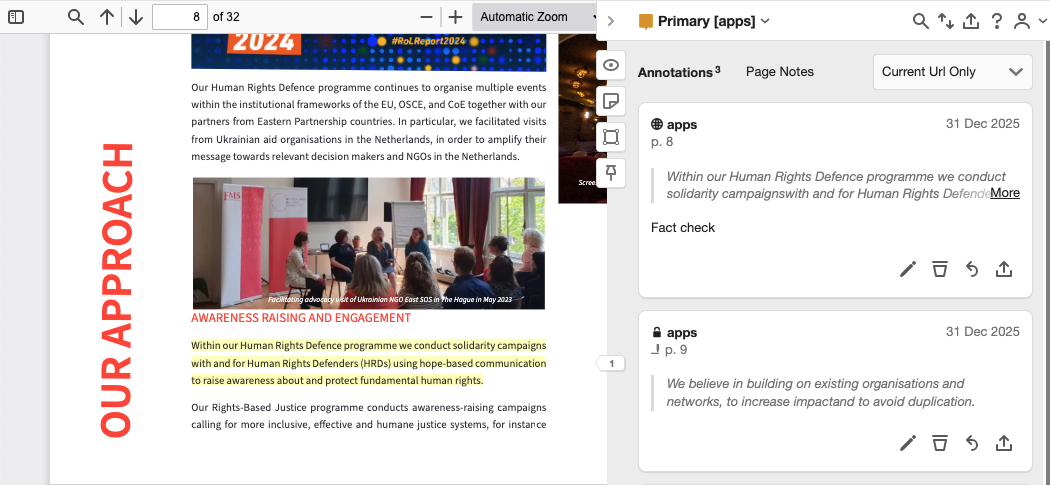
1. Contextual Annotation: Add Notes Where They Matter
- Select any text, image, or section on the page.
- A pop-up appears → click “Annotate” to add a note.
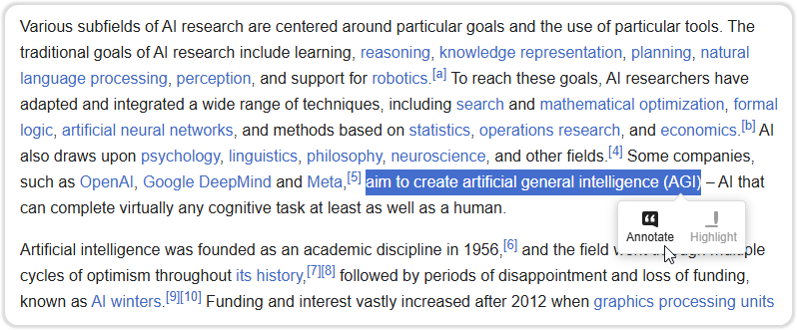
-
Write rich-text notes (bold, italic, bullet points, links)
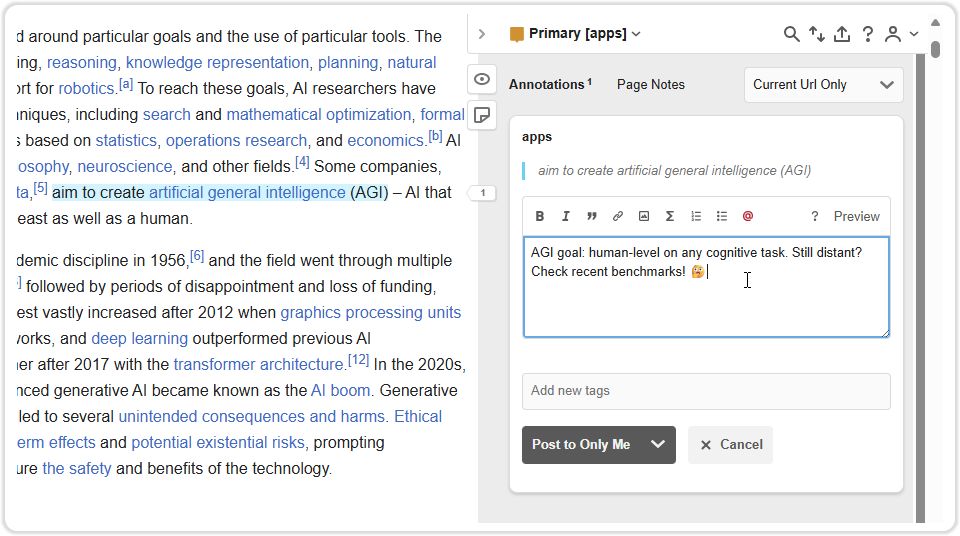
- Post your annotation.
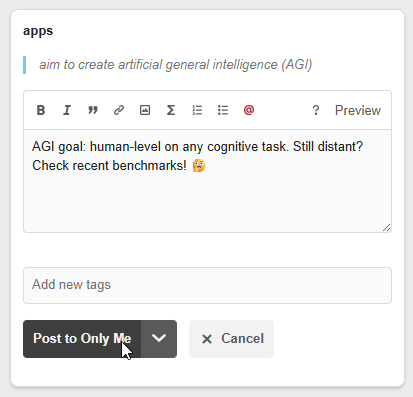
Besides rich text note, you can also:
- Insert emojis for tone (e.g., ✅ for “confirmed”, ❓ for “unclear”)
- Attach files (PDFs, images, code snippets)
🧠 Example:
- Selected text: “The study found a 40% increase in user retention after UX improvements.”
- Annotation:
📌 Insight: Matches our Q3 A/B test results. Should we replicate this in onboarding?
🔗 [See Q3 Retention Report]
🏷️ #UX #research #action-item
📌 Tip: Use this to capture why you think something is important — not just what it says.
2. Private Collaboration Groups: Team Discussions in Context
What is a Group?
- A private workspace where your team can discuss content together.
- Only invited members can view or comment.
How to Use:
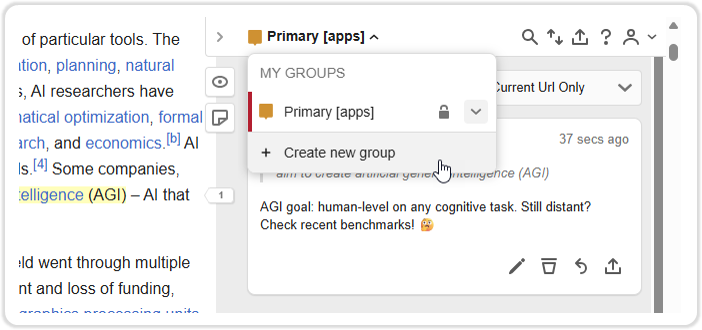
- Click “Create new group” in the Annotator sidebar.
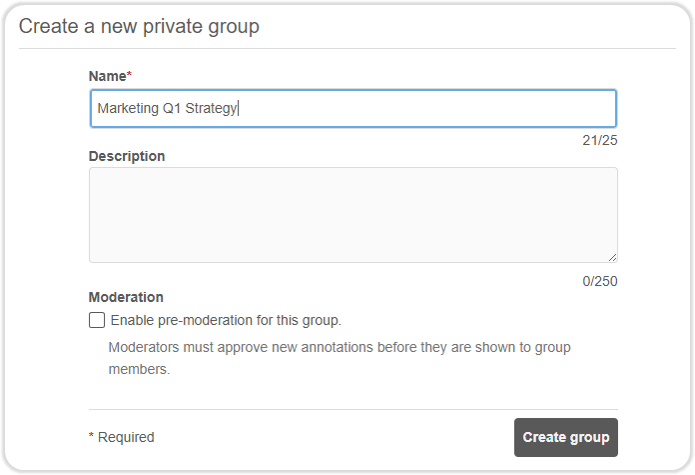
- Name it (e.g., “Marketing Q1 Strategy”) and click on Create group.
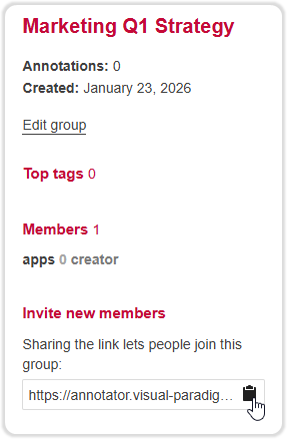
- Invite teammates via a shared link.
📌 Use Cases:
- Designers reviewing a live prototype
- Researchers discussing a journal article
- Clients and developers reviewing a product spec
🔒 All group content is encrypted and stored securely.
3. Smart Tagging System: Organize for Future Use
Why Tags Matter:
- Turn scattered notes into a searchable knowledge base.
- Find all “to-do” items across all pages in seconds.
How to Use:
- Below the annotation box, enter the tag and press Enter.
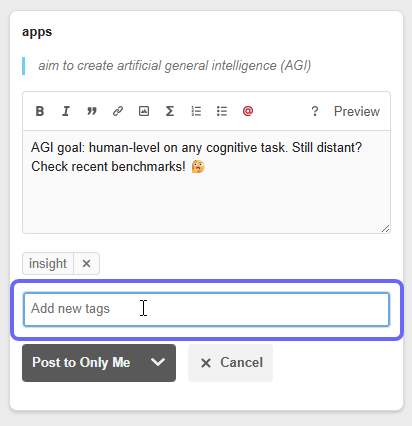
Here are some examples:research→ factual findingstodo→ action itemsquestion→ unresolved issuesinsight→ key takeaways
📊 Pro Tip: Use tags like
priority-1,client-feedback, orblockedfor team workflows.
📌 Bonus: Filter your dashboard by tag to see all
todoitems across projects.
4. PDF Annotation: Work with Documents Like a Pro
Supports:
- PDFs hosted on websites (e.g., research papers, reports)
- PDFs in Google Drive, Dropbox, or other cloud services
Features:
- Highlight text, draw shapes, add sticky notes
- Attach notes to specific paragraphs
- Save annotations — they persist across sessions
📄 No need to download or print — annotate directly in the browser.
5. Integrated Ecosystem: One Account, All Tools
Seamless Experience:
- Your annotations sync across devices via your Visual Paradigm Online account.
- Use the same login to access:
- Diagramming tools (UML, BPMN, ERD)
- Project management features
- Knowledge base and dashboard
🔄 Switch from annotating a webpage to sketching a flowchart — all in one place.
🔄 Step-by-Step Workflow: From Browsing to Insight
|
Step
|
Action
|
Purpose
|
|---|---|---|
|
1
|
Open a webpage or PDF (e.g., a research paper)
|
Start your research
|
|
2
|
Click the
 Annotator icon Annotator icon |
Activate the tool
|
|
3
|
Highlight a key sentence
|
Identify important content
|
|
4
|
Click “Annotate”
|
Open the note box
|
|
5
|
Write your thought, add a tag (
research, question) |
Capture context
|
|
6
|
Choose visibility: Only Me, Group
|
Control access
|
|
7
|
(Optional) Invite team members to the group
|
Start collaboration
|
|
8
|
Save and close — your note stays anchored
|
Research is preserved
|
✅ Repeat for every insight. Build a living knowledge base.
🧩 Real-World Examples
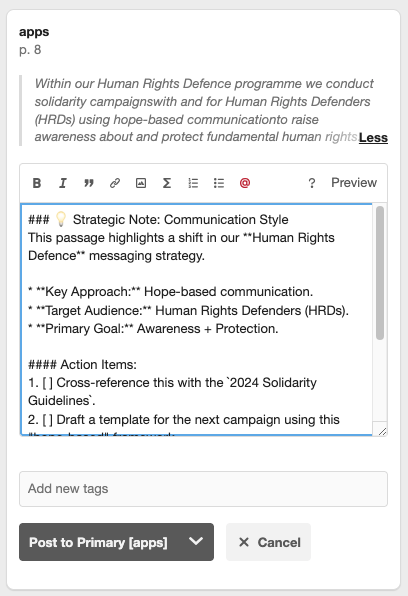
✅ Example 1: Student Researching a Paper
- Page: A scientific article on AI in healthcare
- Highlight: “Patients using AI-assisted diagnosis showed 25% faster treatment.”
- Annotation:
📌 Question: How was “faster treatment” measured? Was it time to diagnosis or time to treatment?
🏷️ #research #question #healthcare-ai
👉 Later, the student can search
#questionand find all unresolved points.
✅ Example 2: Design Team Reviewing a Prototype
- Page: A live prototype hosted on Figma or Webflow
- Highlight: “The CTA button is too small on mobile.”
- Annotation:
📌 Feedback: Increase tap target size to 48px. See [Apple HIG Guidelines].
🏷️ #design #feedback #mobile
👥 @Sarah (UX Lead) – can you review?
👉 Team member receives notification and replies directly in the thread.
✅ Example 3: Researcher Building a Literature Review
- Page: A PDF from arXiv on climate modeling
- Highlight: “Model accuracy drops by 12% when data is sparse.”
- Annotation:
📌 Insight: This supports our hypothesis about data quality in climate models.
🏷️ #research #climate-modeling #supporting-evidence
🔗 [Link to our internal dataset]
👉 Later, the researcher exports all
#supporting-evidencenotes into a report.
🛠️ Advanced Tips & Best Practices
✅ Use Tags Consistently
- Create a team-wide tagging system:
#research– facts#idea– suggestions#todo– actions#blocked– issues needing help#client– feedback from stakeholders
✅ Use the Dashboard to Review
- Go to “My Dashboard” → filter by:
- Date
- Tag
- Group
- Visibility
- Export to HTML or CSV for sharing
✅ Use Comments for Team Discussions
- Click “Reply” on any annotation
- Mention teammates with
@username - Mark as “Resolved” when done
❓ Frequently Asked Questions (FAQ)
Is it free?
✅ Yes! The Annotator is included in the free edition of Visual Paradigm.
Can I use it on mobile?
📱 Not yet — it’s browser-only. But your notes sync across devices.
Can I annotate password-protected pages?
🔐 No. The tool only works on publicly accessible content.
Can I export my annotations?
📤 Yes! Export as:
- JSON
- TEXT
- HTML
- CSV (for analysis)
- Shareable link (with group visibility)
Can I edit or delete my notes?
✏️ Yes. Click the Delete button. Only the owner or group admin can do this.
Is my data secure?
🔒 Yes. All data is encrypted in transit and at rest. No third-party access.
🚀 Ready to Transform Your Research?
Visual Paradigm Annotator isn’t just a highlighter — it’s your digital research partner.
✅ Save time by eliminating tab-switching
✅ Collaborate smarter with contextual discussions
✅ Build a searchable knowledge base with smart tagging
✅ Stay focused with content-anchored insights
🎁 Start Now – It’s Free!
👉 Click Here to Try Visual Paradigm Annotator Today
No download. No setup. Just open a page → click the icon → start annotating.
📢 Join the Community
- Follow us: Twitter/X | LinkedIn
- Share your annotated work with #VisualParadigmAnnotator
- Submit feedback via the Help & Feedback button in the Annotator
🌟 The web is no longer just a place to read — it’s a place to think, collaborate, and create.
With Visual Paradigm Annotator, you’re not just consuming content — you’re shaping it.
Visual Paradigm Annotator
Annotate. Collaborate. Understand.
Free. Secure. Powerful.
Available Now — Start Your Journey Today.
This post is also available in Deutsch, Español, فارسی, Français, English, Bahasa Indonesia, 日本語, Polski, Portuguese, Ру́сский, Việt Nam, 简体中文 and 繁體中文.