


Introduction to AI-Driven UML Modeling
Activity diagrams are essential tools in Unified Modeling Language (UML) for mapping workflows, business processes, and system behaviors. They visualize sequences of actions, decision points, parallel flows, and looping structures. However, manually drawing complex activity diagrams can be time-consuming and prone to logical errors.
Visual Paradigm has revolutionized this process by integrating Artificial Intelligence across its platform. As of early 2026, users can leverage AI to automate diagram creation, allowing architects and developers to focus on logic rather than layout. This guide explores the three primary methods for generating activity diagrams using Visual Paradigm’s AI capabilities: embedded Desktop support, the specialized AI Chatbot, and Use Case-driven Web Apps.
1. Direct Generation via Visual Paradigm Desktop
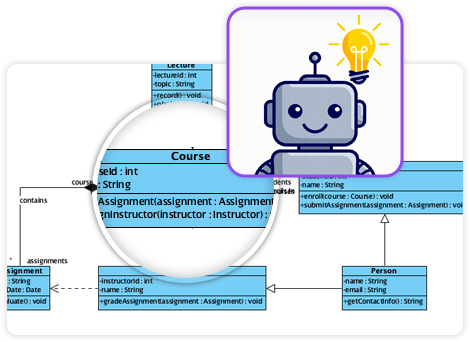
For users who require a robust modeling environment with offline capabilities and advanced version control, Visual Paradigm Desktop (Professional or Enterprise editions) offers embedded AI support. This method integrates the AI Diagram Generator directly into the workspace, allowing for a seamless transition from generation to detailed refinement.
Step-by-Step Implementation
- Launch the Project: Open Visual Paradigm Desktop and select an existing project or create a new one.
- Initiate the Diagram: Navigate to Diagram > New > Activity Diagram. Alternatively, use the Project Browser to add a new diagram file.
- Access AI Tools: Locate the AI toolbar or navigate to Tools > AI to open the AI Diagram Generator pane. This feature is generally available to users with active maintenance or VP Online subscriptions.
- Input the Prompt: Describe your desired workflow in natural language. For example: “Generate a UML activity diagram for an online shopping checkout process, including payment validation, inventory check, and order confirmation.”
The AI processes this input and automatically populates the canvas with standard UML elements, including initial nodes, action states (rounded rectangles), decision diamonds, and control flows. It can also intelligently place forks and joins for parallel processing.
Refinement and Customization
Once the initial diagram is generated, users can use conversational commands within the AI pane to refine the model in real-time. Commands such as “Add a swimlane for the System Actor” or “Insert a retry loop if payment fails” trigger immediate structural updates. Because this occurs within the desktop environment, users can instantly utilize standard formatting tools to adjust layouts, add annotations, or export the final model for high-fidelity documentation.
2. Leveraging the Specially Trained AI Chatbot
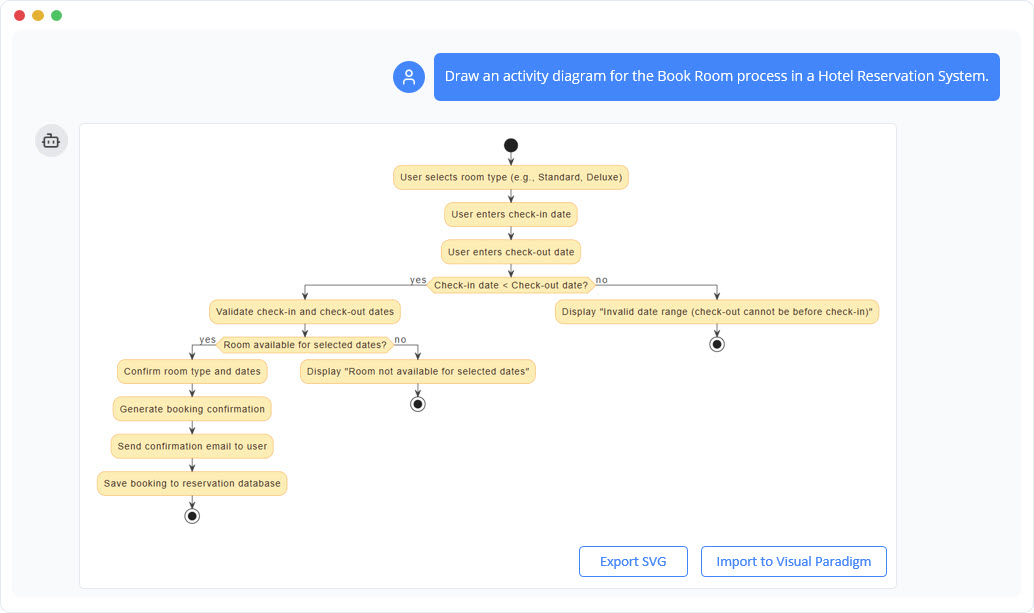
The Visual Paradigm AI Chatbot is a fine-tuned assistant designed specifically for text-to-diagram conversion. Accessible via the web or integrated into the desktop client, this tool excels at rapid prototyping and brainstorming sessions where speed is the priority.
How to Use the Chatbot
Users can access the chatbot through the dedicated URL (chat.visual-paradigm.com) or the VP Online interface. The process relies heavily on conversational iteration:
Initial Prompting: Start with a clear instruction, such as: “Create an activity diagram showing the workflow for brewing coffee, with parallel flows for grinding beans and heating water.”
- Instant Rendering: The chatbot analyzes the text and renders a professional-grade diagram instantly, applying correct UML notation for actions, guards, and merges.
- Iterative Editing: Unlike static generation, you can continue the conversation to refine the result. You might type, “Make the payment step parallel if using multiple methods” or “Explain the logic of this diagram,” and the AI will adjust the visual or provide a textual summary respectively.
This method is particularly effective for users who need to explore variations of a workflow quickly without manipulating individual shapes manually.
3. Using AI Web Apps: From Use Case to Activity Diagram
Visual Paradigm Online includes a suite of “Create with AI” applications. The Use Case to Activity Diagram app is a powerful tool for requirements engineering, bridging the gap between static requirements and dynamic behavior modeling.
Workflow Transformation
This method is ideal when starting from functional requirements rather than a blank slate.
- Select the App: Log in to Visual Paradigm Online and select Create with AI, then choose the “Use Case to Activity Diagram” tool.
- Define the Scope: Input the system name, actors, and a summary of the use case (e.g., “Washing Machine: Wash Clothes usage”). Users can also let the AI auto-generate detailed preconditions, postconditions, and main flows based on a simple title.
- Generate the Diagram: The AI converts the structured use case text into a visual activity diagram. It maps the main flow to sequential actions, alternative flows to decision branches, and exceptions to error handling paths.
This approach ensures high traceability, as every element in the diagram is directly derived from the textual requirements, significantly reducing the risk of misalignment between specs and design.
Comparison: Choosing the Right Tool
While all three methods utilize the underlying AI engine, they serve different project phases. The table below outlines when to use each approach.
| Method | Speed | Best Used For | Primary Benefit |
|---|---|---|---|
| Desktop Embedded AI | High | Complex, enterprise-grade modeling | Seamless integration with advanced editing, version control, and team collaboration. |
| AI Chatbot | Very High | Prototyping and brainstorming | Conversational interface allows for rapid iteration and exploration of ideas. |
| Web Apps (Use Case) | Moderate | Requirements-to-design workflows | Ensures strict traceability from textual use cases to visual diagrams. |
Best Practices for AI Diagram Generation
To maximize the efficiency of Visual Paradigm’s AI tools, consider the following technical tips:
- Be Specific with Prompts: Use clear verb-noun pairings for actions and explicitly mention logic gates. Instead of “handle login,” try “check credentials; if valid, enter dashboard; else, show error.”
- Iterate with AI: Rarely is the first result perfect. Use the conversational features to add swimlanes, reorder steps, or correct logic without manual redrawing.
- Combine Methods: A powerful workflow involves generating a prototype via the Web Chatbot for speed, then importing the result into the Desktop client for detailed formatting and documentation integration.
By integrating these AI-powered workflows, developers and modelers can significantly reduce the manual labor involved in UML creation, ensuring that documentation keeps pace with rapid development cycles.
This post is also available in Deutsch, Español, فارسی, Français, English, Bahasa Indonesia, 日本語, Polski, Portuguese, Ру́сский, Việt Nam, 简体中文 and 繁體中文.