


🌟 Introduction: Your Scrum Journey Starts Here
Feeling overwhelmed by Scrum? You’re not alone.
If terms like “sprint planning,” “user stories,” and “burndown charts” sound like a foreign language—or if you’ve tried Scrum tools that felt more complicated than the work itself—this guide is for you.
Welcome to stress-free agile.
The Visual Paradigm Scrum Process Canvas was built on a simple idea: Scrum should help you build better products, not bury you in process. Instead of juggling five different apps, memorizing complex workflows, or staring at blank screens wondering “what’s next?”, you get one clean, visual page that guides you step-by-step through your entire project.
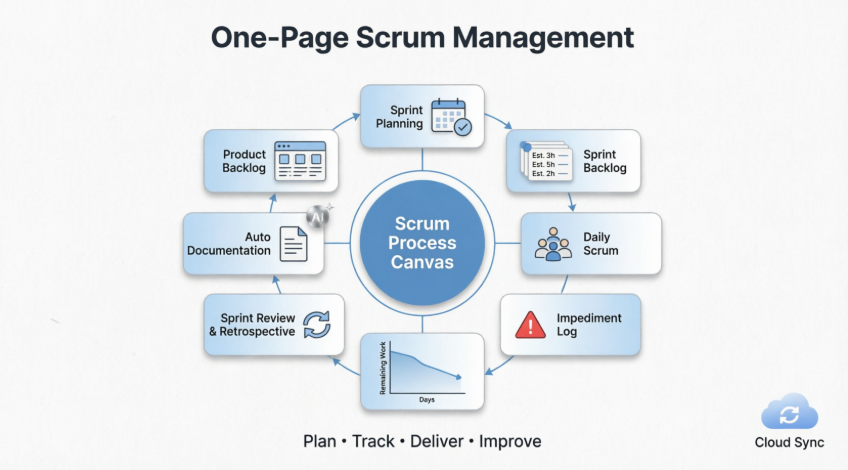
In this beginner-friendly guide, you’ll discover:
-
✅ What the Scrum Process Canvas actually is (no jargon, promise)
-
✅ How to use it—even if you’ve never done Scrum before
-
✅ Which features save you the most time (and headaches)
-
✅ Real examples of how beginners succeed with this tool
-
✅ A 30-minute setup checklist to launch your first sprint today
No experience required. No intimidating manuals. Just a clear path from “I’m new to this” to “We shipped it!”
Let’s begin. 🚀
No prior Scrum experience? No problem. This guide walks you through everything—from “What is Scrum?” to “How do I actually use this tool?”—in plain, friendly language.
🤔 First Things First: What Is Scrum? (In Simple Terms)
Imagine you’re building a treehouse with friends. Instead of planning every nail and plank upfront (and risking mistakes), you:
-
Start small: Build the floor first
-
Check in daily: “What did you do yesterday? What’s next? Any problems?”
-
Show progress weekly: “Look! The floor is done. Want to change the window design before we build walls?”
-
Learn & improve: “What worked? What slowed us down?”
That’s Scrum in a nutshell: an agile way to build products (software, apps, services) in small, testable pieces—called sprints—with frequent feedback and teamwork.
🎯 So… What Is the Scrum Process Canvas?
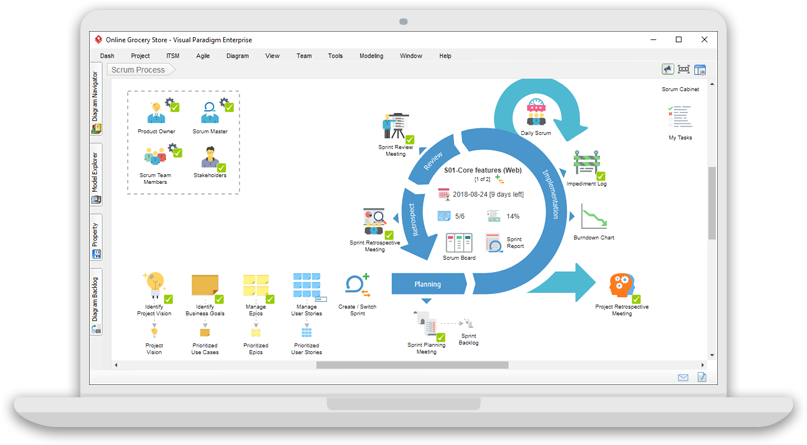
It’s a single-page visual workspace that helps beginners (and pros!) run Scrum projects without getting lost in multiple apps, confusing menus, or scattered notes.
Think of it like a digital command center where everything you need for Scrum—backlogs, tasks, meetings, charts, reports—lives together on one clean, clickable page.
📦 Product Overview: What You Actually Get
| Component | What It Does | Why Beginners Love It |
|---|---|---|
| One-Page Canvas | Visual map of all Scrum steps (Planning → Daily Check-ins → Review → Retrospective) | No more “Where do I click next?”—just follow the flow |
| Product Backlog | List of all features/ideas, organized with drag-and-drop user story maps | See the big picture; prioritize what matters most |
| Sprint Backlog | Tasks for the current 1–4 week cycle, with time estimates | Focus on “what we’re doing now” without overwhelm |
| Daily Scrum Log | Simple form to record: What I did / What I’ll do / Blockers | Keeps stand-ups short, structured, and actionable |
| Impediment Log | Track problems (e.g., “Waiting for design approval”) and who’s fixing them | Nothing falls through the cracks |
| Burndown Chart | Visual graph showing work left vs. time remaining | Instantly see: “Are we on track?” |
| Review & Retrospective Tools | Templates to gather feedback and plan improvements | Turn lessons into action—no blank-page anxiety |
| Auto Documentation | Generates professional reports (Sprint Summary, Release Notes) as you work | Spend less time writing, more time building |
🔍 Features Review: How It Works (Step-by-Step for Beginners)
✅ Feature 1: The One-Page Canvas (Your Scrum “Dashboard”)
How to Use It:
-
Open the canvas—you’ll see labeled circles/icons for each Scrum step.
-
Click any item (e.g., “Sprint Planning”) to open its dedicated workspace.
-
Fill in simple forms, drag stories, or draw diagrams—no coding needed.
Beginner Tip: Start with just 3 items: Product Backlog, Sprint Backlog, and Daily Scrum. Add more as you get comfortable.
✅ Feature 2: User Story Mapping (Make Requirements Visual)
What’s a “User Story”?
A simple sentence: “As a [user], I want [feature] so I can [benefit].”
Example: “As a shopper, I want to filter products by price so I can find deals fast.”
How to Use Story Mapping:
-
Drag story cards onto a horizontal timeline (e.g., “Browse” → “Search” → “Checkout”)
-
Group related stories under themes (e.g., “Account Setup”)
-
Prioritize by dragging high-value items to the top
Why It Stands Out: Unlike text-only backlogs, this visual layout helps beginners see how features connect—and what to build first.
✅ Feature 3: Sprint Planning Made Simple
How to Estimate Tasks (Without Math Stress):
-
Use T-Shirt Sizes: XS, S, M, L, XL (instead of hours)
-
Or Story Points: 1, 2, 3, 5, 8 (Fibonacci sequence for relative effort)
Beginner Workflow:
-
Pick top-priority stories from Product Backlog
-
Break each into small tasks (“Design login screen”, “Code password validation”)
-
Assign owners and estimates
-
Click “Start Sprint”—tasks move to your active board
✅ Feature 4: Daily Scrum in 60 Seconds
The 3 Questions (Built-In Template):
✅ What I completed yesterday:
➡️ What I'll work on today:
🚧 What's blocking me:
-
Type answers directly in the canvas
-
Tag teammates for quick follow-ups
-
Blockers auto-add to the Impediment Log
Why Beginners Love It: No more awkward silences or forgotten updates. The tool guides the conversation.
✅ Feature 5: Auto-Generated Docs (Your Time-Saver)
How It Works:
-
As you complete tasks, the system logs progress
-
Click “Generate Report” → Choose template (Sprint Summary, Retrospective Minutes, etc.)
-
Export as PDF, Word, or share via link
Real Example: After your first sprint, generate a “Sprint Review Pack” with:
-
Completed vs. planned work
-
Burndown chart snapshot
-
Team feedback highlights
-
Next-step recommendations
👥 Who Is This For? (Beginner Personas)
🎓 You’re New to Scrum
-
You: A student, junior developer, or career-switcher learning agile methods
-
You’ll Love: Guided workflows, plain-language tooltips, and “Scrum in 3 Minutes” video links built into the canvas
-
Start Here: Use the pre-built “First Sprint” template—everything’s pre-labeled and explained
👨💻 You’re a Solo Founder or Small Team
-
You: Building an app with 2–5 people, wearing many hats
-
You’ll Love: All-in-one design (no need for Jira + Miro + Google Docs + Excel)
-
Pro Tip: Use the “Team View” to see who’s working on what—no daily email check-ins needed
🧭 You’re an Agile Coach or Manager
-
You: Helping multiple teams adopt Scrum consistently
-
You’ll Love: Customizable canvas templates you can share across teams
-
Bonus: Cloud sync lets you review progress remotely without micromanaging
🌟 Why This Tool Stands Out (vs. Other Scrum Tools)
| Feature | Typical Tools | Visual Paradigm Scrum Canvas |
|---|---|---|
| Learning Curve | Steep (many menus, settings) | Gentle (visual, guided, beginner-friendly) |
| All-in-One? | ❌ Often need 3–5 tools | ✅ Backlog + Tasks + Docs + Charts + Modeling |
| Visual Clarity | Text-heavy lists | 🎨 Drag-and-drop story maps, color-coded boards |
| Documentation | Manual copy-paste | 🤖 Auto-generate reports as you work |
| Customization | Rigid workflows | ✏️ Add your own steps, icons, or templates |
| AI Help | Rare or extra-cost | ✨ Optional AI for story writing, risk analysis, diagram suggestions |
| Cloud Access | Often paid upgrade | ☁️ Free sync, backup, and mobile viewing |
💡 The “Aha!” Moment for Beginners:
“I don’t need to memorize Scrum rules—I just follow the canvas. And when I’m stuck, the tool suggests what to do next.”
🚀 Getting Started: Your First 30 Minutes (Beginner Checklist)
✅ Before You Begin
-
Sign up for a free Visual Paradigm account
-
Watch the 3-min “Scrum Basics” video (linked in-app)
-
Gather your team (even if it’s just you!) for a 15-min kickoff
✅ Step-by-Step Setup
-
Create a New Project → Choose “Scrum Process Canvas” template
-
Define Your Product Vision (1 sentence):
“We’re building a [product] that helps [users] achieve [goal].” -
Add 3–5 User Stories to the Product Backlog (use the template!)
-
Plan Sprint 1:
-
Pick 1–2 high-priority stories
-
Break into tiny tasks (<1 day each)
-
Assign owners & T-shirt sizes
-
-
Run Your First Daily Scrum: Use the built-in log for 5 minutes
-
End of Sprint: Click “Generate Sprint Report” → Celebrate progress! 🎉
🆘 Stuck? Try These Beginner Hacks:
-
🔍 Hover over any icon for a plain-English tooltip
-
💬 Click the “?” button for context-sensitive help
-
🔄 Use “Reset Demo Mode” to practice without risk
-
📞 Access free onboarding webinars (linked in Help menu)
☁️ Bonus: Free Cloud Services
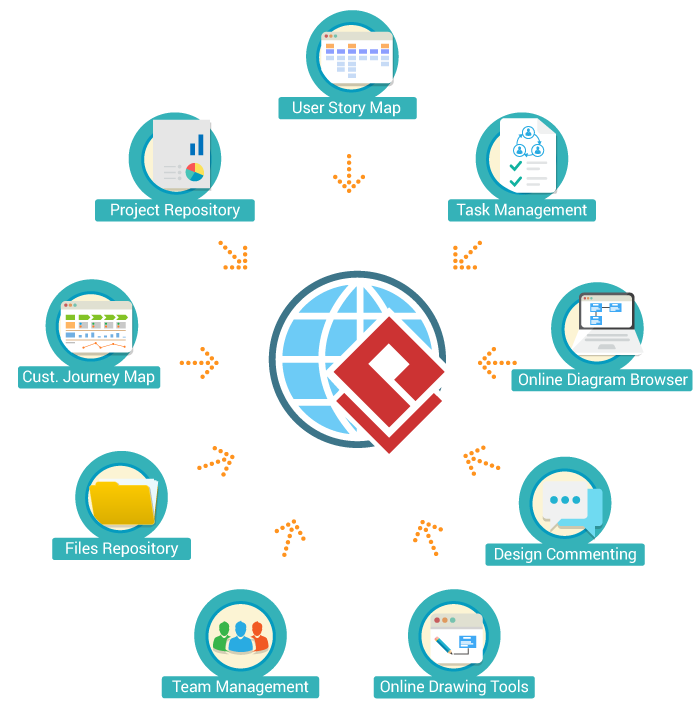
Even on the free tier, you get:
-
🌐 Web access: Work from any device, no install needed
-
💾 Auto-backup: Never lose your sprint data
-
👥 Real-time collaboration: See teammates’ updates live
-
📱 Mobile view: Check progress on your phone
-
🔐 Secure sharing: Invite stakeholders with view-only links
No credit card required to start.
🏢 Trusted by Beginners and Experts Alike

Over 300,000 users—from student teams to Fortune 500 companies—use Visual Paradigm to simplify agile delivery.
Real Beginner Success Story:
“I was terrified of Scrum terms like ‘velocity’ and ‘burndown.’ The canvas showed me exactly what to do, when. After 2 sprints, my team shipped our MVP—and I finally understood agile!”
— Maria, Junior Product Owner, Berlin
🔗 Related Editions (If You Outgrow the Basics)
Visual Paradigm Enterprise
End-to-End Enterprise Architecture tool suite that supports TOGAF, ArchiMate, PMBOK process map and more
Read More »
Visual Paradigm Standard
Essential development tools for modeling (UML, BPMN, ERD, DFD, etc), wireframing, code and DB engineering tools, etc
Read More »
Visual Paradigm Modeler
Highly affordable visual modeling toolset that supports UML, BPMN, ERD, DFD, EPC and more
Read More »
⚠️ Gentle Reminder About AI Features
AI can make mistakes, so double-check responses.
The canvas offers optional AI help (e.g., “Write a user story for login”), but:
-
✅ Always review AI suggestions with your team
-
🔍 Treat AI as a brainstorming partner—not the final decision-maker
-
📝 Customize outputs to match your project’s voice and goals
Beginner mantra: “AI assists; humans decide.”
🎯 Executive Summary: What You Need to Know
📦 The Product at a Glance
- 🎓 First-time Scrum practitioners who want guidance without overwhelm
- 👨💻 Small teams tired of switching between 5+ different tools
- 🧭 Solo founders who need structure without complexity
- 🏢 Managers seeking visibility without micromanaging
🔑 Key Takeaways
|
What You Get
|
Why It Matters for Beginners
|
|---|---|
|
One-Page Visual Canvas
|
No more “Where do I click?”—follow the visual flow
|
|
Guided Workflows
|
Built-in templates and tooltips teach you as you go
|
|
Drag-and-Drop Simplicity
|
Organize work visually—no coding or complex setup
|
|
Auto-Generated Reports
|
Spend time building, not writing documentation
|
|
Free Cloud Access
|
Start today with no credit card or IT approval needed
|
|
Optional AI Assistance
|
Get suggestions when you’re stuck (but stay in control)
|
🌟 What Makes It Stand Out
✅ Consolidates everything—backlog + tasks + charts + docs + modeling in one place
✅ Adapts to your pace—start with 3 features, add more as you grow
✅ Prevents common beginner mistakes—auto-tracking, reminders, and validation
✅ Scales with you—from your first solo project to enterprise multi-team coordination
🚀 Your First Steps (In Under 30 Minutes)
- Sign up for a free Visual Paradigm account
- Choose the “Scrum Process Canvas” template
- Write your product vision in one sentence
- Add 3–5 user stories using the built-in template
- Plan your first sprint with T-shirt size estimates
- Run a 5-minute daily scrum with the guided log
- Generate your first sprint report automatically
💡 The Bottom Line
You don’t need to master Scrum theory to deliver value.
You don’t need expensive tools to run effective sprints.
You just need a clear, simple place to start.
- ❌ No more tool fragmentation
- ❌ No more blank-page anxiety
- ❌ No more “Am I doing this right?”
- ✅ Visual clarity
- ✅ Guided workflows
- ✅ Automated busywork
- ✅ Confidence to iterate and improve
🎁 Final Thought
- 📚 References
- Scrum Framework Tool – A Scrum Canvas: A beginner-friendly overview of how the Scrum Process Canvas helps new teams manage backlogs, sprints, and documentation—all on one visual page.
- Large-Scale Scrum Framework Tool: Explains how the canvas scales from solo projects to multi-team enterprises, with tips for coordinating work without confusion.
- Introducing the Visual Paradigm Model Canvas Tool: A short, friendly video showing how to use AI-assisted canvases for planning—perfect for visual learners.
- Scrum Process Canvas Customization: Step-by-step guide for beginners to personalize their canvas (add steps, change icons, create custom reports).
- Scrum in 3 Minutes: The absolute simplest explanation of Scrum roles, events, and artifacts—ideal for first-timers.
- Scrum Framework Tool – A Scrum Canvas: Visual Paradigm’s Scrum Process Canvas is a comprehensive scrum tool that helps teams manage their entire scrum project from project vision to final product delivery.
- Nexus Canvas – A Nexus Framework Tool: Shows how the canvas supports larger projects with multiple Scrum teams—great for beginners planning to scale.
- Why-Why Diagram Tool: A simple root-cause analysis tool to help beginners solve blockers without blame or confusion.
- What is Scrum?: A jargon-free introduction to Scrum fundamentals, written for people hearing the terms for the first time.
- 🎁 Final Thought for Beginners
-
You don’t need to be an agile expert to start.
You don’t need perfect processes to deliver value.
You just need a clear, simple place to begin. - The Scrum Process Canvas is that place.
Start small. Learn by doing. Improve as you go. - ✨ Your first sprint starts now. ✨
- 👉 Try Visual Paradigm Free
This post is also available in Deutsch, Español, فارسی and Français.