
Authoring Mode • Reading Mode • User Experience & Sharing
Purpose: This comprehensive guide explores both sides of the Fliplify ecosystem: how authors create and configure immersive flipbooks, and how readers experience and interact with published content. Whether you’re building your first digital catalog or exploring a published report, this guide delivers actionable insights for maximizing engagement, accessibility, and shareability.
🎯 Introduction: What Is Fliplify?
Fliplify (powered by Visual Paradigm Online) transforms static documents—PDFs, PowerPoints, Word files, images, EPUBs, and more—into dynamic, lifelike digital publications. By combining realistic page-flip animations with rich multimedia support and deep customization, Fliplify bridges the tactile satisfaction of physical books with the interactive power of modern web technology.
Why Choose Fliplify?
| Benefit | Description |
|---|---|
| 🔄 Seamless Conversion | Upload PDF, PPT, DOC, images → instantly generate a flipbook with no coding |
| 🎨 Rich Customization | Branding, animations, audio, transitions, and interactive elements |
| 📱 Fully Responsive | Optimized experiences across desktop, tablet, and mobile devices |
| 🔐 Flexible Security | Password protection, domain restrictions, view-only modes, self-hosting |
| 📊 Analytics Ready | Google Analytics integration for engagement tracking |
| 🌐 Global Sharing | URLs, QR codes, social sharing, embed codes, email distribution |
✍️ Part 1: Authoring Mode – Creating & Configuring Flipbooks
Authors use Fliplify’s intuitive, cloud-based flipbook maker to design, enhance, and publish content. The workflow is drag-and-drop friendly and integrates with Visual Paradigm Online’s productivity suite.
🔄 Step-by-Step Authoring Workflow
1️⃣ Start a New Flipbook
-
Access via Fliplify or Visual Paradigm Online
-
Choose: Create from template (catalogs, photo books, reports, e-books) or Convert existing file
-
Templates accelerate production with pre-designed layouts and themes
2️⃣ Upload & Convert Files
Supported Formats:
📄 Documents: PDF, DOC/DOCX, XLSX, EPUB, MOBI, AZW3/AZW2
🖥️ Presentations: PPT/PPTX
🖼️ Images: JPEG, PNG, GIF, BMP
🎥 Media: MP4, MP3, WAV (for embedding)
→ Fliplify automatically converts uploads into a flipbook structure with individual, navigable pages
3️⃣ Design & Edit Content
Use the visual editor to:
-
Rearrange, add, or delete pages
-
Insert text boxes, shapes, photos, charts, and diagrams
-
Apply themes, color schemes, and typography styles
-
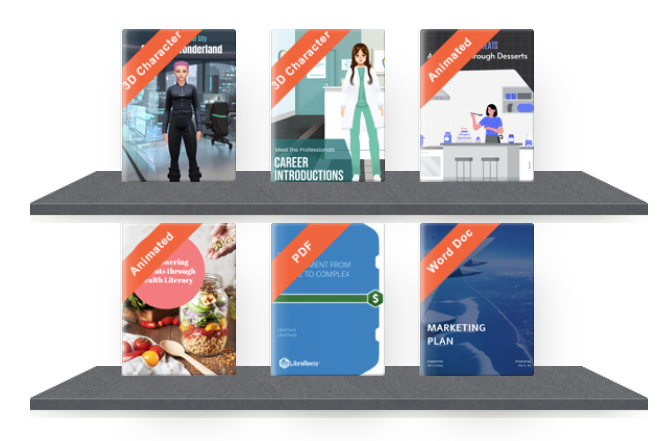
Organize multiple publications in Virtual Bookshelves with custom themes
4️⃣ Add Interactivity & Enhancements
| Enhancement | Description | Best Use Case |
|---|---|---|
| Multimedia Embeds | Insert videos, audio clips, animated GIFs, hyperlinks | Product demos, tutorials, promotional content |
| Page Animations | Apply motion effects to shapes, text, photos, or 3D characters (Deluxe plan) that trigger on page view | “Wow” moments for portfolios, marketing materials |
| Annotation Tools | Enable reader highlights, notes, drawings, or comments | Educational materials, collaborative reviews, feedback collection |
| Interactive Hotspots | Add clickable areas that reveal tooltips, links, or pop-ups | Catalogs with product details, interactive reports |
5️⃣ Configure Reader Experience Settings
Authors control how readers interact through granular settings:
🎨 Branding & Appearance
| Setting | Options | Impact |
|---|---|---|
| Background | Preset images/colors, custom upload, fill modes (scale/center/tile) | Sets visual tone aligned with brand or content theme |
| Lock Screen Icon | Custom loading/locked state icon | Reinforces brand identity during initial load |
| Brand Logo | Upload logo, position in reader interface | Strengthens brand recognition throughout reading |
| Custom Favicon | Set browser tab icon | Professional polish for bookmarking/multi-tab use |
| Contact Button | Add clickable button linking to website, email, or form | Enables direct reader engagement and lead generation |
🔐 Feature Access Control
Toggle reader tools on/off per flipbook:
✓ Thumbnail navigation    ✓ Social sharing    ✓ Full-screen mode
✓ Page layout toggle      ✓ Open as PDF       ✓ Distraction-free Reading Mode
✓ Printing permissions    ✓ Text copying      ✓ Annotation tools
Strategic Configurations:
-
🔒 Confidential Reports: Disable printing, copying, PDF download
-
🎓 Educational Content: Enable annotations, text selection, search
-
🛍️ Product Catalogs: Enable sharing, contact buttons, multimedia
-
📱 Mobile Audiences: Default to single-page mode, optimize touch controls
🔄 Page Transitions & Animation
| Setting | Options | Reader Impact |
|---|---|---|
| Transition Effects | 70+ animations (flip, fade, slide, cube, etc.) | Match motion style to content tone |
| Animation Speed | Adjustable duration (fast → slow) | Control pacing: skimmable vs. immersive |
| Auto-Play Elements | Trigger animations on page view | Create engaging “reveal” moments |
🔊 Audio Configuration
| Setting | Options | Reader Impact |
|---|---|---|
| Background Music | Upload MP3/WAV, enable looping, set default on/off | Sets emotional tone; readers can mute |
| Page-Flip Sounds | Toggle realistic sound effects library | Enhances realism or enables silent reading |
🔐 Security & Access Management
| Setting | Options | Use Case |
|---|---|---|
| Password Protection | Require access code | Client portals, internal documents, subscriber content |
| Domain Restriction | Limit embeds to specific websites | Prevent unauthorized redistribution |
| Expiration Dates | Auto-revoke access after set date (premium) | Time-limited campaigns, event materials |
| View-Only Mode | Disable download/print/copy while allowing reading | Protect IP while enabling consumption |
| Self-Hosting | Deploy to your own domain/server | Full control over security, branding, compliance |
6️⃣ Organize & Preview
-
Virtual Bookshelves: Catalog flipbooks with custom themes for curated collections
-
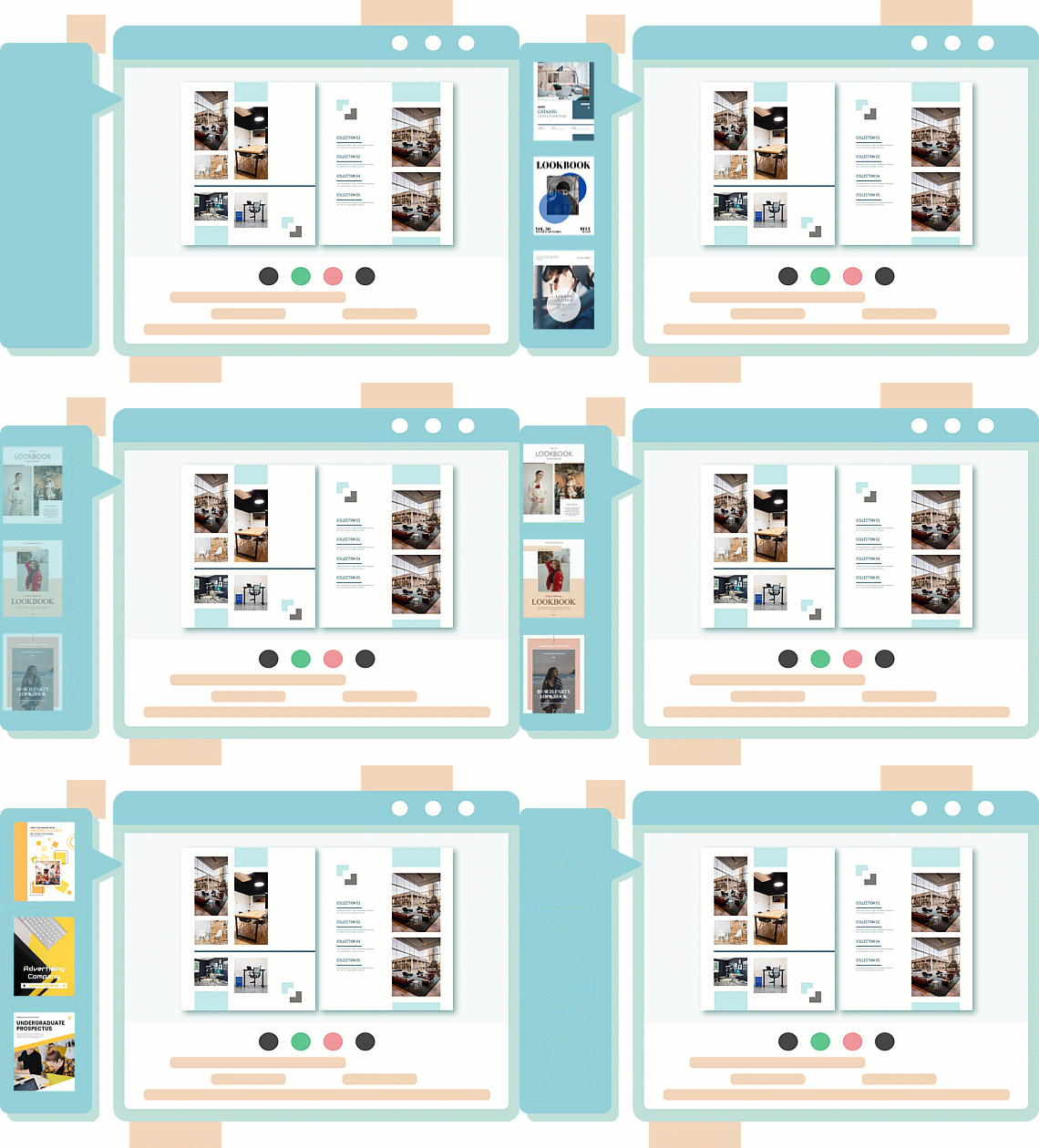
Multi-Device Preview: Test responsiveness on desktop, tablet, and mobile views
-
Touch Control Validation: Ensure swipe navigation, pinch-zoom, and tap targets work smoothly
7️⃣ Publish & Distribute
One-click publish with flexible output options:
-
Display Hall: Visual Paradigm’s curated showcase for multiple flipbooks
-
Direct Online Publishing: Instant live URL upon completion
-
Sharing Suite: Generate URLs, QR codes, social buttons, email links, embed codes
-
Self-Hosted Deployment: Export assets for enterprise infrastructure
💡 Plan Notes: Higher tiers (Combo/Deluxe) unlock full flipbook support, advanced animations, 3D characters, unlimited creations, and premium features like expiration dates.
👁️ Part 2: Reading Mode – The Viewer Experience
Once published, readers access flipbooks via links, embeds, QR codes, or bookshelves. The reader delivers a physical-book-like experience enhanced with digital conveniences, fully responsive across devices.
🧭 Core Navigation & Viewing
| Feature | How It Works | Reader Benefit |
|---|---|---|
| Natural Page-Flip Animation | Physics-based motion mimics real page turns | Immersive, tactile reading that encourages longer sessions |
| Thumbnail Navigation | Grid view of all pages with clickable previews | Jump instantly to any section without sequential scrolling |
| Navigation Controls | Arrow buttons, keyboard (←/→), page-number input | Flexible navigation for different preferences and devices |
| Single/Double Page Toggle | Switch between mobile-optimized single page or desktop book-like spread | Adapts experience to device size and content type |
| Zoom & Pan | Pinch-to-zoom on touch or click controls to enlarge | Inspect details in images, diagrams, or small text |
| Full-Screen Mode | Toggle distraction-free immersive viewing | Maximize screen real estate for focused reading |
📖 Content Interaction & Accessibility
✨ Distraction-Free Reading Mode
Click the 🕶️ sunglass icon to enter a clean viewing environment:
-
Removes headers, ads, banners, and non-essential UI elements
-
Adjustable font size for comfortable text scaling
-
Color themes: Light, Dark, Sepia to reduce eye strain and support light sensitivity
-
Focuses attention on core content for extended reading sessions
🔍 Search & Text Tools
| Feature | Description | When It Helps |
|---|---|---|
| Text Search | OCR-powered search pane to find keywords/phrases | Quickly locate specific information in long documents |
| Text Selection & Copy | Select and copy text content (if author-enabled) | Note-taking, citation, content reuse |
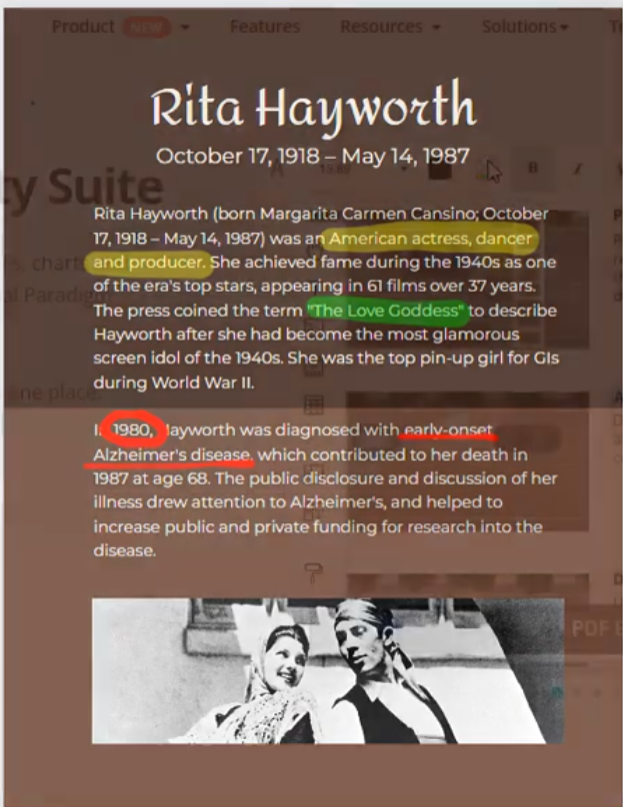
| Annotation Tools | Add highlights, notes, drawings, comments (if enabled) | Active reading, collaboration, personalized markup |
🎵 Multimedia & Sensory Controls
| Feature | Reader Control | Benefit |
|---|---|---|
| Background Music | Toggle on/off (overrides author default) | Personalize audio environment; mute for quiet settings |
| Page-Flip Sounds | Toggle realistic sound effects on/off | Enhance immersion or enable silent reading |
| Embedded Media | Play videos, GIFs, audio clips directly in pages | Engage with rich content without leaving the flipbook |
📤 Output, Portability & Sharing
| Option | Description | Reader Use Case |
|---|---|---|
| Open as PDF | Download/view source PDF (if permitted) | Offline access, printing with familiar PDF tools |
| Print Selected Pages | Print specific pages or entire flipbook (if enabled) | Create physical copies of key sections |
| QR Code Access | Scan to open flipbook on mobile devices | Seamless cross-device continuation |
| Social Sharing | One-click share to Facebook, X, LinkedIn, etc. | Recommend valuable content to networks |
| Direct Link Copy | Copy unique flipbook URL for email/messaging | Share precise content with colleagues |
| Embed Code | Copy HTML iframe to embed in blogs/websites | Publishers/educators integrate into platforms |
📱 Mobile & Accessibility Optimization
| Feature | Implementation | Inclusive Benefit |
|---|---|---|
| Adaptive Layout | Auto-optimizes display for smartphone, tablet, desktop | Consistent experience regardless of device |
| Touch-Optimized Controls | Large tap targets, swipe navigation, pinch-zoom | Intuitive interaction for mobile users |
| Data Efficiency | Optimized asset loading for slower connections | Accessible performance on limited bandwidth |
| Keyboard Navigation | Full tab navigation and arrow-key page turning | Supports users who prefer or require keyboard input |
| Unicode Support | Renders text in virtually any language or script | Global readiness for multilingual content |
| Reading Mode Themes | Light/Dark/Sepia + font scaling | Accommodates low-vision or light-sensitive readers |
🔗 Part 3: User Experience & Sharing Style
Fliplify prioritizes seamless sharing and flexible distribution to maximize reach and engagement.
🌐 Sharing Methods Comparison
| Method | Best For | Setup Complexity | Reader Experience |
|---|---|---|---|
| Unique URL | Email campaigns, social bios, QR codes | ⭐ Auto-generated | Direct access; clean, branded landing page |
| Social Media Buttons | Viral sharing on Facebook, X, LinkedIn | ⭐ One-click in toolbar | Frictionless recommendation to networks |
| QR Code | Print materials, presentations, event displays | ⭐ Generated in Share panel | Instant mobile access; bridges offline/online |
| Email Integration | Direct distribution to contacts | ⭐⭐ Custom message + link | Personalized delivery with context |
| HTML Embed Code | Blogs, company websites, LMS platforms | ⭐⭐ Copy iframe code | Seamless integration into existing content |
| Page-Specific Embed | Link to relevant starting page (not just page 1) | ⭐⭐ Add #page=N parameter |
Contextual entry point for embedded viewers |
| Display Hall | Curated showcase of multiple flipbooks | ⭐⭐⭐ Drag into Visual Paradigm editor | Professional portfolio-style browsing |
| Self-Hosted Deployment | Enterprises requiring full data control | ⭐⭐⭐⭐ Deploy via Publication Server | Maximum security, branding, and compliance control |
🎯 Sharing Best Practices by Content Type
| Content Type | Recommended Sharing Style | Why It Works |
|---|---|---|
| Marketing Catalogs | QR codes + social buttons + contact CTA | Drives conversions; bridges physical/digital touchpoints |
| Educational Materials | Embed in LMS + enable annotations + direct URL | Supports structured learning and collaboration |
| Corporate Reports | Password-protected URL + domain-restricted embed | Balances accessibility with confidentiality |
| Portfolios/Showcases | Display Hall + page-specific embeds + branding | Presents work professionally with contextual entry points |
| Event Programs | QR codes on signage + mobile-optimized single-page mode | Easy on-site access; optimized for quick mobile viewing |
🔁 Cross-Device Continuity Strategies
-
QR Code Placement: Add scannable codes to print ads, business cards, event signage
-
Responsive Defaults: Configure single-page mode as default for mobile-heavy audiences
-
Bookmark-Friendly URLs: Use clean, memorable URLs that readers can save and return to
-
Email + Mobile Sync: Send flipbook links via email with clear mobile access instructions
🏆 Best Practices Summary
✅ For Authors: Optimize Creation & Configuration
| Do This | Why It Matters |
|---|---|
| Test on Multiple Devices | Ensures responsive behavior and touch controls work everywhere |
| Enable Reading Mode by Default | Improves accessibility and reduces bounce rates for long-form content |
| Use Single-Page Mode for Mobile Audiences | Optimizes UX for smartphone readers who dominate traffic |
| Integrate Analytics Early | Connect Google Analytics at launch to capture baseline engagement data |
| Brand Consistently | Apply logo, favicon, and color scheme to reinforce professional identity |
| Balance Animations | Use motion strategically; avoid overwhelming text-heavy content |
| Enable Strategic Sharing | Even protected content benefits from controlled sharing options |
✅ For Readers: Maximize Your Experience
| Do This | Why It Helps |
|---|---|
| Use Reading Mode for Long Sessions | Reduces eye strain and improves focus with clean layout + themes |
| Leverage Search & Thumbnails | Quickly locate content without manual page-by-page scanning |
| Toggle Sounds/Zoom as Needed | Personalize audio environment and inspect details comfortably |
| Save or Bookmark Key Pages | Use page-specific URLs (#page=N) to return to important sections |
| Share Thoughtfully | Use direct links or embeds to share contextually relevant content |
❌ Common Pitfalls to Avoid
| Avoid This | Better Alternative |
|---|---|
| Disabling all sharing features | Enable controlled sharing (e.g., direct URL only) for reach |
| Ignoring image optimization | Compress assets to ensure fast initial page renders |
| Forgetting print permissions | If readers might need hard copies, explicitly enable printing |
| Using complex transitions for text-heavy docs | Save elaborate animations for visual showcases and portfolios |
| Skipping mobile preview | Always test touch controls and layout on smartphone view |
🔗 Reference Resources
Fliplify Main Platform: Create, customize, and publish flipbooks with full reader feature set
Visual Paradigm Flipbook Maker: Access the integrated flipbook creation tool within Visual Paradigm Online
Reading Mode Guide: Details on distraction-free viewing, color themes, and accessibility features
Page Mode Tutorial: How to toggle single/double page views for optimal device adaptation
Why Fliplify Stands Out: Competitive advantages including realism, multimedia, and analytics
Sharing & Embedding Guide: Step-by-step instructions for URLs, QR codes, and website embedding
Self-Hosting Documentation: Deploy flipbooks on your own infrastructure for maximum control
Accessibility Overview: Web accessibility features across Visual Paradigm’s platform
💡 Final Thought: The Visual Paradigm Flipbook Reader succeeds by honoring both reader autonomy and author intent. Authors who thoughtfully configure settings create publications that feel personal and professional. Readers who leverage intuitive features enjoy content that’s not just consumed—but experienced, shared, and remembered. Whether you’re crafting a product catalog, educational module, or creative portfolio, Fliplify provides the tools to transform static documents into dynamic digital experiences that resonate across devices and audiences.
Ready to create or explore? Visit Fliplify to start your flipbook journey today. 🚀