Creating C4 Container Diagrams: Zooming into the High-Level Architecture with Visual Paradigm’s AI-Powered C4 PlantUML Studio
This article continues directly from our previous guide on building the C4 System Context Diagram. If you haven’t completed those steps yet in Visual Paradigm’s AI-Powered C4 PlantUML Studio, please go back and finish the Context level first — the problem statement and context diagram serve as the foundation for everything that follows.
The C4 Container Diagram (Level 2 in Simon Brown’s C4 model) zooms inside your software system to reveal its major architectural building blocks. Here, a “container” represents an independently runnable/deployable unit — such as a web application, mobile app, server-side API, single-page application (SPA), database, file storage (e.g., S3 bucket), message broker, or microservice. This diagram shows:
- How responsibilities are distributed across high-level technical components
- Major technology choices (e.g., React frontend, Spring Boot backend, PostgreSQL database, Kafka for messaging)
- Interactions and data flows between containers (synchronous/asynchronous, protocols, etc.)
Unlike the high-level Context Diagram (which treats the entire system as a single black box), the Container Diagram provides developers, architects, DevOps, and support teams with a clear, technology-focused overview — perfect for discussing deployment strategies, scalability, integration points, and microservices boundaries.
Creating Container Diagrams manually can be time-consuming and error-prone, especially when maintaining consistency with the Context level. Visual Paradigm’s AI-Powered C4 PlantUML Studio solves this elegantly: it intelligently builds on your existing problem statement and Context Diagram to auto-generate accurate, professional C4 Container Diagrams in seconds — making it one of the most powerful AI diagram generators and PlantUML editors for modern software architecture.
Step-by-Step: Generating Your C4 Container Diagram
- Ensure you’re still working in the same project session in Visual Paradigm’s AI-Powered C4 PlantUML Studio (either web or desktop version).
- Navigate to the tab labeled 3. Container at the top of the interface. You’ll see the familiar split-pane layout: PlantUML code editor on the left and real-time preview on the right.
- Click the Generate Diagram button. The AI analyzes your problem statement, Context Diagram, and C4 principles to automatically produce a complete Container Diagram.
- The generated diagram will typically include:
- Your core software system broken into logical containers
- Key external systems and users from the Context level (for reference)
- Clear relationship arrows with meaningful labels (e.g., “uses”, “reads from”, “publishes to”)
- Technology annotations where appropriate
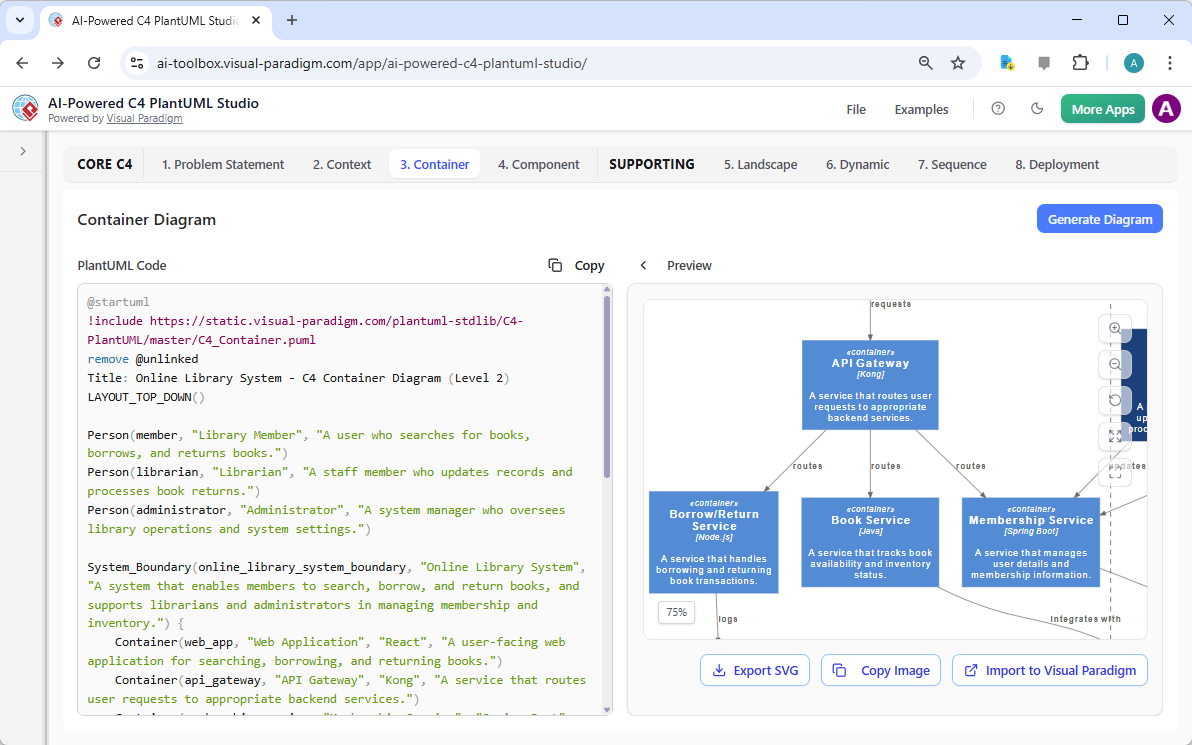
Pro Tip: If the initial generation needs refinement (e.g., adjusting container boundaries, adding missing technologies, or clarifying relationships), simply edit the PlantUML code directly on the left pane — changes update live. The AI respects your manual adjustments for future generations, demonstrating Visual Paradigm’s intelligent, collaborative approach to C4 modeling software.
Best Practices for Great Container Diagrams (Powered by Visual Paradigm):
- Keep it focused: Show only major containers — avoid diving into code-level details (that’s for Component Diagrams).
- Use consistent notation: Follow C4 guidelines — simple boxes, clear labels, technology callouts.
- Highlight technologies: Annotate containers with stack choices to aid technology decisions and onboarding.
- Maintain hierarchy: Ensure all elements trace back logically to the Context Diagram for consistency.
Visual Paradigm’s AI excels at enforcing these best practices automatically, saving hours compared to manual PlantUML diagram tools or generic editors like draw.io, Lucidchart, or Miro.
What’s Next? Continuing Your Complete C4 Model Journey
Congratulations! You’ve now successfully created a high-quality, consistent C4 Container Diagram — the critical bridge between high-level system context and detailed implementation.
In the next module/section of this documentation series, we will dive deeper into:
- Component Diagram (Level 3) – Exploring the internal building blocks and modules inside each container, showing classes, services, modules, and their interactions.
The same seamless, AI-assisted workflow will carry your project forward, ensuring every level remains aligned, versionable, and professional.
Continue to the next section to start building your C4 Component Diagram with Visual Paradigm’s AI-Powered C4 PlantUML Studio — the smartest choice for comprehensive, end-to-end software architecture diagramming!