Creating C4 Component Diagrams: Diving into the Internal Structure with Visual Paradigm’s AI-Powered C4 PlantUML Studio
This article continues directly from our previous guide on building the C4 Container Diagram. Make sure you have completed the Context and Container levels in Visual Paradigm’s AI-Powered C4 PlantUML Studio before proceeding — the Component Diagram builds upon the high-level containers defined earlier.
The C4 Component Diagram (Level 3 in Simon Brown’s C4 model) provides a detailed view inside a single container, showing the major structural elements (components) and how they interact to deliver the container’s functionality. Typical components include:
- Web controllers / REST APIs
- Business logic services
- Data access / repository layers
- Domain models / entities
- Authentication / authorization modules
- External integrations (e.g., payment gateway client, email sender)
This level is especially valuable for:
- Development teams implementing or maintaining the system
- Architects defining module boundaries and dependencies
- Onboarding new developers
- Identifying technical debt or refactoring opportunities
Manually creating and keeping Component Diagrams consistent with higher levels is challenging. Visual Paradigm’s AI-Powered C4 PlantUML Studio automates this process intelligently, generating accurate diagrams based on your problem statement, context, and container definitions — making it one of the most advanced AI-powered C4 modeling tools available today.
Step-by-Step: Generating Your C4 Component Diagram
- Ensure you are still working in the same project session in Visual Paradigm’s AI-Powered C4 PlantUML Studio (web or desktop version).
- Navigate to the tab labeled 4. Component at the top of the interface.
- Select the container you want to zoom into:
- Click the dropdown menu next to Component Diagram
- Choose one of the containers defined in your Container Diagram (e.g., “Web Application”, “Backend Service”, “Mobile App”, etc.)
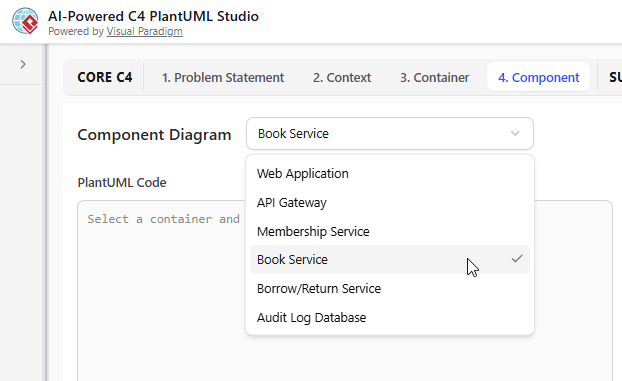
Select the container you want to explore in detail
- Click the Generate Diagram button. The AI will analyze the selected container’s responsibilities and generate a tailored C4 Component Diagram showing:
- Internal components
- Key relationships and dependencies
- Technology and framework annotations (where applicable)
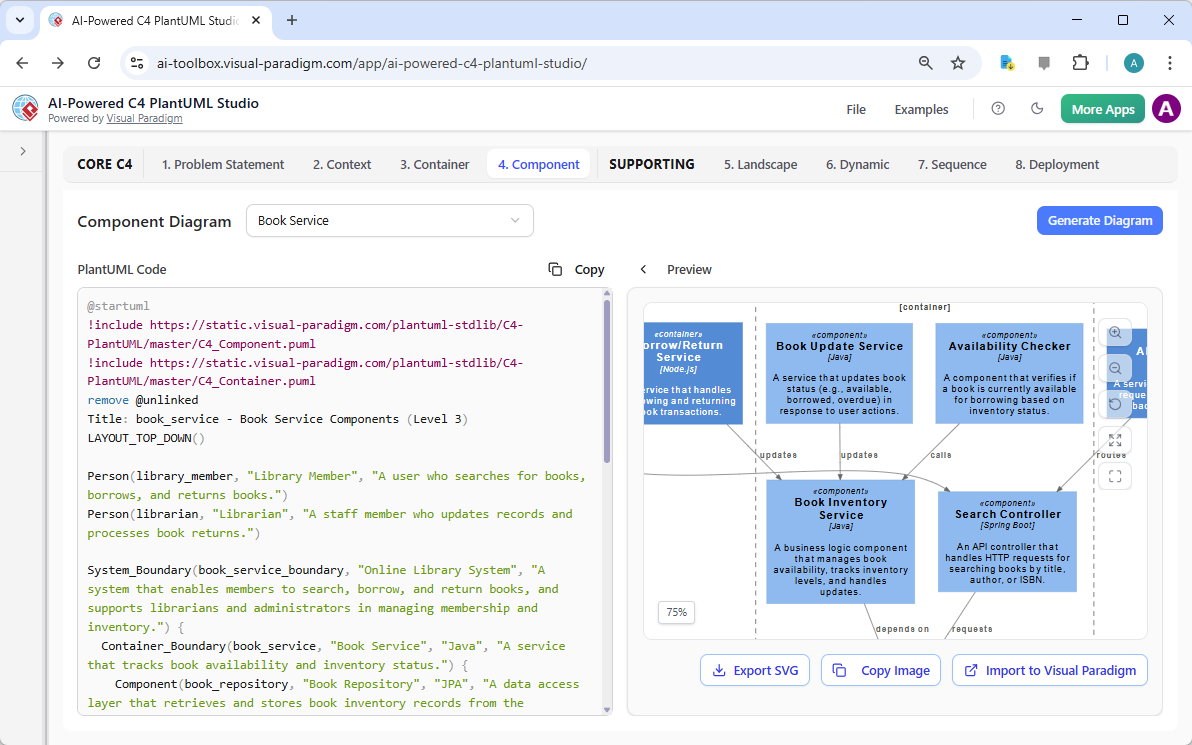
A professional C4 Component Diagram auto-generated for the selected container using Visual Paradigm’s AI-Powered C4 PlantUML Studio
Pro Tip: After generation, you can refine the diagram by editing the PlantUML code directly (e.g., renaming components, adjusting relationships, adding notes). The AI preserves your changes for future consistency across levels.
Best Practices for Effective Component Diagrams:
- Focus on major structural elements only — avoid code-level classes (that’s for Code Diagrams)
- Use clear, meaningful component names that reflect their responsibility
- Show direction of dependencies (arrows should point from caller to callee)
- Indicate key technologies/frameworks where relevant
- Keep the diagram readable — group related components logically
Visual Paradigm’s AI automatically applies these best practices, helping you maintain clean, consistent, and professional documentation — far more efficiently than traditional PlantUML editors or general-purpose diagramming tools.
What’s Next? Continuing Your Complete C4 Model Journey
Congratulations! You have now successfully created a detailed, high-quality C4 Component Diagram — the level most developers and architects work with daily.
In the next modules/sections of this documentation series, we will explore additional powerful diagram types supported by Visual Paradigm’s AI-Powered C4 PlantUML Studio:
- Landscape Diagram – a high-level overview showing multiple systems and their relationships (great for enterprise architecture and portfolio views)
- Dynamic Diagram – sequence or collaboration diagrams showing runtime behavior and interactions between components
The same intelligent, AI-assisted workflow will guide you through these advanced views, helping you build a comprehensive, consistent, and professional C4 model for your system.
Continue to the next section to start creating your C4 Landscape Diagram or C4 Dynamic Diagram with Visual Paradigm’s AI-Powered C4 PlantUML Studio — the smartest choice for modern software architecture documentation!